.svg)
How to Use Seller Assistant’s Purchase Orders Module
Download Amazon Seller Guide
This guide will help you get started, understand the basics of Amazon selling, and explain in simple words how it all works.
Amazon resellers who work with suppliers quickly hit the same problem: purchase orders scattered across spreadsheets, emails, and notes. As the number of suppliers, SKUs, and prep centers grows, this manual approach creates mistakes, delays, and lost order history.
Seller Assistant's Purchase Orders Module solves that problem by giving wholesale, online arbitrage, and dropshipping sellers a centralized workspace to create, track, and manage supplier orders. Instead of copying product data between tools, you generate structured purchase orders directly from your sourcing workflow.
This post explains how the module works and shows step-by-step how to create, manage, and export purchase orders inside Seller Assistant.
Note. Seller Assistant is an end-to-end Amazon workflow management platform that integrates 10+ wholesale-focused solutions into one connected system. It combines sourcing workflow automation, bulk research and intelligence tools, and integrated Chrome extensions – giving you everything you need to streamline finding deals, managing suppliers, and creating purchase orders.

The platform aggregates: workflow management tools – Purchase Orders Module, Suppliers Database, Warehouses Database to organize, automate, and scale every step of your wholesale and arbitrage operations; bulk research & sourcing tools – Price List Analyzer, Bulk Restriction Checker, AI Supplier Finder, Brand Analyzer, Seller Spy to evaluate supplier price lists, verify selling eligibility and restrictions, open new brands, and discover winning product ideas from competitors to expand your product catalog; Chrome extensions – Seller Assistant Browser Extension, IP-Alert Extension, and built-in VPN by Seller Assistant to deep-research products, check IP claims and compliance, and access geoblocked supplier sites directly within your browser; and integrations & team access features – seamless API connectivity and integrations with Zapier, Airtable, and Make, plus Virtual Assistant Accounts for secure, scalable team collaboration.
With Seller Assistant, every step of your Amazon wholesale and arbitrage workflow is automated and connected.
Why Organized Purchase Orders Matter for Sellers
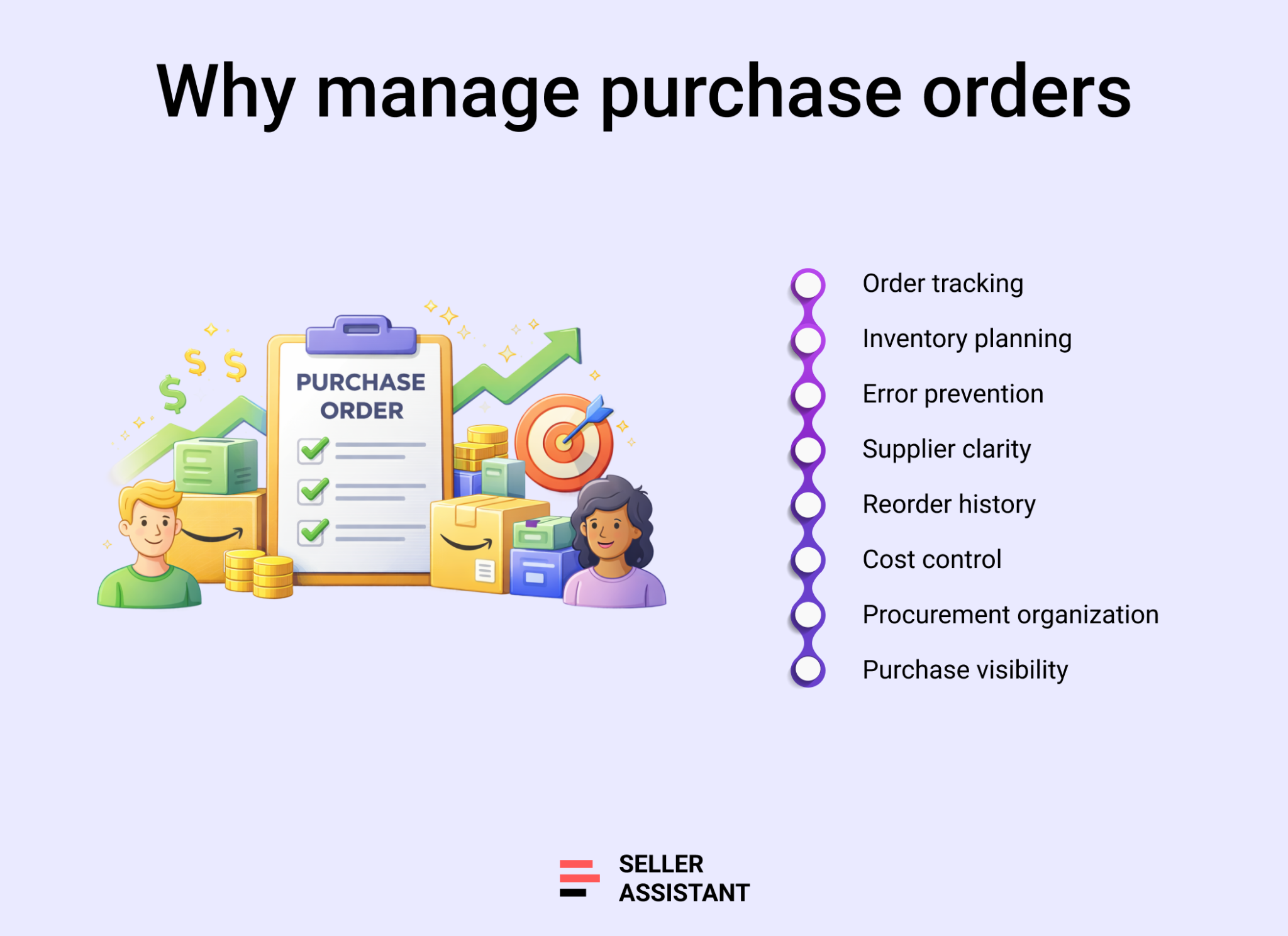
Amazon wholesale sellers often work with multiple suppliers, price lists, and inventory destinations at the same time. Without a structured way to track orders, details quickly get scattered across spreadsheets, emails, and notes. As order volume grows, it becomes difficult to see what products were ordered, what costs were agreed on, and where inventory should be delivered.
Clear order tracking
Each purchase order creates a documented record of the products you requested, including ASINs, quantities, and pricing. This makes it easy to verify what was ordered and avoid confusion with suppliers.
Fewer costly mistakes
Structured POs reduce the risk of ordering the wrong products, incorrect quantities, or shipping inventory to the wrong warehouse or prep center.
Better supplier communication
A purchase order shows suppliers exactly what you expect them to ship. Clear instructions reduce back-and-forth messages and speed up fulfillment.
Reliable reorder history
Every PO becomes part of your sourcing history. When it’s time to restock, you can quickly review previous orders, costs, and quantities.
What is Seller Assistant's Purchase Orders Module
Seller Assistant's Purchase Orders Module is a centralized workspace for creating, managing, and tracking supplier purchase orders in one place. It allows Amazon wholesale, online arbitrage, and dropshipping sellers to organize procurement without relying on spreadsheets or scattered documents.
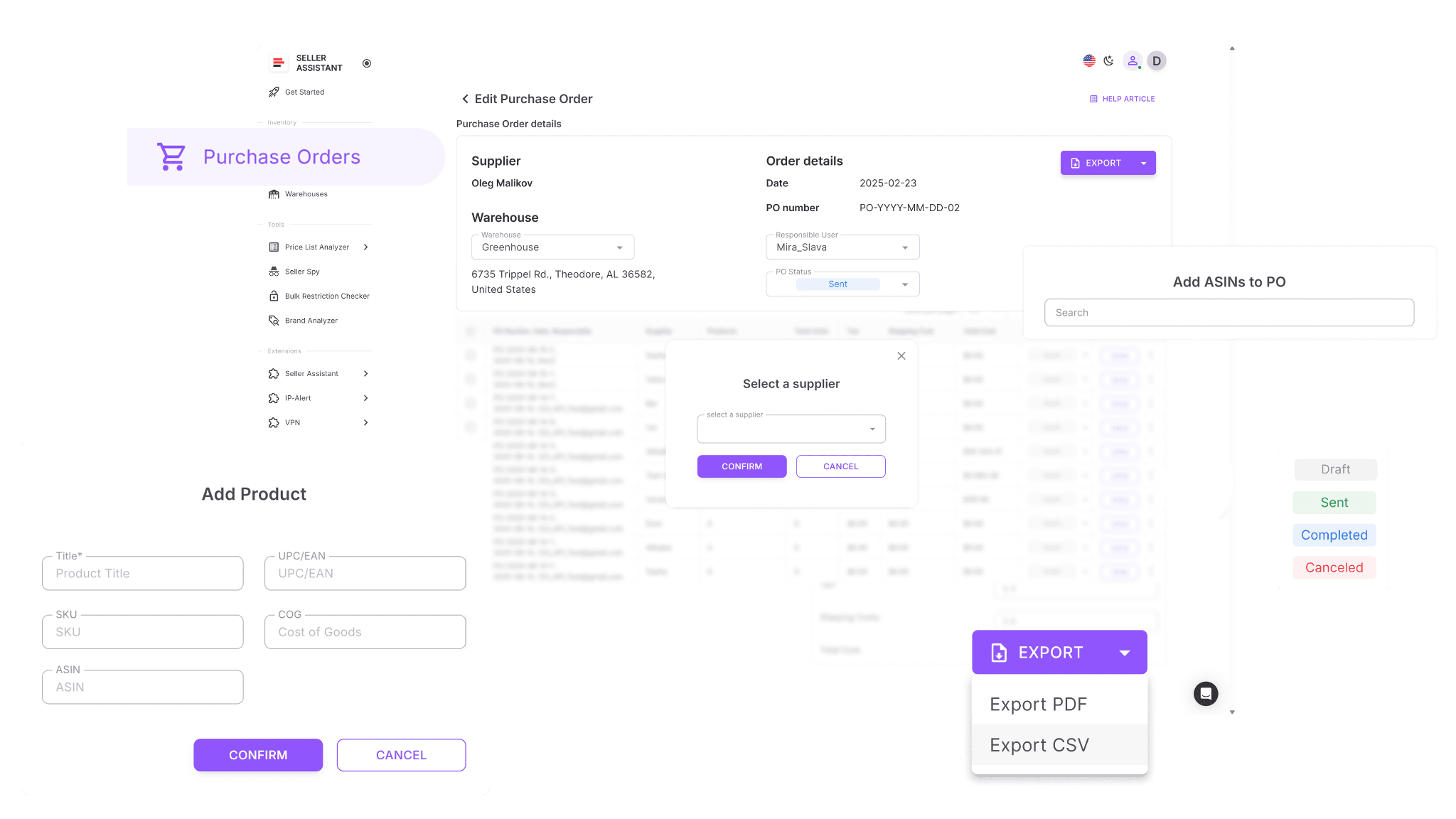
Inside the module, sellers can create purchase orders, add products, assign suppliers and warehouses, manage quantities and costs, and track order status from draft to completion. The system automatically calculates totals, prevents duplicate items, and keeps every order stored in a searchable history. Teams can also collaborate inside the same workspace, ensuring everyone works with the same data.
What the module shows
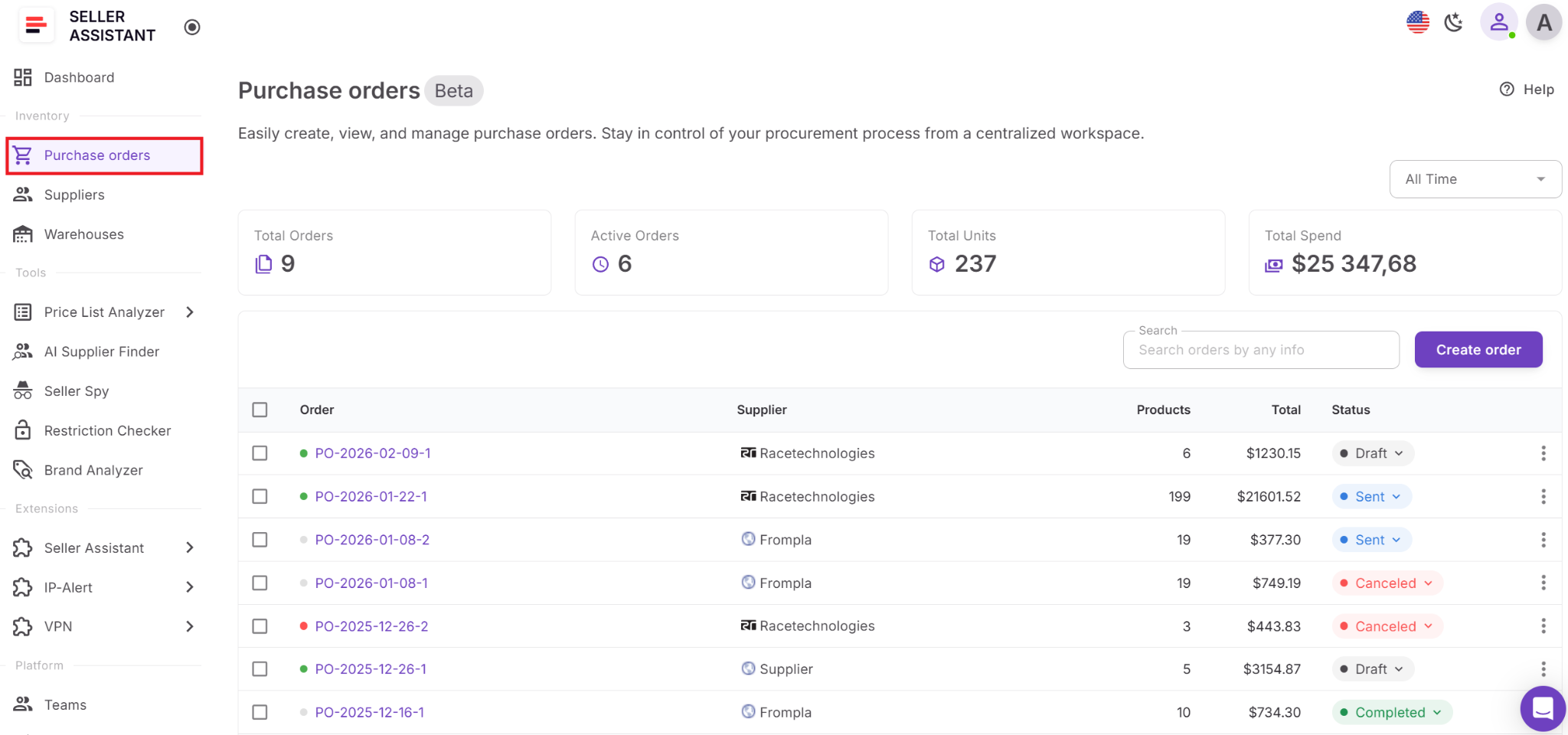
Purchase Orders workspace provides a structured overview of procurement activity. Sellers can view key order information such as suppliers, assigned warehouses, order status, product lists, quantities, and total spend. The module also includes a mini dashboard that summarizes purchase order activity across different time periods, including total orders, active orders, units purchased, and overall spend.
Why it is important
As wholesale operations scale, managing supplier orders manually becomes difficult. Purchase Orders Module keeps procurement organized, reduces ordering errors, and ensures that supplier, product, and warehouse information stays consistent across orders.
How purchase orders support wholesale sourcing
Purchase Orders Module works as the final step in Seller Assistant’s connected wholesale workflow. Instead of creating orders manually after product research, sellers move directly from sourcing and analysis into structured purchasing.
Several Seller Assistant tools feed data into the Purchase Orders Module:
Price List Analyzer – identifies profitable products from supplier price lists and lets you add selected items directly to a purchase order.
Suppliers Database – stores supplier profiles, contact details, and purchasing terms that automatically populate in new POs.
Warehouses Database – keeps prep centers and ship-to locations organized and automatically fills delivery addresses.
Bulk Restriction Checker – verifies that products are eligible to sell before they are added to a purchase order.
Brand Analyzer and AI Supplier Finder – help identify viable brands and legitimate suppliers earlier in the sourcing process.
Because these tools share data, product, supplier, and warehouse information flows automatically into the purchase order. This connected workflow removes repeated data entry and allows Amazon sellers to move from product discovery to purchasing much faster.
What Can You Do with Purchase Orders Module?
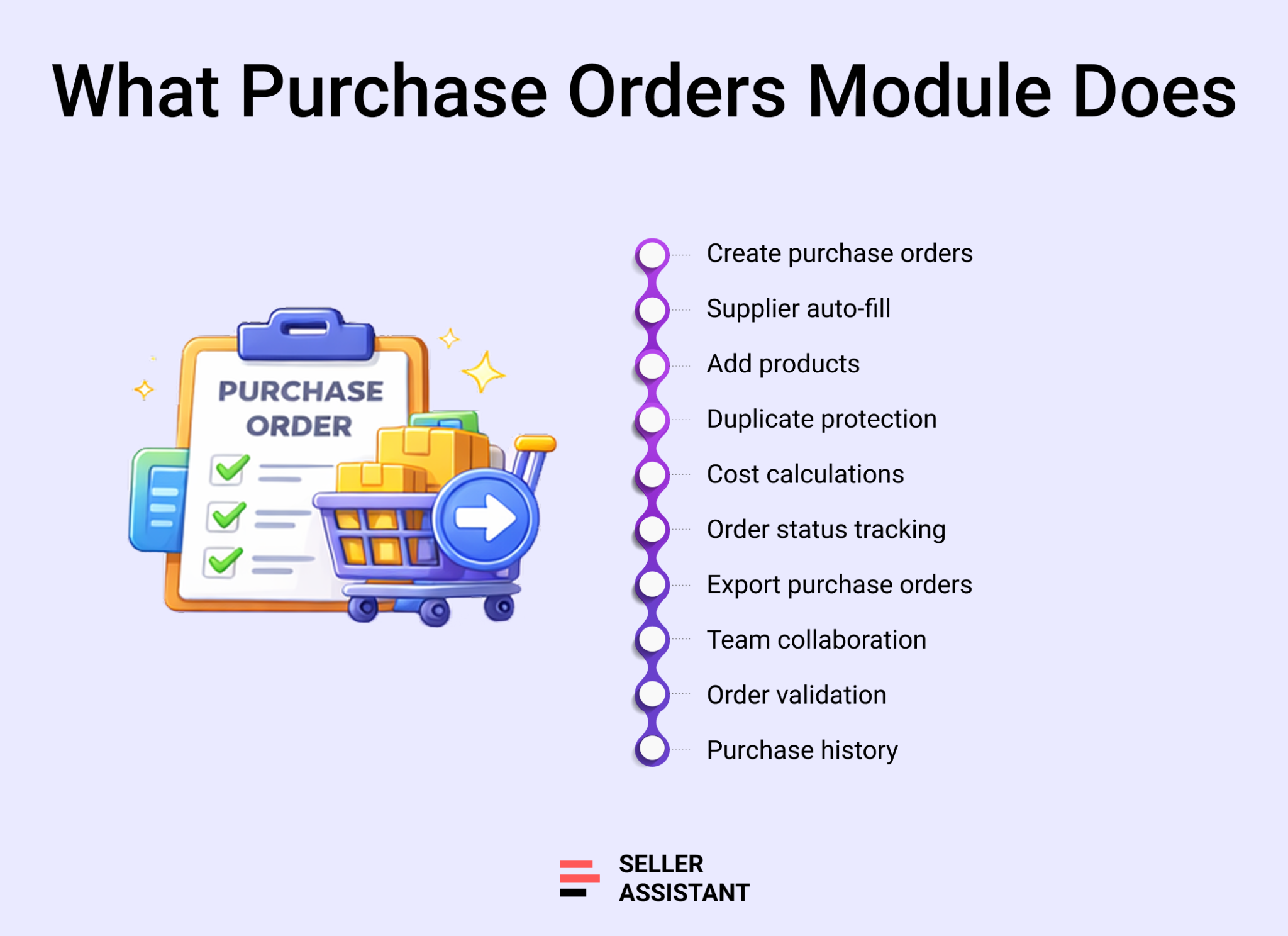
Purchase Orders Module gives Amazon wholesale, online arbitrage, and dropshipping sellers a structured system to create, manage, and track supplier orders. Instead of manually preparing purchase orders in spreadsheets or documents, sellers generate standardized POs inside their sourcing workflow using connected supplier, product, and warehouse data.
The module helps control purchasing as operations grow. It keeps order information organized, automates calculations, prevents duplicate entries, and allows teams to manage supplier orders from one shared workspace. This reduces manual work and ensures that every order follows a consistent structure.
Create purchase orders from analyzed products
Generate purchase orders directly from Price List Analyzer shortlists or create them manually when sourcing products elsewhere.
Auto-fill supplier and warehouse information
Supplier details and shipping destinations are pulled automatically from the Suppliers Database and Warehouses Database, eliminating repeated data entry.
Generate and manage purchase order details
Each PO includes an automatically generated number, creation date, and assigned team member. You can edit these details when needed.
Add products from multiple sources
Products can be added using ASIN, UPC, EAN, brand, or title search, or imported from supplier price lists and previously analyzed data.
Prevent duplicate products in orders
The system detects duplicate SKUs inside the same purchase order and updates the existing item instead of adding it again.
Manage quantities and product costs
Adjust quantities, unit costs, shipping, and tax values while the system recalculates totals automatically.
See complete order cost instantly
The module shows subtotal, shipping costs, taxes, and total order value in real time so you always know the full purchase cost.
Track purchase order status
Each purchase order moves through clear status stages: Draft, Sent, Completed, or Canceled, helping teams track procurement progress.
Protect completed orders from edits
Once an order is marked Completed or Canceled, it becomes locked to prevent accidental changes.
Export purchase orders for suppliers
Orders can be exported as PDF or XLSX files and shared with suppliers as ready-to-send documents.
Assign orders to team members
Purchase orders can be assigned to specific team members, making responsibilities clear when multiple people manage procurement.
Detect missing or incorrect order data
The system flags incomplete information such as missing supplier details or incorrect routing before the order is finalized.
Maintain a searchable order history
All purchase orders remain stored in the system, creating a clear history that helps with reorders, spending analysis, and purchasing forecasts.
How Purchase Orders Module Works
Seller Assistant's Purchase Orders Module turns product sourcing into structured purchasing. Instead of preparing purchase orders in spreadsheets, sellers create and manage them inside Seller Assistant using connected supplier, warehouse, and product data.
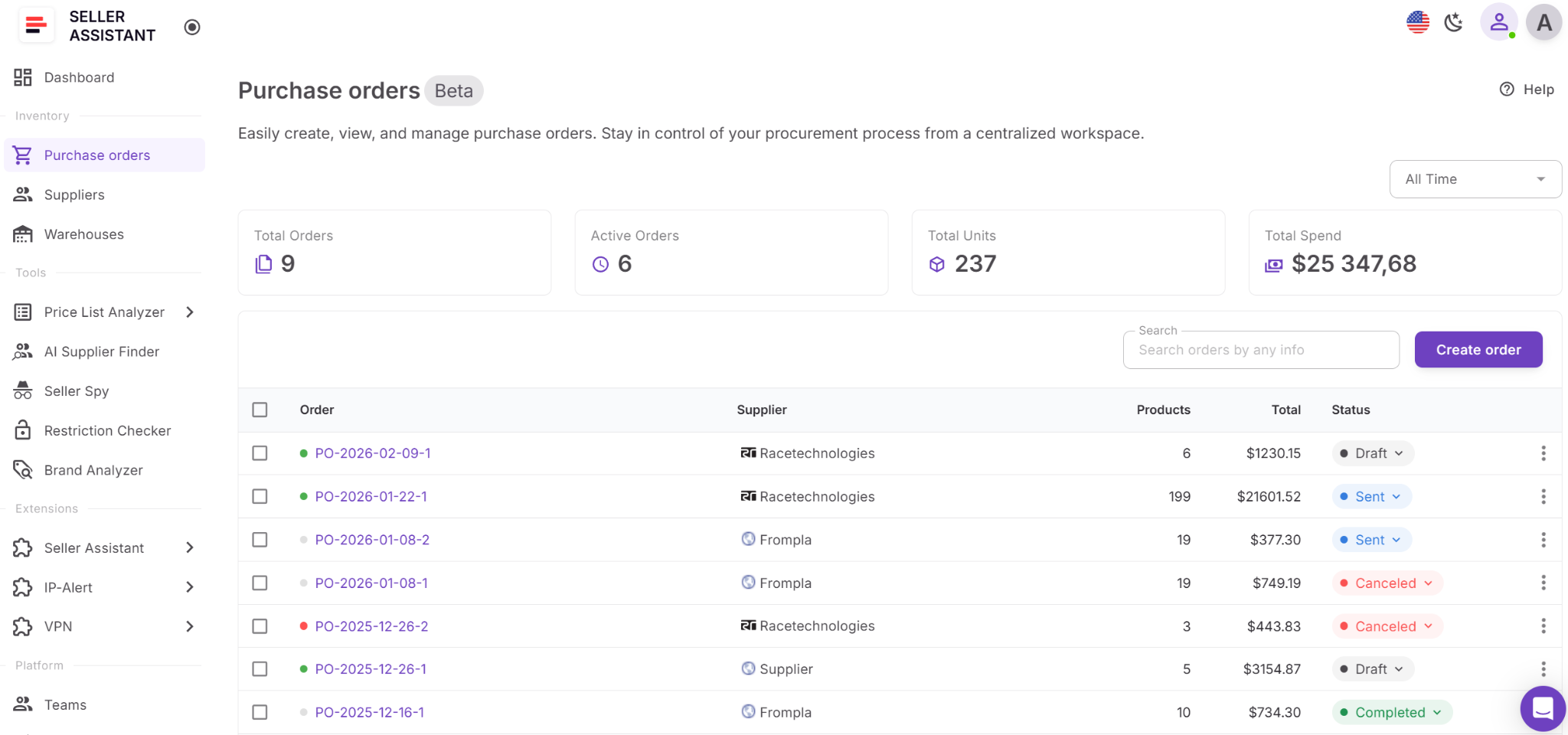
To start, open Purchase Orders in the Inventory section and click Create order. Select an existing supplier or create a new one, and the system automatically generates a draft PO with a unique number. The order opens in the preview screen, where you can add products, assign a warehouse, adjust quantities and costs, and manage order details.
As products are added, the system automatically calculates totals and keeps the order organized. Once the PO is ready, you can change its status and export it to send to your supplier.
Adding products from different sources
Products can be added to a purchase order in several ways, depending on how you source inventory.
- Supplier price lists – browse products from uploaded supplier price lists. The system automatically removes duplicates and shows the latest cost of goods (COG).
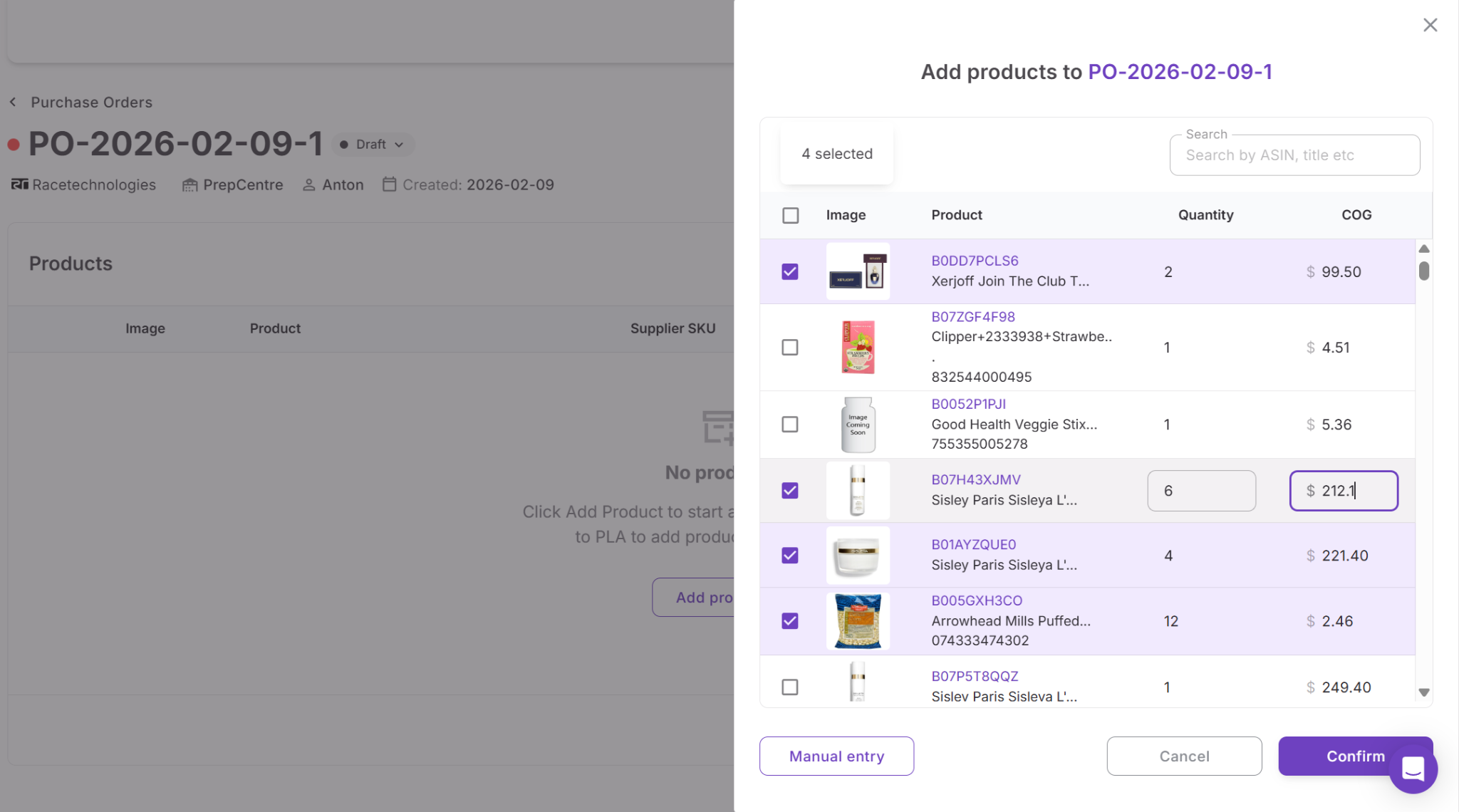
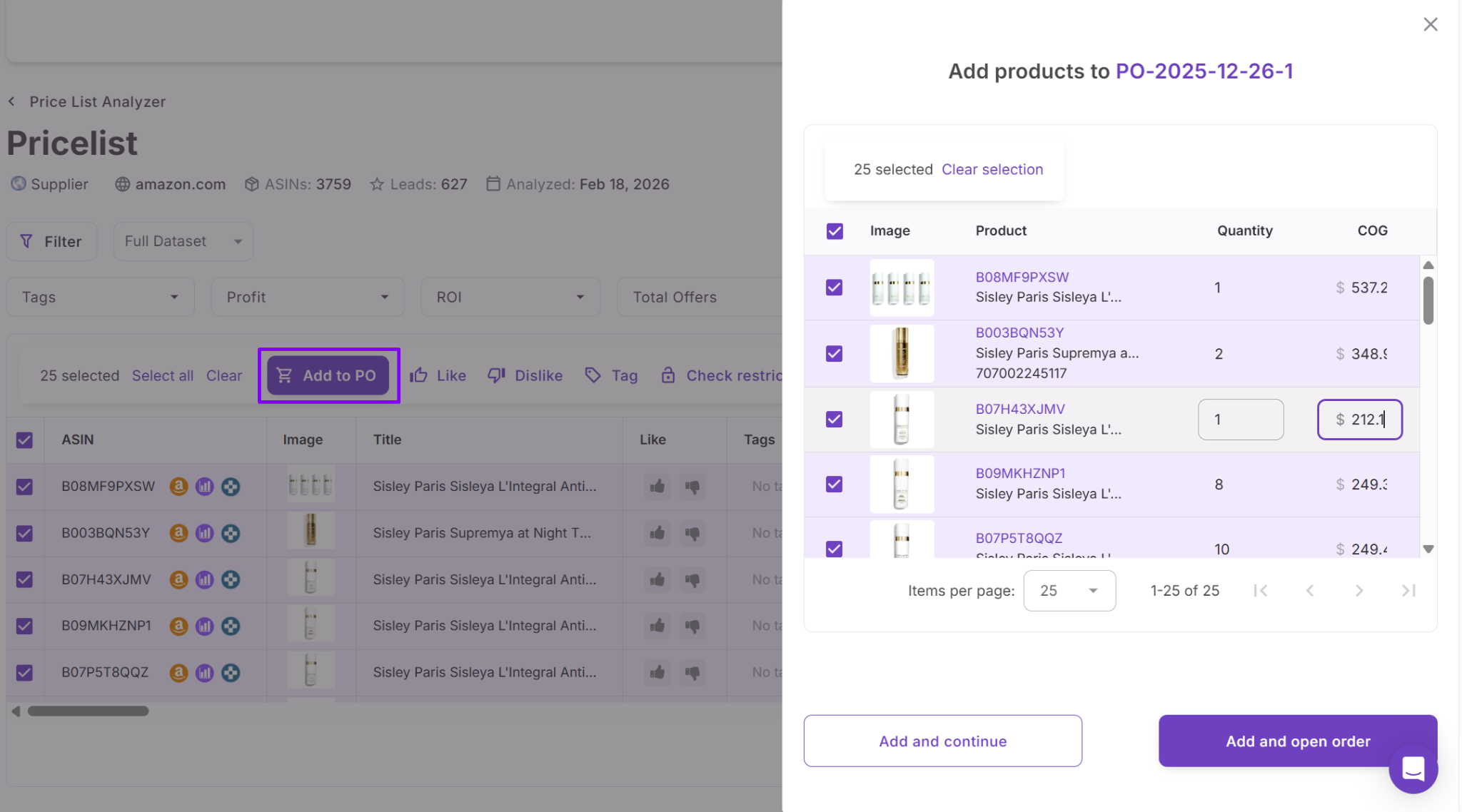
- Price List Analyzer – select profitable items from analyzed price lists and add them directly to a purchase order.
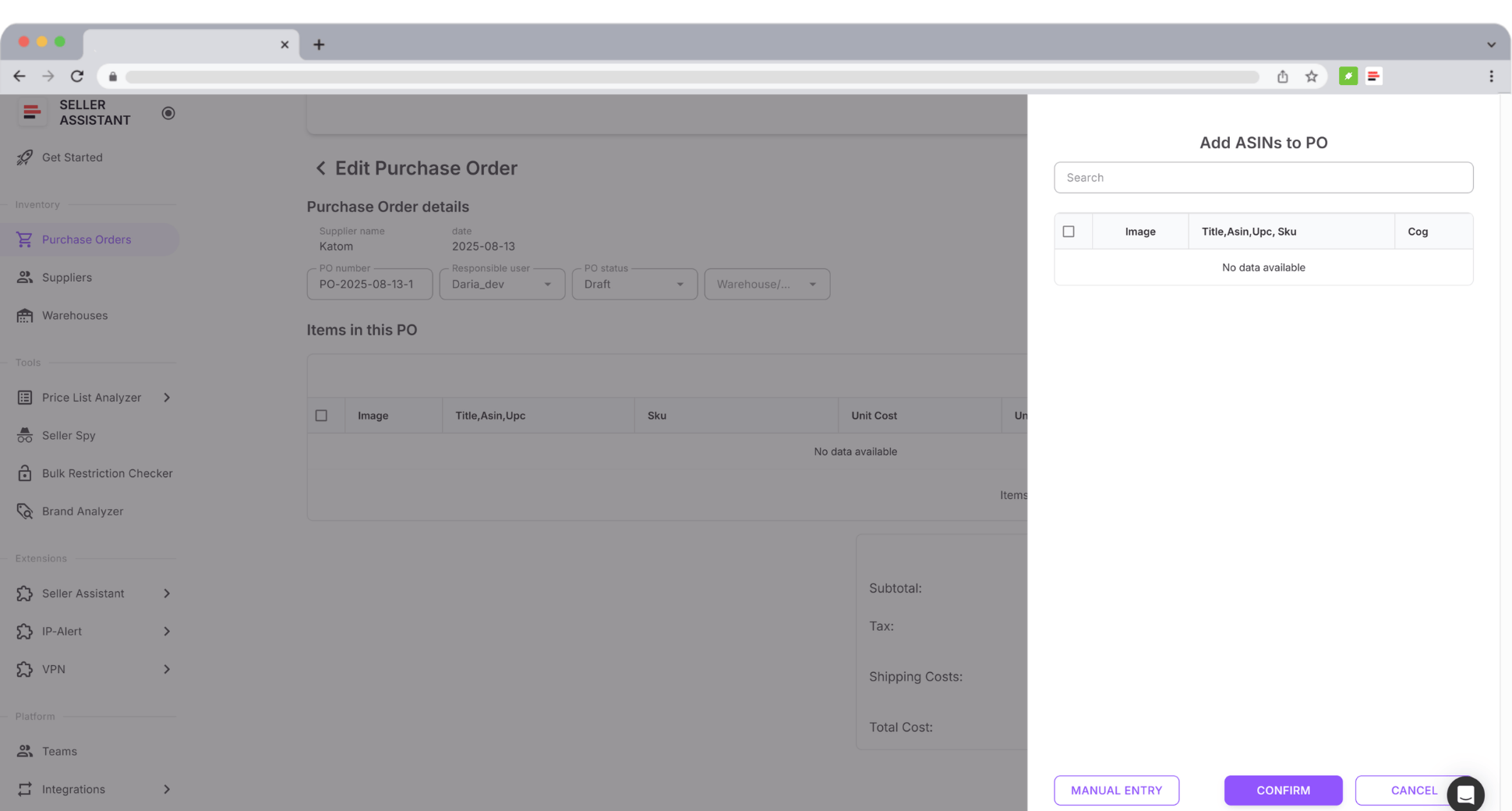
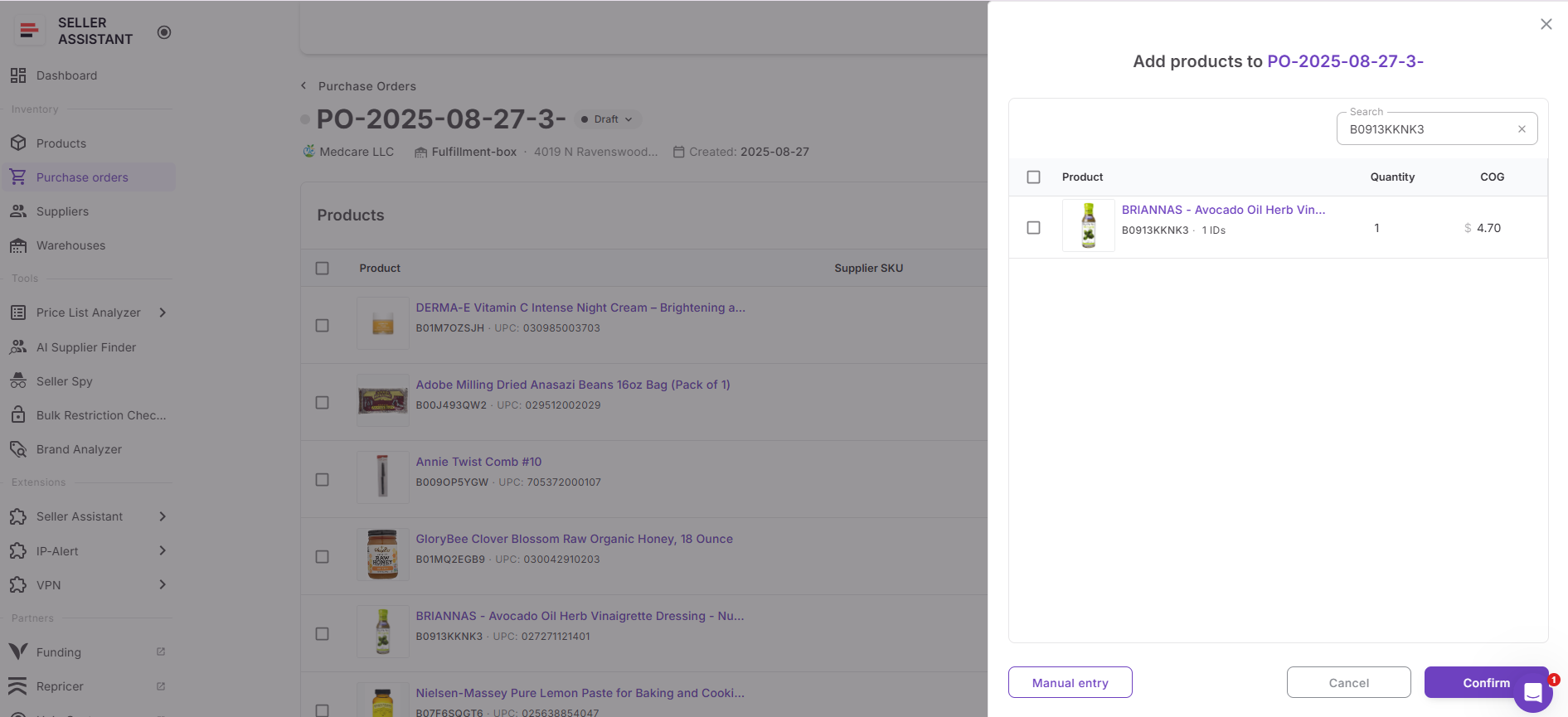
- Product search – find products using ASIN, UPC, EAN, brand, or title, with data pulled instantly through Keepa.
- Team product data – reuse products previously analyzed by your team in Seller Assistant.
- Manual entry – add product information manually if the item is not found in the system.
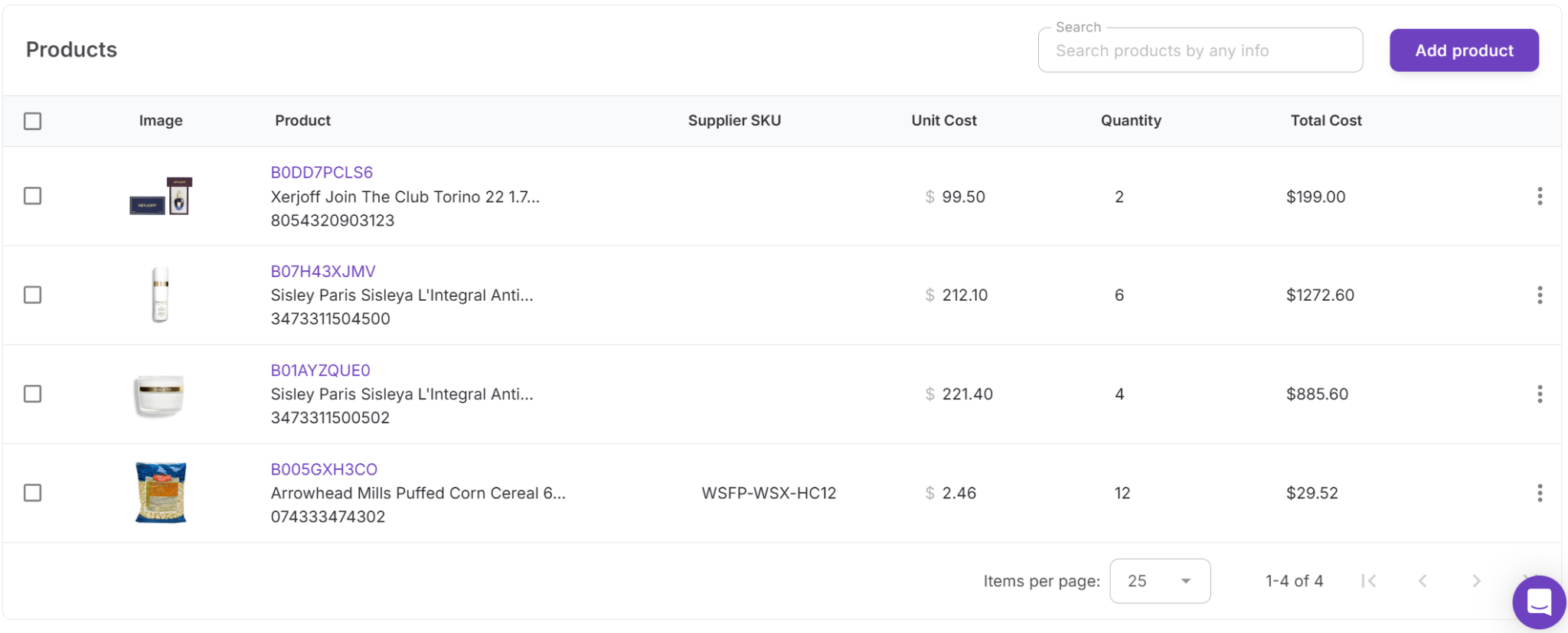
- When a product already exists in the purchase order, the system updates the item instead of creating a duplicate entry.
Using purchase orders module with other Seller Assistant tools
Purchase Orders Module works as part of Seller Assistant’s connected wholesale workflow. Several tools provide data that automatically flows into purchase orders.
Price List Analyzer – identifies profitable products and allows you to add them directly to a purchase order.
Suppliers Database – stores supplier profiles and purchasing terms that automatically populate in new POs.
Warehouses Database – provides default shipping locations and prep center addresses used in purchase orders.
Bulk Restriction Checker – helps verify product eligibility before items are included in a purchase order.
Because these tools share data, sellers can move from product research to purchasing without repeating manual data entry.
Metrics shown in Purchase Orders Module
The module also includes a mini dashboard that provides an overview of purchasing activity across different time periods such as the last 7 days, 30 days, 90 days, 12 months, or all time.
The dashboard shows key procurement metrics including:
- Total orders
- Active orders
- Total units ordered
- Total spend
These metrics help sellers track purchasing volume, monitor procurement activity, and review spending trends across suppliers.
How to use Purchase Orders Module Step by Step
Seller Assistant makes purchase order creation straightforward. You start by choosing a supplier, then build the order in the preview screen by adding products, checking costs, and confirming delivery details. Once everything looks correct, you update the order status and export the PO for your supplier.
Step 1. Open purchase orders
Log in to your Seller Assistant account and go to Inventory in the left sidebar. Open Purchase Orders to access the module dashboard and your existing orders.
Step 2. Create a new order
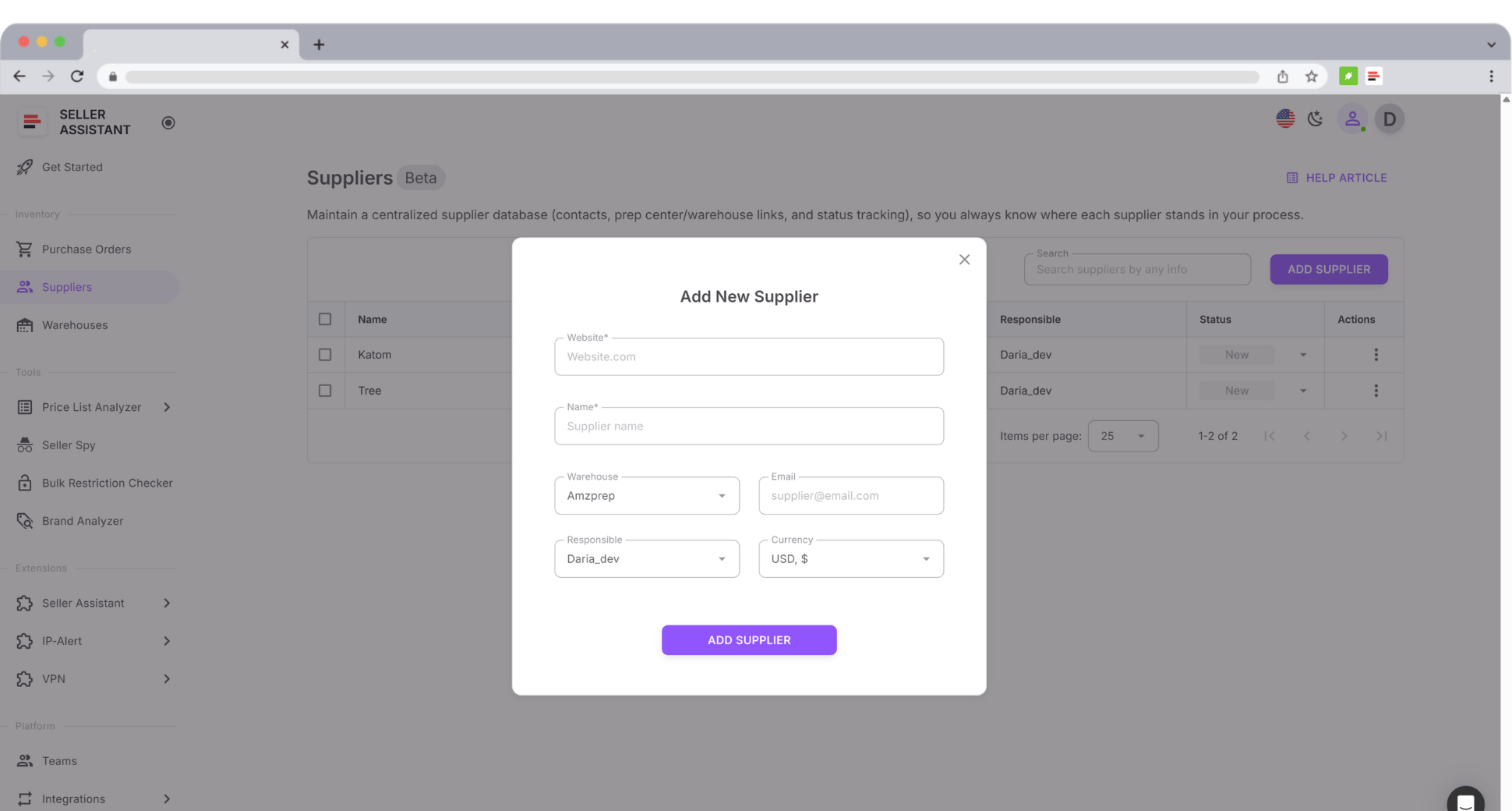
Click Create order. In the pop-up window, choose an existing supplier or create a new one. After that, click Confirm. Seller Assistant creates a new draft purchase order and opens it in the preview screen.
Step 3. Review purchase order details
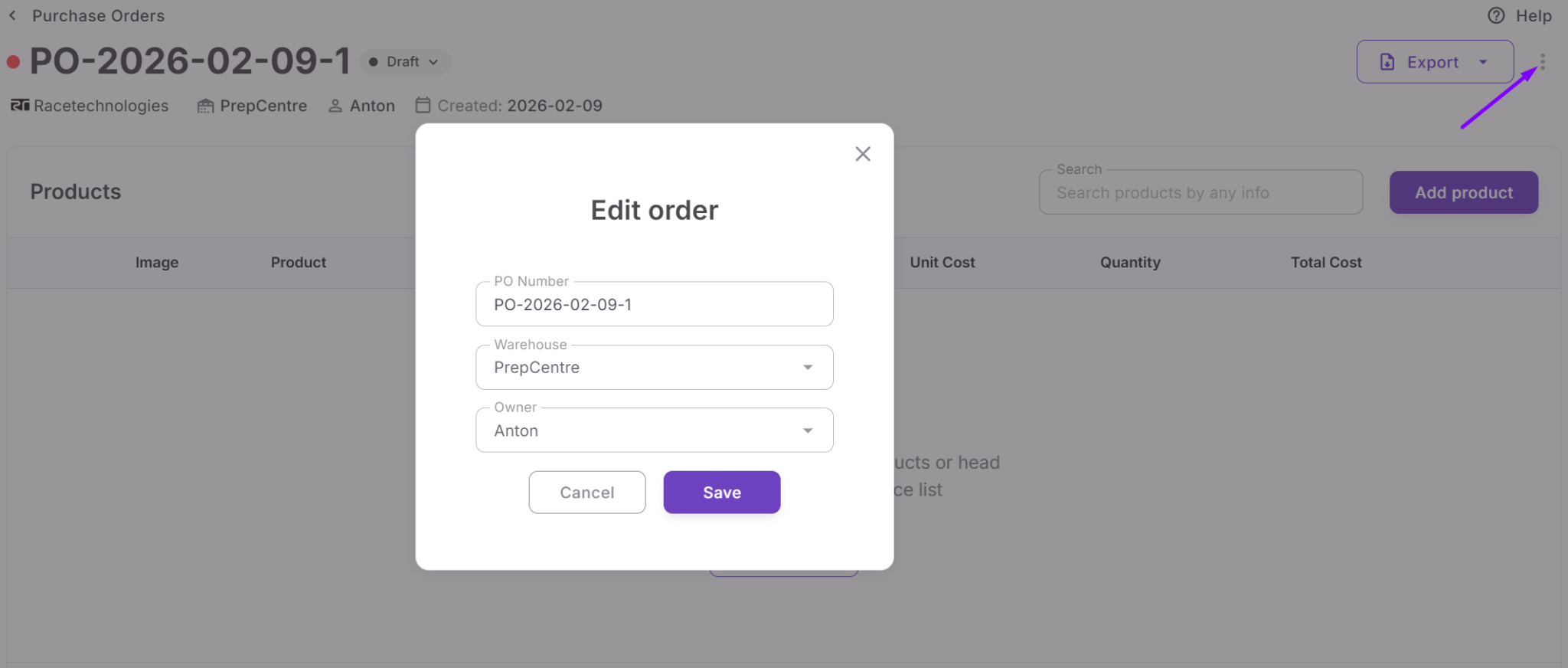
In the purchase order information section, check the core fields:
- Supplier
- Warehouse
- Owner
- Created date
- PO number
- PO status
The system generates the PO number automatically, but you can edit it if needed. You can also update the assigned warehouse or owner from the action menu.
Step 4. Check progress toward supplier thresholds
Look at the progress indicator in the preview screen. It shows whether your order is moving toward minimum order value and free shipping thresholds. The indicator changes from red to orange to green as you get closer to the target.

Step 5. Add products to the order
Click Add product and choose the best source for your workflow. You can add products from:
- Uploaded supplier price lists
- Price List Analyzer
- Team analyzed product data
- Keepa search using ASIN, UPC, EAN, brand, or title
- Manual entry
If a product is already in the PO, Seller Assistant updates the existing line instead of adding a duplicate.
Step 6. Edit quantities and costs
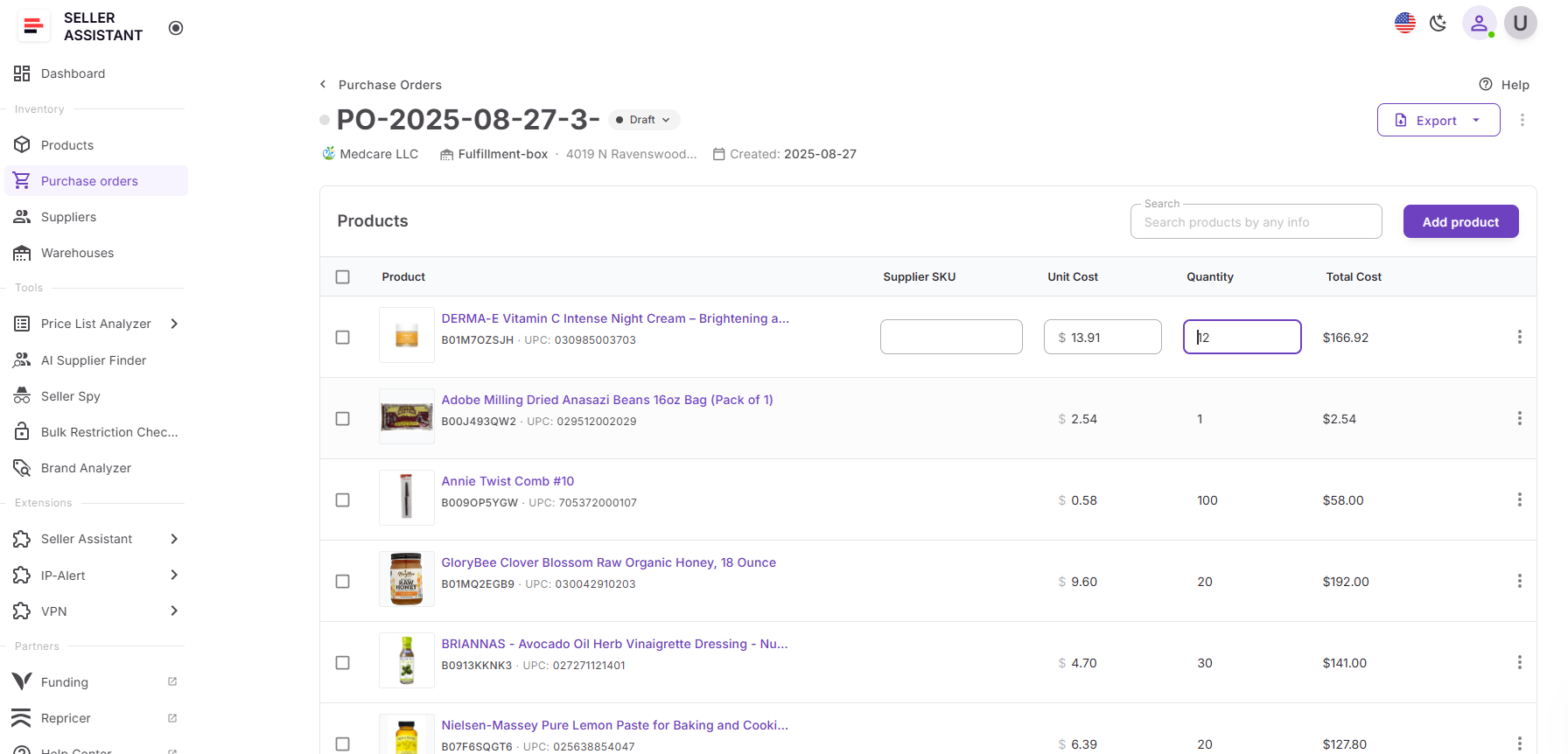
After adding products, review each line in the products table.
Update:
- Quantity
- Unit cost
- Supplier SKU, if needed
If the item comes from a linked price list, the unit cost can be filled automatically. If added from other sources, cost may start at zero and need manual input.
Step 7. Review the cost summary
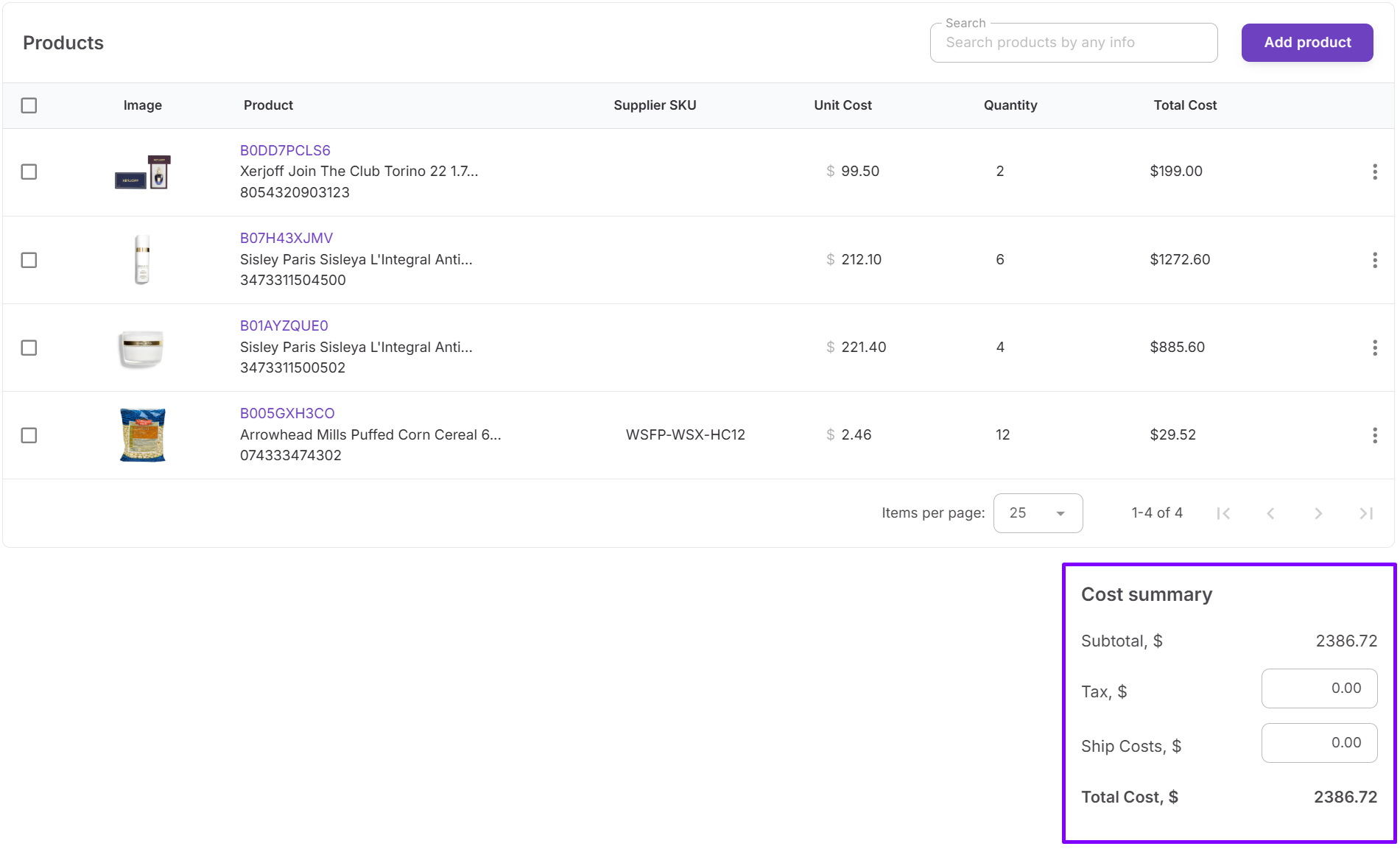
Use the Cost summary panel to confirm the full order value. The module shows:
- Subtotal
- Tax
- Ship Costs
- Total Cost
Totals update automatically as you change quantities, costs, shipping, or tax.
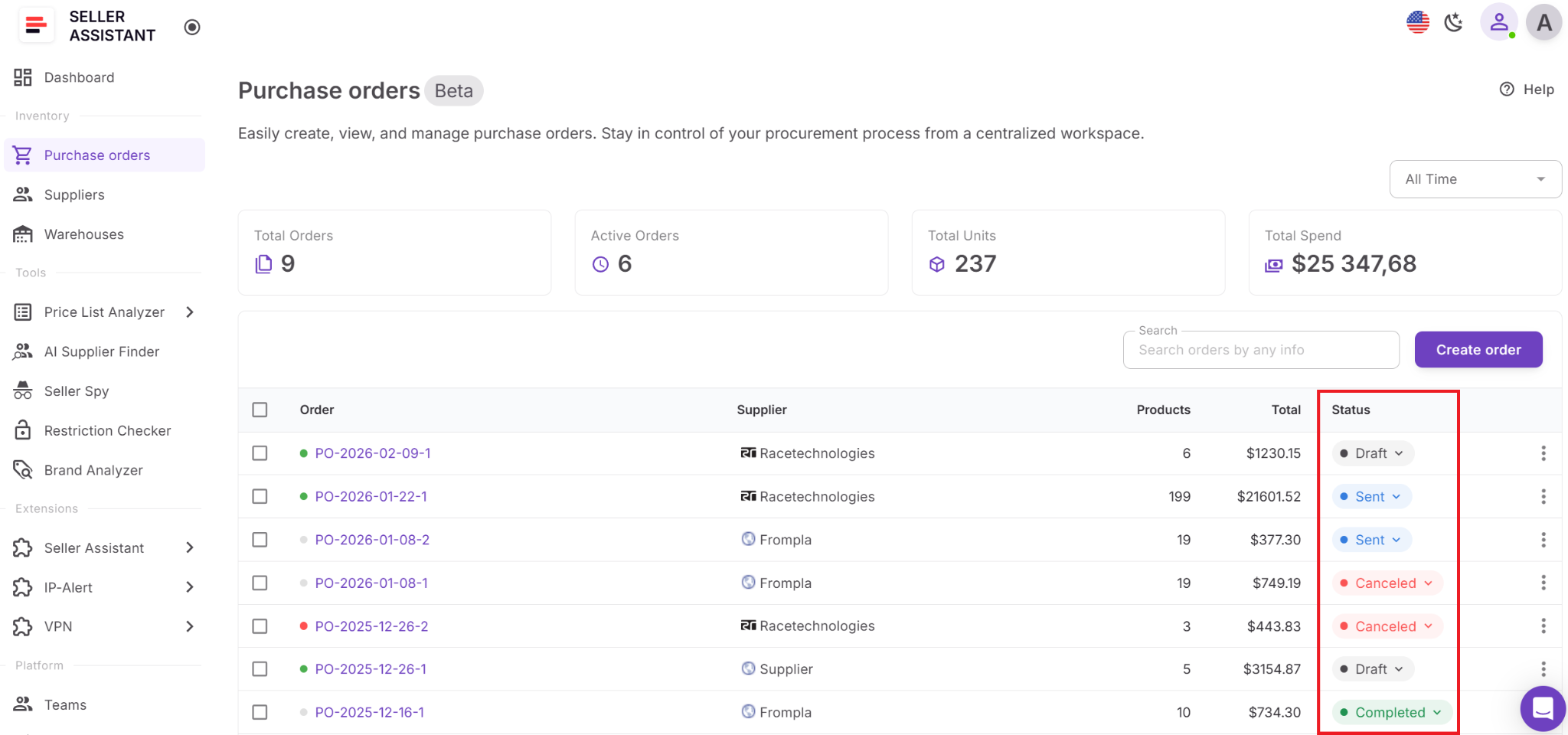
Step 8. Set the right order status
When the order is still being prepared, it stays in Draft. After you send it to the supplier, change the status to Sent. Later, update it to Completed when the order is fulfilled, or Canceled if it will not go through.
Keep in mind:
- Once a PO leaves Draft, it cannot return to Draft
- Completed and Canceled orders are locked from editing
Step 9. Export the purchase order
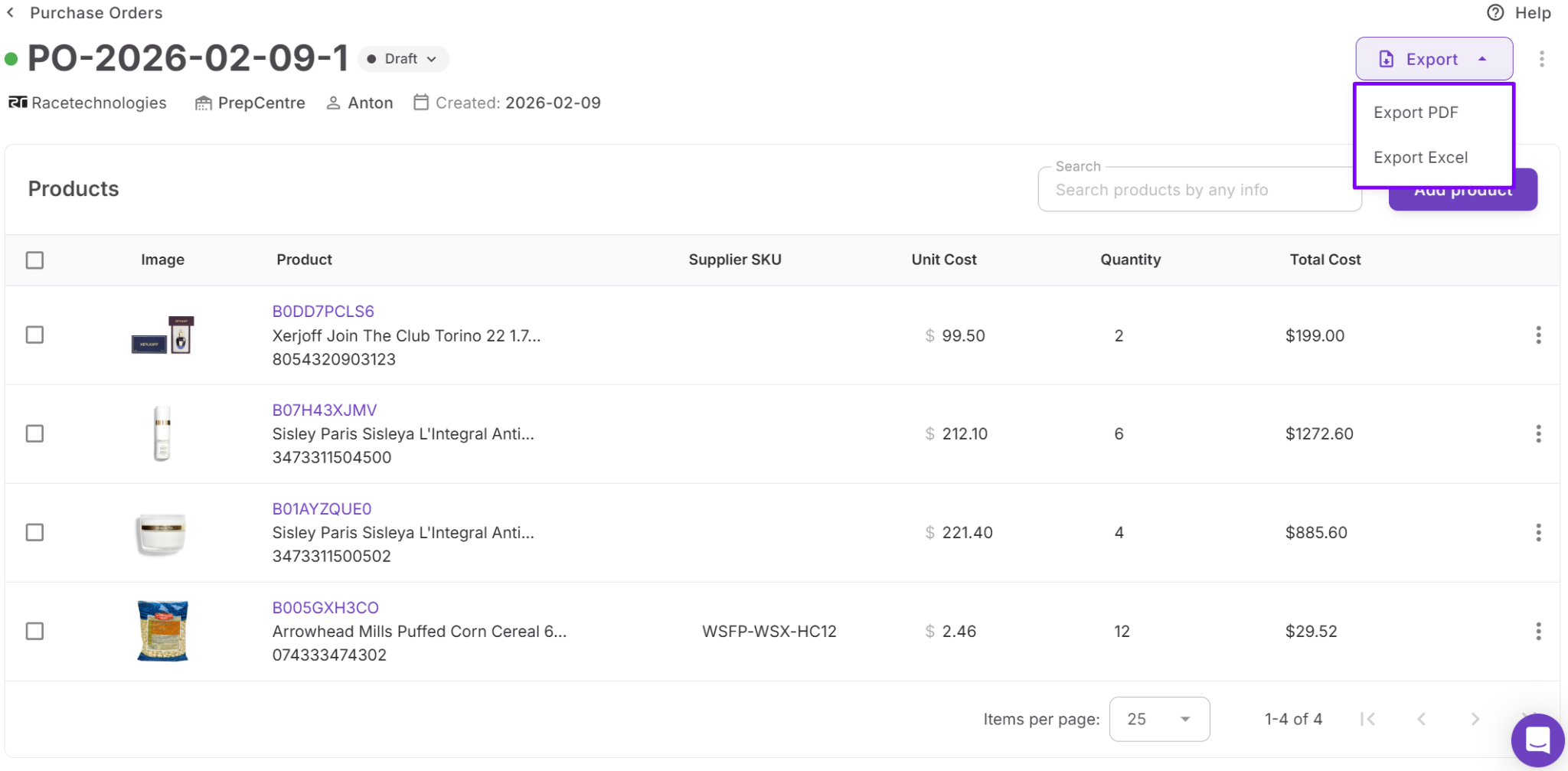
When the PO is ready, export it in the format you need:
- Excel
This gives you a clean file to send to your supplier or share with your team.
Step 10. Track and reuse order history
All purchase orders stay saved inside the module, so you can review previous orders, monitor spending, and use past POs as a reference for reorders. This makes purchasing easier to track as your supplier network grows.
FAQ
Do Amazon sellers need purchase orders for wholesale sourcing?
Yes, purchase orders help Amazon wholesale sellers clearly document what products they are ordering, including quantities, prices, and delivery details. This reduces confusion with suppliers and keeps procurement organized as order volume grows.
Can you create purchase orders inside Amazon Seller Central?
No, Seller Central does not include a built-in purchase order management system. Most sellers use external tools like Seller Assistant or their own templates to create and manage POs.
Can you add products to a purchase order from a supplier price list?
Yes, Seller Assistant allows you to add products directly from Price List Analyzer or uploaded supplier price lists. This lets you move profitable products from analysis to purchasing without copying data manually.
What purchase order statuses are available in Seller Assistant?
Purchase orders can have four statuses: Draft, Sent, Completed, and Canceled. These statuses help track order progress and keep teams aligned on which orders are still in progress.
Can teams or virtual assistants manage purchase orders together?
Yes, purchase orders are shared across the team workspace in Seller Assistant. This allows team members or VAs to create, edit, and track orders without losing visibility or duplicating work.
Final Thoughts
Purchase orders are a critical part of running a structured Amazon wholesale operation. As supplier lists grow and order volume increases, relying on spreadsheets or scattered documents makes procurement harder to manage and increases the risk of costly mistakes.
Seller Assistant's Purchase Orders Module replaces manual workflows with a centralized system where suppliers, products, and warehouses are already connected. Sellers can create purchase orders faster, track order status, manage costs, and keep a complete purchasing history in one place.
Seller Assistant automates and connects every stage of your Amazon wholesale and arbitrage workflow. It brings together in one platform: workflow management tools – Purchase Orders Module, Supplier Database, Warehouse Database, bulk research & sourcing tools – Price List Analyzer, Bulk Restriction Checker, AI Supplier Finder, Brand Analyzer, Seller Spy, Chrome extensions – Seller Assistant Browser Extension, IP-Alert Extension, and built-in VPN by Seller Assistant, and integrations & team access features – seamless API connectivity, integrations with Zapier, Airtable, and Make, and Virtual Assistant Accounts.