.svg)
Best Amazon Wholesale Workflow Tools
Download Amazon Seller Guide
This guide will help you get started, understand the basics of Amazon selling, and explain in simple words how it all works.

Running a profitable Amazon wholesale business isn’t about finding one winning ASIN. It’s about building a system that can handle suppliers, price lists, eligibility checks, routing rules, and purchase orders without breaking.
Seller Assistant workflow tools stand out because they don’t solve just one part of sourcing – they connect every stage of the wholesale workflow in one platform. From bulk product analysis and brand validation to supplier discovery, restriction checks, warehouse routing, and PO creation, each tool feeds the next.
Instead of juggling spreadsheets and disconnected software, you get one structured, all-in-one workflow built specifically for Amazon resellers who want to scale with control.
Note. Seller Assistant is an end-to-end Amazon workflow management platform that integrates 10+ wholesale-focused solutions into one connected system. It combines sourcing workflow automation, bulk research and intelligence tools, and integrated Chrome extensions – giving you everything you need to streamline finding deals, managing suppliers, and creating purchase orders.

The platform aggregates: workflow management tools – Purchase Orders Module, Suppliers Database, Warehouses Database to organize, automate, and scale every step of your wholesale and arbitrage operations; bulk research & sourcing tools – Price List Analyzer, Bulk Restriction Checker, Sourcing AI, Brand Analyzer, Seller Spy to evaluate supplier price lists, verify selling eligibility and restrictions, open new brands, and discover winning product ideas from competitors to expand your product catalog; Chrome extensions – Seller Assistant Browser Extension, IP-Alert Extension, and built-in VPN by Seller Assistant to deep-research products, check IP claims and compliance, and access geoblocked supplier sites directly within your browser; and integrations & team access features – seamless API connectivity and integrations with Zapier, Airtable, and Make, plus Virtual Assistant Accounts for secure, scalable team collaboration.
With Seller Assistant, every step of your Amazon wholesale and arbitrage workflow is automated and connected.
What Tools Power Seller Assistant Wholesale Workflow?
Seller Assistant provides a connected suite of wholesale tools built specifically for Amazon resellers who source and buy in bulk. Instead of relying on spreadsheets, manual ASIN checks, and scattered notes, sellers manage the entire workflow – from product research to purchase order – inside one structured system.
These tools support the daily operations of wholesale sellers, online arbitrage resellers, and dropshippers: analyzing supplier price lists, validating brands, checking selling eligibility, discovering legitimate suppliers, organizing contacts, routing inventory, and generating purchase orders.
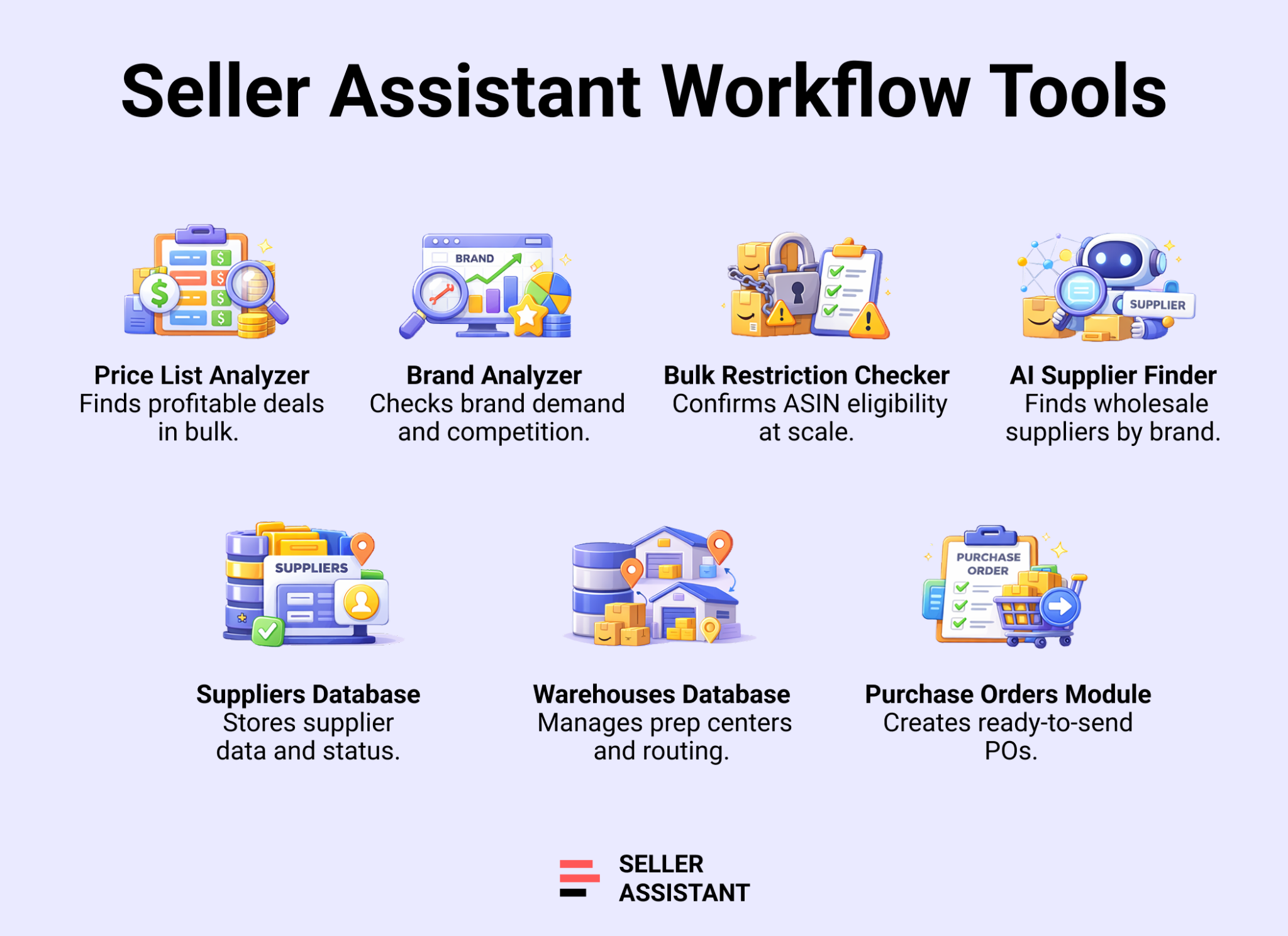
The core toolset includes:
- Price List Analyzer – scans large supplier files and surfaces profitable, low-risk ASINs at scale.
- Brand Analyzer – evaluates brand demand, competition, and catalog strength before outreach.
- Bulk Restriction Checker – confirms your account’s eligibility for thousands of ASINs in one run.
- AI Supplier Finder – identifies brand owners, distributors, and wholesalers prioritized for resale.
- Suppliers Database – centralizes supplier profiles, terms, and outreach stages.
- Warehouses Database – manages prep centers and ship-to routing logic.
- Purchase Orders Module – converts approved products into structured, ready-to-send POs.
Each tool solves a specific sourcing bottleneck. Together, they eliminate duplicated data entry and disconnected decisions. Product analysis feeds brand validation. Brand validation connects to supplier discovery. Approved products move directly into purchase orders with supplier and warehouse data already filled in.
For Amazon sellers managing multiple suppliers, price lists, and team members, this connected workflow is essential. It creates consistency, reduces compliance mistakes, protects margins, and makes scaling predictable instead of chaotic.
Automated Wholesale Workflow – from Brand Research to Purchase Order
Seller Assistant automates every repeatable part of wholesale. Supplier negotiations still require your input, but brand validation, eligibility checks, supplier discovery, bulk analysis, routing, and PO creation move through one connected system.
Each stage feeds the next – no duplicate entry, no spreadsheet gaps, no broken processes.
Step 1. Validate brand opportunity
Tool used
Assess catalog depth, demand, competition, and Amazon presence to confirm the brand supports profitable resale.
Step 2. Confirm account eligibility
Tool used
Scan ASIN lists against your account permissions to identify gated, restricted, or sellable products before investing further.
Step 3. Secure legitimate supply sources
Tool used
Locate manufacturers, authorized distributors, and wholesalers while filtering out retail stores and marketplaces.
Step 4. Centralize supplier management
Tool used
Store contact details, terms, outreach stages, and team assignments in one structured system.
Step 5. Automate inventory routing
Tool used
Assign prep centers and default ship-to locations to ensure purchase orders route correctly every time.
Step 6. Run bulk profitability analysis
Tool used
Upload supplier files, match ASINs, calculate ROI and fees, evaluate competition, and shortlist profitable SKUs at scale.
Step 7. Generate structured purchase orders
Tool used
Convert approved products into ready-to-send purchase orders with supplier and warehouse data auto-filled and totals calculated instantly.
How Brand Analyzer Supports Wholesale Sourcing
Brand research without guesswork
Brand Analyzer is an Amazon brand research tool that helps wholesale sellers, online arbitrage sellers, and dropshippers decide if a brand is worth reselling before investing time or capital. Instead of manually browsing Amazon listings and estimating demand, you enter a brand name and receive a structured overview of its marketplace performance.
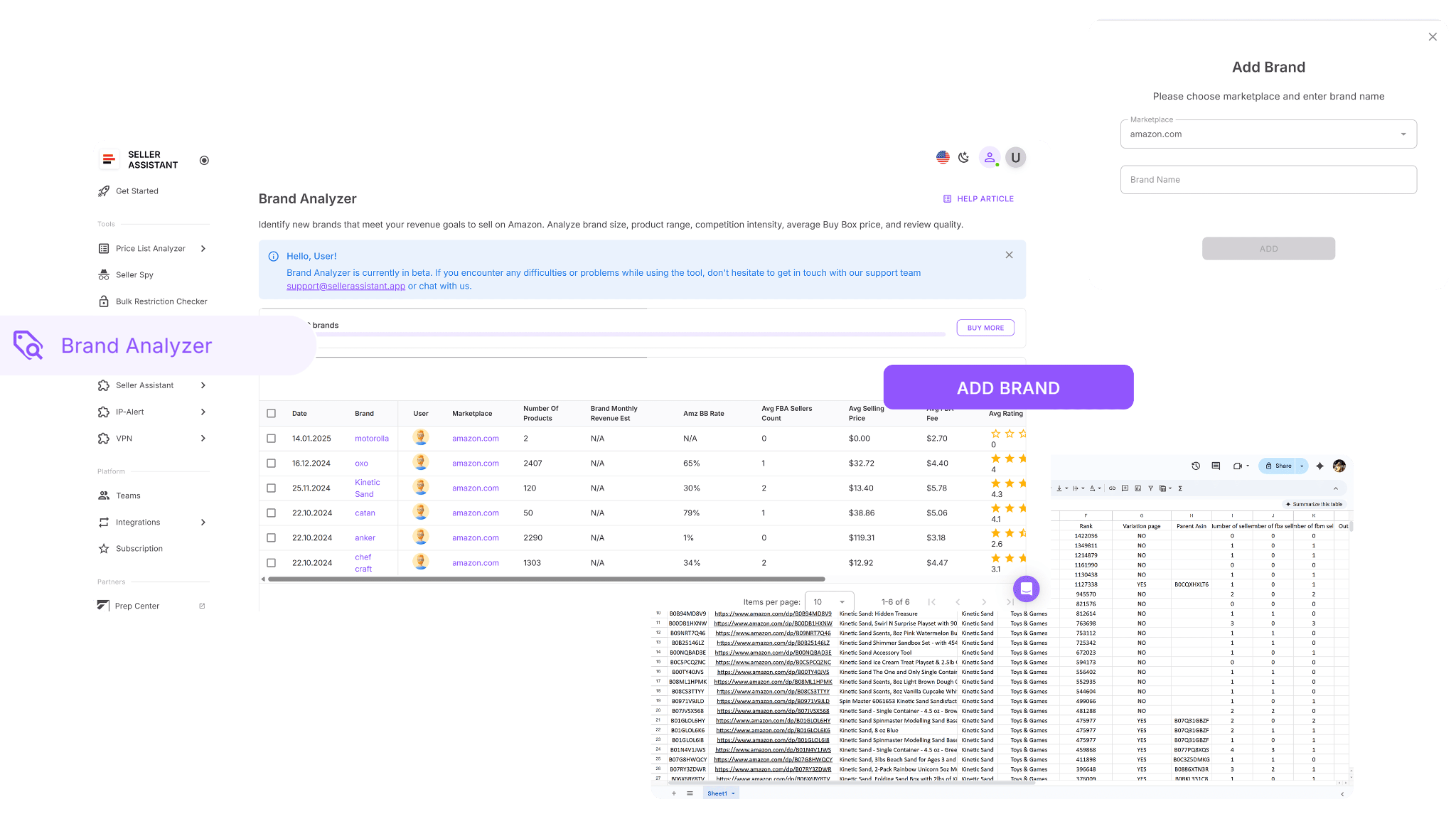
The tool highlights catalog size, revenue potential, competition intensity, pricing levels, and customer trust signals. This makes it easier to eliminate weak or saturated brands early and focus on brands that meet your margin and competition standards.
What Brand Analyzer shows
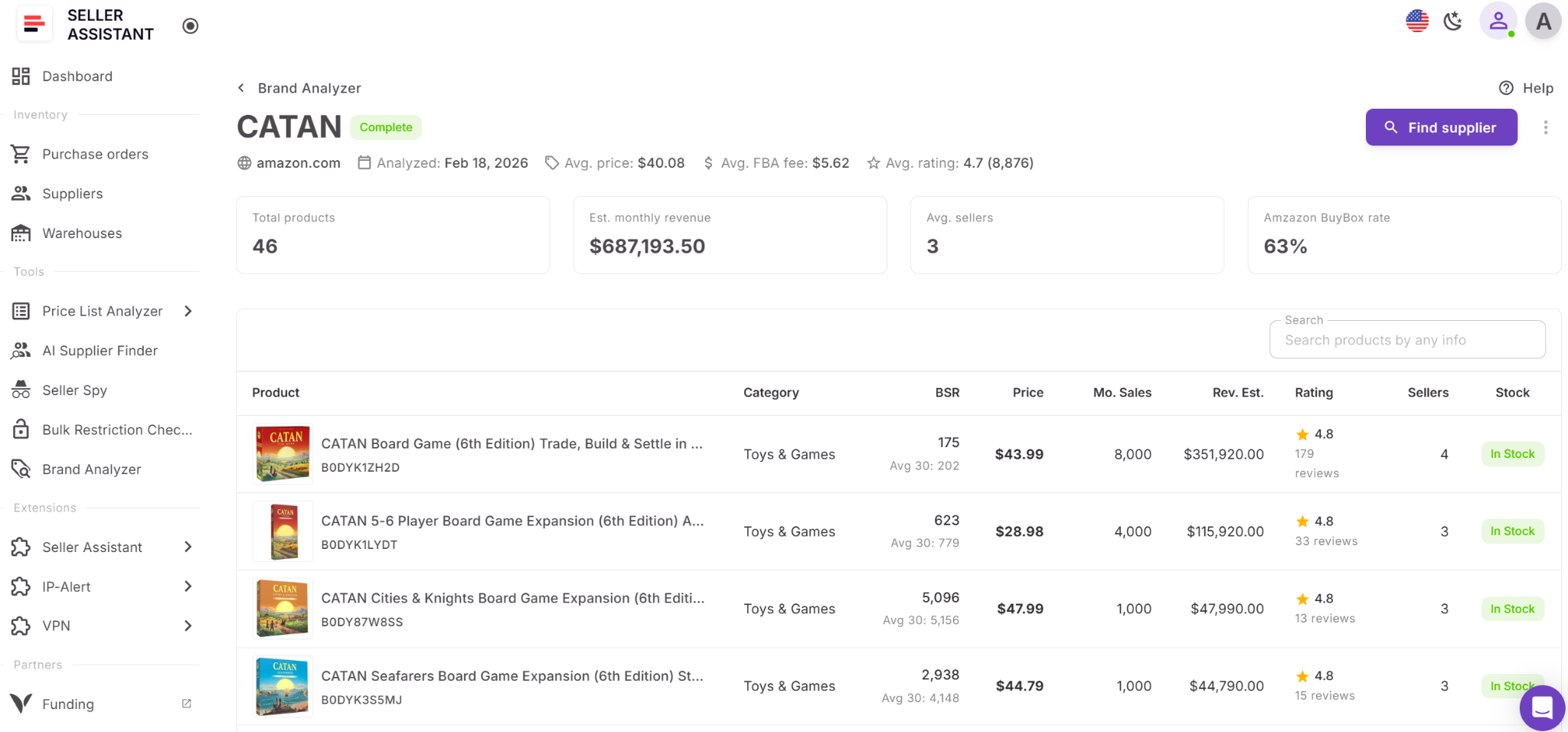
Brand Analyzer provides a clear, data-backed brand snapshot:
- Determine if a brand supports resale before contacting suppliers
- Replace manual catalog browsing with automated research
- Measure brand scale by total ASIN count
- Estimate monthly revenue across the full portfolio
- Review average FBA seller count per ASIN to assess competition
- Analyze Amazon Buy Box share to understand Amazon’s presence
- View average Buy Box prices for margin planning
- Examine average FBA fees to evaluate cost structure
- Assess customer trust through ratings and total reviews
- Access a consolidated dashboard covering revenue, pricing, competition, in-stock rate, and brand reputation
- Export a complete XLS file with all brand ASINs and detailed metrics for deeper filtering
How to use Brand Analyzer
Step 1. Open Brand Analyzer
Log in to your Seller Assistant account, go to Tools, and select Brand Analyzer. Click Add brand to begin.
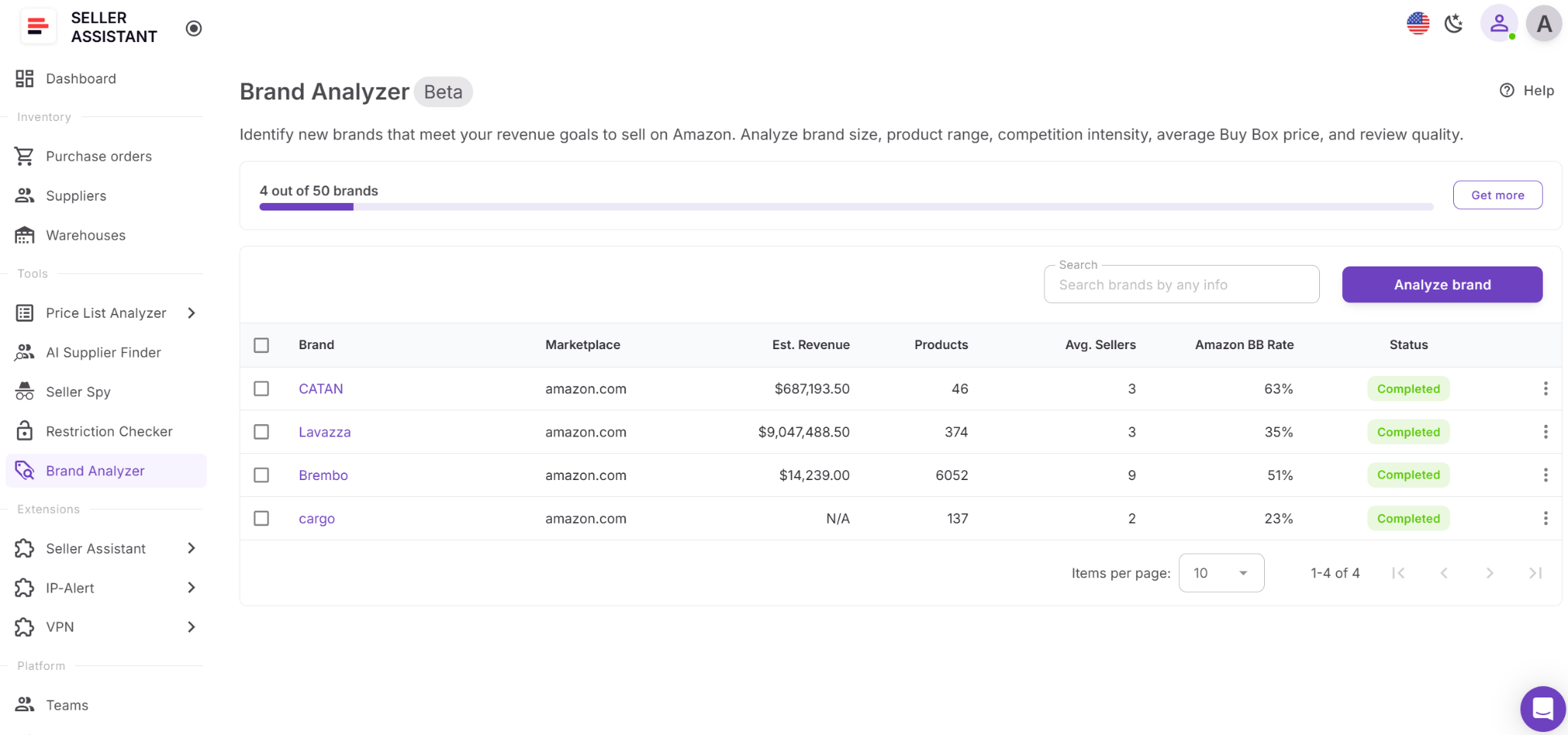
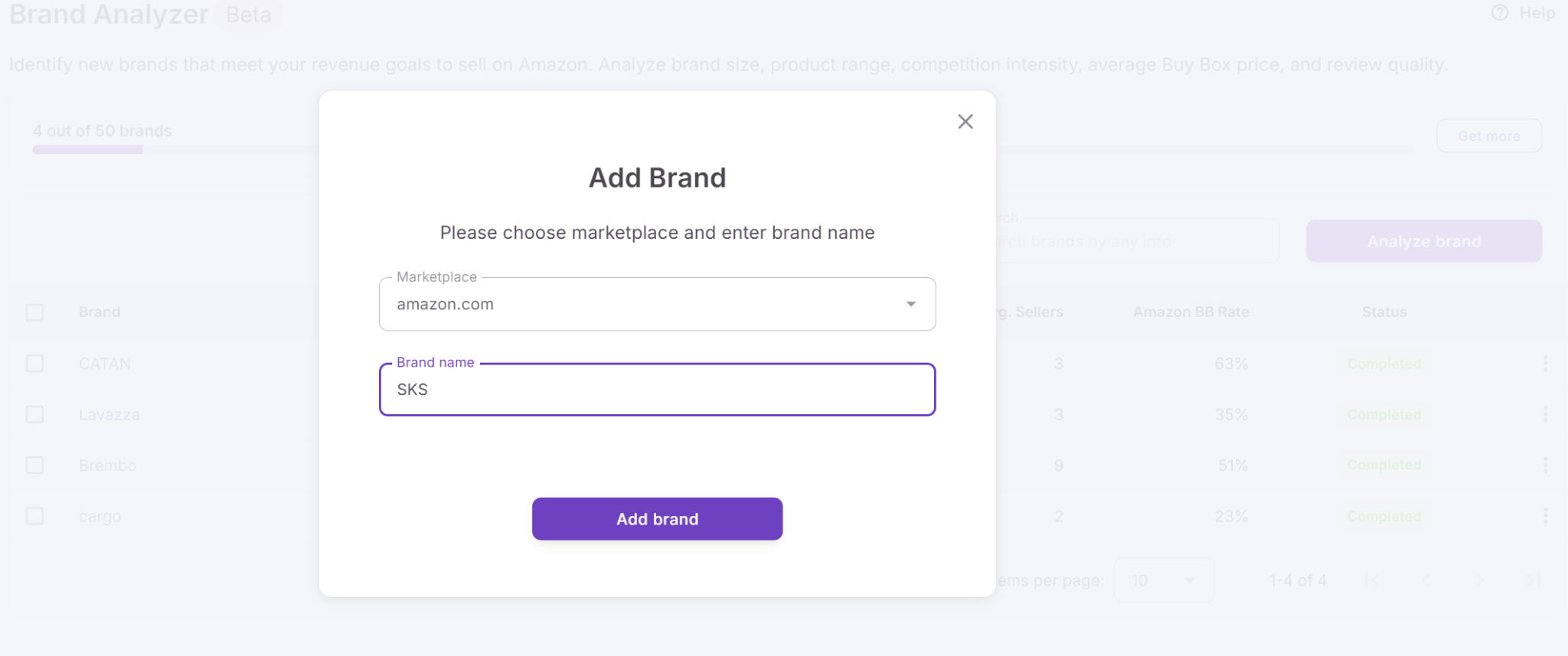
Step 2. Enter brand details
Choose your Amazon marketplace, type the brand name, and click Add to start the analysis.
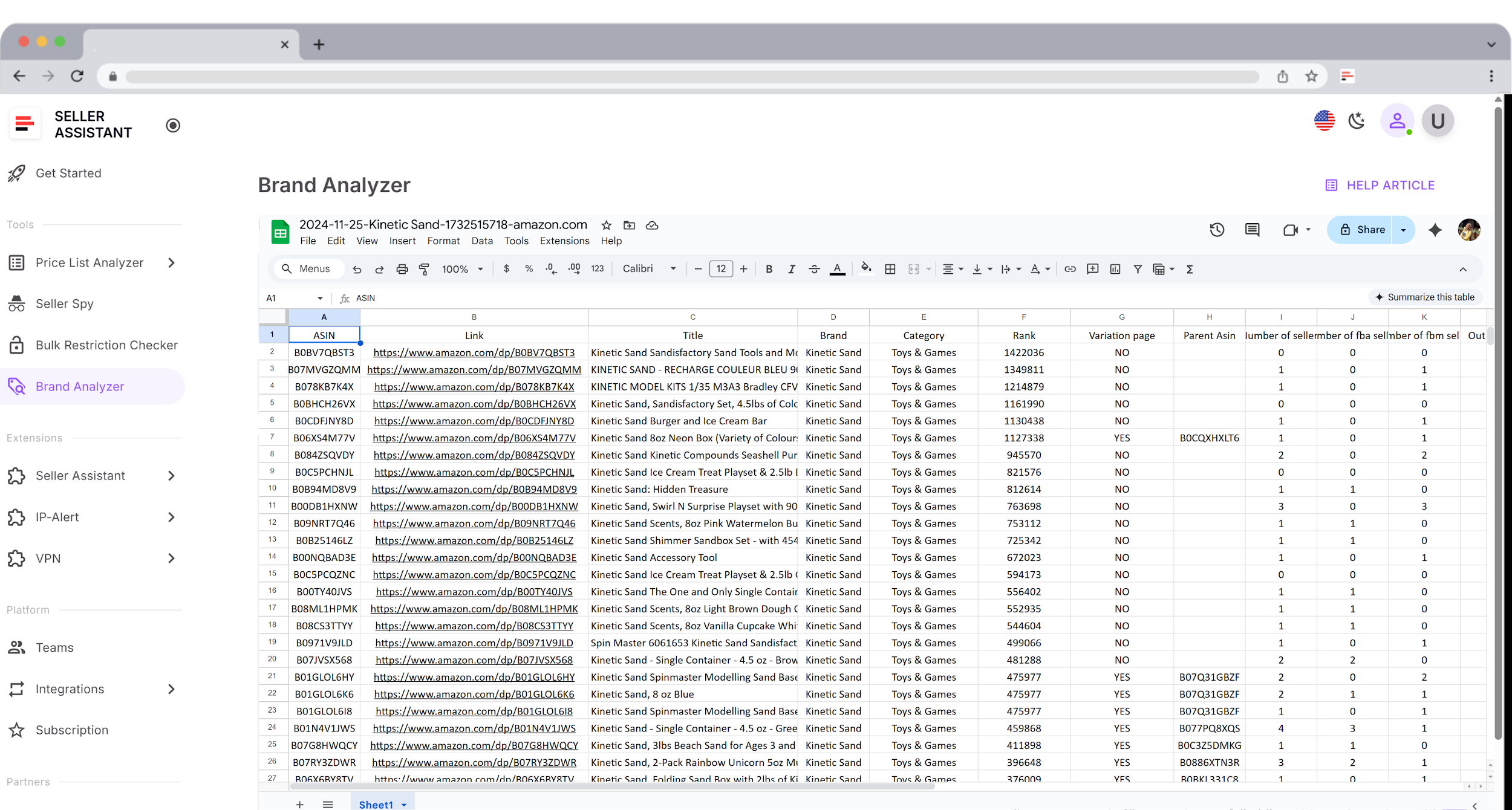
Step 3. Review brand metrics
Once processing is complete, examine the dashboard to evaluate revenue potential, competition level, pricing trends, Amazon presence, and overall brand strength.

Step 4. Export brand data
Download the XLS report containing the full ASIN list with detailed metrics. Use this file to filter products, compare opportunities, and prepare for supplier outreach or Price List Analyzer uploads.
How Bulk Restriction Checker Protects Your Sourcing Decisions
Validate eligibility before you invest
Bulk Restriction Checker is designed for Amazon resellers who need to confirm selling eligibility across large ASIN lists before committing capital. Instead of opening Seller Central and checking products one at a time, you upload up to 20,000 ASINs in a single scan and instantly see which products you can sell, which require approval, and which are fully restricted.
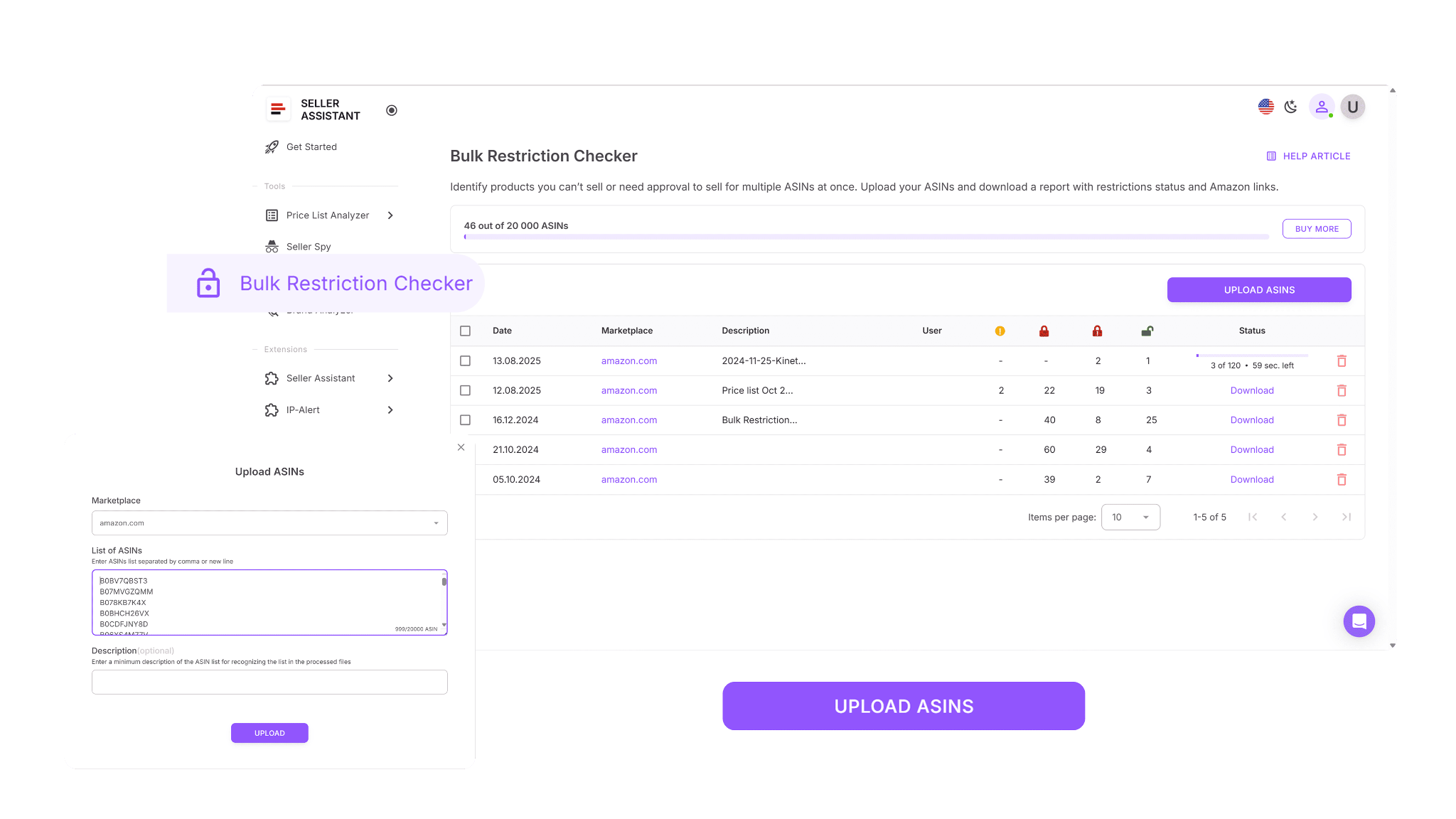
The tool connects directly to your marketplace permissions. It detects restriction issues early, helping you avoid gated inventory, compliance problems, and wasted supplier orders.
Bulk Restriction Checker allows you to clean supplier spreadsheets and sourcing lists before analysis or purchase. Each ASIN is evaluated against your account status and grouped by eligibility, so you can confidently decide what to move forward with and what to remove.
What Bulk Restriction Checker does

- Scan up to 20,000 ASINs in one run
- Compare products against your Seller Central permissions
- Label ASINs as ELIGIBLE, APPROVAL_REQUIRED, or NOT_ELIGIBLE
- Identify gated listings before purchasing inventory
- Reduce risk of buying products you cannot list
- Clean supplier files before Price List Analyzer uploads
- Generate downloadable reports for filtering and team use
- Support wholesale, online arbitrage, and dropshipping workflows
How to use Bulk Restriction Checker
Step 1. Open the tool
Log in to your Seller Assistant account, navigate to Tools, and select Bulk Restriction Checker.
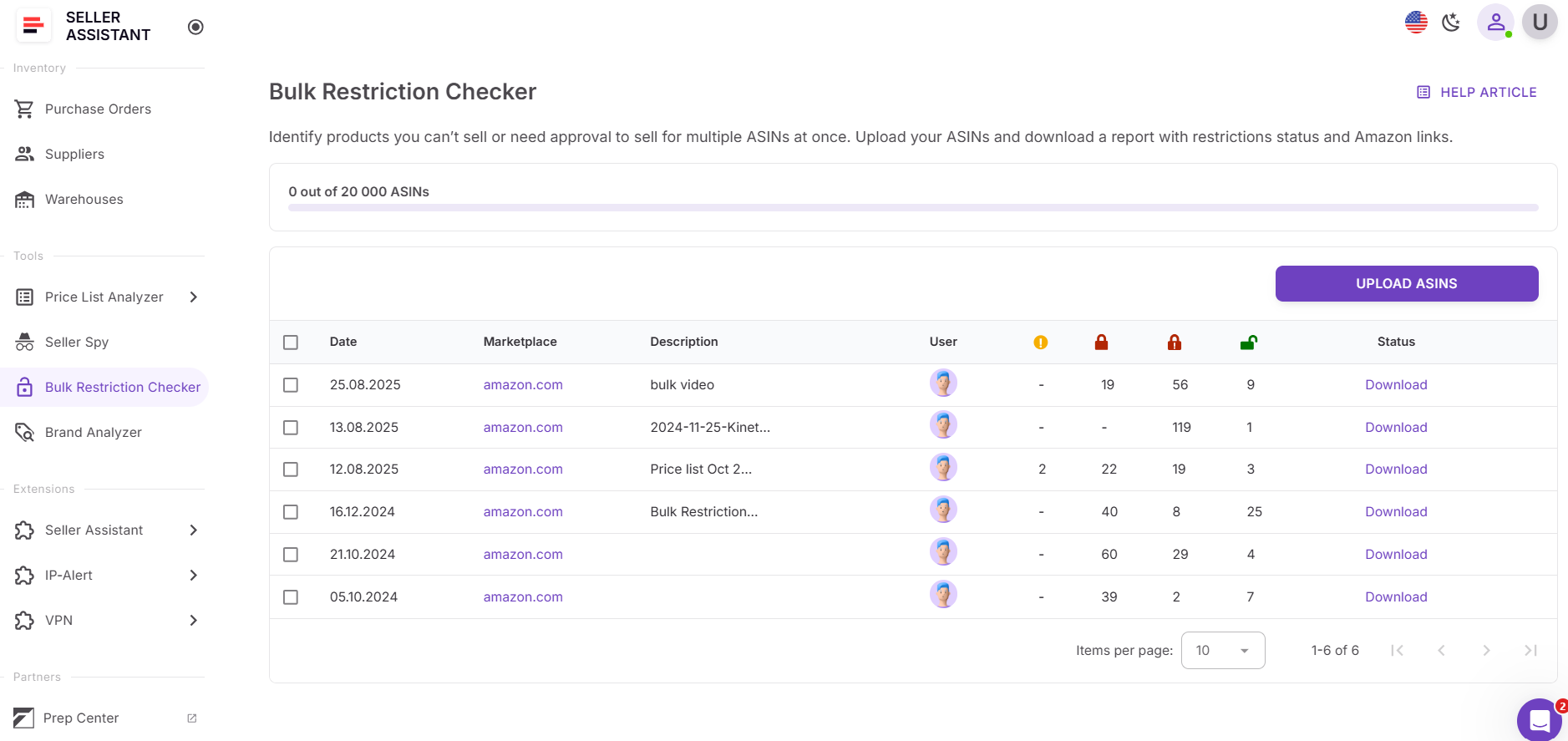
Step 2. Upload your ASIN file
Upload a file containing up to 20,000 ASINs. The system immediately begins checking each product against your Amazon selling permissions.

Step 3. Wait for scan completion
Once processing is finished, you receive an email notification that your results are ready.
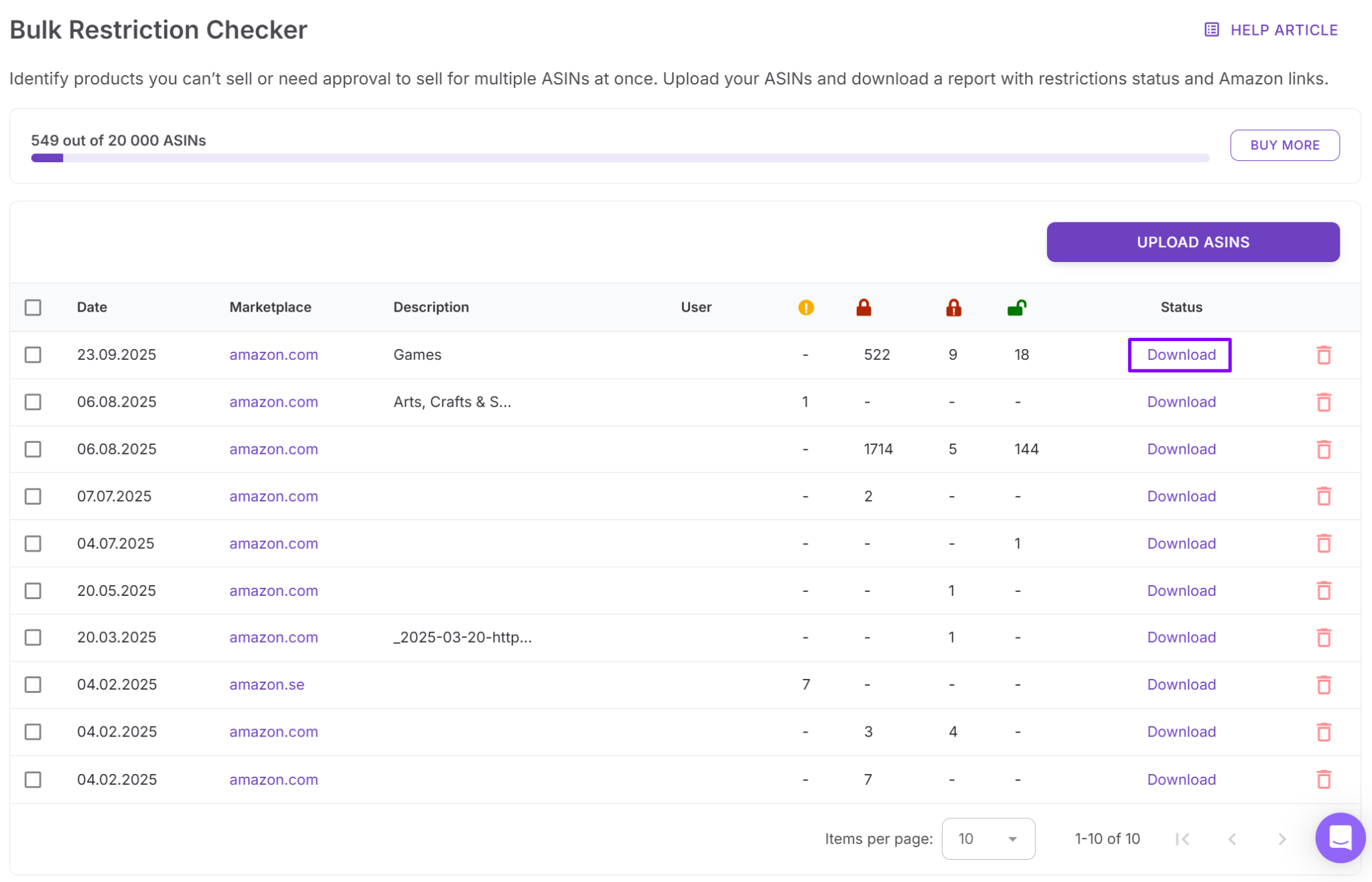
Step 4. Download and review results
Download the report and review the eligibility status for each ASIN. Products are clearly categorized as ELIGIBLE, APPROVAL_REQUIRED, or NOT_ELIGIBLE, allowing you to sort, filter, and share the file with your team before making sourcing decisions.
How AI Supplier Finder Helps You Secure Real Wholesale Sources
Supplier discovery without manual searching
AI Supplier Finder is a built-in sourcing tool inside Seller Assistant that helps Amazon wholesale sellers, online arbitrage sellers, and dropshippers find legitimate suppliers by brand. Instead of searching Google, filtering out retail stores, and guessing which distributors are authorized, you enter a brand name and receive a structured list of resale-focused supplier options.
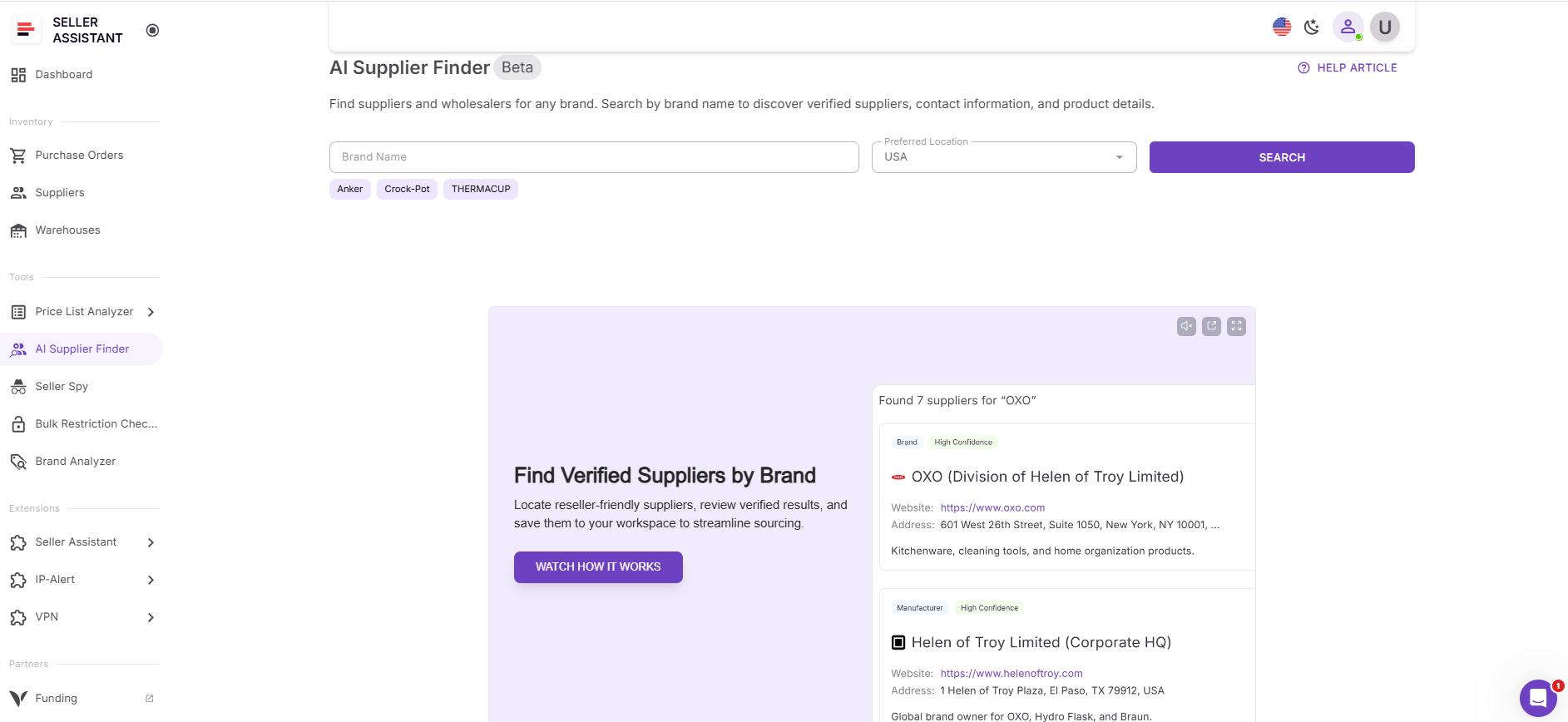
The tool prioritizes manufacturers and authorized distributors first, then wholesalers, while automatically excluding marketplaces and B2C storefronts. This reduces sourcing noise and connects profitable product research directly to real wholesale supply opportunities.
What AI Supplier Finder does
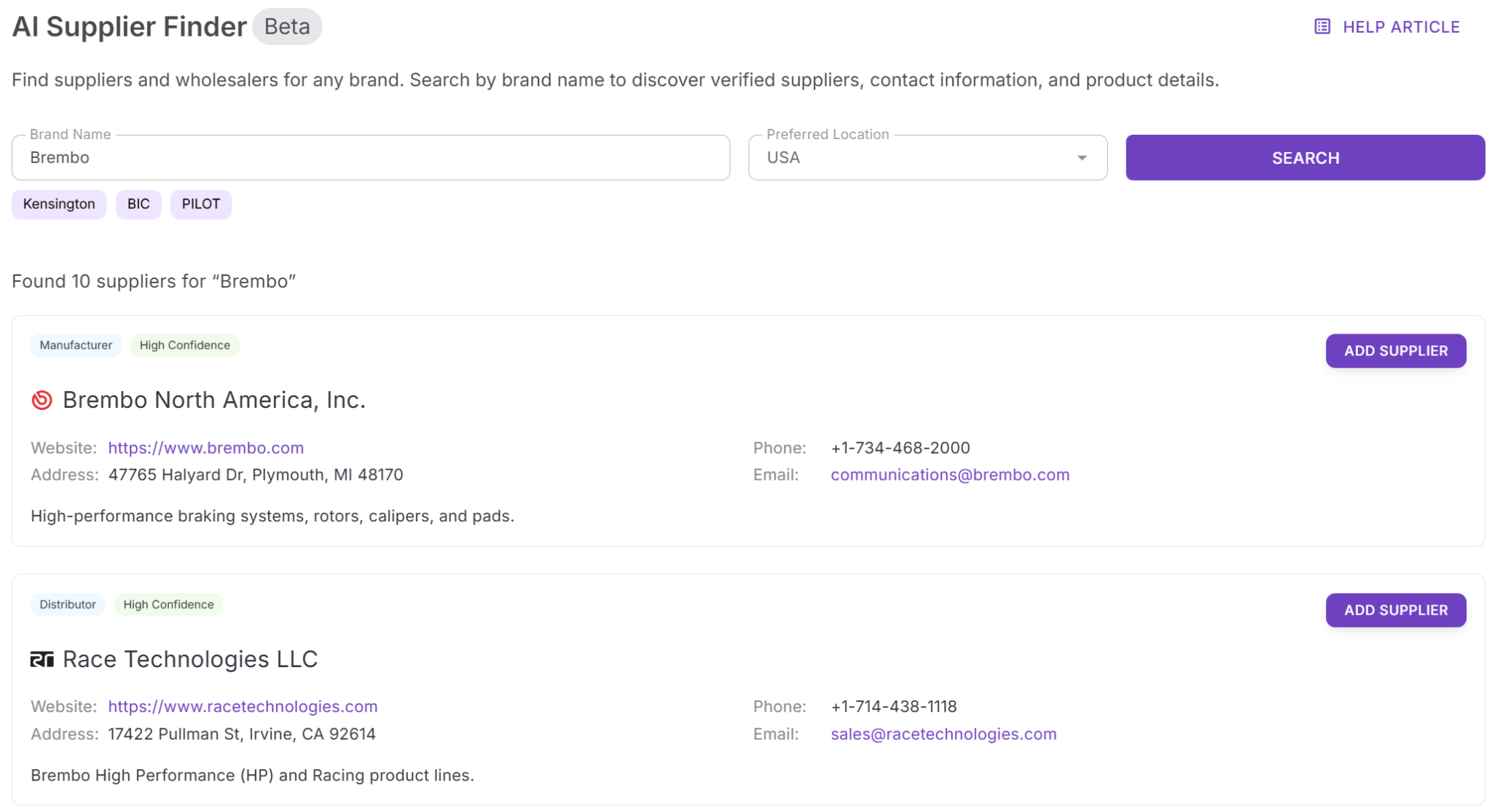
AI Supplier Finder streamlines supplier discovery with structured logic:
- Find manufacturers, authorized distributors, and wholesalers by brand
- Prioritize suppliers based on resale relevance
- Assign match confidence levels: High, Medium, Low
- Exclude Amazon, eBay, and retail Shopify-style stores
- Surface B2B business domains suitable for wholesale accounts
- Reduce risk of IP complaints and inauthentic invoice issues
- Launch supplier search directly from Brand Analyzer, Price List Analyzer, analyzed products, or Seller Assistant Extension
- Save suppliers instantly to Suppliers Database for outreach
By combining brand-based search logic with resale-focused filtering, the tool replaces trial-and-error sourcing with a clear prioritization system.
How AI Supplier Finder works
Step 1. Open AI Supplier Finder
Log in to your Seller Assistant account, go to Tools, and select AI Supplier Finder.

Step 2. Enter brand and region
Type the brand name and choose your preferred region. Click Search to start the analysis.
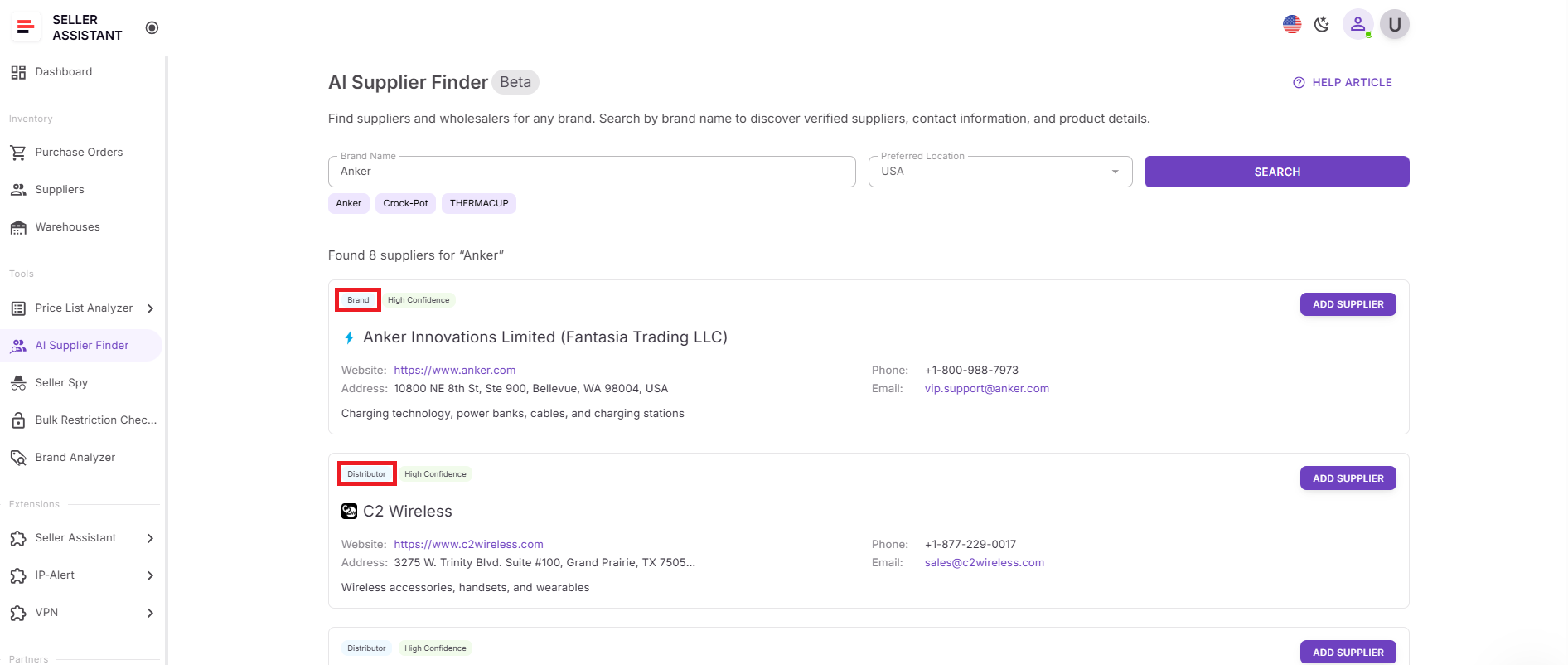
Step 3. Review supplier hierarchy
Suppliers are grouped by type:
- Brand or manufacturer
- Authorized distributor
- Wholesaler
- Alternative supplier
This structure mirrors real wholesale account-building strategy.
Step 4. Evaluate match confidence
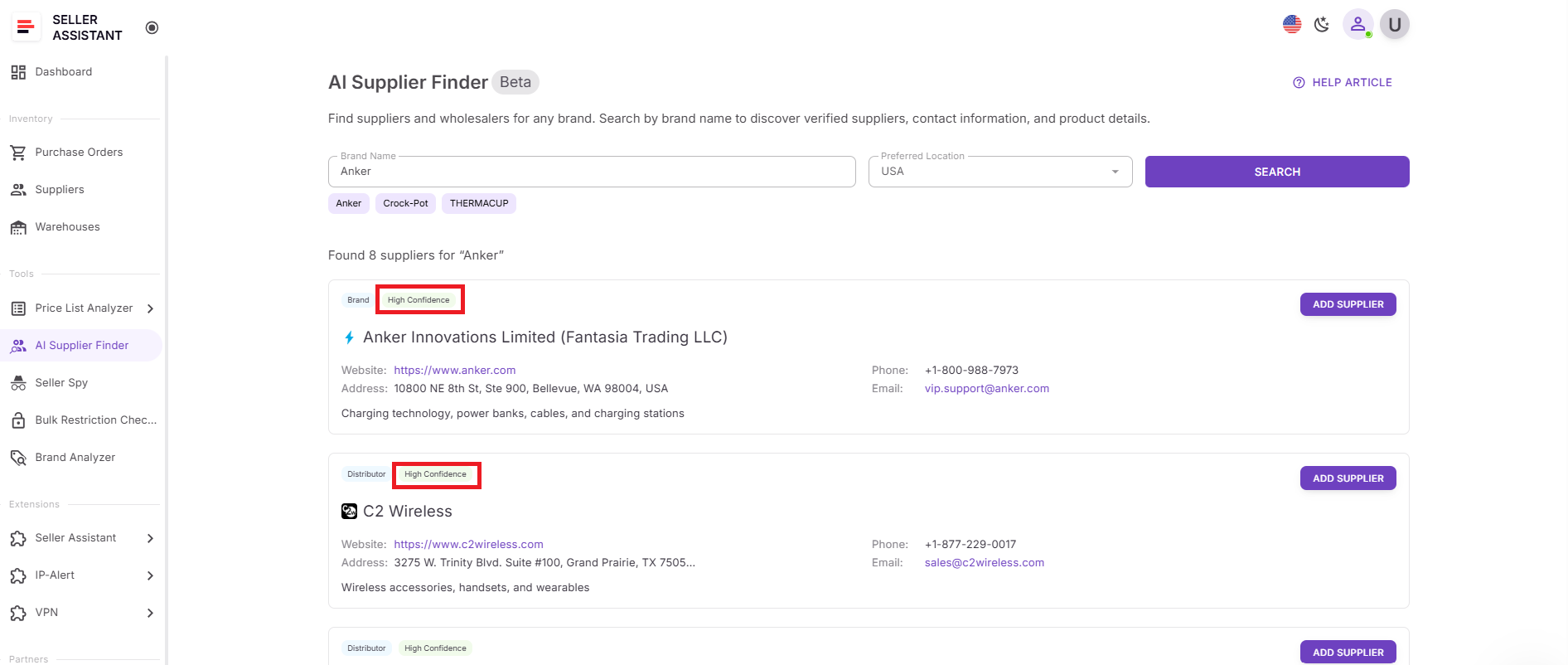
Each supplier is labeled High, Medium, or Low confidence. Start outreach with High-confidence suppliers, then expand if needed.
Step 5. Check supplier details
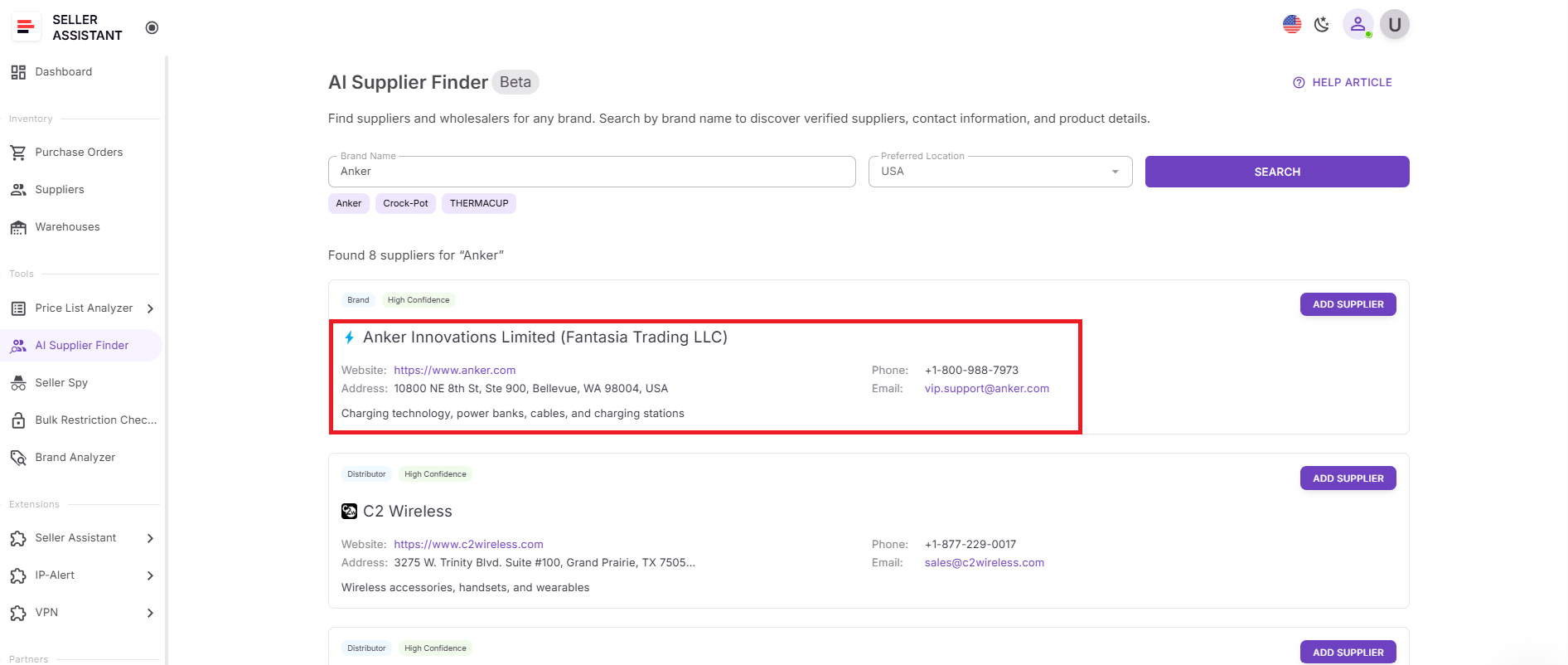
Review business website, supplier type, and available contact information. Only B2B domains are shown.
Step 6. Save supplier to your workflow
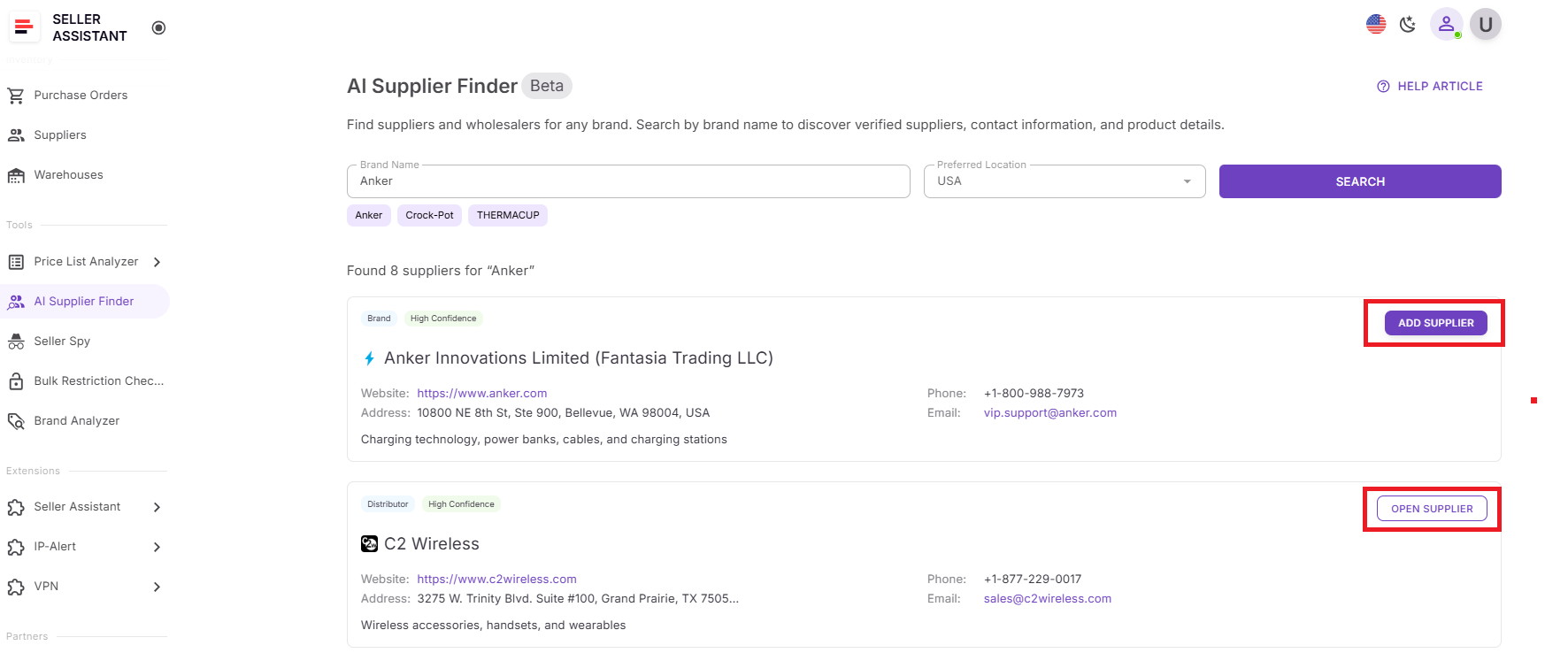
Click Add supplier to create a new profile or Open supplier if it already exists. The supplier is added to Suppliers Database, keeping your sourcing process centralized and organized.
How Suppliers Database Keeps Wholesale Operations Organized
Centralized supplier management across your workflow
Suppliers Database is a structured system for storing and managing all supplier information in one place. It keeps supplier names, websites, contact details, currencies, terms, routing rules, and relationship status organized and accessible throughout your Amazon wholesale workflow.
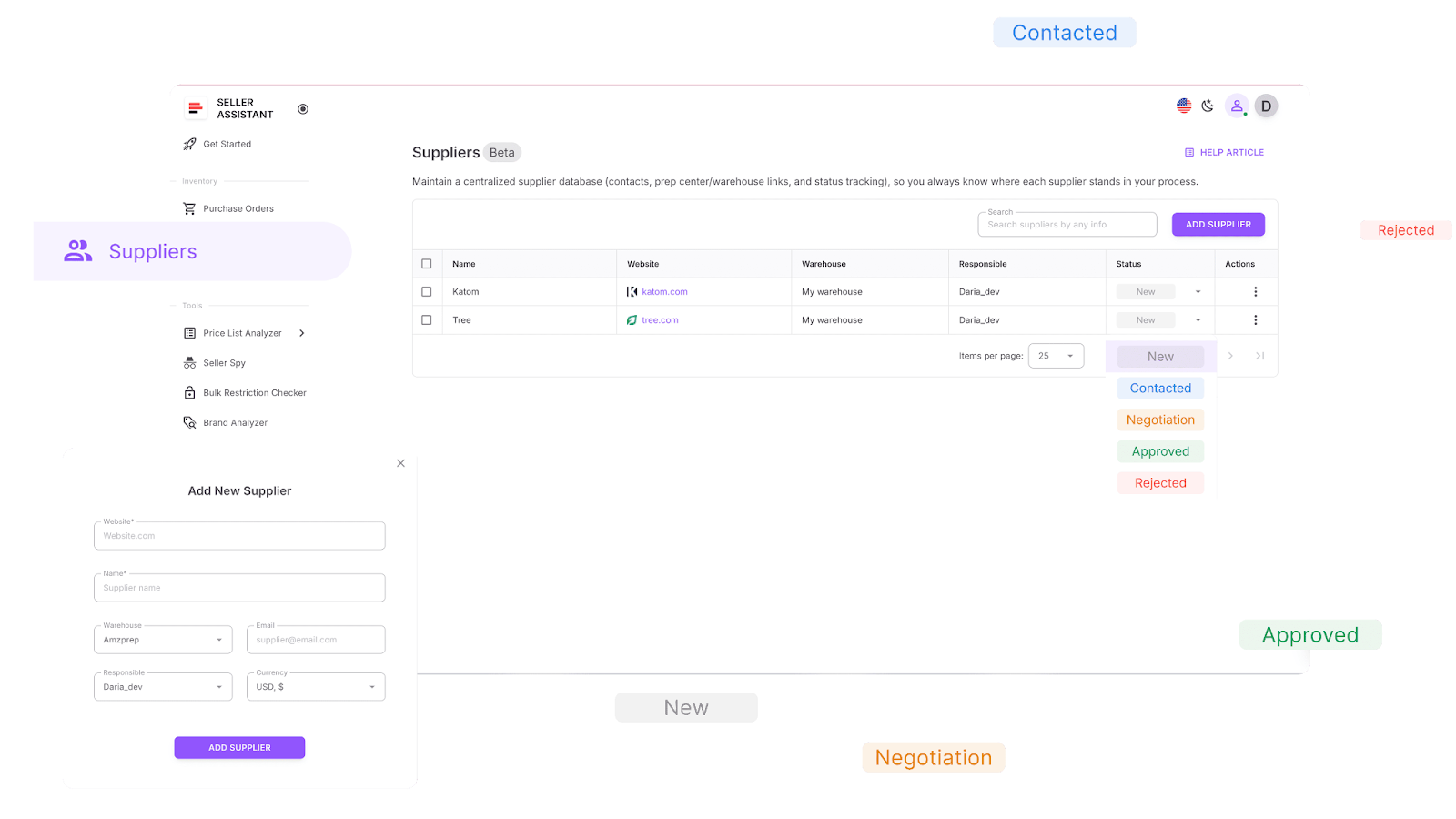
Unlike a standalone spreadsheet, this database connects directly to other Seller Assistant tools. Supplier data flows into Price List Analyzer, Purchase Orders Module, and Warehouses Database automatically. This removes repeated data entry, keeps information consistent, and speeds up sourcing and purchasing decisions.
Every supplier profile stays synchronized across the platform, reducing errors, preventing duplicate outreach, and keeping your operations structured as your supplier network grows.
What Suppliers Database does
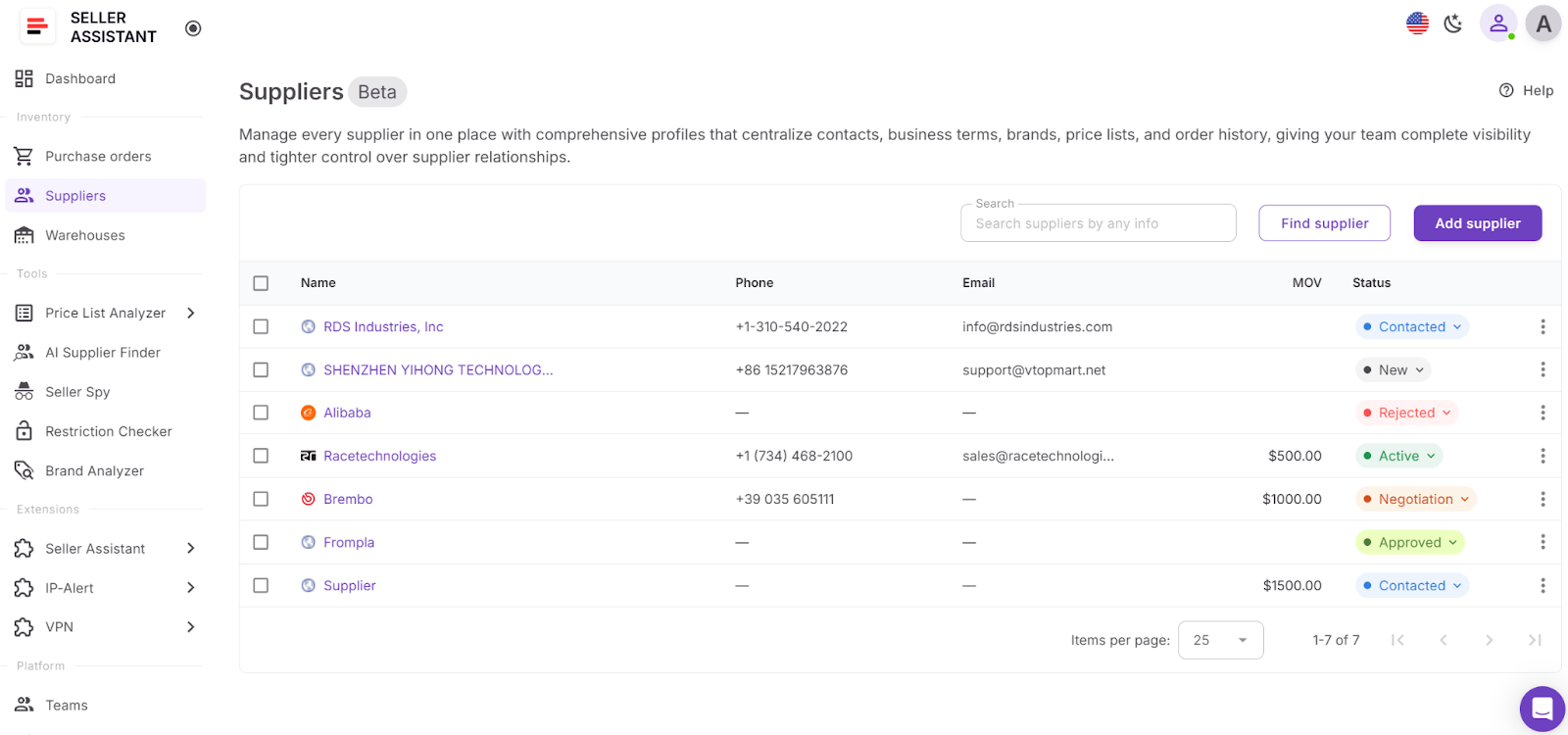
Suppliers Database supports structured supplier management:
- Create detailed supplier profiles with contact and business information
- Store operational data such as minimum order value and lead time
- Assign responsible team members to each supplier
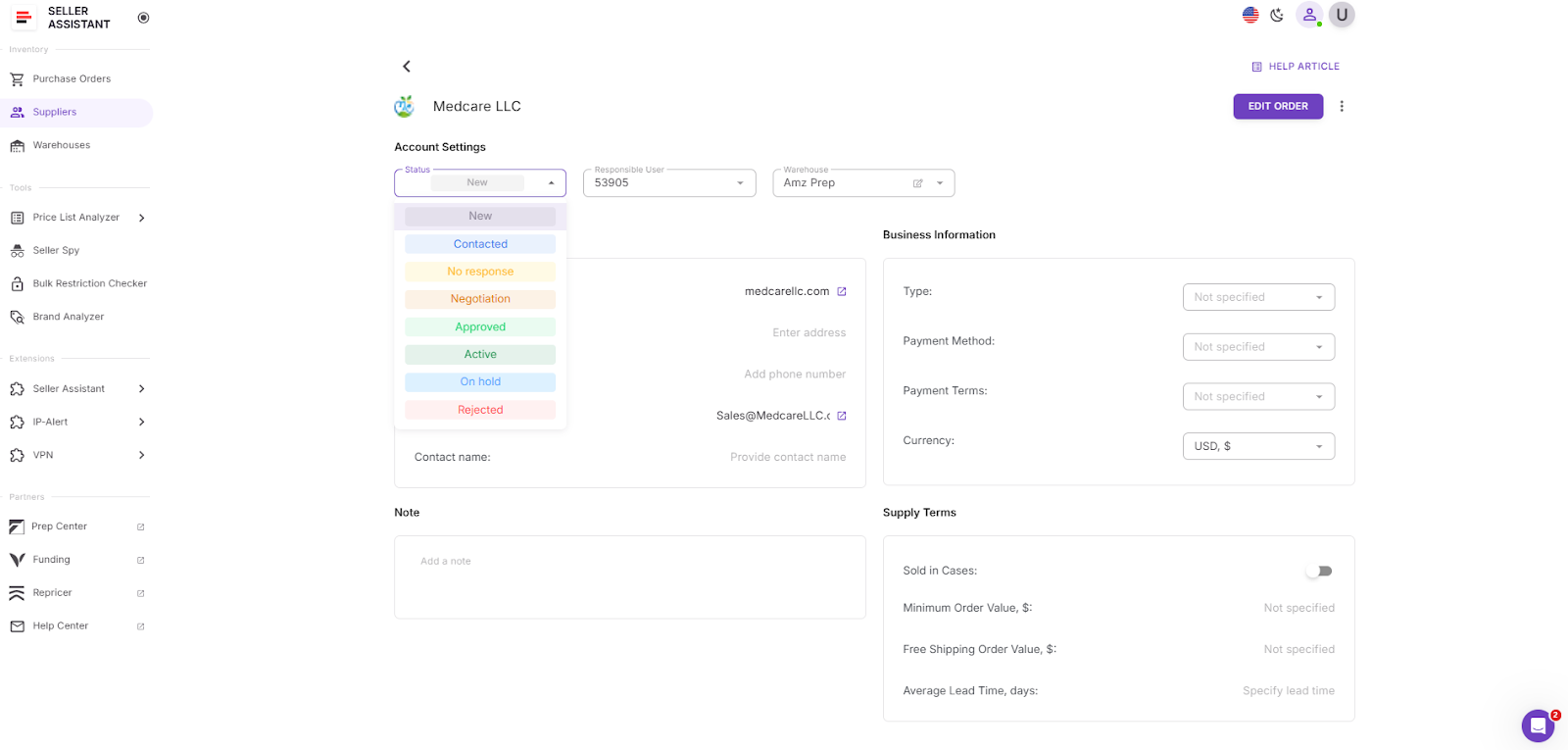
- Track relationship stages: New, Contacted, Negotiation, Approved, Active, Rejected
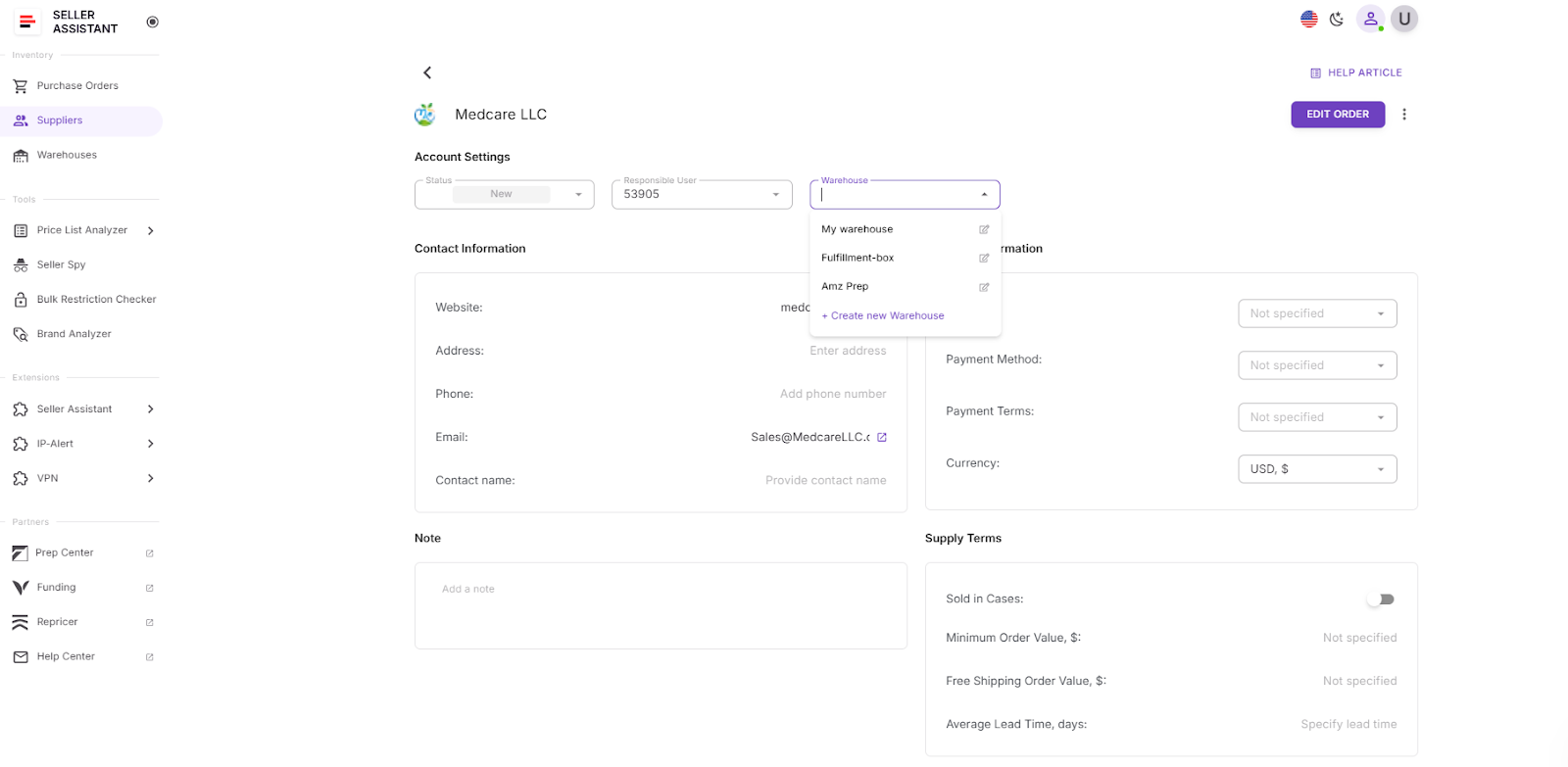
- Link suppliers to default warehouses or prep centers
- Auto-fill supplier details during price list uploads and PO creation
- Edit supplier data without breaking connections across tools
- Access supplier profiles directly from Price List Analyzer and Purchase Orders Module
- Add new suppliers discovered through AI Supplier Finder or Sourcing AI
How to use Suppliers Database
Step 1. Open Suppliers Database
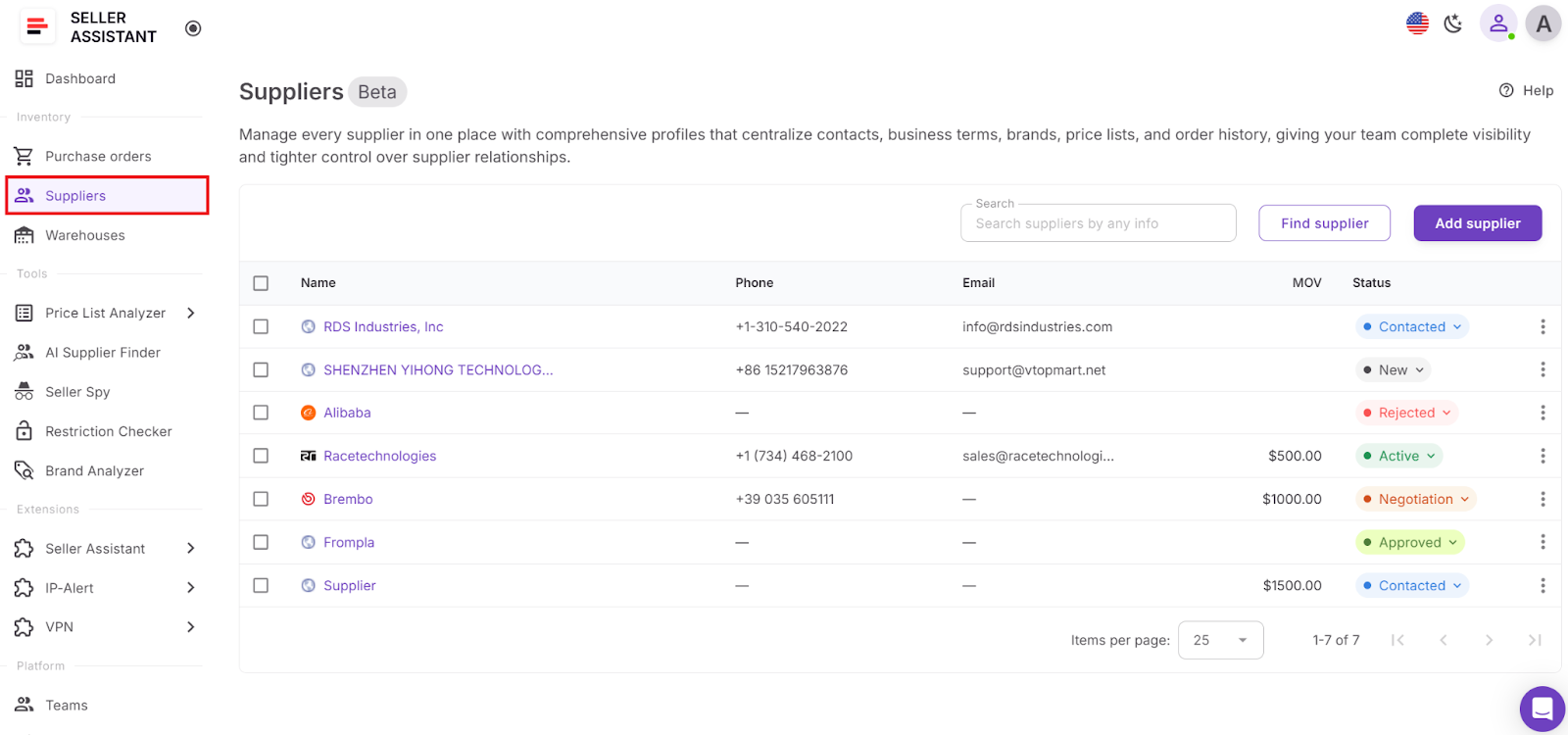
Log in to your Seller Assistant account and go to Inventory → Suppliers. This is your central hub for supplier management.
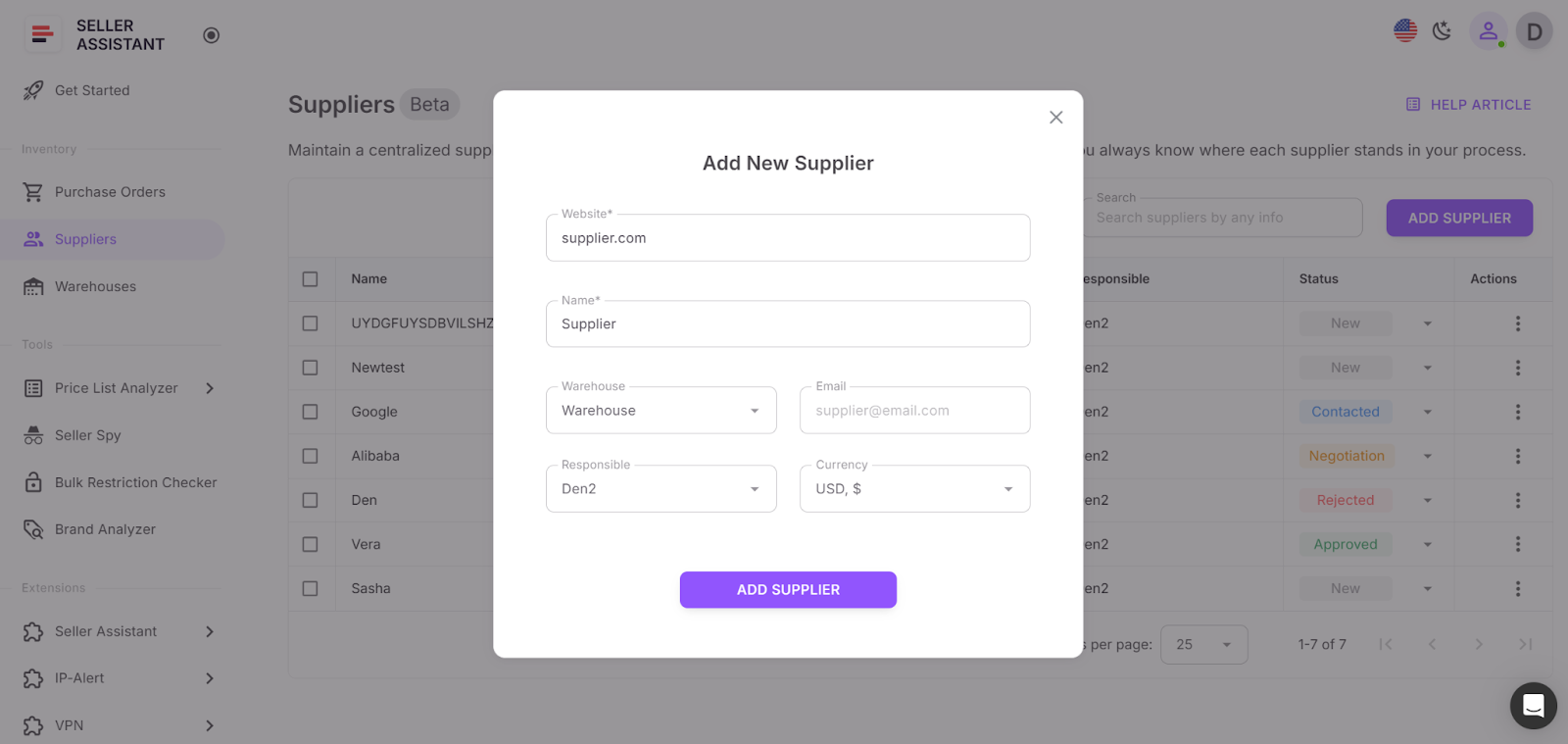
Step 2. Create a supplier profile
Click Add supplier and enter the supplier name and website. Add optional details such as email, currency, assigned warehouse, responsible team member, minimum order value, and lead time.
Step 3. Set relationship status
Choose the current stage – New, Contacted, Negotiation, Approved, Active, or Rejected – to maintain a clear outreach pipeline.
Step 4. Assign default routing
Link a prep center or warehouse so shipping details are applied automatically during sourcing and purchase order creation.
Step 5. Use suppliers across the workflow
Once saved, the supplier becomes available in Price List Analyzer, Purchase Orders Module, and other tools without re-entering data.
Step 6. Keep records updated
Update notes, statuses, and terms as communication progresses. Accurate supplier records lead to smoother sourcing decisions and more reliable purchasing execution.
How Warehouses Database Keeps Inventory Routing Accurate
Centralized prep center and warehouse management
Warehouses Database is a structured system for managing all prep centers and warehouses used in your Amazon wholesale, online arbitrage, and dropshipping operations. When working with multiple suppliers, tracking ship-to addresses and routing rules in spreadsheets increases the risk of errors. A single incorrect address can delay shipments, create confusion with suppliers, or impact landed cost calculations.
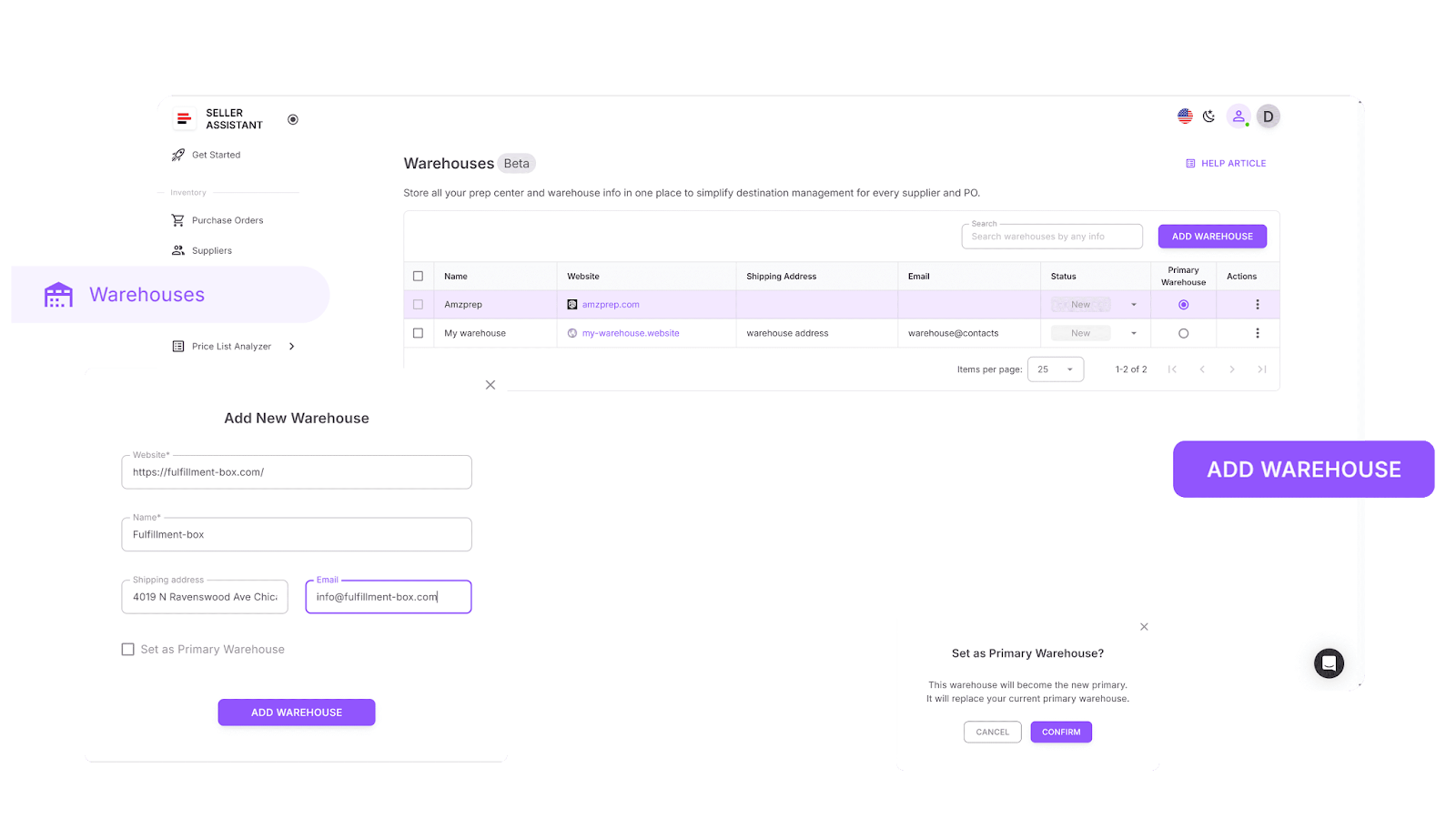
Warehouses Database stores each location’s details once and connects them directly to your sourcing and purchasing workflow. By linking warehouses to suppliers, routing information is applied automatically during price list analysis and purchase order creation. This reduces manual entry and keeps fulfillment consistent as your operation grows.
What Warehouses Database does
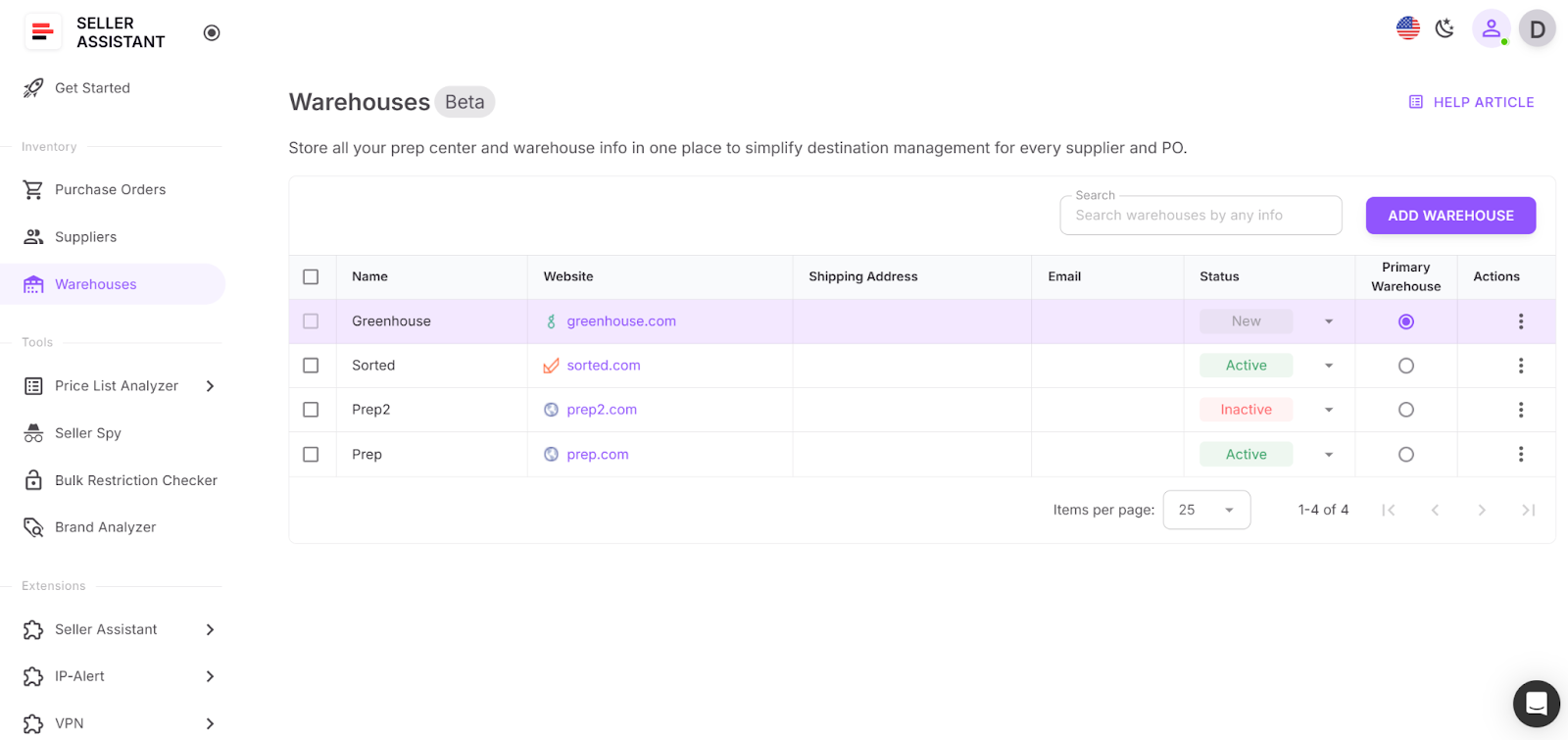
Warehouses Database supports structured routing and fulfillment control:
- Store complete warehouse and prep center profiles in one system
- Save names, websites, ship-to addresses, and contact details
- Assign operational statuses such as New, Active, or Inactive
- Link suppliers to default warehouses for automatic routing
- Auto-fill ship-to details during Purchase Orders creation
- Reuse warehouse data across Suppliers and Purchase Orders Modules
- Set one primary warehouse as the default ship-to location
- Search and sort warehouses by name, website, or address
- Update warehouse details without breaking supplier or PO links
How to use Warehouses Database
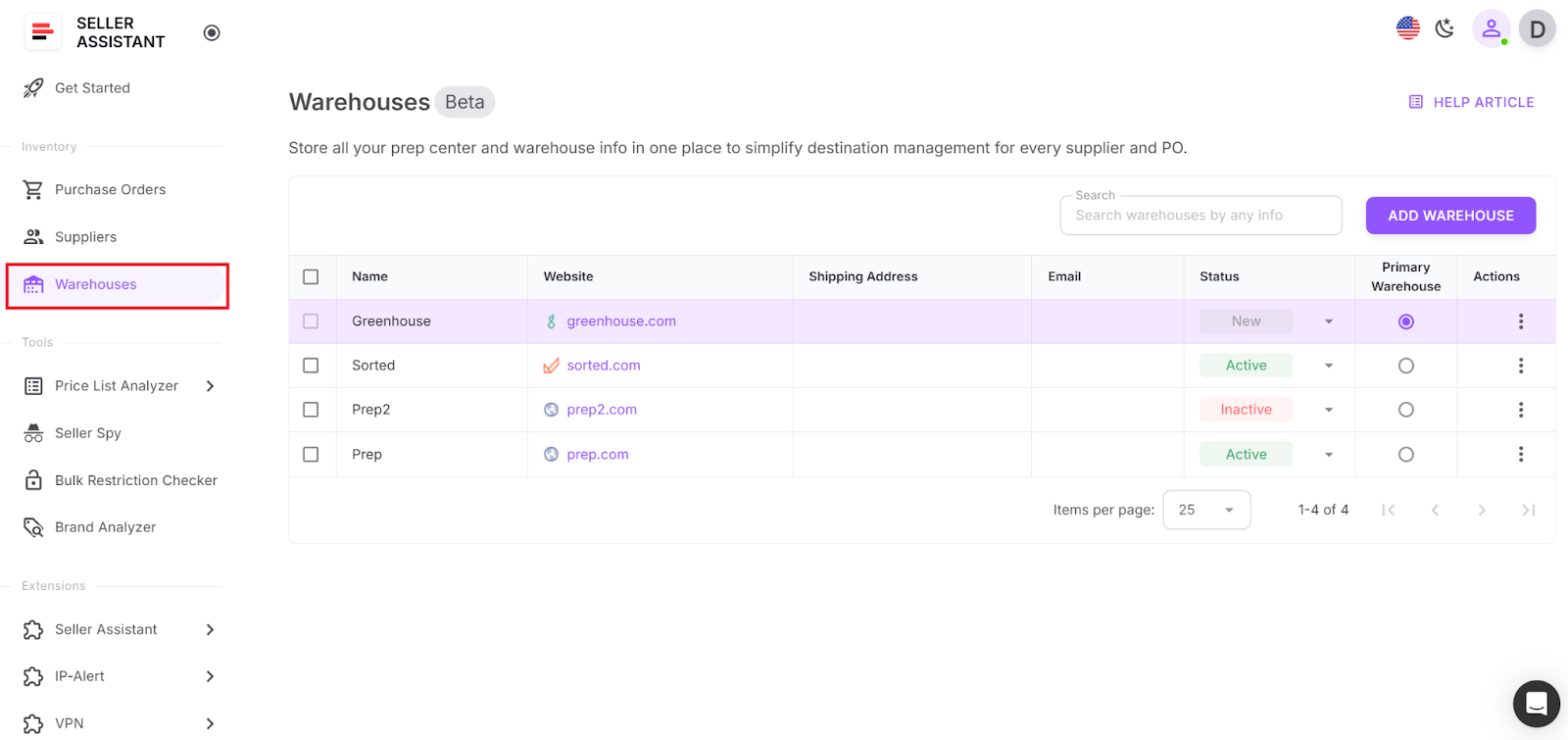
Step 1. Open Warehouses Database
Log in to your Seller Assistant account and go to Inventory → Warehouses. This is your central hub for managing fulfillment locations.
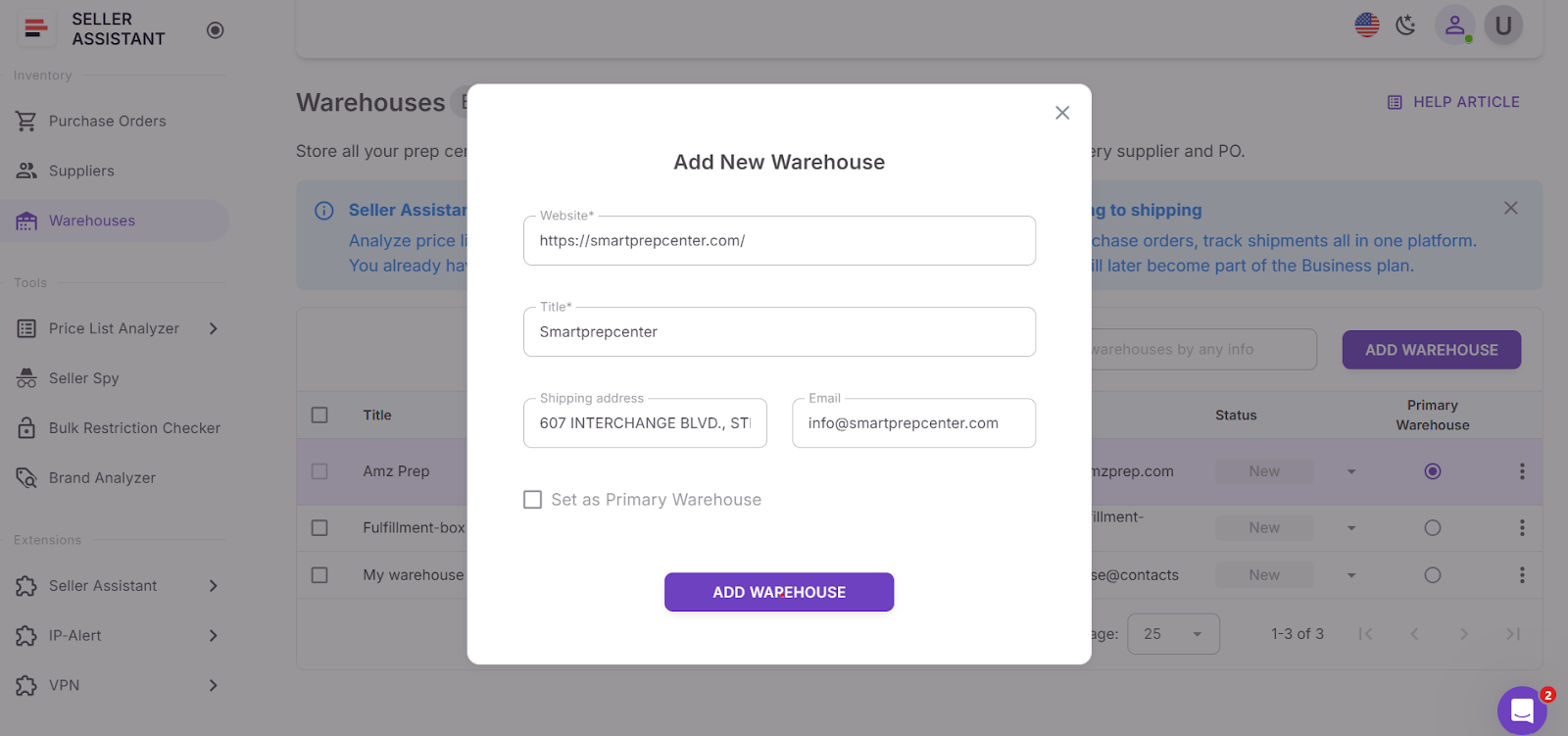
Step 2. Add a warehouse or prep center
Click Add warehouse and enter the required fields: website and name. The name is auto-filled based on the website and can be edited. Add optional details such as full address, email, phone number, and notes.
Step 3. Set warehouse status
Assign a status such as New, Active, or Inactive to track which locations are currently in use.
Step 4. Assign primary warehouse
Select one warehouse as your primary ship-to location. Only one primary warehouse can exist at a time, and it must be reassigned before deletion.
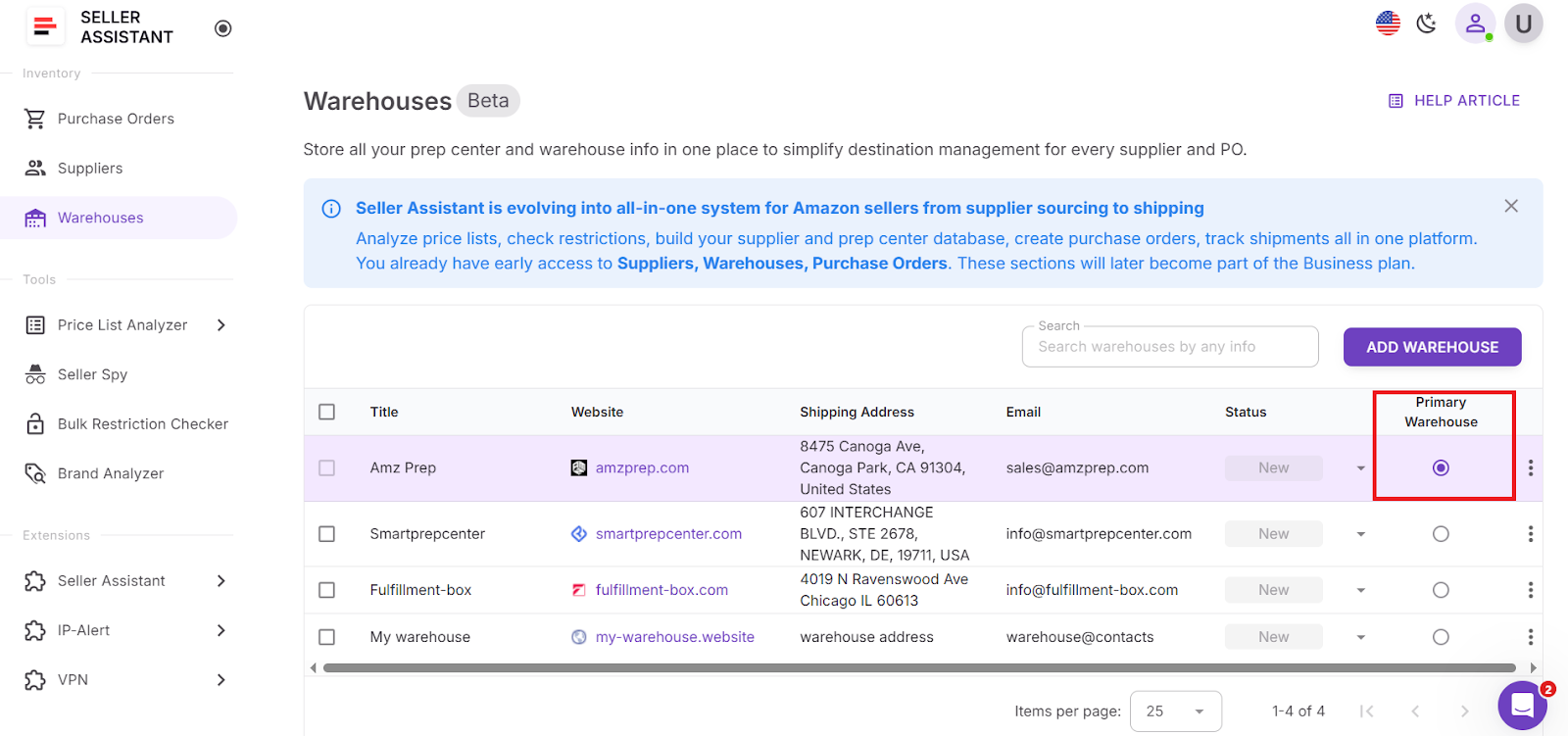
Step 5. Maintain accurate routing data
Update addresses, contacts, and statuses as operations change. Keeping warehouse data current ensures correct routing, clean purchase orders, and reliable fulfillment execution.
How Price List Analyzer Scales Your Bulk Sourcing
Bulk product analysis without manual research
Price List Analyzer is a bulk Amazon product research tool built for wholesale, online arbitrage, and dropshipping sellers who work with large supplier files. Instead of checking products one by one, you upload a supplier spreadsheet or parse a supplier website and receive a structured, Amazon-ready dataset.

Each SKU is automatically matched to an ASIN and enriched with 100+ data points. You can evaluate profitability, demand, competition, fees, and risk across hundreds or thousands of products in one structured workflow.
What Price List Analyzer does
This Software Makes Amazon FBA Wholesale Selling 10x Easier
Price List Analyzer transforms raw supplier files into actionable sourcing data:
- Scan large supplier price lists for profitable ASINs
- Match supplier SKUs to Amazon ASINs automatically
- Detect restricted or ineligible products instantly
- Analyze demand using BSR, trends, and estimated monthly sales
- Calculate ROI, margin, net profit, and breakeven per ASIN
- Review Buy Box history over 30, 90, and 180 days
- Break down Amazon fees including referral, FBA or FBM, storage, prep, and shipping
- Flag high-risk products such as hazmat, meltable, oversized, fragile, or bundled items
- Trigger alerts for approval required, missing Buy Box, or low ROI
- Filter by profitability, competition, demand, and risk
- Edit COG, shipping, prep, and pack size with instant recalculation
- Save reusable filter views for team workflows
- Tag and annotate products across multiple uploads
How to use Price List Analyzer
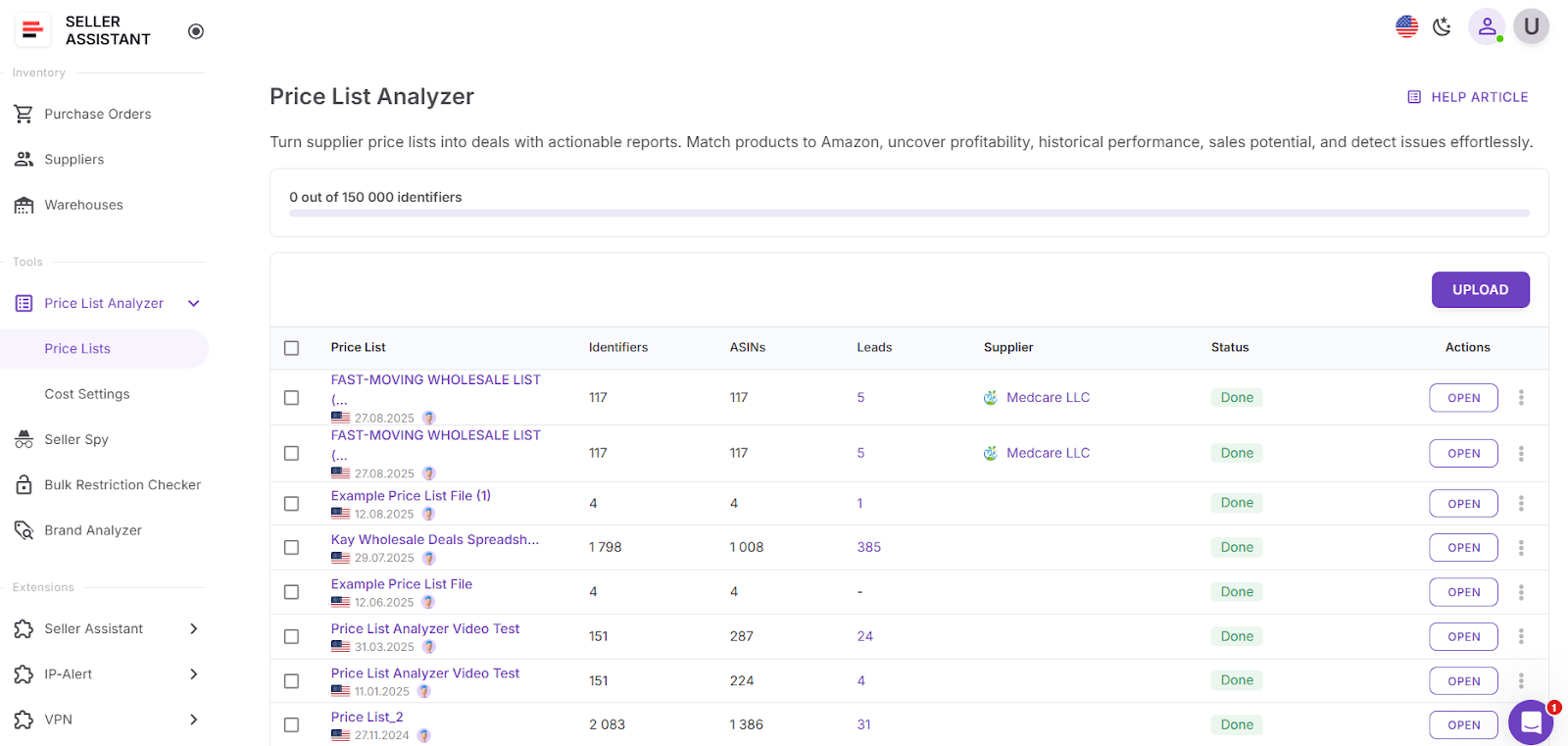
Step 1. Open Price List Analyzer
Log in to your Seller Assistant account, go to Tools, and select Price List Analyzer. Click Upload to begin.
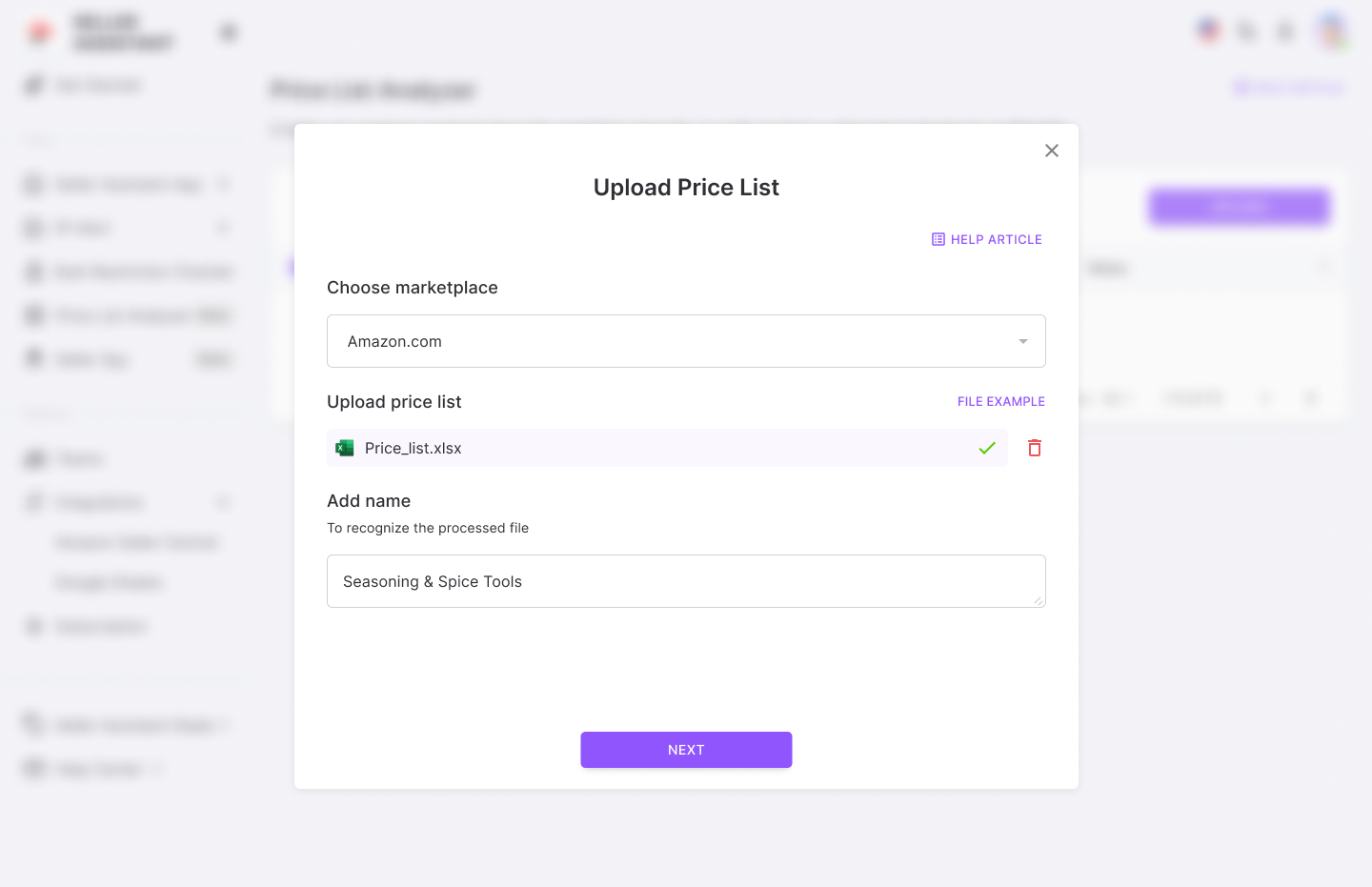
Step 2. Upload supplier file
Choose your Amazon marketplace and upload a supplier file in XLSX or XLS format.
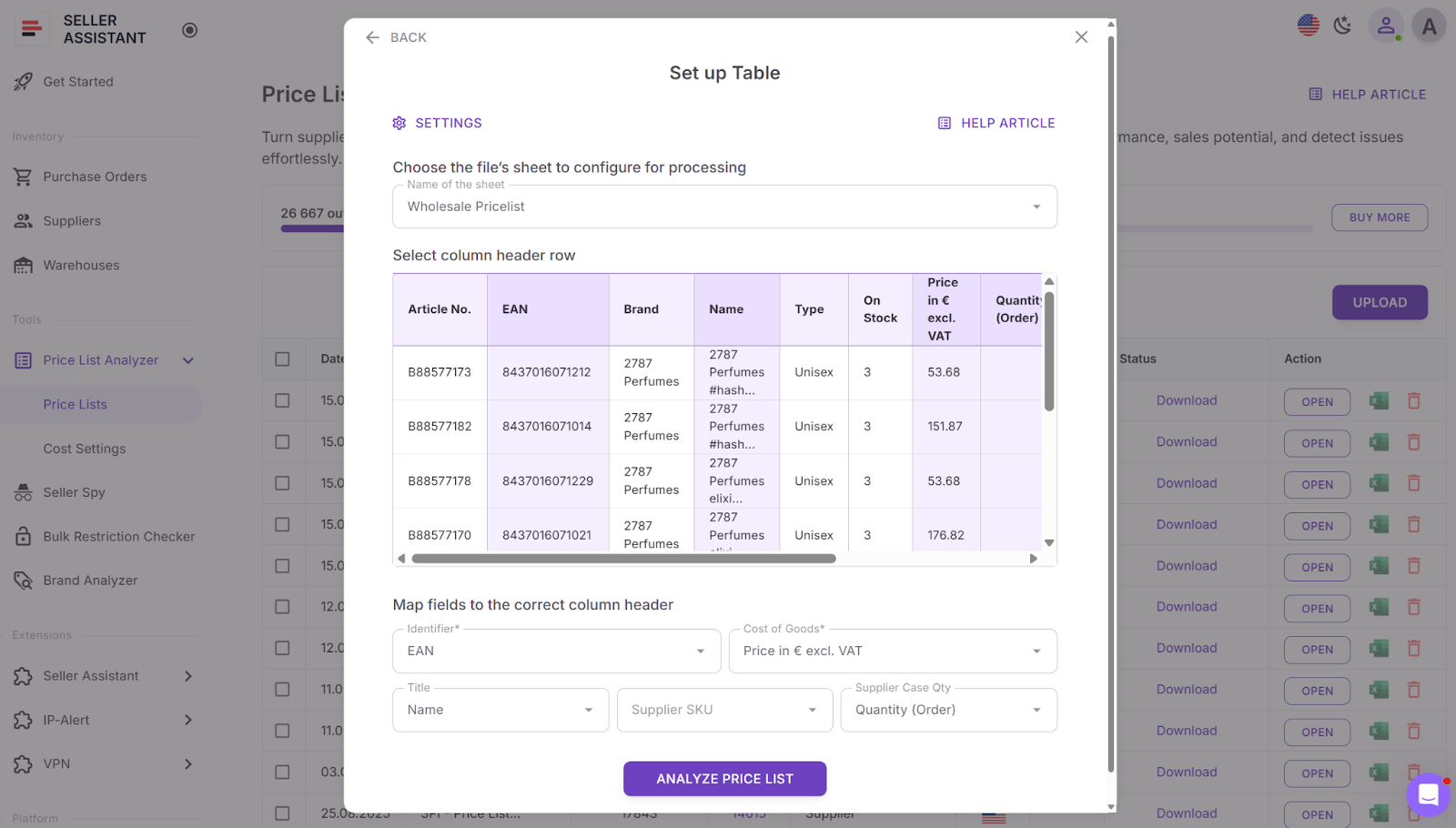
Step 3. Map product fields
Select the correct sheet. The system detects header rows and maps identifiers such as UPC, EAN, or GTIN. Enter COG and optional product titles.
Step 4. Run bulk analysis
Click Analyze price list to start automatic ASIN matching and data enrichment.

Step 5. Review product data
Examine results in the interactive table or export the full dataset to XLSX.
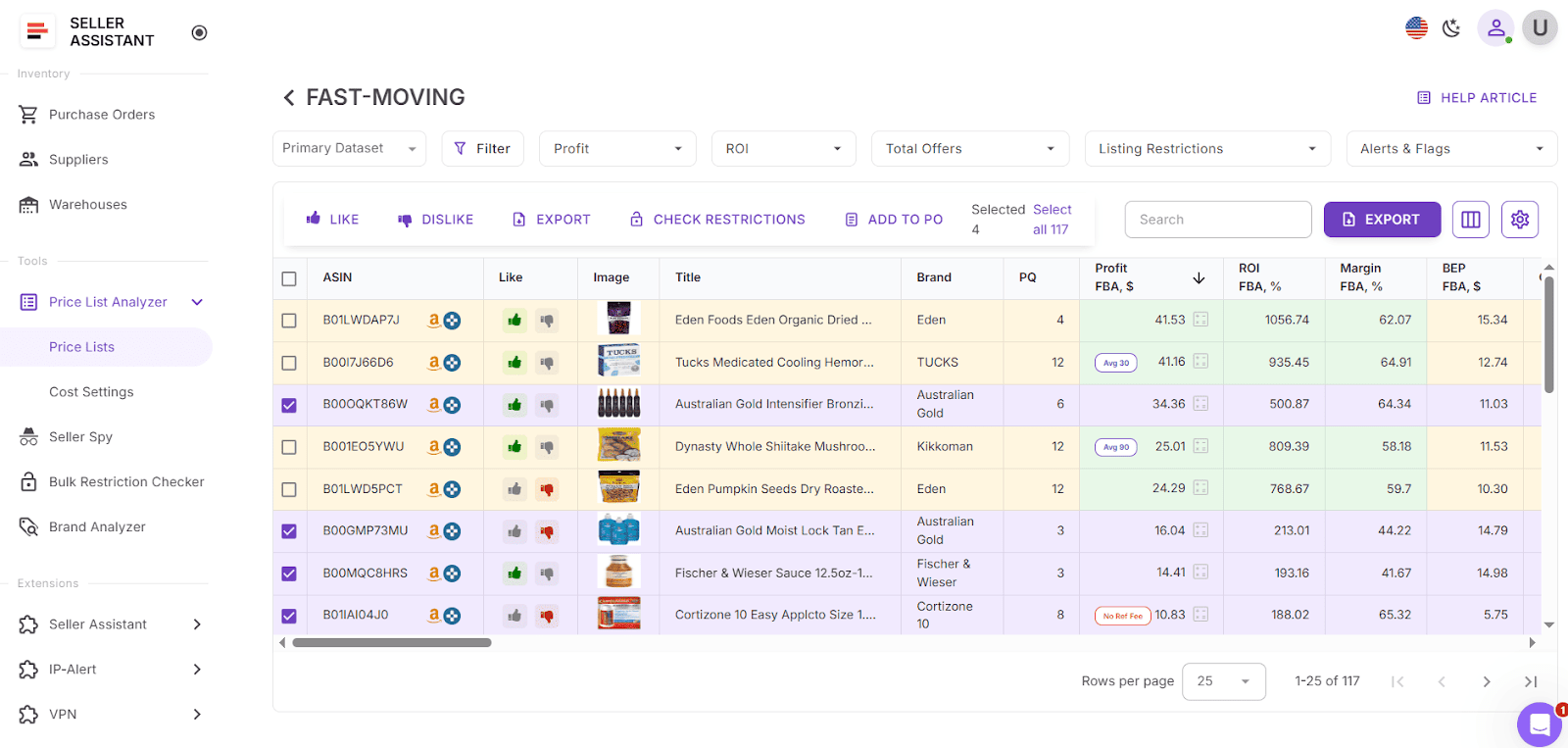
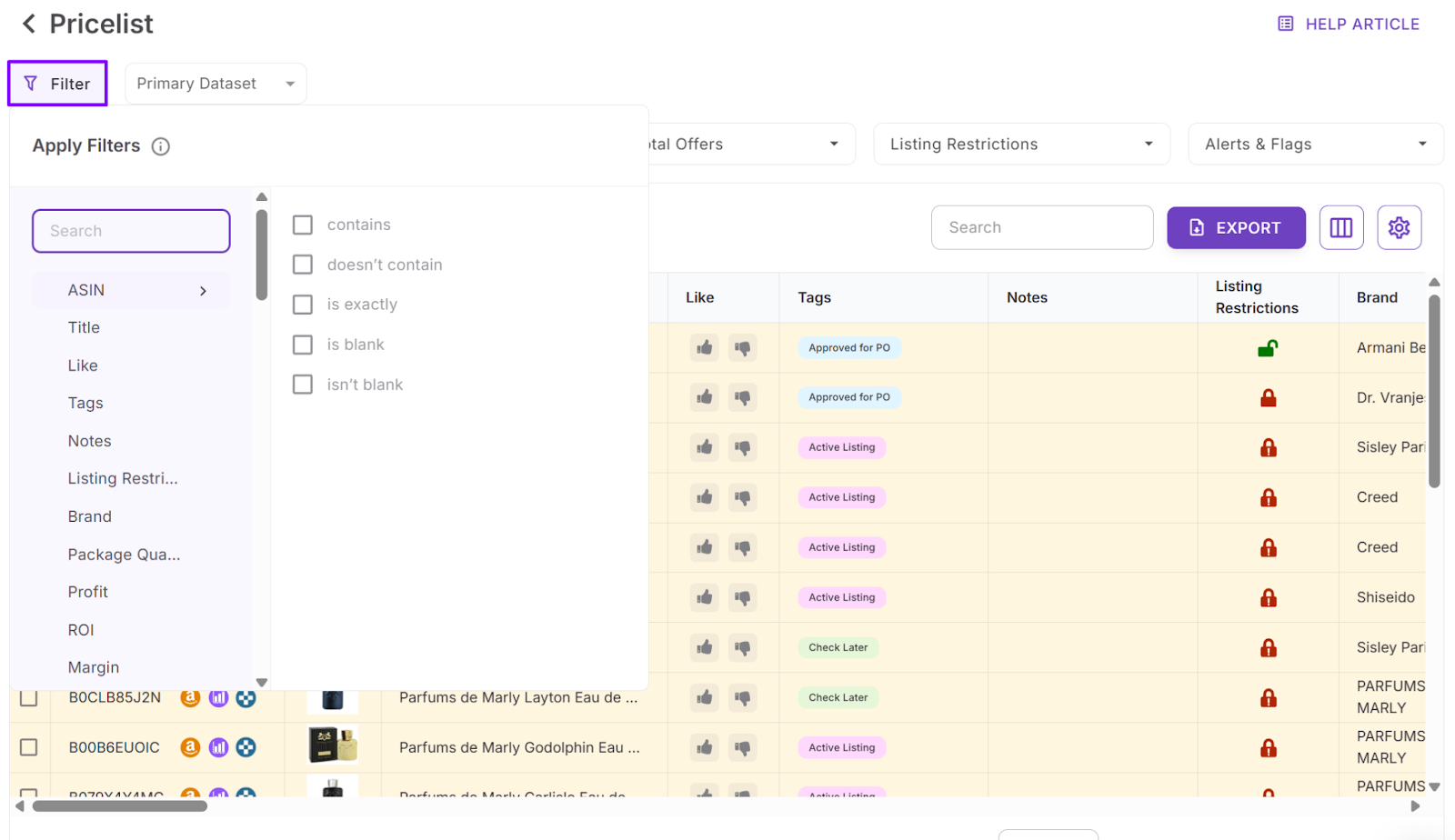
Step 6. Filter profitable opportunities
Apply quick and advanced filters to remove low-margin, restricted, or high-risk products. Narrow by ROI, demand, competition, or brand.
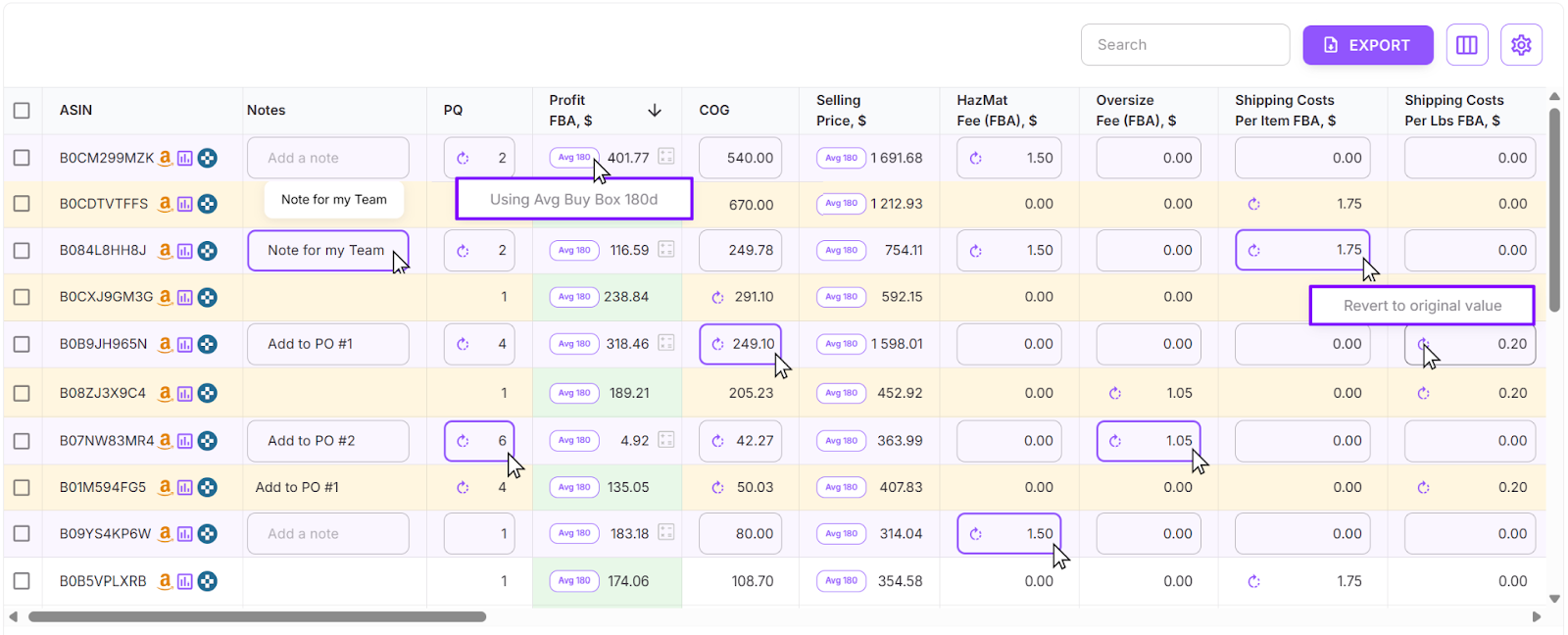
Step 7. Adjust costs and validate margins
Edit COG, shipping, prep fees, or pack quantities directly in the table. Profit and ROI update in real time.
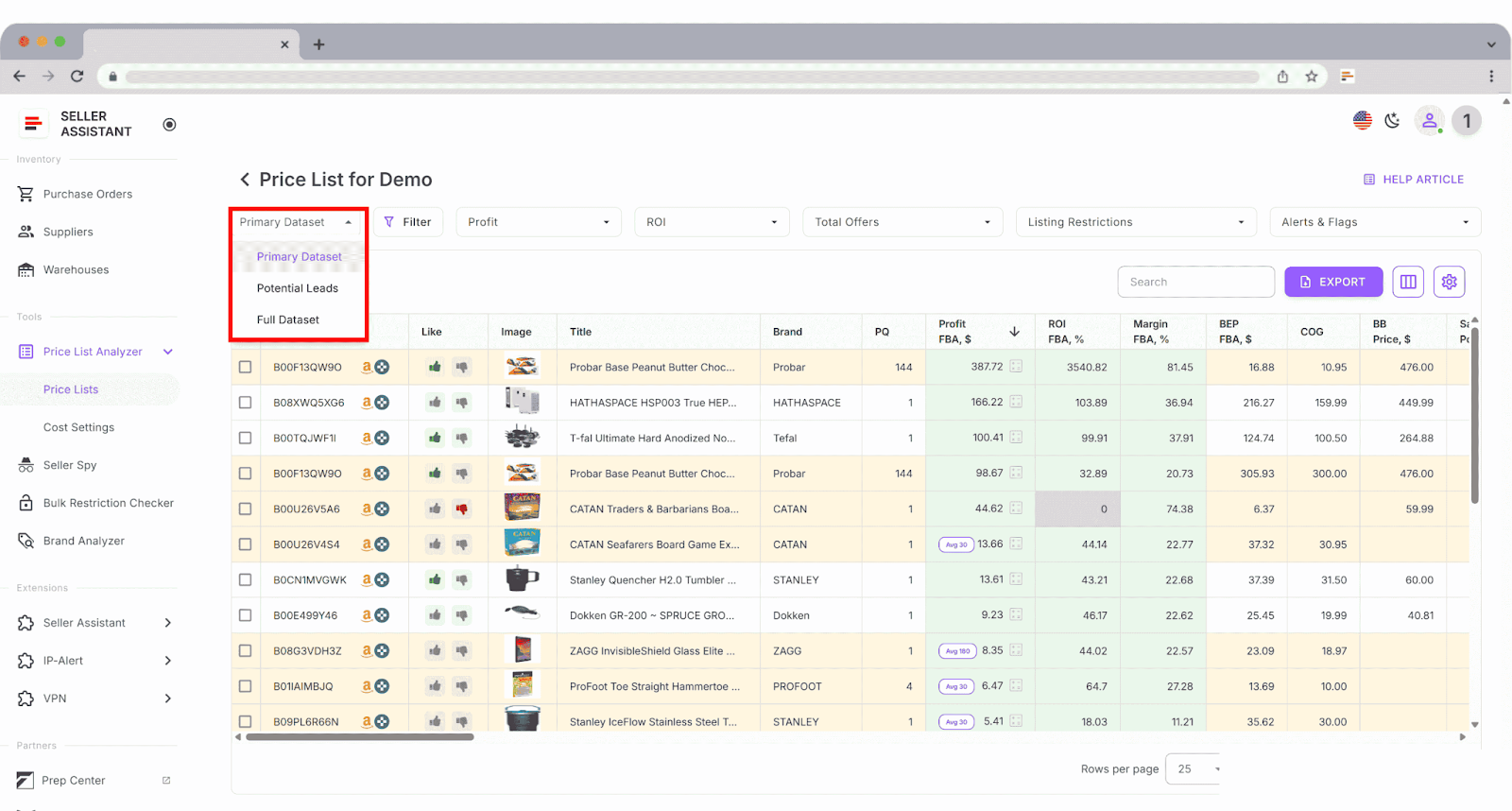
Step 8. Build your shortlist
Save layouts and filter sets such as “Top leads.” Use Like or Dislike to mark SKUs and create a clean buying list.
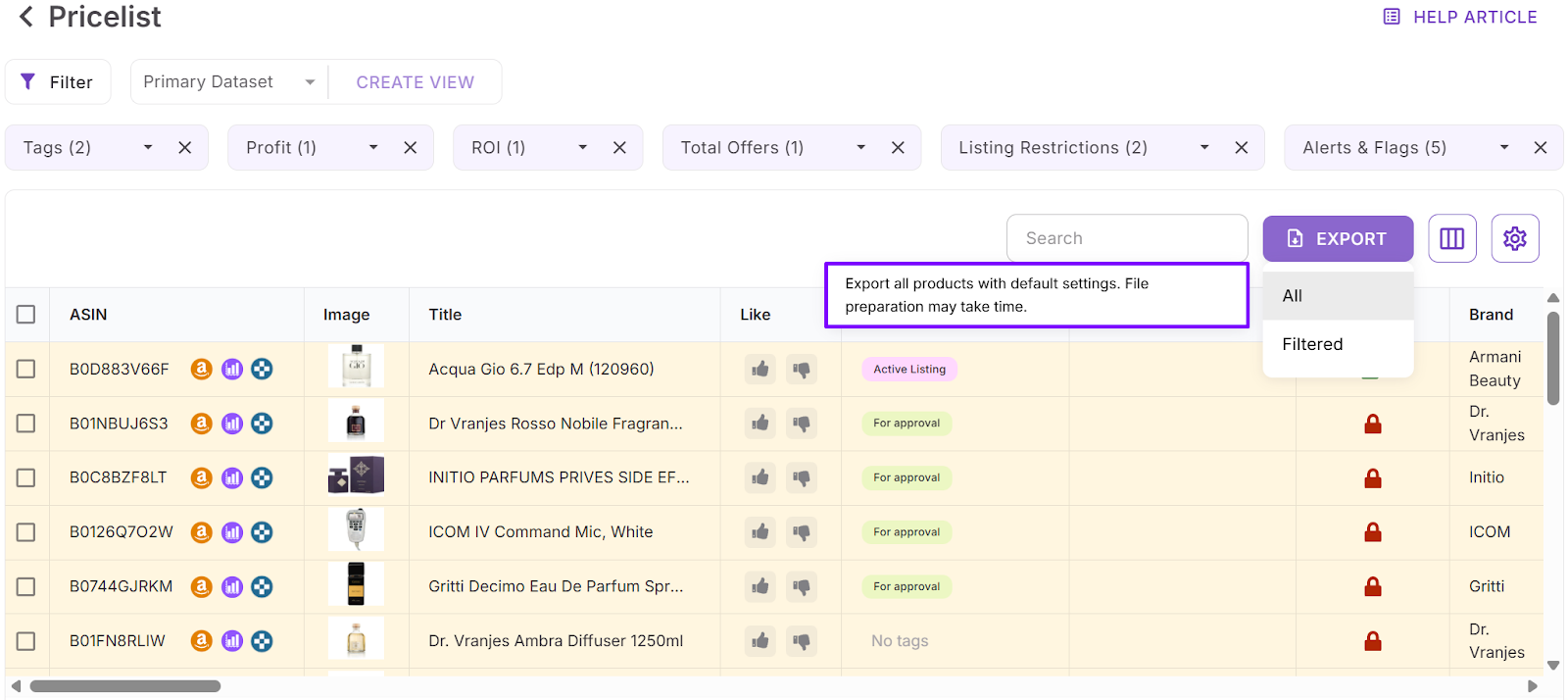
Step 9. Export final selections
Export filtered results, selected products ready for purchase, or the full file for documentation and team review.
How Purchase Orders Module Streamlines Wholesale Purchasing
Centralized purchase order management
Purchase Orders Module is a structured workspace for creating, managing, and tracking Amazon wholesale purchase orders in one place. Instead of building POs manually in spreadsheets, you generate standardized purchase orders directly from verified product data inside your workflow.
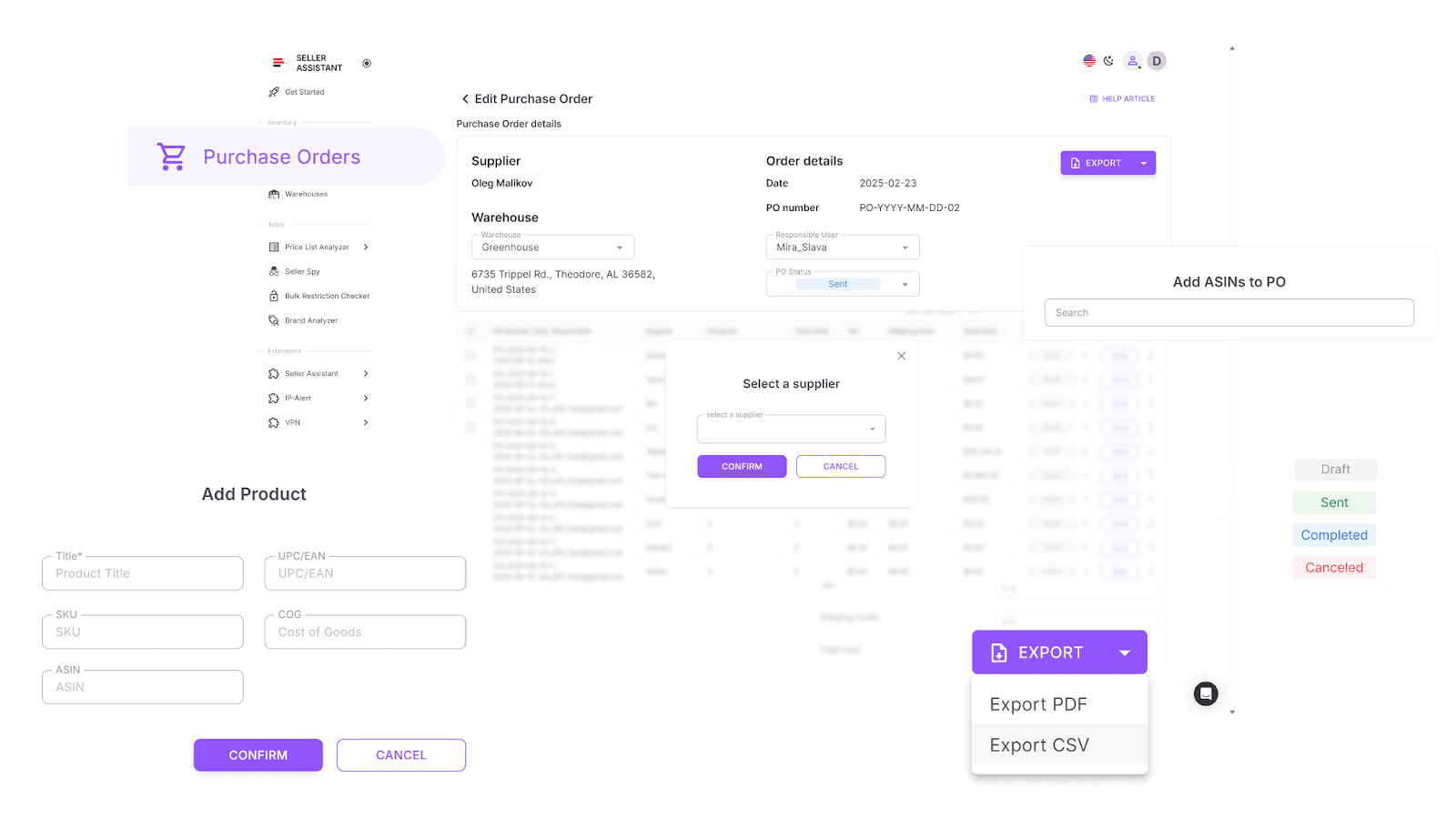
The module connects supplier, warehouse, and product information automatically. This reduces repeated data entry, prevents ordering mistakes, and keeps procurement organized as supplier count and order volume grow.
Purchase decisions move directly from analysis to execution, keeping your buying process consistent and easy to audit.
What Purchase Orders Module does
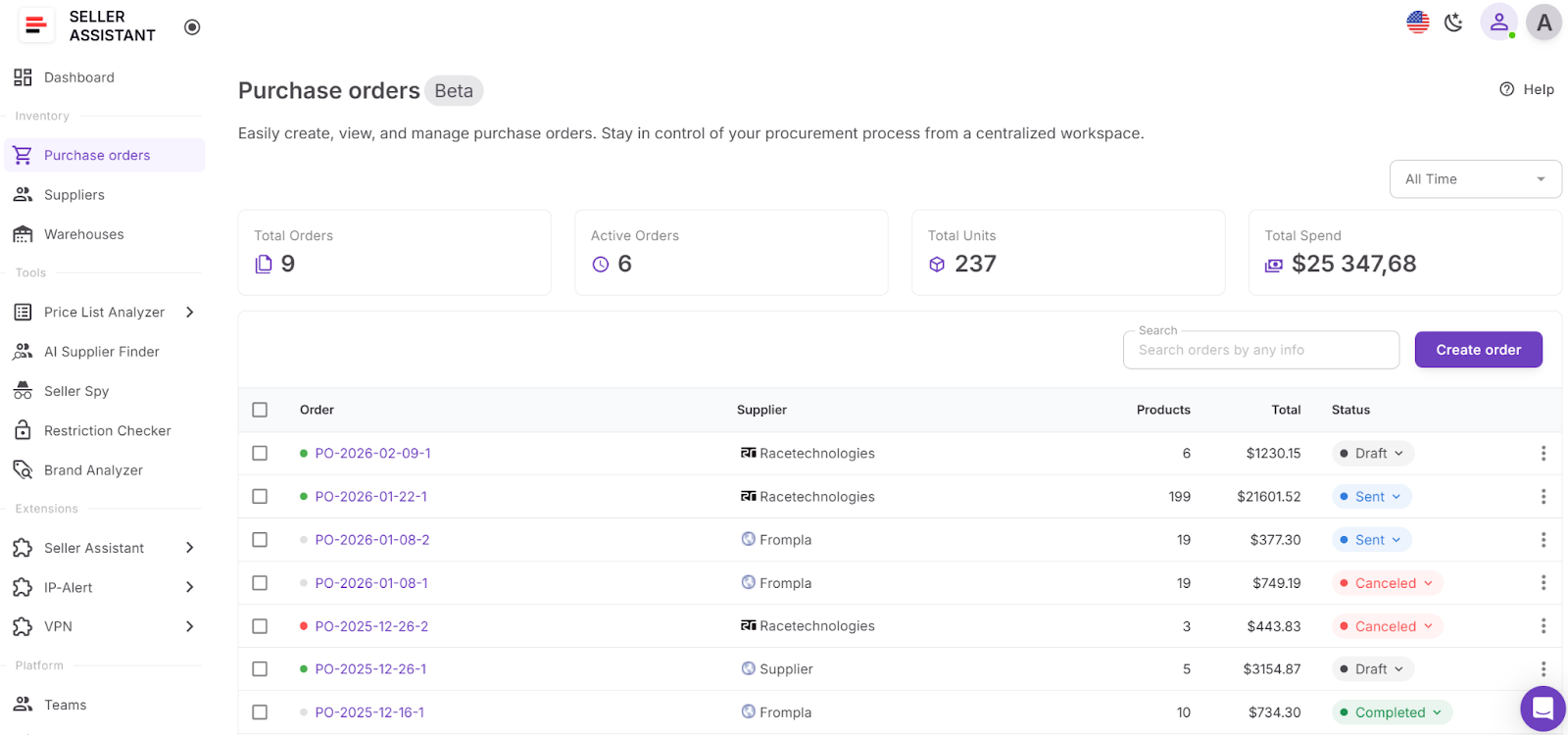
Purchase Orders Module supports controlled and scalable purchasing:
- Create purchase orders from Price List Analyzer shortlists or manual entry
- Pull supplier and warehouse details automatically from connected databases
- Generate and edit PO numbers, dates, and assigned team members
- Add products using ASIN, UPC, EAN, brand, or title search
- Prevent duplicate SKUs within the same PO
- Manage quantities, unit costs, shipping, and tax with real-time recalculation
- View subtotal, shipping, tax, and total order cost instantly
- Track PO status as Draft, Sent, Completed, or Canceled
- Lock completed or canceled POs to prevent edits
- Export purchase orders in PDF or XLSX format
- Assign responsibility to team members
- Flag missing data or invalid routing automatically
- Maintain searchable order history for reorders and forecasting
How to use Purchase Orders Module
Step 1. Open Purchase Orders Module
Log in to your Seller Assistant account and select Purchase Orders from the Inventory section.
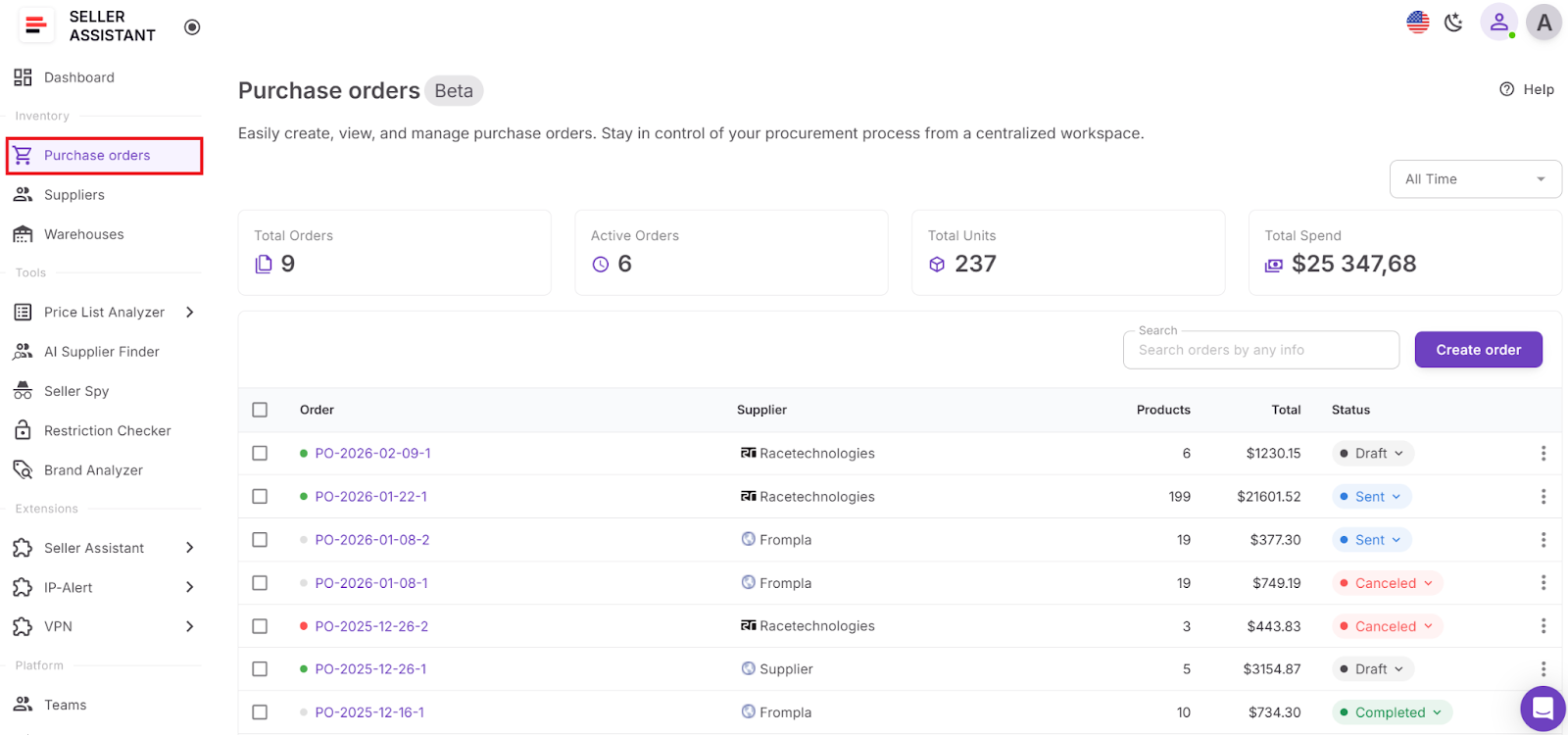
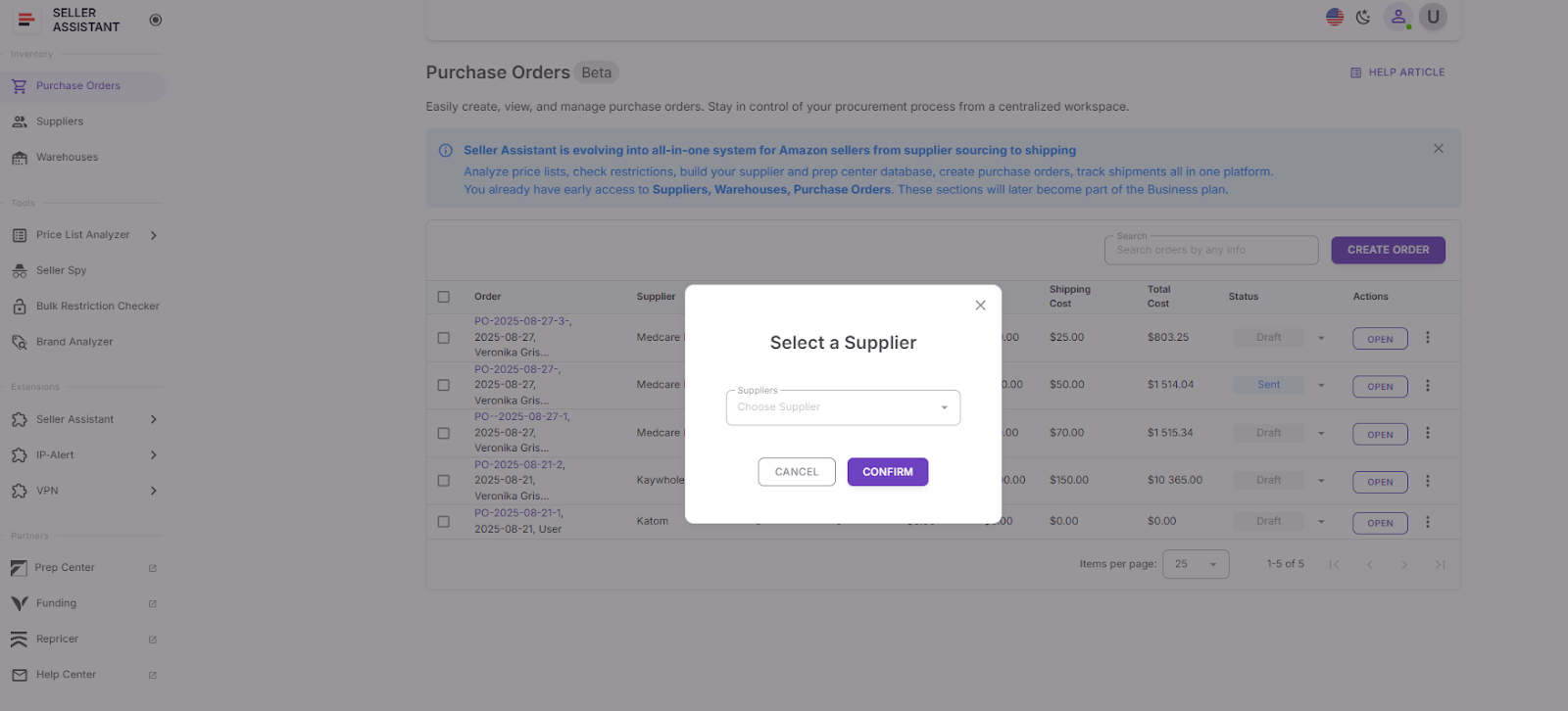
Step 2. Create new purchase order
Click Create PO, choose an existing supplier or add a new one, and confirm. A draft PO opens with a unique number and prefilled supplier details.
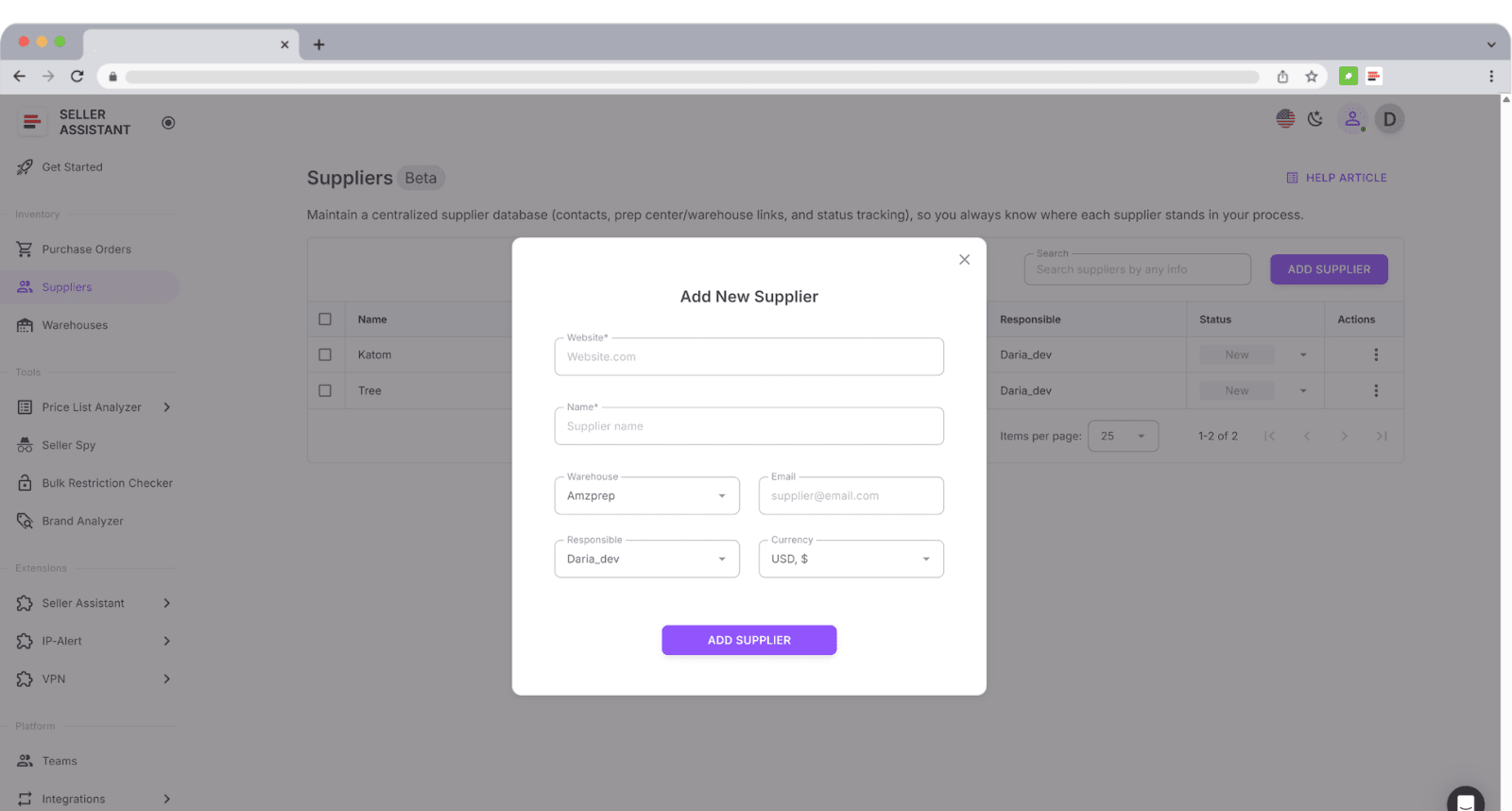
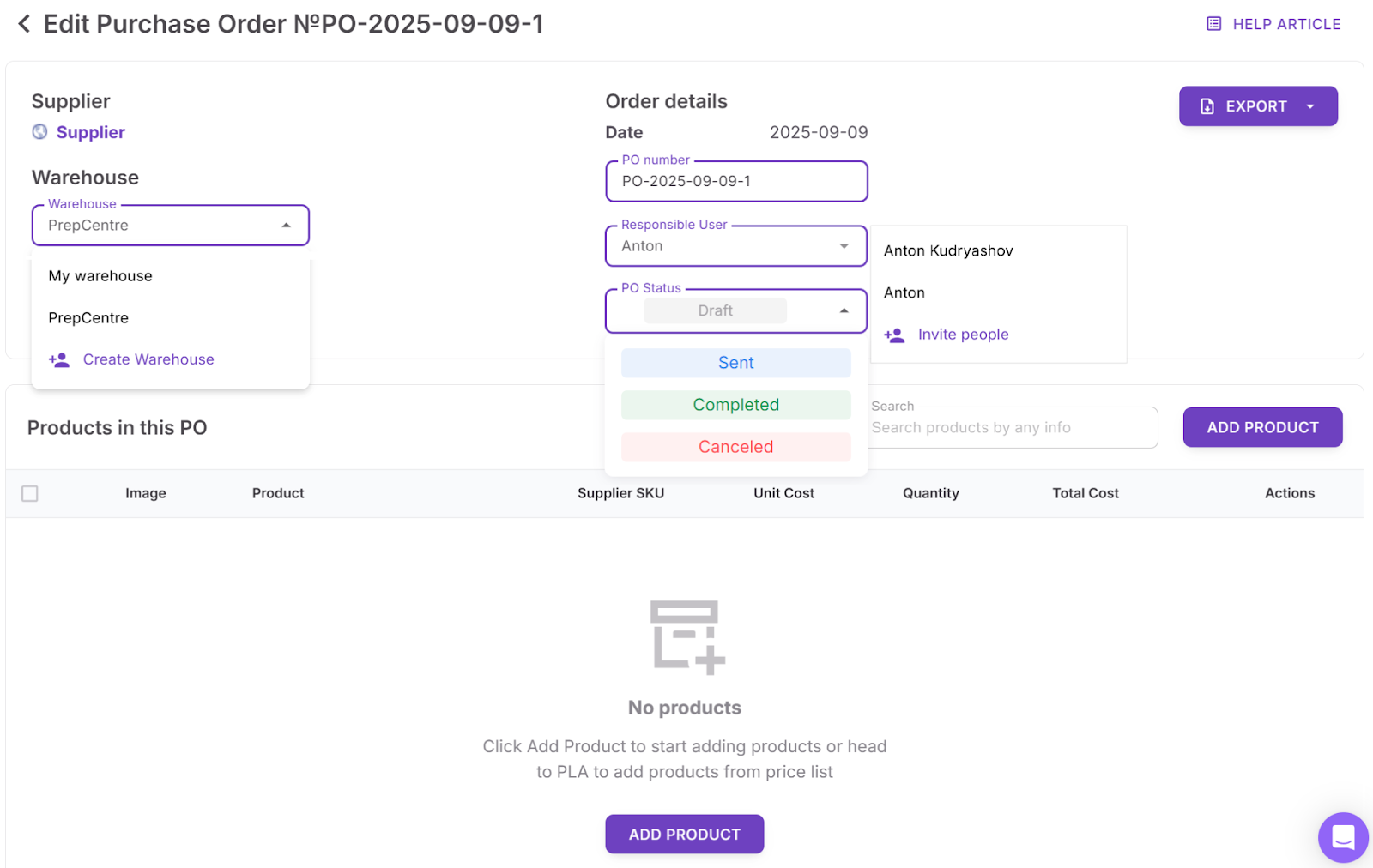
Step 3. Review order settings
Assign a responsible team member, confirm the warehouse or prep center, and adjust the PO number or date if needed.
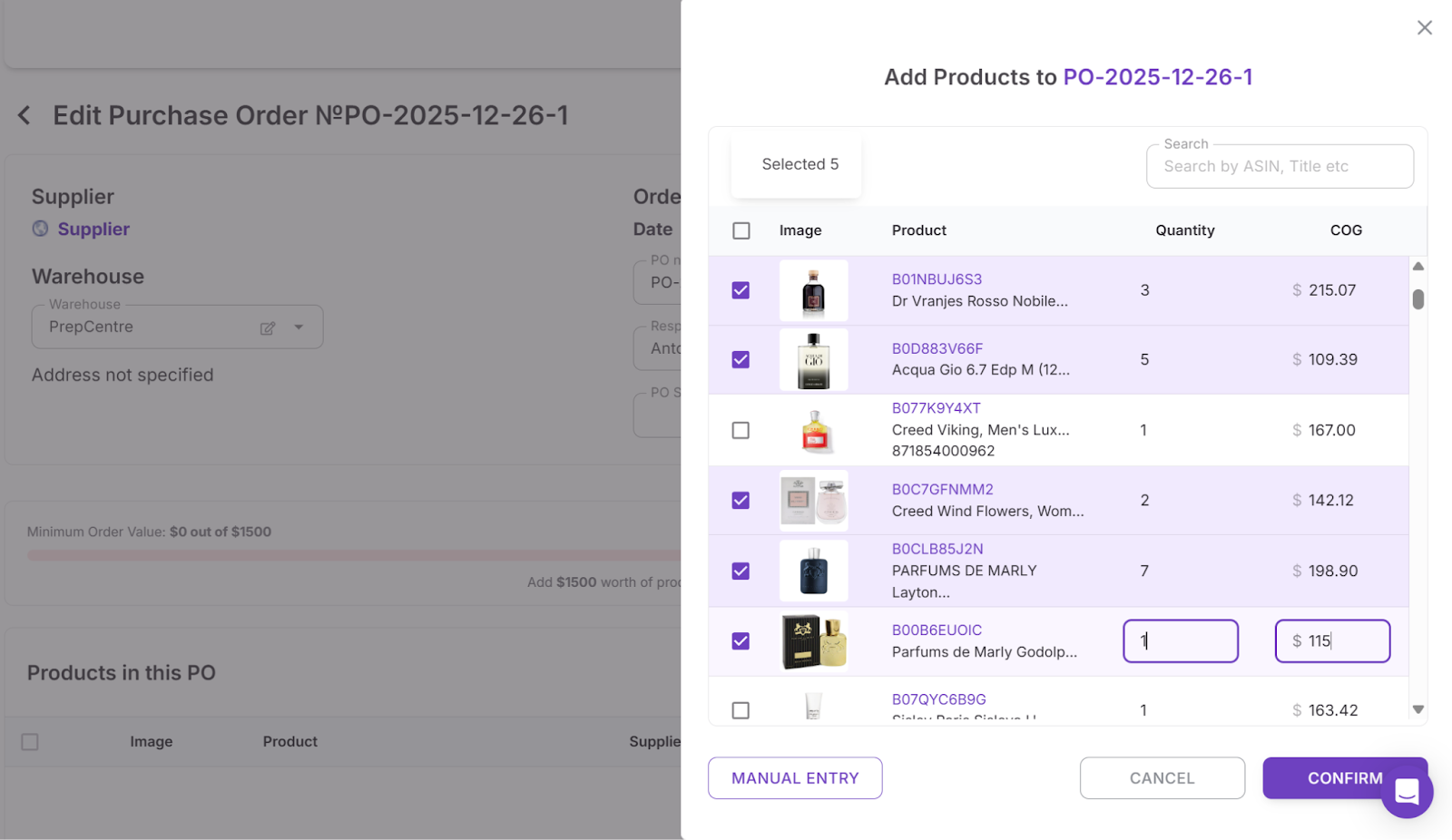
Step 4. Add products
Import items from Price List Analyzer, supplier lists, Keepa search, or enter products manually. Adjust quantities and unit costs as required.
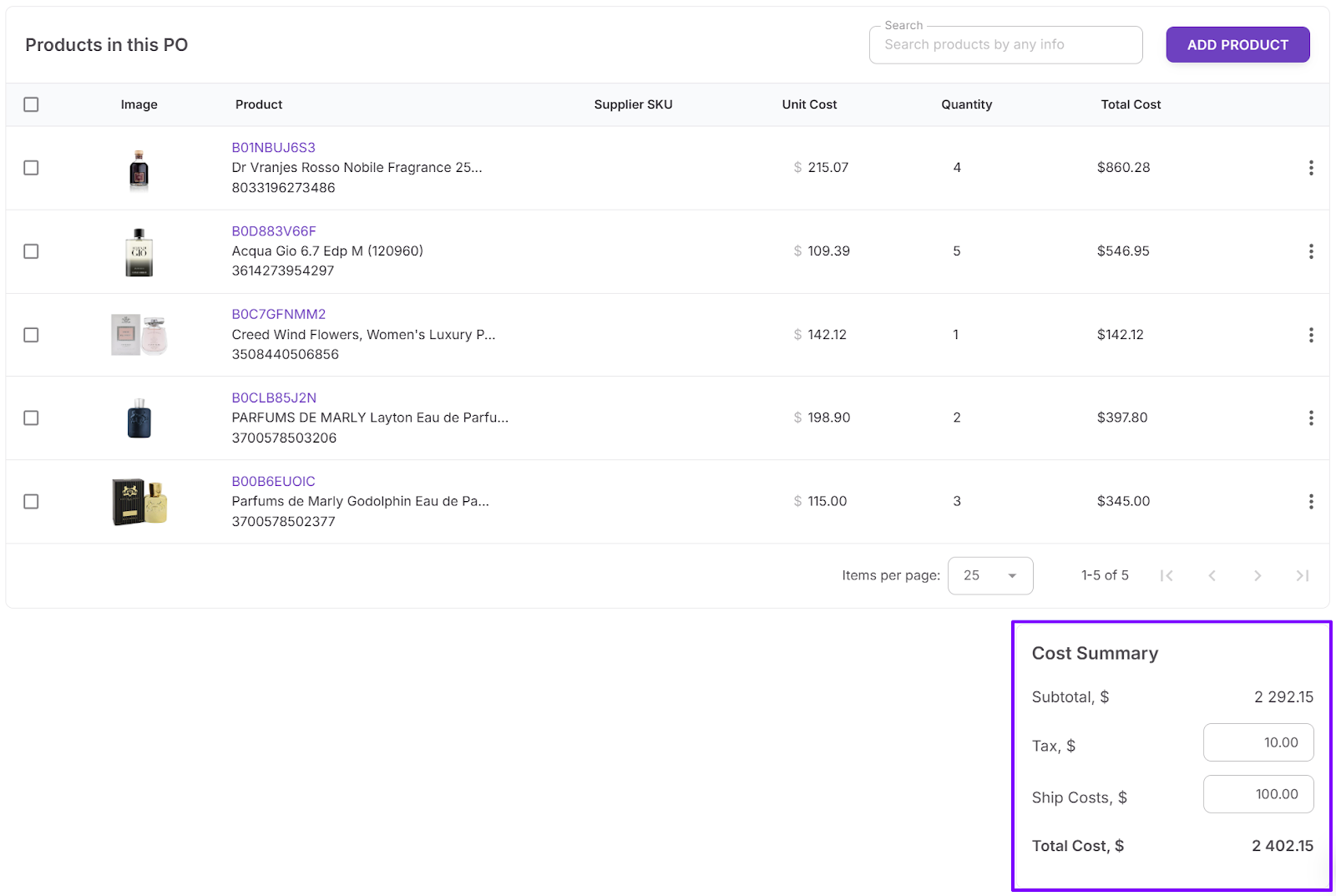
Step 5. Set costs and review totals
Enter shipping and tax values. The system calculates subtotal, total cost, and landed cost automatically.
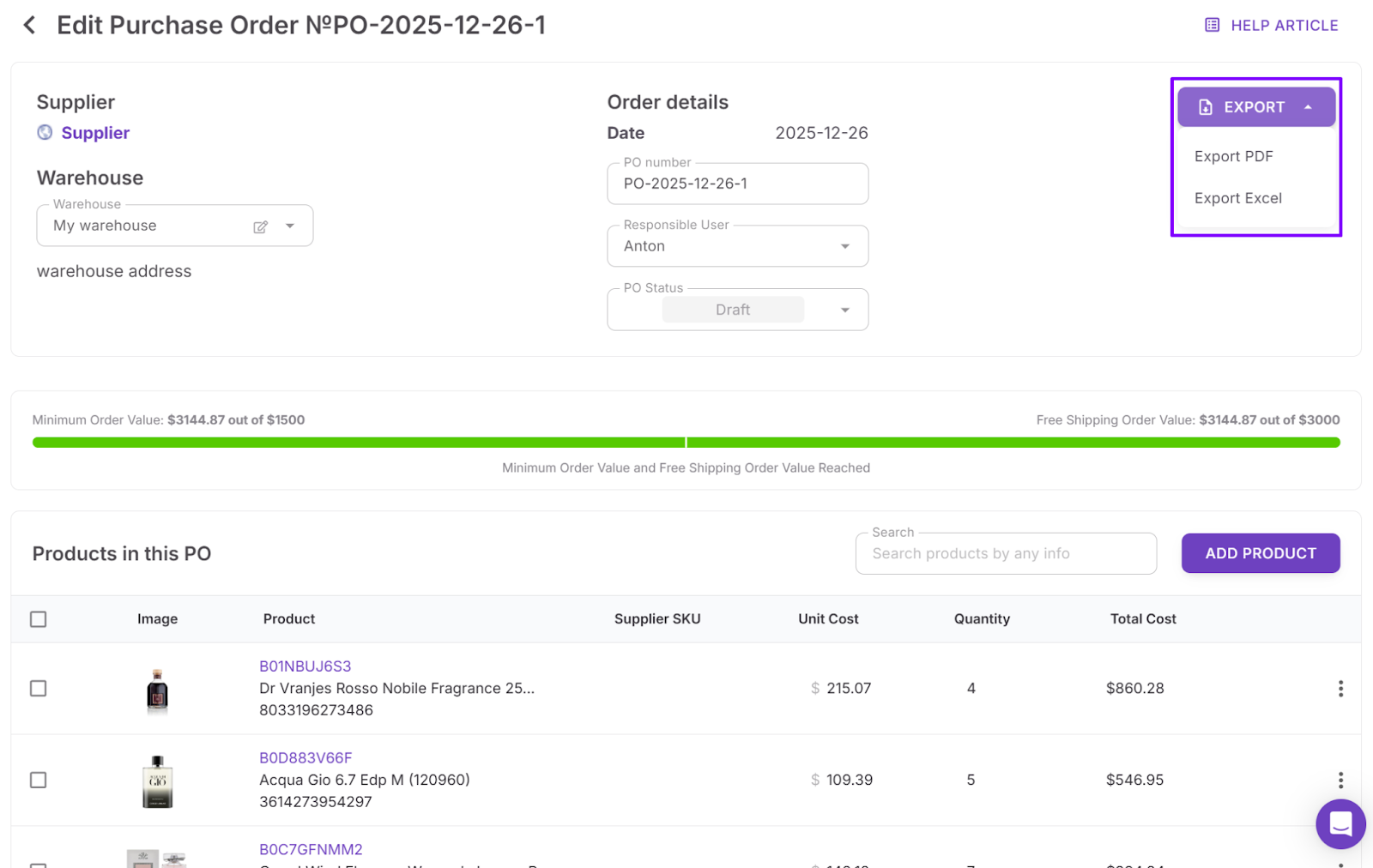
Step 6. Export and send
Export the finalized PO as PDF or XLSX and send it to your supplier.
Step 7. Track order status
Update the PO as it moves from Draft to Sent, then Completed or Canceled. Status tracking keeps your team aligned and prevents duplicate or forgotten orders.
FAQ
What makes Seller Assistant tools different from using separate Amazon tools?
Most tools solve one problem in isolation. Seller Assistant connects every stage – from brand research to purchase order – so data flows automatically and decisions stay consistent across your entire operation.
Do I need all Seller Assistant tools to run a wholesale business?
Not necessarily, but using the full workflow gives you the biggest advantage. Each tool handles a specific stage, and together they eliminate manual gaps between research, supplier management, and purchasing.
Can Seller Assistant tools work for online arbitrage and dropshipping sellers?
Yes. The same workflow – brand validation, restriction checks, supplier discovery, bulk analysis, and purchase order management – applies to wholesale, online arbitrage, and dropshipping models.
How do the tools help reduce account risk?
They flag restricted ASINs, identify potential compliance issues, and prioritize legitimate B2B suppliers. This lowers the chances of IP complaints, inauthentic claims, and listing removals.
Can I use Seller Assistant with a team or virtual assistants?
Yes. Supplier data, price list analysis, and purchase orders stay centralized, so team members can work inside structured workflows without accessing Seller Central directly.
Final Thoughts
Scaling an Amazon wholesale business is not about finding more products – it is about building a workflow that can handle volume without breaking. As supplier lists grow, ASIN counts increase, and purchase orders multiply, manual spreadsheets and disconnected tools create errors, delays, and risk.
Seller Assistant connects every stage of the wholesale process into one structured system. You validate brands, check restrictions, find real suppliers, analyze price lists in bulk, route inventory correctly, and generate purchase orders – all inside a single workflow. Instead of juggling tabs and re-entering data, you operate with consistency, visibility, and control.
Seller Assistant automates and connects every stage of your Amazon wholesale and arbitrage workflow. It brings together in one platform: workflow management tools – Purchase Orders Module, Supplier Database, Warehouse Database, bulk research & sourcing tools – Price List Analyzer, Bulk Restriction Checker, Sourcing AI, Brand Analyzer, Seller Spy, Chrome extensions – Seller Assistant Browser Extension, IP-Alert Extension, and built-in VPN by Seller Assistant, and integrations & team access features – seamless API connectivity, integrations with Zapier, Airtable, and Make, and Virtual Assistant Accounts.