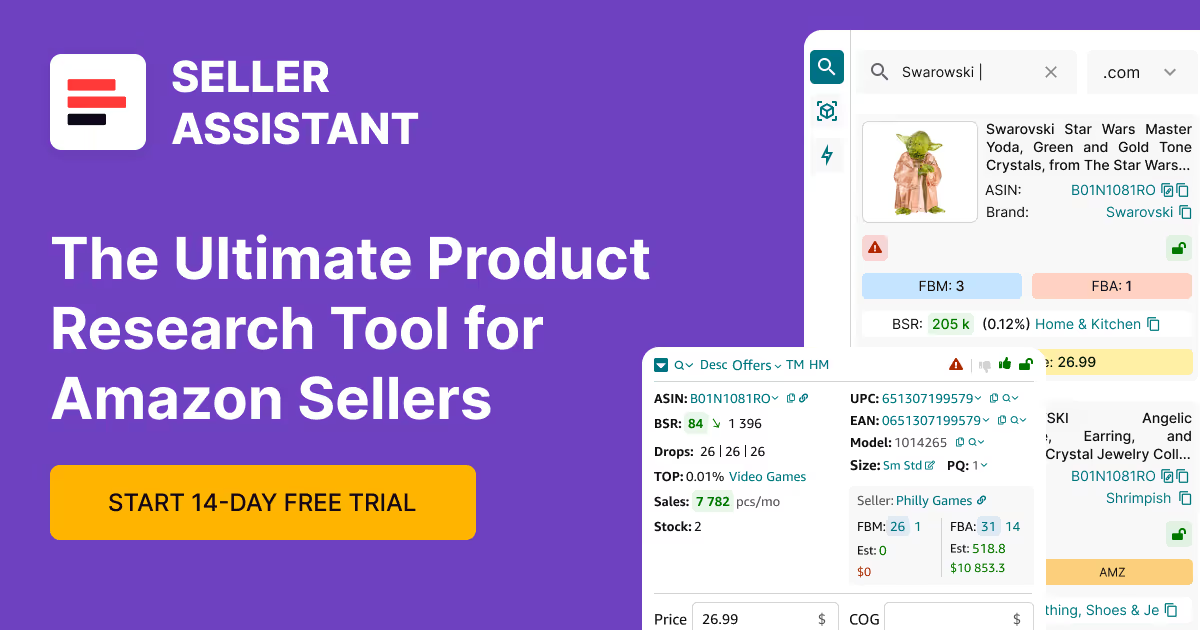



Managing SKUs in Amazon is where many sellers lose control of their operations. Without a clear system, it’s hard to track listing status, monitor costs, or understand which products are actually profitable.
Seller Assistant’s SKUs Tool solves this by giving you a centralized view of every MSKU, including its status, condition, and full landed cost.
Instead of treating SKUs as simple identifiers, you use them to control how products are listed, priced, and tracked across your entire workflow – from sourcing and purchase orders to listings and fulfillment.
Why SKUs Are Where Profit and Control Meet
SKUs are more than internal identifiers – they define how your products exist on Amazon. Each SKU carries critical data like listing status, condition, and cost, which directly impacts whether your inventory is sellable and profitable. Without structured SKU management, sellers lose visibility, create duplicates, and struggle to connect sourcing decisions with actual sales performance.
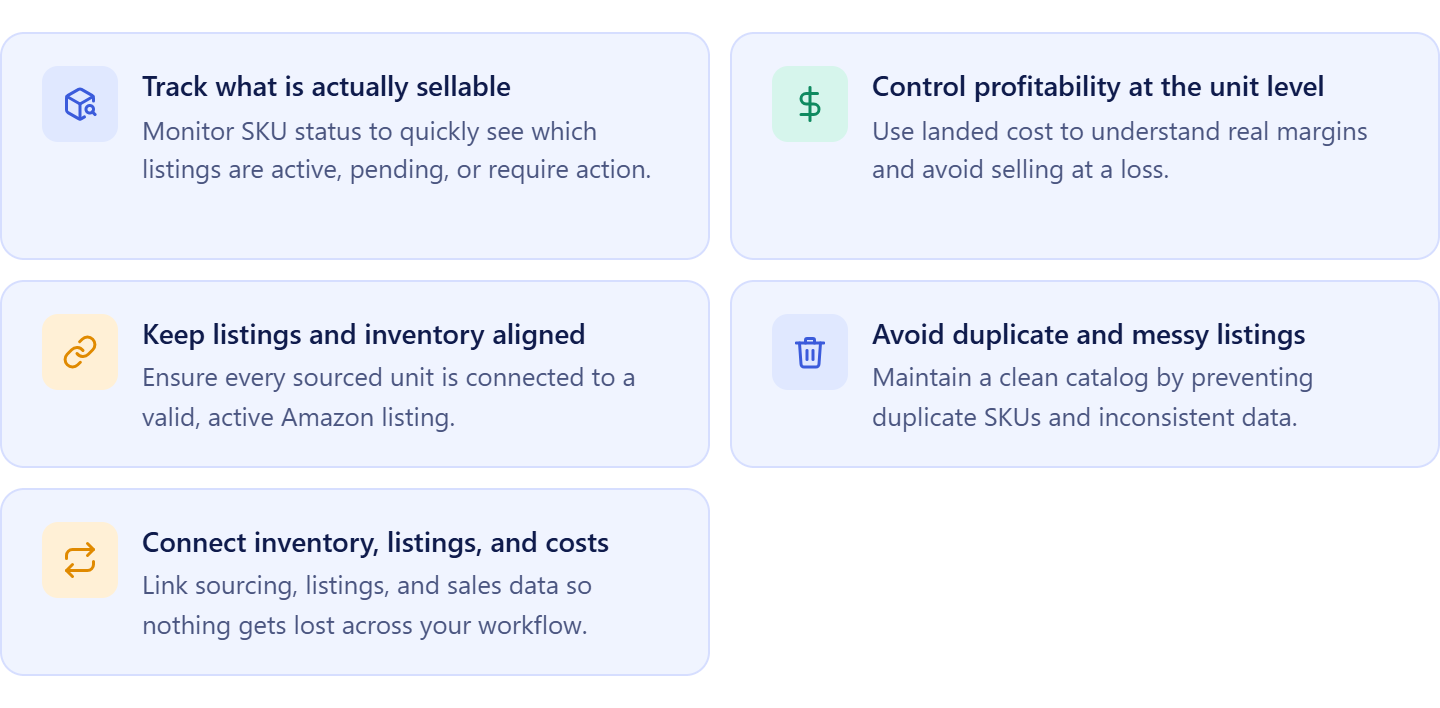
Track what is actually sellable
SKU status reflects whether your listing is active, pending, or blocked. Managing SKUs helps you quickly see which products are buyable and which ones need action.
Control profitability at the unit level
Each SKU includes landed cost, combining product cost, prep, and inbound fees. This allows you to understand real margins and avoid selling at a loss.
Keep listings and inventory aligned
SKUs connect your inventory to listings, ensuring that every unit you source is tied to a valid offer. This prevents situations where inventory exists but listings are inactive.
Avoid duplicate and messy listings
Without SKU control, the same product can be listed multiple times with inconsistent data. Structured SKU management keeps your catalog clean and consistent.
Connect your inventory, listings, and costs
SKUs act as the link between what you buy, what you list, and what you sell. Managing them properly helps you keep product data, listing status, and costs aligned across your operations, so nothing gets lost between sourcing and sales.
What Is Seller Assistant’s SKUs Tool
Your control center for SKU-level operations
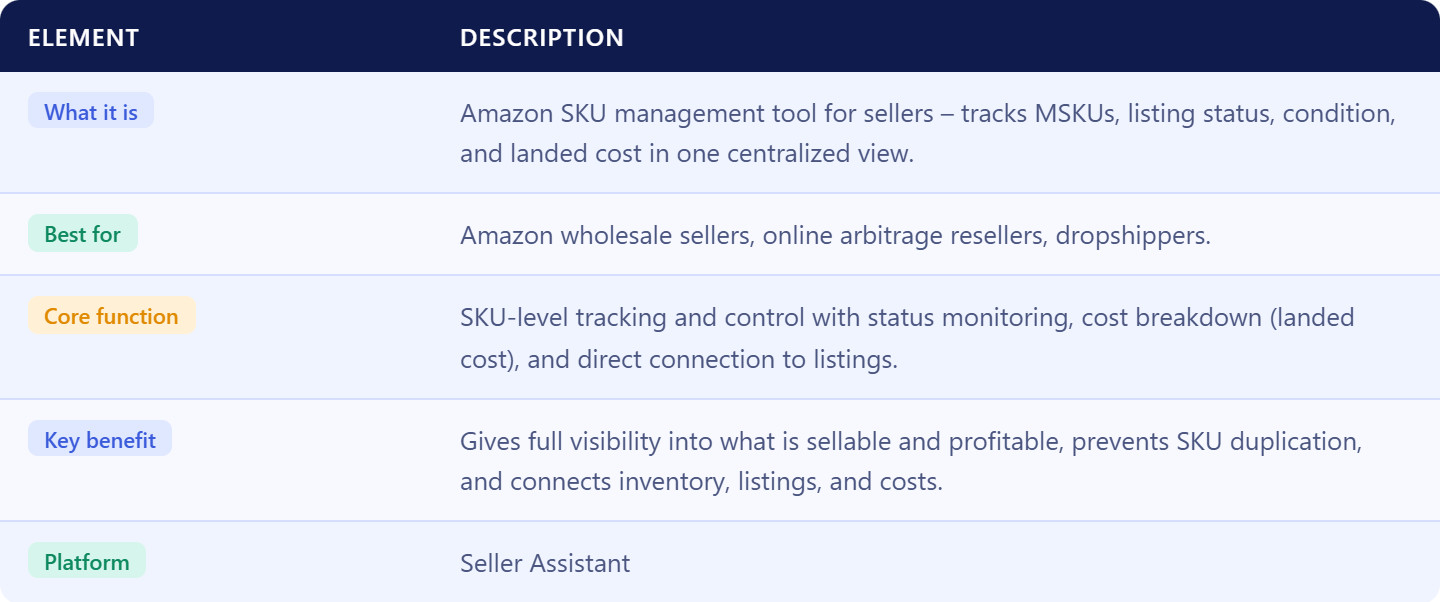
Seller Assistant’s SKUs Tool is a centralized workspace where you can view, track, and manage all your Amazon MSKUs in one place. It shows each SKU’s status, condition, channel, and landed cost, giving you a clear picture of how every unit is performing and whether it’s actually sellable.
What data you can see and manage
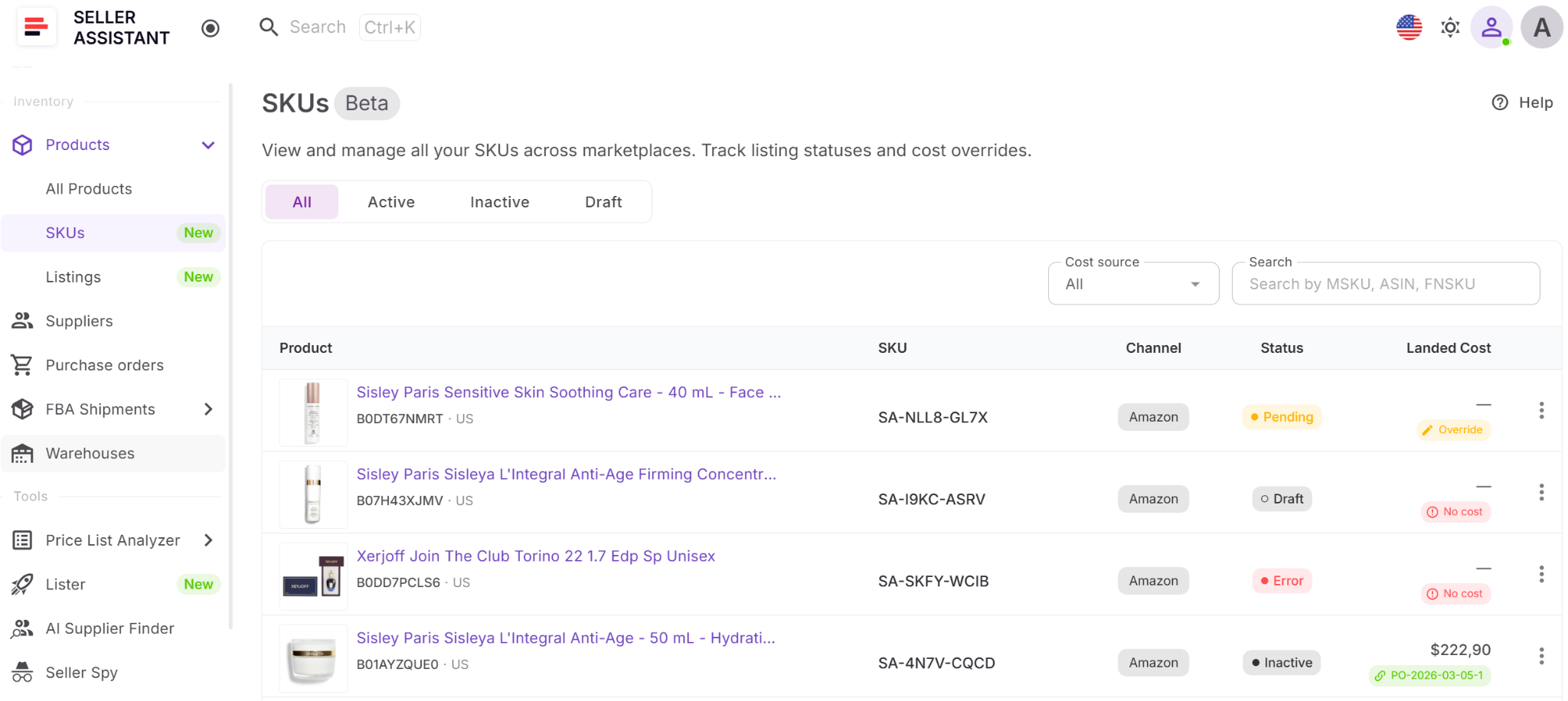
The SKUs Tool displays all SKUs synced from your Amazon account and created via Lister. For each SKU, you can access product details (ASIN, title, brand), marketplace, condition, status (Draft, Pending, Active, Inactive, Error), and a full landed cost breakdown. You can also filter SKUs by status and take actions like listing products directly from the tool.
Why SKU-level visibility changes how you operate
SKUs determine how products are listed, priced, and tracked. With SKU-level visibility, you can see which offers are active, which are blocked, and how much each unit actually costs you. This helps you avoid inactive inventory, fix listing issues faster, and make decisions based on real margins, not estimates.
Part of Product Database: where data stays connected
The SKUs Tool is part of the Product Database, alongside Listings Tool. While Listings show the offer on Amazon, SKUs define how that offer is structured – including condition, cost, and internal tracking. Keeping both in one system ensures your product data, listings, and costs stay aligned.
Built into Seller Assistant’s workflow automation
The SKUs Tool is part of Seller Assistant’s connected wholesale workflow. Deals are analyzed in Price List Analyzer, products are stored in Product Database, and SKUs define how each item is structured with cost and status. From there, listings are created via Lister, managed in the Listings Tool, and fulfilled through FBA Shipments, with Purchase Orders Module, Suppliers Database, and Warehouses Database providing the operational backbone. SKUs tie all these steps together, keeping product data, listings, and costs consistent across the system.
Note. Seller Assistant is an end-to-end Amazon workflow management platform that integrates 15+ wholesale-focused solutions into one connected system. It combines sourcing workflow automation, bulk research and intelligence tools, and integrated Chrome extensions – giving you everything you need to streamline finding deals, managing suppliers, and creating purchase orders.

The platform aggregates: workflow management tools – Purchase Orders Module, Suppliers Database, Product DB, Warehouses Database, FBA Shipments to organize, automate, and scale every step of your wholesale and arbitrage operations; bulk research & sourcing tools – Price List Analyzer, Bulk Restriction Checker, AI Supplier Finder, Brand Analyzer, Seller Spy to evaluate supplier price lists, verify selling eligibility and restrictions, open new brands, and discover winning product ideas from competitors to expand your product catalog; Chrome extensions – Seller Assistant Browser Extension, IP-Alert Extension, and built-in VPN by Seller Assistant to deep-research products, check IP claims and compliance, and access geoblocked supplier sites directly within your browser; and integrations & team access features – seamless API connectivity and integrations with Zapier, Airtable, and Make, plus Virtual Assistant Accounts for secure, scalable team collaboration.
With Seller Assistant, every step of your Amazon wholesale and arbitrage workflow is automated and connected.
What You Can Do with the SKUs Tool
The SKUs Tool gives you control over how each product is structured, tracked, and evaluated across your Amazon business. Instead of treating SKUs as simple identifiers, you use them to monitor listing status, manage costs, and keep your operations organized at scale.
Track SKU status across your catalog
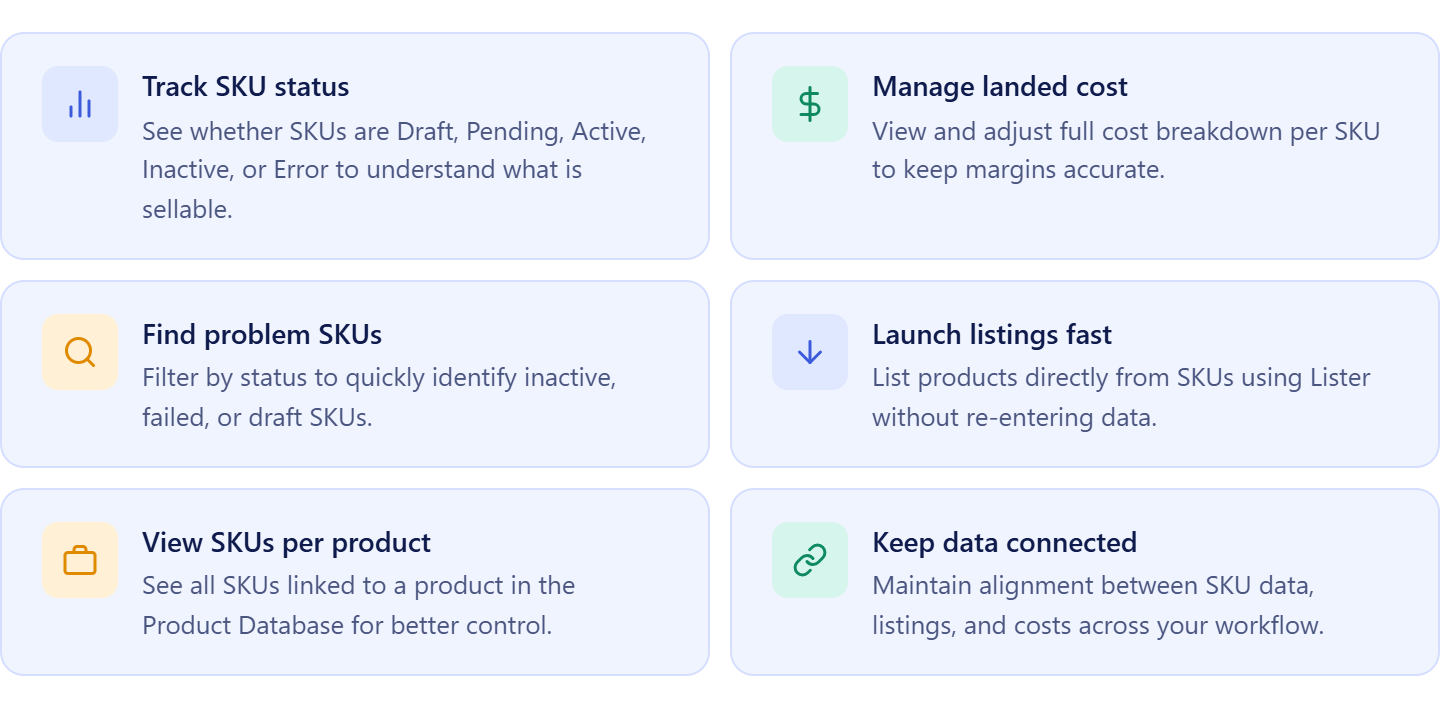
You can see whether each SKU is Draft, Pending, Active, Inactive, or Error. Since SKU status reflects listing status, this helps you quickly identify which products are buyable and which need action.
Monitor and manage landed cost
Each SKU includes a full landed cost breakdown, combining unit cost, prep, and inbound fees. You can edit or adjust these values to keep your margins accurate and up to date.
Filter and find problem skus fast
You can filter SKUs by status to quickly find inactive, draft, or failed listings. This is especially useful for high-volume sellers managing large catalogs.
Launch listings directly from SKUs
You can select SKUs and list them on Amazon using Lister. This connects your SKU data directly to listing creation without re-entering information.
View SKUs at the product level
Inside the Product Database, each product has a SKU tab showing all related SKUs. This helps you understand how a single product is listed across different conditions, channels, or strategies.
Keep SKU data aligned across your workflow
SKUs stay connected to product data, listings, and costs, so changes in one place are reflected across your operations. This reduces errors and keeps your business data consistent.
How SKUs Tool Works
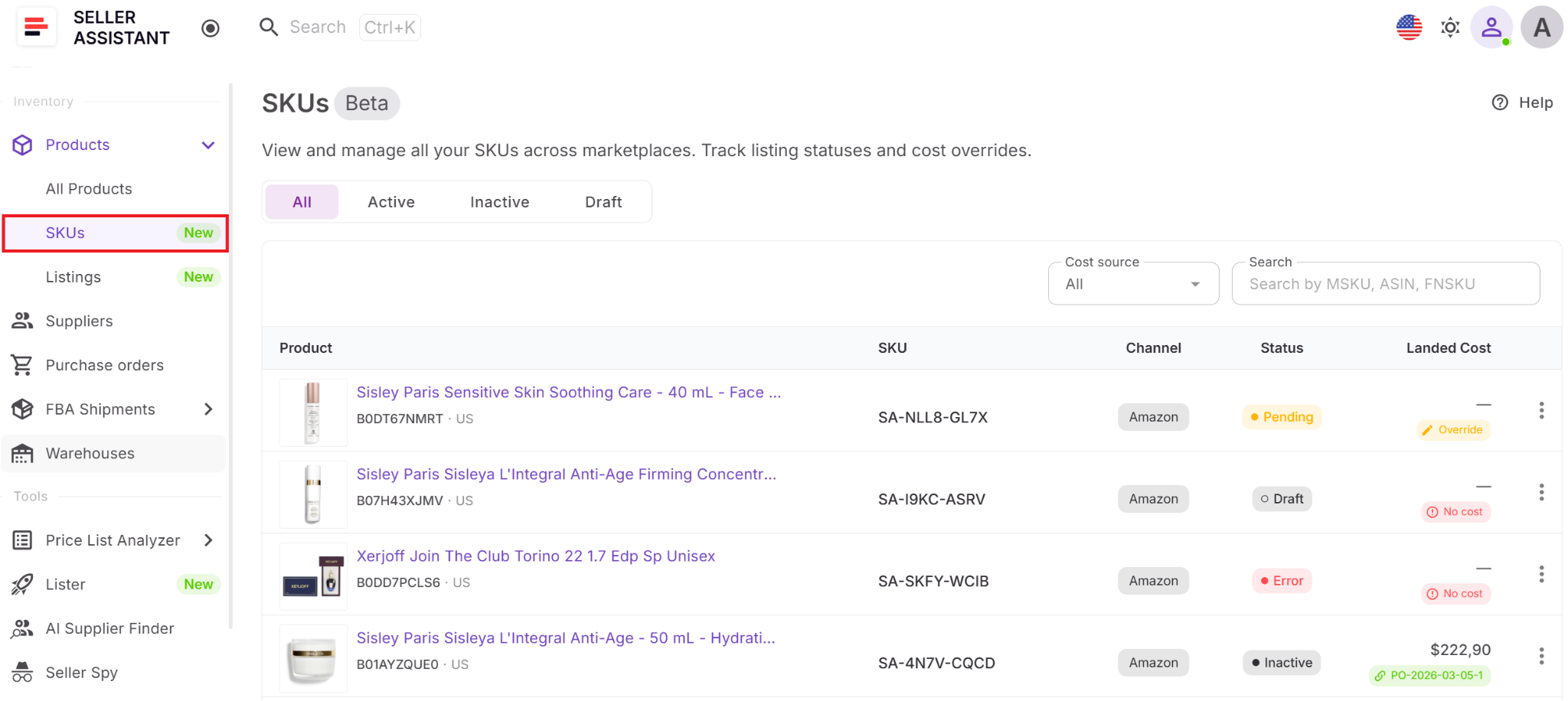
The SKUs Tool lets you manage all your MSKUs from one place. You open it from Inventory → Products → SKUs, where all SKUs synced from Amazon and created via Lister appear in a single dashboard. From there, you track status, review costs, filter SKUs, and take actions like listing products or updating cost data. As you work, SKU data stays connected to listings, product records, and your overall workflow.
What data you can see and track
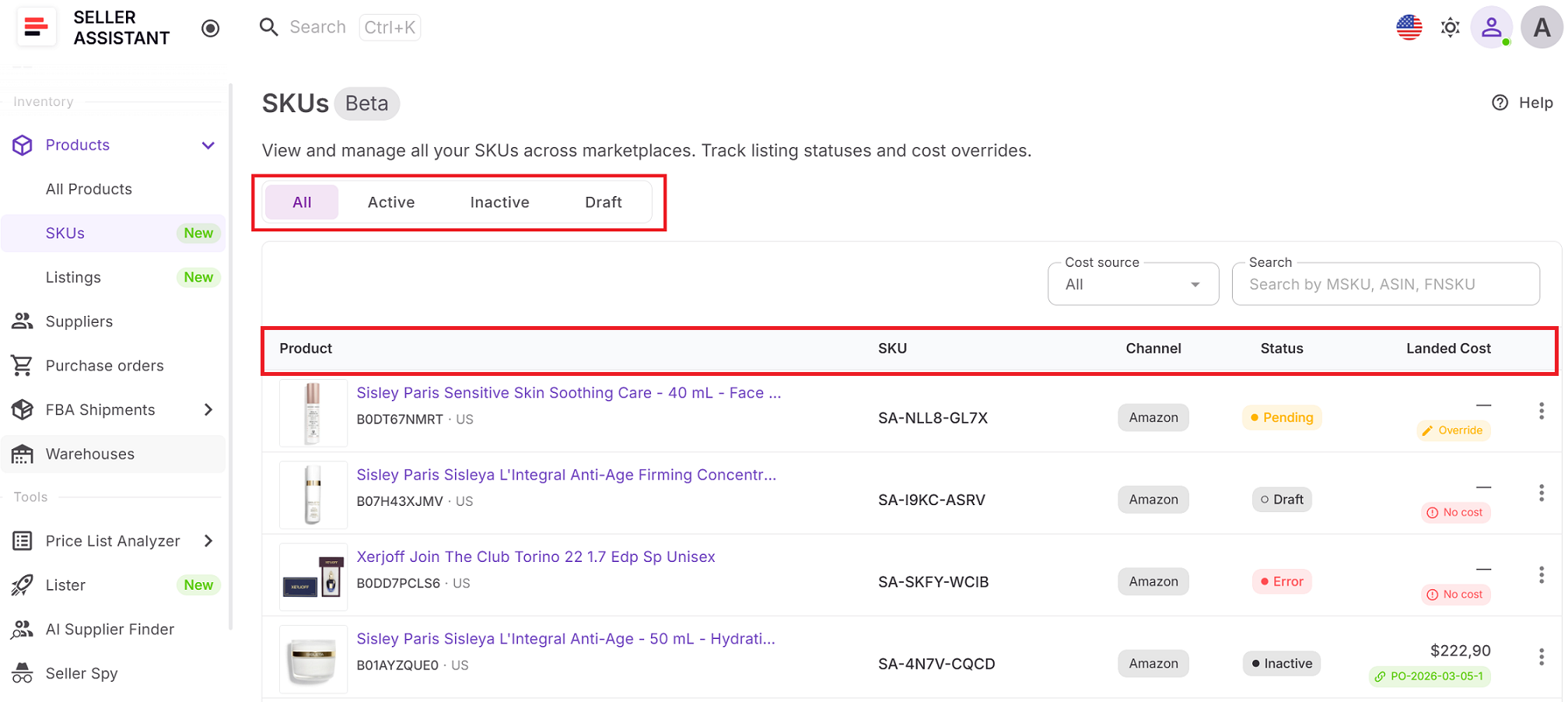
The SKUs dashboard provides a full view of each SKU:
- Product details – image, title (link to Product Details Page), brand
- ASIN – link to Amazon Product Page
- Marketplace
- SKU (MSKU)
- Channel
- Status – Draft, Pending, Active, Inactive, Error
- Landed cost – full per-unit cost breakdown
- Created date
You can filter and switch between statuses to focus on specific SKUs.
How SKU-level profitability is calculated
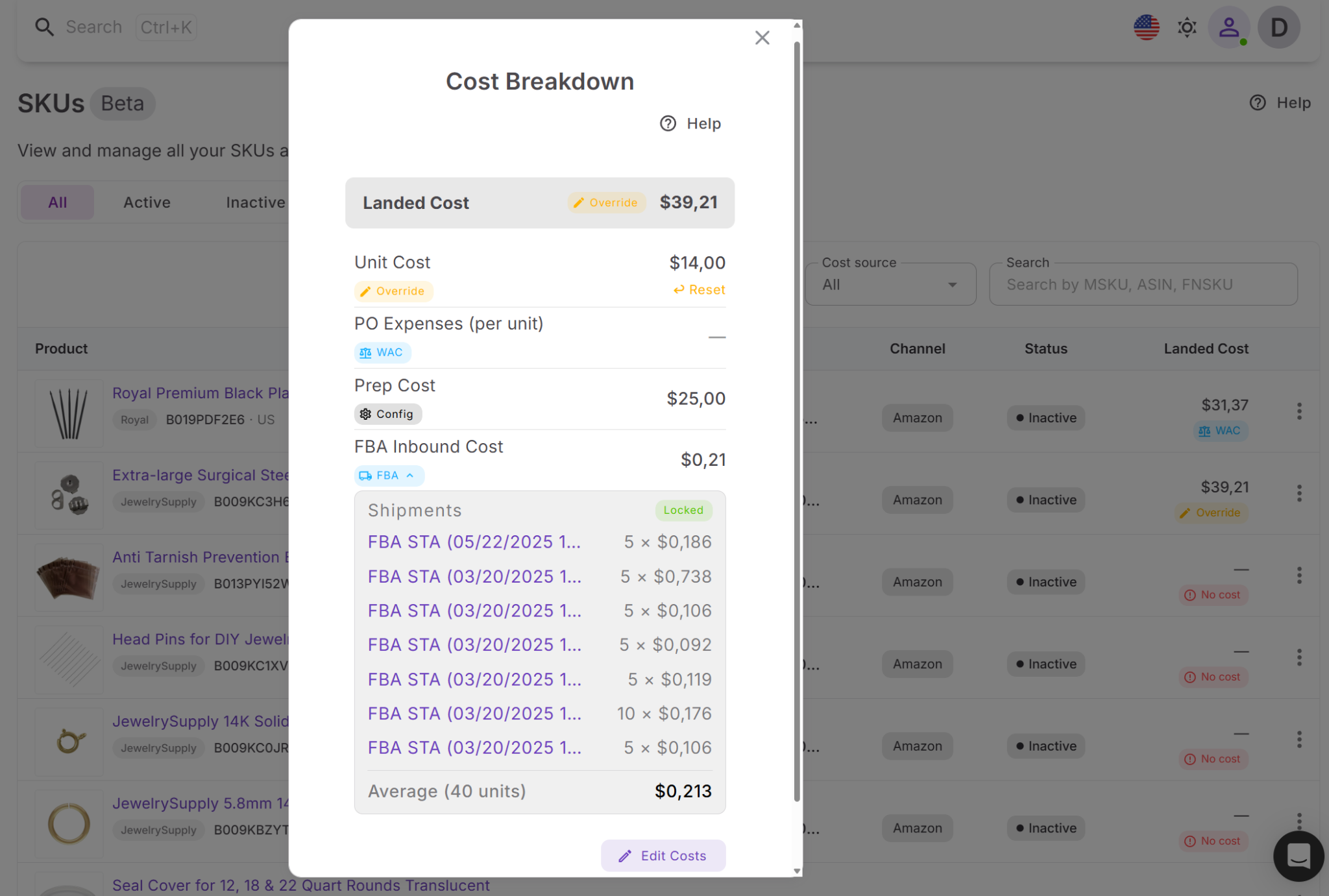
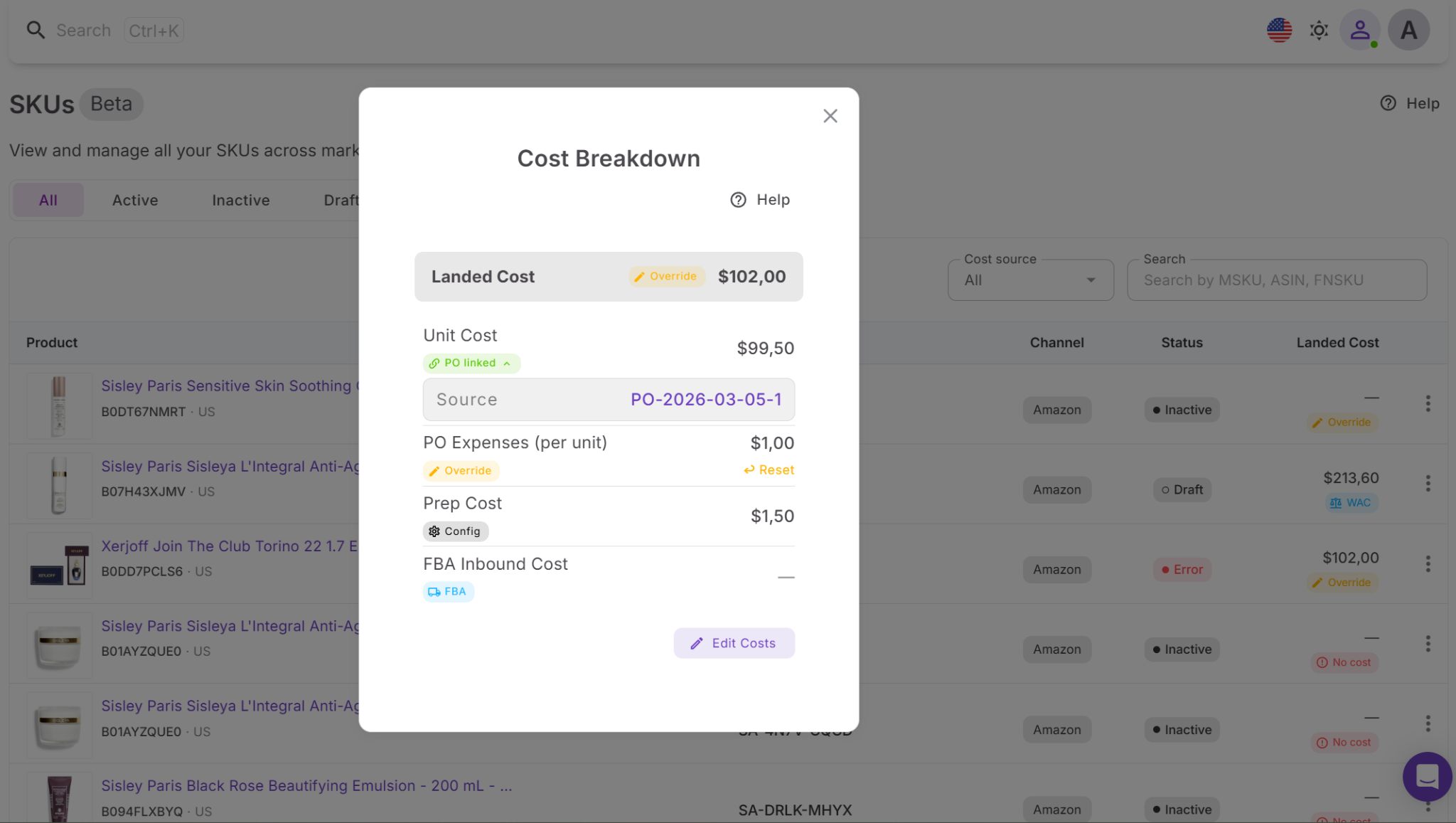
Each SKU includes a landed cost that combines all major per-unit expenses. This includes unit cost, purchase order expenses, prep cost, and FBA inbound cost. Each component is labeled by its source – such as PO, shipment, weighted average cost, or manual override – so you know where the numbers come from.
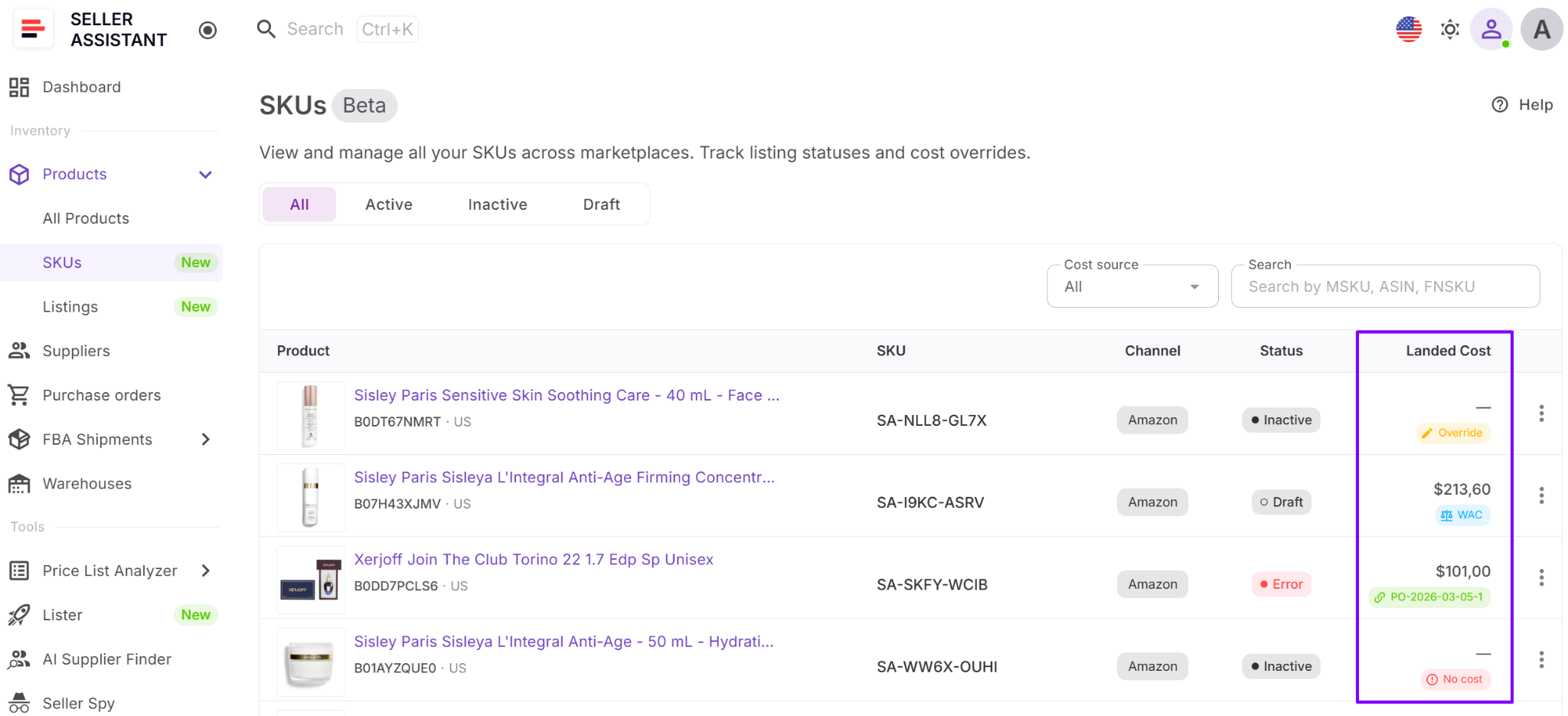
Costs update automatically when purchase orders or shipments change, while some values can be adjusted manually. You can expand each cost component to see detailed data like linked purchase orders or shipment information, giving you full visibility into your real margins.
Turn SKUs into live listings
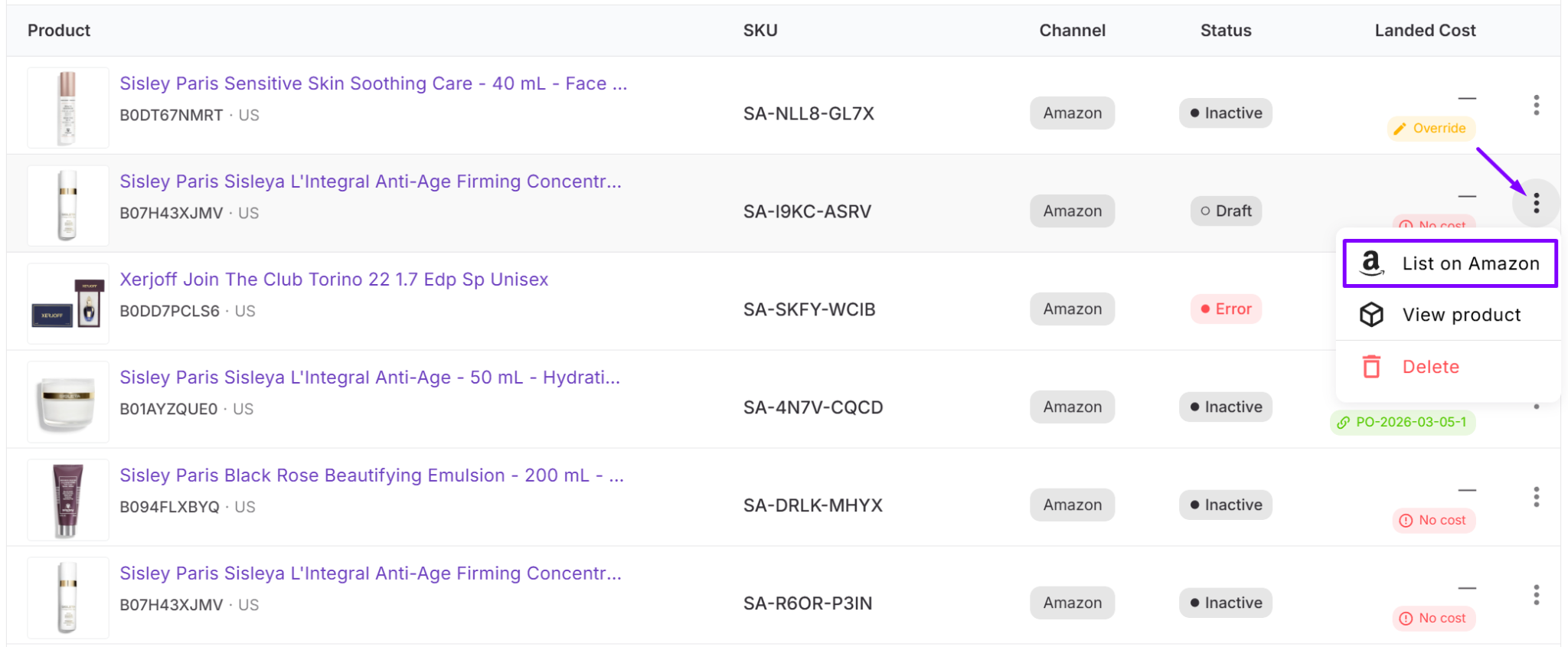
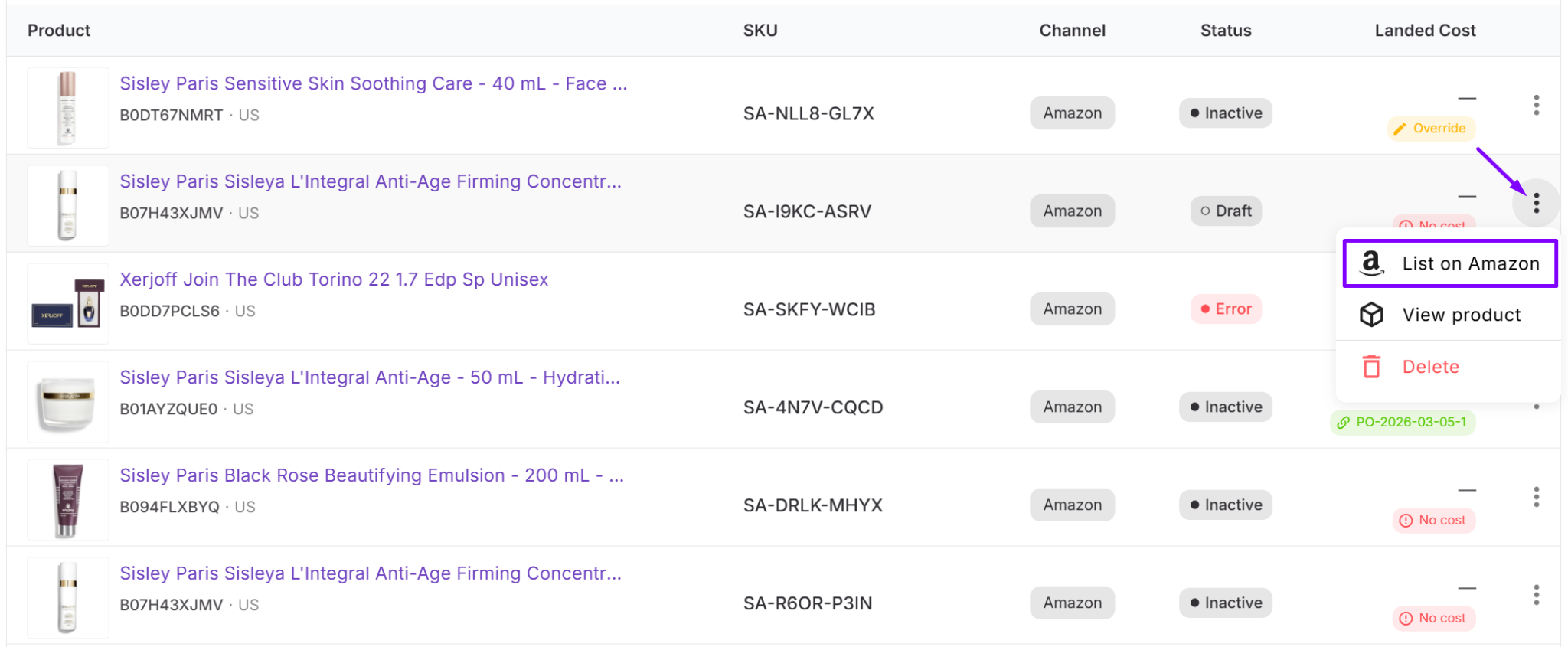
From the SKUs Tool, you can select products and click “List on Amazon” to open the Lister tool. This lets you create listings directly from existing SKU data without re-entering product details, ensuring consistency between your SKUs and listings.
How the tool connects your Seller Assistant workflow
SKUs sit at the center of Seller Assistant’s workflow and connect multiple tools. Product Database stores product and supplier data linked to each SKU, while Listings Tool reflects the SKU’s listing status. Lister uses SKU data to create listings, and Purchase Orders Module and FBA Shipments update SKU costs and operational data. SKUs also connect with Price List Analyzer, Suppliers Database, and Warehouses Database, ensuring your data stays consistent from sourcing to sales.
How to Use SKUs Step by Step
The SKUs Tool helps you track Amazon SKU status, manage landed cost, and move products into listings without losing control of your data. Here’s a simple workflow to use it day to day.
Step 1. Open SKUs Tool
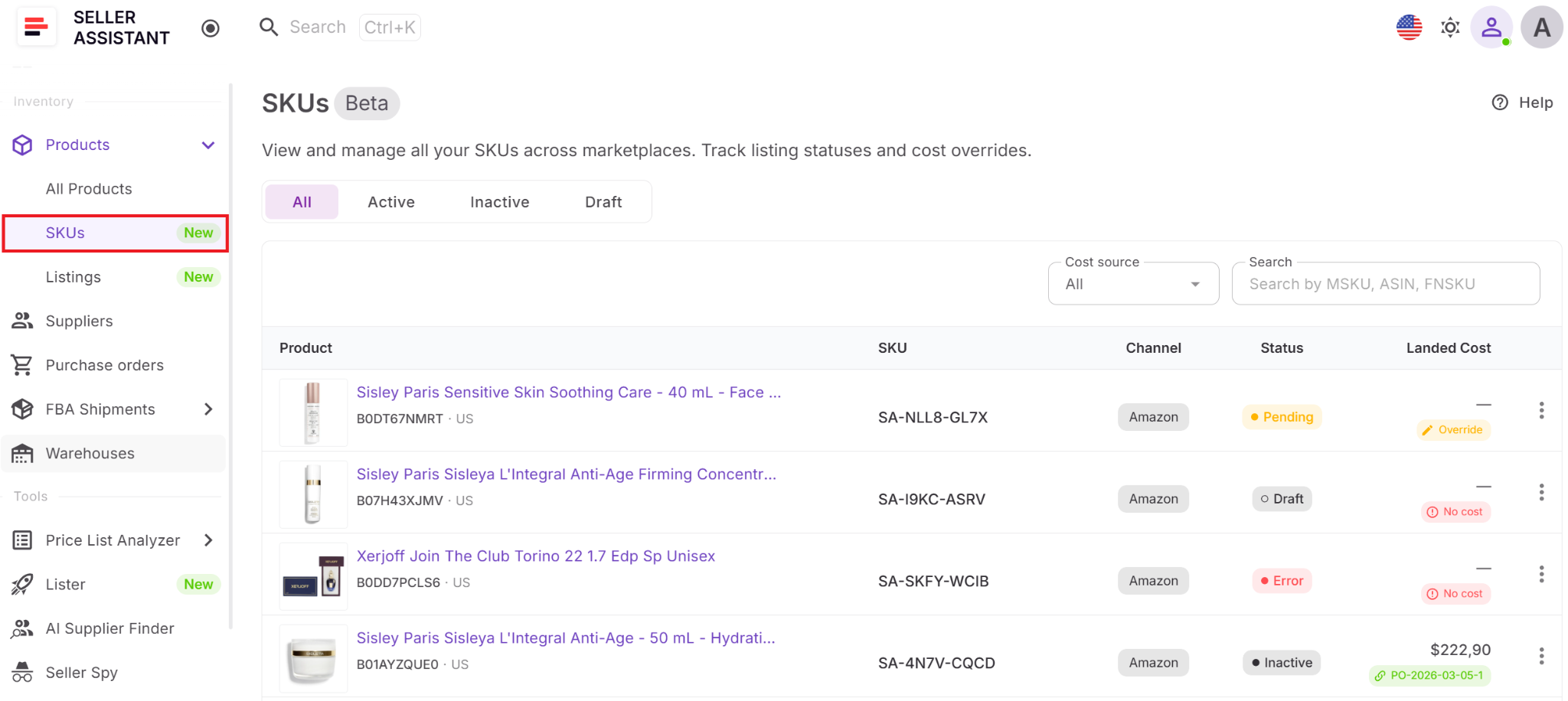
Go to Inventory → Products → SKUs to see all MSKUs synced from Amazon and created in Seller Assistant.
Step 2. Review your SKUs dashboard
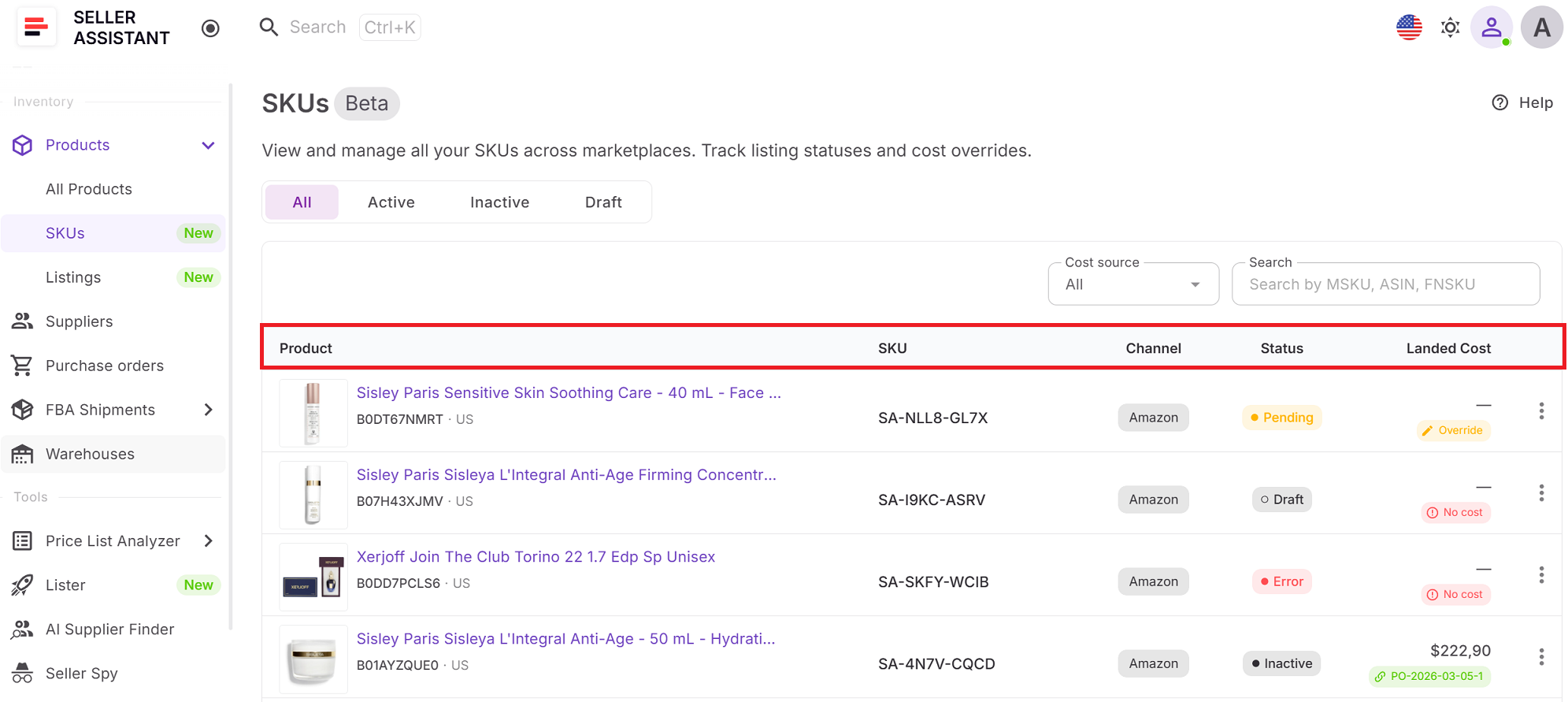
Check the SKUs table to see each SKU’s product, ASIN, marketplace, channel, status, landed cost, and created date.
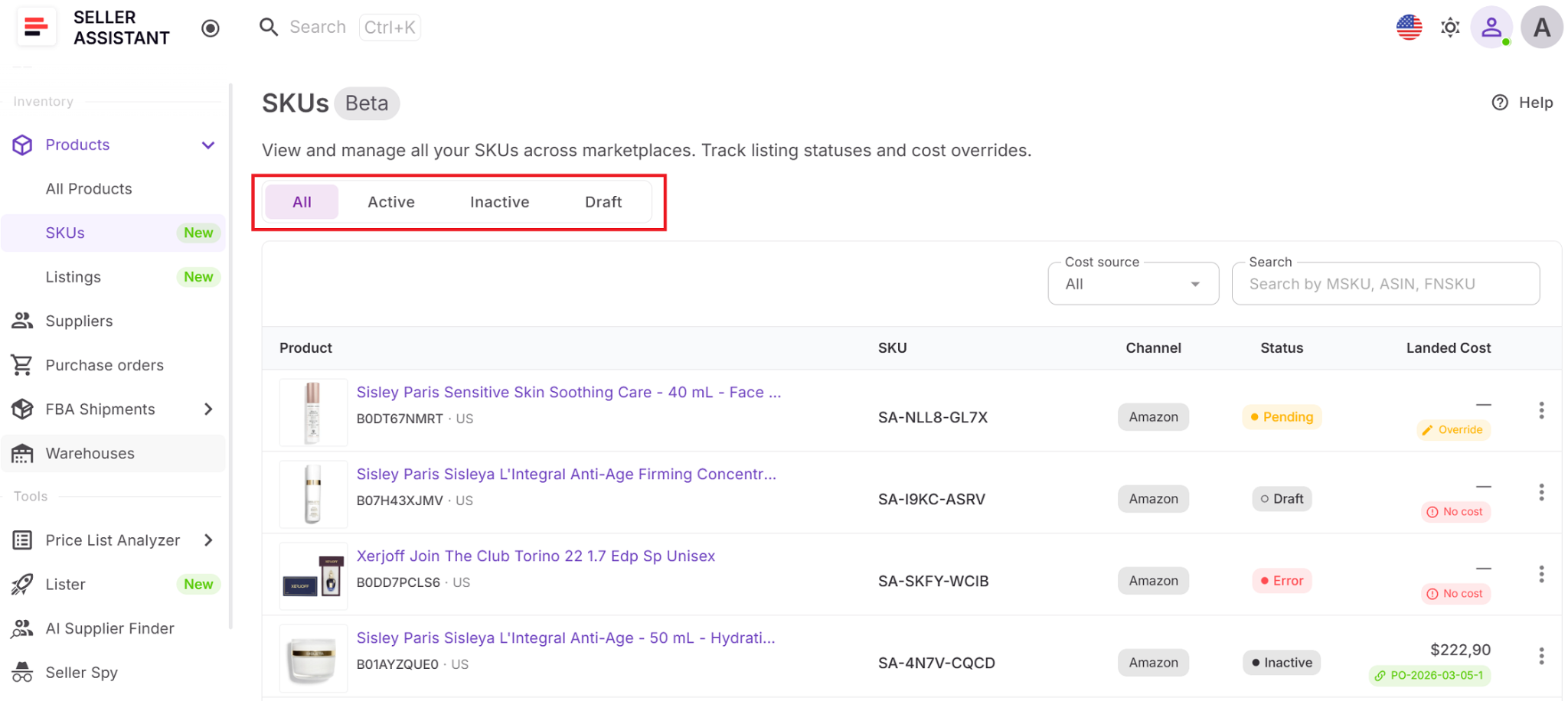
Step 3. Filter SKUs by status
Use status filters to find Draft, Pending, Active, Inactive, or Error SKUs and focus on the ones that need attention.
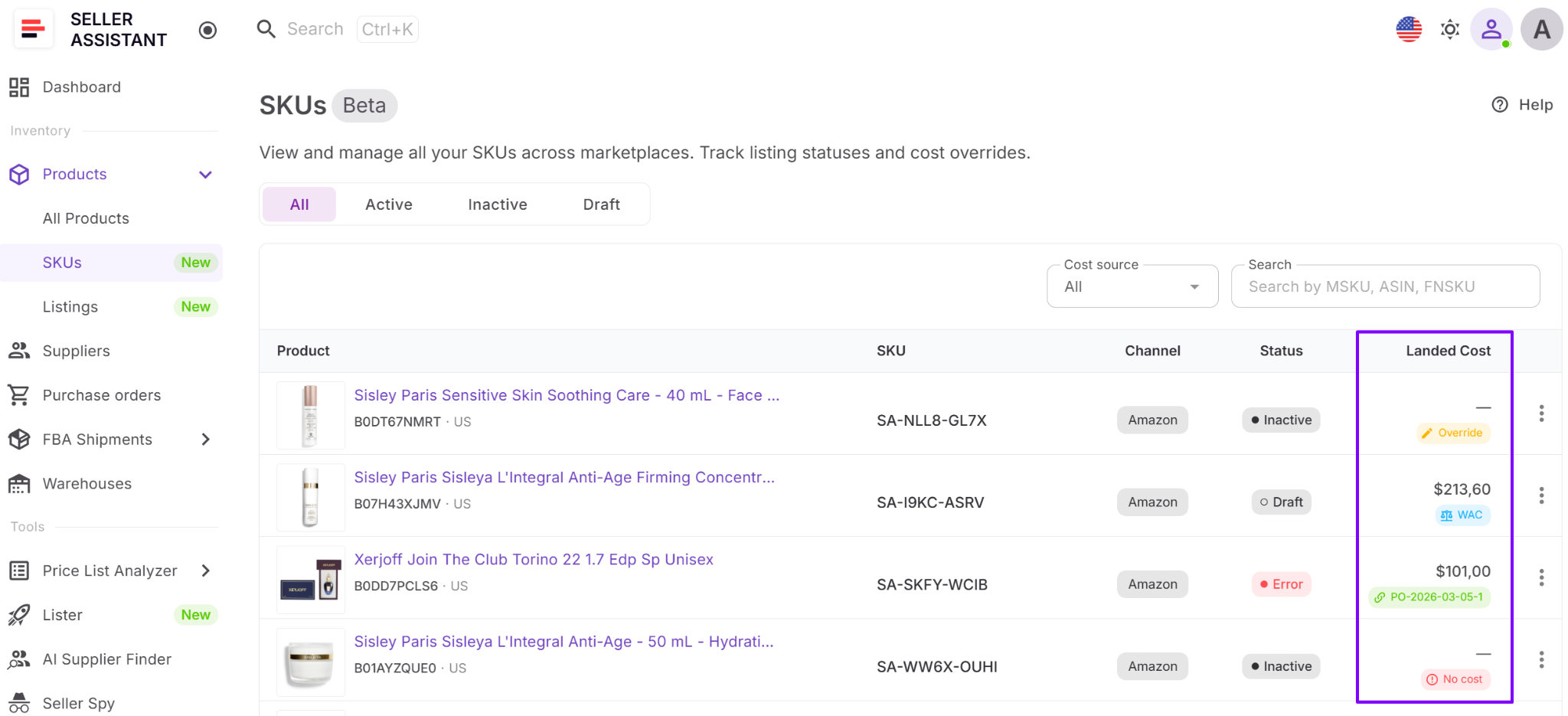
Step 4. Check landed cost
Click the landed cost field to open the cost breakdown and review unit cost, PO expenses, prep cost, and FBA inbound cost.
Step 5. Update or verify cost data
Adjust landed cost components when needed or review their source to confirm your margins are based on current data.
Step 6. List products on Amazon
Select the SKU and click “List on Amazon” to open Lister and create a listing from existing SKU data.
FAQ
What is an MSKU and how is it different from ASIN?
An MSKU is your internal identifier for a specific offer, while an ASIN identifies the product on Amazon. One ASIN can have multiple MSKUs based on condition, supplier, or pricing strategy.
Why is SKU status important?
SKU status shows whether your listing is active, pending, or has issues. Since it reflects listing status, it tells you if your product is actually buyable or needs action.
How does landed cost affect my pricing?
Landed cost includes all per-unit expenses, such as product cost, prep, and inbound fees. Accurate landed cost helps you calculate real margins and avoid pricing products at a loss.
Can I create listings directly from SKUs?
Yes, you can list products directly from the SKUs Tool using the “List on Amazon” action. This opens Lister and uses existing SKU data to create listings without re-entering information.
How do SKUs connect to the rest of my workflow?
SKUs link your product data, listings, and costs into one system. They help keep everything aligned from sourcing and purchase orders to listing and fulfillment.
Final Thoughts
Managing SKUs is where your Amazon operations come together – listings, costs, and inventory all connect at the SKU level. Without clear control, it’s easy to lose visibility, create inconsistencies, and miss profitability issues.
Seller Assistant’s SKUs Tool gives you that control. It helps you track status, manage landed cost, and keep your data aligned across your workflow. Instead of treating SKUs as simple identifiers, you use them as a system to ensure every product is structured correctly, priced accurately, and ready to generate profit.
Seller Assistant automates and connects every stage of your Amazon wholesale and arbitrage workflow. It brings together in one platform: workflow management tools – Purchase Orders Module, Suppliers Database, Warehouses Database, FBA Shipments, bulk research & sourcing tools – Price List Analyzer, Bulk Restriction Checker, Sourcing AI, Brand Analyzer, Seller Spy, Chrome extensions – Seller Assistant Browser Extension, IP-Alert Extension, and built-in VPN by Seller Assistant, and integrations & team access features – seamless API connectivity, integrations with Zapier, Airtable, and Make, and Virtual Assistant Accounts.