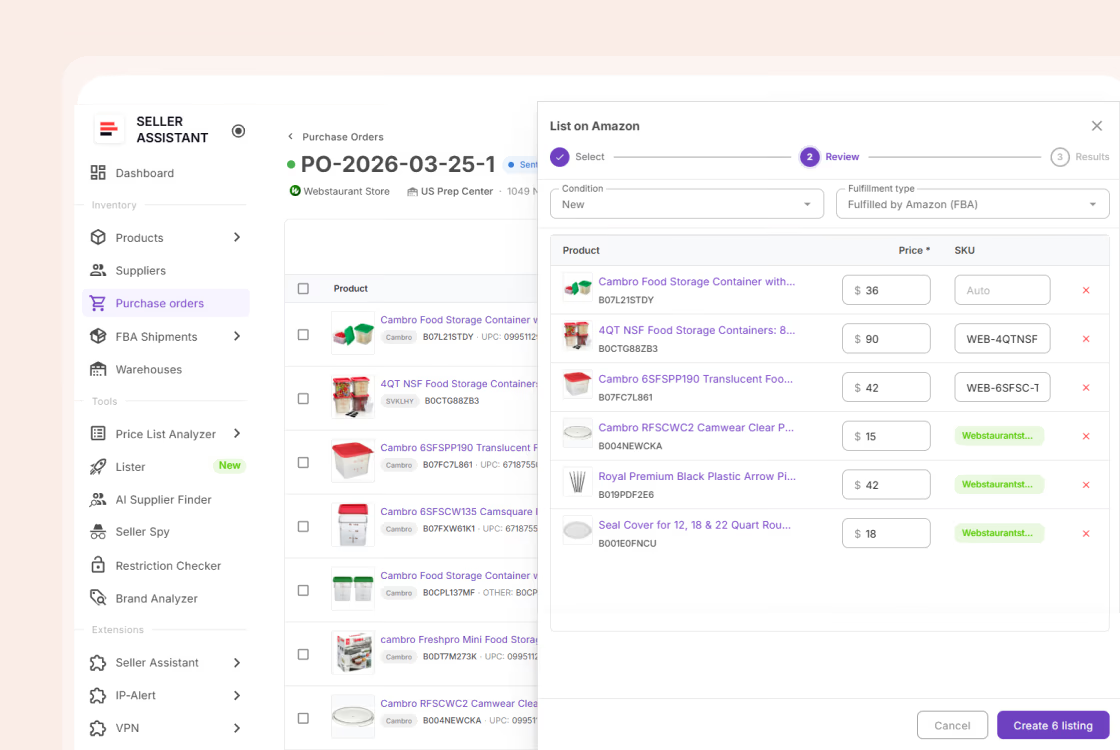


Creating and managing Amazon listings shouldn’t require jumping between Seller Central, spreadsheets, and disconnected tools. Most sellers lose time fixing errors, tracking SKU status, or figuring out why a listing isn’t buyable.
Seller Assistant solves this by connecting product data, SKU management, listing creation, and listing control in one workflow.
With Seller Assistant’s Listings Tool, you can track listing status, fix issues quickly, and keep your inventory moving from sourcing to active sales without losing visibility or control.
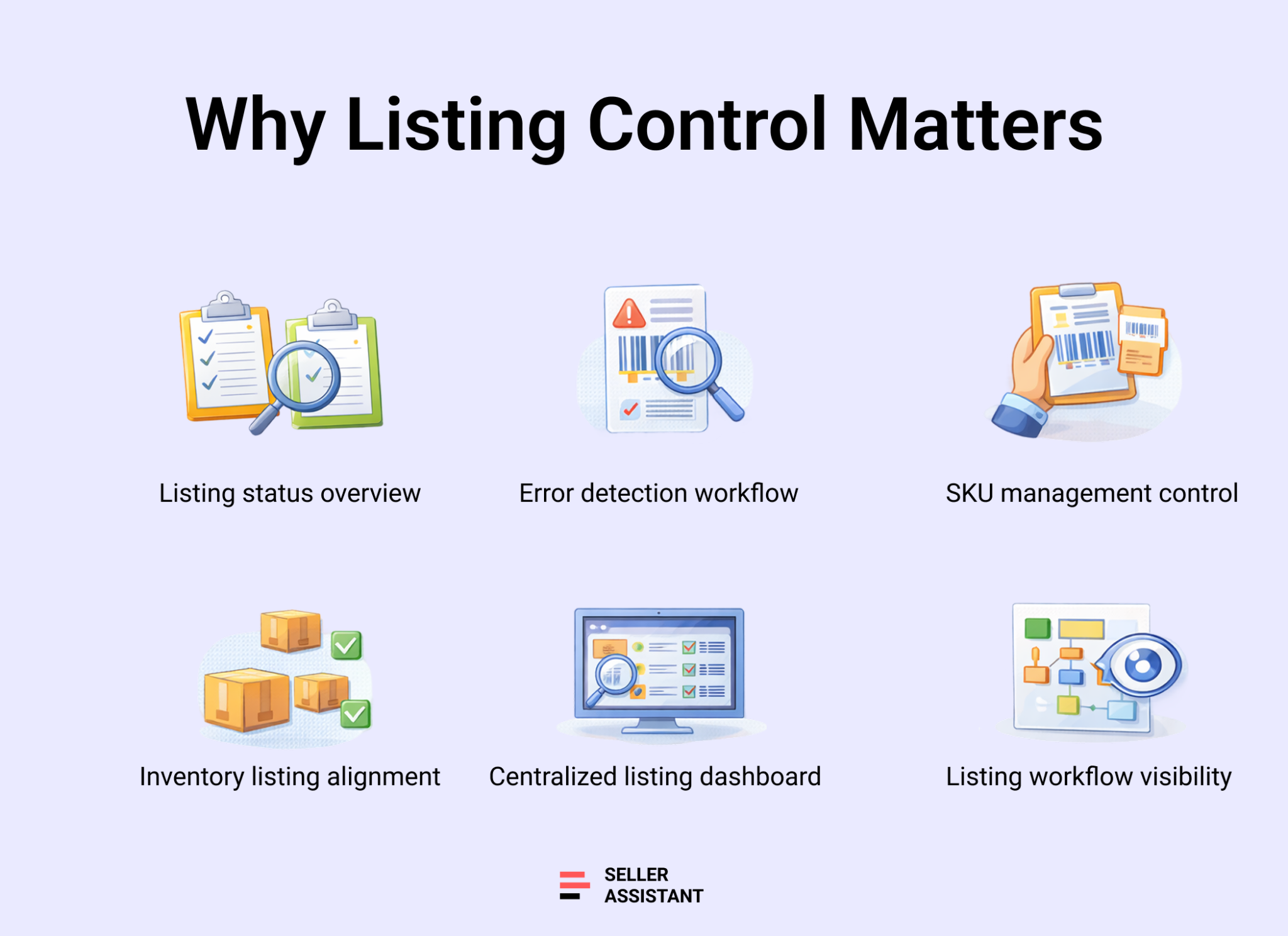
Why Wholesale Sellers Need Centralized Listing Management
Amazon wholesale doesn’t break at sourcing – it breaks at execution. When listings are spread across Seller Central and internal tools, it becomes hard to track status, fix errors, and keep SKUs consistent, which leads to inactive listings and missed sales.
Full visibility of listing status
Without a centralized view, you don’t know which listings are active, pending, or blocked by errors. A single dashboard lets you instantly see what’s sellable and what needs action, so no listing gets overlooked.
Faster error detection and recovery
Listing errors often sit unnoticed in Seller Central. When everything is tracked in one place, you can spot failed submissions or inactive listings quickly and republish them before they impact sales.
Consistent SKU management
Wholesale sellers reorder the same products frequently. Centralized listing management keeps SKUs aligned across listings, preventing duplicates and ensuring clean inventory tracking.
Better alignment between inventory and listings
Buying inventory doesn’t guarantee it’s sellable. When listings and inventory are managed together, you can confirm that every purchased unit is tied to an active, buyable listing.
Reduced operational friction
Switching between multiple tools slows down execution and increases mistakes. Managing listings in one system removes context switching and keeps your workflow efficient and predictable.
What Is Seller Assistant’s Listings Tool
| Listings Tool summary | Description |
|---|---|
| What it is | Amazon listing management tool for sellers – tracks, manages, and controls all listings in one place without switching to Seller Central |
| Best for | Amazon wholesale sellers, online arbitrage resellers, dropshippers |
| Core function | Centralized listing tracking with status monitoring, error handling, and lifecycle management (Draft, Pending, Active, Inactive, Error) |
| Key benefit | Prevents lost sales from inactive listings, enables fast error resolution, and keeps listings aligned with inventory and SKUs |
| Platform | Seller Assistant |
Seller Assistant’s Listings Tool is a centralized workspace where Amazon sellers can view, track, and manage all their listings in one place. It combines listings synced from your Amazon account with those created via Lister, giving you full visibility over your entire catalog without switching to Seller Central.
What Listings Tool does
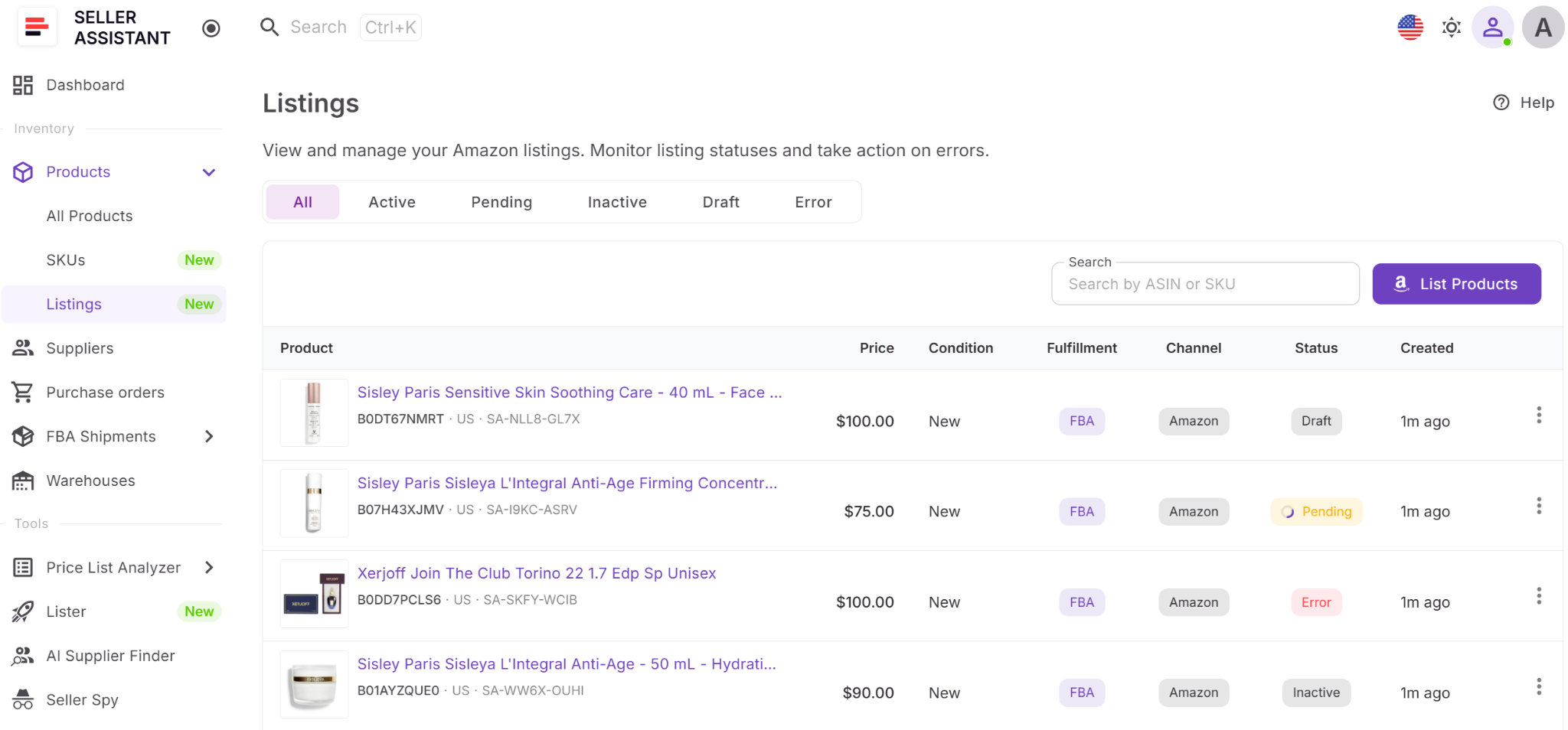
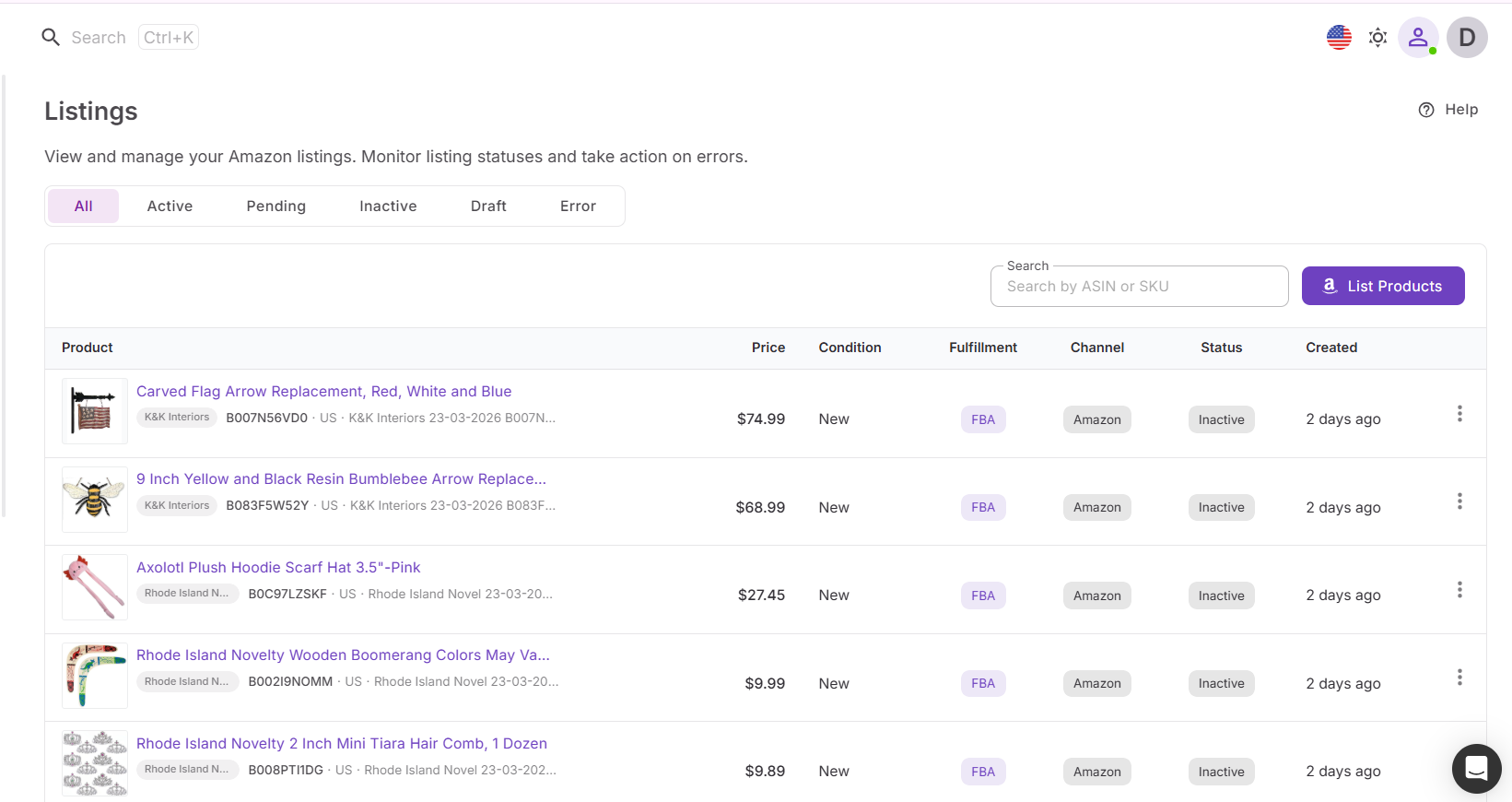
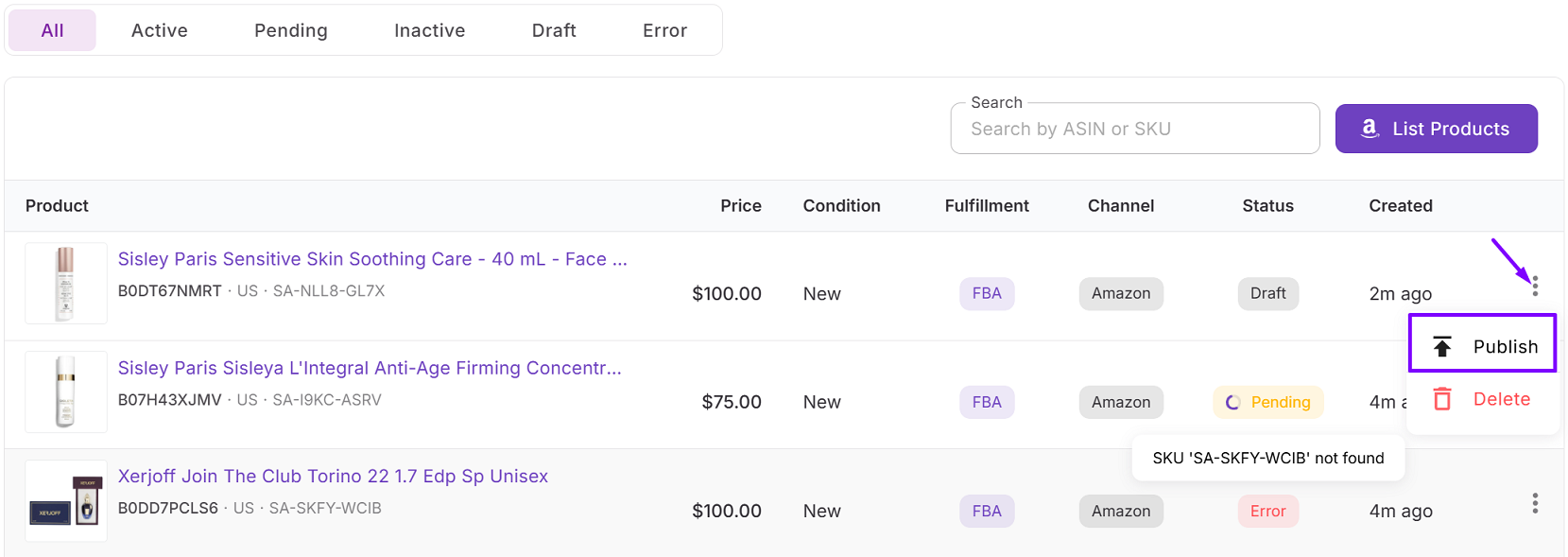
Listings Tool shows key data for each listing, including product details (ASIN, title, brand), SKU, price, condition, fulfillment method (FBA or FBM), channel, and – most importantly – listing status. You can instantly see whether a listing is Draft, Pending, Active, Inactive, or in Error, and take action directly, such as publishing, republishing, or reviewing issues.
Why using the tool impacts sales
Managing your catalog with Listings Tool is critical because listing status determines whether your product is actually buyable. Without tracking it, you risk having inventory that isn’t generating sales due to hidden errors or inactive listings.
How it fits into your workflow
Listings Tool is not a standalone feature – it’s part of Seller Assistant’s connected wholesale workflow automation. Product data flows from Product Database, listings are created via Lister, and then managed inside the Listings Tool. This creates a continuous system where products move from sourcing to active listings without data loss, manual re-entry, or workflow breaks.
Note. Seller Assistant is an end-to-end Amazon workflow management platform that integrates 15+ wholesale-focused solutions into one connected system. It combines sourcing workflow automation, bulk research and intelligence tools, and integrated Chrome extensions – giving you everything you need to streamline finding deals, managing suppliers, and creating purchase orders.

With Seller Assistant, every step of your Amazon wholesale and arbitrage workflow is automated and connected.
What You Can Do With Listings Tool
Listings Tool is where you control what actually gets sold on Amazon. It allows you to monitor listing status, fix issues, and keep your catalog aligned with your inventory and SKUs. Instead of reacting to problems in Seller Central, you manage listings proactively in one place.
Track listing status across all products
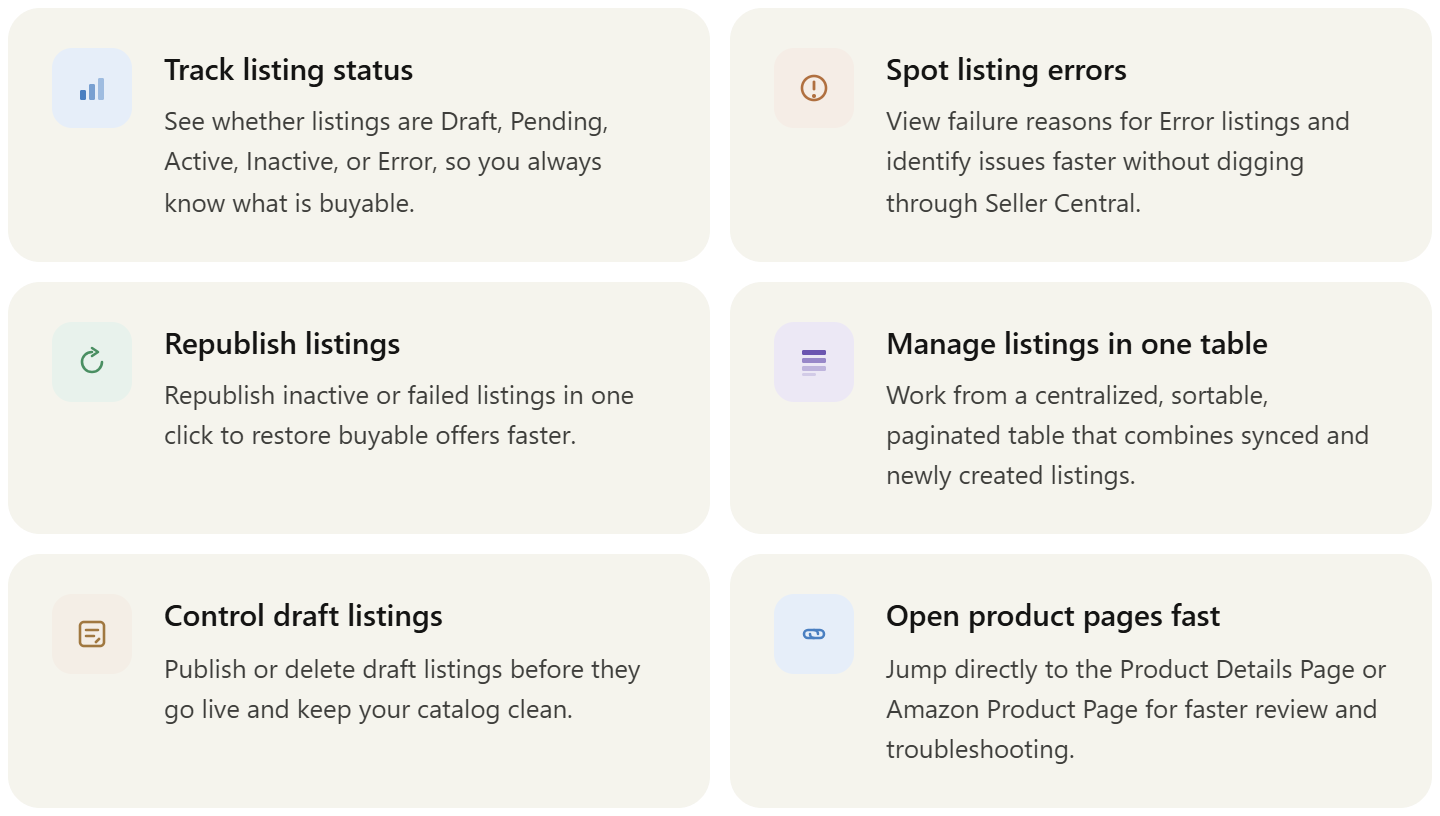
You can see the full lifecycle of every listing – Draft, Pending, Active, Inactive, or Error. Active means the listing is buyable on Amazon, while Inactive means it exists but cannot be purchased. This helps you quickly identify which products are generating sales and which ones are blocked.
Identify and fix listing errors faster
Listings in Error status show the reason for failure on hover, so you can understand what went wrong without digging through Seller Central. This makes troubleshooting faster and more precise.
Republish inactive and failed listings in one click
You can republish listings in Error or Inactive status directly from the Listings Tool. This reduces downtime and helps restore buyable status without rebuilding listings manually.
Manage listings from one centralized table
All listings – synced from Amazon or created via Lister – are displayed in one sortable and paginated table. You can filter by status and quickly navigate large catalogs without performance issues.
Control listing actions and workflow
You can publish draft listings, delete unused ones, and manage listing states in bulk. Draft listings can be edited, submitted, or removed before going live, giving you full control over what enters your catalog.
Access product and Amazon pages instantly
You can open the Product Details Page in Seller Assistant or Amazon Product Page directly from each listing. This speeds up analysis, troubleshooting, and decision-making.
How Listings Tool Works
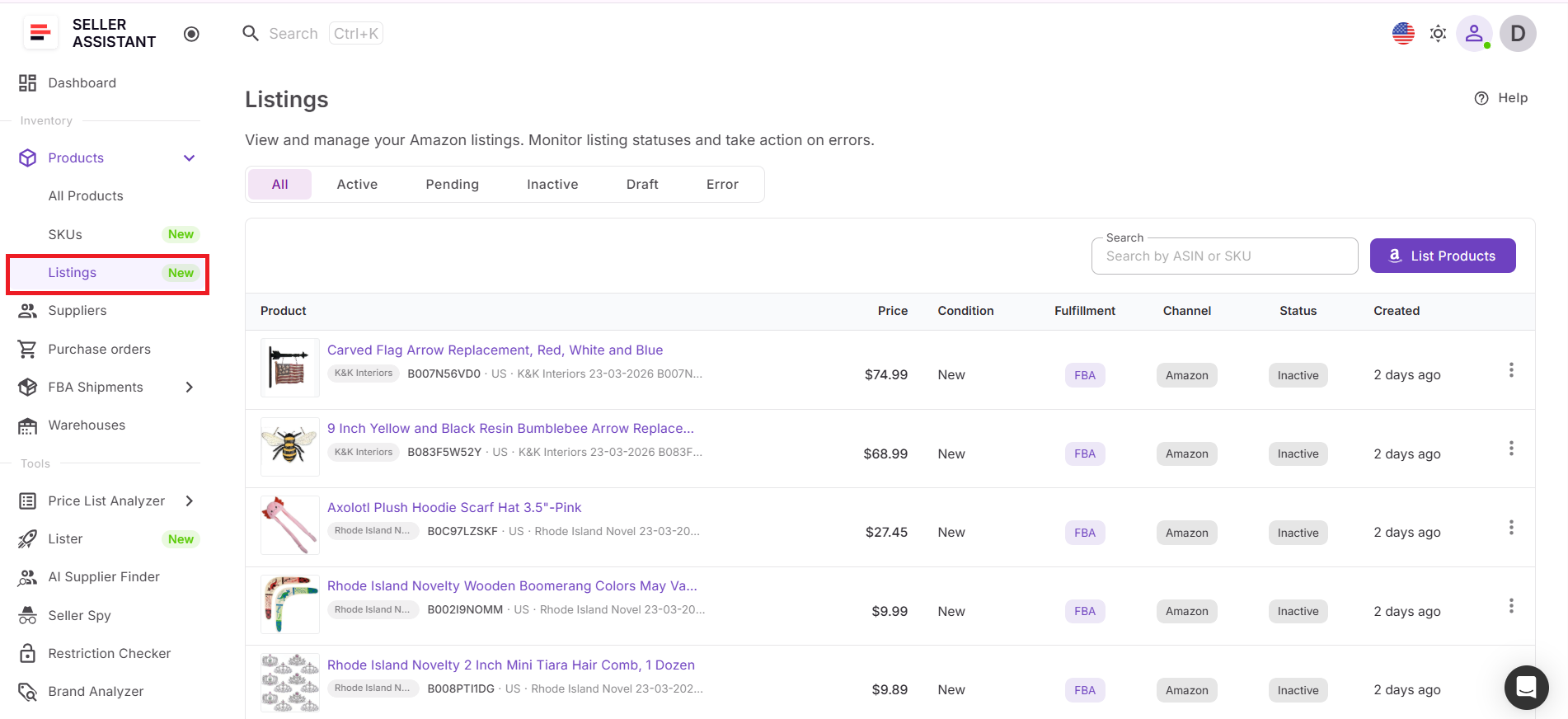
Listings Tool lets you view, track, and manage all your Amazon listings in one place. You open it from the Inventory → Products tab, where all listings are displayed in a single table. These include listings synced from your Amazon account and those created via Lister. From here, you monitor status, take actions like publish or republish, and move listings through their lifecycle until they become active and buyable.
How it connects with other Seller Assistant tools
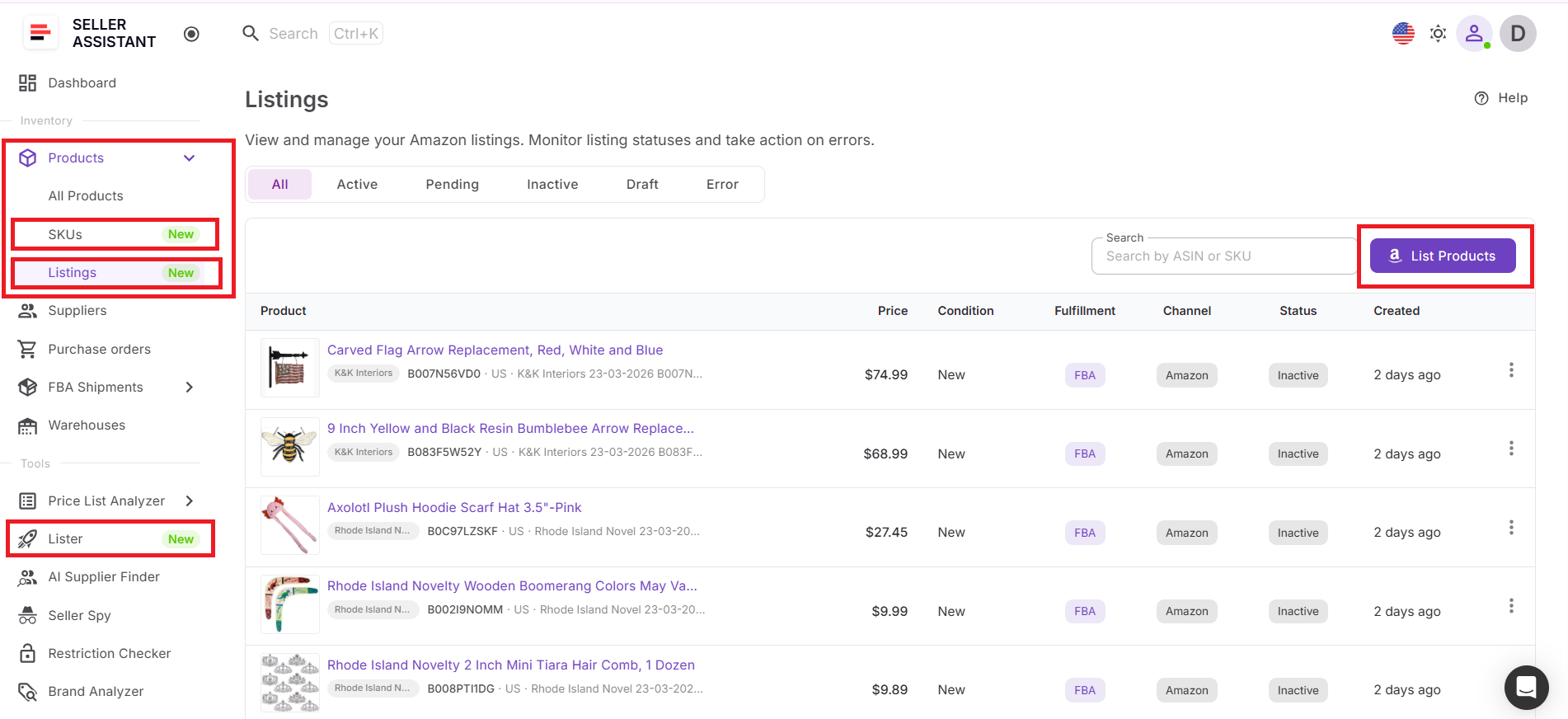
Listings Tool is part of a connected workflow. Product Database stores your products and supplier data, while SKUs Tool define how each product is sold.
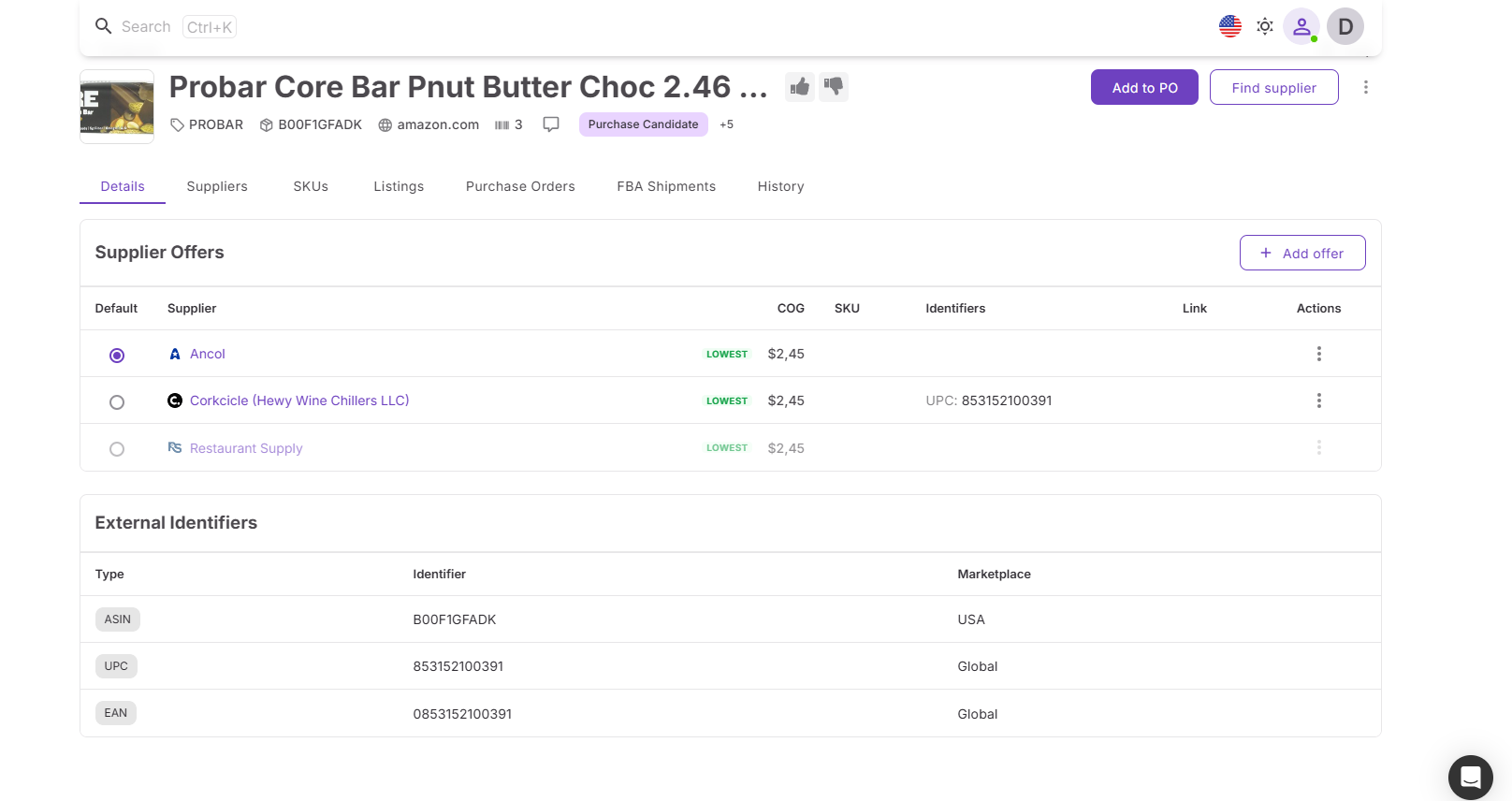
Lister uses this data to create listings. Once created, those listings appear in the Listings Tool, where you manage their status. Inside each product in Product Database, the Listings tab shows all related listings with SKU-level details, keeping everything linked and consistent.
How sync works across the system
When you connect your Amazon account, all existing listings automatically appear in the Listings Tool. At the same time, products sync to Product Database and SKUs sync to the SKUs Tool.
Sync runs daily, but listings created through Seller Assistant appear immediately, so you always work with up-to-date data without waiting.
How relisting and delisting work
Listings move through statuses: Draft, Pending, Active, Inactive, or Error. Draft listings can be published or deleted.
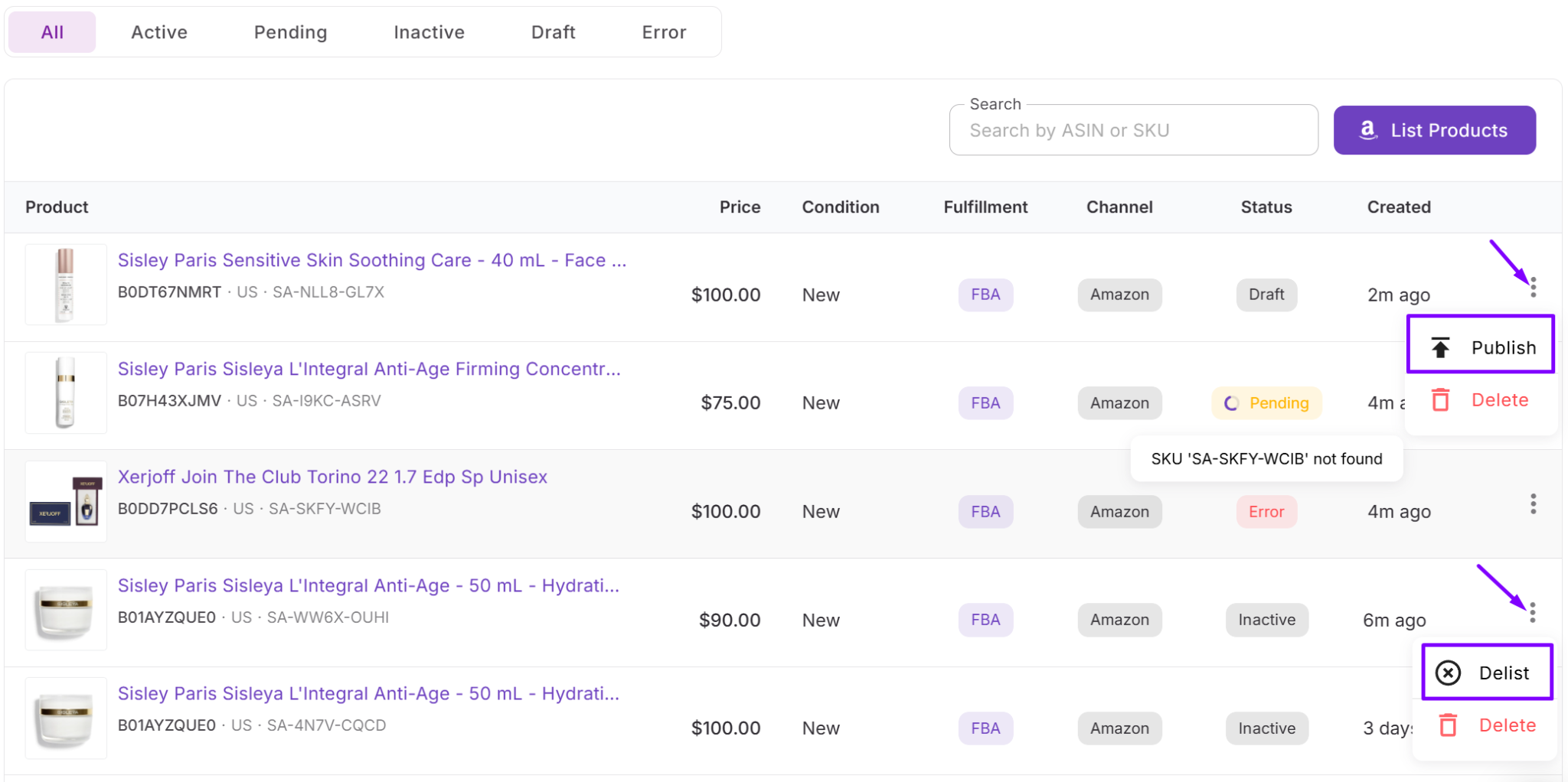
If a listing fails or becomes inactive, you can republish it in one click to restore buyable status. You can also delist a product, which moves it back to Draft, or delete it completely, giving you full control over your catalog.
What data Listings Tool shows
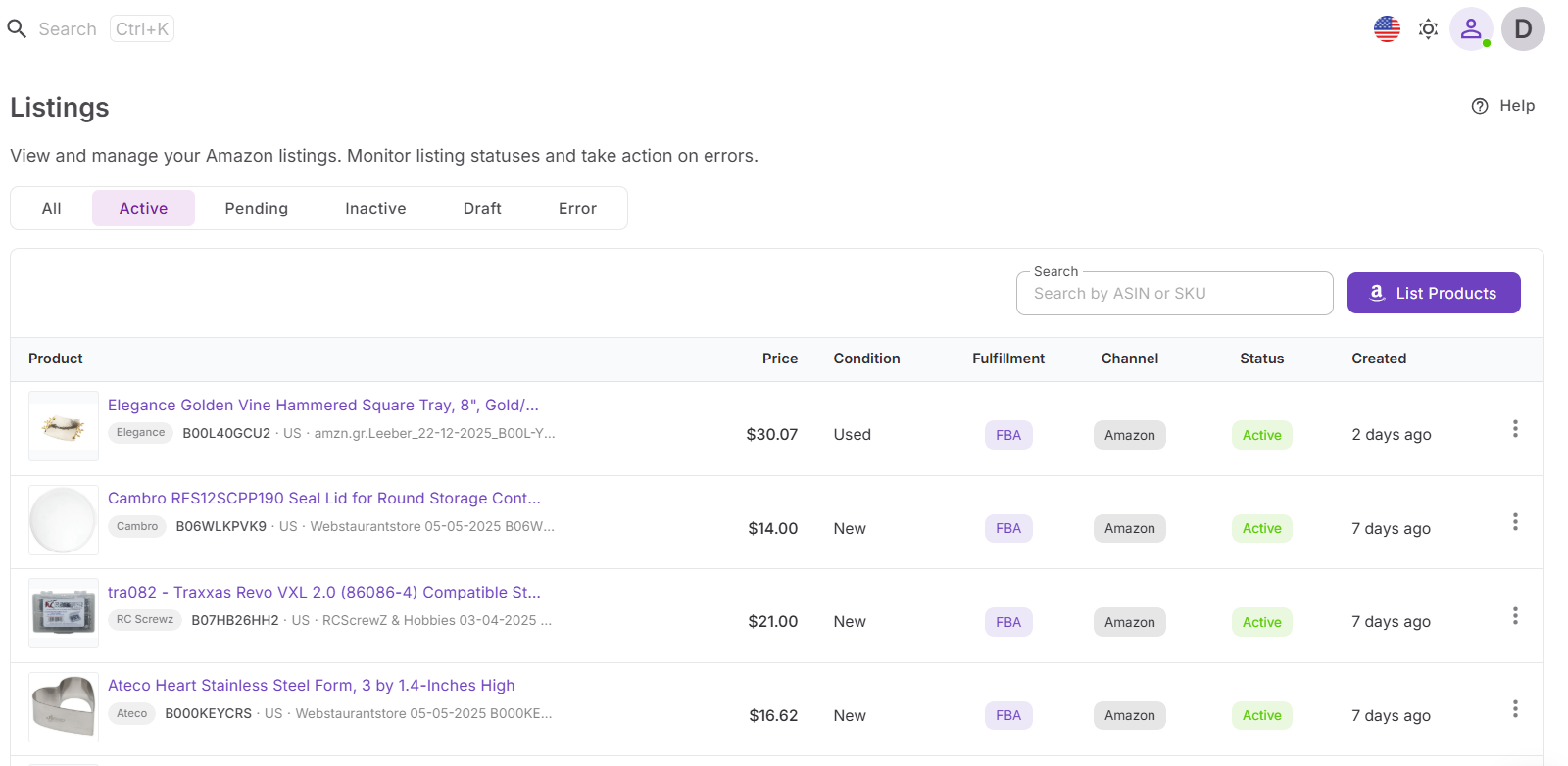
Listings Tool provides all key listing data in one view:
- Product details – image, title (links to Product Details Page), brand
- ASIN – direct link to Amazon Product Page
- Marketplace
- SKU
- Price
- Condition – New, Used (Like New), Used, Refurbished
- Fulfillment – FBA or FBM
- Channel
- Status – Draft, Pending, Active, Inactive, Error
- Created date
You can switch between statuses, filter listings, and quickly act on specific groups, making it easier to manage large catalogs efficiently.
How to Use Listing Tool Step by Step
Listings Tool helps you manage listing status, fix issues, and keep your catalog active without switching to Seller Central. Here’s a simplified step-by-step workflow.
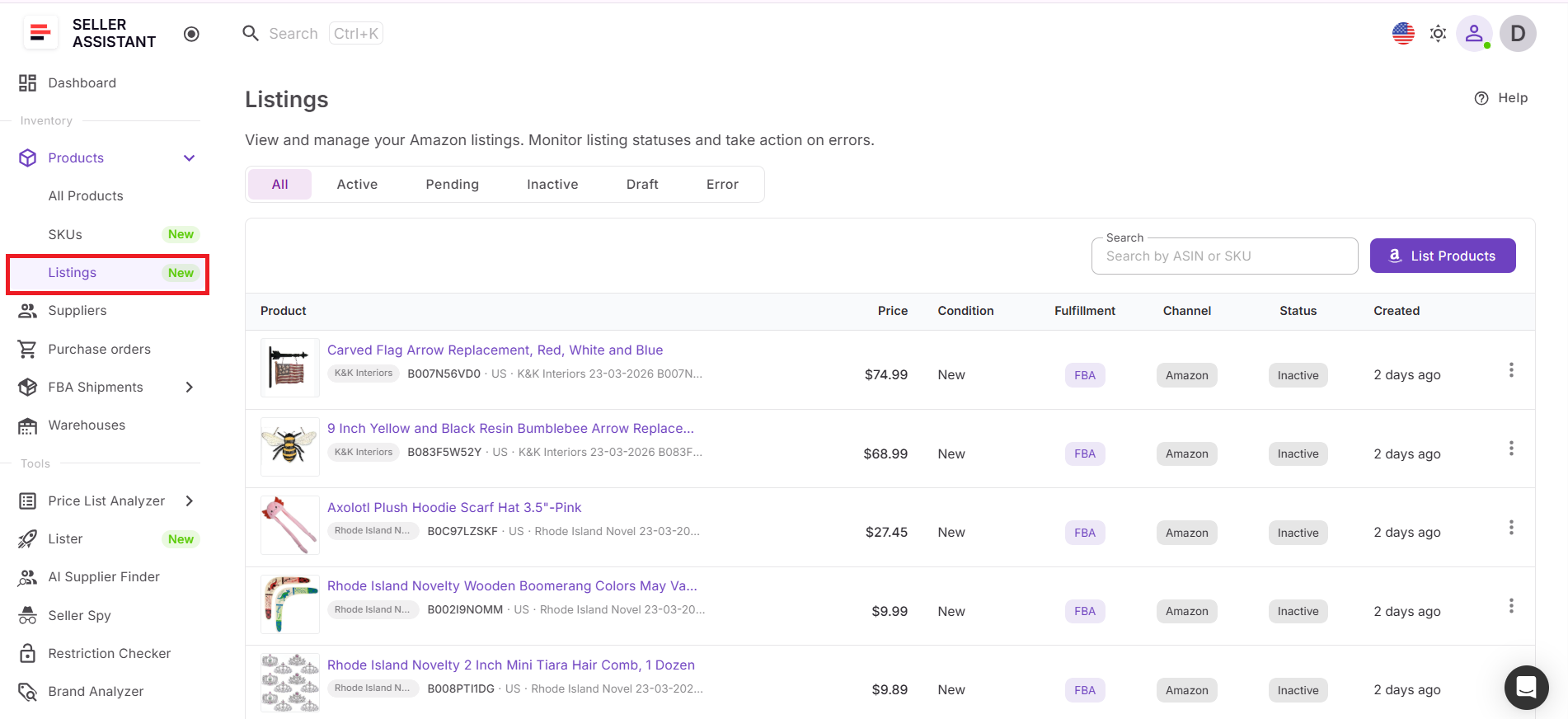
Step 1. Open Listings Tool
Go to Inventory → Products → Listings to access all your listings in one place.
Step 2. Review your listings
Check the table with all listings synced from Amazon and created via Lister to get a full overview of your catalog.
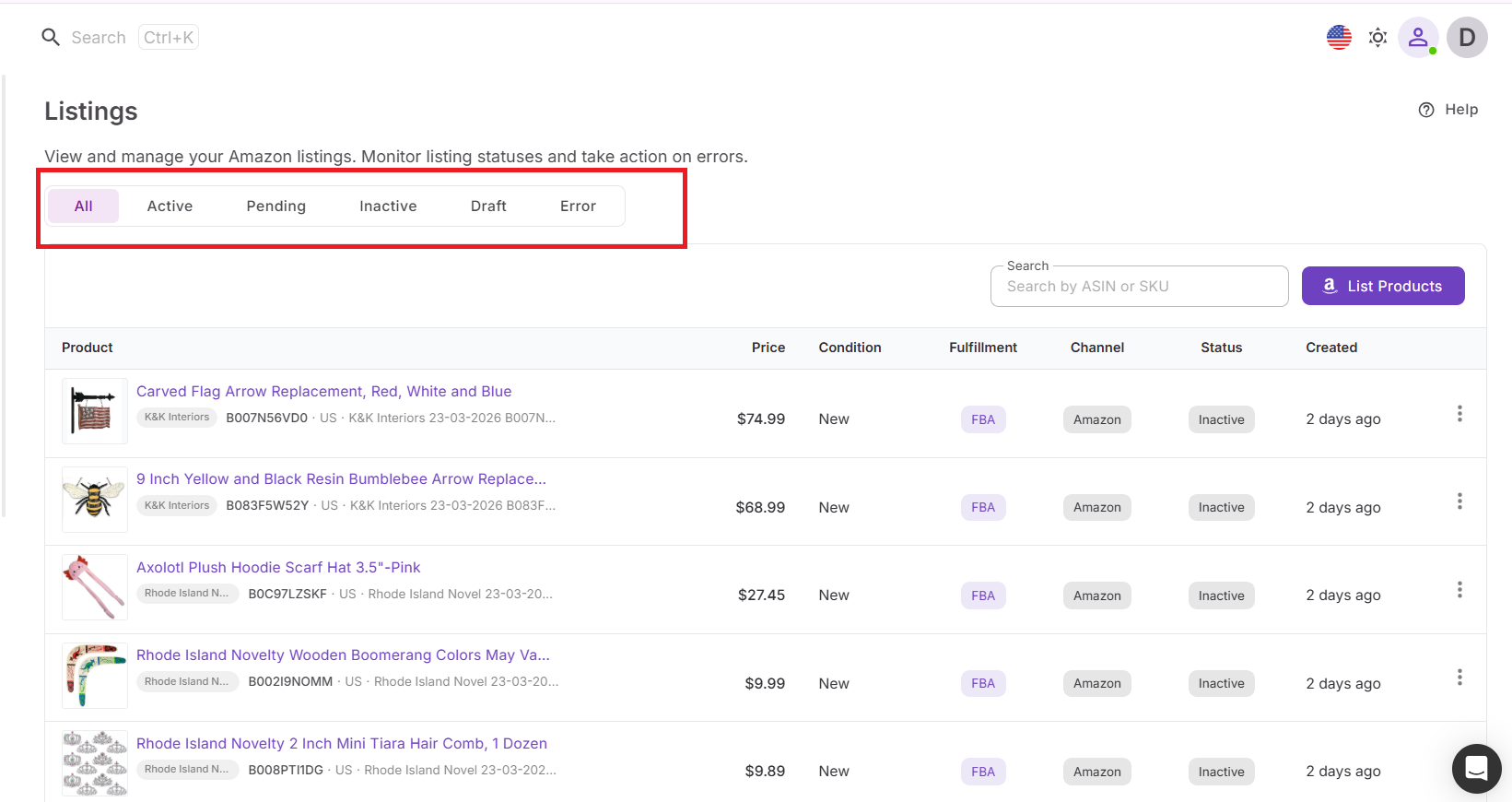
Step 3. Check listing status
Look at the status column to identify Draft, Pending, Active, Inactive, or Error listings and understand what needs action.
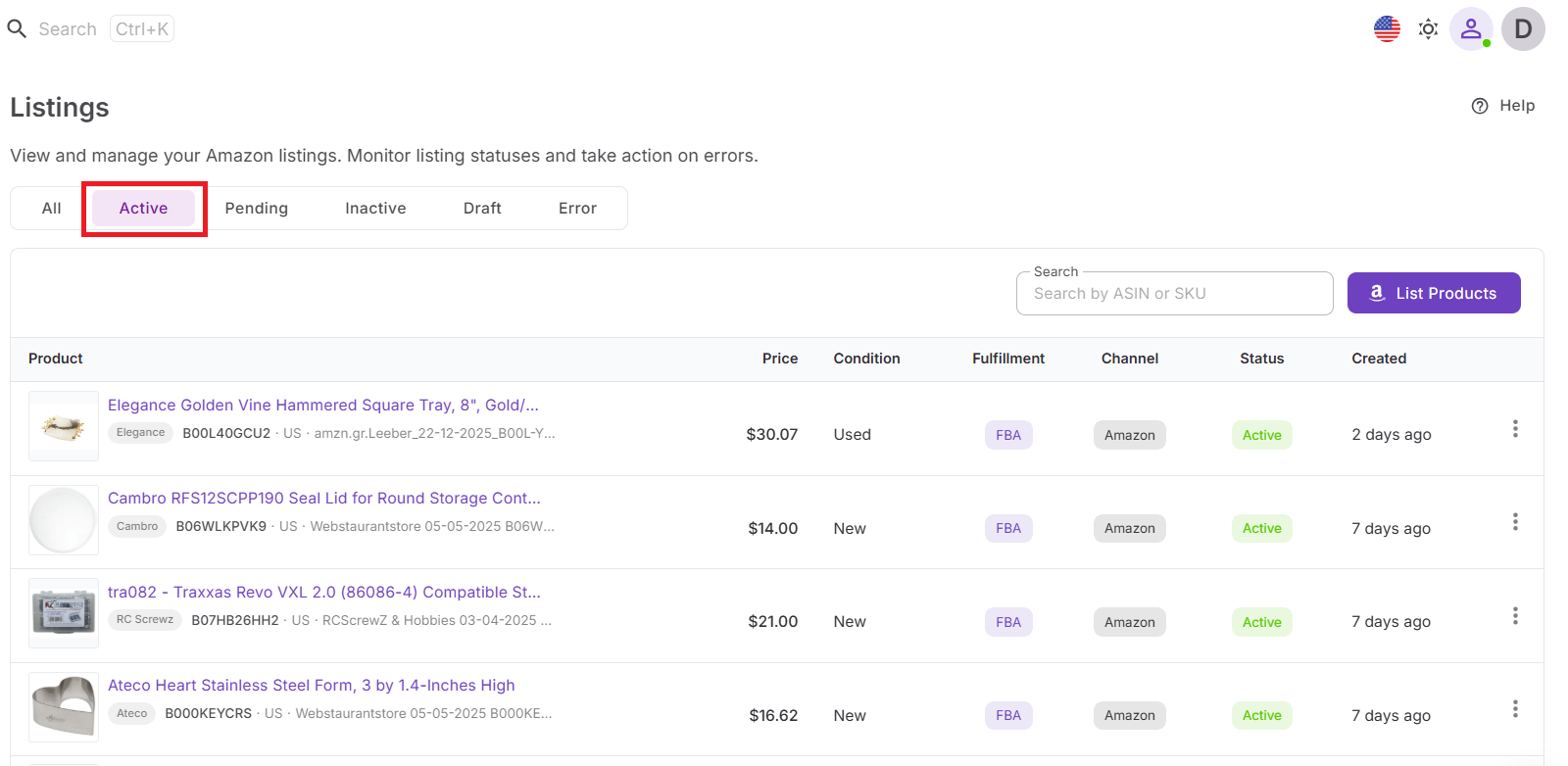
Step 4. Filter by status
Switch between statuses to focus on specific groups like inactive or error listings.
Step 5. Publish or clean draft listings
Publish draft listings to make them live or delete unnecessary ones to keep your catalog clean.
Step 6. Open product or Amazon pages
Click the product title to quickly access the Product Details Page in Seller Assistant or product ASIN to get to Amazon Product Page for review and troubleshooting.
Step 7. Delist or delete listings when needed
From the product-level Listings tab, you can delist a listing, which moves it back to Draft status, or delete it completely. This helps keep your catalog clean and prevents outdated offers from staying active.

FAQ
Do I need to use Seller Central to manage listings if i use Listings Tool?
No, you can manage most listing actions directly inside the Listings Tool without switching to Seller Central. You only need Seller Central for specific actions like creating FBA shipments.
What does listing status mean in Listings Tool?
Listing status shows whether your product is buyable, processing, or has issues. Active means it’s live on Amazon, while Error or Inactive means it needs action.
Can I fix listing errors without recreating the listing?
Yes, you can republish listings in Error or Inactive status in one click. You can also view the error reason to fix issues faster before resubmitting.
How are listings connected to SKUs and Product Database?
Each listing is linked to a SKU and a product in Product Database. This keeps your product data, costs, and listing status connected in one workflow.
How often does listings data update?
Listings synced from Amazon update daily after account connection. Listings created in Seller Assistant appear immediately without waiting for sync.
Final Thoughts
Managing Amazon listings is not just about creating them – it’s about keeping them active, error-free, and aligned with your inventory. Without a centralized system, listings get stuck, SKUs become inconsistent, and products you’ve already paid for don’t generate sales.
Seller Assistant’s Listings Tool brings control back into your workflow. It connects product data, SKUs, and listing creation into one system where you can track status, fix issues, and keep your catalog moving. Instead of reacting to problems in Seller Central, you manage listings proactively – and make sure every product has a clear path to becoming buyable and profitable.