


Most Amazon sellers focus on sourcing and purchasing, but that’s only half the equation. What happens after you ship inventory to Amazon determines your real profit.
Units go missing, receiving takes time, and inbound costs impact margins. Without a clear way to track this, you’re operating blind.
Seller Assistant’s FBA Shipments brings your inbound logistics, shipment status, and inventory reconciliation into one place. It connects shipments directly to your products, costs, and workflow, so you can track what was sent, what was received, and what it actually cost – without digging through Seller Central.
Why Tracking FBA Shipments Is Critical for Your Margins
Most wholesale sellers think the job is done once a purchase order is sent and inventory is shipped. In reality, this is where risk begins. Amazon may receive fewer units than you sent, split shipments across warehouses, or delay check-in.
At the same time, inbound fees quietly affect your margins. If you don’t track shipments closely, you miss discrepancies, lose money, and make future buying decisions on incomplete data. Tracking FBA shipments is what turns your workflow from guesswork into control.
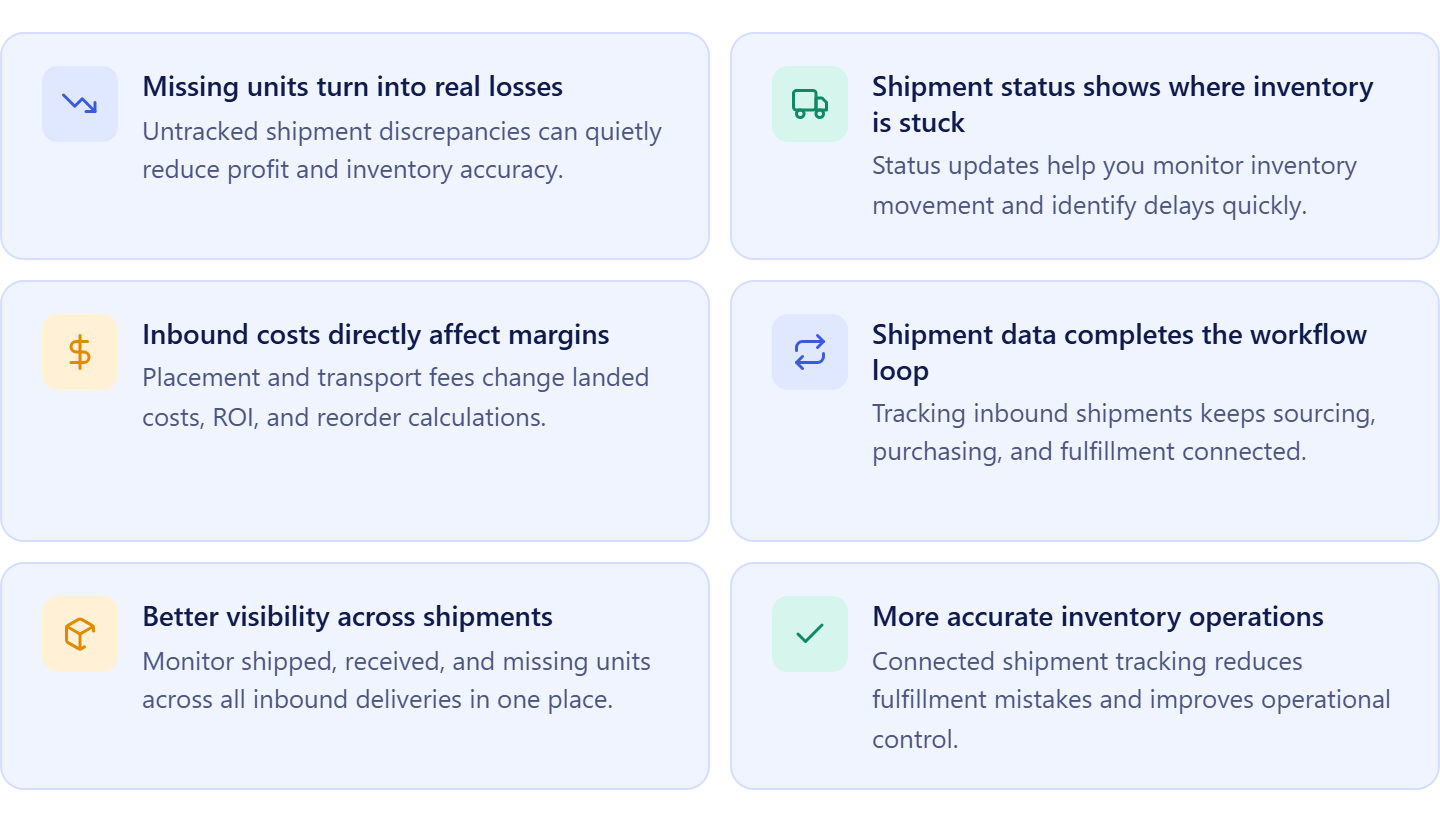
Missing units turn into real losses
When shipped and received quantities don’t match, every missing unit is lost profit. Without tracking, these issues often go unnoticed until it’s too late to act.
Shipment status shows where your inventory is stuck
Working, In Transit, or Receiving – each status tells you where your inventory is and whether action is needed.
Inbound costs directly affect your margins
Placement and transport fees change your true cost per unit, impacting ROI and reorder decisions.
Shipment data completes your workflow loop
From sourcing to purchase to delivery, tracking shipments ensures your entire wholesale workflow stays accurate and profitable.
What is Seller Assistant’s FBA Shipments Tool
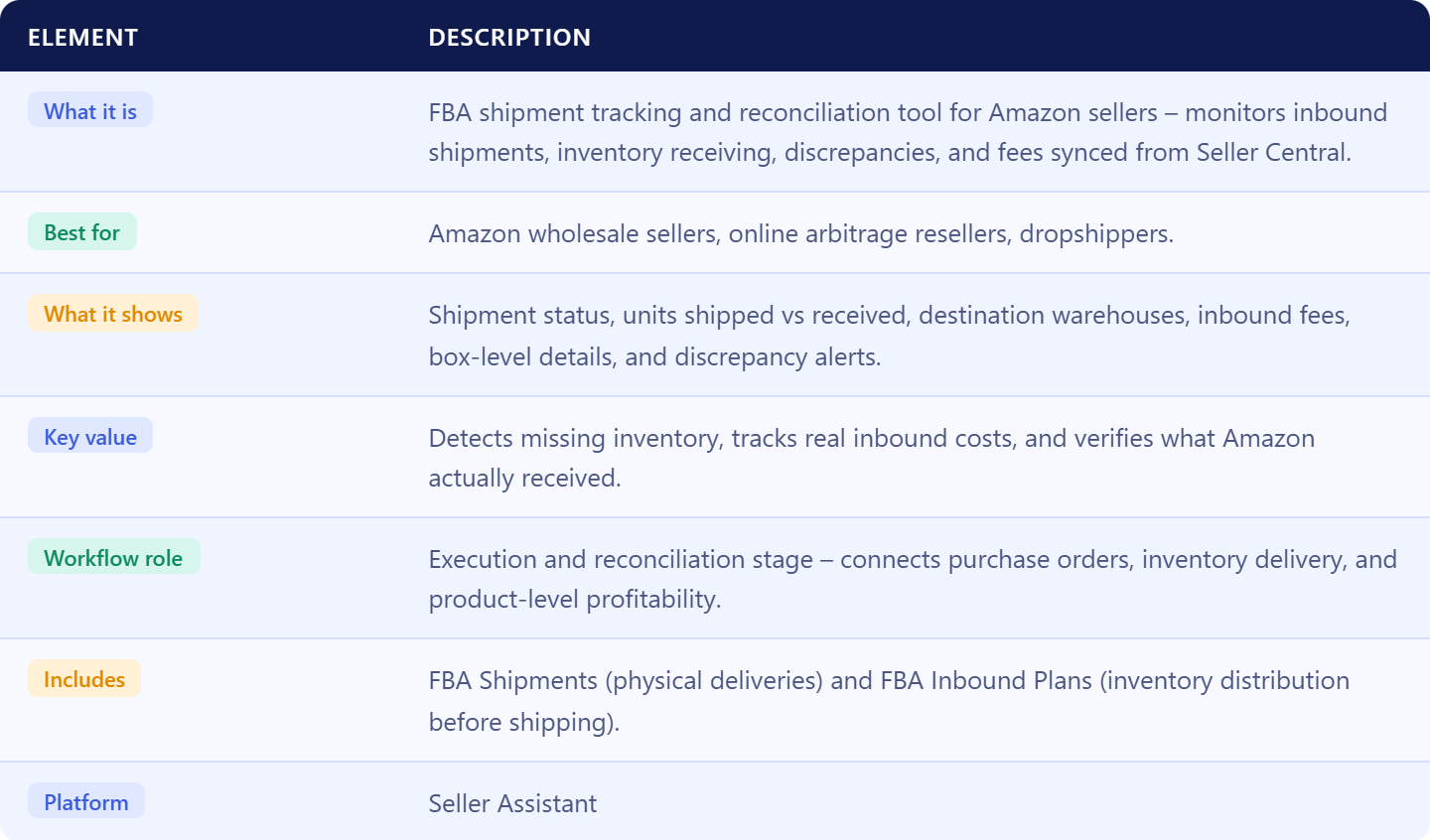
Seller Assistant’s FBA Shipments tool is a centralized workspace that tracks all your Amazon inbound shipments and shipment plans synced directly from Seller Central. It shows where your inventory is, what was sent, what Amazon has received, and what each shipment costs. Instead of switching between multiple tabs, you get a clear view of shipment status, discrepancies, and fees in one place.
This matters because inbound shipments directly affect your inventory accuracy, cash flow, and profit. By tracking shipments inside Seller Assistant, you can detect missing units early, understand true costs, and keep your wholesale workflow under control.
What data and metrics you can track
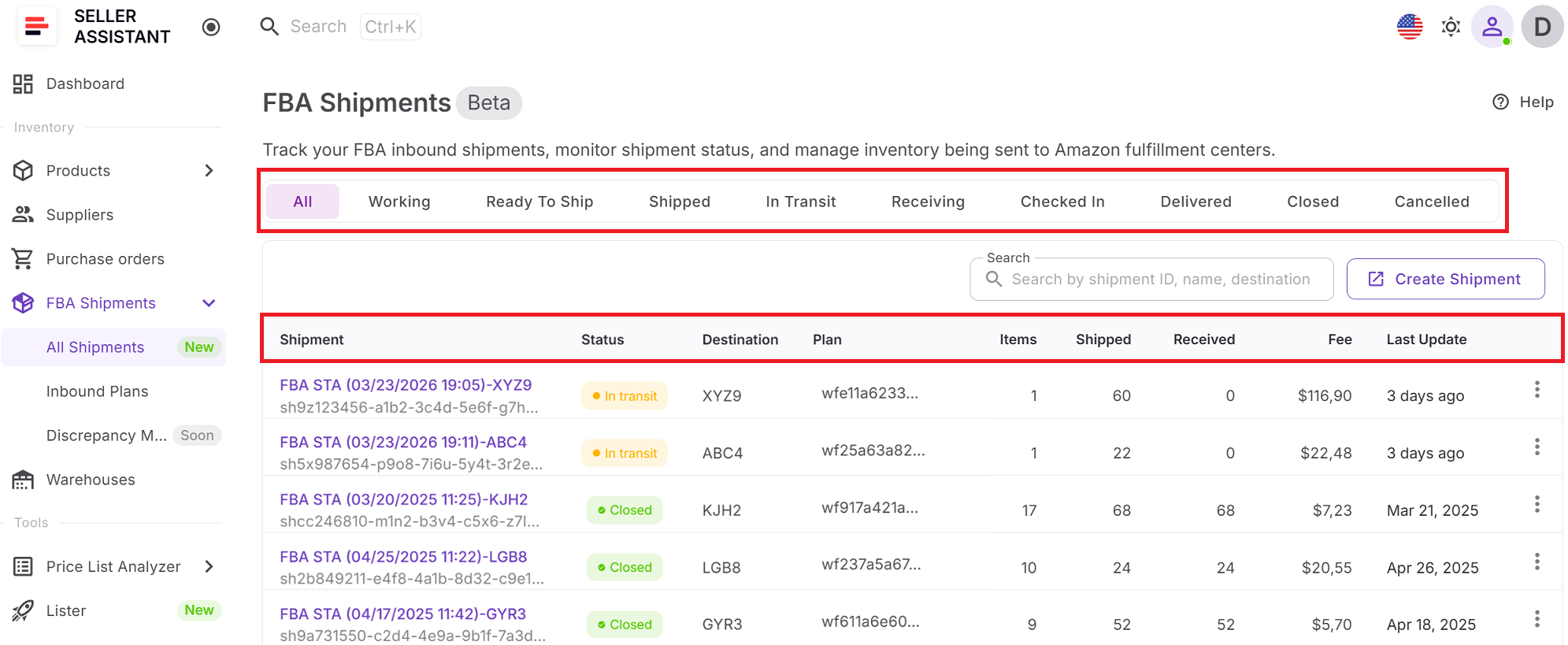
The FBA Shipments tool provides a complete view of your inbound logistics, including:
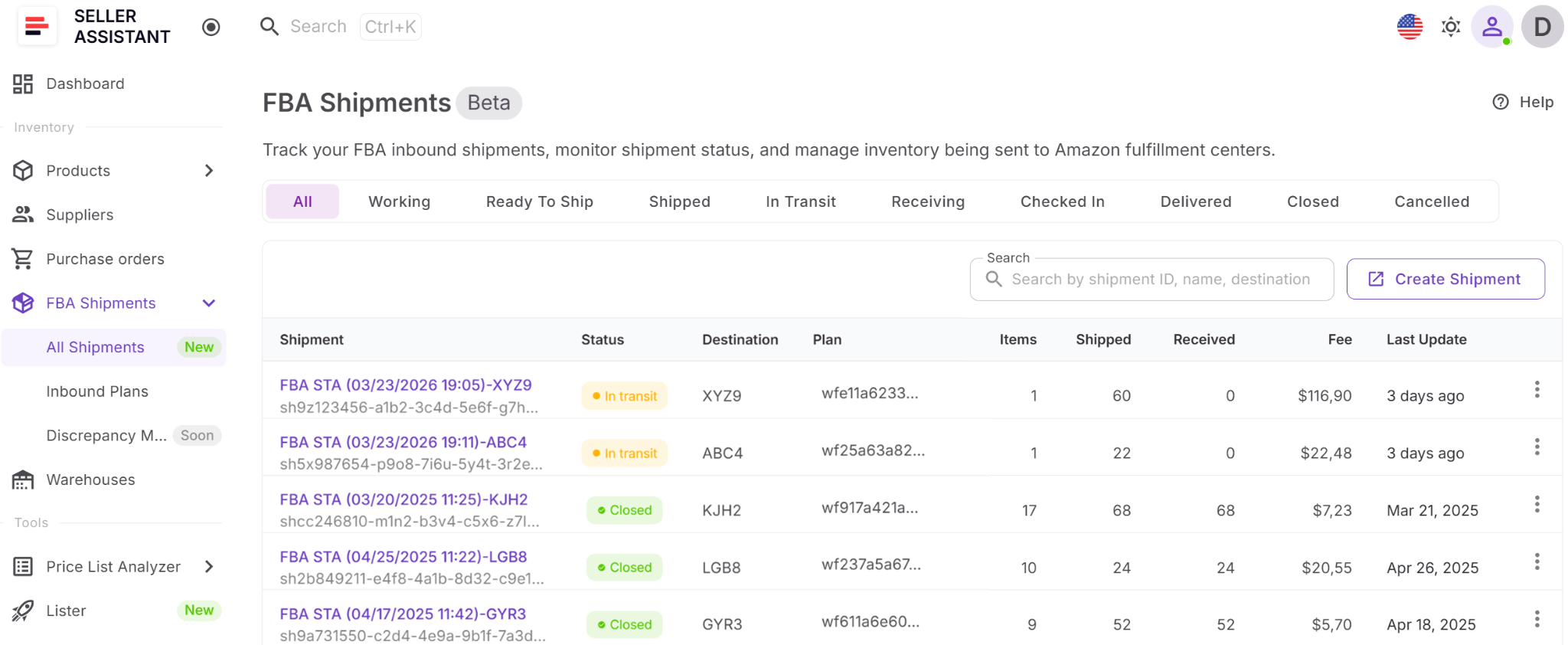
- Shipment status – from Working to Closed, showing where inventory is in the process
- Units shipped vs received – to identify discrepancies and missing inventory
- Destination warehouse – where Amazon routes your inventory
- Number of items and total units – shipment scale and structure
- Total fees – including placement and transport costs
- Last update timestamps – to monitor receiving progress
- Box-level details – contents, dimensions, and quantities per box
FBA Shipments and FBA Inbound Plans explained
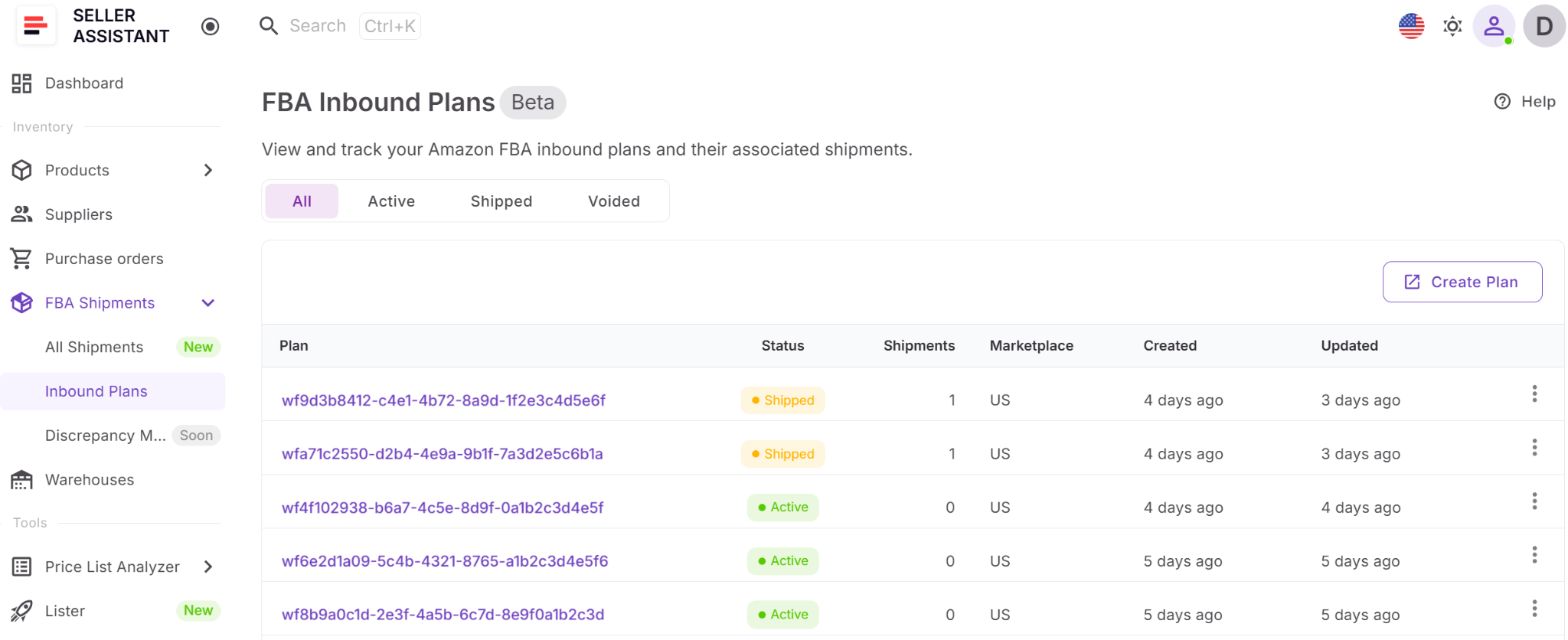
FBA Shipments includes two connected layers: FBA Shipments and FBA Inbound Plans. An inbound plan is created in Seller Central and defines how Amazon splits your inventory across fulfillment centers. Based on that plan, individual shipments are generated and physically sent to warehouses.
Seller Assistant syncs both, so you can track the full flow – from planned distribution to actual receiving – without losing context between plans and shipments.
How it integrates into Seller Assistant workflow
FBA Shipments is not a standalone tool – it is part of Seller Assistant’s connected wholesale workflow. After you analyze products, validate suppliers, and create purchase orders, shipments become the execution stage where inventory is delivered to Amazon. Shipment data then feeds back into your Product Database and cost calculations, helping you verify profitability and make better sourcing decisions.
Note. Seller Assistant is an end-to-end Amazon workflow management platform that integrates 15+ wholesale-focused solutions into one connected system. It combines sourcing workflow automation, bulk research and intelligence tools, and integrated Chrome extensions – giving you everything you need to streamline finding deals, managing suppliers, and creating purchase orders.

The platform aggregates: workflow management tools – Purchase Orders Module, Suppliers Database, Product DB, Warehouses Database, FBA Shipments to organize, automate, and scale every step of your wholesale and arbitrage operations; bulk research & sourcing tools – Price List Analyzer, Bulk Restriction Checker, AI Supplier Finder, Brand Analyzer, Seller Spy to evaluate supplier price lists, verify selling eligibility and restrictions, open new brands, and discover winning product ideas from competitors to expand your product catalog; Chrome extensions – Seller Assistant Browser Extension, IP-Alert Extension, and built-in VPN by Seller Assistant to deep-research products, check IP claims and compliance, and access geoblocked supplier sites directly within your browser; and integrations & team access features – seamless API connectivity and integrations with Zapier, Airtable, and Make, plus Virtual Assistant Accounts for secure, scalable team collaboration.
With Seller Assistant, every step of your Amazon wholesale and arbitrage workflow is automated and connected.
What Can You Do with FBA Shipments?
FBA Shipments tool in Seller Assistant gives you visibility into what happens after you send inventory to Amazon. Instead of checking shipments manually in Seller Central, you can track shipment status, verify received units, and monitor fees directly inside your workflow. This helps you catch issues early, control costs, and ensure your listed products actually become sellable inventory.
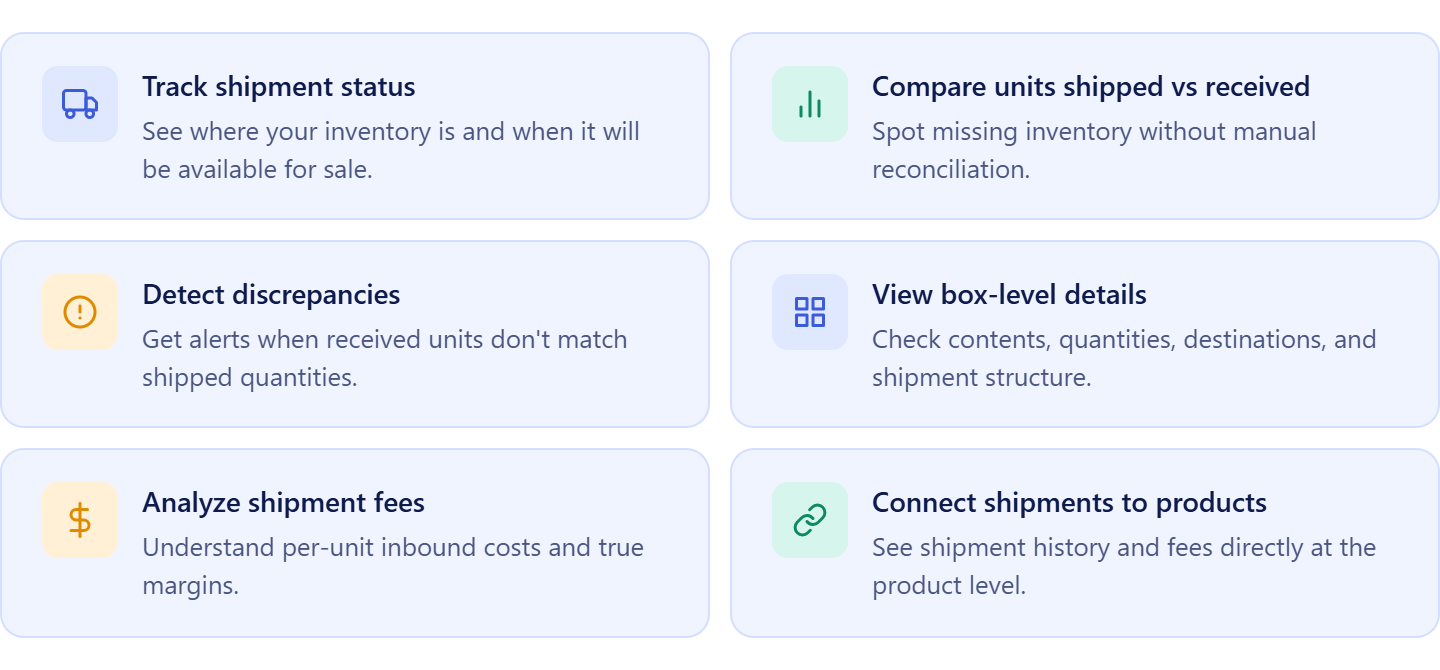
Track shipment status in one place
View all your inbound shipments with statuses, last updates, and progress. This helps you understand where your inventory is and when it will become available for sale.
Monitor shipped vs received units
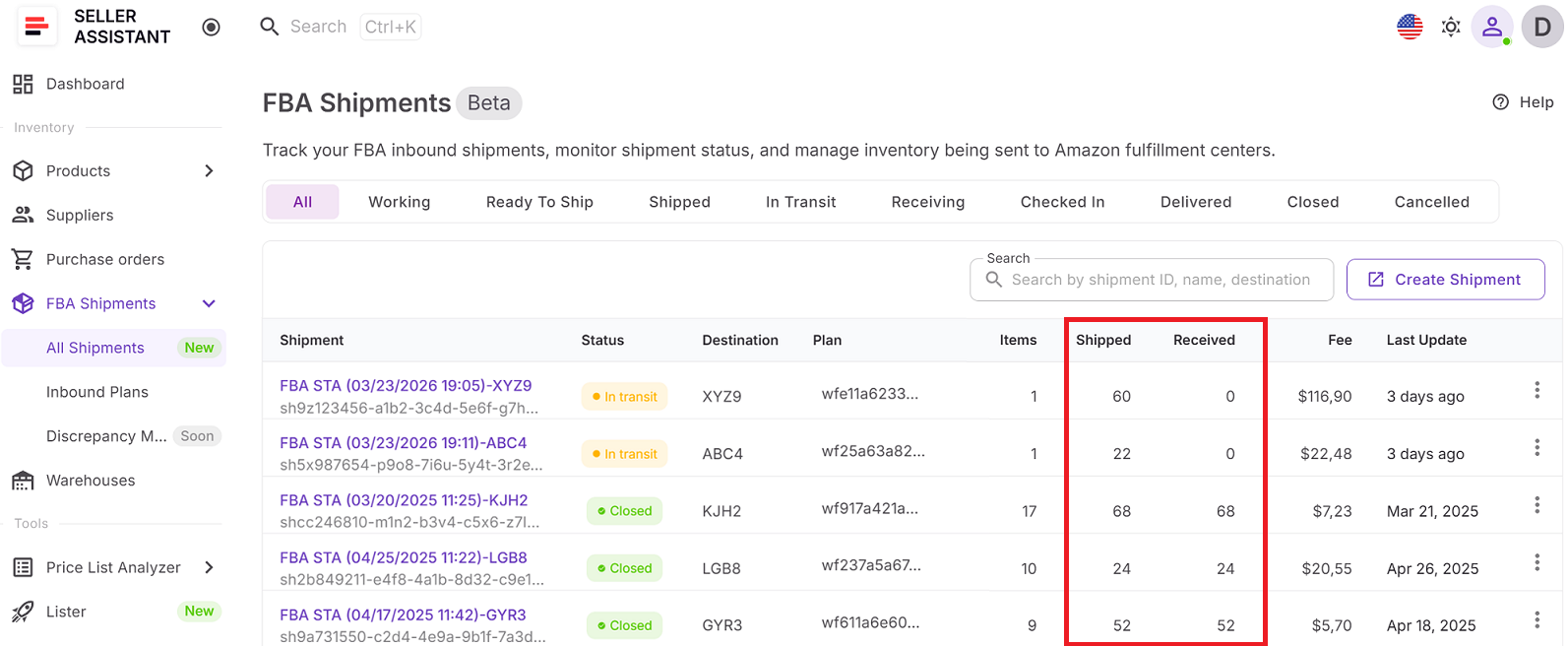
Compare how many units you sent to Amazon versus how many were received. This makes it easy to spot missing inventory without manual reconciliation.
Detect discrepancies automatically
Get warnings on closed shipments where received units don’t match shipped quantities. This helps you identify potential losses and take action for reimbursements.
View box-level shipment details
Access detailed information for each shipment, including items per box, quantities, destination warehouse, and fees. This is useful for verifying prep center and supplier accuracy.
Analyze shipment fees per product
See total shipment costs and break them down into per-unit fees. This helps you understand true landed costs and evaluate product profitability.
Connect shipments to individual products
From Product View, you can see which shipments included a specific product and what fees were associated. This links your listings, SKUs, and fulfillment data in one place.
How FBA Shipments Tool Works
FBA Shipments in Seller Assistant works by syncing your inbound shipment and plan data directly from Amazon. You create shipment plans in Seller Central, send inventory, and Seller Assistant tracks everything automatically. As shipments move through statuses and Amazon receives units, the data updates inside your dashboard. You can then verify quantities, monitor fees, and detect issues without switching tools.
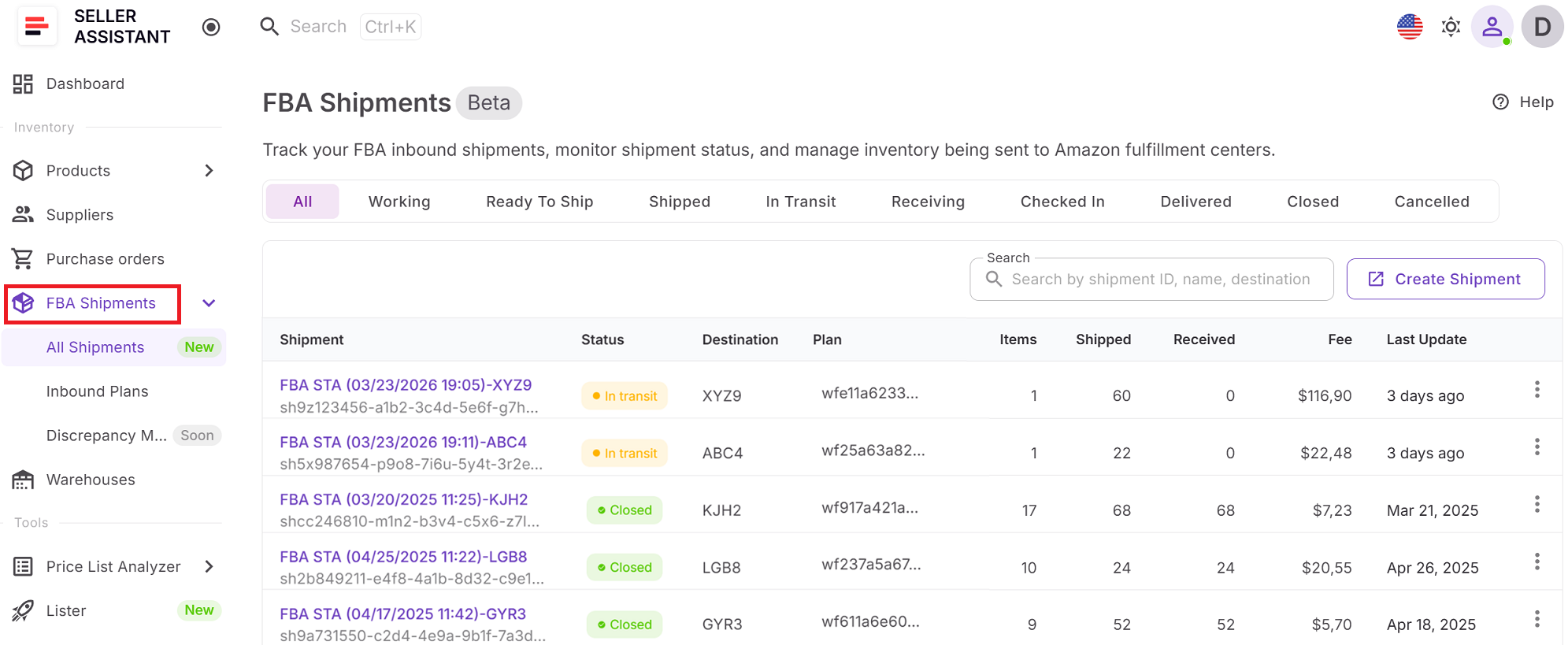
FBA Shipments: Shipments Table and Shipment Details Page
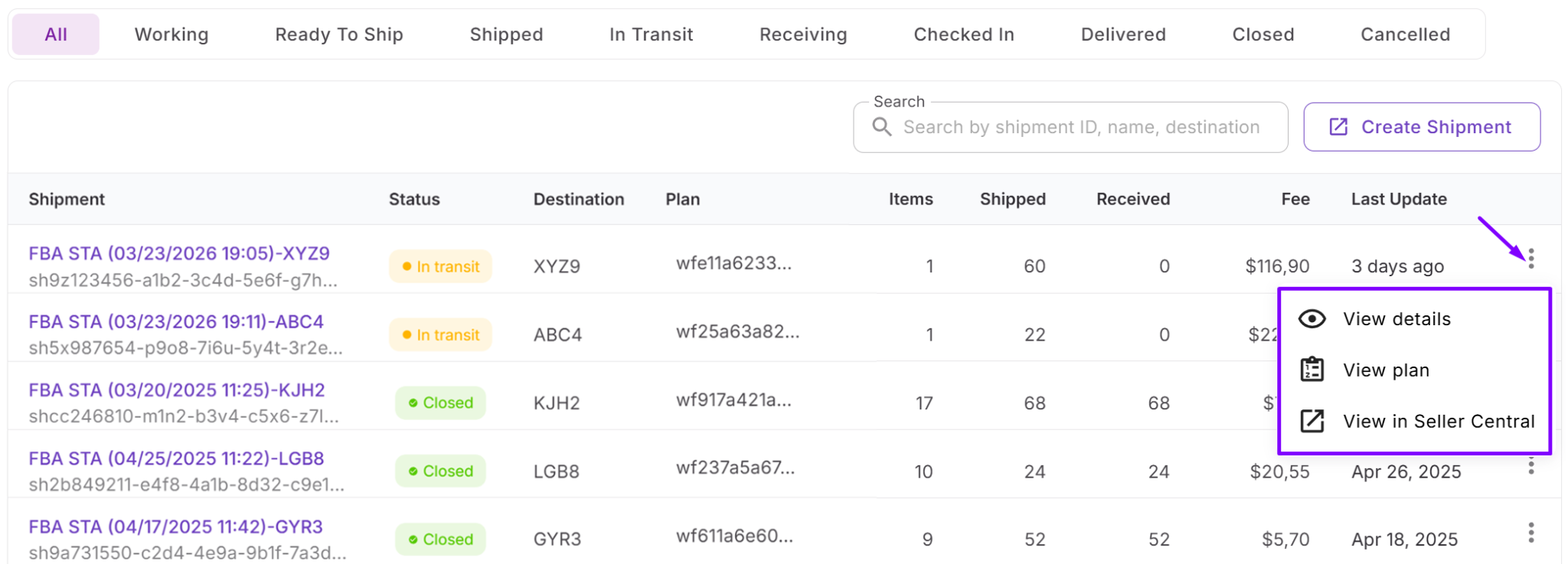
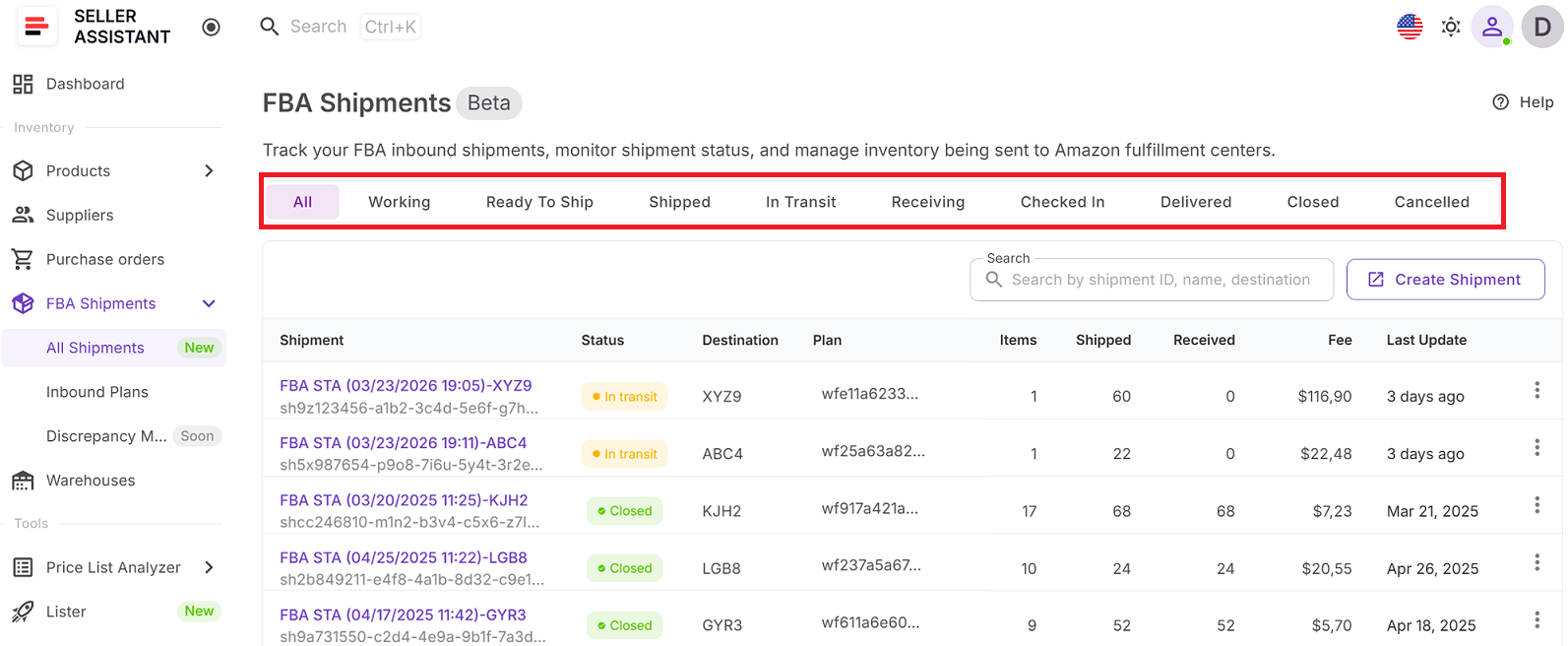
The Shipments table gives you a complete overview of all inbound shipments. You can see shipment status, destination warehouse, number of items, units shipped and received, total fees, and last updates. This view helps you quickly understand shipment progress and filter by status to focus on specific stages like Receiving or Closed.
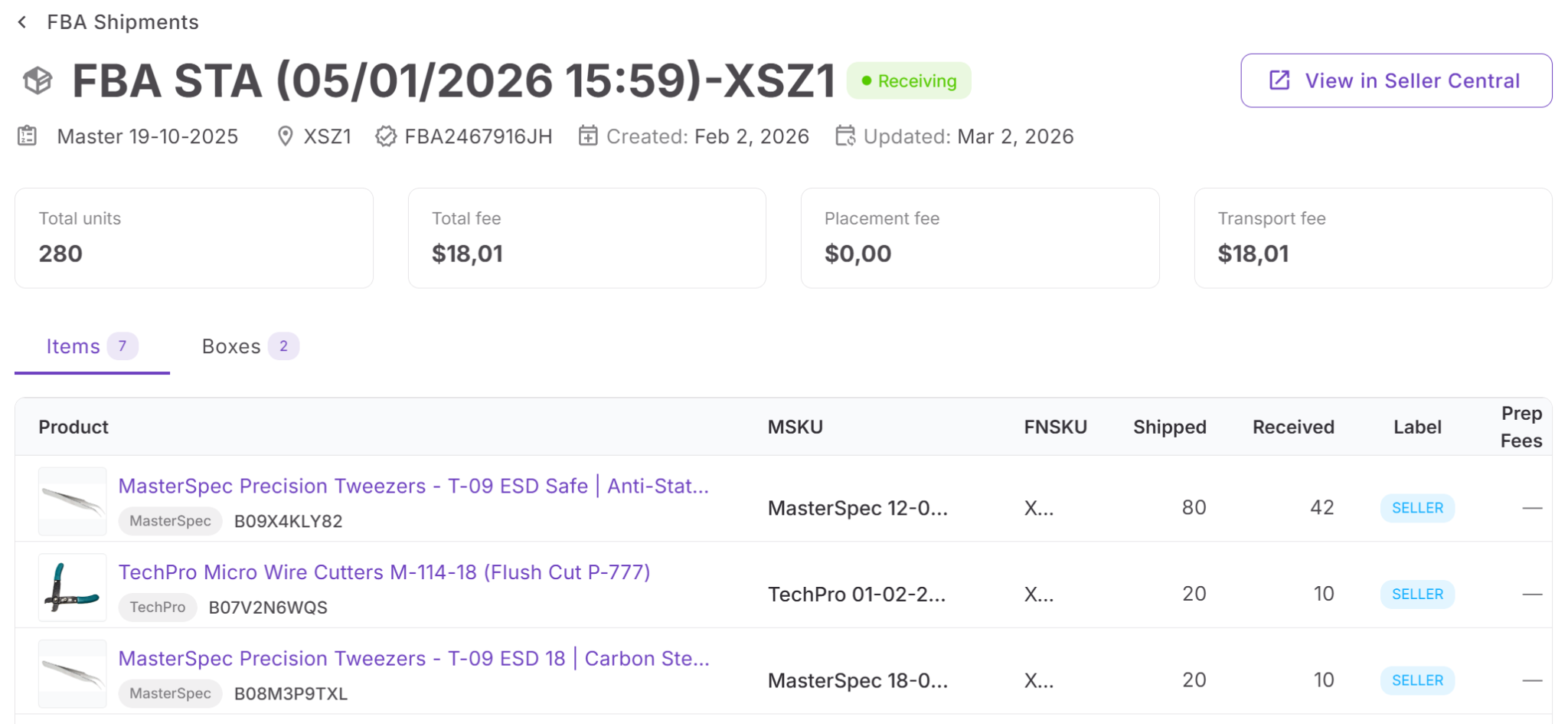
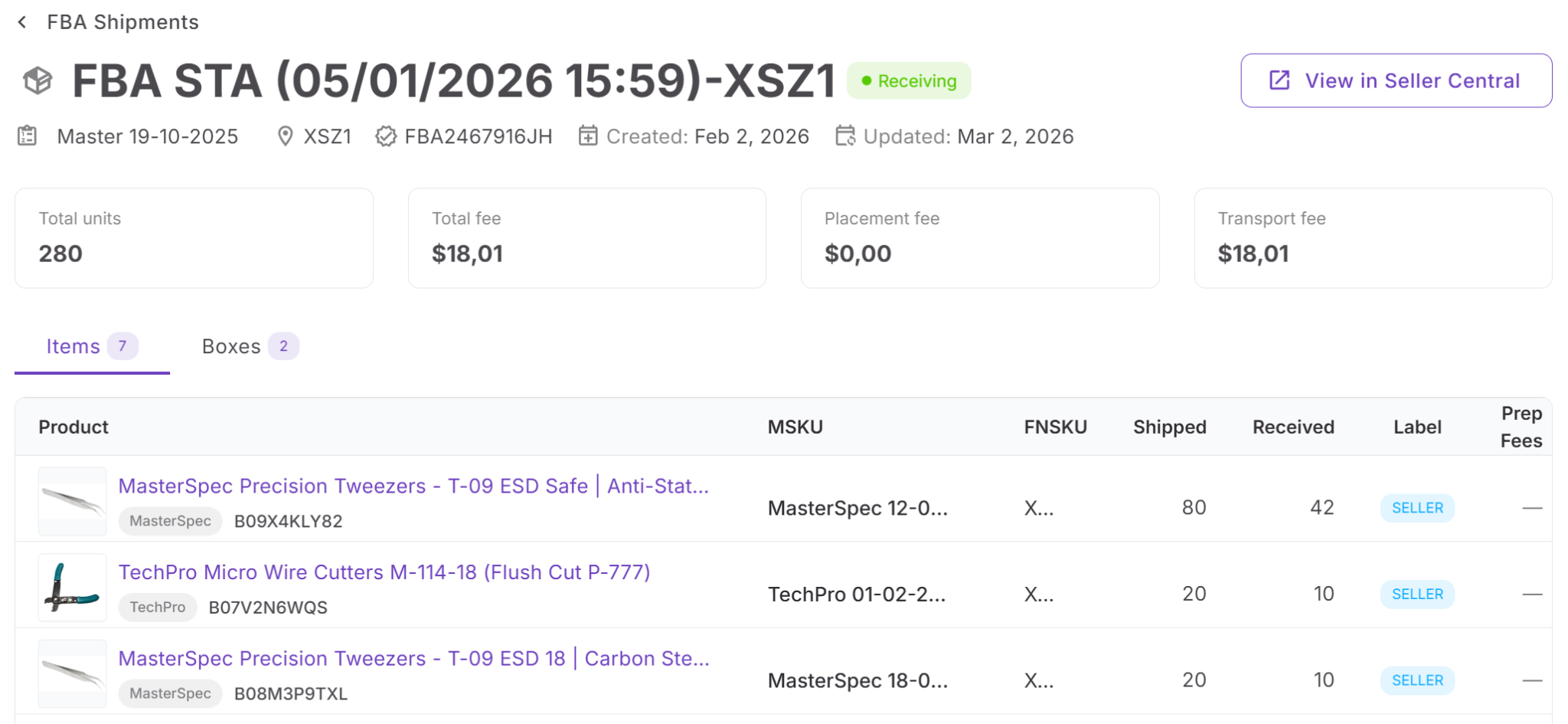
Clicking a shipment opens the Shipment Details Page – a detailed view with full shipment data. You can see shipment ID, plan, destination, total units, and fees including placement and transport. The table shows product-level data such as MSKU, FNSKU, shipped and received units, label type, and prep fees, along with box-level details like dimensions, weight, and quantities. This level of detail helps verify supplier and prep center accuracy.
Inventory discrepancies and why they matter
FBA Shipments automatically flags discrepancies when a shipment is closed and received units don’t match what was sent. This is critical because missing units directly impact your profit. Early detection allows you to investigate, reconcile inventory, and file reimbursement claims before deadlines. Without this visibility, losses often go unnoticed.
FBA Inbound Plans
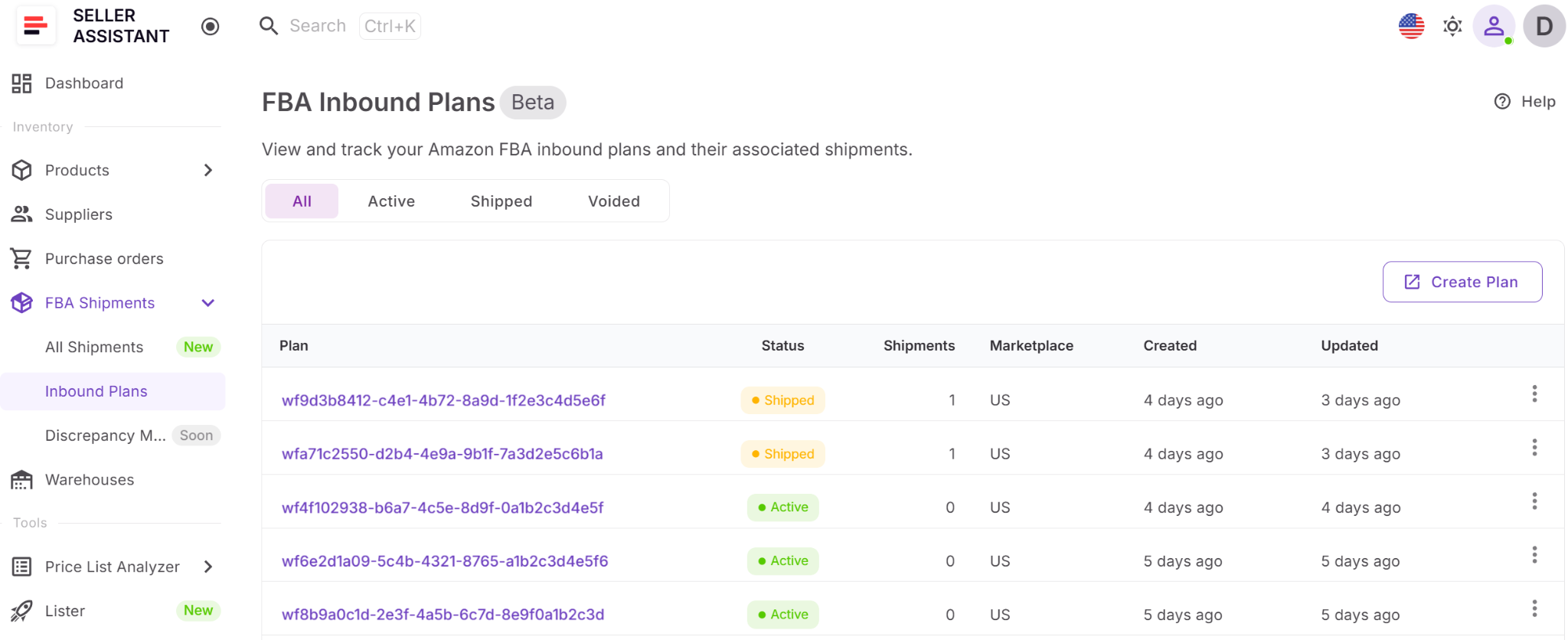
The Inbound Plans Table shows all your shipment plans with their status, marketplace, number of shipments, and timestamps. This helps you understand how your inventory is structured before shipping and how many shipments are linked to each plan.
The Plan Details Page provides a deeper view of each inbound plan, including total units, fees, and all associated shipments. You can track how a single plan is executed across multiple shipments, including their statuses, destinations, and receiving progress.
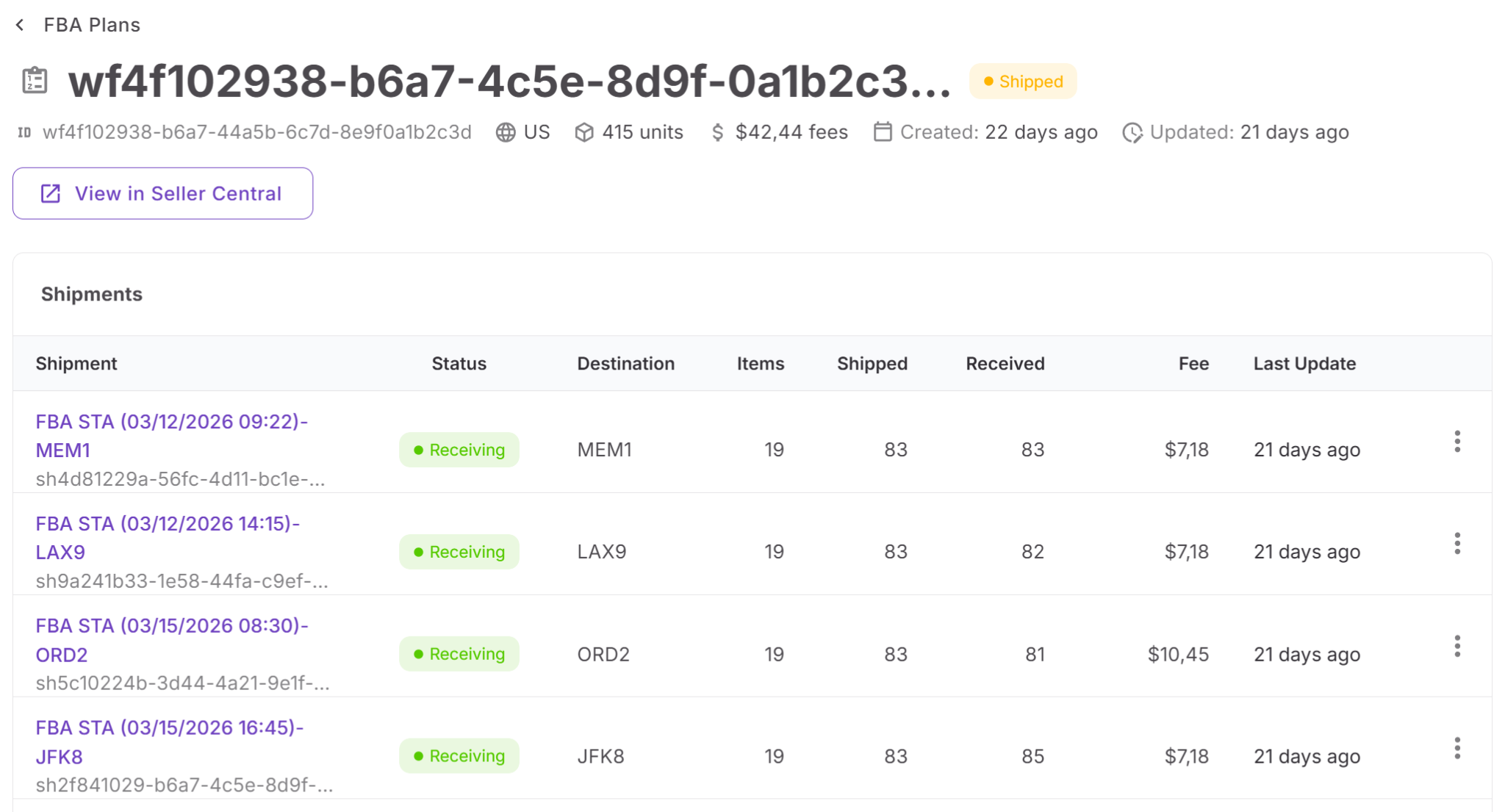
How FBA Shipments Interacts with Inbound Plans
Every shipment starts with an inbound plan created in Seller Central. The plan defines how Amazon distributes your inventory across warehouses. Based on this plan, shipments are generated and sent. Seller Assistant connects both layers, so you can track the full flow – from planned distribution to actual receiving – in one place.
How FBA Shipments tool connects with other tools
FBA Shipments is part of Seller Assistant’s connected workflow. It links directly with Product Database, where shipment data appears at the product level, and with Purchase Orders, which represent the inventory you sent.
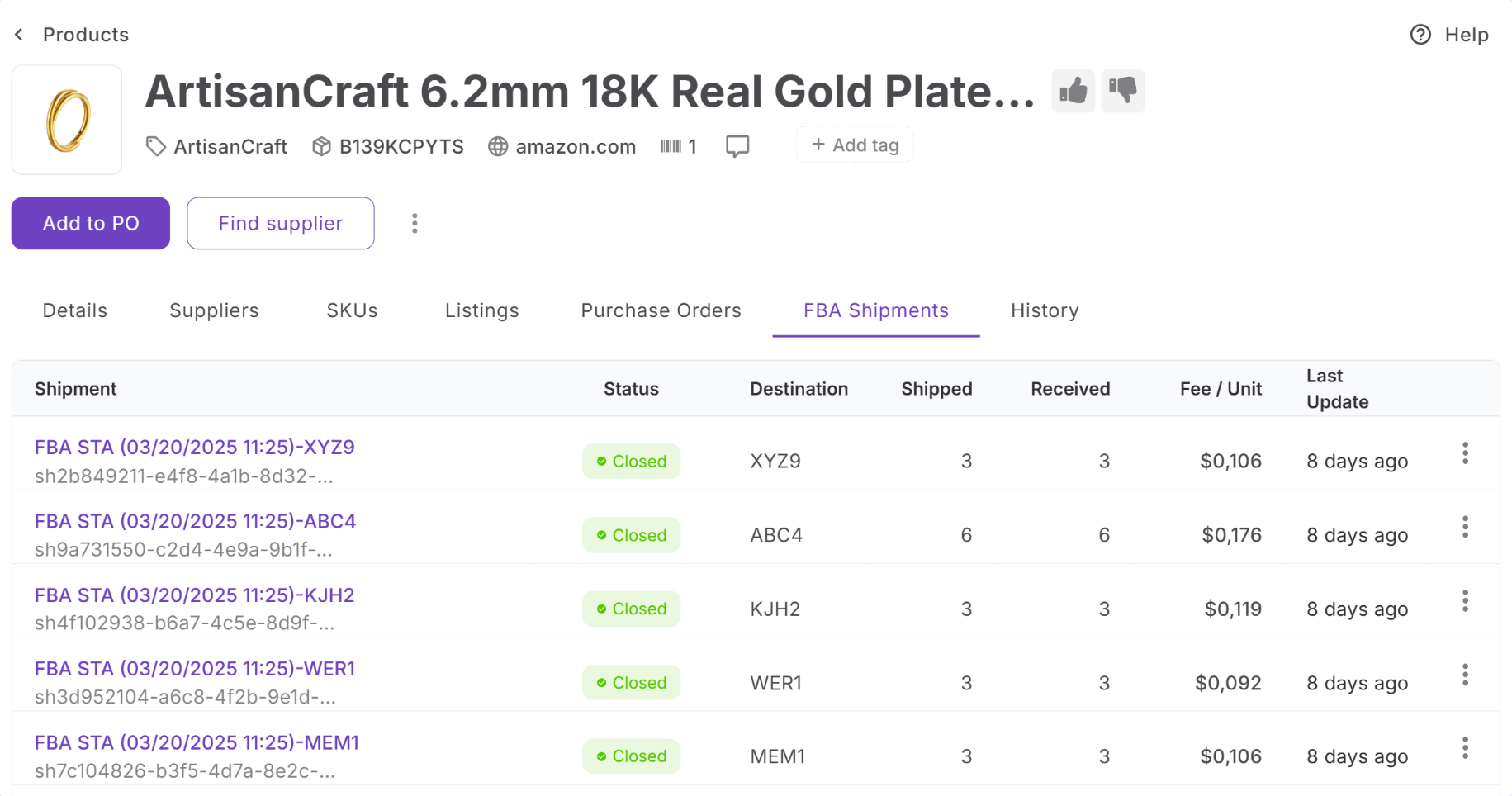
Each product includes an FBA Shipments tab that shows all shipments the product was part of. You can view status, destination, shipped and received units, and fee per unit. This connects logistics data directly to individual products, helping you understand real costs and performance.
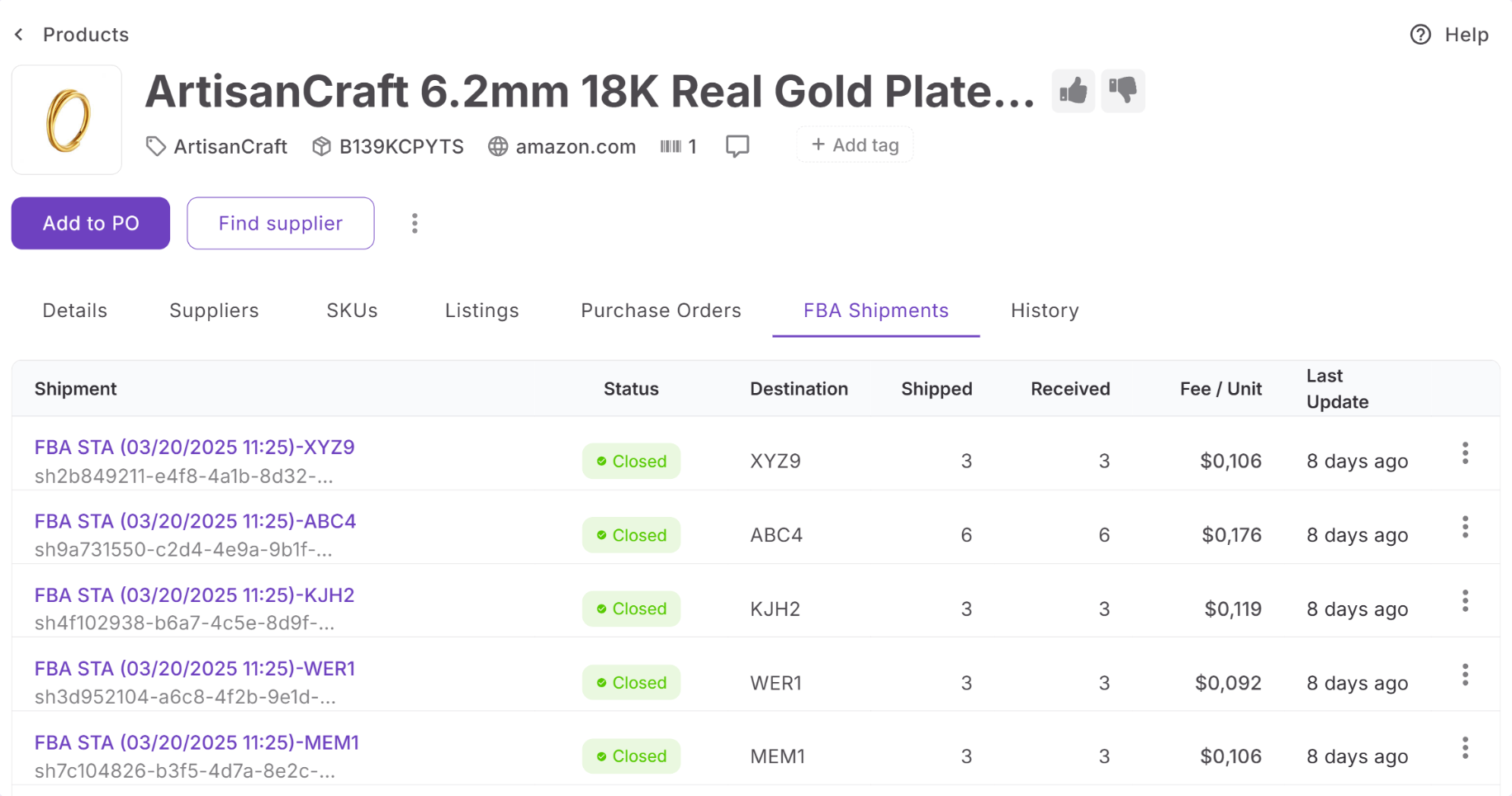
Shipment costs feed into landed cost calculations, giving you accurate profitability data. This connection closes the loop between sourcing, purchasing, and fulfillment, turning shipment tracking into a decision-making tool rather than just a report.
How to Use FBA Shipments Step by Step
Using FBA Shipments in Seller Assistant is straightforward. Once your Amazon account is connected, the tool automatically syncs your inbound plans and shipments from Seller Central. From there, you can follow the full path of your inventory – from plan creation to shipment receiving – and check whether Amazon received everything you sent.
Step 1. Connect your Amazon account
FBA Shipments works with data synced from your connected Amazon account. Once connected, Seller Assistant pulls your inbound plans and shipments into the platform automatically.
Step 2. Create a shipment plan in Seller Central
New inbound plans and shipments are created in Amazon Seller Central. Seller Assistant does not create them – it syncs and organizes the data after the plan is created.
Step 3. Open FBA Shipments in Seller Assistant
Go to the Inventory section and open FBA Shipments. Here, you can access both Shipments and Inbound Plans in one place.
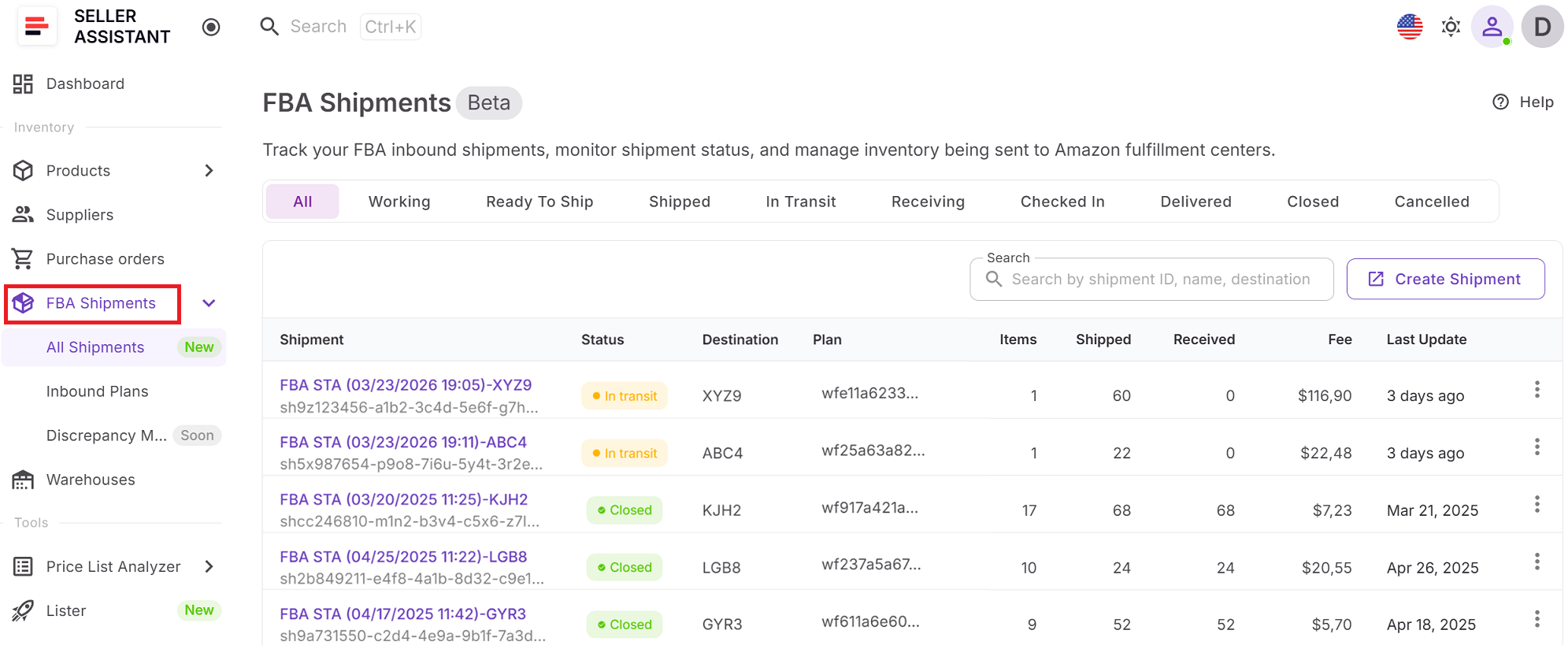
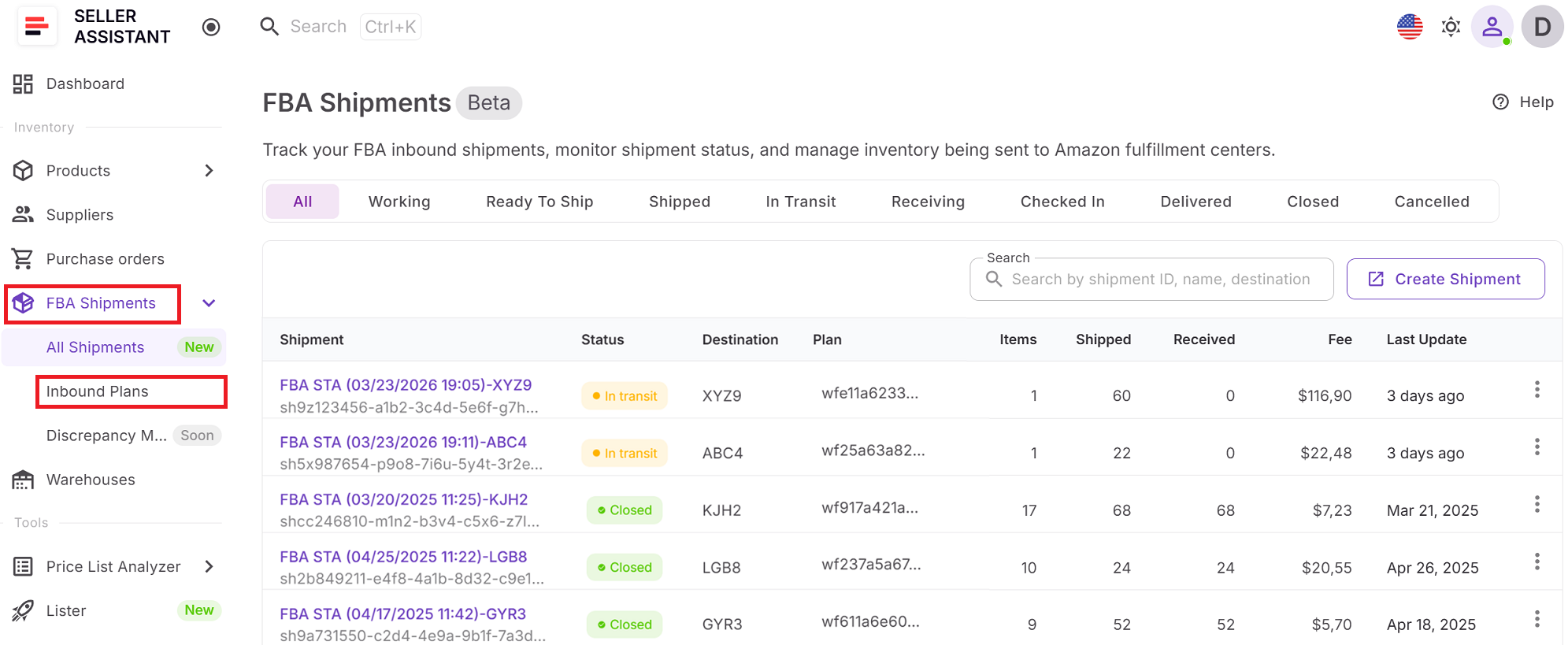
Step 4. Review your Inbound Plans
Start with Inbound Plans to see how Amazon split your inventory across fulfillment centers. This gives you a high-level view of the plan, linked shipments, marketplace, and status.
Step 5. Track shipment status
Switch between the statuses to monitor each shipment as it moves through statuses like Working, In Transit, Receiving, and Closed. This helps you see where your inventory is and what stage needs attention.
Step 6. Compare units shipped and received
Check shipped and received quantities for each shipment. This is the fastest way to verify whether Amazon received your inventory in full.
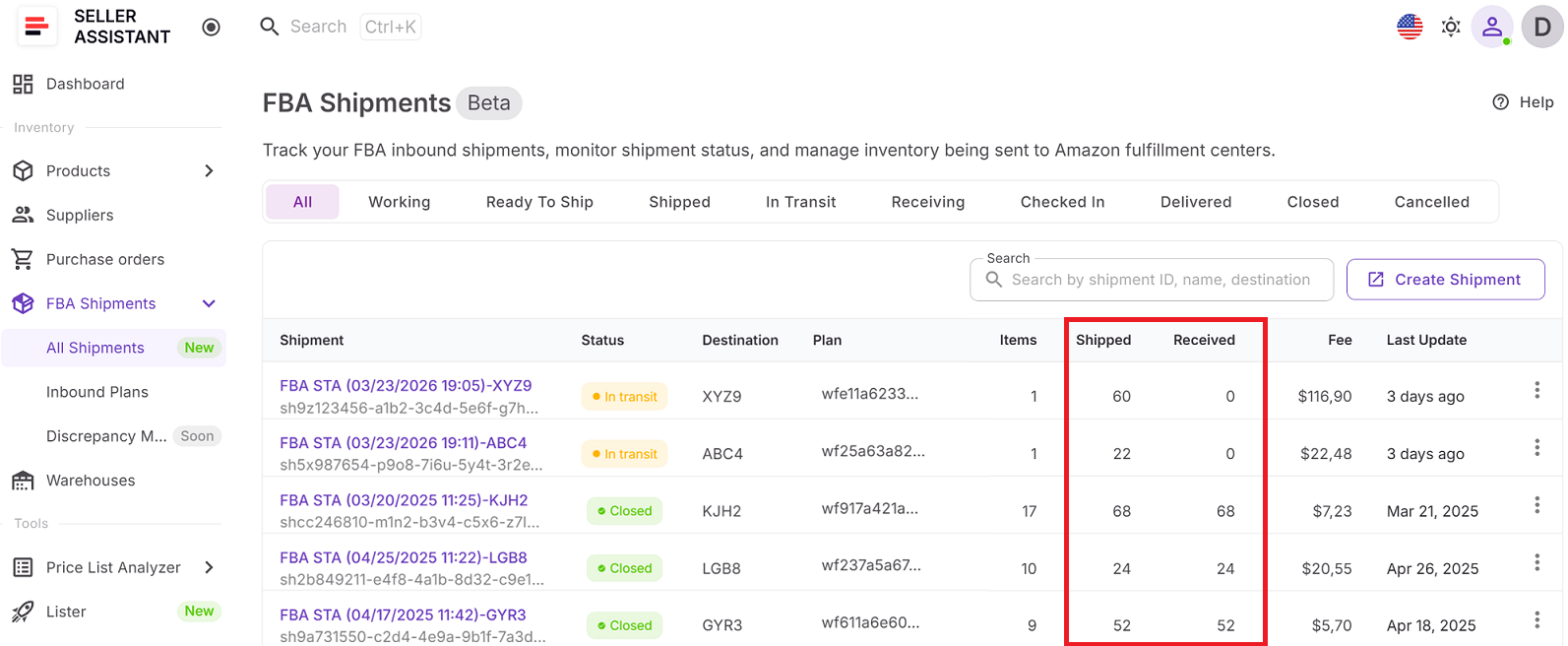
If a shipment is closed and received units do not match shipped units, Seller Assistant shows a discrepancy warning. Use this to identify potential inventory loss and investigate reimbursement opportunities.
Step 7. Review shipment details
Open any shipment to see detailed information such as destination warehouse, shipment ID, box contents, product-level quantities, label type, prep fees, and total shipment costs.
Step 8. Check product-level shipment data
Open a product in Product Details Page and go to the FBA Shipments tab. There you can see which shipments included that product, its shipped and received quantities, and fee per unit.
FAQ
What is the difference between Inbound Plans and FBA Shipments?
Inbound plans define how Amazon splits your inventory across warehouses before shipping. FBA shipments are the actual physical deliveries sent based on that plan.
Can I create shipments inside Seller Assistant?
No, shipment plans must be created in Amazon Seller Central. Seller Assistant syncs and organizes the data for tracking and analysis.
How does FBA Shipments help detect lost inventory?
The tool compares units shipped and received for each shipment. If there is a mismatch on a closed shipment, it flags a discrepancy so you can investigate.
How often does FBA Shipments data update?
Shipment data is synced automatically from your connected Amazon account. Updates reflect changes in shipment status and receiving progress.
How does FBA Shipments improve profitability?
It shows your real inbound costs and highlights missing units that impact margins. This helps you make better sourcing and reorder decisions based on actual data.
Final Thoughts
FBA Shipments is where your Amazon workflow meets reality. You’ve already done the work – sourcing products, validating suppliers, and placing purchase orders – but this is the stage that confirms whether those decisions translate into actual inventory and profit. By tracking shipment status, verifying received units, and monitoring inbound costs, you move from assumptions to accurate data.
Inside Seller Assistant, FBA Shipments doesn’t sit in isolation. It connects directly to your Product Database, purchase orders, and cost calculations, giving you a complete view of how your inventory performs after it leaves your supplier. This visibility helps you catch losses early, understand true margins, and make smarter decisions on what to reorder, scale, or drop.
Seller Assistant automates and connects every stage of your Amazon wholesale and arbitrage workflow. It brings together in one platform: workflow management tools – Purchase Orders Module, Suppliers Database, Warehouses Database, FBA Shipments, bulk research & sourcing tools – Price List Analyzer, Bulk Restriction Checker, Sourcing AI, Brand Analyzer, Seller Spy, Chrome extensions – Seller Assistant Browser Extension, IP-Alert Extension, and built-in VPN by Seller Assistant, and integrations & team access features – seamless API connectivity, integrations with Zapier, Airtable, and Make, and Virtual Assistant Accounts.