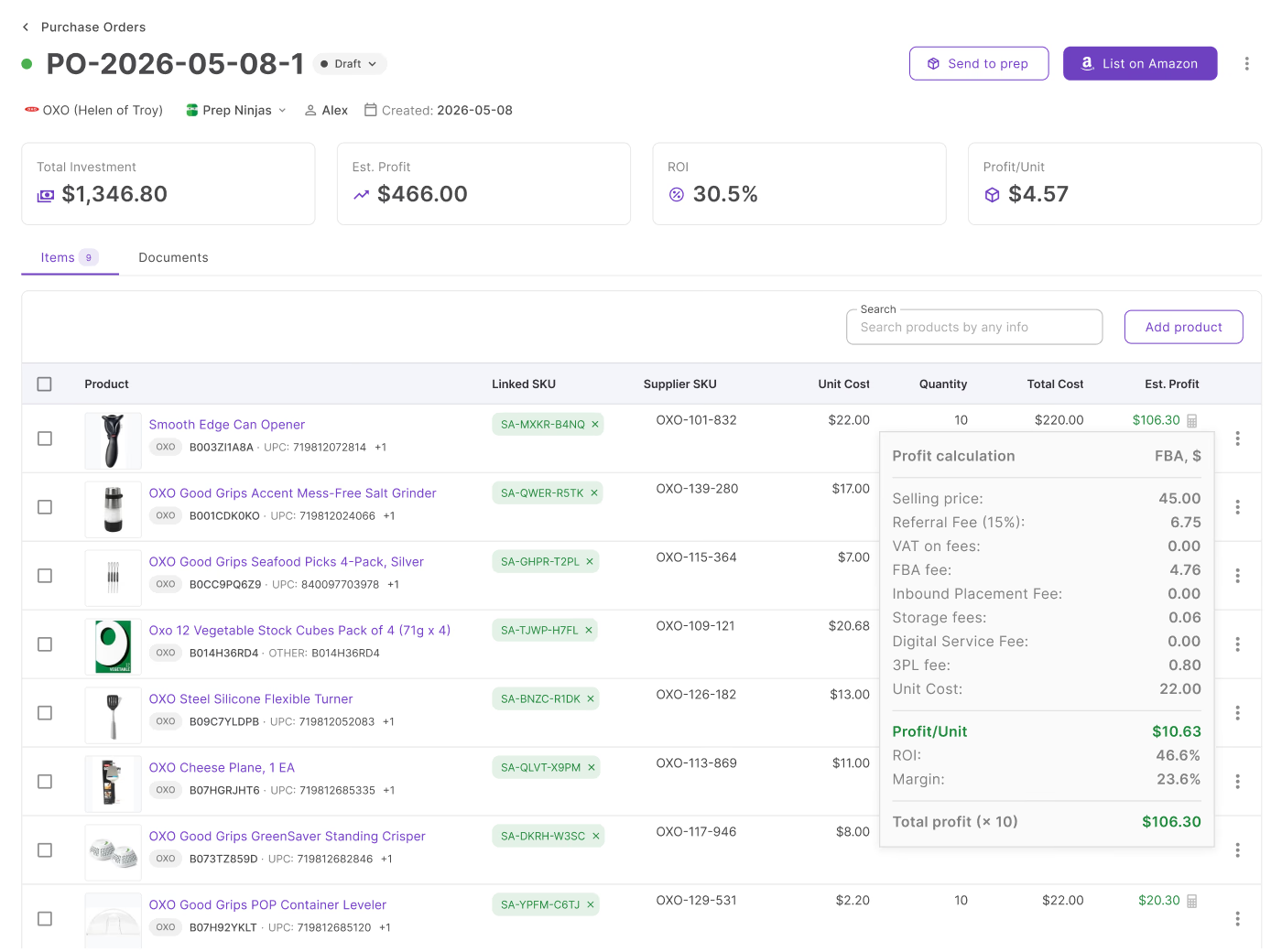


Creating purchase orders shouldn’t slow down your Amazon business – but for many resellers, it does. When product data, supplier offers, and costs are scattered across spreadsheets and tools, building a simple PO turns into manual work filled with errors.
As your catalog grows, this only gets worse. The solution is a connected workflow where sourcing data flows directly into purchasing.
With Seller Assistant, you can move from analyzed products in your database to structured purchase orders in a few clicks – no re-entry, no guesswork, and no broken processes as you scale.
Why Create Purchase Orders from Product Database?
Creating purchase orders becomes difficult when sourcing data is scattered. Sellers often have to recheck suppliers, re-enter COG, and rebuild decisions every time they create a PO. This slows down operations and increases the chance of mistakes. When your workflow grows, these small inefficiencies turn into serious bottlenecks.
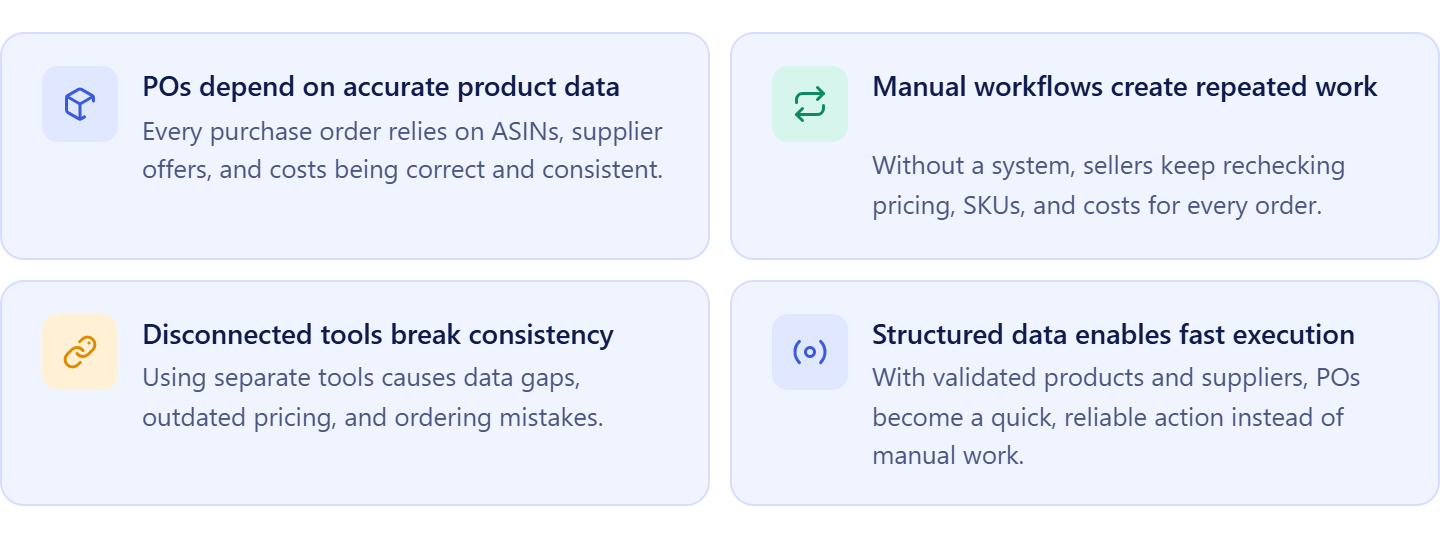
Purchase orders depend on accurate product data
Every PO is built on ASINs, supplier offers, and costs. If this data is inconsistent or incomplete, purchasing decisions become unreliable. A structured Product Database ensures every order starts with the same verified information.
Manual workflows create repeated work
Without a connected system, sellers repeat the same steps – checking supplier pricing, confirming SKUs, and validating costs. This wastes time and makes scaling harder. A Product Database removes duplication by storing all sourcing decisions in one place.
Disconnected tools break purchasing consistency
When sourcing and purchasing happen in different tools, data gets lost or outdated. This leads to incorrect orders, mismatched pricing, and confusion with suppliers. Keeping everything connected ensures decisions stay consistent from research to purchase.
Structured data turns purchase orders into execution
When products already have a selected supplier, defined COG, and complete data, creating a PO becomes a simple action. Instead of building orders manually, you generate them directly from validated products, keeping your workflow fast and aligned.
What Seller Assistant Tools Create POs from Product Database?
Creating purchase orders from product databases removes the need to rebuild sourcing decisions during purchasing – but this only works when your tools are connected. Seller Assistant simplifies this by linking structured product data with a dedicated purchase order workspace.
Instead of copying ASINs, suppliers, and costs, you move from product selection to a ready-to-send PO in a few clicks, keeping everything accurate and consistent.
This workflow is powered by two core tools: Seller Assistant’s Product Database and Seller Assistant’s Purchase Orders Module.
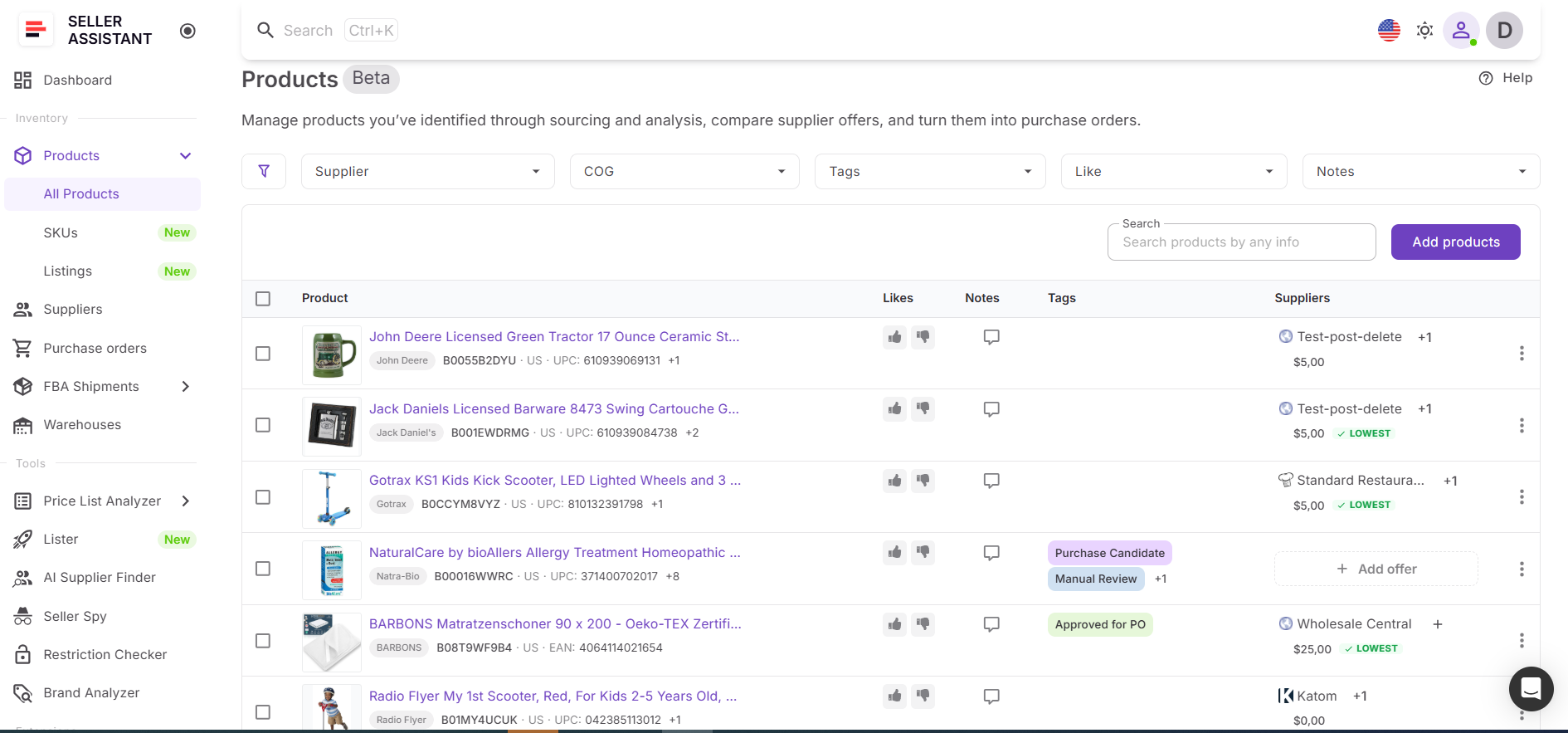
Product Database
Product Database is where your sourcing decisions are stored and structured. It contains ASINs, supplier offers, default suppliers, COG, and notes in one place. Because this data is already validated and organized, it becomes the foundation for purchase orders – you don’t need to recheck suppliers or pricing before creating a PO.
Purchase Orders Module
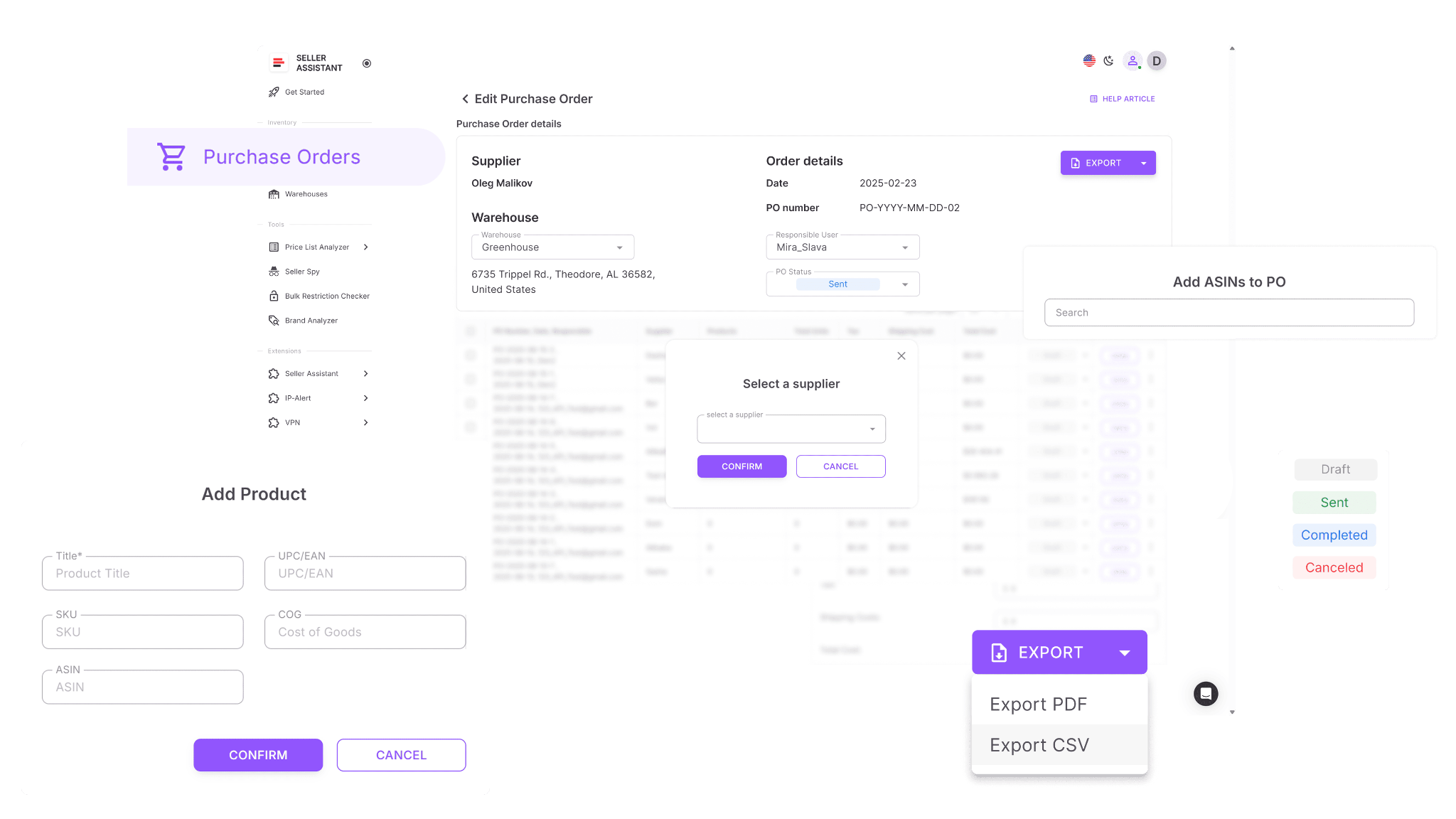
Purchase Orders Module is where purchasing happens. It takes product data from Product Database and turns it into structured purchase orders with supplier and warehouse details already filled in. You can manage quantities, costs, and totals without manual calculations, ensuring every order stays accurate.
How they work together
You select products in Product Database, and the system uses the default supplier and stored COG to create a purchase order. Product data flows directly into the PO, so there is no need to re-enter information. If changes are made in the order, they can update supplier data, keeping everything consistent across your workflow.
How creating POs from Product Database fits into your workflow
Creating purchase orders from Product Database is part of Seller Assistant’s connected wholesale workflow. After analyzing products and selecting suppliers, you move directly into purchasing without breaking context. Each step is linked, so data flows from sourcing to Product Database to purchase orders, helping you scale faster with fewer errors.
Note. Seller Assistant is an end-to-end Amazon workflow management platform that integrates 15+ wholesale-focused solutions into one connected system. It combines sourcing workflow automation, bulk research and intelligence tools, and integrated Chrome extensions – giving you everything you need to streamline finding deals, managing suppliers, and creating purchase orders.

With Seller Assistant, every step of your Amazon wholesale and arbitrage workflow is automated and connected.
What Is Product Database?
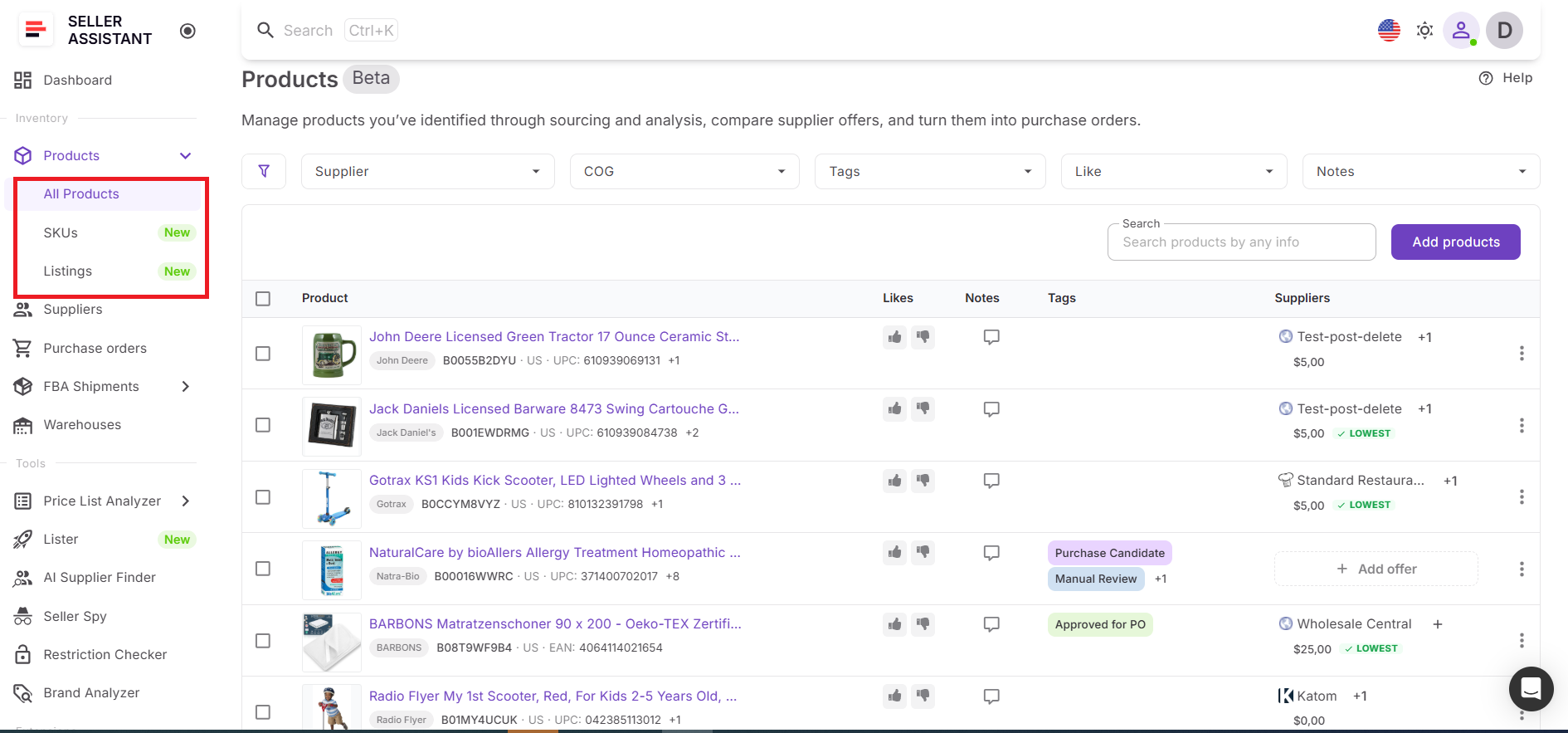
Product Database is Seller Assistant’s centralized workspace for storing and managing all sourced products. It keeps ASINs, supplier offers, COG, and sourcing decisions in one structured system.
Instead of working across spreadsheets and disconnected tools, you manage product data in a single place that connects directly to purchasing and listing. It’s designed to turn sourcing decisions into actionable steps – so you can move products into purchase orders and listings without re-entering data or losing context.
What you can do with Product Database
Product Database gives you full control over your sourcing data and turns it into a working pipeline. It keeps products, suppliers, and decisions connected, so you can manage and act on them without manual work or data gaps.
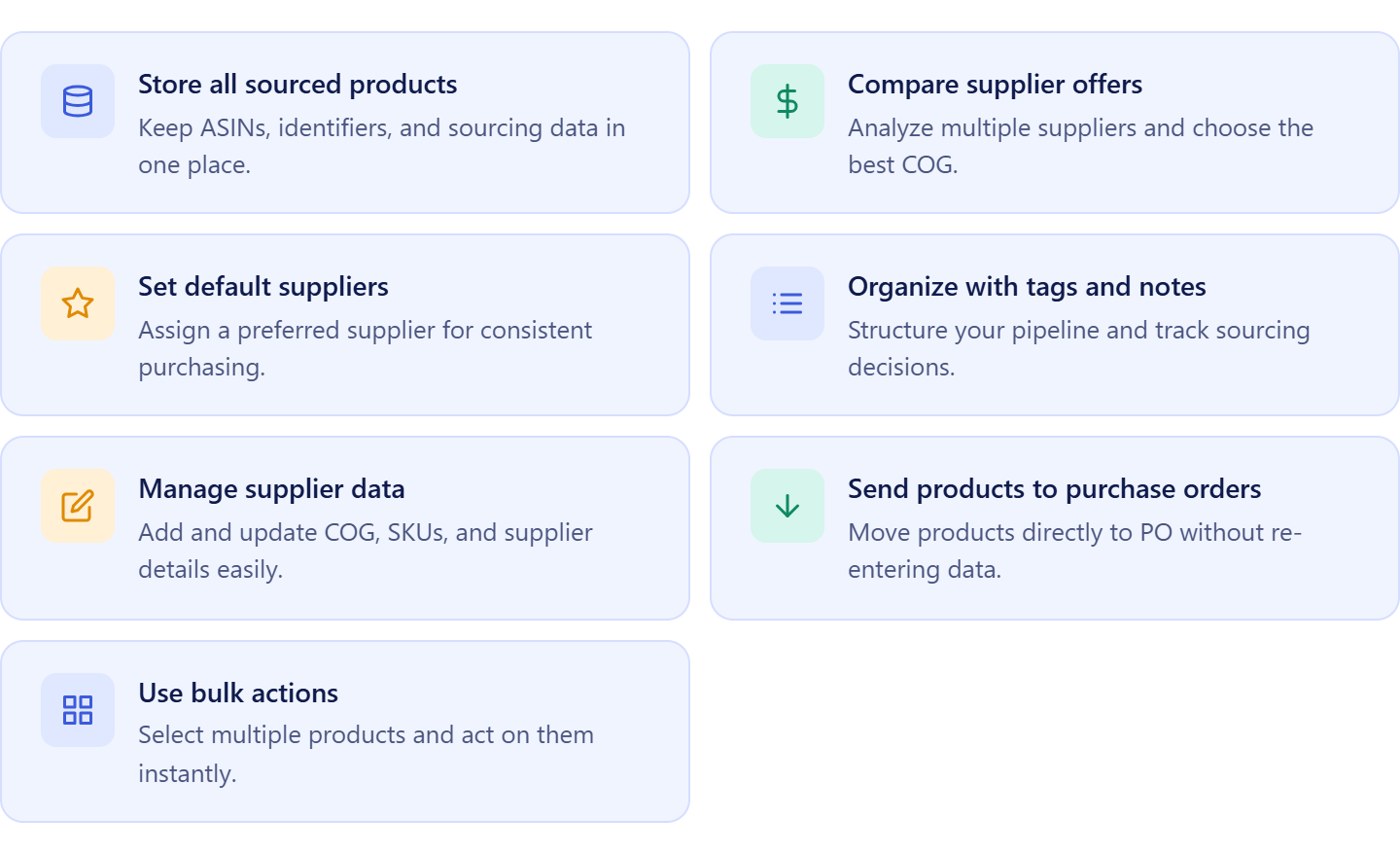
- Store all sourced products in one place
Keep ASINs, identifiers, marketplace data, and sourcing inputs centralized for easy access and consistency.
- Compare supplier offers for each product
View multiple supplier offers side by side, analyze COG differences, and choose the most profitable option.
- Select and manage default suppliers
Assign a default supplier per product to ensure consistent purchasing decisions and faster PO creation.
- Organize products with tags, notes, and likes
Structure your sourcing pipeline, track decisions, and keep your team aligned across workflows.
- Add and update supplier data
Create and edit supplier offers with COG, SKU, and links to maintain accurate and up-to-date records.
- Move products directly to purchase orders
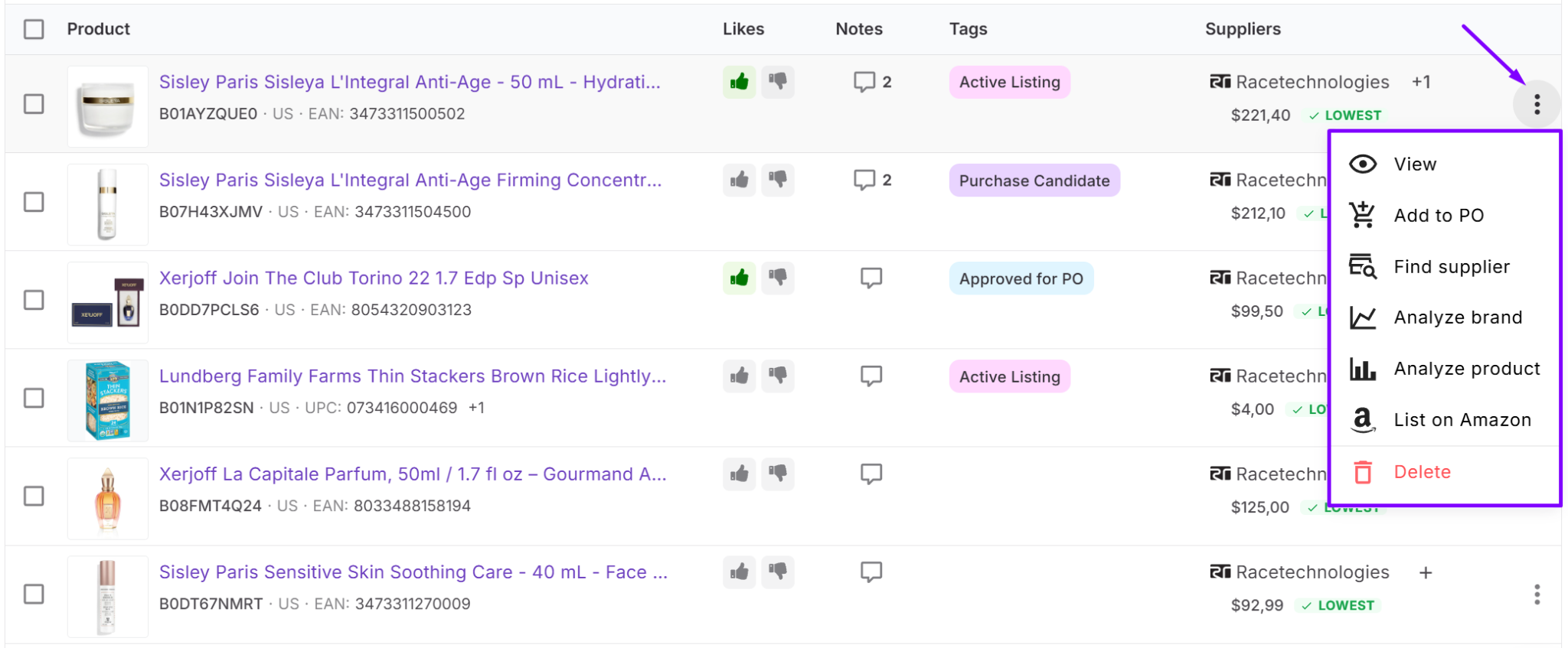
Send selected products to Purchase Orders Module without re-entering supplier or cost data.
- Work with bulk actions
Select multiple products, apply tags, or add them to purchase orders in one action to scale faster.
How Product Database streamlines your workflow
Product Database turns sourcing into a structured, repeatable process. Instead of storing product ideas in static lists, you work with dynamic product records that stay connected to suppliers, purchase orders, and listings.
You can add products from tools like Price List Analyzer or manually, attach supplier offers, and select a default supplier. Once products are validated, they are ready for execution – you can send them directly to purchase orders or listing tools without rebuilding data.
Product Database connects sourcing, purchasing, and listing into one system. You select products, generate purchase orders with prefilled supplier and cost data, and track everything from one place.
Using together tools like Product Database, Price List Analyzer, Brand Analyzer, AI Supplier Finder, Suppliers Database, Bulk Restriction Checker, Lister, Warehouses Database, Purchase Orders Module, and FBA Shipments keeps your workflow consistent, reduces errors, and allows you to scale without breaking your process.
What Is Purchase Orders Module?
Purchase Orders Module is Seller Assistant’s procurement workspace that helps you create, organize, and track supplier orders within a single workflow. Instead of building POs manually in spreadsheets, the system uses your product, supplier, and warehouse data to generate structured orders automatically. This keeps purchasing clear, reduces manual errors, and ensures every order follows the same process as your business grows.
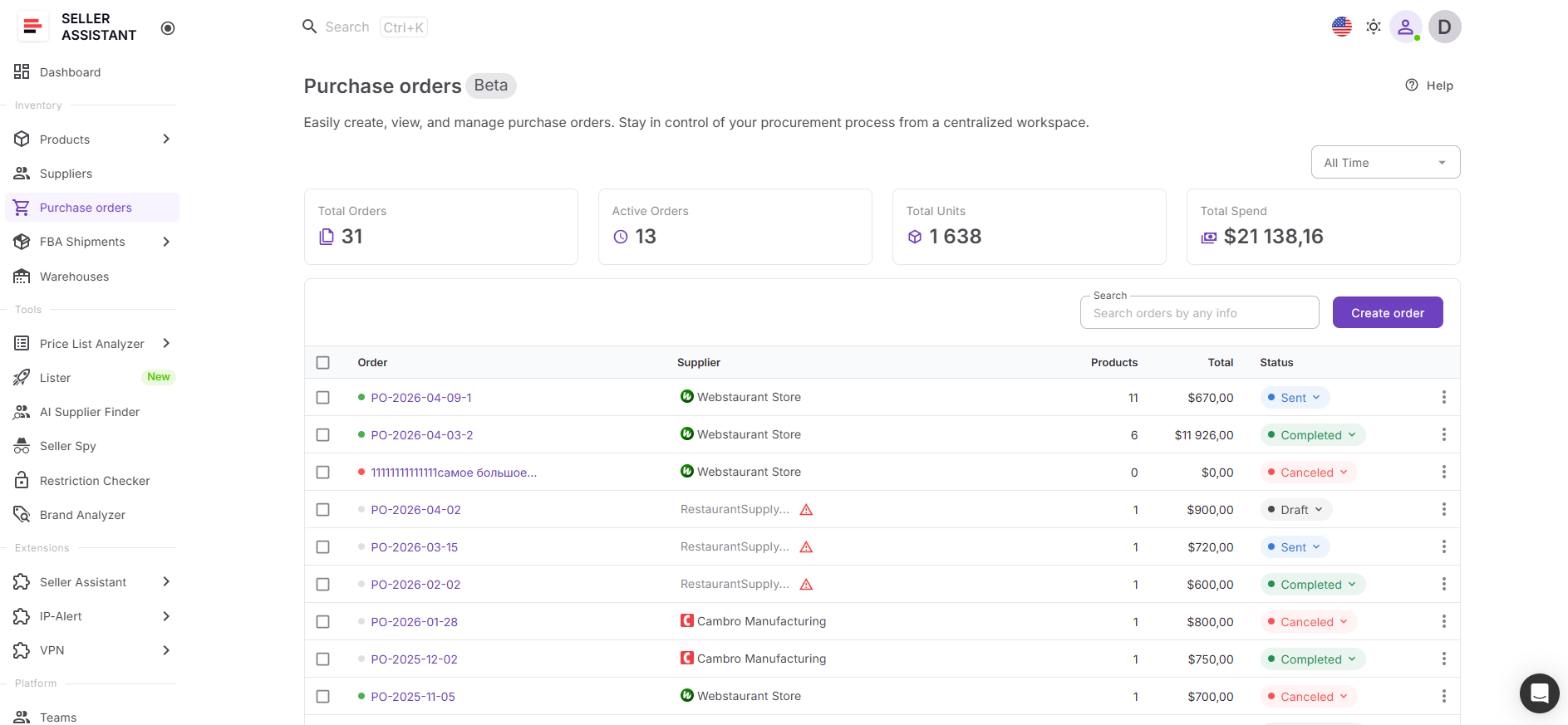
What you can do with Purchase Orders Module
Purchase Orders Module gives you a consistent system for handling supplier orders without relying on scattered files or manual templates. It connects all key data points and automates routine steps so your purchasing stays accurate and easy to manage.
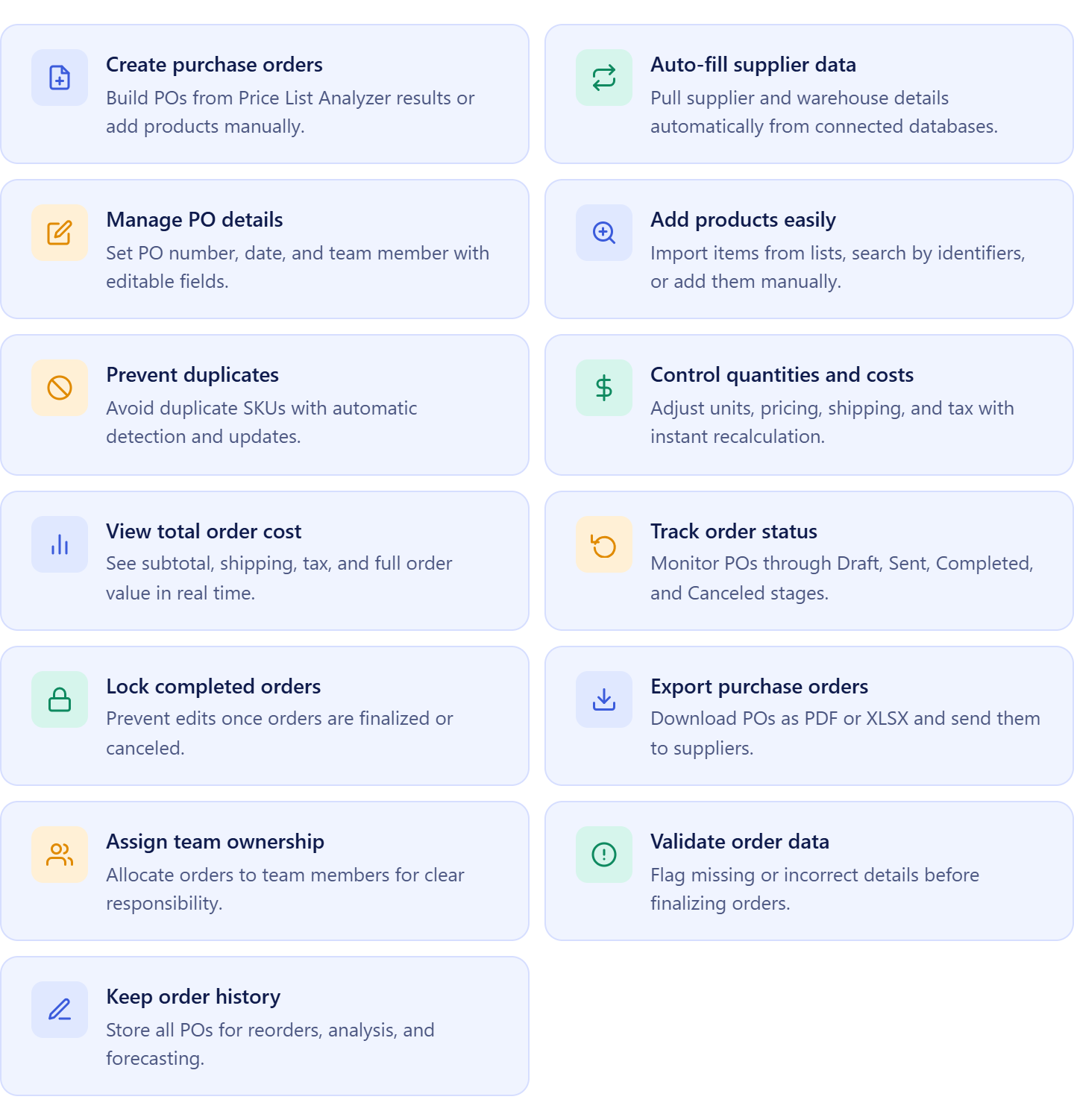
- Create POs from sourced products
Generate orders from analyzed products or add items manually when needed
- Auto-fill supplier and shipping details
Use saved supplier and warehouse data to avoid repeated input
- Control order details centrally
Manage PO number, date, and ownership in one place
- Add products from any source
Import from price lists, databases, search, or manual entry
- Avoid duplicate entries
Automatically merge duplicate SKUs within the same order
- Adjust quantities and costs
Update units, pricing, shipping, and tax with instant recalculation
- View total order cost instantly
See full cost breakdown in real time for better decisions
- Track order progress
Move orders through Draft, Sent, Completed, and Canceled stages
- Lock finalized orders
Protect completed or canceled POs from changes
- Export and share orders
Download POs as PDF or XLSX for supplier communication
- Assign responsibility to team members
Keep procurement organized across your team
- Catch missing or incorrect data
Get alerts before finalizing incomplete orders
- Keep full order history
Store all POs for reorders, analysis, and forecasting
How Purchase Orders Module structures your purchasing workflow
Purchase Orders Module turns sourcing into a clear purchasing flow inside Seller Assistant. You create a new order, choose a supplier, and the system generates a draft with a unique number and prefilled details. From there, you add products, assign a warehouse, and adjust quantities and costs while totals update automatically.
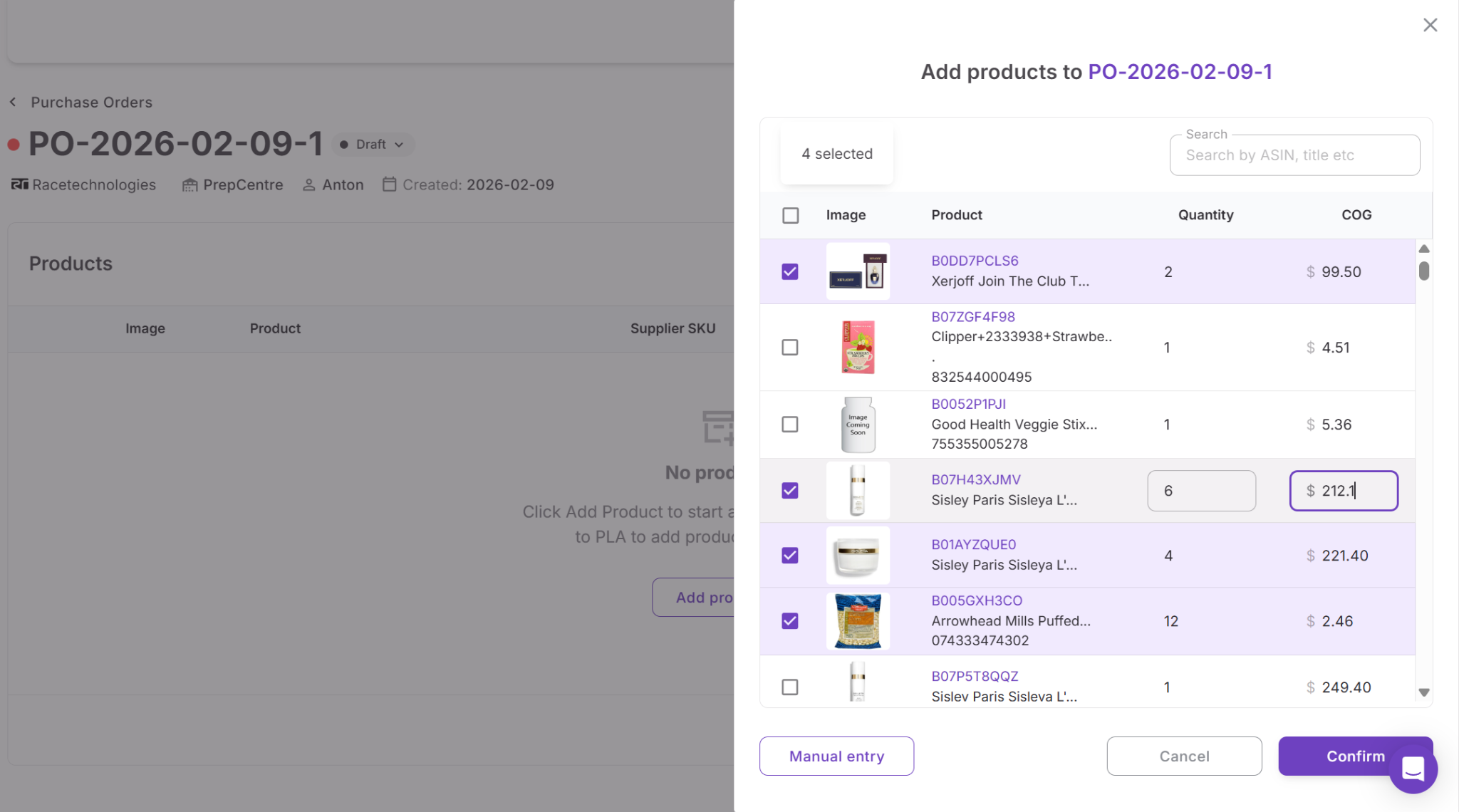
You can add products from supplier price lists, Product Database, Price List Analyzer, product search, team data, or manual input. If the same product is added more than once, the system updates the existing line instead of creating duplicates.
Because the module is connected with tools like Product Database, Price List Analyzer, Lister, Suppliers Database, Warehouses Database, and FBA Shipments, all data flows into your orders automatically. This allows you to move from product research to purchasing without re-entering information, while built-in metrics like total orders, units, and spend help you monitor procurement performance over time.
How to Turn Product Database into Ready-to-Send Purchase Orders
The process starts with your Product Database. After sourcing products, comparing supplier offers, and selecting the best COG, each ASIN already has structured data – supplier, price, and sourcing decisions. At this stage, your products are fully prepared for purchasing, but in a traditional workflow, you would still need to rebuild everything inside a purchase order manually.
Instead of re-entering data, you select products directly in the Product Database and send them to the Purchase Orders Module. The system uses the default supplier and stored COG to create a structured PO automatically, so you don’t need to search for products or recheck supplier details again. You simply review quantities, confirm costs, and finalize the order.
Once created, your purchase orders are ready to export and send to suppliers in one flow. This keeps supplier selection consistent, eliminates duplicate work, and allows you to move from sourcing decisions to purchasing much faster.
Step-by-Step: How to Create Purchase Orders from Product Database
Creating a purchase order from Product Database is a short workflow. Your product data, supplier offers, and COG are already stored, so you do not need to rebuild the order from scratch. You simply select the products you want to buy, send them to the Purchase Orders Module, review the order details, and export the finished PO. This keeps purchasing fast and consistent while reducing manual work.
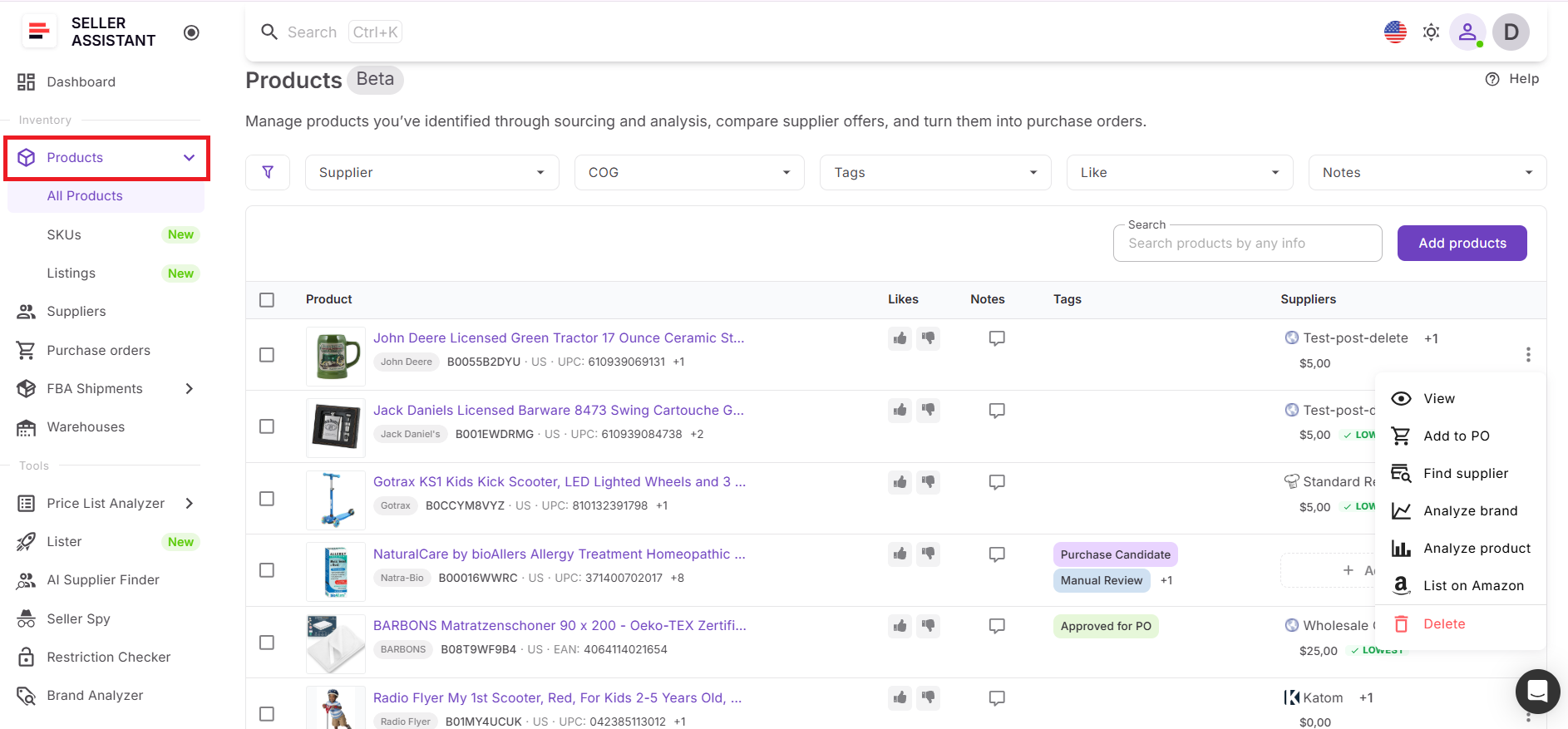
Step 1. Open Product Database
Go to the Inventory section and open Products. This is where your sourced ASINs, supplier offers, notes, tags, and COG are stored in one place.
 Step 2. Review supplier and product data
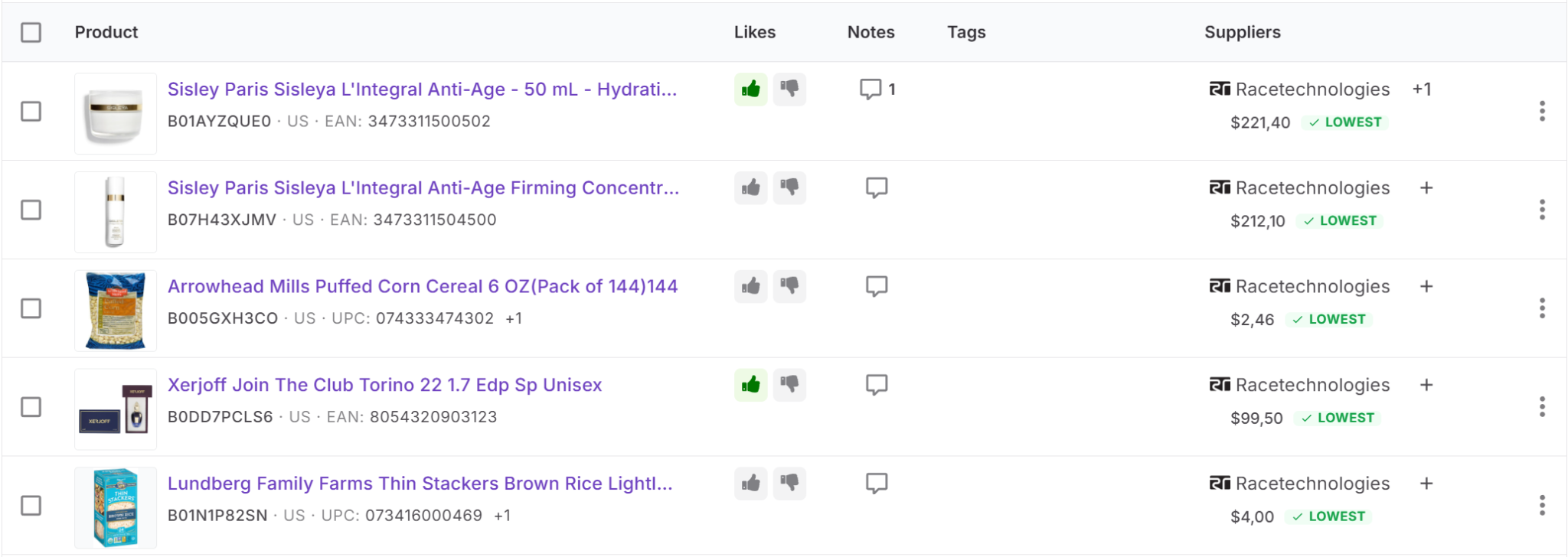
Check that each product has the right supplier offer, COG, and sourcing details. If a product has multiple supplier offers, confirm that the correct default supplier is selected before creating the purchase order.
Step 3. Select the products you want to order
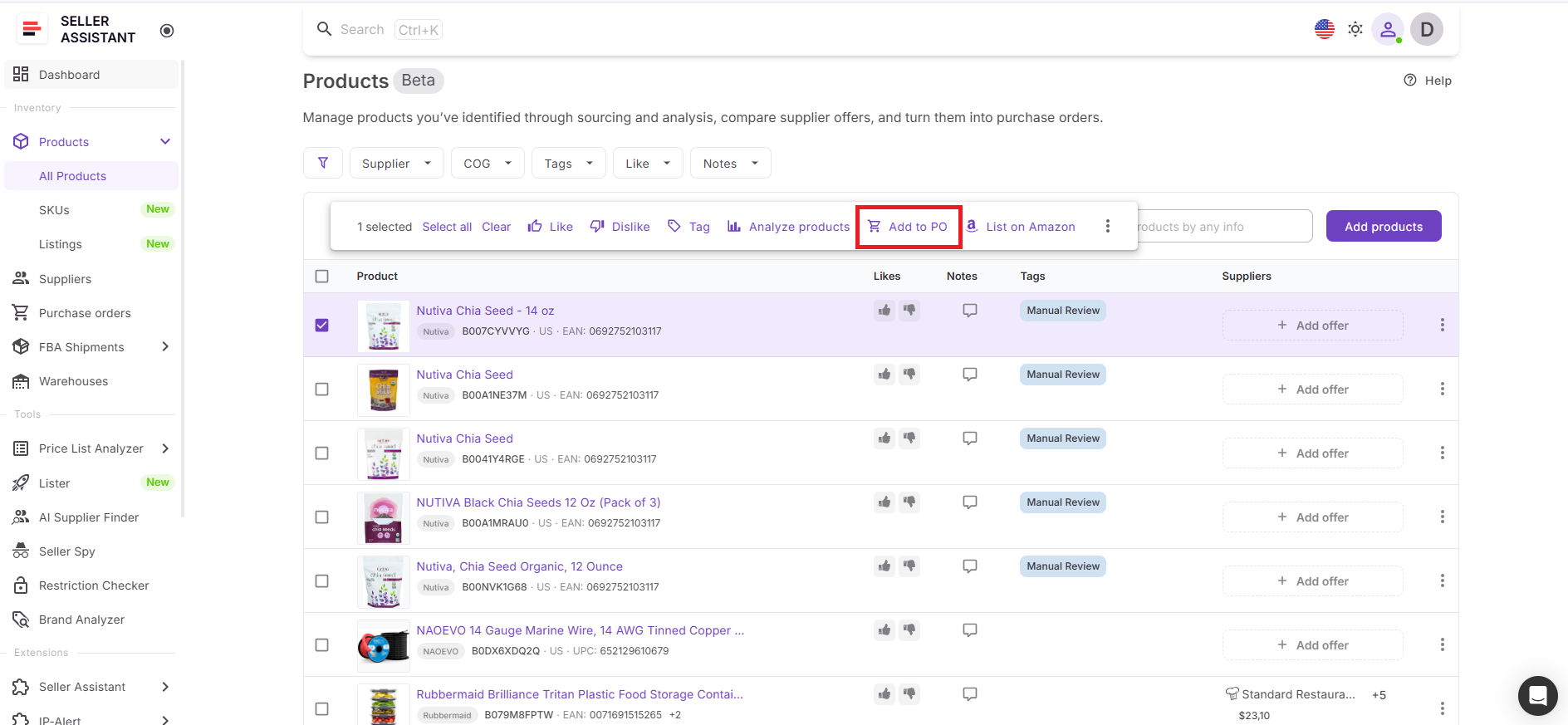
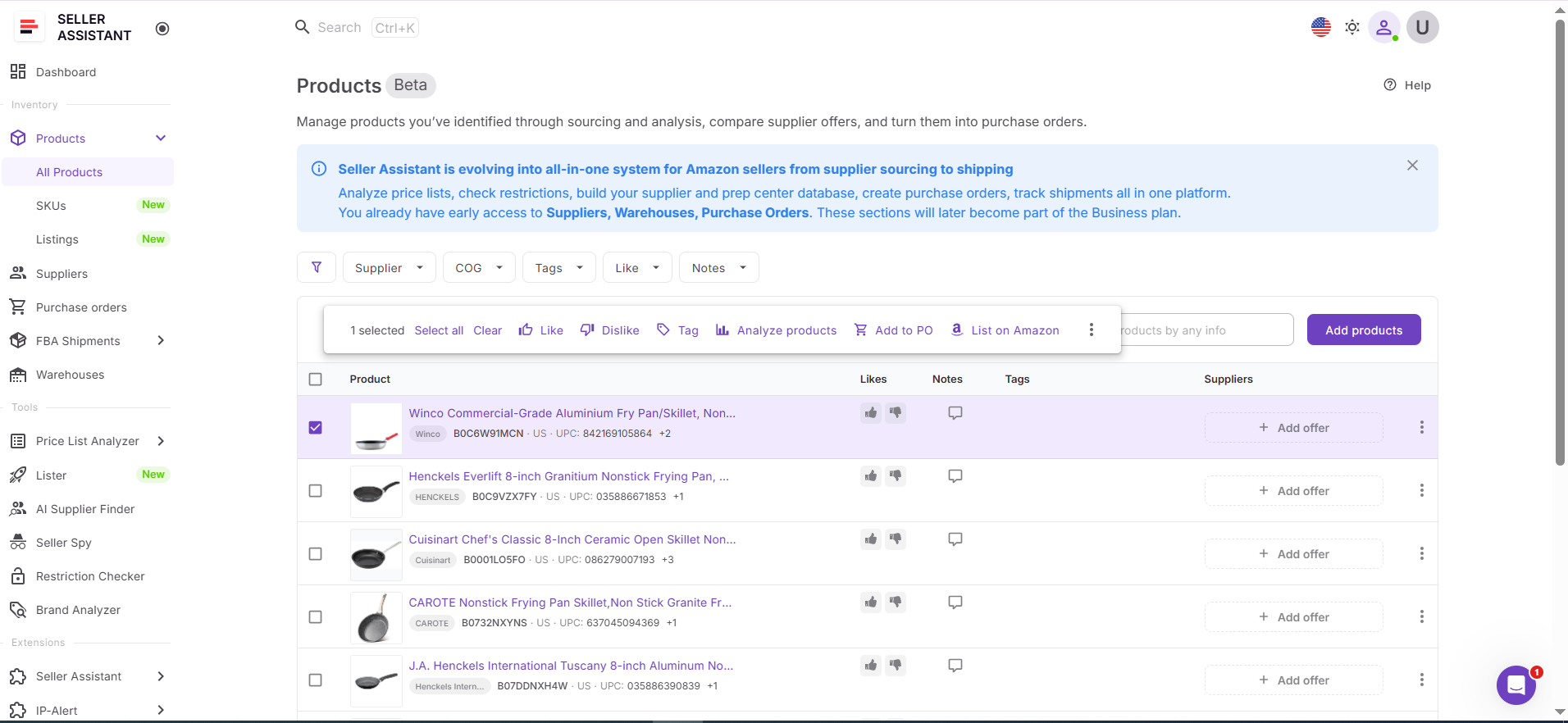
Checkmark the product you want to add to a purchase order. After you select it, an action menu appears above the product list. If you want to order multiple items, checkmark several products first.
Step 4. Click Add to purchase order
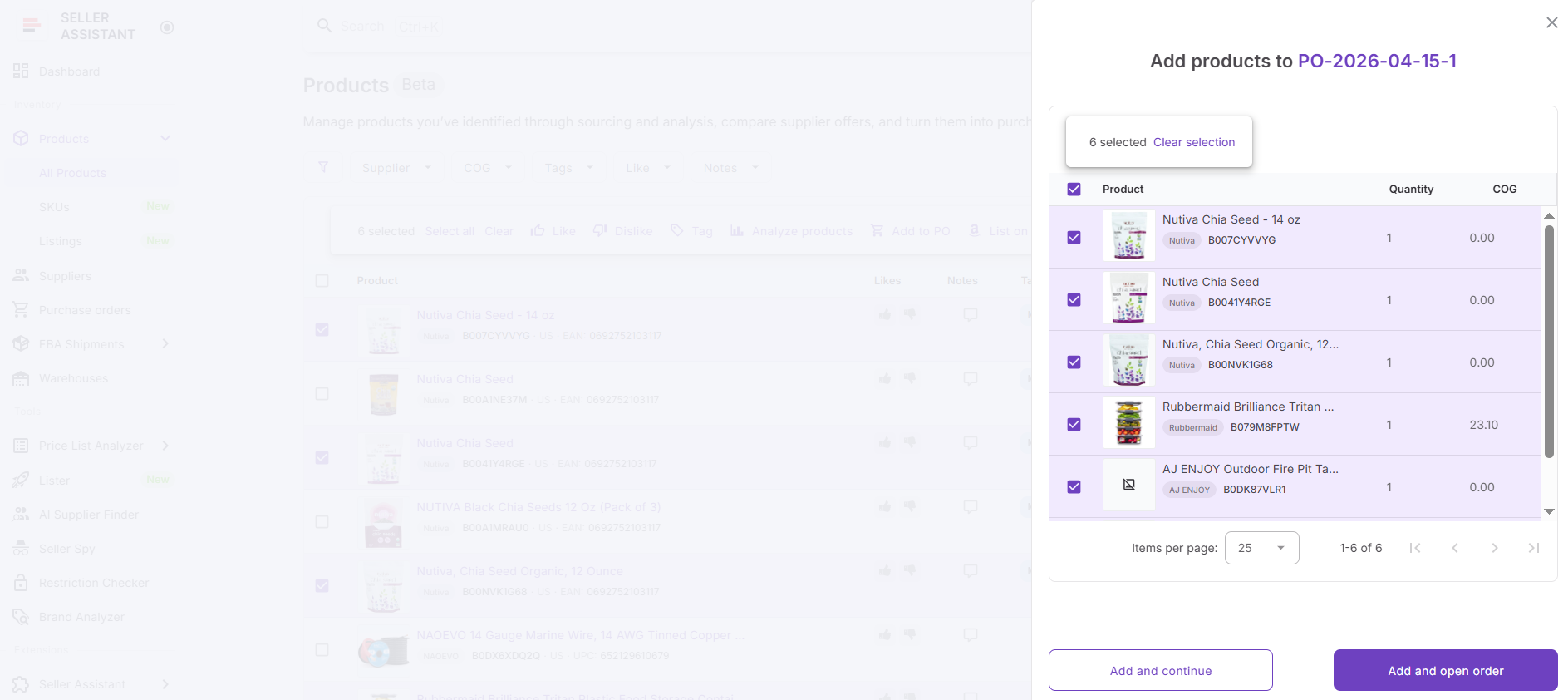
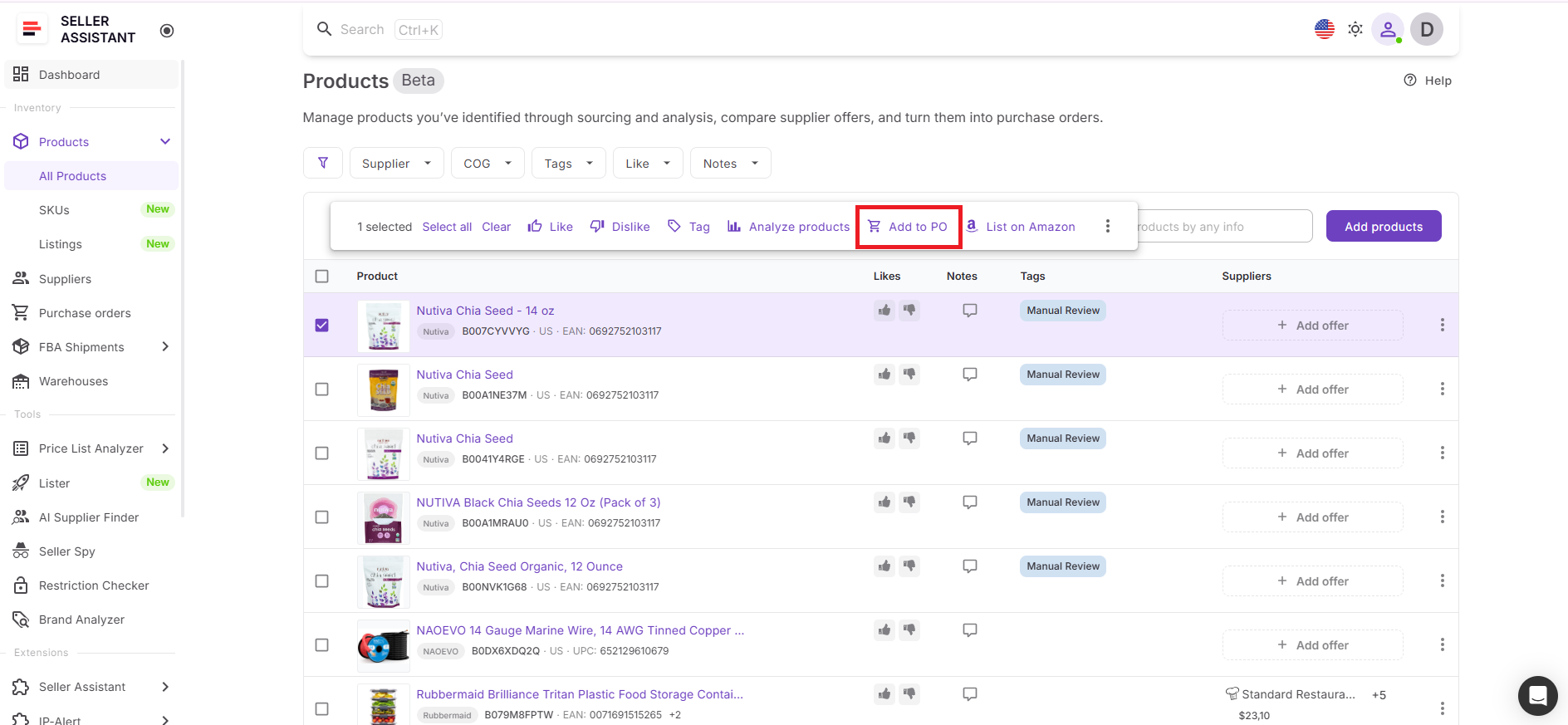
In the action menu above the selected products, click Add to Purchase Order. The system sends the selected items to the Purchase Orders Module and uses the default supplier already assigned in the Product Database. This removes the need to choose suppliers again during purchasing.
Step 5. Review the new purchase order
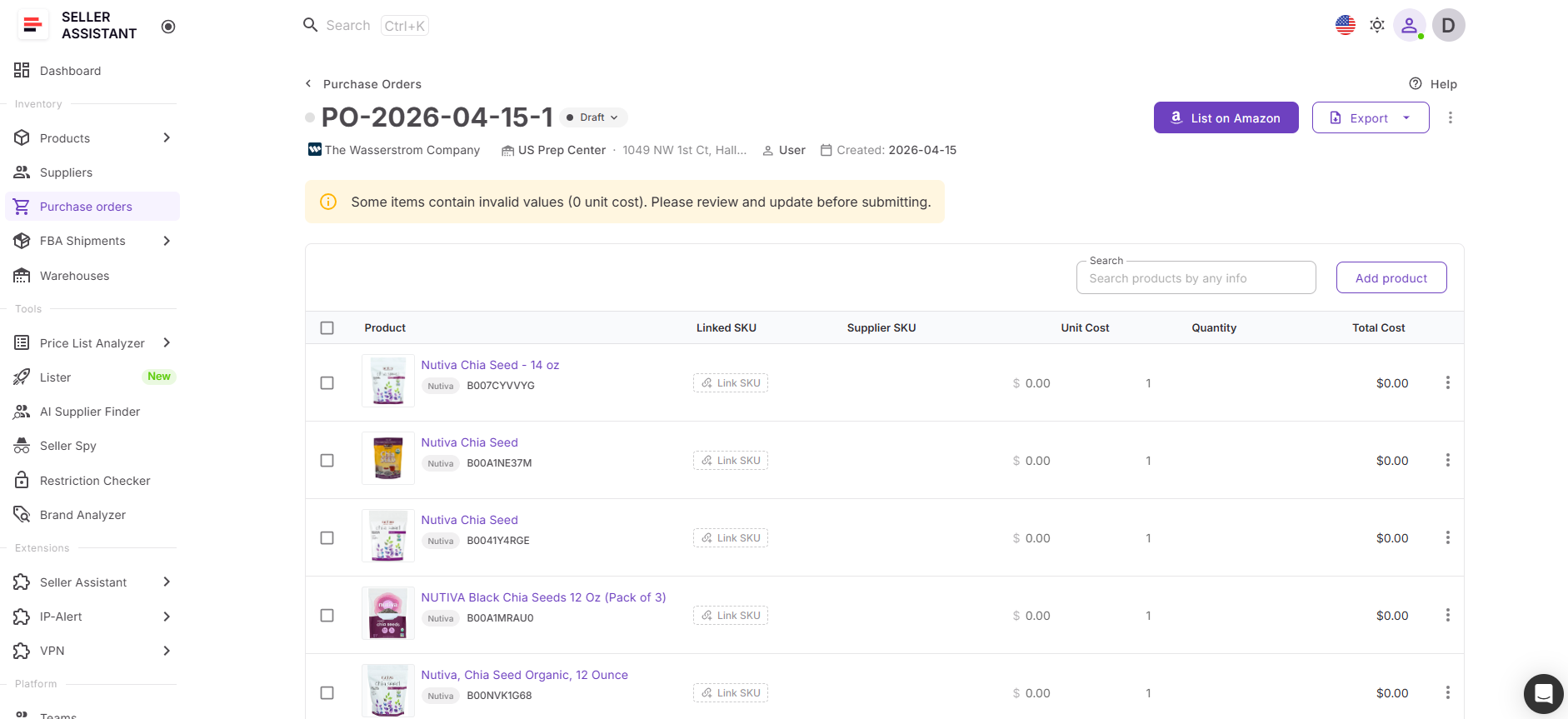
Open the purchase order draft and check the core details: supplier, warehouse, owner, PO number, and status. Seller Assistant creates the draft automatically, so you start with a structured order instead of an empty template.
Step 6. Confirm quantities and costs
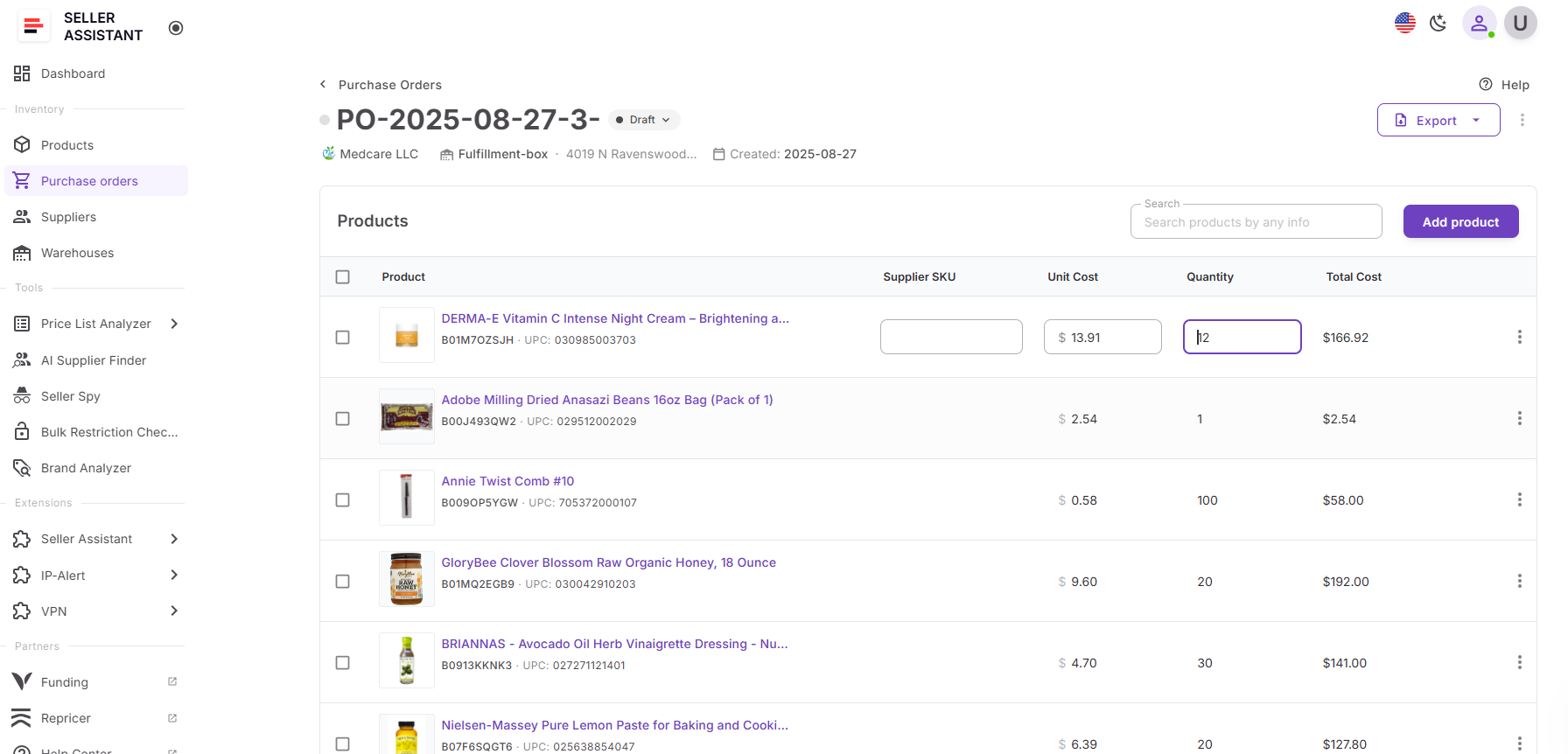
Review product quantities, unit costs, shipping, and tax. If needed, update the values inside the PO. The system recalculates totals automatically, so you can see subtotal, shipping, tax, and total cost in real time. If you change the product price in the PO, the supplier’s offer COG in Product Database can also update to keep pricing aligned.
Step 7. Finalize the order
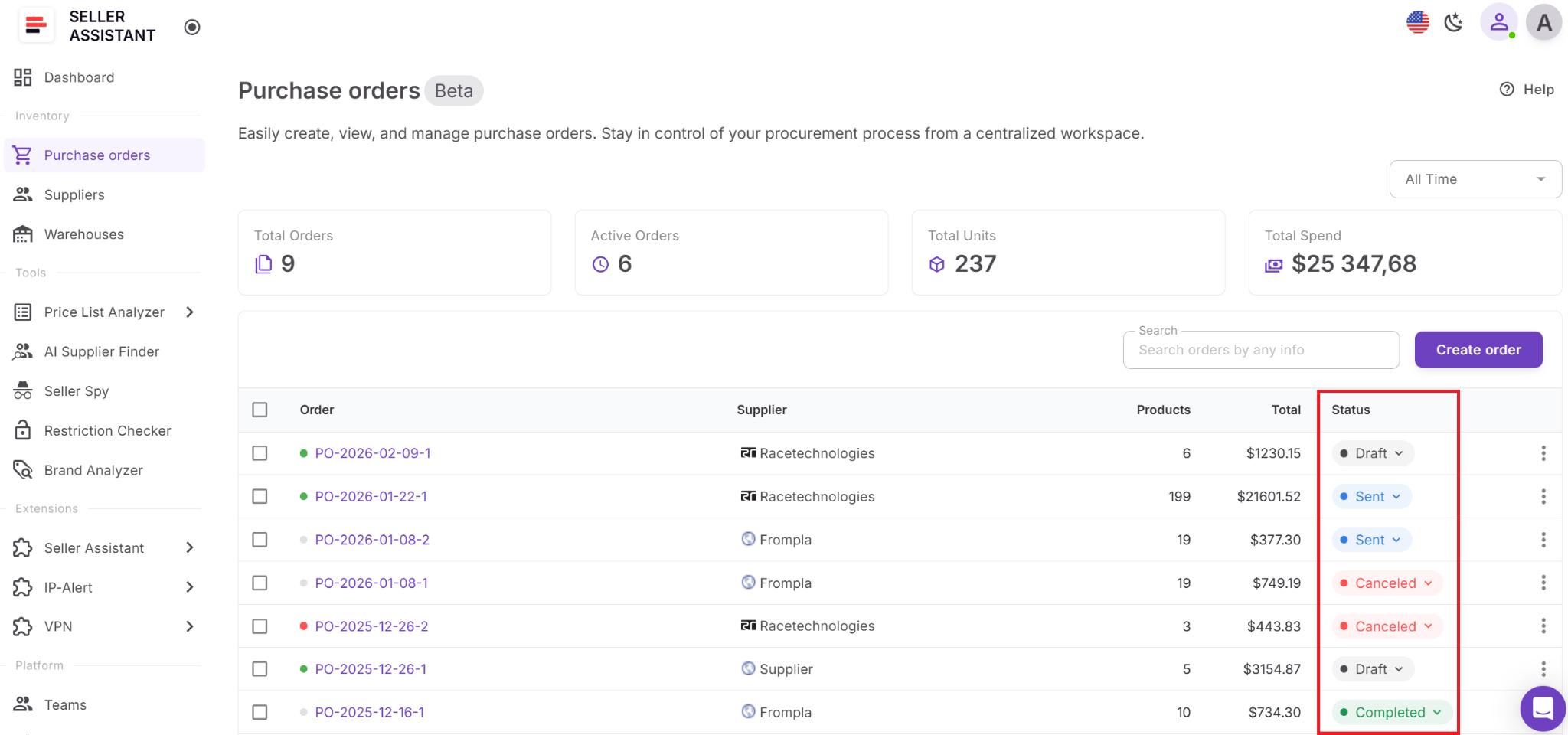
Once everything looks correct, set the right order status. Keep it as Draft while preparing it, change it to Sent after sharing it with the supplier, and later update it to Completed or Canceled when needed. Completed and canceled orders are locked to prevent accidental edits.
Step 8. Export and send the PO
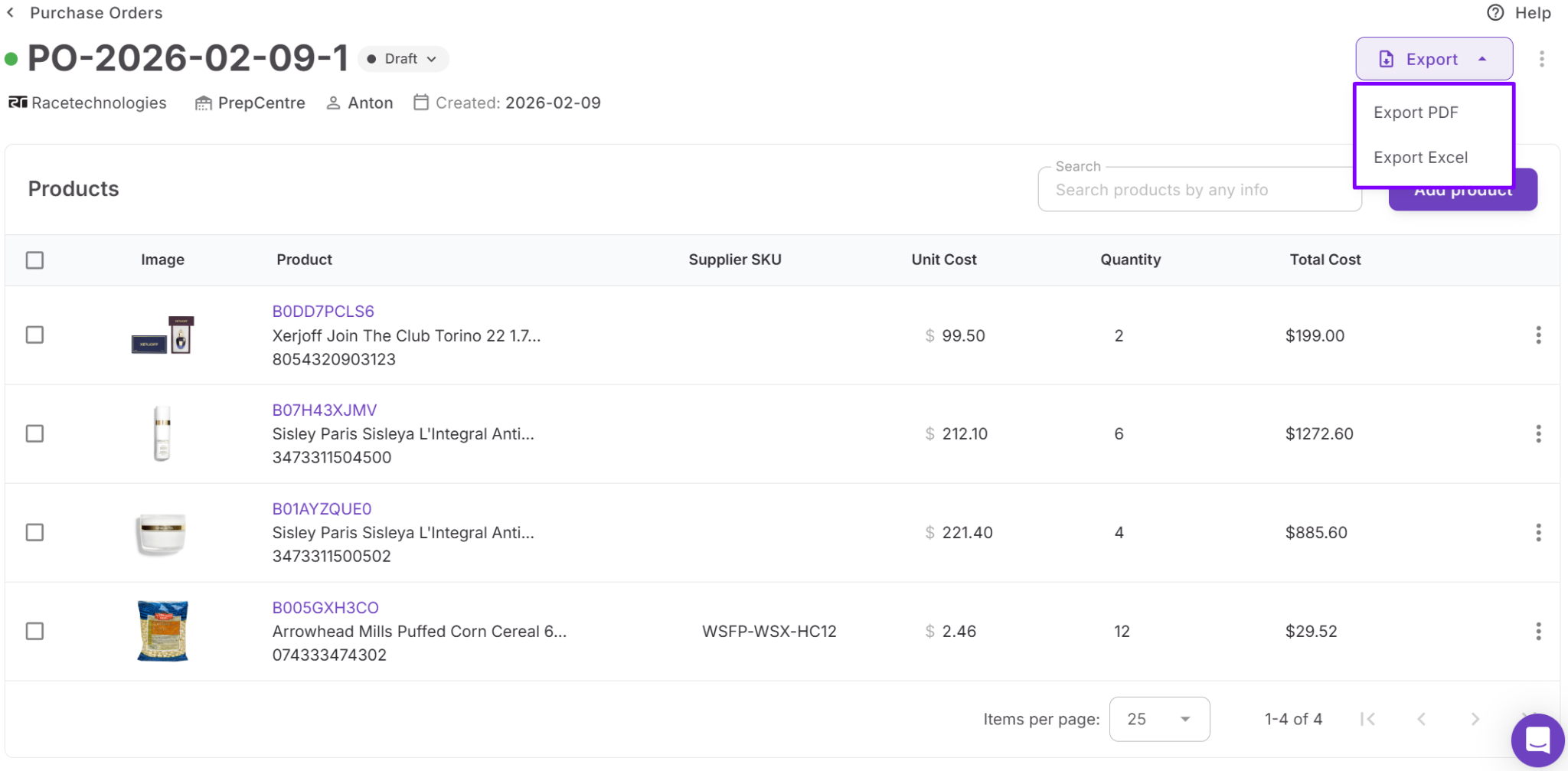
Export the purchase order as a PDF or XLSX file and send it to your supplier. At this point, your sourcing data has turned into a ready-to-send supplier order without duplicate entry or disconnected tools.

Turn your next supplier price list into a purchase order.
FAQ
Can I create purchase orders directly from the Product Database?
Yes, you can select products in Product Database and send them directly to Purchase Orders Module. The system uses the default supplier and stored COG, so you don’t need to re-enter data.
What happens if a product is not in the Product Database?
If you add a product to a purchase order that doesn’t exist in the database, the system creates it automatically. It also saves the supplier offer, keeping your data consistent for future use.
Can I add multiple products to a purchase order at once?
Yes, you can select multiple products using checkboxes and add them in one action. This allows you to create purchase orders in bulk instead of adding items one by one.
Will changes in purchase orders affect Product Database data?
Yes, if you update product pricing in a purchase order, the supplier offer COG can also update in the Product Database. This keeps your sourcing and purchasing data aligned.
Can I edit or delete products after creating a purchase order?
You can edit products in the Product Database, but existing purchase orders will not be affected. This ensures your order history remains accurate and unchanged.
Final Thoughts
Creating purchase orders doesn’t have to be a manual, error-prone process. When your product data, supplier offers, and costs are already structured in Product Database, purchasing becomes a simple execution step instead of repeated work. You move from selected products to ready-to-send POs without rechecking data or switching between tools.
By connecting Product Database and Seller Assistant’s Purchase Orders Module, Seller Assistant turns sourcing decisions into consistent, scalable purchasing. This reduces mistakes, saves time, and keeps your workflow aligned as your Amazon business grows.