Keep your sourcing workflow moving
Launch research, save products, create purchase orders, or find suppliers directly from the product you're viewing. Every tool opens with the right product, brand, seller, or supplier already filled in.
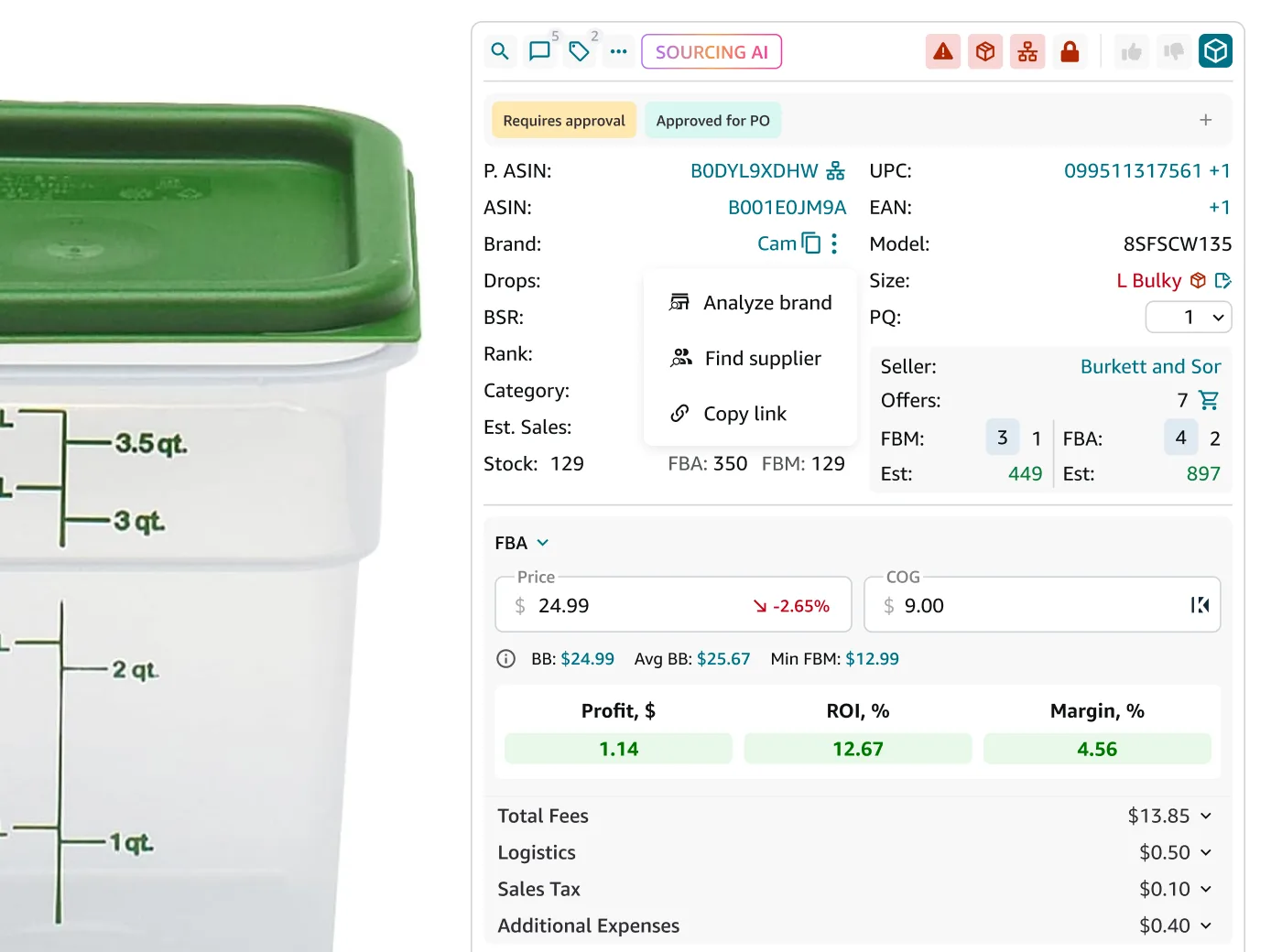
Every next step used to start from scratch
Copying ASINs, brand names, seller names, and costs between tools interrupted every sourcing decision.
Every tool opens ready to use
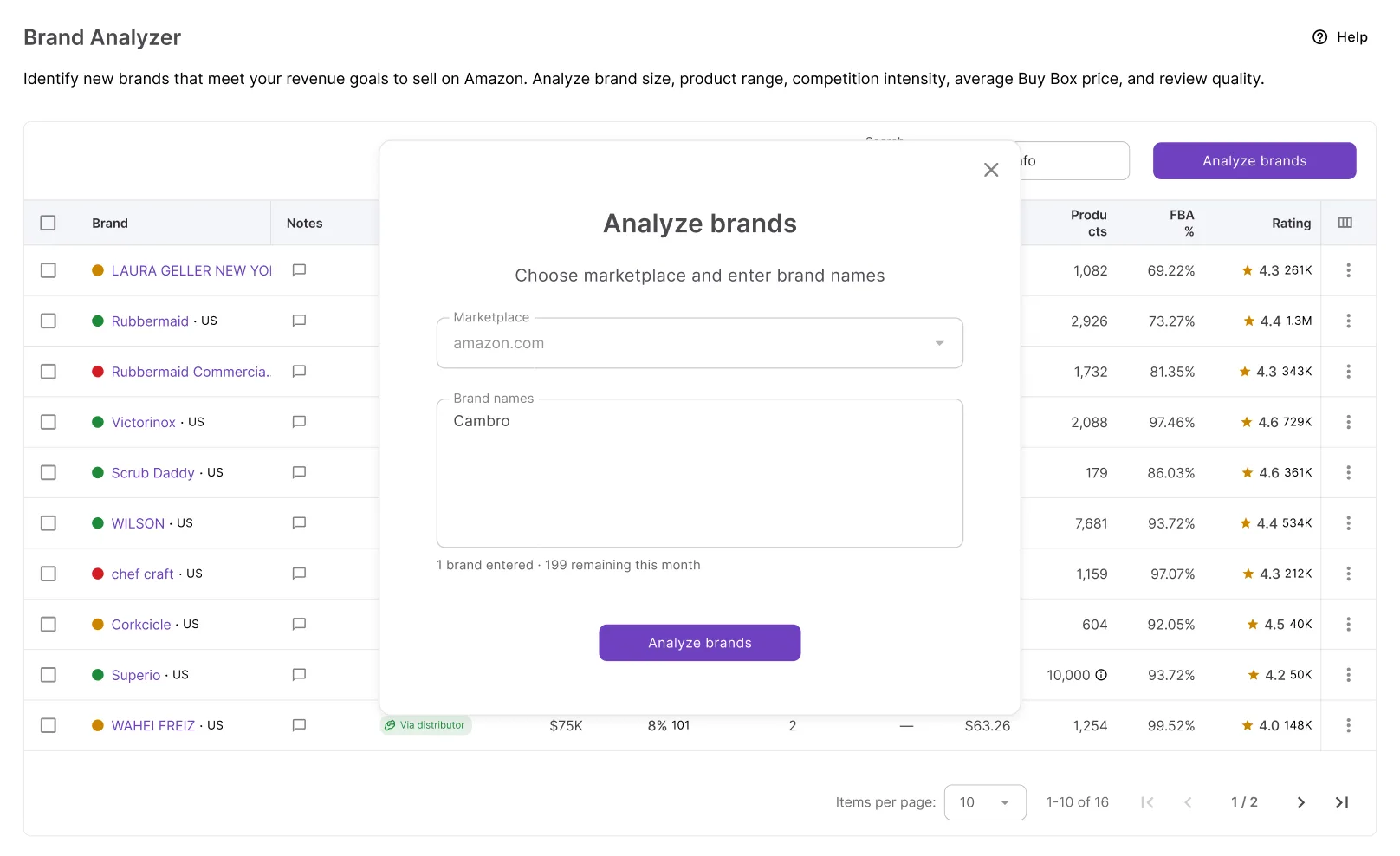
Launch Brand Analyzer, Seller Spy, AI Supplier Finder, or Sourcing AI with the product, brand, or seller already selected.
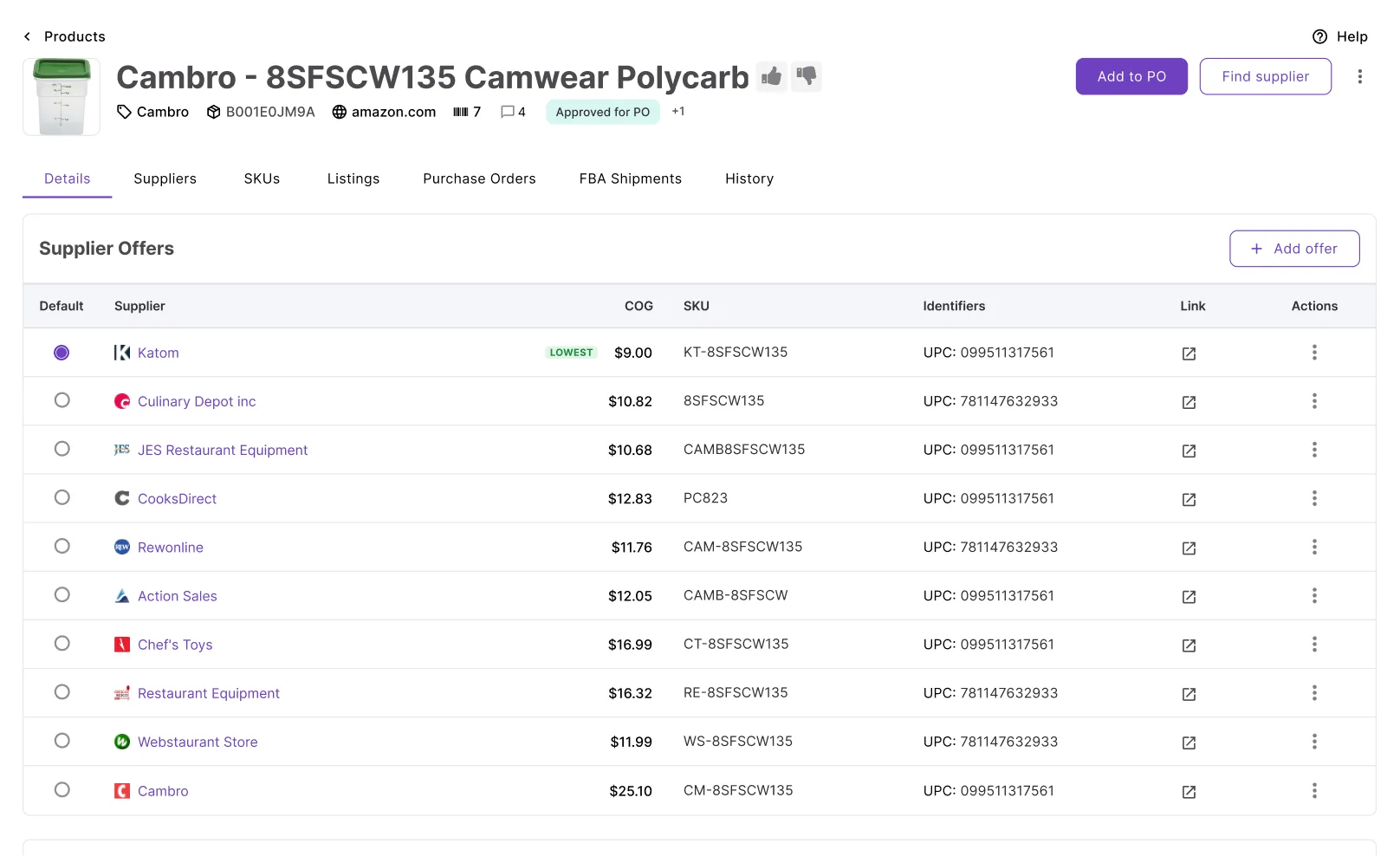
Move products into your pipeline
Add products directly to Products Database or a purchase order without leaving the product page.
The right information follows the product
Whether you're launching research or creating a purchase order, product details, suppliers, and costs are carried into the next step automatically.
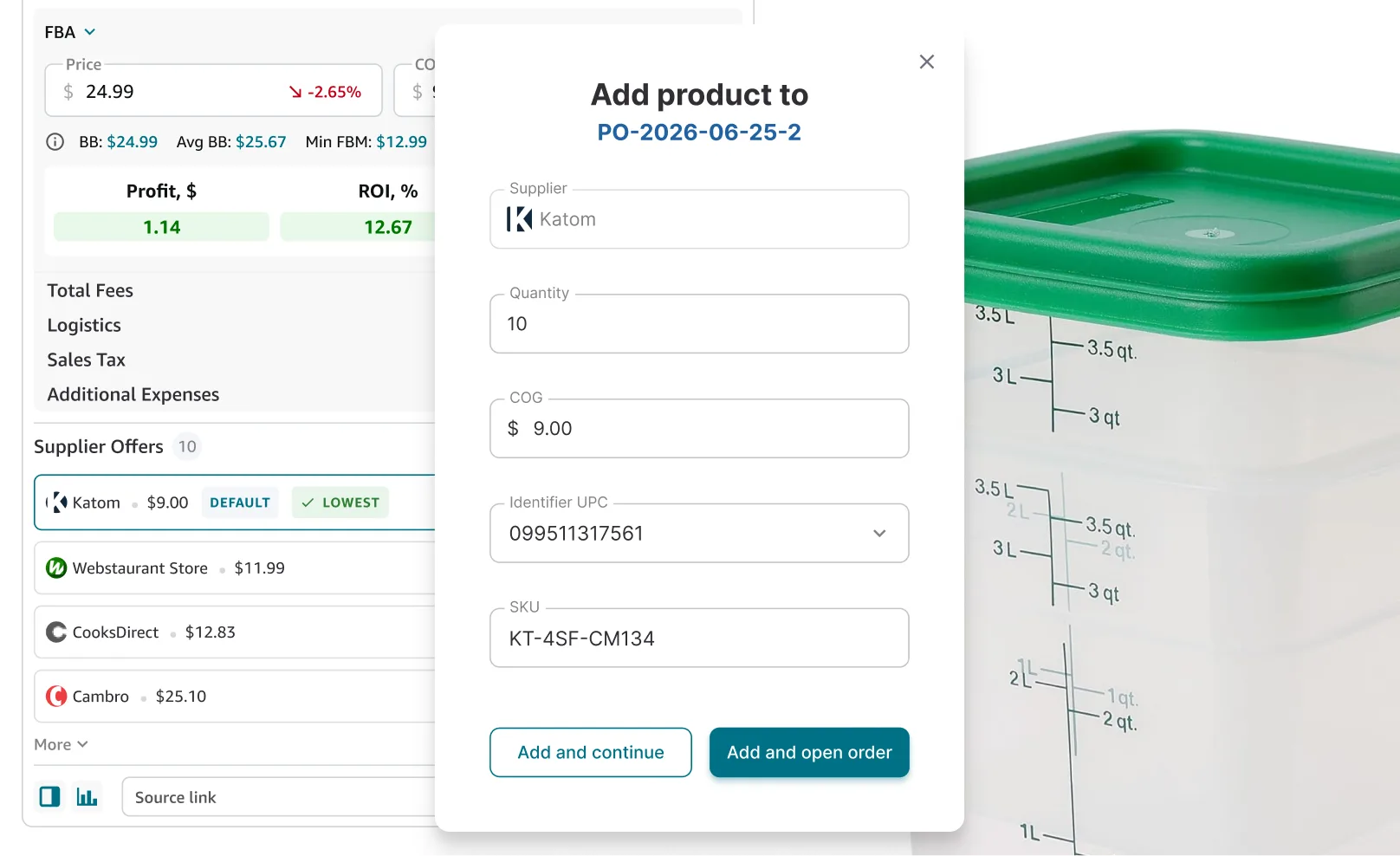
Every action available from the product page
Move products directly into research, sourcing, and purchasing without re-entering information.
Add to Purchase Order
Add the product to an existing PO or create a new one using the selected supplier offer.
Save to Products
Save the product to your pipeline, ready for supplier comparison and purchasing.
Send to Brand Analyzer
Launch brand analysis with the product's brand already selected.
Find Supplier
Open AI Supplier Finder using the current product's brand.
Track Seller
Add Buy Box or other competing sellers into Seller Spy and track their changes daily.
Sourcing AI
Launch a ChatGPT search using the product's identifiers, brand, and cost.
Built to work together
Extension features that help you research, evaluate, and source with confidence.
Add products to a purchase order using the supplier offer you're already viewing.
Spot brands worth researching while browsing competitor catalogs.
Find sellers to track competitors directly from the Amazon offers list.
Bring your notes and tags into every next step, so you never lose context.
The next step in your workflow
Every action continues your workflow instead of making you start over.
Find suppliers for the brand you're researching and start building your supplier network.
See whether the brand is worth sourcing before investing time in its catalog.
Track the seller's catalog over time and discover new products and brands they add.
Save products to your sourcing pipeline and compare supplier offers before purchasing.
Frequently Asked Questions
Visit Help CenterHow do I add a product to a purchase order from the Seller Assistant Extension?
How do I save a product to Products Database?
What's the difference between AI Supplier Finder and Sourcing AI?
What happens when I send a product to Brand Analyzer?
Can I track an Amazon seller directly from a product page?
Do One-Click Actions work on supplier websites?
Ready to keep your sourcing workflow moving?
Install the extension and move products into research, sourcing, and purchasing without starting over.
Not sure which plan fits your sourcing workflow? Chat with our team — we're happy to help.