


Sourcing on Amazon means reviewing hundreds or thousands of products that are all at different stages of decision-making. Some ASINs look promising but need deeper checks. Others are ready to buy. Many never fit your business model at all.
Without a way to track those decisions, Amazon sellers waste time rechecking the same products across price lists. Tags solve this problem. They let you label products by sourcing status, filter price lists by intent, and keep decisions consistent over time.
In this post, we’ll explain how tags work in Amazon product sourcing and how Seller Assistant’s Price List Analyzer tags help sellers turn product analysis into a structured, repeatable workflow.
What Are Tags in Amazon Product Sourcing
In Amazon product sourcing, tags are status markers you assign to products to show where each Amazon ASIN stands in your decision process. Instead of treating every product as “new” each time you open a price list, tags capture your judgment at that moment.
This matters because sourcing decisions rarely happen in one pass. Wholesale price lists change. OA and dropshipping opportunities come and go. An ASIN that isn’t profitable today may become viable next month, while others should be excluded permanently. Tags give you a way to record those outcomes and reuse them later, so you don’t repeat the same analysis over and over.
For Amazon resellers, tags act like a decision layer on top of product data. You can group products by intent, filter lists by readiness, and separate quick wins from items that need deeper research. Over time, this creates consistency across price lists and across team members.
Benefits of Using Tags in Amazon Product Sourcing
Tags don’t just organize products – they change how Amazon sellers make sourcing decisions. Instead of reviewing every ASIN from scratch, tags let you build a decision-driven workflow that carries over across price lists, time periods, and team members. Below are the core benefits Amazon sellers get from using tags consistently.
Faster product review at scale
Tags reduce repeated analysis. Once an ASIN is tagged as rejected, review later, or ready to buy, you can instantly filter your price list and focus only on products that matter right now.
Clear sourcing priorities
Tags separate products by intent. You can quickly distinguish between ASINs that need manual checks, items waiting for better margins, and products ready for purchase.
Consistent decisions over time
Profitability, Buy Box control, and competition change. Tags preserve past decisions so you can revisit products when conditions improve without starting over.
Better team coordination
Tags create a shared decision language. Sourcing, analysis, and purchasing teams can work from the same product statuses without extra notes or explanations.
Cleaner price list analysis
By filtering products by tags, large price lists become manageable. You remove noise and turn raw supplier data into an actionable sourcing pipeline.
Product Tag Use Cases Amazon Sourcing Workflows
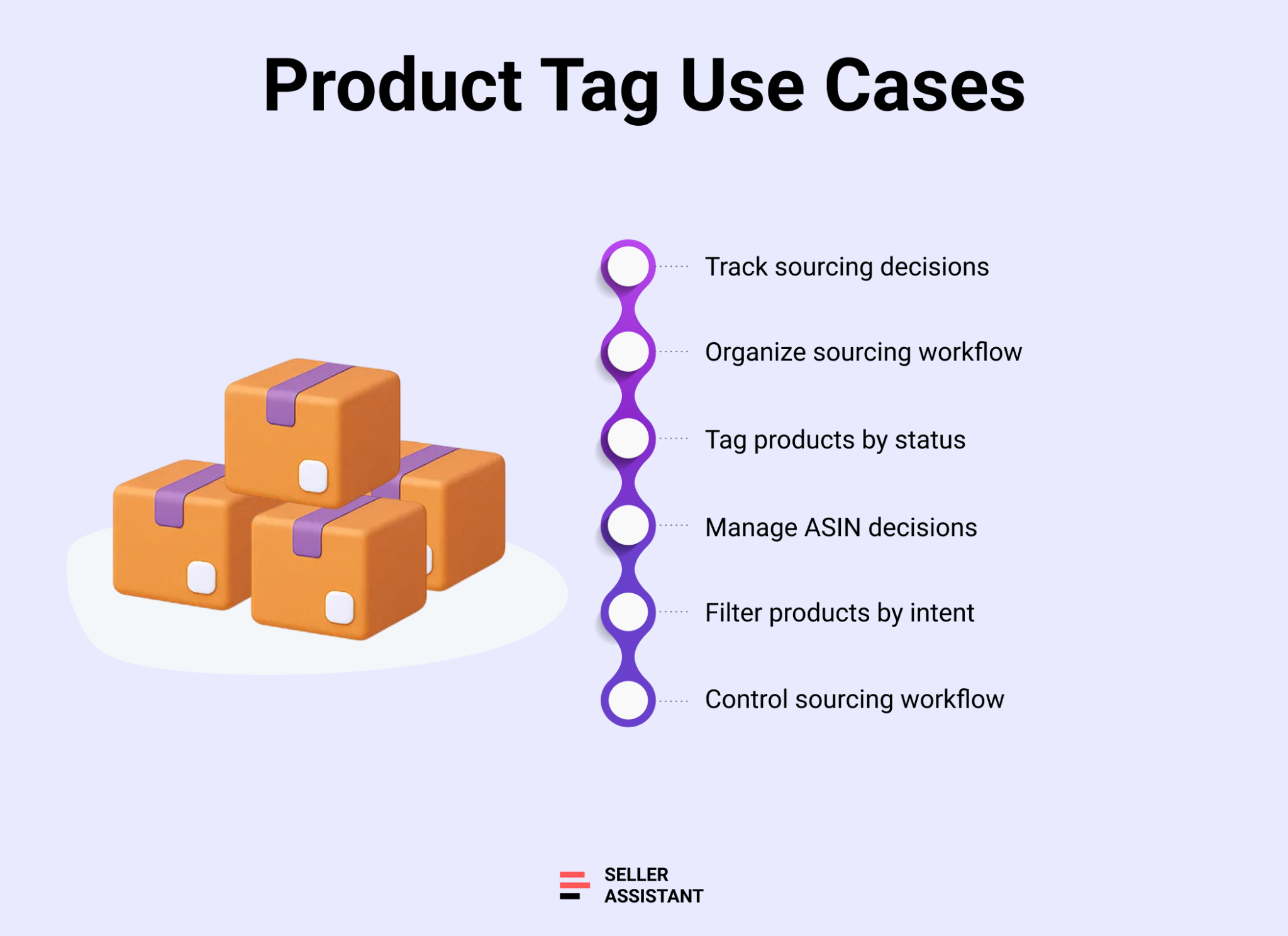
Tags become most valuable when they reflect real sourcing situations sellers face every day. Below are common use cases showing how Amazon resellers apply tags to control analysis flow, reduce repeat work, and move products smoothly from review to purchase.
Tracking products for future review
Use case description
Some ASINs look close to profitable but miss your criteria due to price, fees, or competition. Sellers often forget these products or waste time reanalyzing them too early.
Use case solution
Apply a tag like Check later to mark these products. When you revisit the price list weeks later, you filter by that tag and reassess only those ASINs when market conditions change.
Managing products that need deeper research
Use case description
Many products require manual checks – Buy Box behavior, restrictions, variations, or brand risks – that can’t be resolved during initial price list analysis.
Use case solution
Tag these ASINs as Manual review. This separates quick decisions from products that need Amazon-side evaluation, keeping your main sourcing flow clean and focused.
Identifying ready-to-buy products
Use case description
Profitable products that meet all criteria can get lost inside large price lists, slowing down purchasing decisions.
Use case solution
Assign a tag like Purchase candidate to mark products ready for action. This creates a clear shortlist that purchasing or replenishment teams can review without rechecking analysis.
Supporting purchase order decisions
Use case description
In team-based operations, the person creating purchase orders often wasn’t involved in sourcing and needs clarity on which products are approved.
Use case solution
Use tags such as Approved for PO or Rejected to signal final decisions. Filtering by approval tags allows fast PO creation without repeated reviews or explanations.
Preventing repeated review of rejected products
Use case description
Rejected ASINs often reappear in new wholesale price lists, causing sellers to waste time reviewing products that never fit their business model.
Use case solution
Tag these products as Rejected. When analyzing new price lists, exclude rejected tags so you only see products worth considering again.
Handling seasonal sourcing decisions
Use case description
Some products only make sense during specific seasons and should not be mixed with year-round sourcing opportunities.
Use case solution
Apply a Seasonal tag to separate these ASINs. This allows you to revisit them at the right time without cluttering everyday sourcing workflows.
How to Use Tags in Seller Assistant
As your sourcing operation grows, managing products becomes just as important as finding them. Seller Assistant’s Price List Analyzer makes this possible by combining bulk product research with tagging. Tags let you organize your product catalog and sourcing decisions directly inside the analysis workflow. Instead of juggling spreadsheets, notes, or memory, you can label ASINs by status, filter them by intent, and keep decisions attached to products over time. This turns sourcing into a controlled, repeatable process where nothing gets lost between uploads, reviews, and purchase orders.
Note. Seller Assistant is an end-to-end Amazon workflow management platform that integrates 10+ wholesale-focused solutions into one connected system. It combines sourcing workflow automation, bulk research and intelligence tools, and integrated Chrome extensions – giving you everything you need to streamline finding deals, managing suppliers, and creating purchase orders.

The platform aggregates: workflow management tools – Purchase Orders Module, Suppliers Database, Warehouses Database to organize, automate, and scale every step of your wholesale and arbitrage operations ; bulk research & sourcing tools – Price List Analyzer, Bulk Restriction Checker, Sourcing AI, Brand Analyzer, Seller Spy to evaluate supplier price lists, verify selling eligibility and restrictions, open new brands, and discover winning product ideas from competitors to expand your product catalog; Chrome extensions – Seller Assistant Browser Extension, IP-Alert Extension, and built-in VPN by Seller Assistant to deep-research products, check IP claims and compliance, and access geoblocked supplier sites directly within your browser; and integrations & team access features – seamless API connectivity and integrations with Zapier, Airtable, and Make, plus Virtual Assistant Accounts for secure, scalable team collaboration.
With Seller Assistant, every step of your Amazon wholesale and arbitrage workflow is automated and connected.
What is Price List Analyzer and How It Works
Seller Assistant’s Price List Analyzer is a bulk Amazon wholesale price list scanner designed to automate product research and help sellers identify profitable, low-risk deals. It’s built for wholesale sellers, online arbitrage sellers, and dropshippers who need to analyze large supplier lists without manual work.
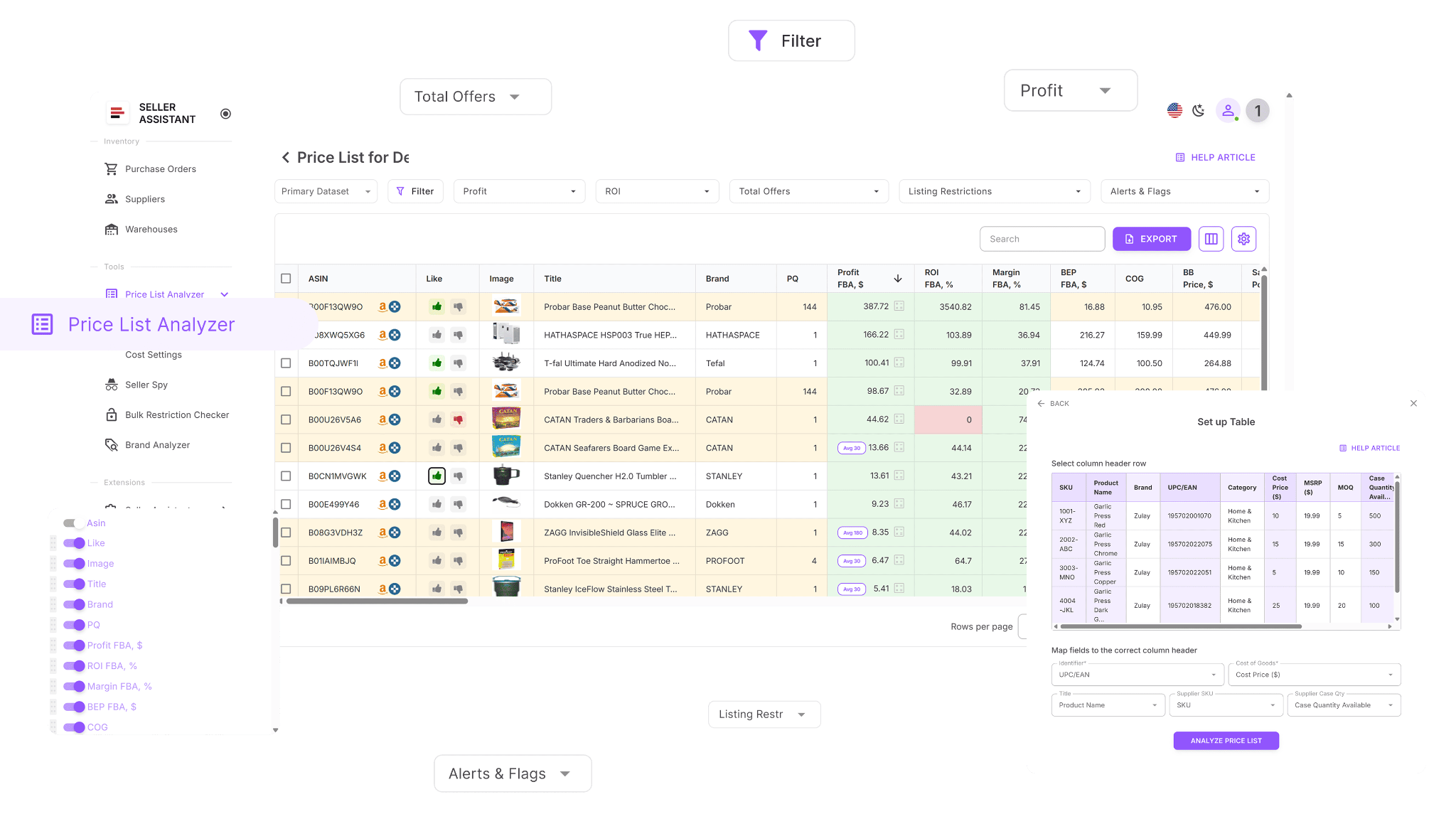
The tool transforms raw supplier files or parsed supplier websites into a pre-qualified buy list. Each product is automatically matched to an Amazon ASIN and enriched with over 100 data points, so sellers can filter, shortlist, and export only the best opportunities.
Price List Analyzer functionality
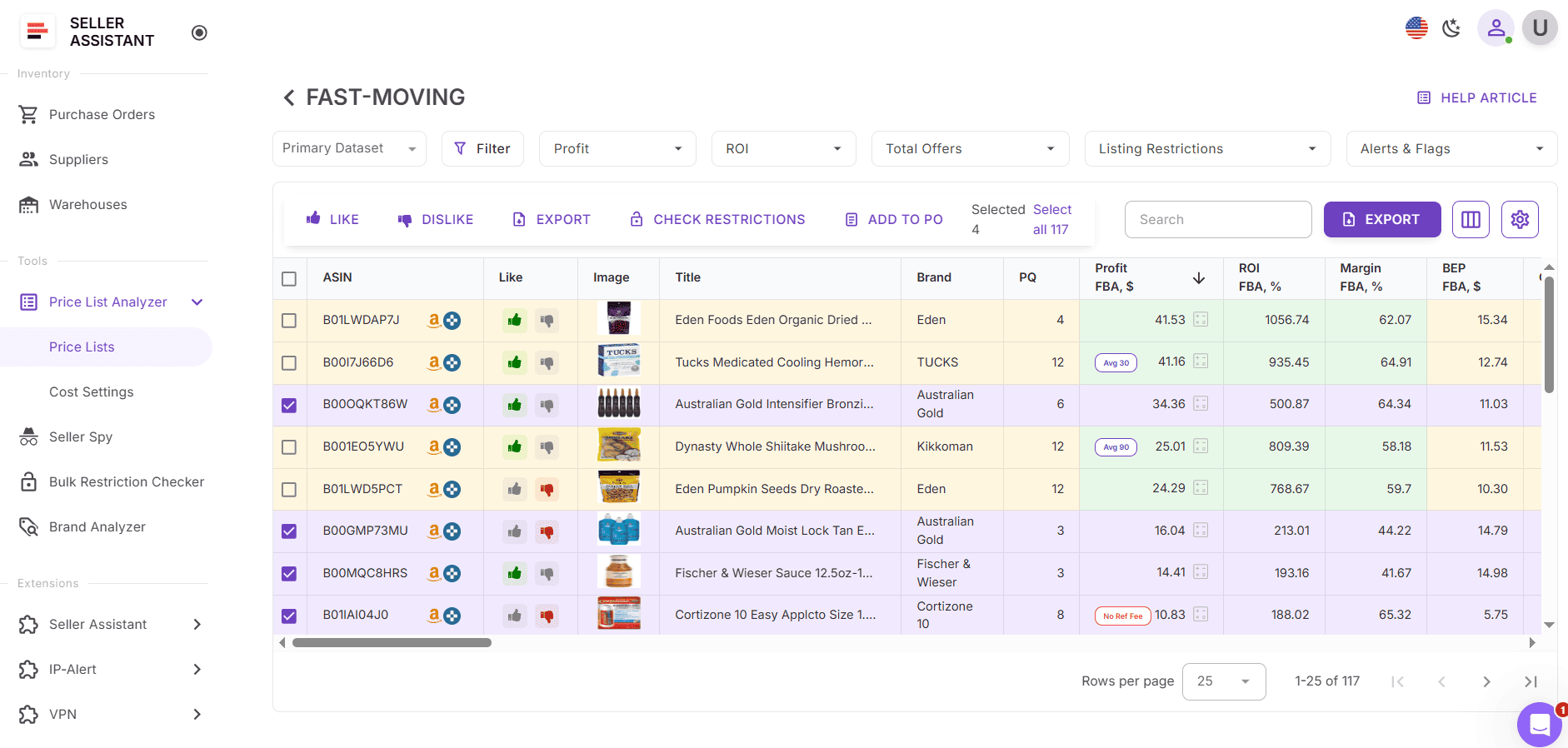
- Scan large supplier lists and surface only high-potential product leads
- Auto-match supplier SKUs to Amazon ASINs without manual lookup
- Instantly flag gated, restricted, or ineligible products
- Analyze sales potential using BSR, sales trends, and monthly velocity
- Calculate profitability with ROI, margins, net profit, and breakeven points
- Review Buy Box price history over 30, 90, and 180 days
- See all Amazon fees, including referral, FBA/FBM, storage, prep, and shipping
- Detect risky ASINs such as meltable, hazmat, oversized, fragile, or bundled products
- Receive alerts like “Approval required,” “No Buy Box price,” or “Too low FBA ROI ”
- Filter products by profit, ROI, velocity, competition, or risk signals
- Save table views and filters for reuse across future price lists
- Edit costs and instantly see updated profit calculations
- Add shared team notes that stay with the product across uploads
In addition to analysis and filtering, Price List Analyzer includes tags. Tags add a decision layer on top of product data, letting you mark ASINs by sourcing status, reuse those decisions across price lists, and filter products based on where they stand in your workflow. Combined with bulk analysis, tags help turn raw supplier data into an organized, action-ready sourcing system.
How to Use Tags in Price List Analyzer
Tags in Price List Analyzer are designed to mirror real sourcing decisions and help sellers move products through review, approval, and purchasing without losing context. Instead of being simple labels, PLA tags act as shared status markers that follow products across price lists and team workflows.
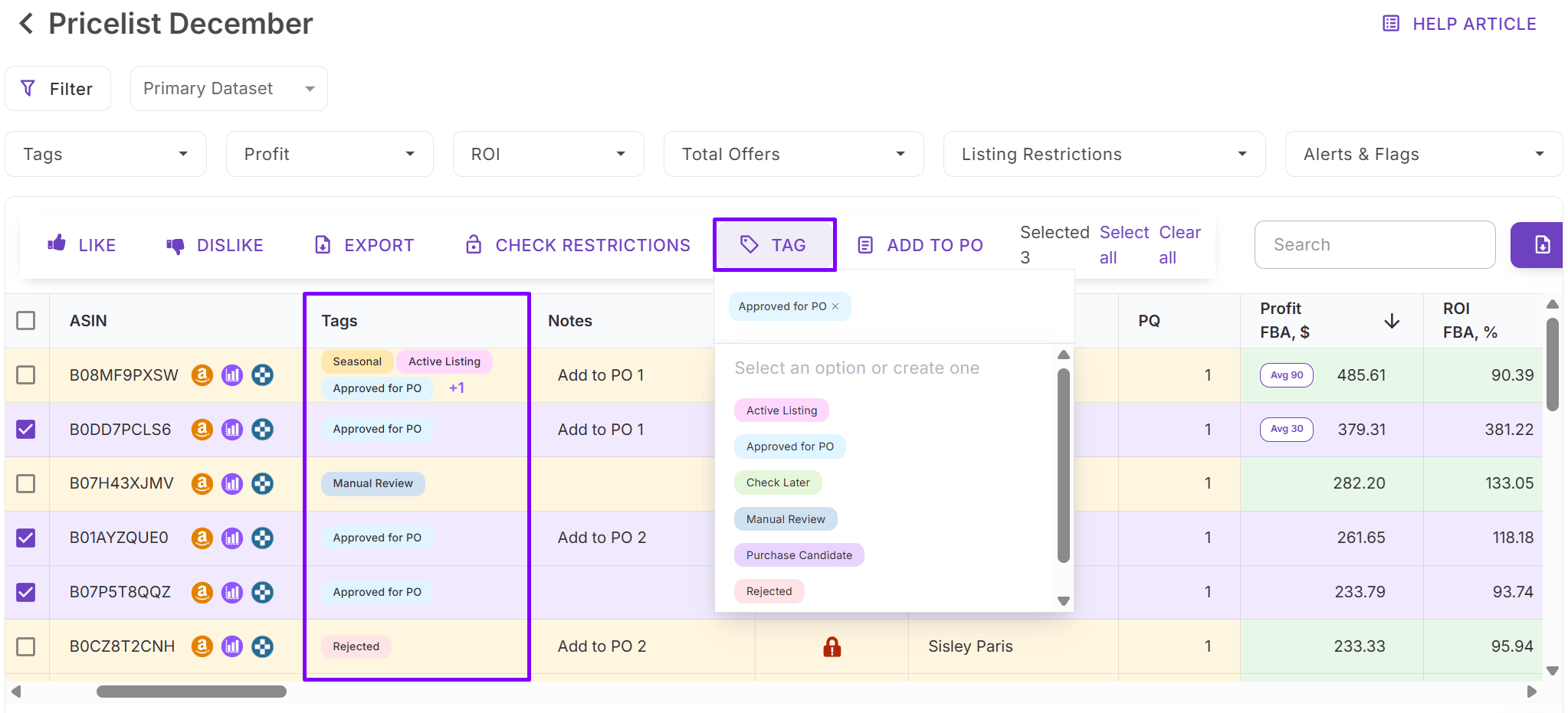
What types of tags Price List Analyzer offers
Price List Analyzer includes a set of ready-to-use tags that cover the most common sourcing scenarios.
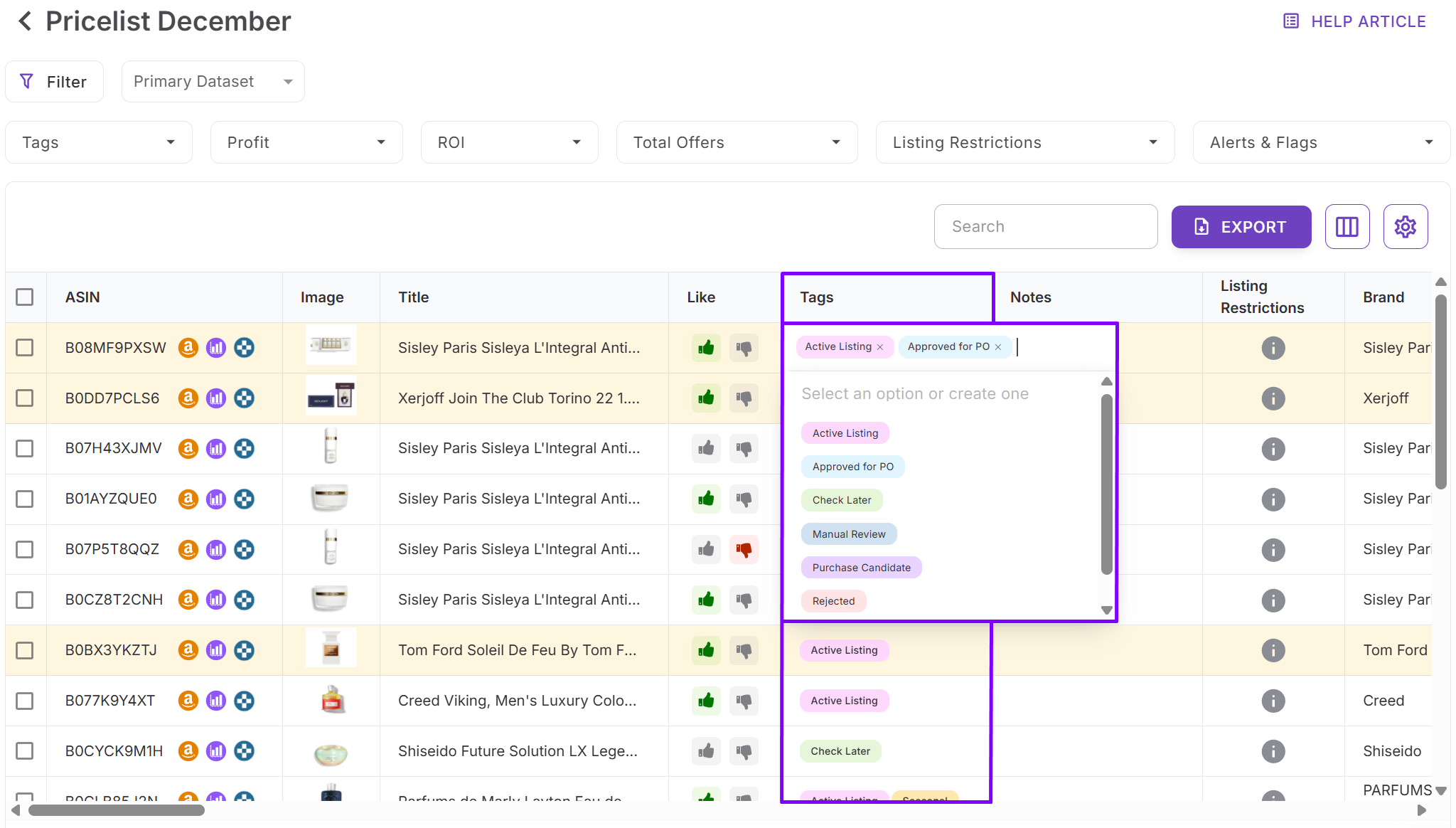
Pre-created tag set
- Purchase candidate – products that meet all criteria and are ready for buying decisions
- Manual review – items that require deeper checks on Amazon, such as Buy Box behavior or restrictions
- Approved for PO – products cleared for purchase order creation
- Check later – ASINs that may become profitable later
- Seasonal – products relevant only during specific times of the year
- Rejected – products that don’t fit your selling criteria
- Active listing – products already being sold
All tags are fully editable and can be deleted or customized to match your workflow. You can also create unlimited custom tags for more specific sourcing needs.
Where to find tags in Price List Analyzer
Tags live directly inside the Price List Analyzer UI table. A dedicated Tags column can be enabled in the column manager and positioned anywhere in the table. Tags appear as visual pills inside each product row, making sourcing status easy to spot at a glance.
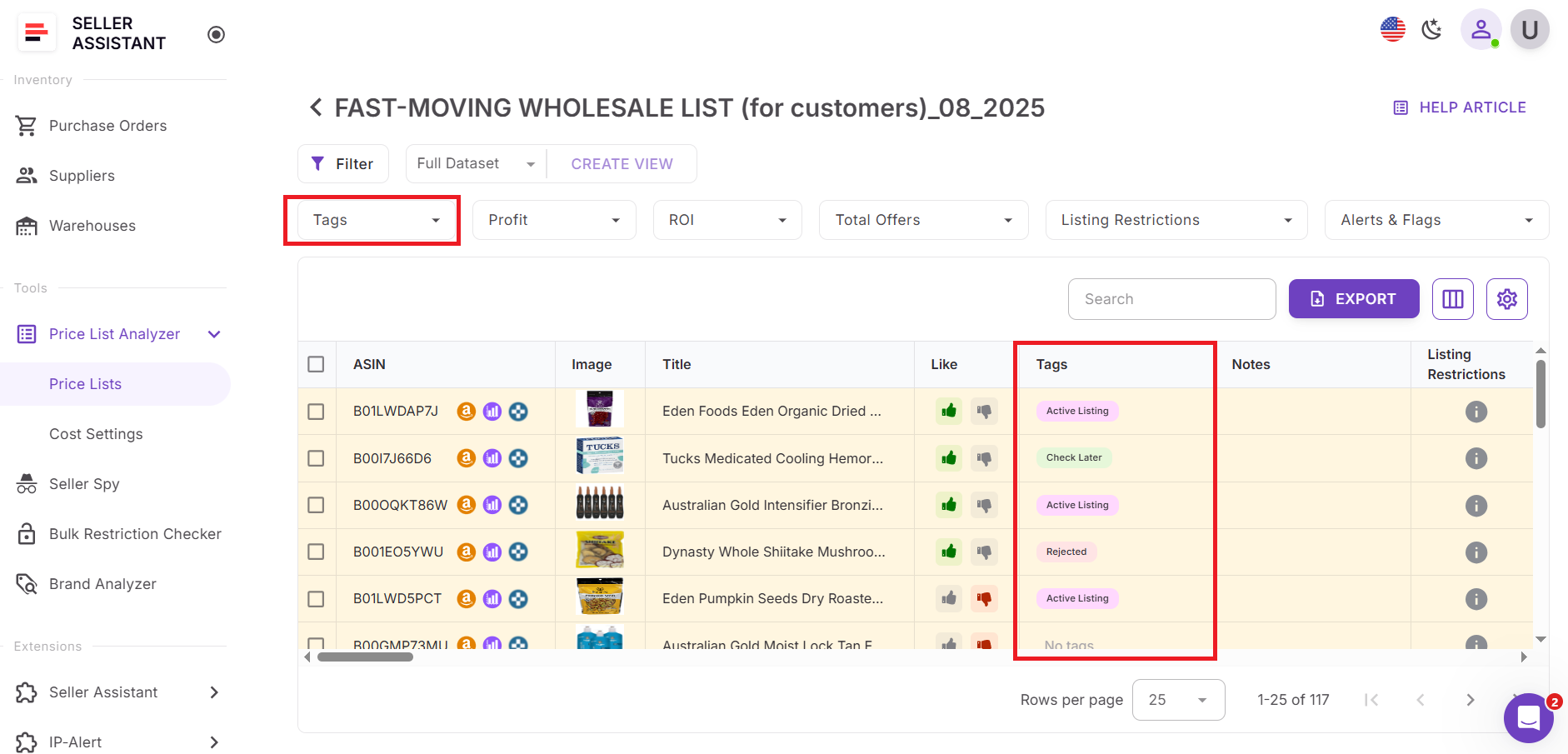
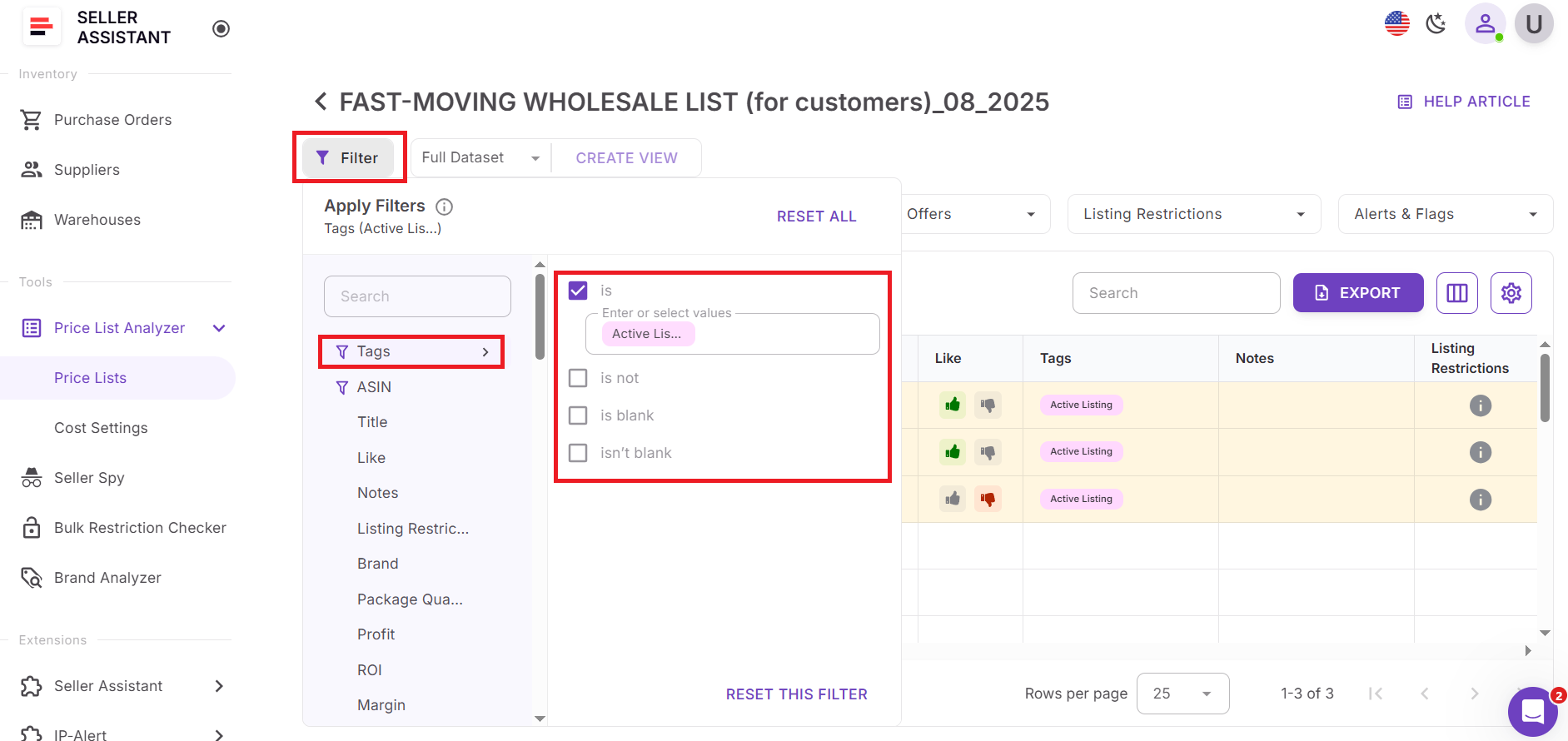
Tags are also available in the filter section, where you can filter products by one or multiple tags to narrow your analysis to specific decision stages.
What you can do with Price List Analyzer tags
Price List Analyzer tags support both individual and team-based workflows:
- Assign one or multiple tags to a single product
- Tag products in bulk using table selection
- Create, edit, or delete tags from a shared team library
- Update tag names and have changes apply automatically to all tagged ASINs
- Filter price lists by sourcing status using tags
- Reuse the same tags across different price lists
Tags are shared across the team, so everyone works with the same tag set and product statuses stay consistent.
How tags support sourcing workflows
In practice, tags guide products through the entire sourcing lifecycle.
- When reviewing a processed price list, you may spot an ASIN that looks interesting but isn’t profitable yet. Tag it as Check later and move on. Weeks later, you can filter by that tag and reassess only those products when prices or competition change.
- If a product looks profitable but needs deeper validation, tag it as Manual review. Open the ASIN on Amazon, evaluate restrictions, Buy Box rotation, or variations, then update the tag based on the outcome.
- Products that meet all requirements can be tagged as Purchase Candidate. When it’s time to create purchase orders, the person responsible for POs filters the list by that tag, reviews the items, and assigns Approved for PO, Rejected, or Check later.
- Rejected products can be excluded from future price lists, so you don’t waste time reviewing ASINs that never fit your business model. Over time, tags turn price list analysis into a structured, repeatable decision system.
Steps to Use Tags in Price List Analyzer
Tags work best when applied as part of your normal sourcing flow. Below is a simple, repeatable way to use tags in Price List Analyzer from upload to purchase decisions.
Step 1. Upload your price list into Price List Analyzer
Log in to your Seller Assistant account and open Price List Analyzer. Upload a supplier file or parse a supplier website. The tool automatically matches SKUs to Amazon ASINs and fills in all key metrics, including profitability, sales data, fees, and risk flags.
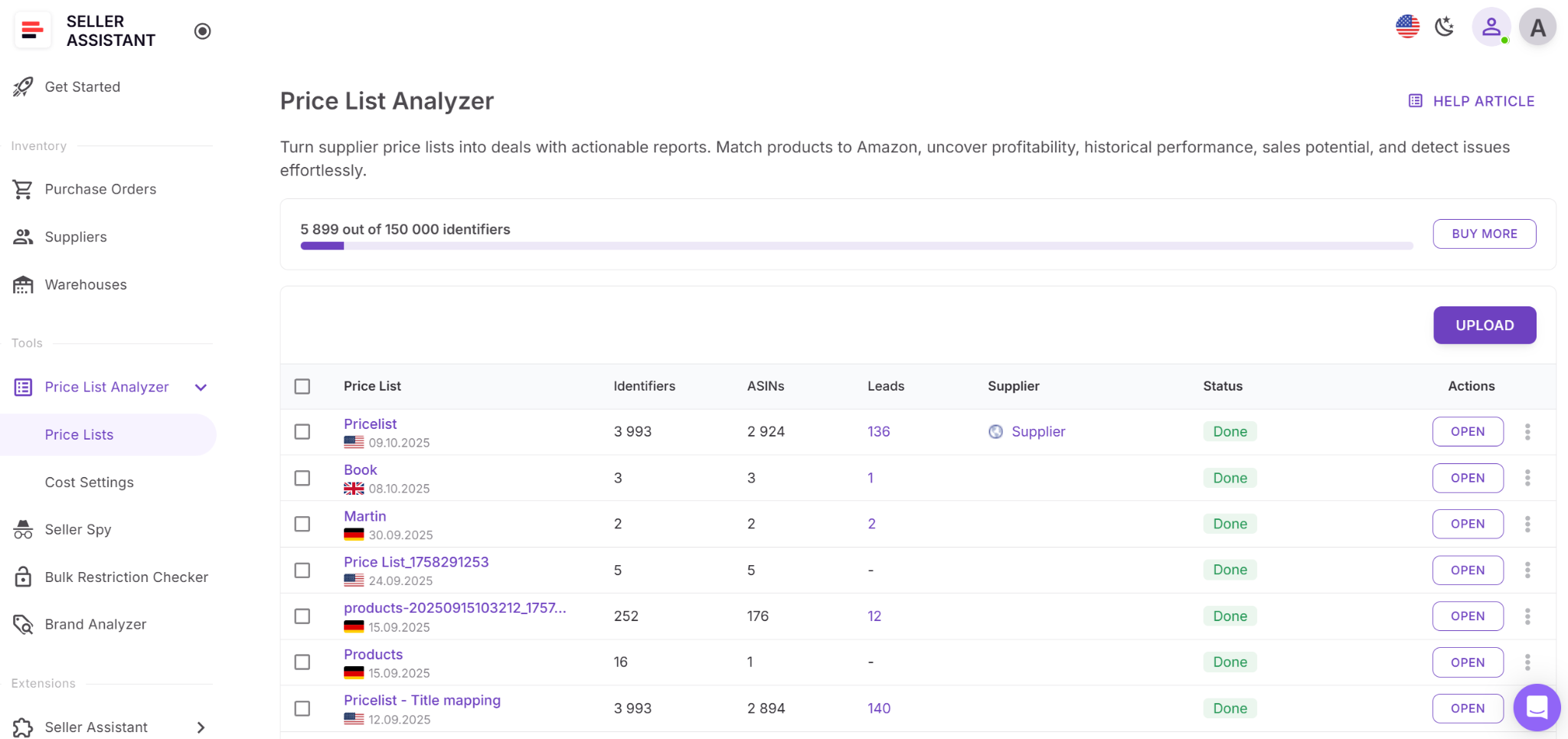
Step 2. Review products and assign initial tags
Start analyzing the processed price list. As you review ASINs, assign tags that reflect their current status, such as Check later, Manual review, or Rejected. This captures your decision instantly and keeps you moving through the list.
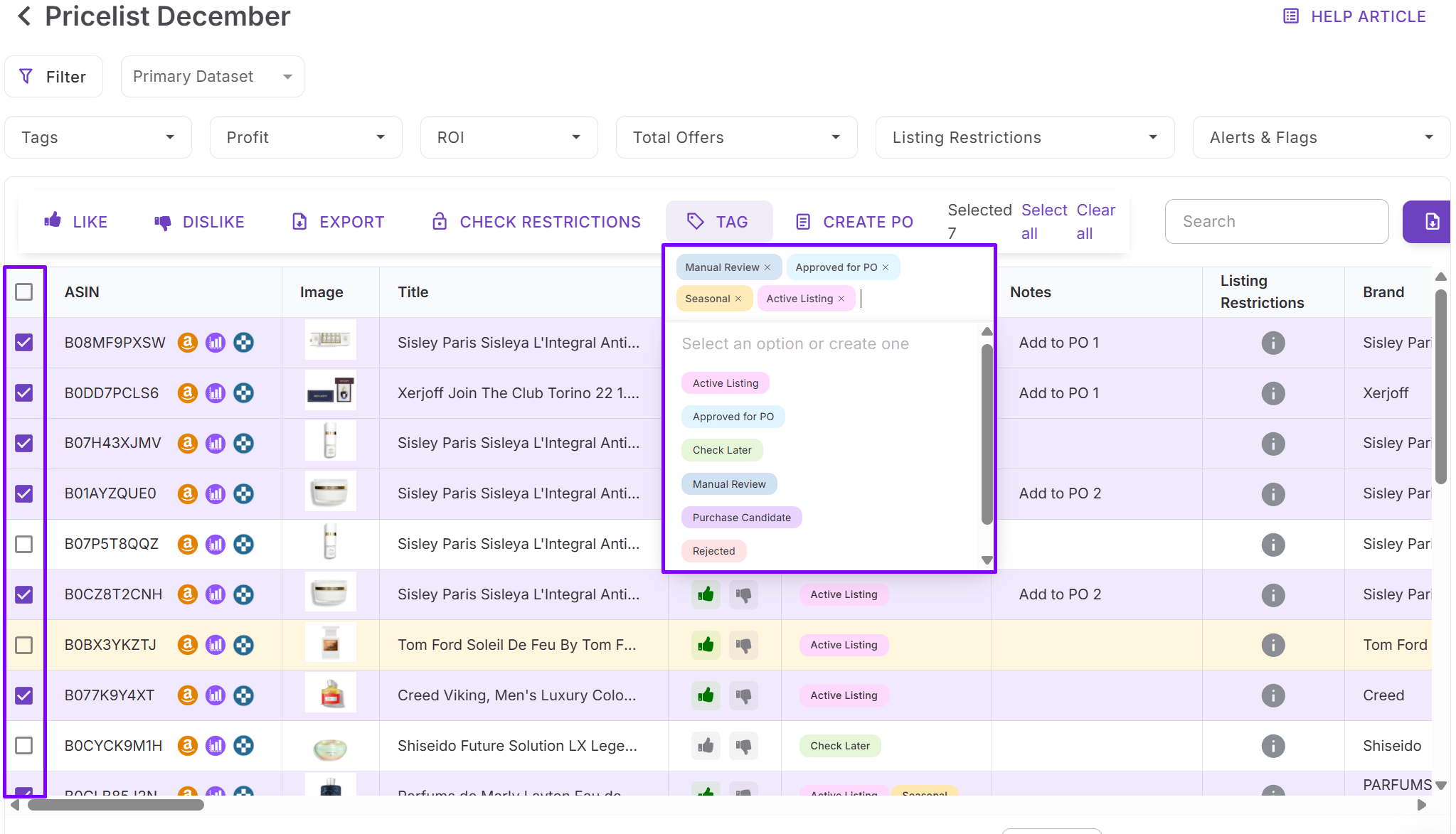
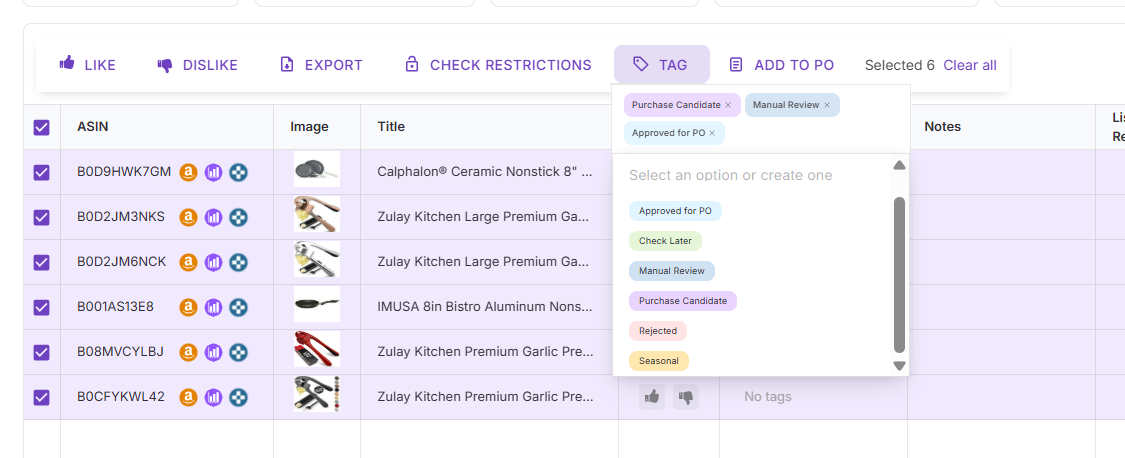
Step 3. Use bulk tagging to speed up decisions
Select multiple products using the checkboxes and apply tags in bulk. This is useful when many ASINs share the same outcome, such as products that don’t meet ROI requirements or items ready for deeper review.
Step 4. Filter the list by tags
Use tag filters to narrow the table to specific sourcing stages. For example, filter by Manual review to focus only on products that need Amazon-side checks, or by Purchase candidate to prepare for buying decisions.
Step 5. Update tags as conditions change
When prices, fees, or competition shift, revisit tagged products and update their status. Replace Check later with Purchase candidate, or move items to Rejected if they no longer fit your criteria.
Step 6. Prepare purchase orders using tags
Filter the table by Approved for PO to see products cleared for buying. Select these items and move them into your purchase order workflow without reanalyzing the list.
Step 7. Reuse tags across future price lists
When you upload new supplier lists, existing tags follow the ASINs. Exclude Rejected products and quickly spot previously reviewed items, saving time on every new sourcing cycle.
FAQ
Can I use multiple tags on the same product
Yes, you can assign multiple tags to a single ASIN. This allows you to track different aspects of a product, such as review status and seasonality, at the same time.
Do tags carry over to new price lists
Yes, tags follow products by ASIN across all future price list uploads. This helps you avoid reanalyzing rejected items and quickly recognize previously reviewed products.
Can my team edit or change tags
All team members share the same tag library and can create, edit, delete, and assign tags. Any changes apply automatically to all products using that tag.
How does tag filtering work in Price List Analyzer
You can filter products by one or more tags directly in the filter panel. The filter returns products that match any of the selected tags, making it easy to group ASINs by sourcing status.
Is there a limit to how many tags I can create or assign
There is no limit on the number of tags you can create or assign to products. This gives you full flexibility to adapt tagging to your sourcing workflow as it grows.
Final Thoughts
Tags turn Amazon product sourcing from a one-time review into a structured decision process. Instead of rechecking the same ASINs across price lists, sellers can track product status, filter by intent, and move items smoothly from analysis to purchasing. When used consistently, tags reduce noise, save time, and keep sourcing decisions aligned across your team. Combined with Seller Assistant’s Price List Analyzer bulk research capabilities, tags help you stay focused on profitable opportunities and build a sourcing workflow that scales as your catalog and supplier base grow.
Seller Assistant automates and connects every stage of your Amazon wholesale and arbitrage workflow. It brings together in one platform: workflow management tools – Purchase Orders Module, Supplier Database, Warehouse Database, bulk research & sourcing tools – Price List Analyzer, Bulk Restriction Checker, Sourcing AI, Brand Analyzer, Seller Spy, Chrome extensions – Seller Assistant Browser Extension, IP-Alert Extension, and built-in VPN by Seller Assistant, and integrations & team access features – seamless API connectivity, integrations with Zapier, Airtable, and Make, and Virtual Assistant Accounts.