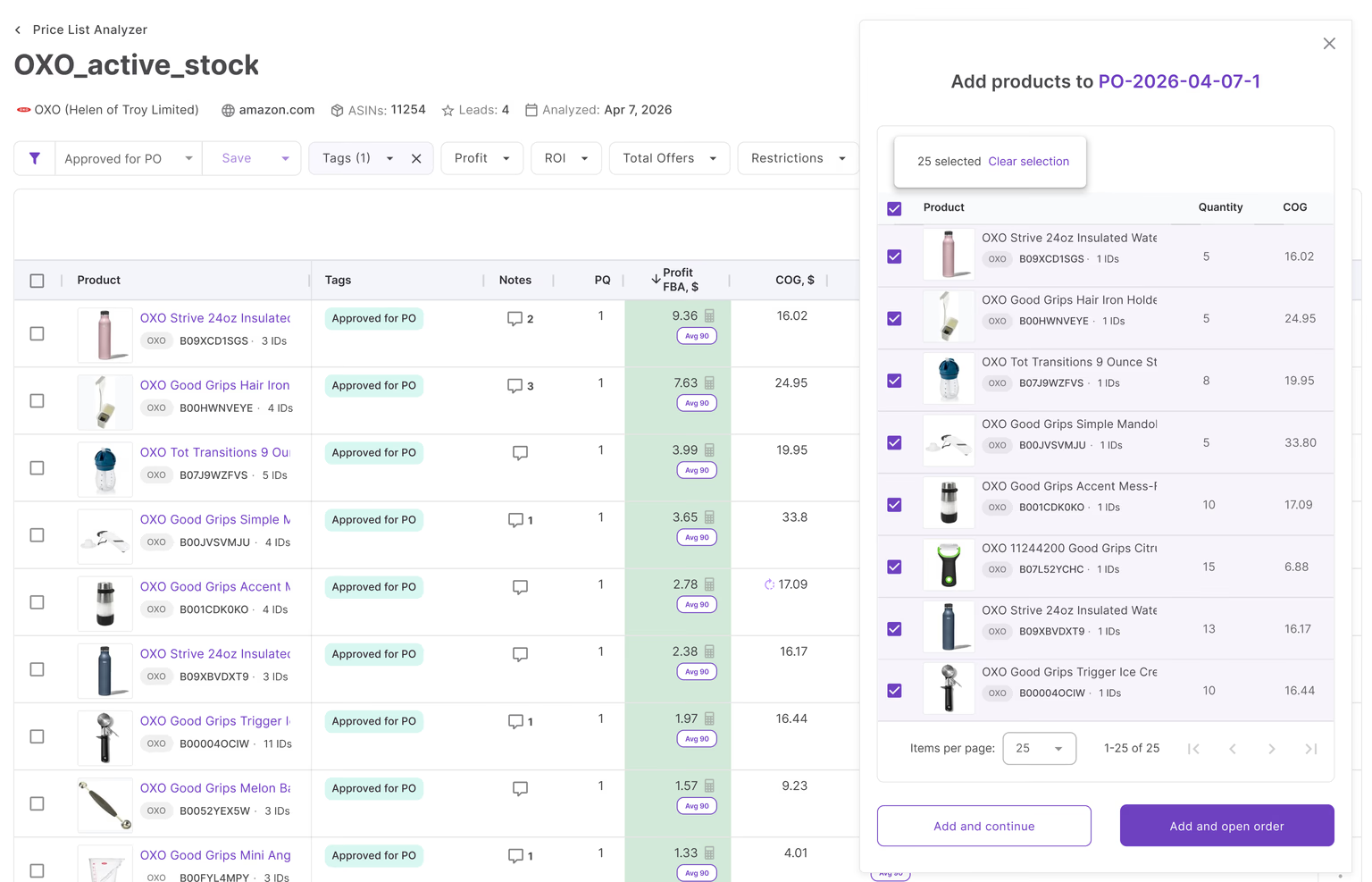


As a seller who deals with bulk supplier price lists with thousands of products, it can be challenging to quickly spot profitable deals to sell on Amazon. If you have many suppliers who often introduce new products, you must process the price lists fast. Your task is to match supplier products to Amazon and find out if they will be profitable to sell on Amazon.
Seller Assistant’s Price List Analyzer helps scan supplier price lists in minutes and identify the most high-margin items for your Amazon store.
In this post, we will explore how Price List Analyzer works and help you easily identify the best deals among thousands of your supplier products.
Note. Seller Assistant is an end-to-end Amazon workflow management platform that integrates 10+ wholesale-focused solutions into one connected system. It combines sourcing workflow automation, bulk research and intelligence tools, and integrated Chrome extensions – giving you everything you need to streamline finding deals, managing suppliers, and creating purchase orders.

Seller Assistant is an end-to-end Amazon workflow management platform
With Seller Assistant, every step of your Amazon wholesale and arbitrage workflow is automated and connected.
What Is Seller Assistant’s Price List Analyzer?
Price List Analyzer by Seller Assistant is a bulk Amazon product analyzer tool that helps find profitable deals. Its primary function is to automate scanning of supplier price lists and efficiently identify the most profitable products to sell on Amazon.
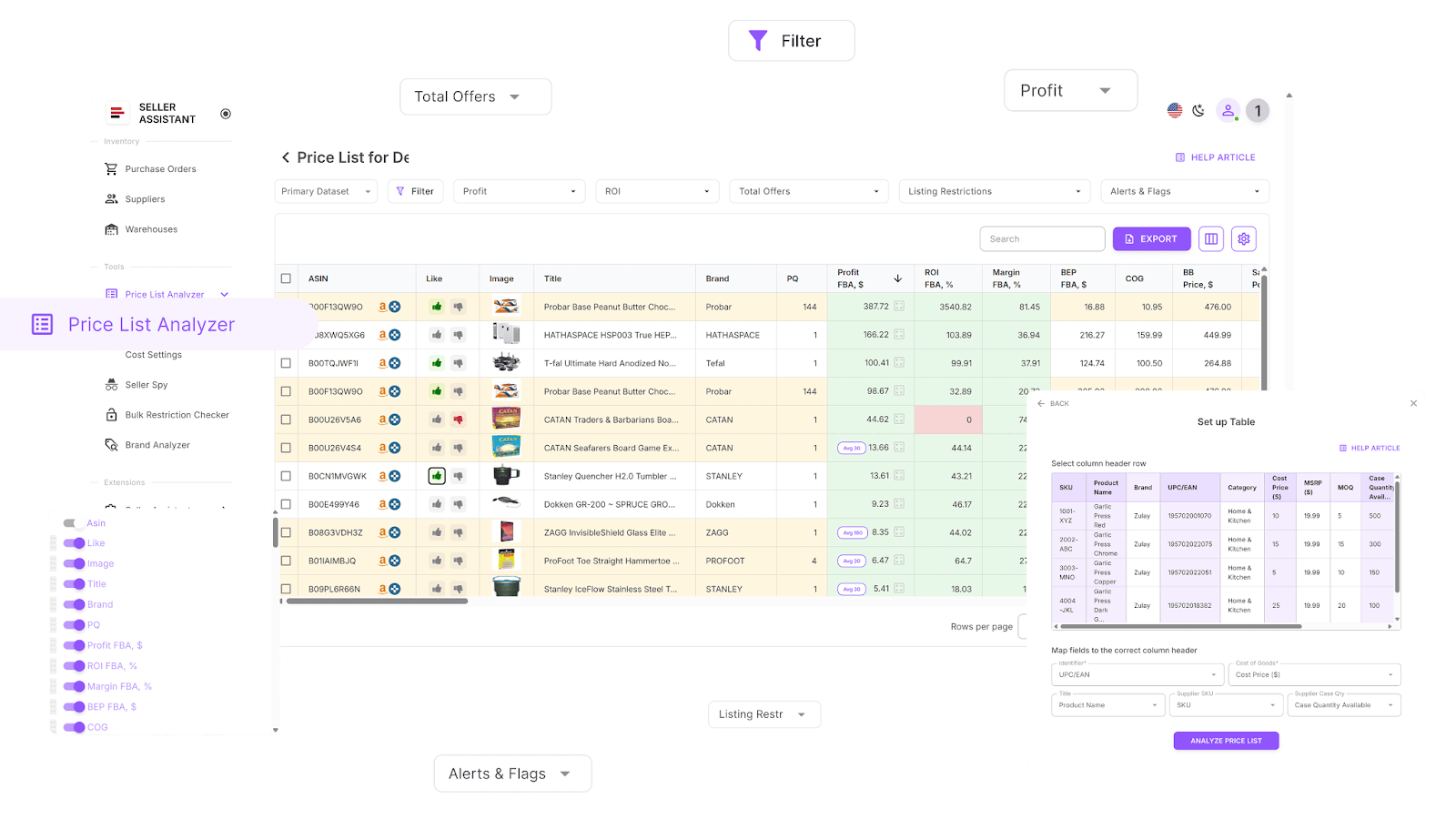
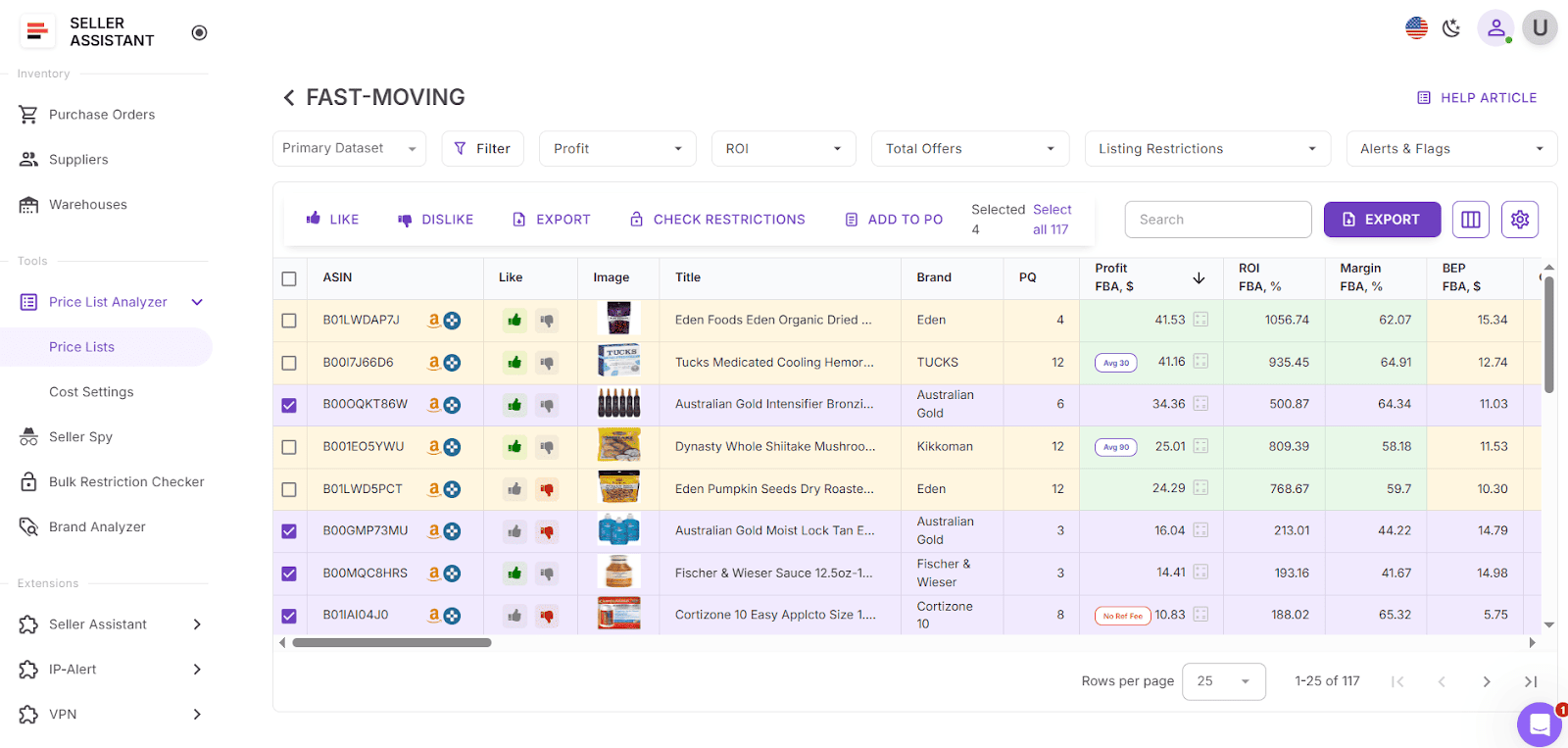
The tool automatically matches your supplier products to Amazon, calculates profitability for each product, and enriches your supplier spreadsheet with 70+ essential metrics: your selling eligibility, product risks, sales performance and velocity, competition from Amazon and other sellers, Buy Box price details and dynamics, profitability, Amazon fees, and more.
You can filter the results by any necessary metric to identify the best deals and create a shortlist for purchase order directly in the tool. You can also choose to calculate profit based on the average Buy Box price, instantly edit and recalculate processed results, and add notes to the products.
The tool is designed specifically for Amazon wholesale and online arbitrage sellers, and dropshippers to simplify the process of bulk product research, and helps make informed decisions quickly and efficiently.
Price List Analyzer Functionality
Price List Analyzer by Seller Assistant simplifies the complex process of managing supplier data for product sourcing by providing you with the functionality and data described below.
Price List Analyzer lets you
- Analyze bulk files to surface high-return, low-risk deals
- Automatically match supplier products to Amazon ASINs
- Identify restricted products or those you can’t sell on your account
- Fill your spreadsheet with 70+ product metrics, including:
- Sales data including BSR, sales rank trends, estimated sales velocity, and other product performance metrics
- Profitability metrics like profit, ROI, margins, breakeven points
- Price history including average Buy Box price and historic pricing behavior (30/90/180 days) to assess pricing stability, price dynamics, minimum FBA and FBM prices
- Amazon fee breakdowns including referral fees, FBA and FBM fulfillment fees, storage, prep and shipping, hazmat and fragile prep, and other costs
- Competition levels: seller count, Buy Box rotation, and Amazon in-stock rate
- Automatically detect potential issues with products: oversize, HazMat, meltable, fragile items, and those with IP complaints, variations, or sets/bundles. Warnings include “No FBA Fees,” “No Buy Box Price,” “No COGs,” “ASIN Not Found,” “Set or Bundle,” “Approval Required,” “Too Low FBA ROI,” and “Too High FBA ROI,” etc.
- Filter by performance, profitability, risks, or any other product metric of your choice to streamline decisions. Save custom table layouts and filter settings to reuse across different price lists.
- Add Likes and Dislikes to the products, create a shortlist for purchasing products directly in the analyzed table by filtering liked and disliked products, and export selected.
- Calculate profit based on the average Buy Box price over 30, 90, or 180 days – giving you more realistic profitability estimates, especially for seasonal or spiking products.
- Edit product-level data such as COG, shipping, package quantity, or prep cost directly in the table – and see profit values instantly recalculated in real time.
- Leave product-specific comments; these notes are shared across your team and automatically appear when the product is encountered again in future uploads.
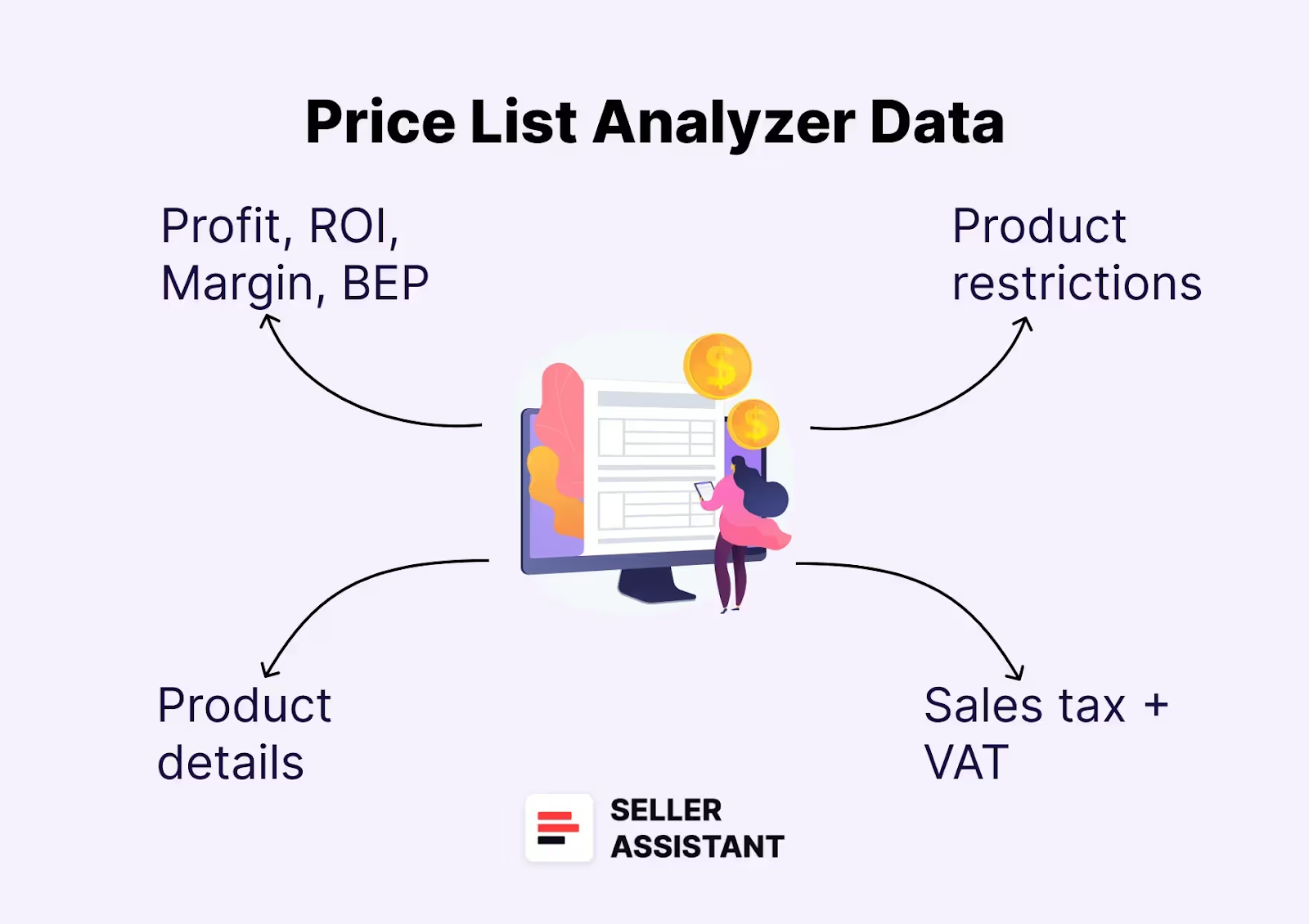
Price List Analyzer Data
Product details
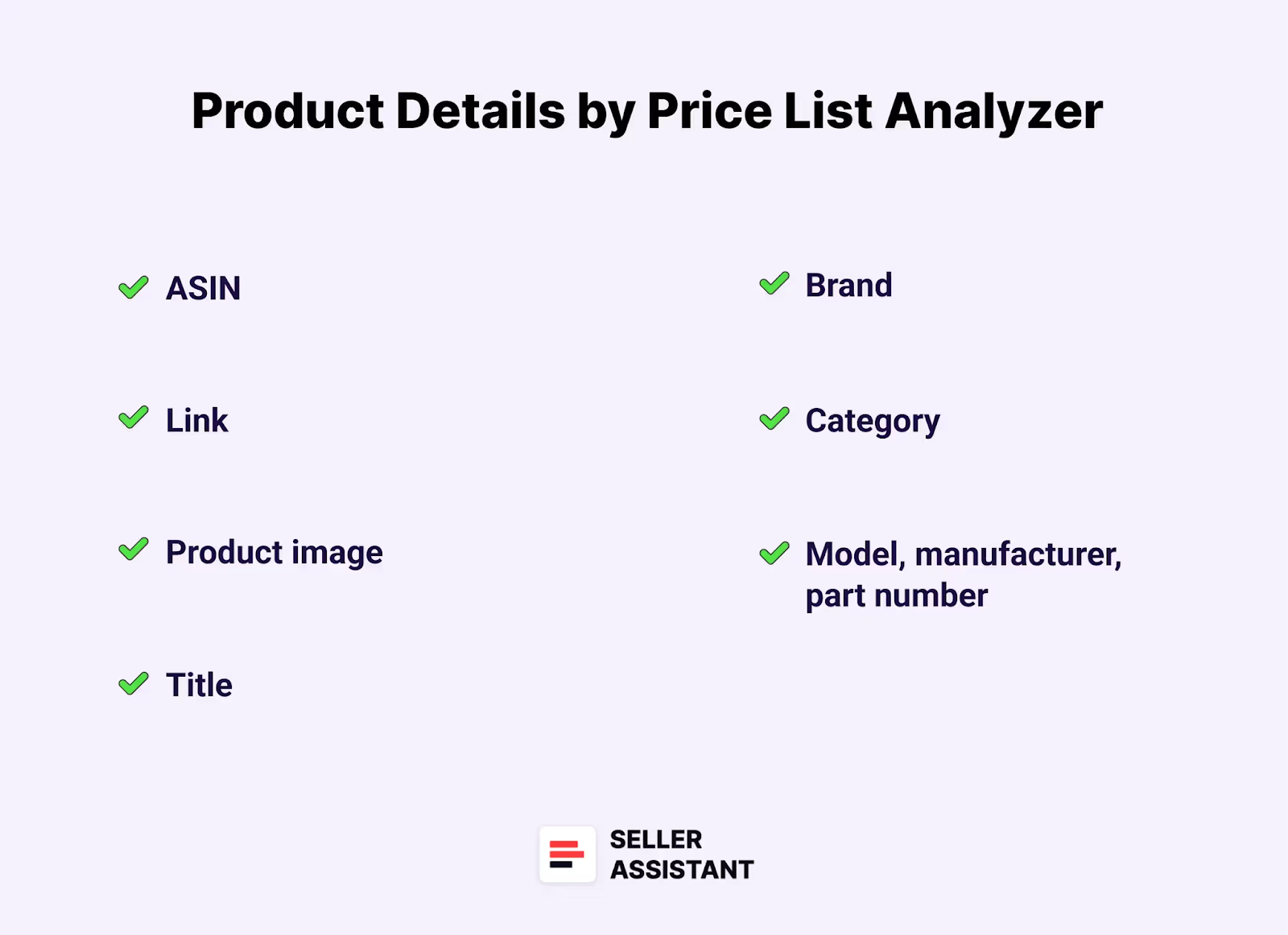
Product identification
- ASIN
Amazon Standard Identification Number for the product
- Link
Direct link to the product listing on Amazon
- Product image
Visual representation of the product
- Title
Product name or title as it appears on Amazon
- Brand
Manufacturer or brand of the product
- Category
The product’s category on Amazon
- Model, manufacturer, part number
Specific details related to the product’s manufacturing necessary to match the product to supplier catalog
- Supplier
Indicates the supplier or source of the product, helping you track which vendor provided the listing.
Sales performance metrics
- BSR (Best Sellers Rank)
Indicator of the product’s sales ranking within its category. Shows how well the product sells
- Top BSR
Top helps understand the product’s sales velocity as a percentage. If the Top equals 0.5% or less, the product sells well. If the Top equals 1% or more, a product is a slow-mover
- Average BSR over 30/90/180 days
Evaluates sales consistency over time. This helps avoid products with short-lived demand spikes.
- BSR Drops over 30/90/180 days
Shows how often a product’s Best Seller Rank dropped during the selected timeframes, signaling increasing sales momentum. May indicate the actual product sales (how many times the products was sold)
- Sales Estimate (pcs/month)
Estimated number of units sold per month. Helps understand average product sales to estimate how many units to order
- Sales Estimate ($/month)
Estimated revenue per month from product sales. Helps understand how much money you can potentially earn from product sales/month
- Rating
Shows average customer satisfaction. Higher ratings typically signal fewer returns or issues.
- Review count
Indicates social proof and competition level. A high review count can mean both trust and saturation.
Pricing and profitability
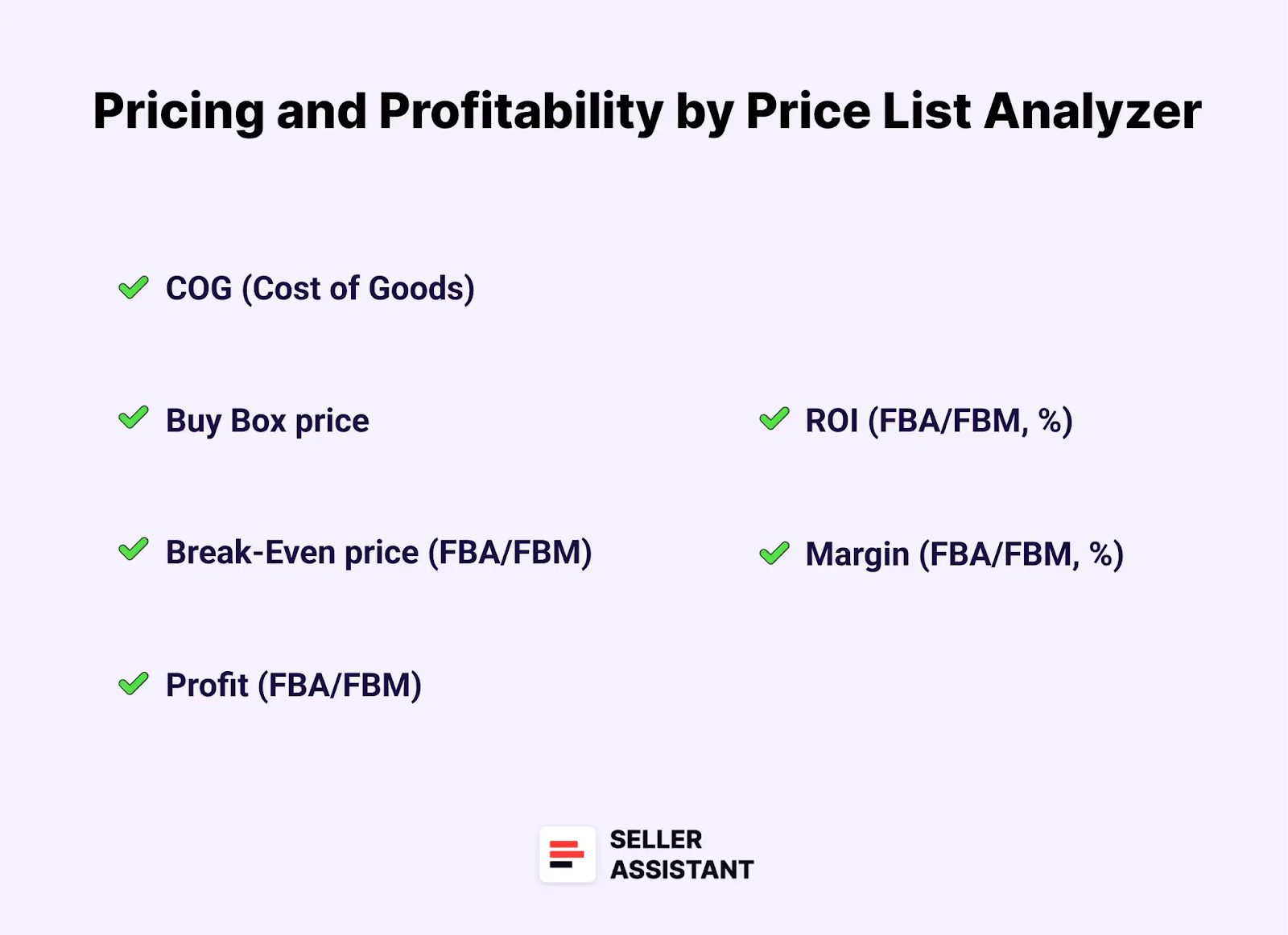
- COG (Cost of Goods)
Cost of goods before tax. Product price at the supplier
- Cost of Goods incl. VAT
Total cost including VAT
- Selling Price
Displays the price used for profit calculations—based on either the current Buy Box or average Buy Box, depending on your settings.
- Buy Box price
Current price of the product winning the Buy Box on Amazon. If there is no Buy Box price, the average Buy Box price is calculated over 30, 90, or 180 days (the indicator shows which price was applied). If there is no Buy Box price for more than 180 days, “No Buy Box price” is applied.
- Buy Box price over 30/90/180 days
Historical average Buy Box prices. Helps you avoid overpriced or underpriced market entries.
- Price dynamics (%)
Shows how much the product price fluctuates. Useful for identifying price-stable items.
- Break-Even Price (FBA/FBM)
The minimum product price with 0% profit for Fulfillment by Amazon (FBA) or Fulfillment by Merchant (FBM). If you go below break-even threshold, you lose money on the product
- Profit (FBA/FBM)
Estimated profit per unit using FBA or FBM fulfillment methods. Shows how much money you earn on the product
- ROI (FBA/FBM, %)
Return on investment for FBA or FBM orders, as a percentage
- Margin (FBA/FBM, %)
Profit margin after costs, expressed as a percentage
Competition analysis
- Total offers
Number of competing sellers. More offers usually means higher competition for the Buy Box. Ideal count is 3 to 15 sellers. Less means private label products you can’t resell; more means fierce competition.
- Amz in BB 30/90/180 days
Amazon in-stock rate (Amazon % in the Buy Box) during 30,90, and 180 days
Fulfillment costs
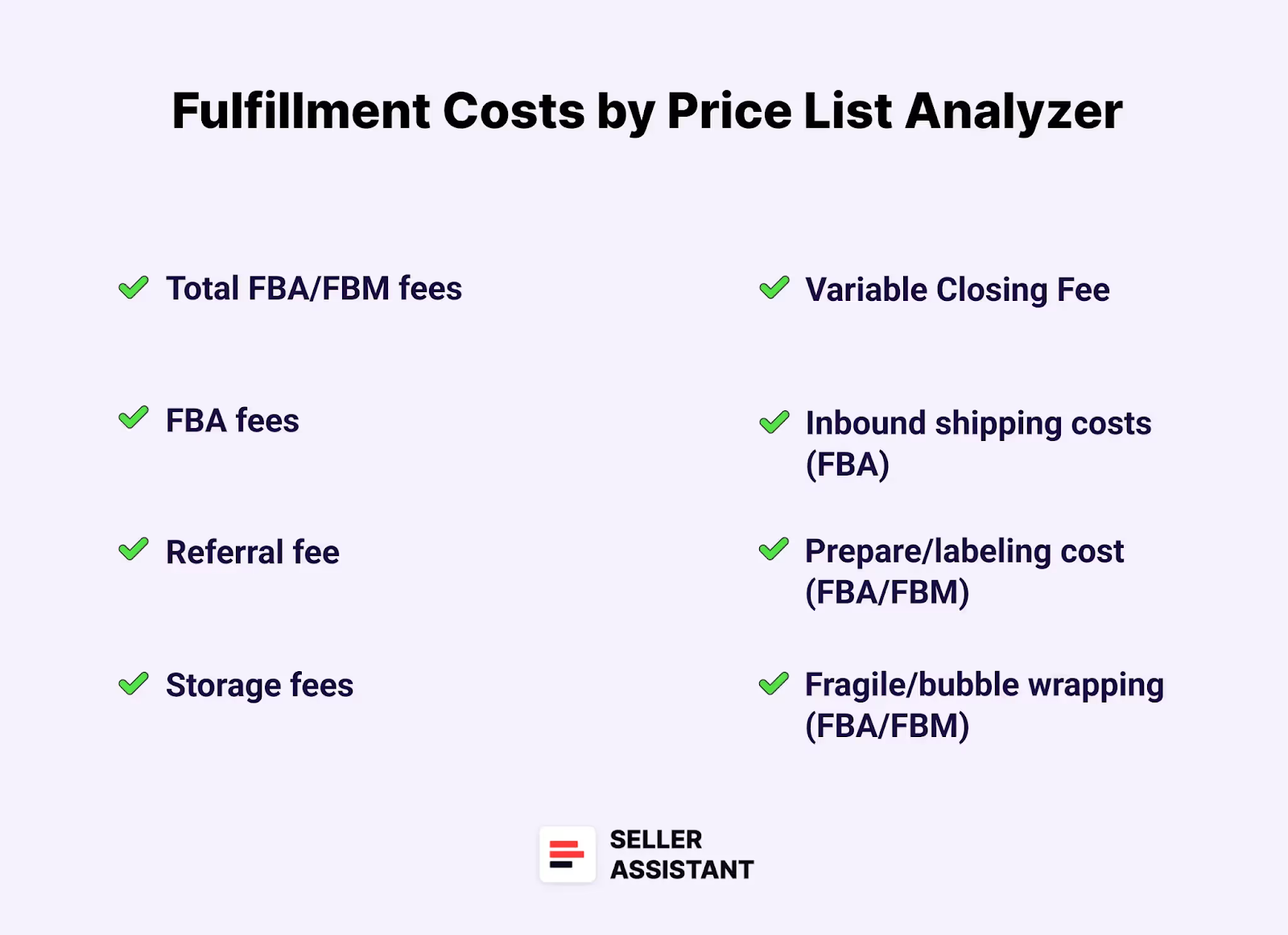
- Total FBA/FBM fees
Overall fees associated with FBA or FBM services
- FBA fees
Fulfillment by Amazon fees
- Referral fee
Amazon’s percentage-based fee on the sale
- Storage fees
Cost to store the product in Amazon’s warehouse
- Variable Closing Fee
A fee applied for books, music, video, blu-ray, and DVDs (BMVD) on top of other fees
- Digital Service Fee (DST)
DST applies to selling on Amazon fees (referral fee, fixed closing fee, variable closing fee, and get-paid-faster fee) if you sell in the countries where the fee is paid (e, g. Canada, France, Spain), and FBA fees (UK and France)
- Inbound shipping costs (FBA)
Cost of shipping the product to an Amazon warehouse (for FBA)
- General Prep FBA
Cost for preparing or labeling the product for shipment
- Shipping cost per unit / per lbs
Used to calculate logistics costs. Heavier or bulkier products drive this up.
- Hazmat fee FBA
Applied if the product is classified as hazardous materials category.
- Fragile prep FBA
Additional cost if, the product requires special packaging for fragility
- Misc fee rate (%) / misc fee fixed / misc fee
- Covers any additional fee items. Helps get a full picture of total costs.
Tax and compliance
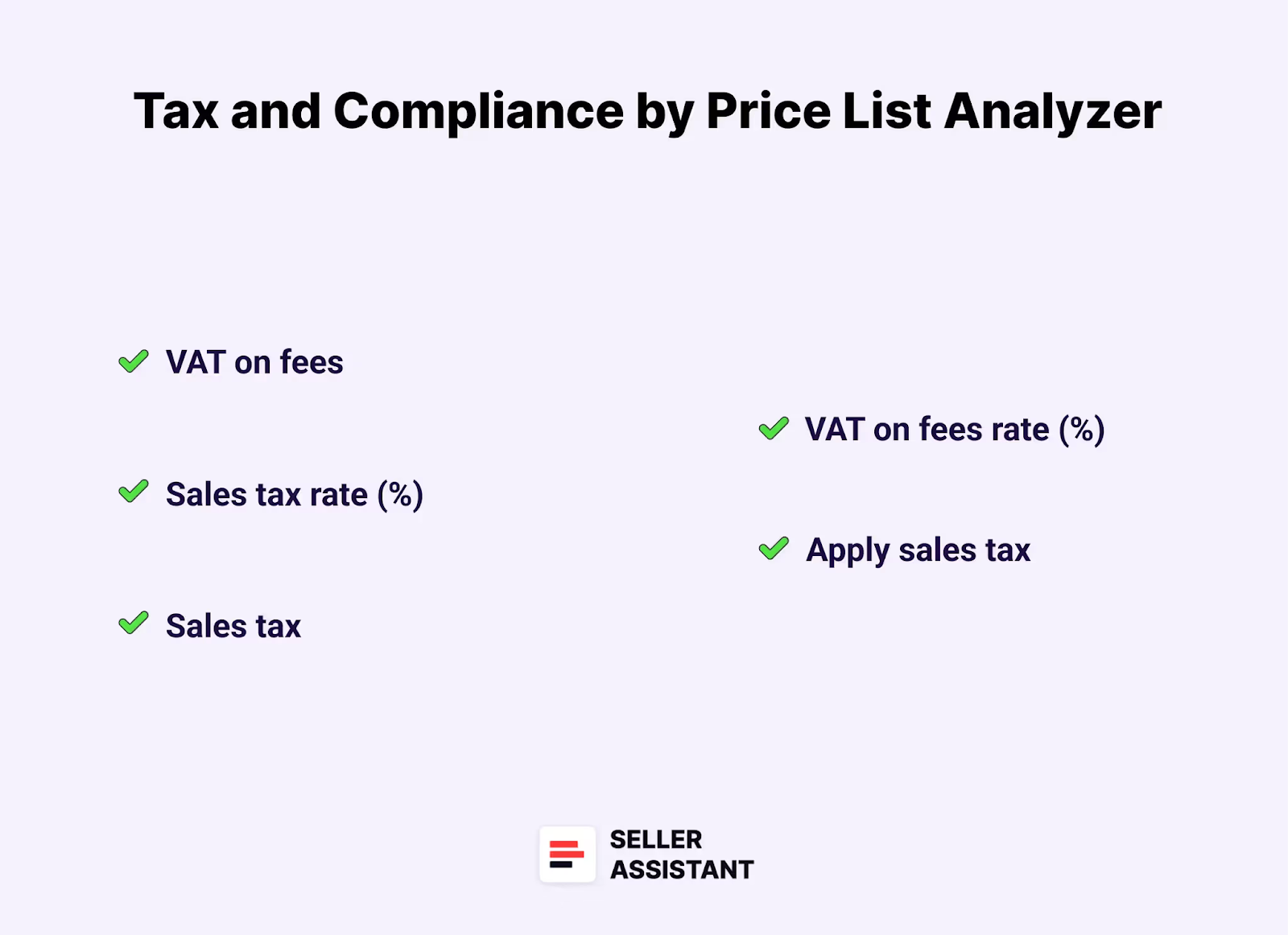
- Sales tax
- Total sales tax applied to the transaction
- Sales tax rate (%)
Applicable sales tax rate
- Apply sales tax
Option to apply sales tax to the product or not
- VAT on fees
Value-Added Tax applied to fees. Applicable if you sell internationally
- VAT on fees rate (%)
Percentage of VAT applied to fees
Product restrictions and flags
- Restrictions and selling eligibility
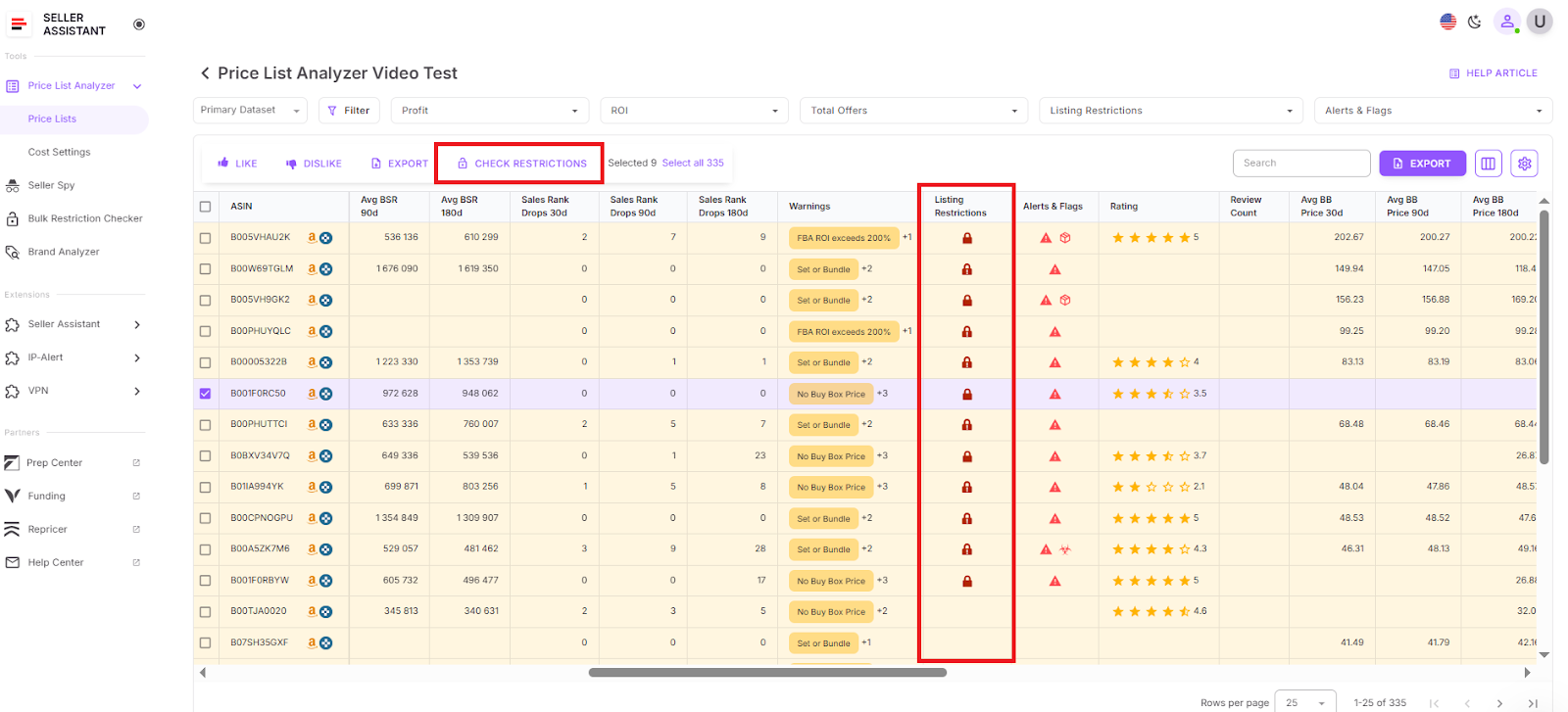
Shows if you can sell a product on your Amazon account and whether it’s restricted and requires Amazon approval to sell. To activate restriction verification, select the products you want to check, and click the “Check Restrictions ” button.
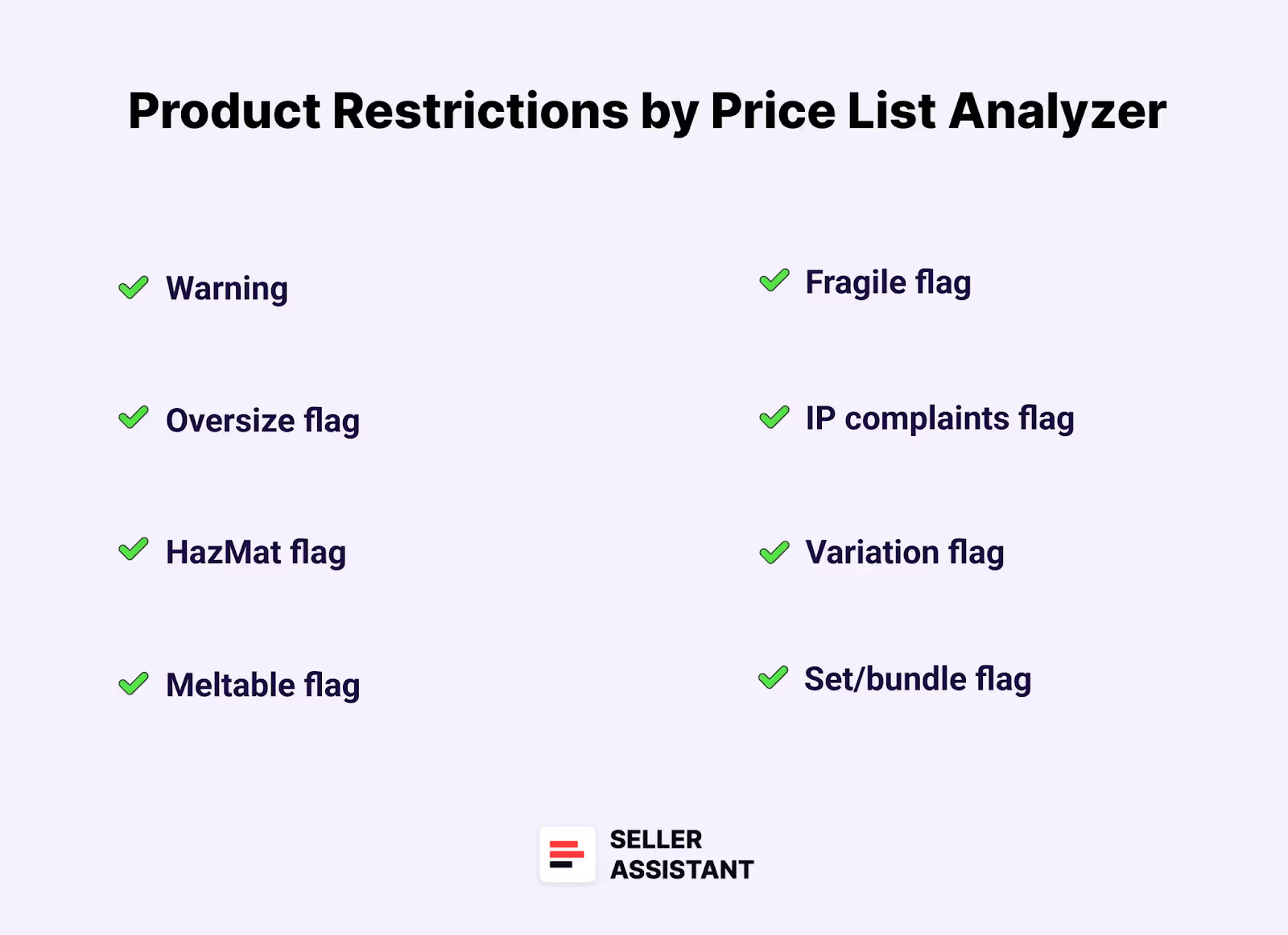
- Warning
Shown if the product has any alerts, for example: IP alerts, no FBA Fees, no Buy Box price, no COGs, ASIN not found, set or bundle, approval required, too low FBA ROI, too high FBA ROI. For such products, more detailed research is required
- Oversize flag
Marks if the product is considered oversize by Amazon
- HazMat flag
Indicates if the product is classified as hazardous material
- Meltable flag
Alerts for products that can melt in certain conditions
- Fragile flag
Marks fragile products requiring special handling
- IP complaints flag
Indicates the risk of intellectual property complaints
- Variation flag
Denotes if the product has multiple variations (size, color, etc.)
- Set/bundle flag
Marks if the product is part of a set or bundle
Variations
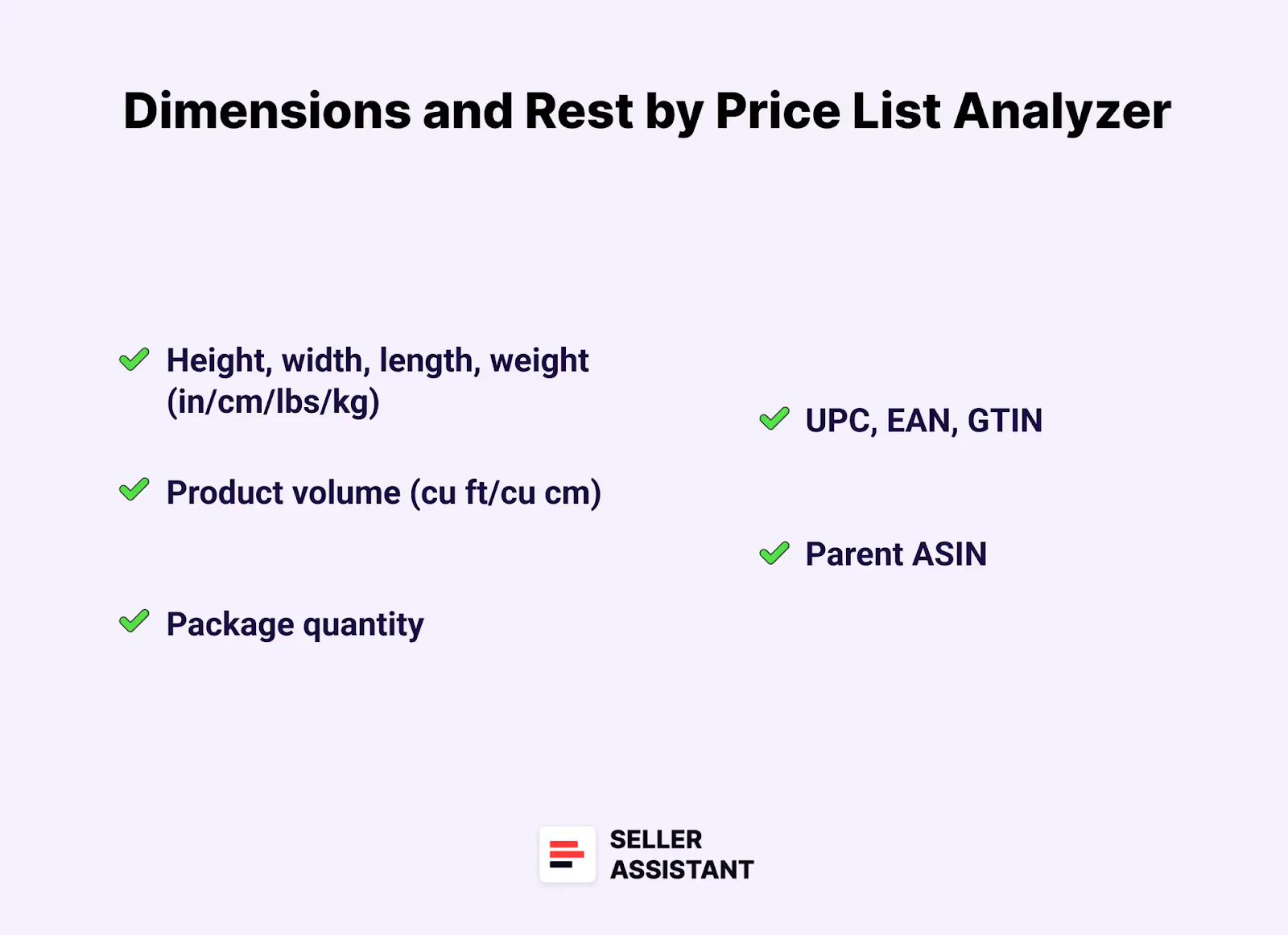
- Parent ASIN
The parent ASIN, if the product has multiple variations
- Variation count
The number of variations in the listing
- Color
Color of a specific variation
Dimensions and Packaging
- Size info
Product dimensions according to Amazon’s classification (Small Standard, Large Standard, Large Bulky, etc.)
- Height, width, length, weight (in/cm/lbs/kg)
Physical dimensions and weight of the product, useful for calculating shipping costs
- Product volume (cu ft/cu cm)
The product’s volume, helpful for storage and shipping calculations
- Package quantity
Number of units in a package
Additional identifiers
- UPC, EAN, GTIN
Global Trade Item Numbers used for identifying the product in various marketplaces
- Marketplace
Marketplace where the product is listed (Amazon.com, Amazon.ca, Amazon.de, etc.)
Filters
- Filter results by all essential metrics and export the filtered results. You can switch between FBA and FBM, and filter by any metric you need.
- Select specific products and export them the list necessary
Notes, likes and dislikes
- Add Likes and Dislikes to the products that are worth or not worth buying
- Price List Analyzer picks up Likes and Dislikes you added in Seller Assistant Extension.
- Filter products by Likes and Dislikes
- Build a shortlist for purchasing inside Price List Analyzer by using Likes and export it if needed
- Product Notes
Custom, team-visible notes tied to specific products, helping track previous insights, concerns, or decisions across lists.
Benefits of Price List Analyzer
Price List Analyzer by Seller Assistant offers a number of benefits that can significantly enhance the efficiency and simplify product sourcing for Amazon sellers. Here are some of the key advantages.
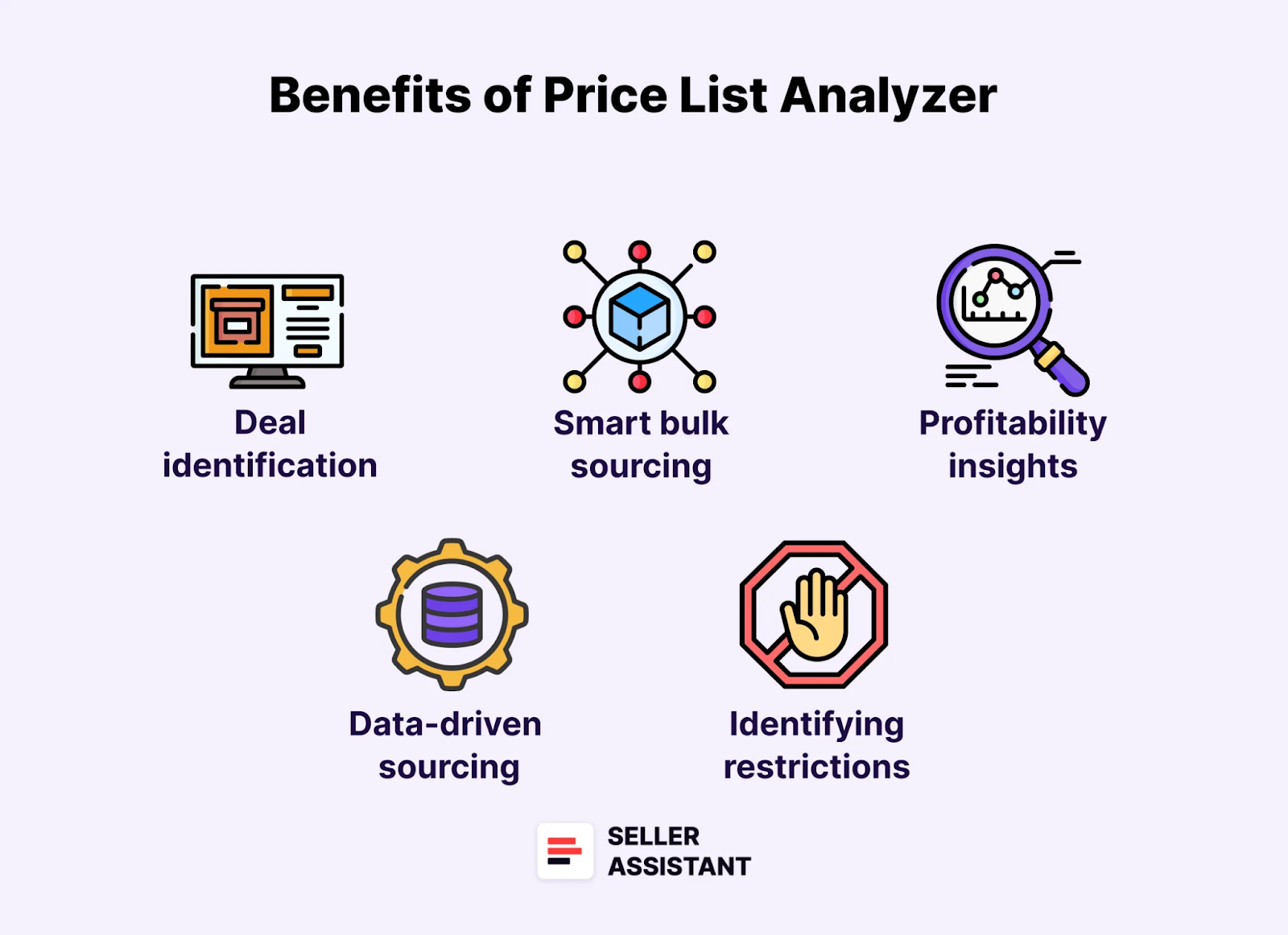
Automated deal identification
The tool automates the conversion of UPC/EAN codes to ASINs, helps detect high-margin leads by showing product profitability and ROI, saving sellers countless hours of manual work.
Smart bulk sourcing
Quickly process bulk supplier UPCs/EANs in one click to uncover potential opportunities in bulk. Apply advanced filtering and sorting to refine your product searches by profit, sales volumes (BSR), and other metrics.
Accurate profitability insights
- Focus on products with higher profit margins, maximizing your return on investment. The tool provides accurate profit and margin calculations, helping sellers understand the true profitability of each product.
- Price List Analyzer lets you choose between current or average Buy Box prices (30/90/180 days) for profit calculations—helping you avoid false positives caused by temporary price spikes.
- The tool supports package quantity (PQ) for accurate profit analysis—if a product includes multiple supplier units per Amazon listing, the tool adjusts COG and tax accordingly to reflect true profitability.
Real-time profit updates and bulk recalculation
Price List Analyzer allows you to edit COG, shipping, package quantity, and fees directly in the UI table, instantly recalculating profit; bulk cost settings can also be adjusted to update all results at once without re-uploading.
Product performance estimations
The Price List Analyzer provides essential insights into product performance, including how well the product sells, its potential sales volume, and sales velocity (how fast it sells). By analyzing metrics like Best Sellers Rank (BSR) and monthly sales estimates, sellers can accurately gauge a product’s market demand and make informed decisions on inventory stocking and pricing strategies.
Product flags and warnings
The Price List Analyzer automatically detects and flags potential issues with products, alerting sellers to important factors that require attention. These flags include oversize, HazMat, meltable, fragile products, and those with IP complaints, variations, or sets/bundles. Warnings include “No FBA Fees,” “No Buy Box Price,” “No COGs,” “ASIN Not Found,” “Set or Bundle,” “Approval Required,” “Too Low FBA ROI,” and “Too High FBA ROI.” For flagged products, more detailed research is needed to address these issues and ensure profitability. This feature helps sellers avoid costly mistakes and compliance issues.
Data-driven sourcing decisions
Access key metrics on a large scale, like profitability and costs. Make informed choices about product selection, reducing the risk of choosing low-profit or slow-moving items.
Advanced filtering options
Apply advanced filtering system, which allows sellers to quickly narrow down profitable deals from large supplier price lists. When handling thousands of products, manually sifting through the data can be overwhelming. With customizable filters, sellers can efficiently refine their search using key profitability, sales, and risk metrics, ensuring they focus only on products that align with their business goals.
Identifying bulk product restrictions and brand gate
Price List Analyzer allows you to quickly identify bulk restricted products and brands, and your eligibility to sell on Amazon the products from your supplier lists.
Saving UI table views
Users can save custom UI table layouts and filtering settings to reuse across different price lists.
This feature improves consistency in how files are reviewed and accelerates analysis.
Price List Analyzer Use Cases
Price List Analyzer simplifies bulk product research and helps you make informed sourcing decisions by quickly choosing profitable deals. Here are some practical use cases to consider.
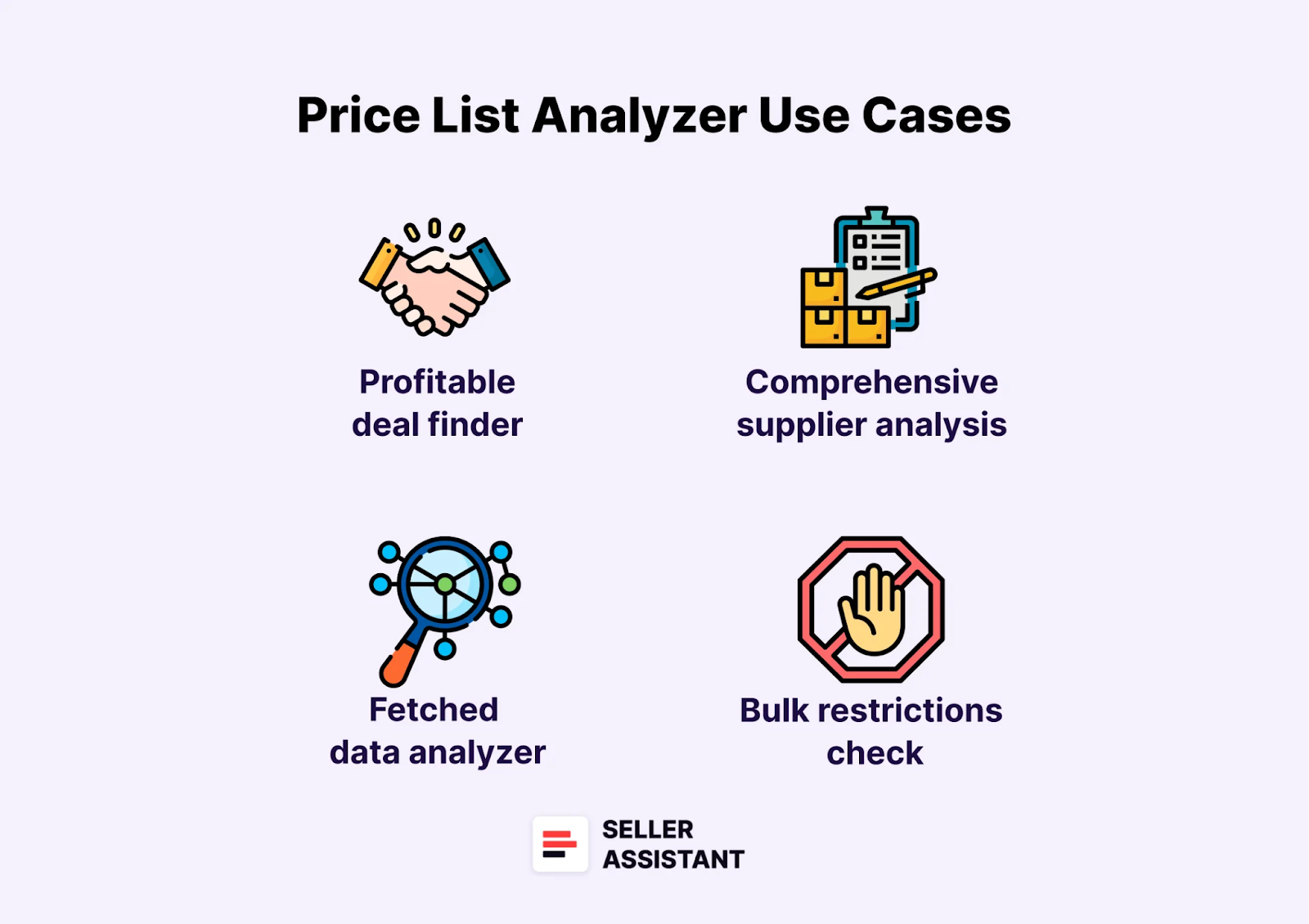
Profitable deal finder
- Use case
Sellers need to quickly identify which products offer the highest profitability from their supplier’s price list. By converting UPCs or EANs to ASINs and calculating metrics like profit and ROI, sellers can focus on the most promising deals.
- Solution
The Price List Analyzer streamlines this process by providing immediate insights into the most profitable products, allowing sellers to concentrate on high-return opportunities.
Comprehensive supplier analysis
- Use case
Wholesale sellers often need to analyze large price lists from their suppliers to find the most profitable products. They require a detailed report with important metrics like profit, ROI, and BSR to make informed decisions.
- Solution
The Price List Analyzer allows sellers to upload price lists, filter the results by key metrics, and choose the most suitable products for their inventory, simplifying the decision-making process.
Bulk restrictions and brand gate check
- Use case
Sellers need to ensure that their products meet Amazon’s eligibility requirements, particularly in bulk, when dealing with product restrictions or brand gate issues.
- Solution
Price List Analyzer shows your eligibility to sell products on your Amazon account, product and brand restrictions, IP complaints, and Amazon product policy violations, if any.
Product performance estimation
- Use case
Sellers need to evaluate how well a product is performing in terms of sales velocity, market demand, and potential profitability. Analyzing metrics like BSR and monthly sales estimates is essential for making informed stocking decisions.
- Solution
The Price List Analyzer provides sellers with essential data on product performance, helping them optimize inventory management by focusing on high-demand products.
Profit calculation based on average Buy Box price
- Use case
Sellers analyzing seasonal or price-volatile products often get misled by current Buy Box spikes, which make deals look more profitable than they are. They need a way to base profit analysis on stable pricing to avoid overpaying.
- Solution
Price List Analyzer lets sellers calculate profit using average Buy Box prices from the past 30, 90, or 180 days—resulting in more accurate and reliable estimates that better reflect typical product performance.
Real-time profit updates and bulk recalculation
- Use case
Sellers frequently identify cost or fulfillment changes during list reviews, such as updated shipping fees or packaging details. Reprocessing entire files to reflect these changes is time-consuming.
- Solution
Price List Analyzer allows sellers to instantly edit fields like COG, shipping, and package quantity within the UI table, and see real-time profit recalculations. Sellers can also apply global changes across the full file for bulk updates without re-uploading.
Package Quantity support in profit calculations
- Use case
Some products on Amazon are sold as multipacks, but supplier price lists show unit-level costs. Sellers need accurate calculations that reflect how many supplier units make up one Amazon sale.
- Solution
Price List Analyzer now supports package quantity (PQ) inputs, multiplying COG and adjusting tax to ensure profitability metrics reflect the actual cost of selling multipack items.
Risky products identification
- Use case
Sellers need to be alerted to potential issues with products, such as missing fees, no Buy Box price, ASIN not found, or approval required. These flags help prevent costly mistakes and ensure product viability.
- Solution
Price List Analyzer automatically detects and flags issues like “No FBA Fees,” “No COGs,” or “Too Low FBA ROI,” enabling sellers to conduct further research and avoid risky products. Price List Analyzer also indicates potential product risks like meltable, HazMat, heavy and bulky, fragile, adult, etc.
Fetched data analyzer
- Use case
Online arbitrage sellers and dropshippers need to identify profitable products from various e-commerce websites. They require a tool that matches fetched products to Amazon listings and calculates profitability.
- Solution
The Price List Analyzer enables sellers to upload scraped data, find matching ASINs, and analyze profitability, helping them add the most profitable products to their sales pipeline.
New supplier finder
- Use case
Sellers looking to expand their supplier network need to compare multiple price lists to identify the most profitable partnerships. Analyzing metrics like profit and ROI helps in choosing the best suppliers.
- Solution
The Price List Analyzer enables sellers to upload and compare different price lists, helping them find new suppliers that align with their profitability goals and business strategy.
Filtered deal selection
- Use case
Sellers handling large supplier price lists need to quickly pinpoint the most profitable and risk-free deals without manually scanning thousands of products. They require a way to filter out low-margin, slow-moving, or restricted items while prioritizing high-performing ones.
- Solution
Price List Analyzer provides advanced filtering options that allow sellers to refine their product searches based on profitability, risk factors, and sales metrics. Users can filter products by ROI, profit margin, BSR, sales estimates, Buy Box price trends, and potential restrictions (e.g., IP complaints, HazMat, or brand-gated items), and any other metrics. By applying these filters, sellers can instantly focus on the most promising products, eliminating time-consuming manual reviews and ensuring they make informed sourcing decisions efficiently.
Collaborative shortlisting with likes
- Use case
Sellers working in teams often need to evaluate large supplier price lists together. To streamline collaboration, a seller can flag promising products by marking them with Likes in the Price List Analyzer UI table. These Likes help create a focused list of candidate products for deeper team research and validation. The team then conducts detailed analysis on the liked products to confirm whether they’re worth sourcing.
- Solution
Price List Analyzer allows sellers to shortlist products directly in the analyzed table by using the Like button. These Likes act as temporary tags that indicate sourcing interest. Once the seller has marked interesting products, the file can be shared with teammates for review. The team can filter by Likes to review only those products, validate them through additional research, and finalize the shortlist. This curated list can be exported for further action, such as supplier communication or purchasing planning.
Product notes for team-wide visibility
- Use case
Researchers often flag specific issues or insights about a product but lose track when it appears again later in another supplier file. Teams need a way to retain and share these notes across users and uploads.
- Solution
Price List Analyzer supports shared product notes linked to ASINs, enabling team members to leave and revisit insights across files, extension views, and product pages—making collaboration and long-term decision-making more efficient.
How Does a Price List Analyzer Work?
With Price List Analyzer, you can automate processing bulk price lists. The tool automatically matches your supplier products to Amazon, calculates profitability for each product, and shows other essential metrics. You can filter the results by essential metrics, product warnings, and flags, and see which deals are profitable, and which have hidden risks or alerts.
To process a price list with Price List Analyzer, upload your price list and download .xls files with potentially profitable deals. Set and apply filters to spot the deals that meet your profitability and risk tolerance expectations.
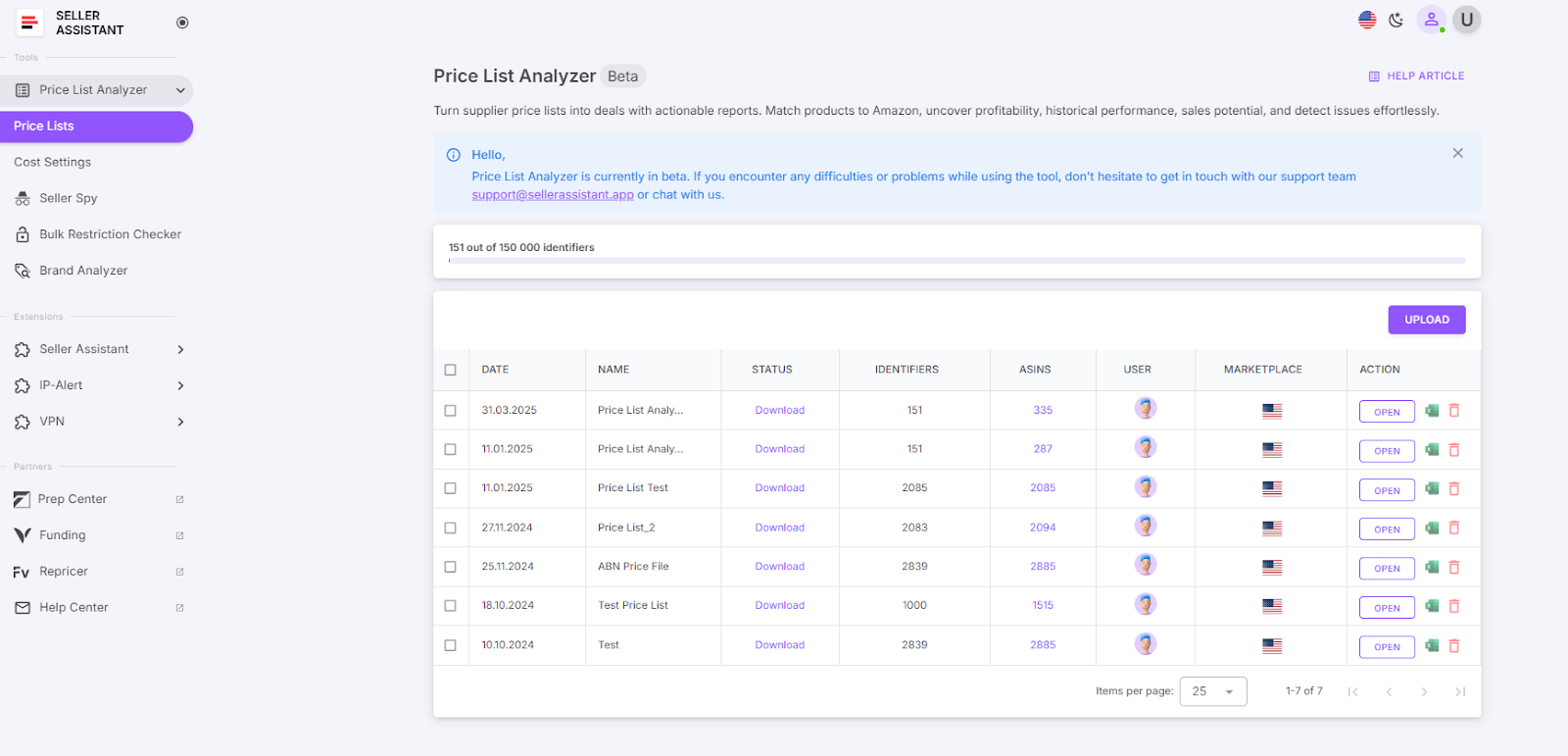
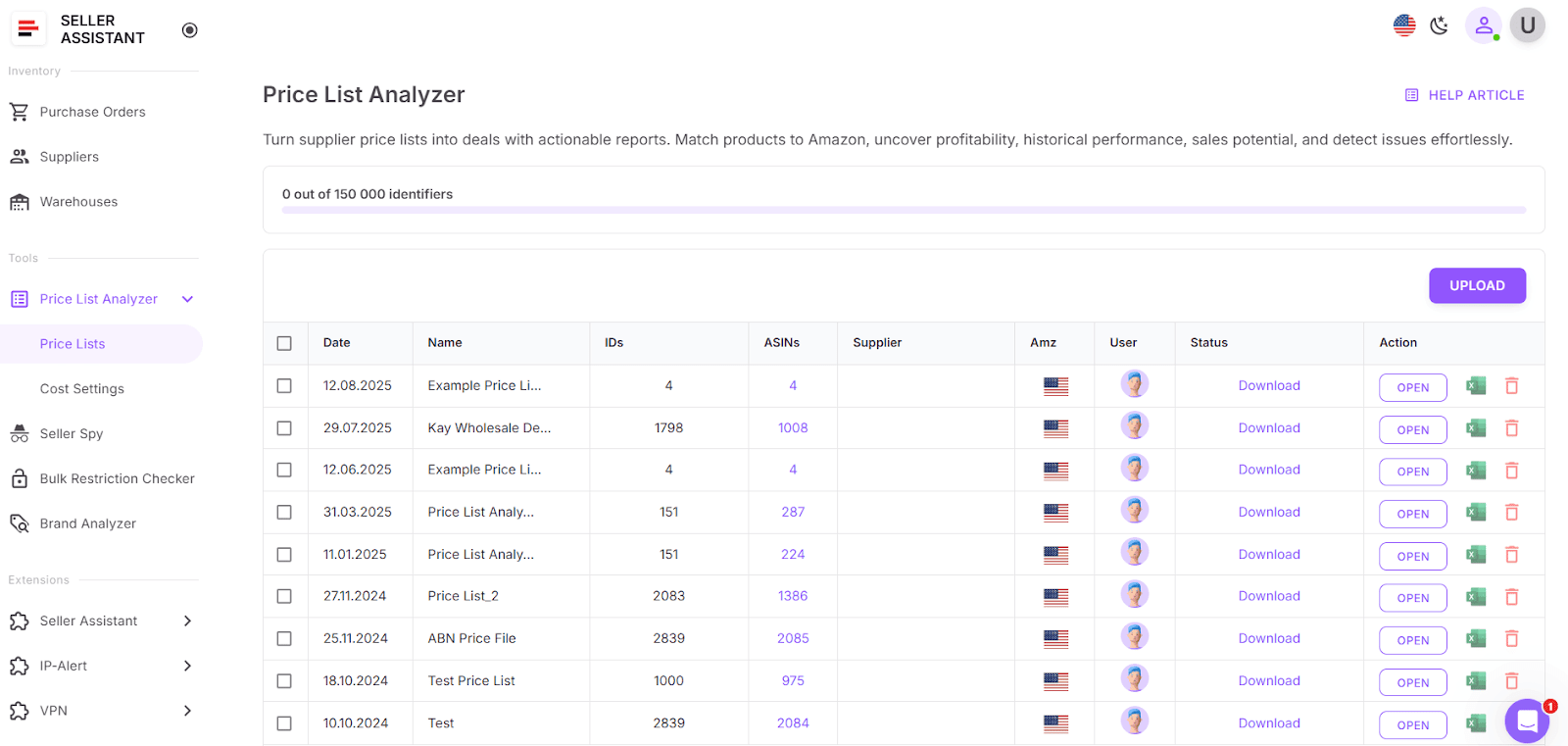
You can access the Price List Analyzer in your Seller Assistant personal account. From there, you can add your supplier price lists and download .xls files with the reports.
Analyzing supplier price lists with Price List Analyzer step-by-step
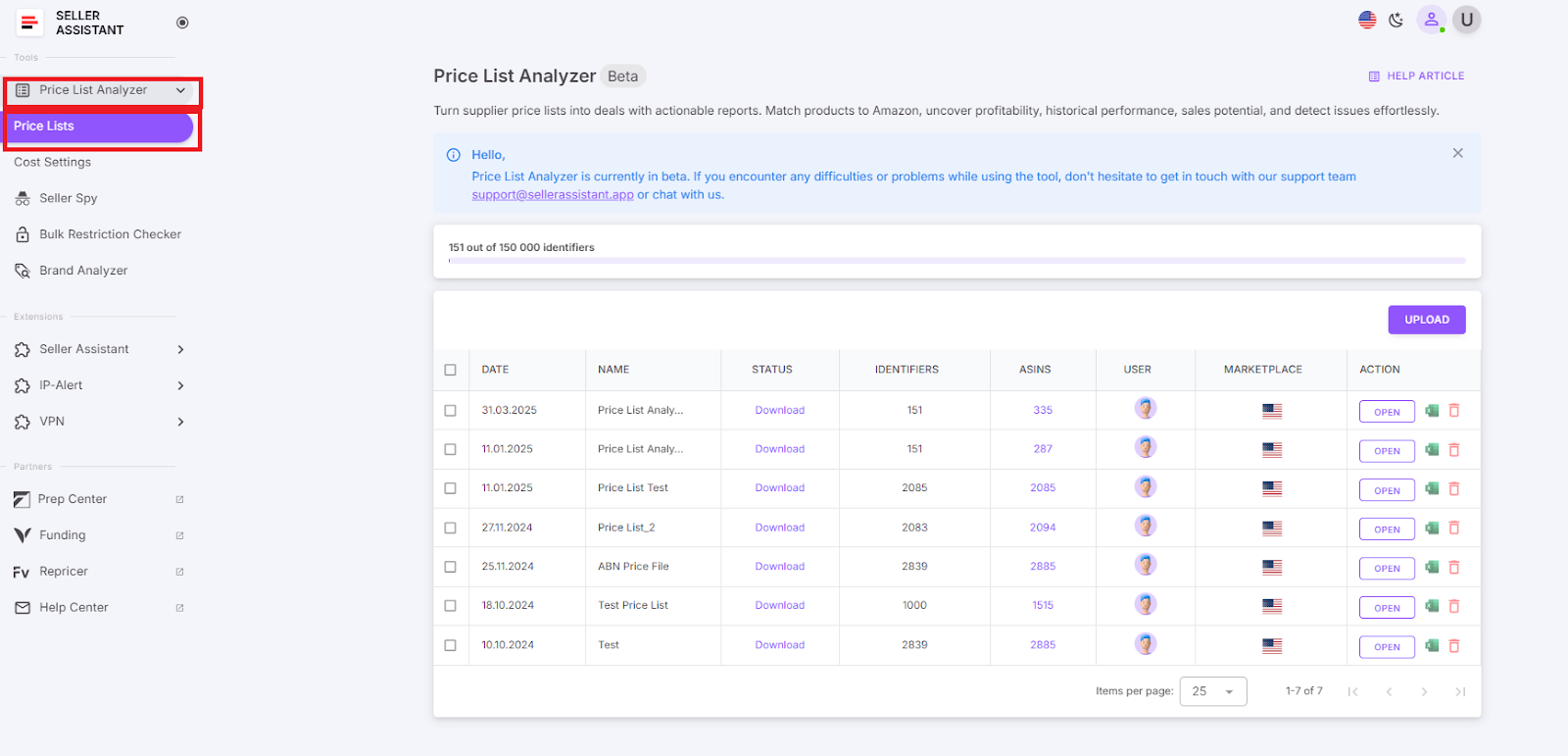
- Step 1. Access Price List Analyzer
Open your Seller Assistant personal account and access Price List Analyzer.
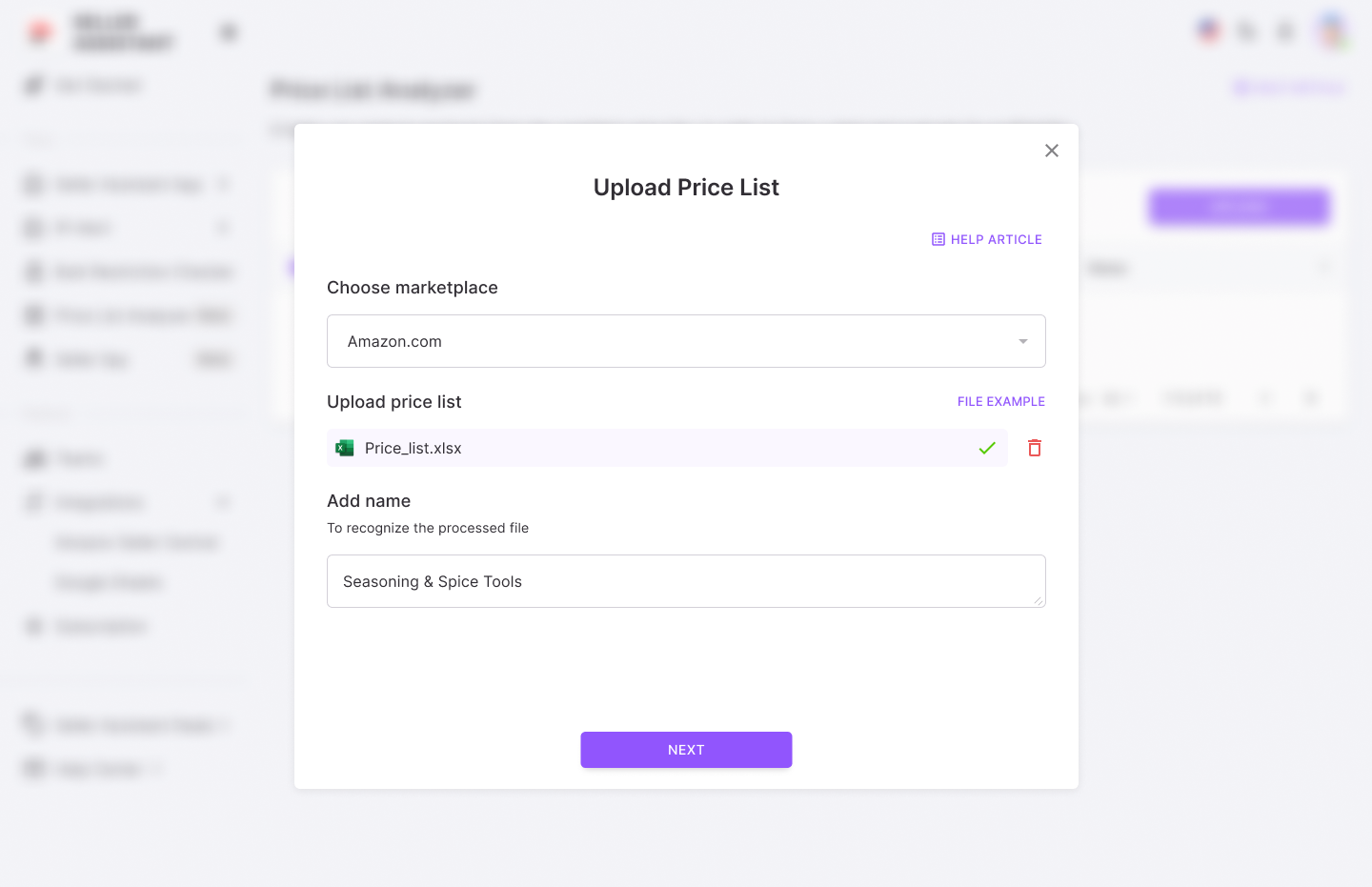
- Step 2. Upload your wholesale price list
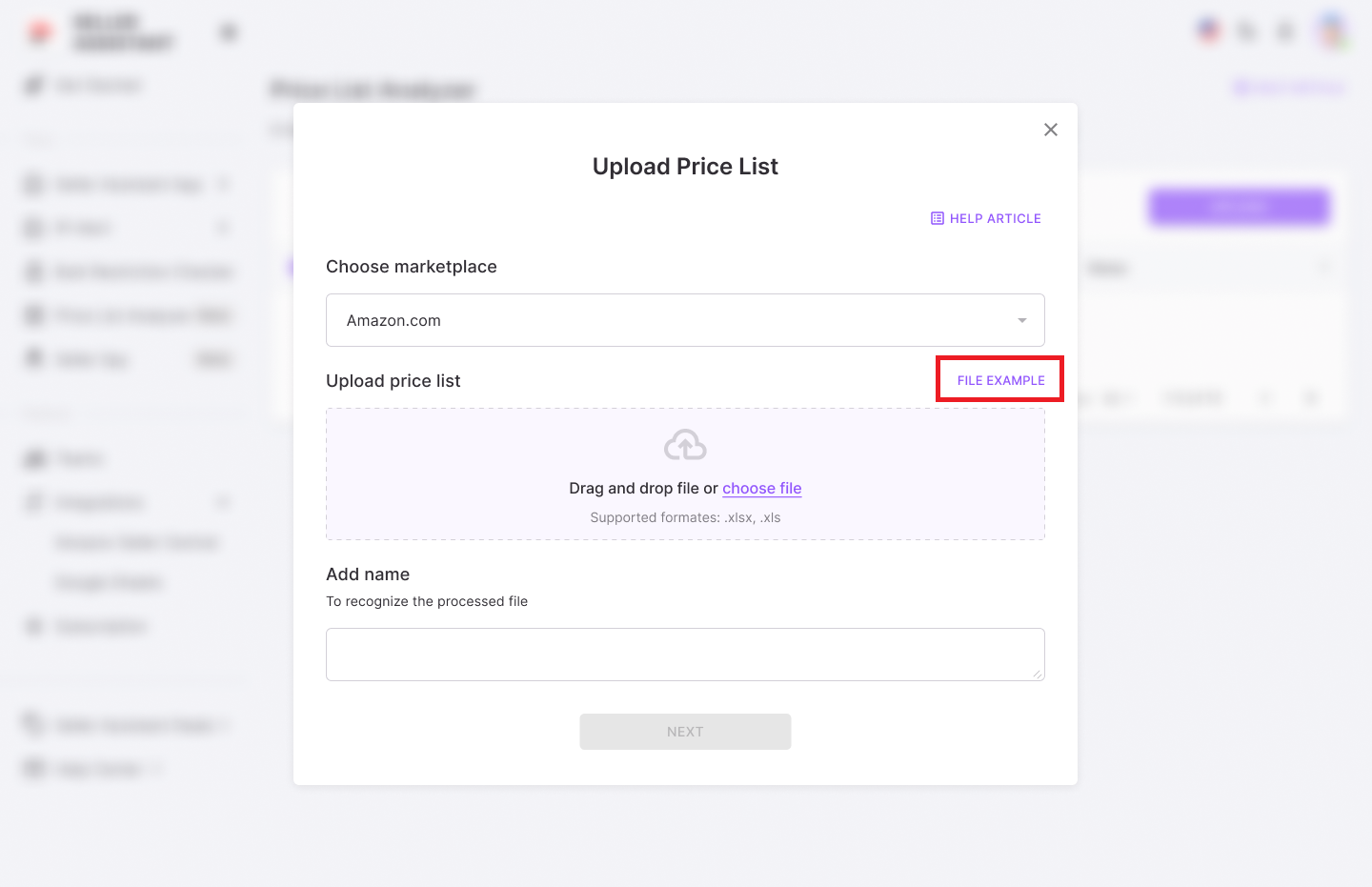
Click the “Upload” button, choose your marketplace, drag or select your prepared Excel file with a wholesale list, and add the file name to quickly spot the processed results.
- Step 3. Set up your wholesale list for processing
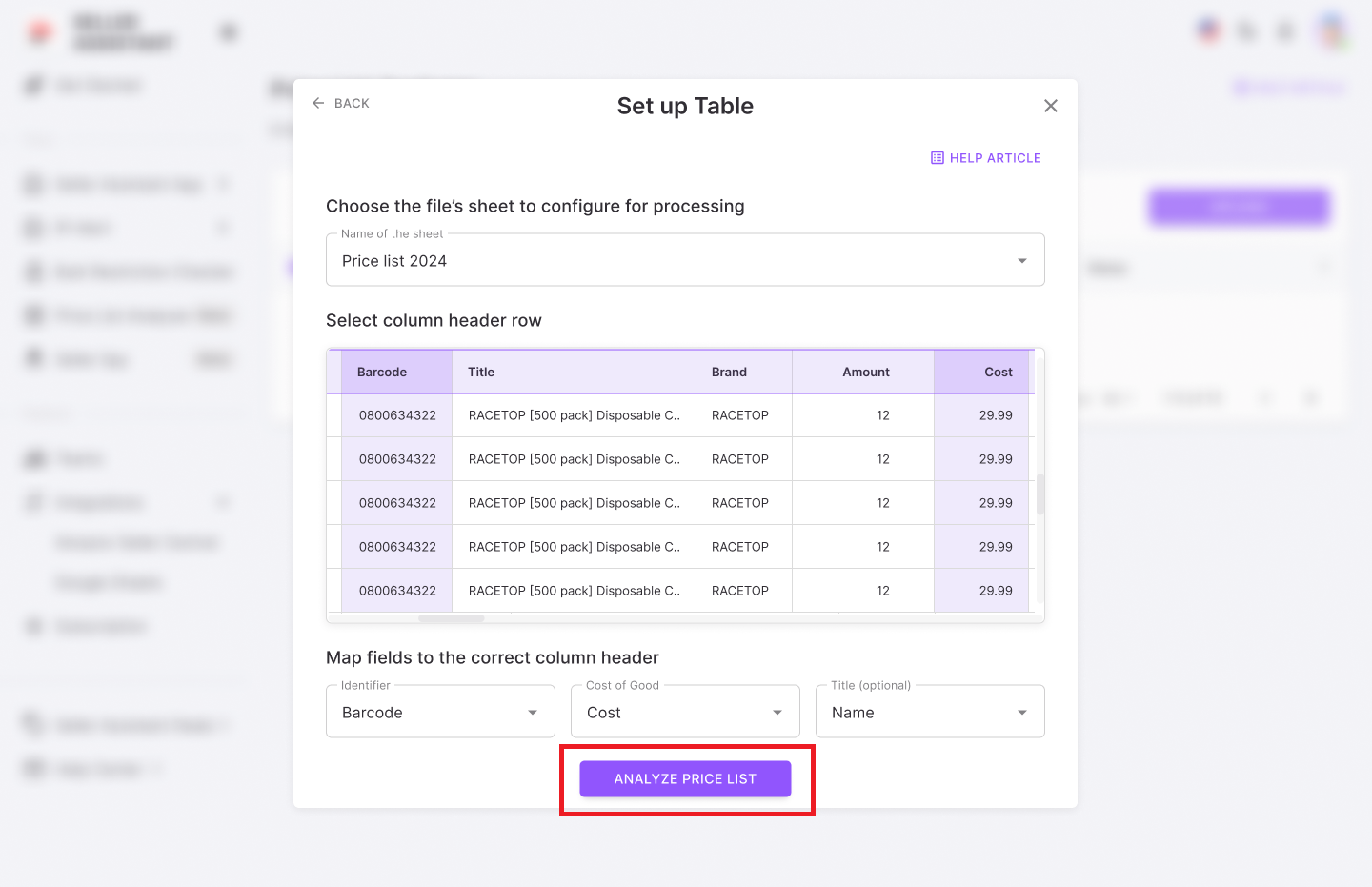
To ensure correct data display, it is important to map your wholesale list, choose the columns in your file with UPC/EAN, supplier price (COG), and product title (optional). Also, map the starting row for data processing.
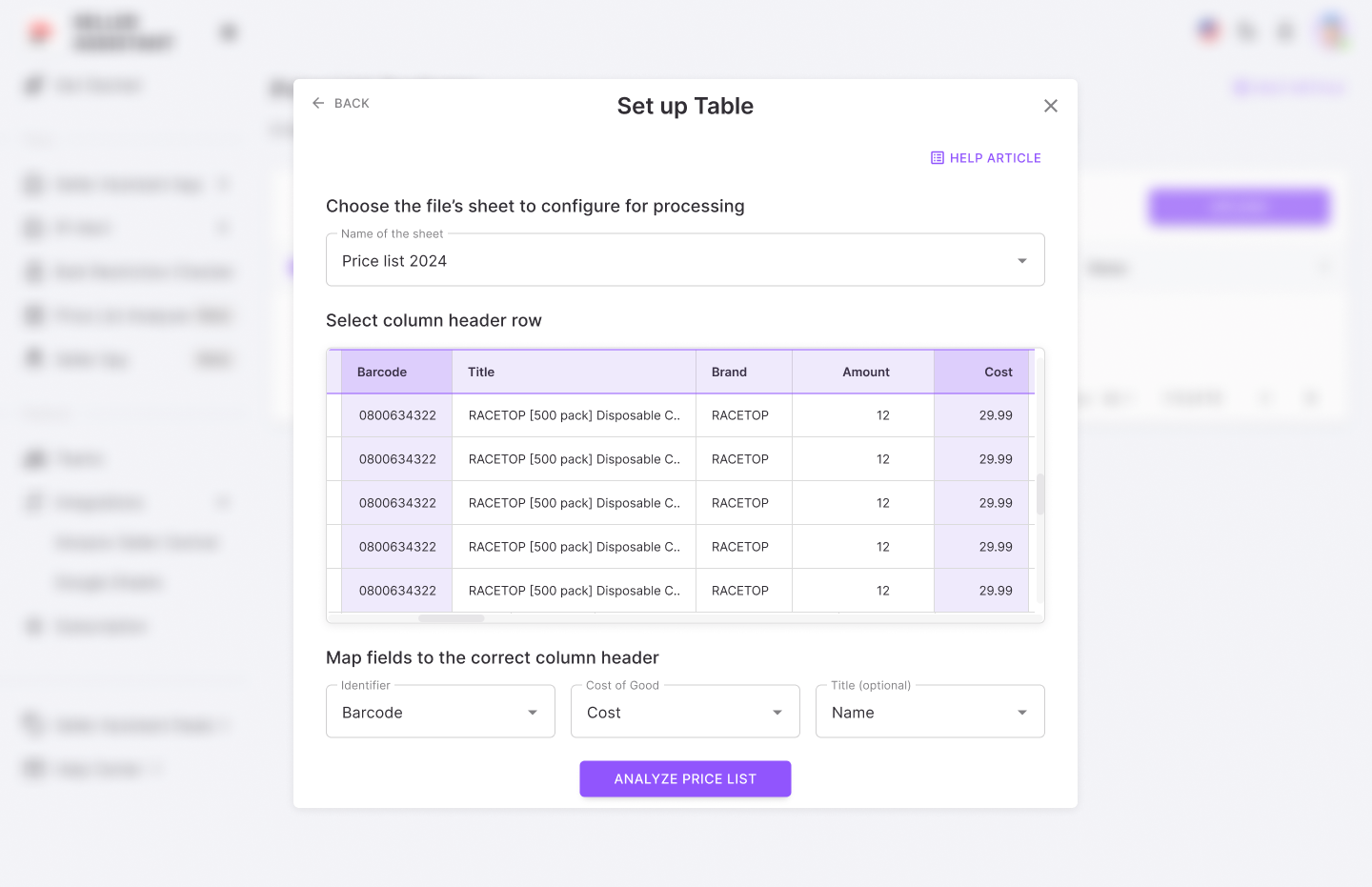
- Select the Excel file sheet
If your wholesale list has multiple sheets, in the dropdown, select the one you want to process.
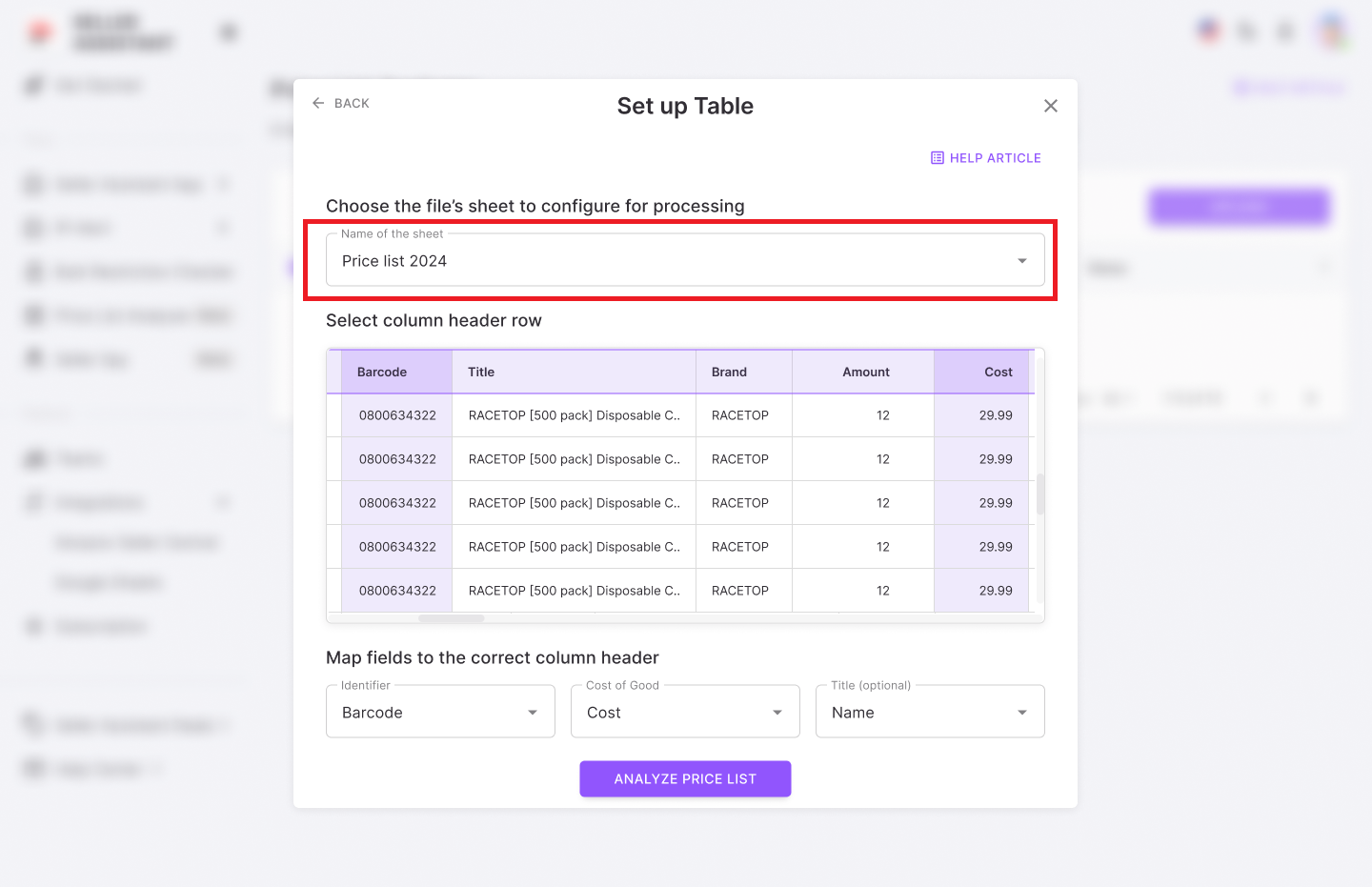
- Select the starting row for data processing
Price List Analyzer shows your table preview so that you can correctly map the table. Mark the first row in your table to start processing your data. The starting row must not be empty and must contain all data you want to process.
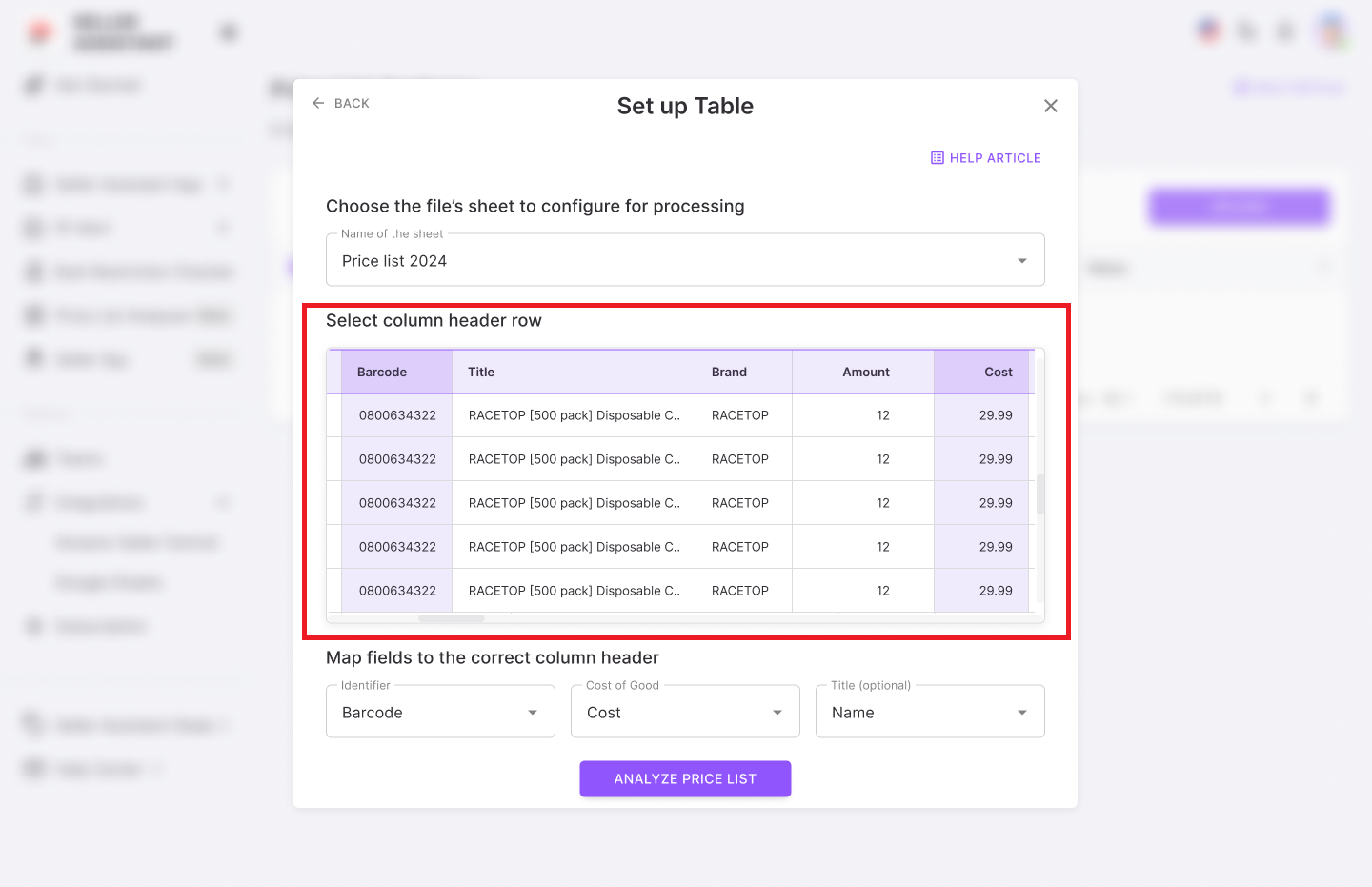
- Map the key column headers
Select the columns in your file containing the UPC/EAN codes, product prices, and titles (optional). The columns you must map are highlighted in the preview table. From the dropdown in the corresponding fields, choose your option:
- Identifier: “EAN,” “UPC,” “GTIN,” “Identifier,” or “Barcode”
- Cost of Goods: “Price,” “Cost,” or “COG”
- Title: “Name,” “Title,” ”Product,” or “Description.”
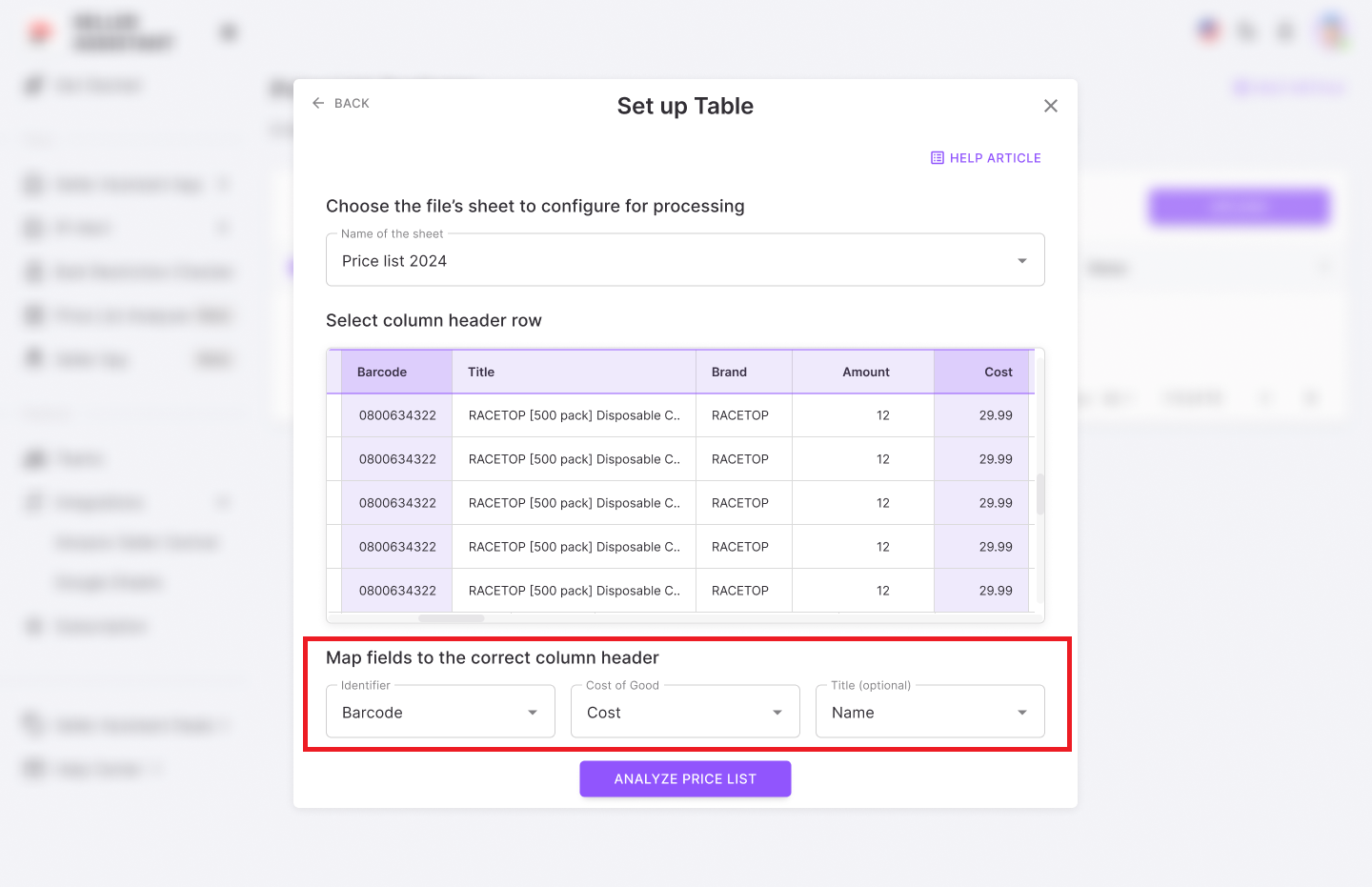
- Start price list processing
Click the “Analyze price list” button to start processing.
Note. To ensure you correctly map your wholesale list, do one of the following or both:
- Download the file example to see how it should look like
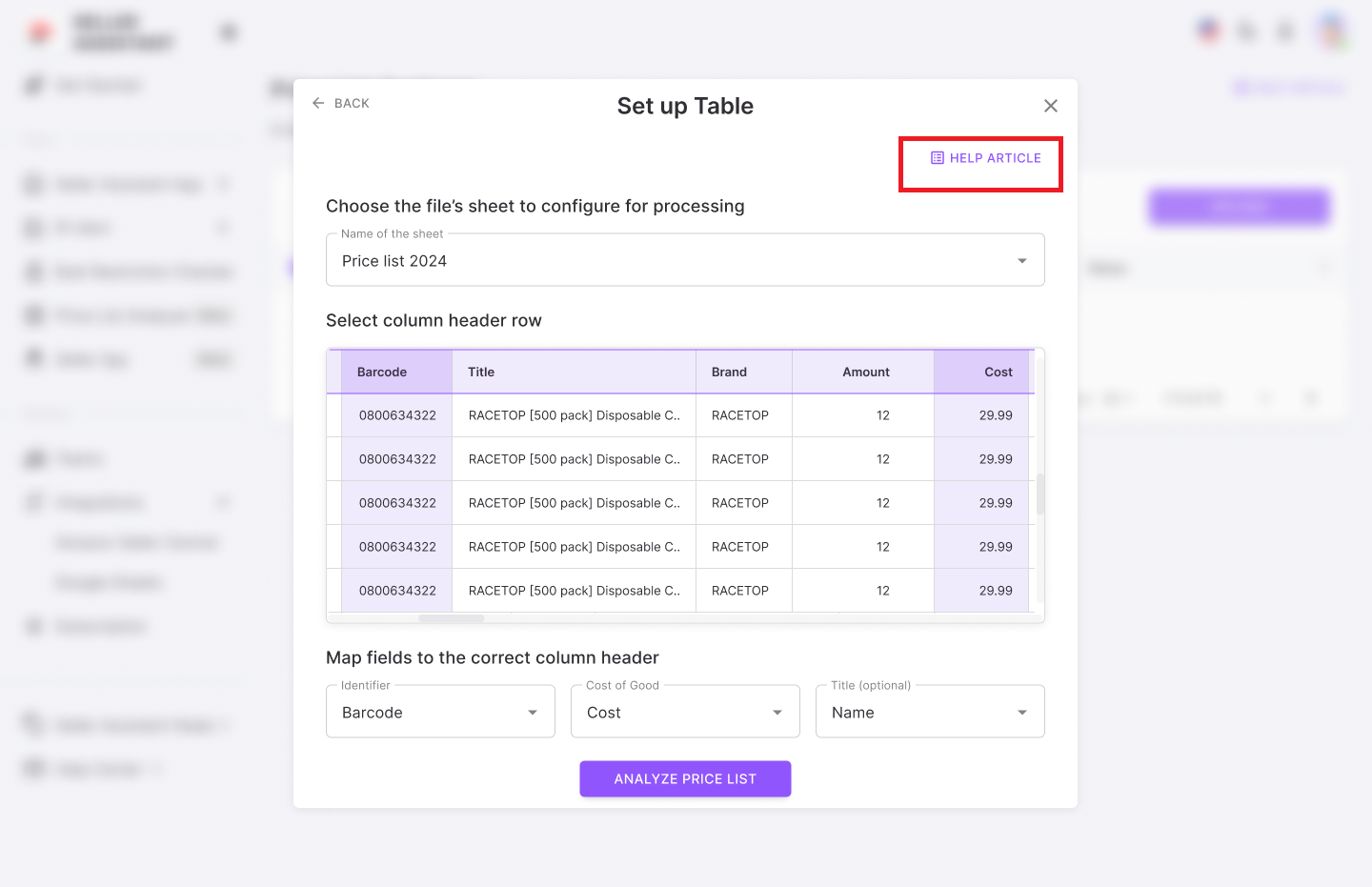
- Read the help article to ensure it’s mapped correctly.
-
.
-
Step 4. Get the Price List Analyzer results
Once the analysis is complete, you’ll receive a detailed UI table with all the metrics for each product. Edit the Download the .xls file with the report, if needed.
- Step 5. Verify product restrictions
Select one or more products and click the “Check Restrictions” button. Price List Analyzer will fetch restriction data for selected items.
- Step 6. Customize the UI table

Customize and save custom table layouts and filtering settings to reuse across different price lists. In the “Primary Dataset” dropdown select the option you require.
How to filter UI table data
When you get a UI table with comprehensive product data, you need to filter products to narrow your focus to only the deals that meet your profitability, sales, and compliance criteria. Instead of wasting time scrolling through irrelevant or risky products, filters help sellers zero in on high-ROI deals, popular products, or listings that require extra review.
Here’s how to use the filters available to easily identify the best deals step by step.
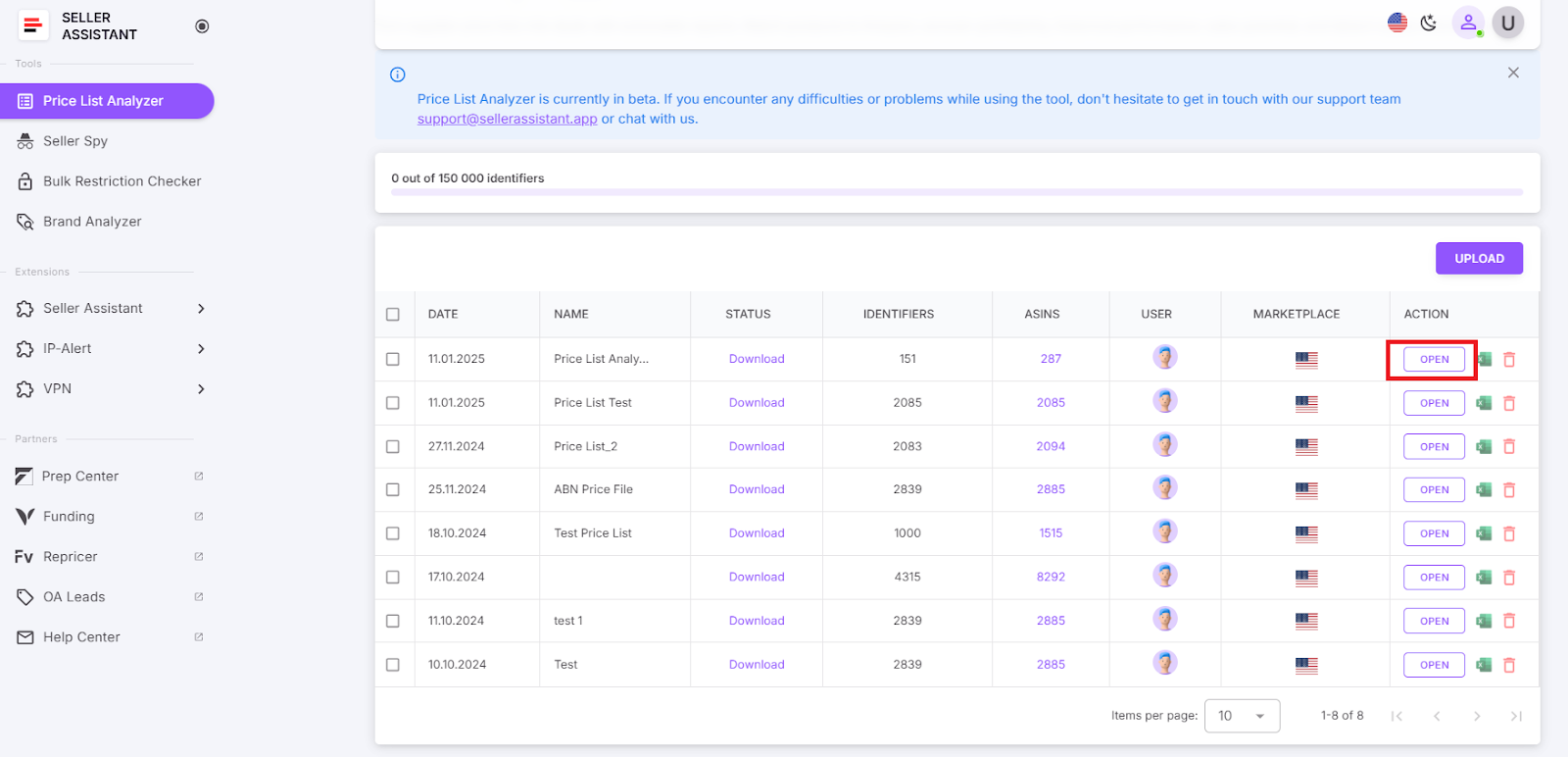
- Step 1. Open your processed file
Locate and open the processed price list in your Seller Assistant account. Ensure that all product data has been successfully analyzed.
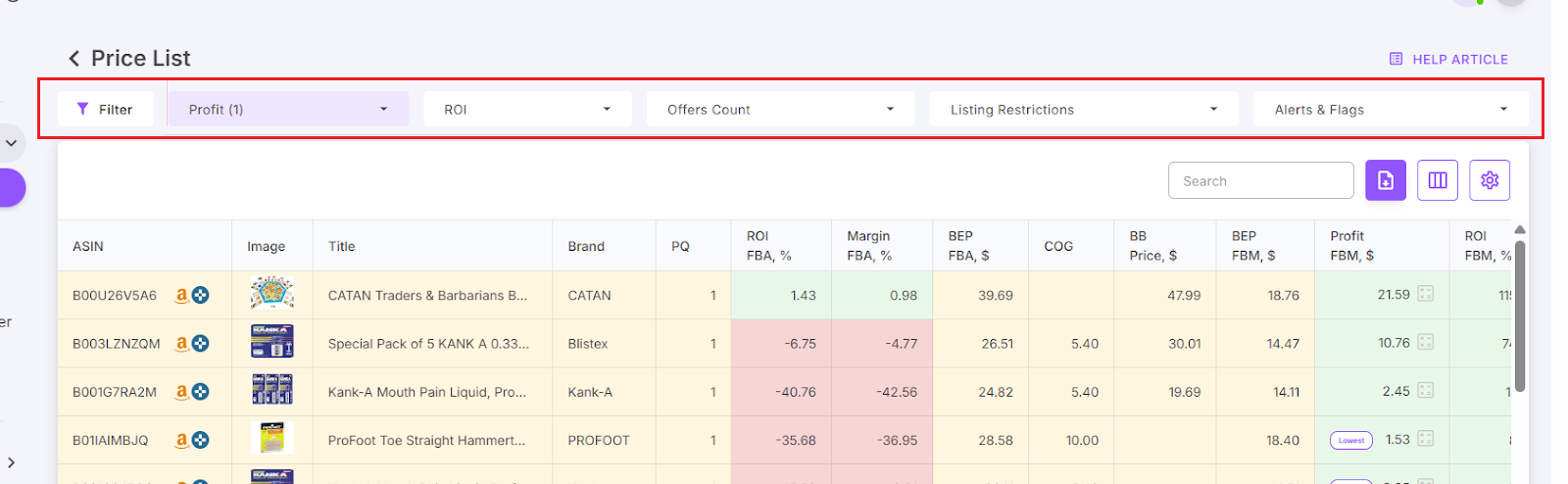
- Step 2. Locate the filters feature and open the filter modal
At the top of the file, find the Filters option.
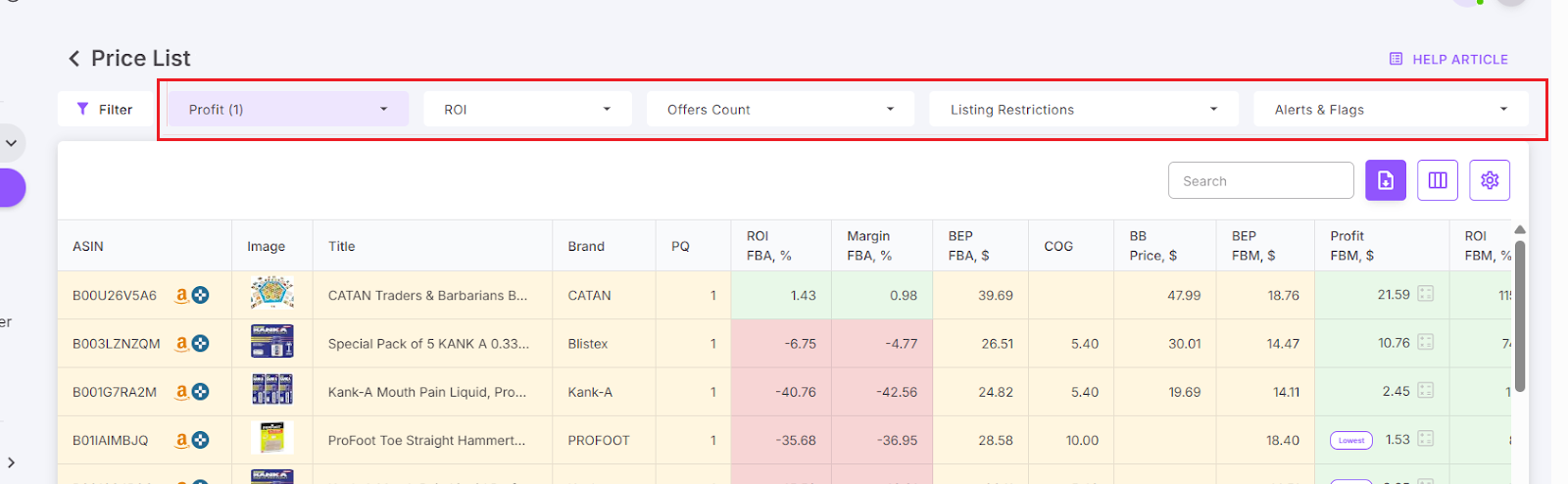
- Step 3. Configure your filters
- You can either apply Quick Access Filters
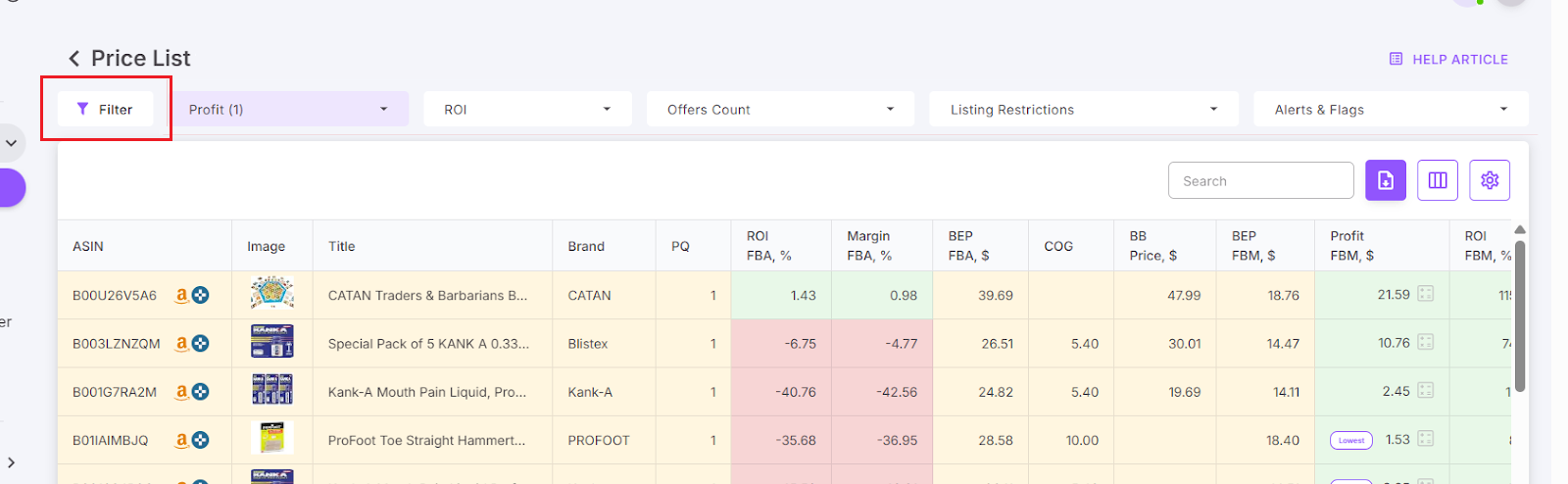
- Or customize your filters based on key product metrics to refine your search
- Step 4. To use Quick Access Filters
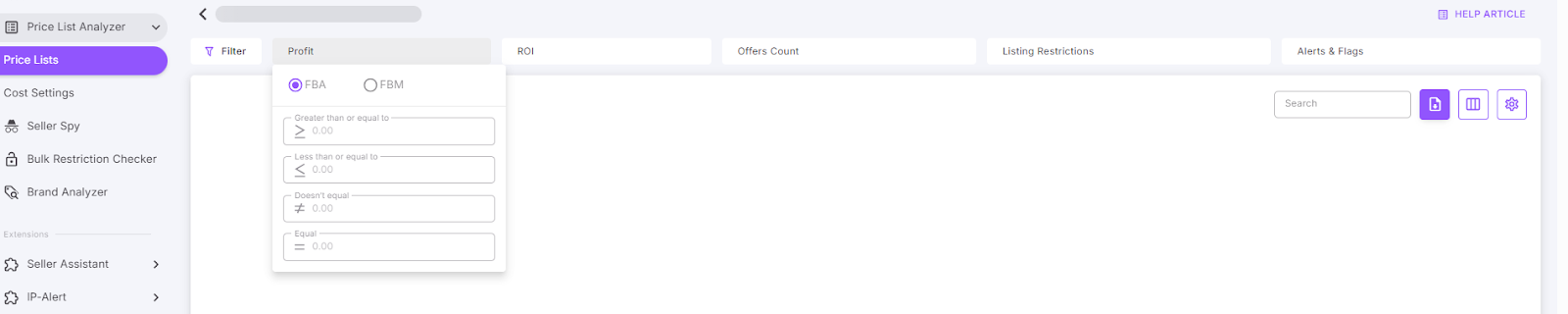
At the top of the price list, access Quick Access Filters for high-priority indicators like Profit, ROI, Offers Count, Alerts & Flags, and Listing Restrictions.
- Click any of these to open pre-selected filters instantly.
-
Adjust values as needed and apply – no need to search manually.
-
Step 5. Customize your filters to choose products by desired metrics
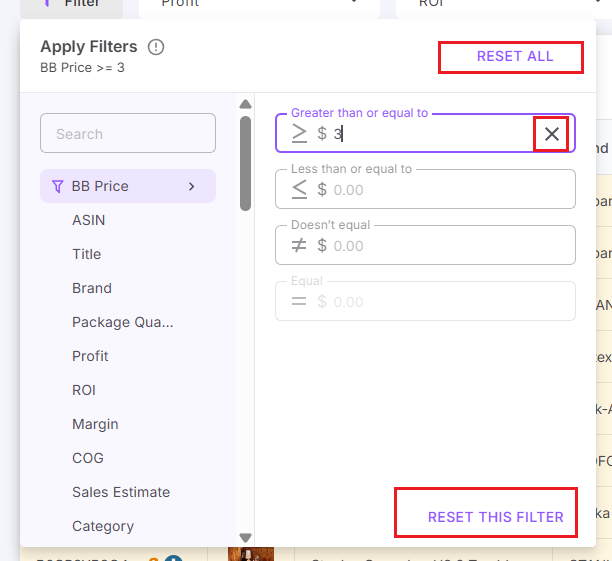
- Click the “Filter” button in your Price List Analyzer interface. This opens the filter modal to customize filters. You can use different types of filters (e.g., numeric, text, size, alerts).
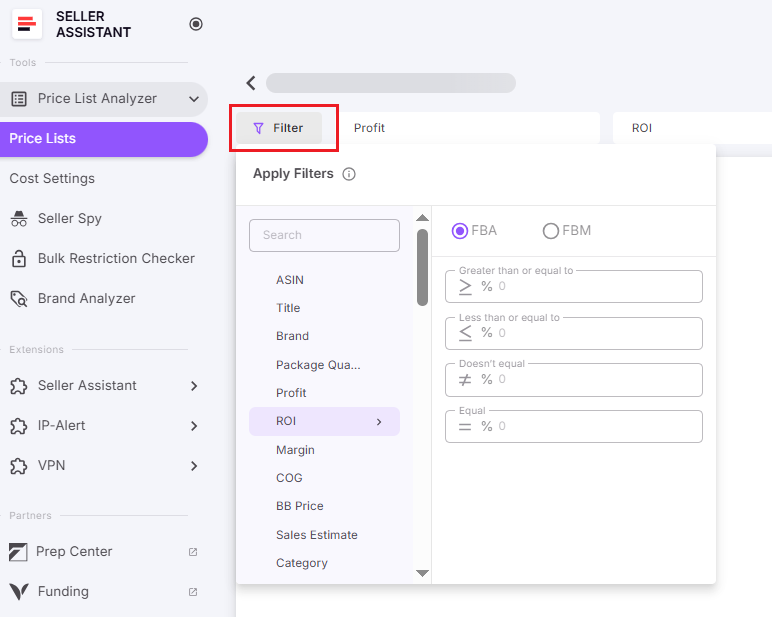
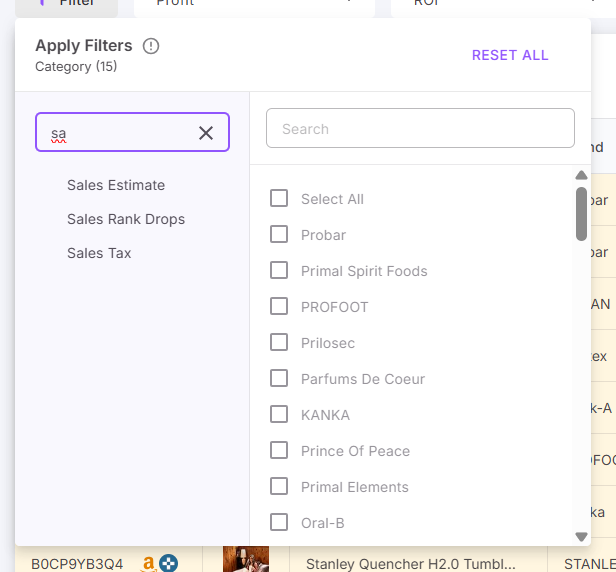
- Choose the metric you want to filter or search for a specific filter field (metric) using the built-in search bar.
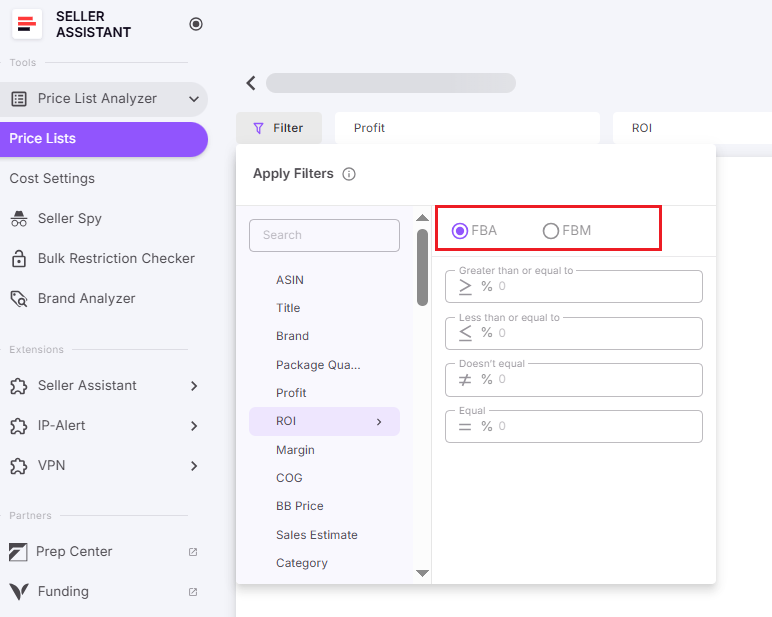
- Select fulfillment method: FBA or FBM (where applicable).
- Step 6. Enter custom data to configure different types of filters
- Numeric filters (e.g., Profit, ROI, Ratings):
- Use % for ROI/Margin, $ for profit/cost, plain numbers for quantity.
- Numeric filters (e.g., Profit, ROI, Ratings):
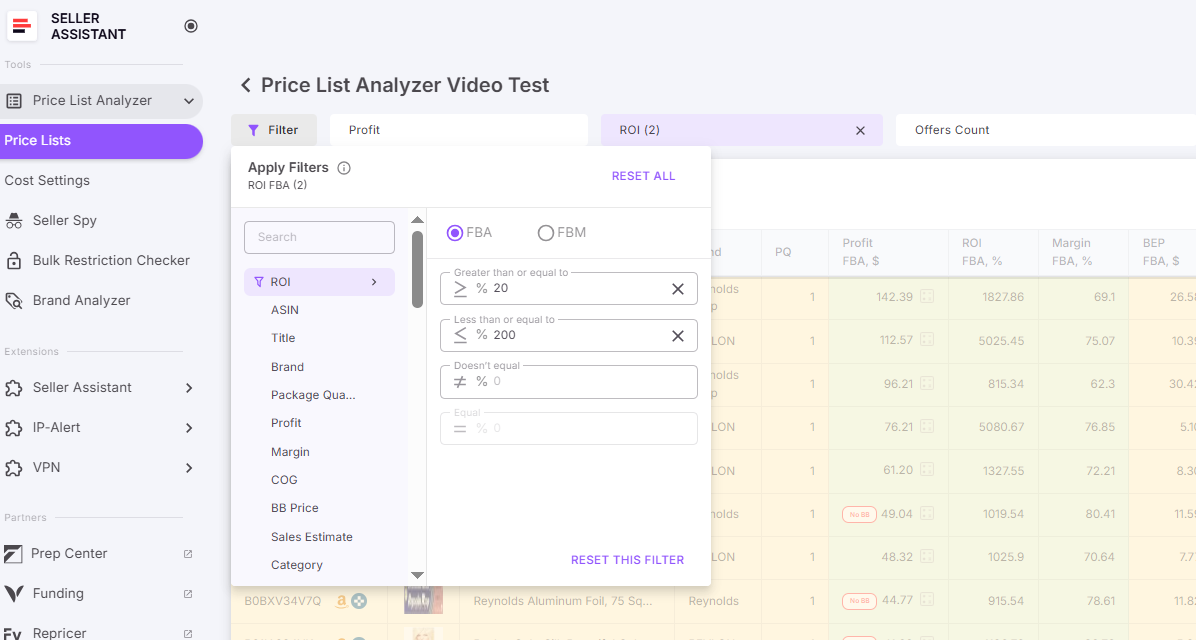
- Combine conditions like “greater than” and “less than”.
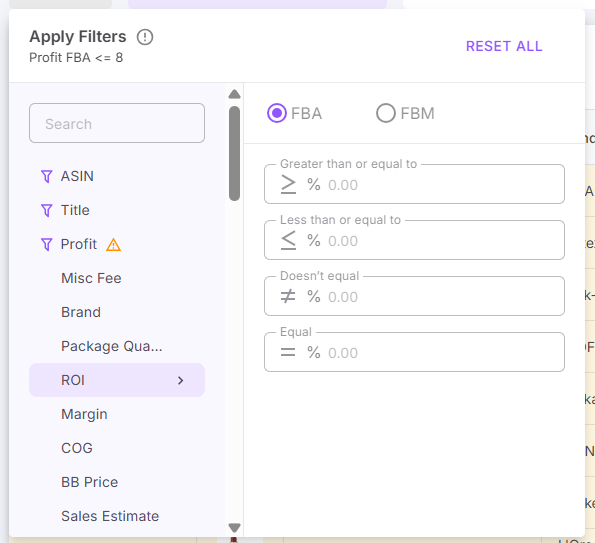
- “Equal” must be used alone.
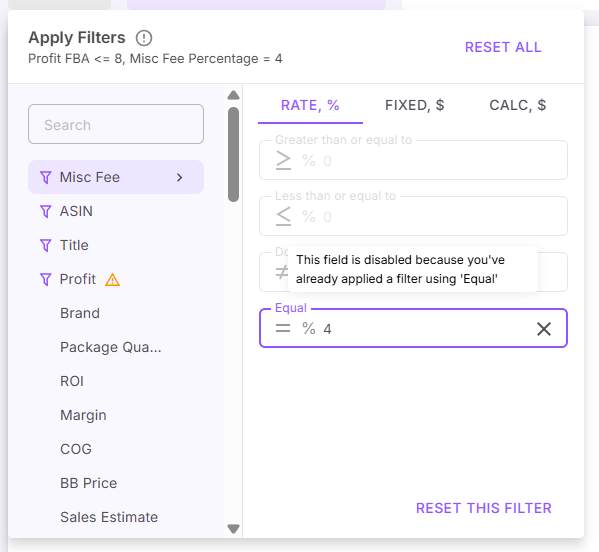
- Filter across multiple tabs (e.g., 30d, 90d, 180d) at the same time.
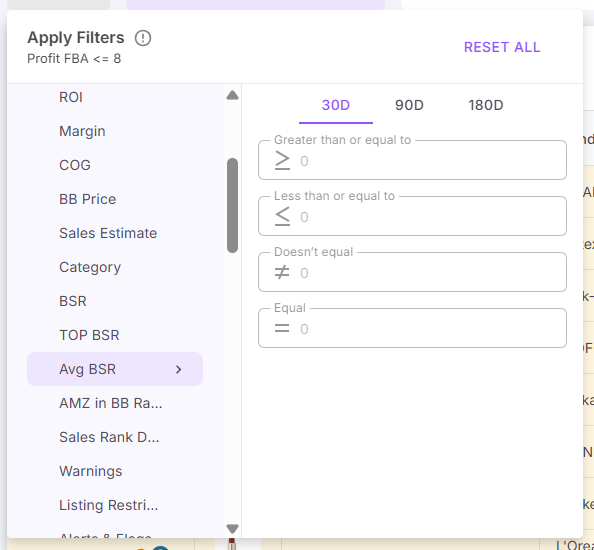
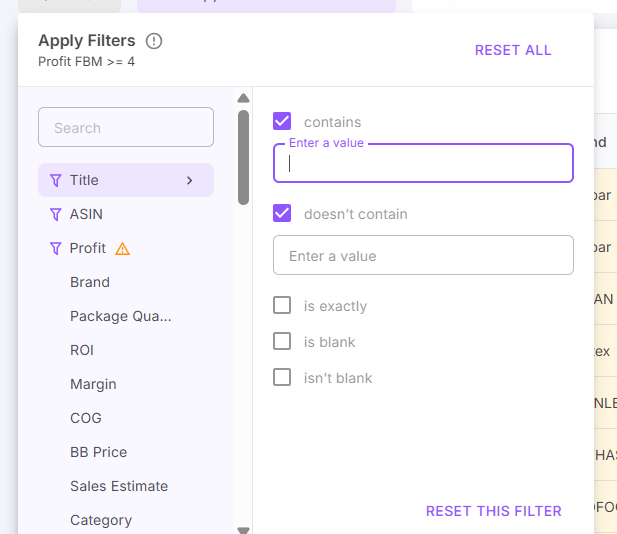
- Text & ID Filters (e.g., ASIN, Title):
- Use “contains”, “doesn’t contain”, “is exactly”, or “is blank”.
-
You can combine “contains” and “doesn’t contain”; but “is exactly” must be used alone.
-
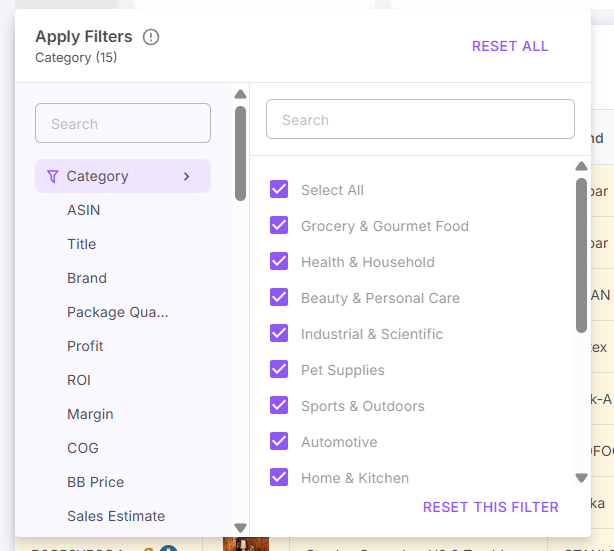
Category & Brand:
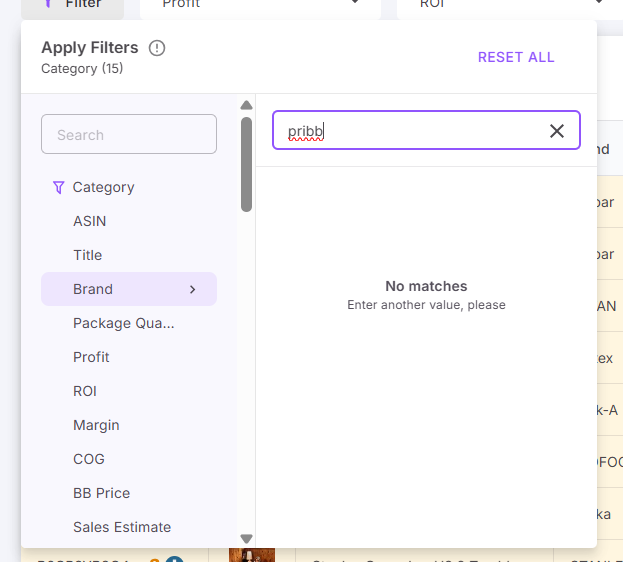
- Use checkboxes with a search field to quickly find matching values from the file.
- Select brands via search
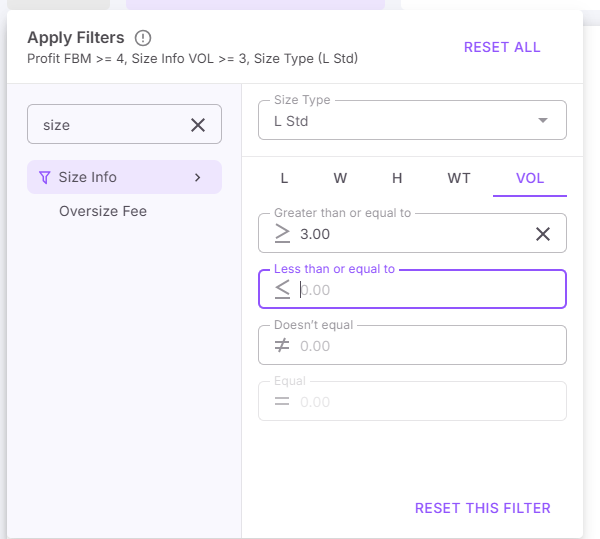
- Size filters:
- Filter by tier (e.g., Small Standard) or exact dimensions (L/W/H/Weight/Volume).
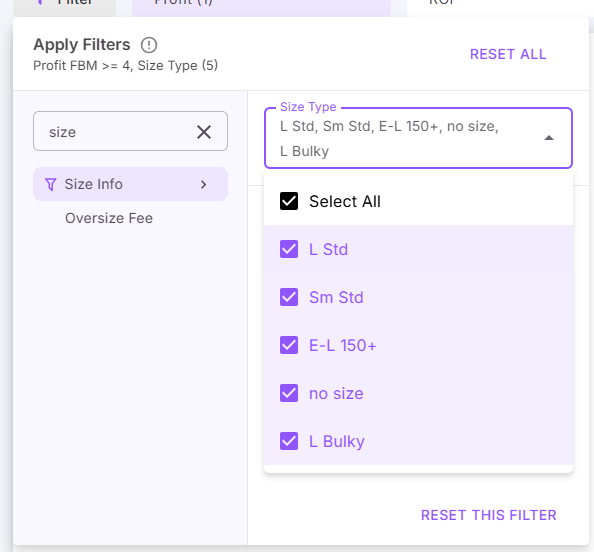
- Use tabs to enter exact dimensions.
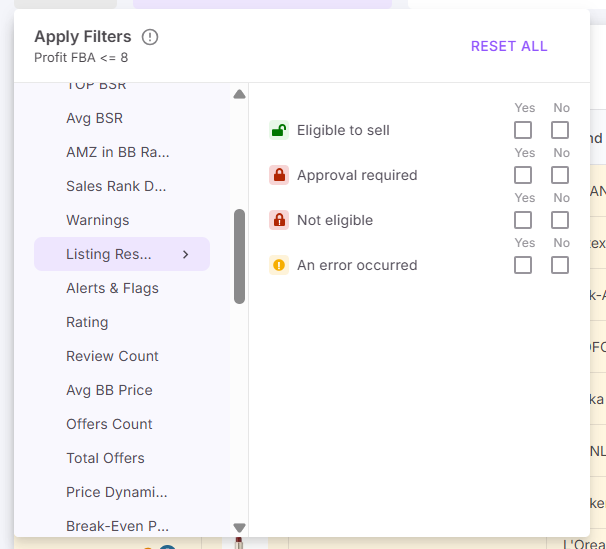
- Alerts, Flags, Warnings:
- Use Yes/No checkboxes to include or exclude listings with:
- Listing Restrictions
- Warnings (e.g., IP, HazMat, no COGs, no Buy Box)
- Use Yes/No checkboxes to include or exclude listings with:
- Help tooltips
Use the Info icon next to “Apply Filters” for helpful tooltips on combinations, logic, and field types.
- Step 7. Understand filter feedback
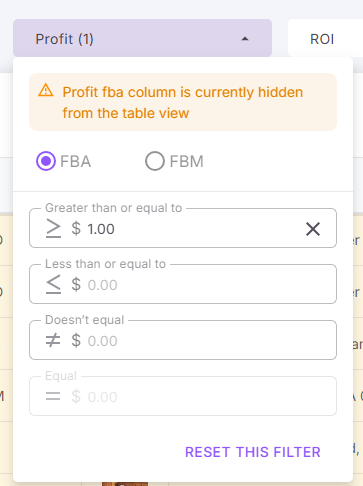
If you apply filters to columns that aren’t currently visible:
- A warning icon appears next to the filter title.
-
Hover over it to see which columns are hidden.
-
Step 8. View and manage active filters
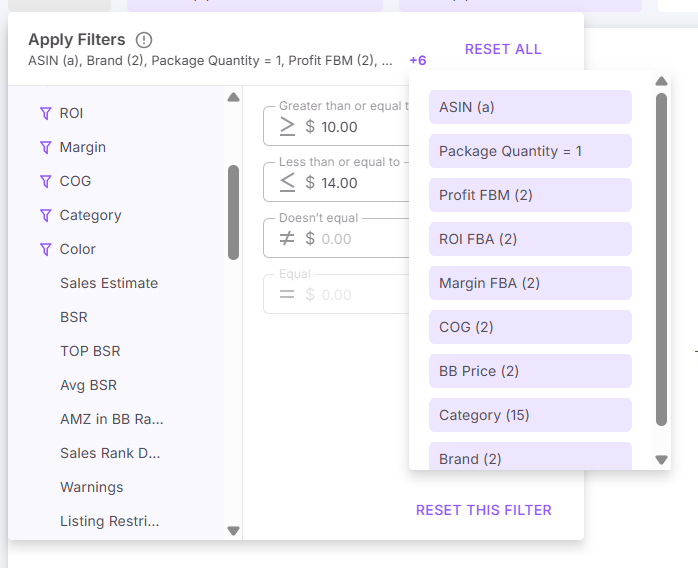
- At the top of the modal, you’ll see a summary of active filters. It shows the field name, model, timeframe, type, and value.
- If space is limited, you’ll see a “+N” indicator – hover to view the full list of applied filters.
- Step 9. Reset filters if needed
- If no results match your filters, you’ll see a “No results” message and a Reset Filters button.
- Click “Reset All” to remove all filters.
- Or, reset a specific filter using the “X” next to its field.
How to Save Table Views
After you’ve set up your filters, you can save custom table layouts and filtering settings to reuse across different price lists. Views are shared across the team (team members and owners alike can create, apply, and delete views). The last active view is unique to each user, maintaining a personalized experience.
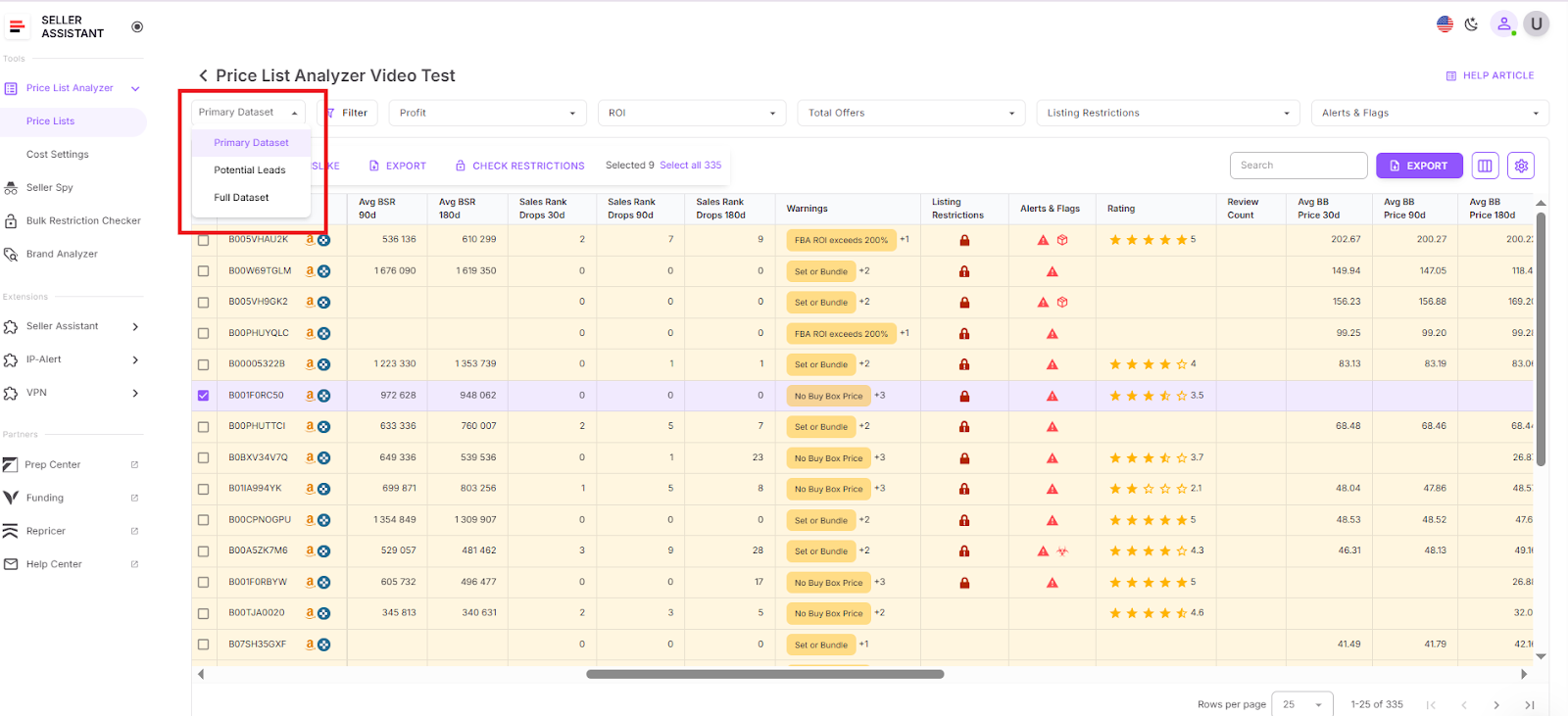
After you’ve set up your filters, you can save custom table layouts and filtering settings to reuse across different price lists
Pre-built table views
- Full Dataset
- All columns shown
- Sorted by Profit FBA (high to low)
- Primary Dataset
Default columns, with FBM-related, prep, VAT/DSF, and misc. fields hidden
- Potential Leads
- Same column layout as Primary Dataset
- Filters applied:
- BSR ≤ 100,000
- Profit FBA ≥ $2
- ROI FBA ≥ 20%
- Sales Est. ≥ 5 pcs/mo
- AMZ in BB = false
How to configure cost settings step-by-step
Step 1. Open Price List Analyzer
In your Seller Assistant account, open Price List Analyzer > Settings.
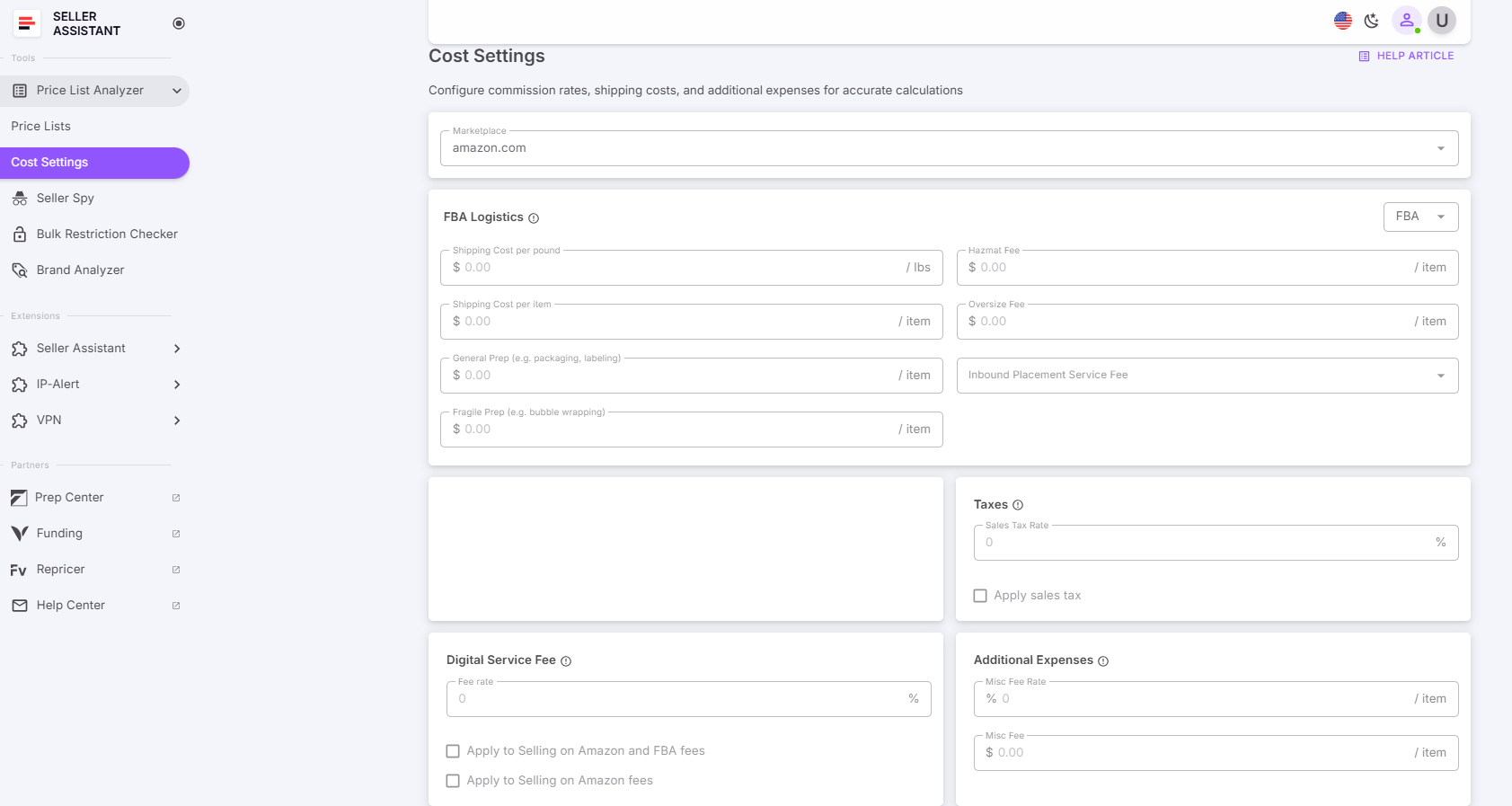
Open Price List Analyzer
Step 2. Select your fulfillment method
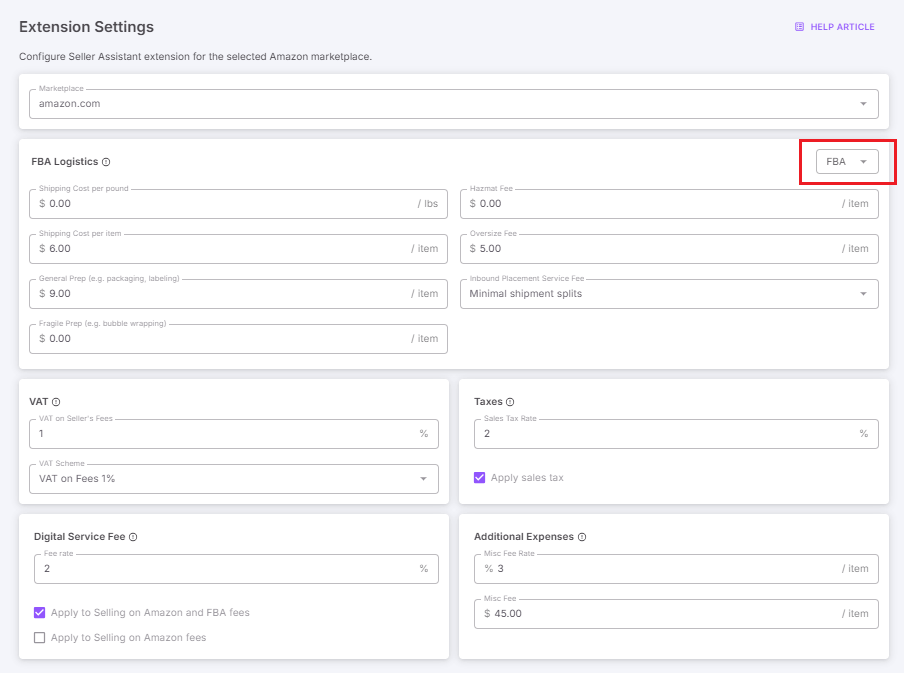
Select your fulfillment method
Step 3. Add your custom cost settings
Add your logistics costs, sales tax (if applicable), VAT (if applicable), and Digital Services Fee (if applicable), hazmat fee (if applicable), additional expenses (fixed cost per item or a percentage of COG via “Misc Fee Rate”), and tick boxes where necessary. The settings will apply to all relevant products in the price list UI table and downloadable spreadsheet.
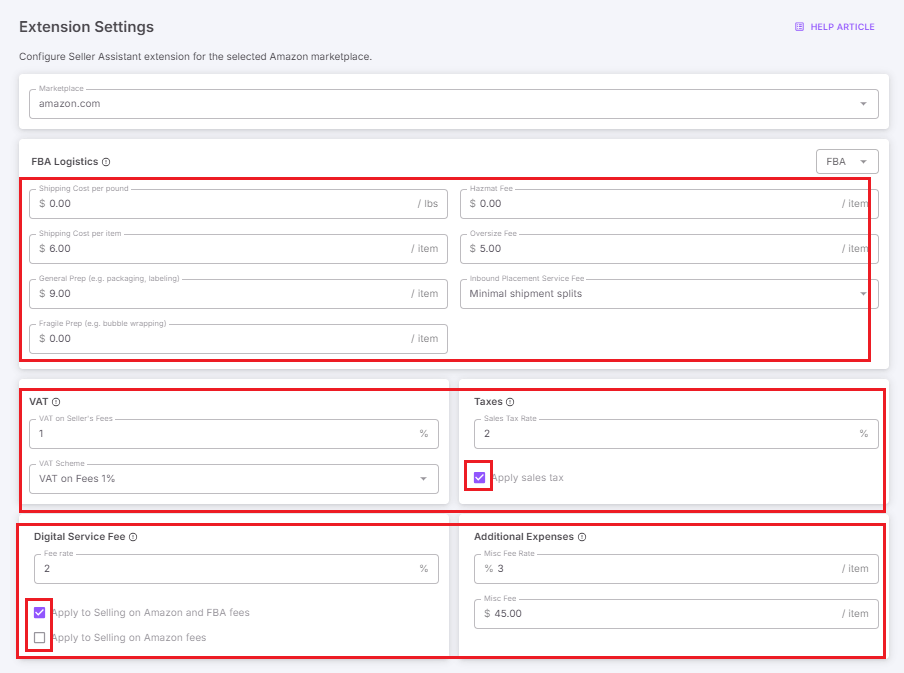
Add your logistics costs, sales tax (if applicable), VAT (if applicable), and Digital Services Fee (if applicable), hazmat fee (if applicable), additional expenses (fixed cost per itemor a percentage of COG via “Misc Fee Rate”), and tick boxes where necessary.
Step 4. Review the cost settings
You can view your current cost settings in the UI table and in your personal account
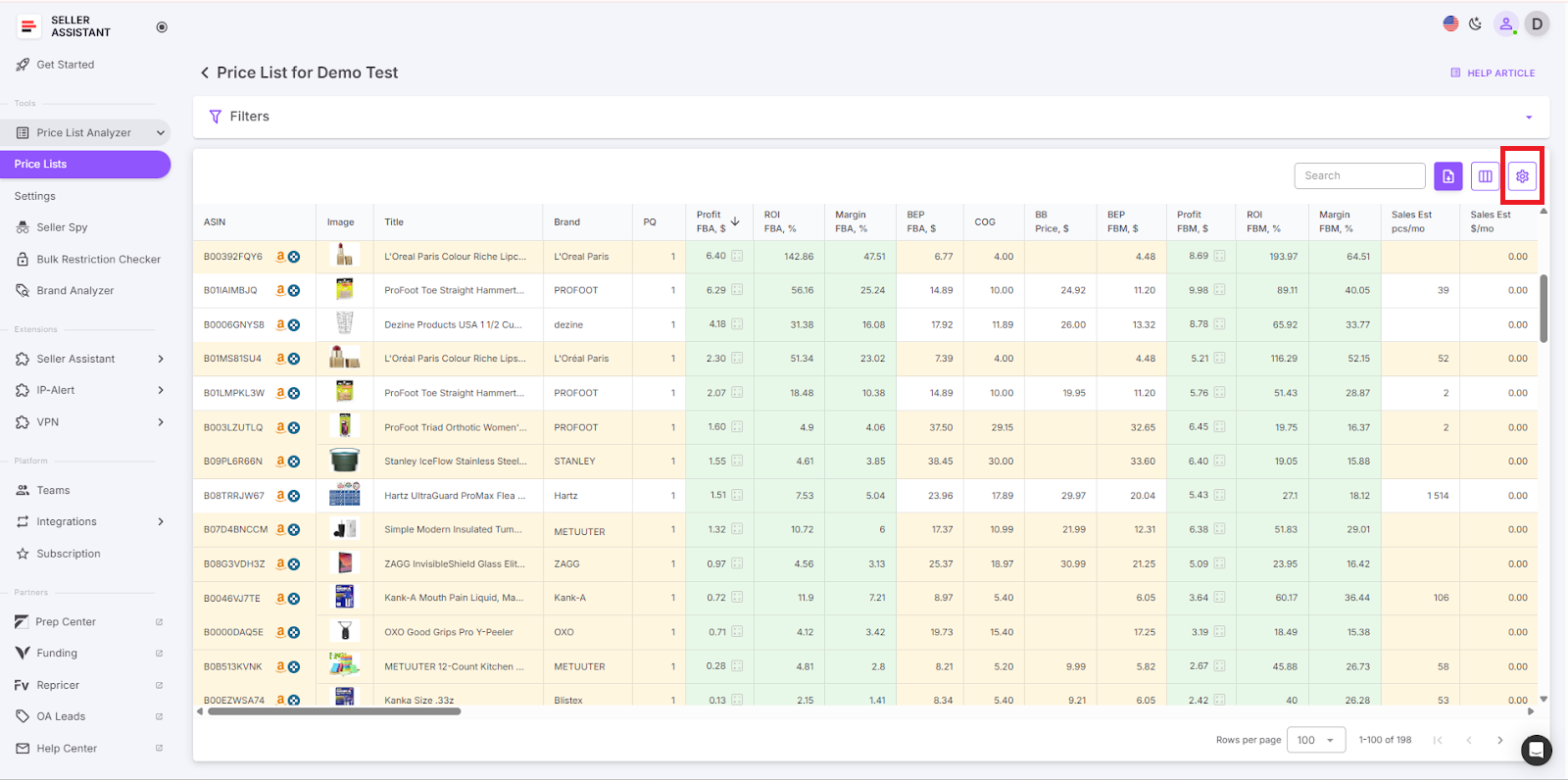
Price List Analyzer
FAQ
What is the Price List Analyzer and how does it work?
The Price List Analyzer is a tool designed for Amazon sellers to analyze supplier price lists quickly and efficiently. It converts UPC or EAN codes into Amazon ASINs and calculates key metrics like profit, ROI, and various fees to help sellers identify the most profitable products.
What file formats does the Price List Analyzer support?
The Price List Analyzer supports Excel (.xlsx) and .csv file format. Before uploading, make sure your file has columns clearly labeled for UPC/EAN codes and product prices.
What metrics does the Price List Analyzer calculate?
The tool calculates several important metrics, including Buy Box price, FBA fees, referral fees, storage fees, profit, ROI, and Best Sellers Rank (BSR). These metrics provide a comprehensive view of a product’s profitability and market performance.
Can I use the Price List Analyzer for wholesale?
Yes, the Price List Analyzer is useful for wholesale. You can upload price lists from your suppliers and the tool will automatically show you profitable deals. That helps make informed decisions on which products to sell.
How can I ensure my analysis is accurate?
To ensure accurate analysis, make sure to upload a file with correctly labeled columns for UPC/EAN codes and prices. Verify that the data you input is up-to-date and reflects current market conditions for the most reliable results.
Final Thoughts
As an Amazon seller, it is important to constantly add new products. However, selecting profitable deals from thousands of products in your supplier price list is quite a challenge.
Seller Assistant’s Price List Analyzer can automate this process, allowing you to quickly identify the most high-margin products in your supplier list.