


Amazon’s FBA program takes the hassle out of shipping and fulfillment – but it also comes with a price tag. If you don’t know exactly how those fees are calculated, you could be losing profit without realizing it.
From storage costs to fulfillment and referral fees, every charge impacts your bottom line.
This post will walk you through how FBA fees work, how to calculate them, and how to make smarter sourcing decisions as a result. Whether you’re just getting started or already selling at scale, understanding your FBA costs is non-negotiable.
What Are Amazon FBA Fees?
Amazon FBA fees are the costs sellers pay to use Amazon’s fulfillment network. These fees cover the platform’s services – from storing your products in Amazon’s warehouses to picking, packing, shipping orders, and handling customer service. While FBA helps automate logistics and scale your business, understanding the types of fees involved is critical to staying profitable.
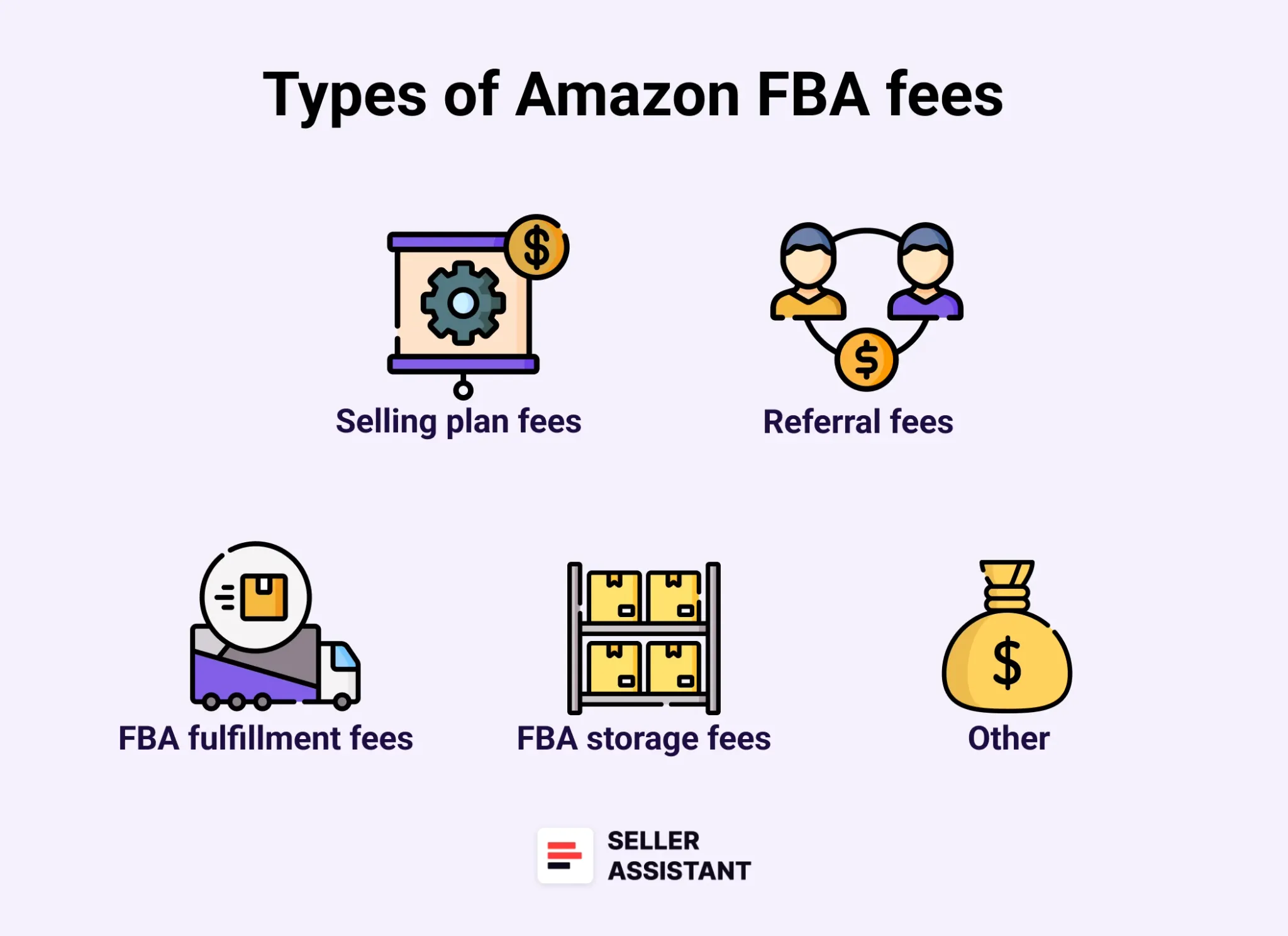
Core categories of Amazon FBA fees
Core categories of Amazon FBA fees
- Selling plan fees
- Referral fees
- FBA Fulfillment fees
- Storage fees
- Prep and shipping costs.
In addition to these, several other specific fees can apply depending on your inventory size, product type, or business model. Here’s a detailed breakdown of each.
Selling plan fees
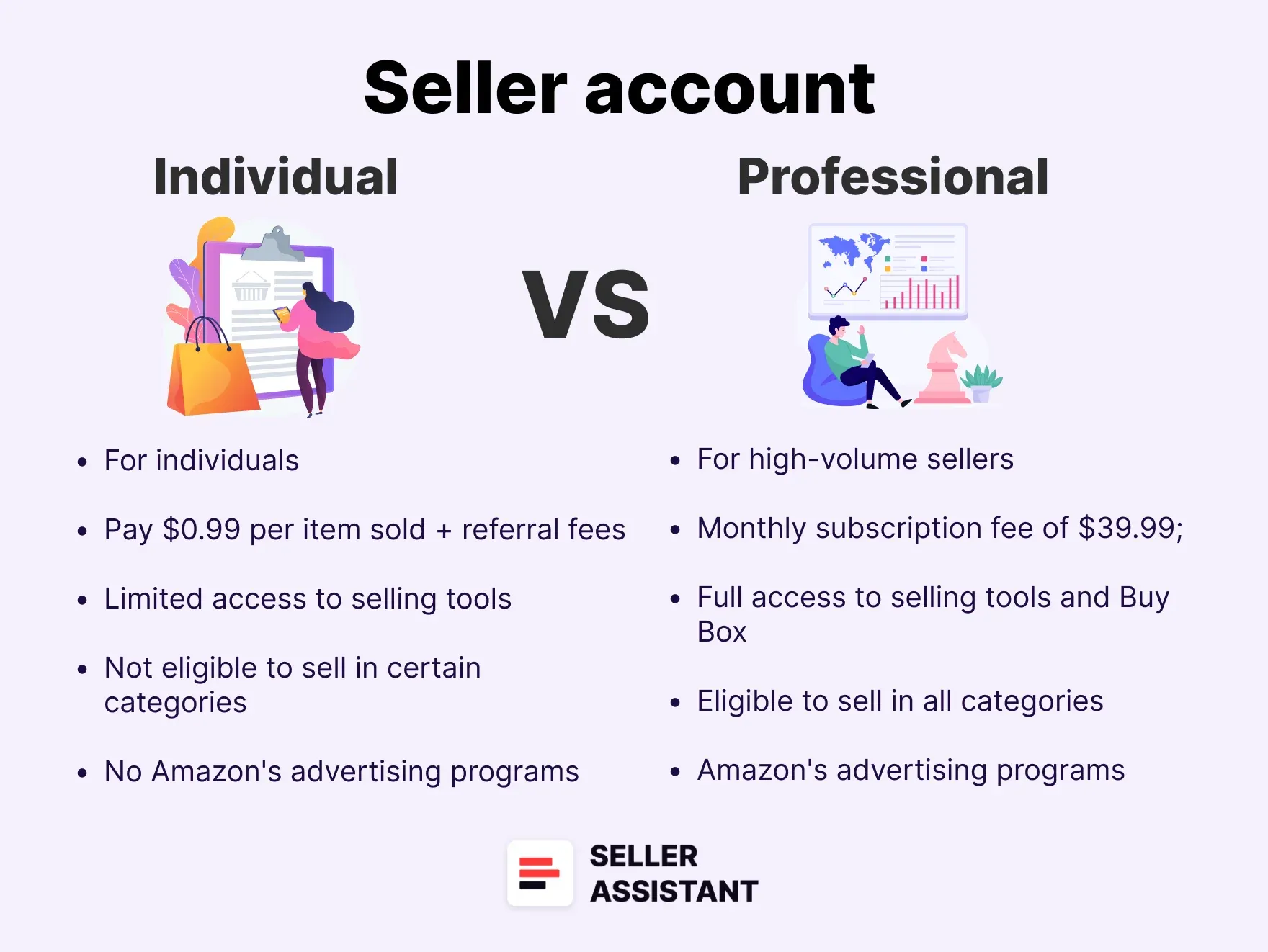
To sell on Amazon, you must choose a selling plan:
$0.99 per unit sold; suitable for beginners or those selling fewer than 40 items/month.
- Professional Plan
$39.99/month regardless of volume. Ideal for regular sellers – it includes access to tools, analytics, and Buy Box eligibility.
Referral fees
These are Amazon’s cut from each sale – a percentage of the total price (excluding tax but including shipping and gift wrap). Most categories fall between 8–15%, but some, like Amazon Device Accessories, can hit 45%.
Other selling fees
- Closing Fees
$1.80 per item in media categories (Books, DVDs, etc.)
- High-Volume Listing Fee
$0.001 per SKU/month for over 1.5M SKUs.
- Refund Administration Fee
$5 or 20% of the referral fee – whichever is lower.
- Digital Services Fee
2–3% surcharge in countries with digital service taxes (UK, France, Italy, Spain, Canada, etc.).
Amazon FBA fulfillment fees
These fees cover the logistics of fulfilling orders and depend on product size, weight, category, and type.
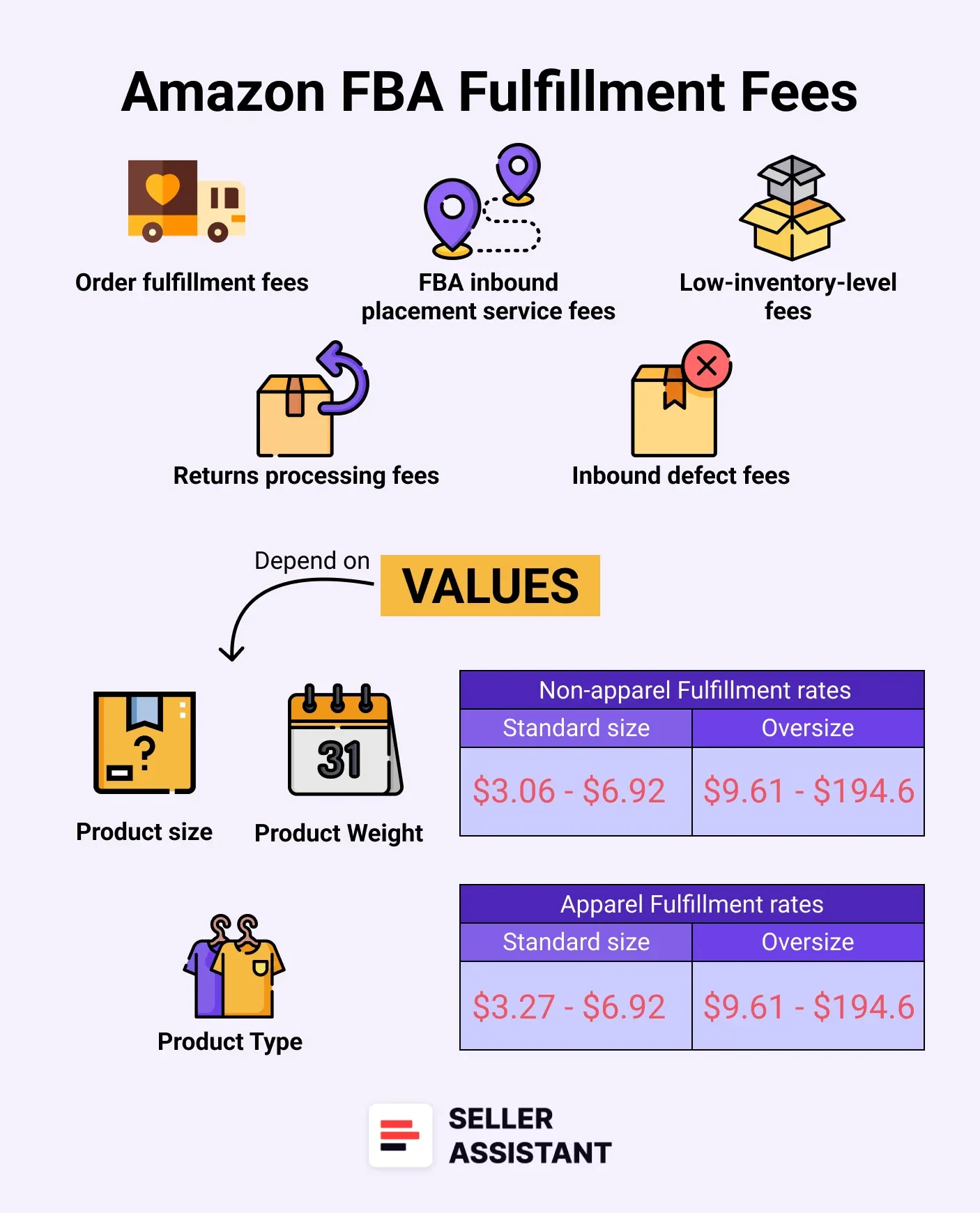
Amazon FBA fulfillment fees
Main FBA fulfillment fees
- Order Fulfillment Fees
Picking, packing, shipping, and customer service. Charged per unit, varies by apparel/non-apparel.
- Low-Price FBA
For items under $10, $0.77 cheaper than standard FBA.
- Inbound Placement Service Fees
- Minimal Shipment Splits
Amazon redistributes from one center for a fee.
- Partial Shipment Splits
You handle distribution, no fee.
- Returns Processing Fees
Applied when return rates exceed thresholds (Apparel/Shoes have different rules).
- Low-Inventory-Level Fees
Triggered if stock level drops below a 28-day supply.
- Inbound Defect Fees
Charged for non-compliant shipments.
Amazon FBA storage fees
Storage fees are based on how much space your inventory takes up daily in fulfillment centers.
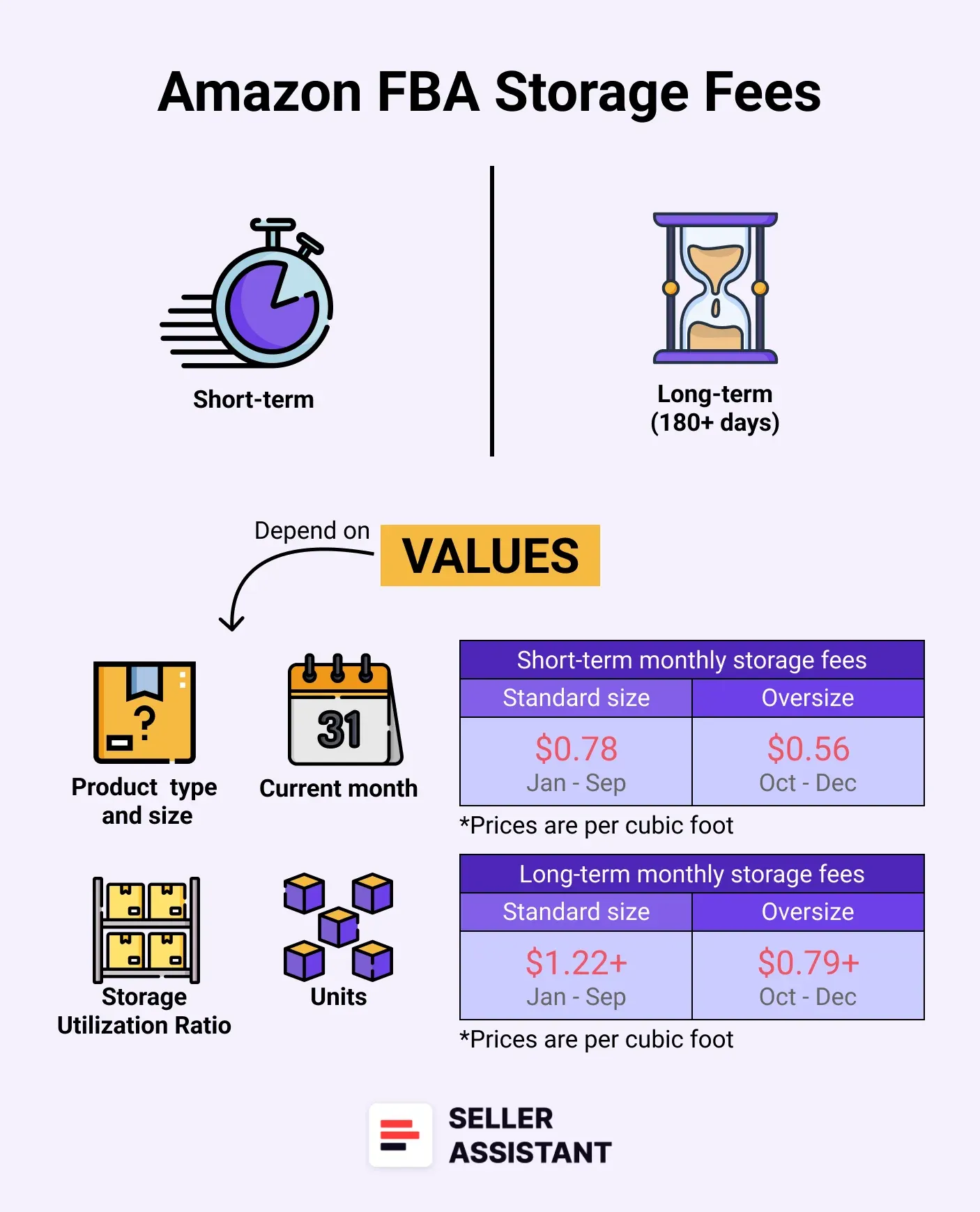
Amazon FBA storage fees
Types of storage fees
- Monthly Storage Fees
Rates vary by size, product type, and season (peak vs off-peak). Dangerous goods incur higher fees.
- Storage Utilization Surcharge
Applies to sellers using over 25 cubic feet of space with a high storage ratio.
- Aged Inventory Surcharge
For items stored over 180 days. Added monthly on top of regular storage.
- Overage Fee
Charged at $10 per cubic foot when you exceed monthly storage limits.
- Removal and Disposal Fees
Costs to return or dispose of aged or excess inventory.
Prep and shipping costs
These are fees for preparation of the order and shipping it to Amazon’s fulfillment centers. Typically, sellers use third-party prep centers to prepare orders and send them to Amazon.
Prep center fees
If you use a prep center, they charge for labeling, packaging, bubble-wrapping, and making your inventory FBA-compliant. Fees vary by provider and product type.
Shipping to Amazon fees
Also known as inbound shipping – this is the cost per unit to send your goods from your supplier or prep center to an Amazon fulfillment center.
How to Calculate Amazon FBA Fees
Calculating so many Amazon FBA fees can be challenging, but it’s important to have a good understanding of how much it will cost to sell your products through Amazon FBA and ensure you will get enough profit.
Amazon sellers typically use FBA fee calculators to estimate their costs. These tools break down how much you’ll pay for fulfillment, storage, referral fees, and more. By factoring in selling plan fees, referral fees, FBA fulfillment fees, and storage fees, you can set competitive prices while ensuring you make a profit.
However, FBA calculators differ. They are used for different purposes and provide different levels of fee details. Also, they are not equally convenient.
To estimate or find out your FBA fees, you can use a number of options.
You can apply advanced third-party FBA calculators like Seller Assistant’s FBM&FBA Profit Calculator showing all Amazon fees right on the Amazon search and product pages and in the Side View panel on your supplier websites. You can also get bulk Amazon fee and cost calculations for thousands products as once with Seller Assistant’s Price List Analyzer.
Another option is to use one of the two free Amazon fee tools: Inline revenue calculator in the Manage Inventory dashboard in your Seller Central, Amazon Revenue Calculator, and Amazon Fee Preview Report. However, some of these tools don’t factor in all FBA costs.
What Are Different Fee Calculators?
As said, the majority of Amazon sellers use FBA calculators to accurately calculate FBA fees.
Among them, Seller Assistant’s FBM&FBA Calculator stands out – it lets you calculate Amazon fees both in bulk (if you have a supplier list with thousands of UPCs) and for individual products directly on Amazon and supplier pages, side-by-side with real-time profitability estimates.
Note. Seller Assistant is a comprehensive product-sourcing software that helps Amazon sellers quickly find high-profit deals. It combines three extensions: Seller Assistant Browser Extension, and IP-Alert Chrome Extension by Seller Assistant, and VPN by Seller Assistant, Amazon seller tools: Price List Analyzer, Brand Analyzer, Seller Spy, Bulk Restrictions Checker, and API integrations, and features: Side Panel View, FBM&FBA Profit Calculator, Quick View, ASIN Grabber, UPC/EAN to ASIN converter, Stock Checker, IP Alert, and Restrictions Checker.
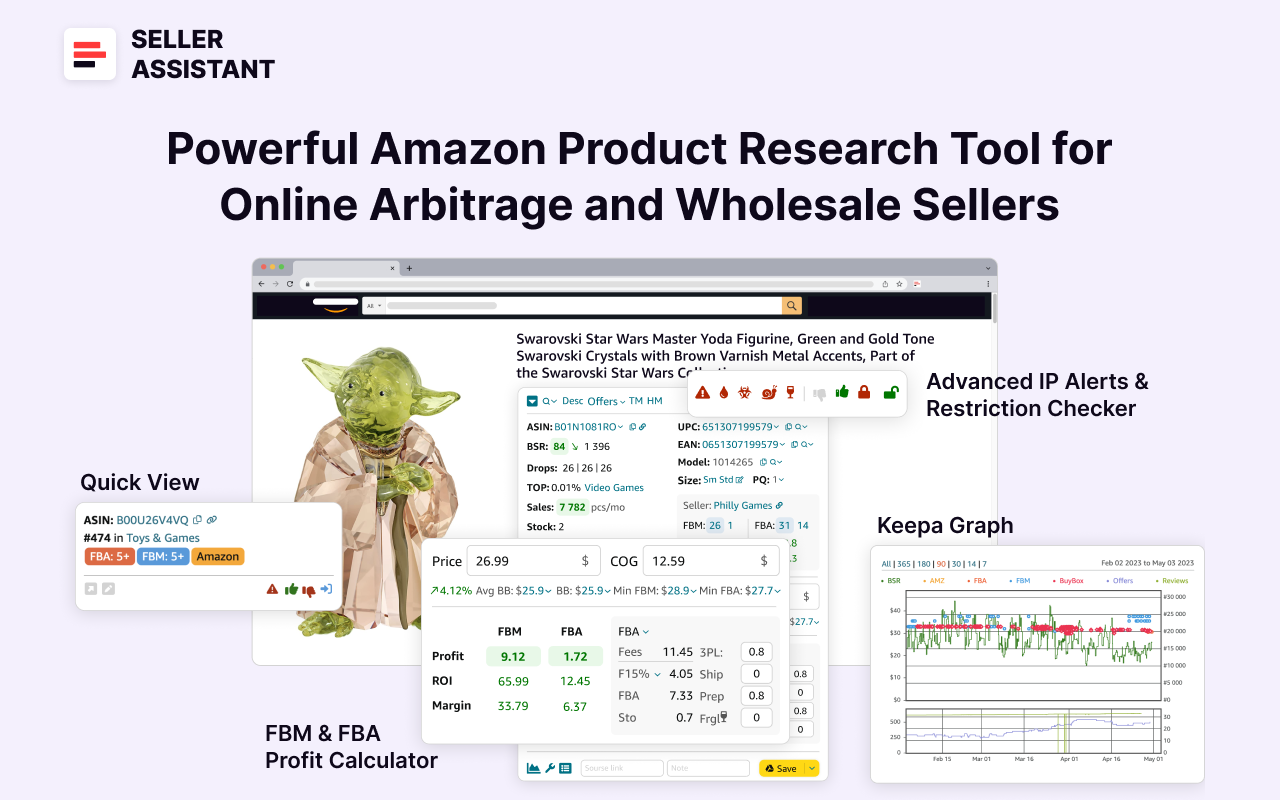
Seller Assistant
Seller Assistant shows all essential product data on Amazon search, product, and inventory pages, and on any website to help you find high-margin deals. By using this FBA and FBM product sourcing software, you can easily identify products that have the potential to be sold well on Amazon.
Bulk FBA Fee calculations with Price List Analyzer
If you’re processing a wholesale sheet or supplier price list with hundreds of products, Seller Assistant’s Price List Analyzer is your go-to tool. It’s built specifically for wholesale, OA, and dropshipping sellers to quickly identify profitable deals and flag risky ones.
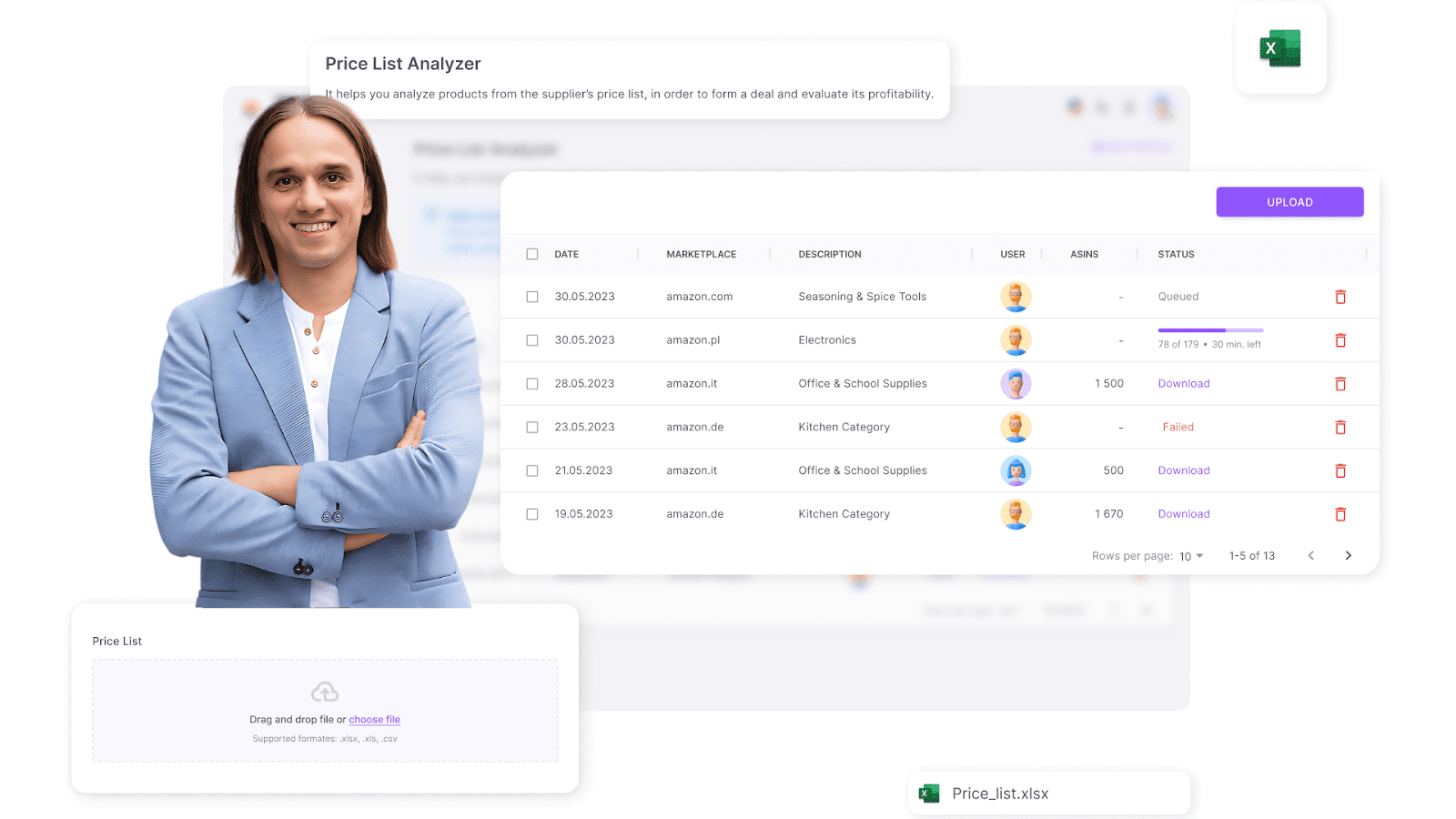
Seller Assistant’s Price List Analyzer
It shows all essential product metrics, including product performance, profit, ROI, and margin, Amazon fees, product risks, competition levels, pricing trends, etc. You get all Amazon FBA fees automatically to estimate deal profitability and decide if they are worth sourcing.
What it does
- Automatically matches your supplier products to their Amazon listings
- Calculates FBA fees, profits, ROI, margin, and break-even prices
- Highlights product warnings and fulfillment risks
- Lets you filter and download clean Excel reports with all key metrics.
How to use it step-by-step
Step 1. Access Price List Analyzer
Log into Seller Assistant and access the Price List Analyzer.
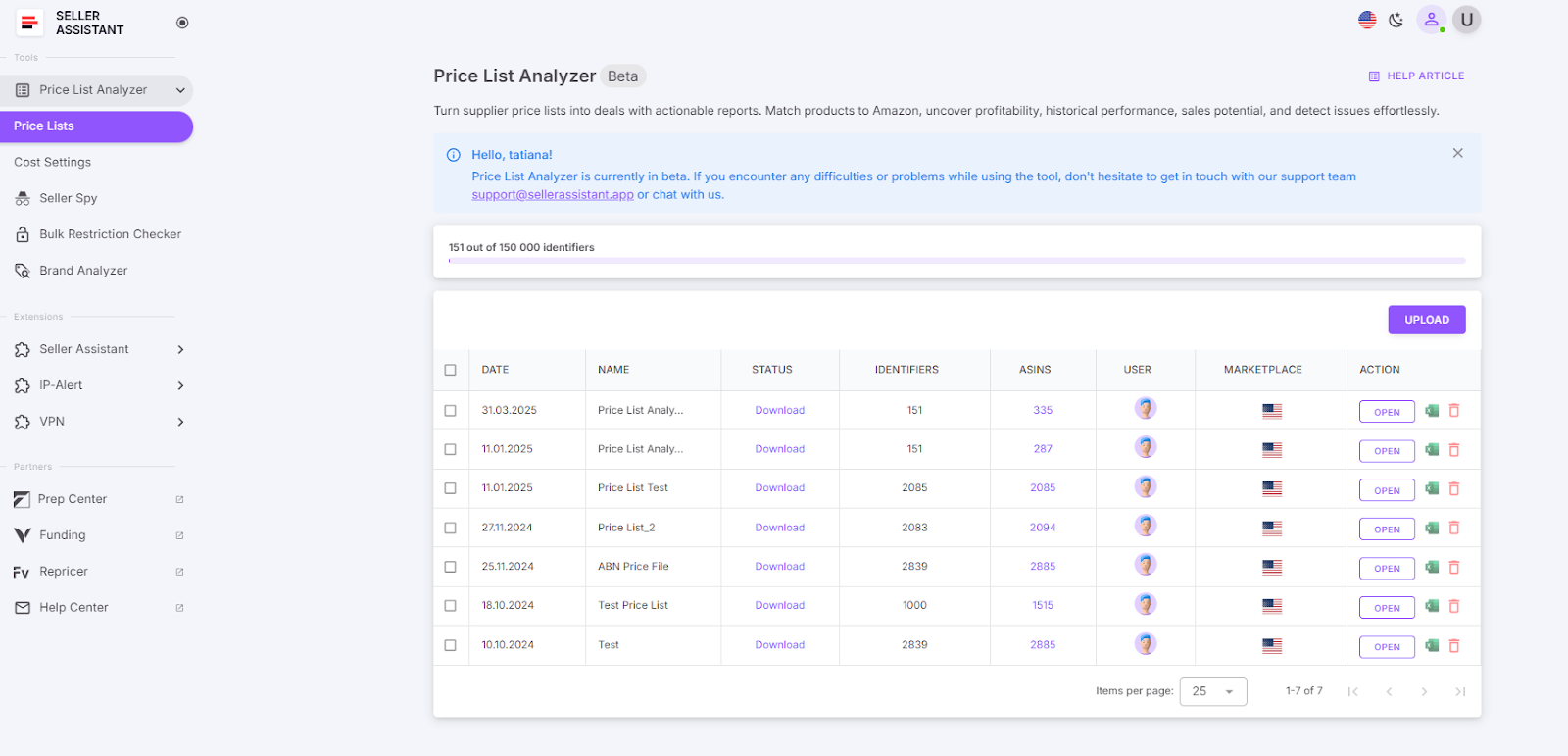
Access Price List Analyzer
Step 2. Upload your wholesale price list
Upload your wholesale list in Excel format and select your marketplace.
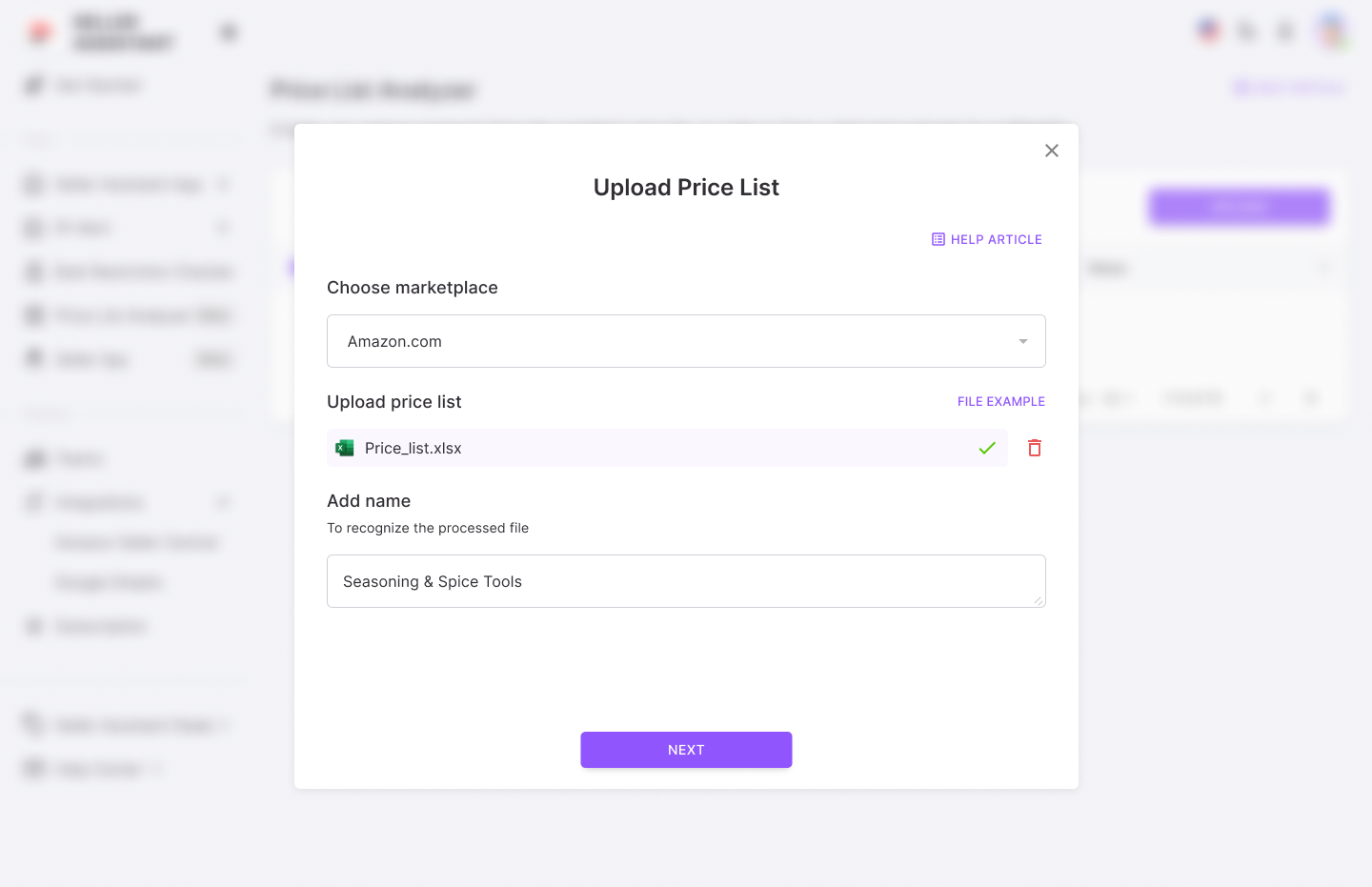
Upload your wholesale price list
Step 3. Set up your wholesale list for processing
Map the key data columns – UPC/EAN codes, cost, and product title.
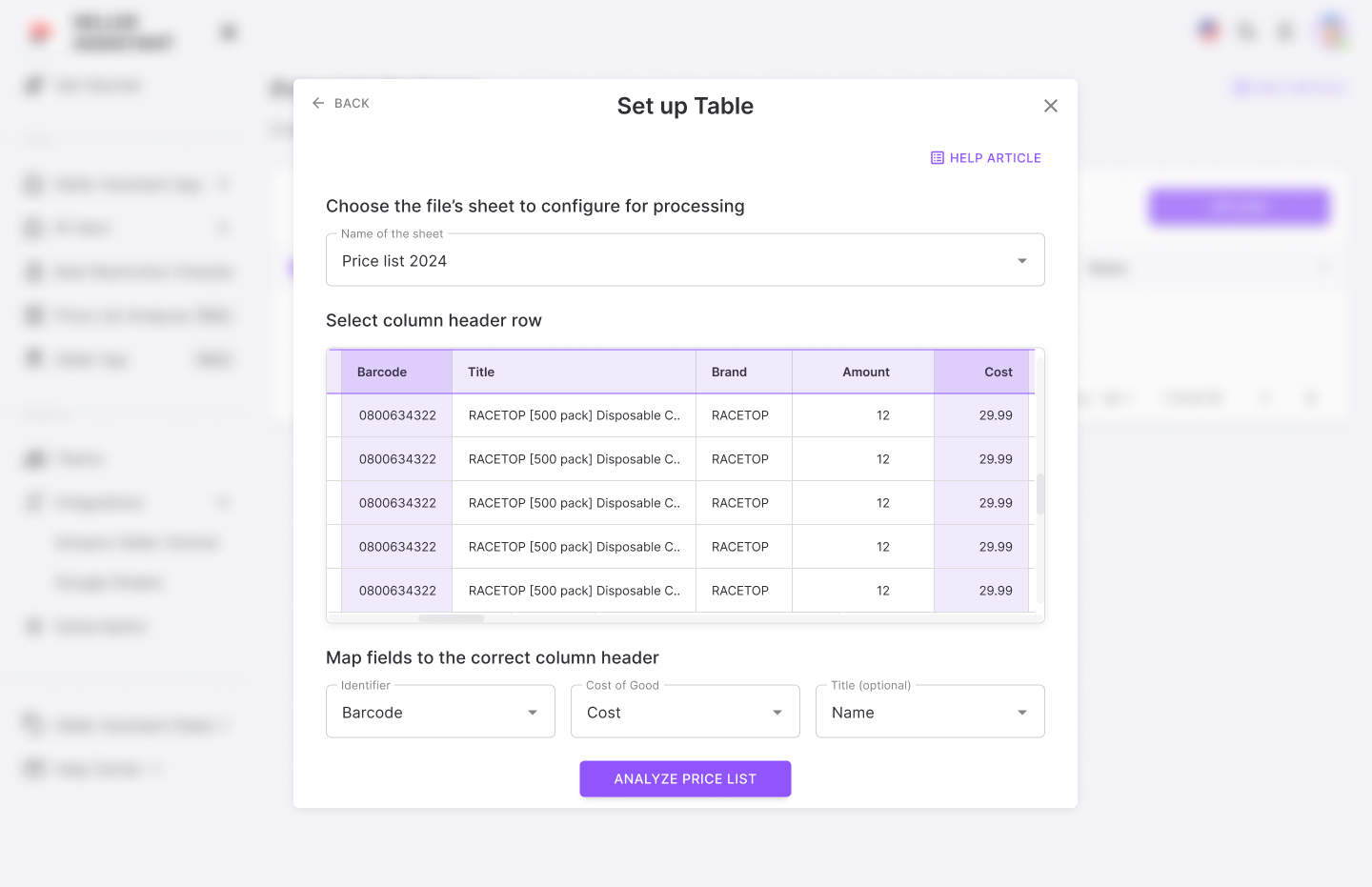
Set up your wholesale list
Step 4. Get the Price List Analyzer results
Start the analysis, get the UI table with key product metrics, and download the detailed .xls report if needed.
Price List Analyzer profitability and Amazon fees data:
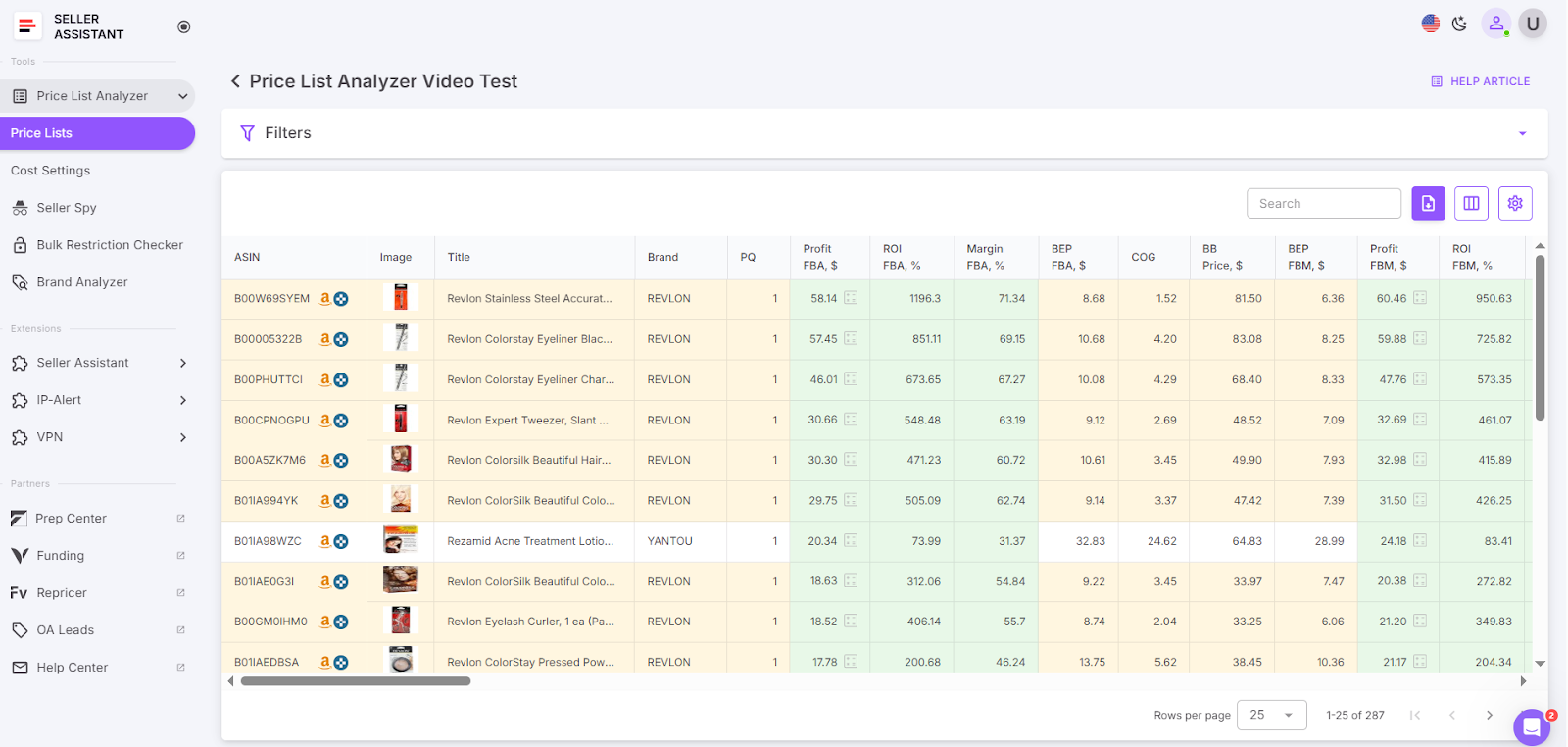
Get the UI table with key product metrics
Pricing and profitability
- COG (Cost of Goods)
Cost of goods before tax. Product price at the supplier
- Cost of Goods incl. VAT
Total cost including VAT
- Buy Box price
Current price of the product winning the Buy Box on Amazon
- Break-Even price (FBA/FBM)
The minimum product price with 0% profit for Fulfillment by Amazon (FBA) or Fulfillment by Merchant (FBM). If you go below break-even threshold, you lose money on the product
- Profit (FBA/FBM)
Estimated profit per unit using FBA or FBM fulfillment methods. Shows how much money you earn on the product
- ROI (FBA/FBM, %)
Return on investment for FBA or FBM orders, as a percentage
- Margin (FBA/FBM, %)
Profit margin after costs, expressed as a percentage
Fulfillment costs
Overall fees associated with FBA or FBM services
- FBA fees
- Referral fee
Amazon’s percentage-based fee on the sale
Cost to store the product in Amazon’s warehouse
- Variable Closing Fee
A fee applied for books, music, video, blu-ray, and DVDs (BMVD) on top of other fees
- Digital Service Fee (DST)
DST applies to selling on Amazon fees (referral fee, fixed closing fee, variable closing fee, and get-paid-faster fee) if you sell in the countries where the fee is paid (e, g. Canada, France, Spain), and FBA fees (UK and France)
- Inbound shipping costs (FBA)
Cost of shipping the product to an Amazon warehouse (for FBA)
- Prepare/labeling cost (FBA/FBM)
Cost for preparing or labeling the product for shipment
- Fragile/bubble wrapping (FBA/FBM)
Additional cost if, the product requires special packaging for fragility
Step 5. Filter the results
Configure and apply filters to refine the displayed results. To download the filtered list, click the Download button and save the updated file.
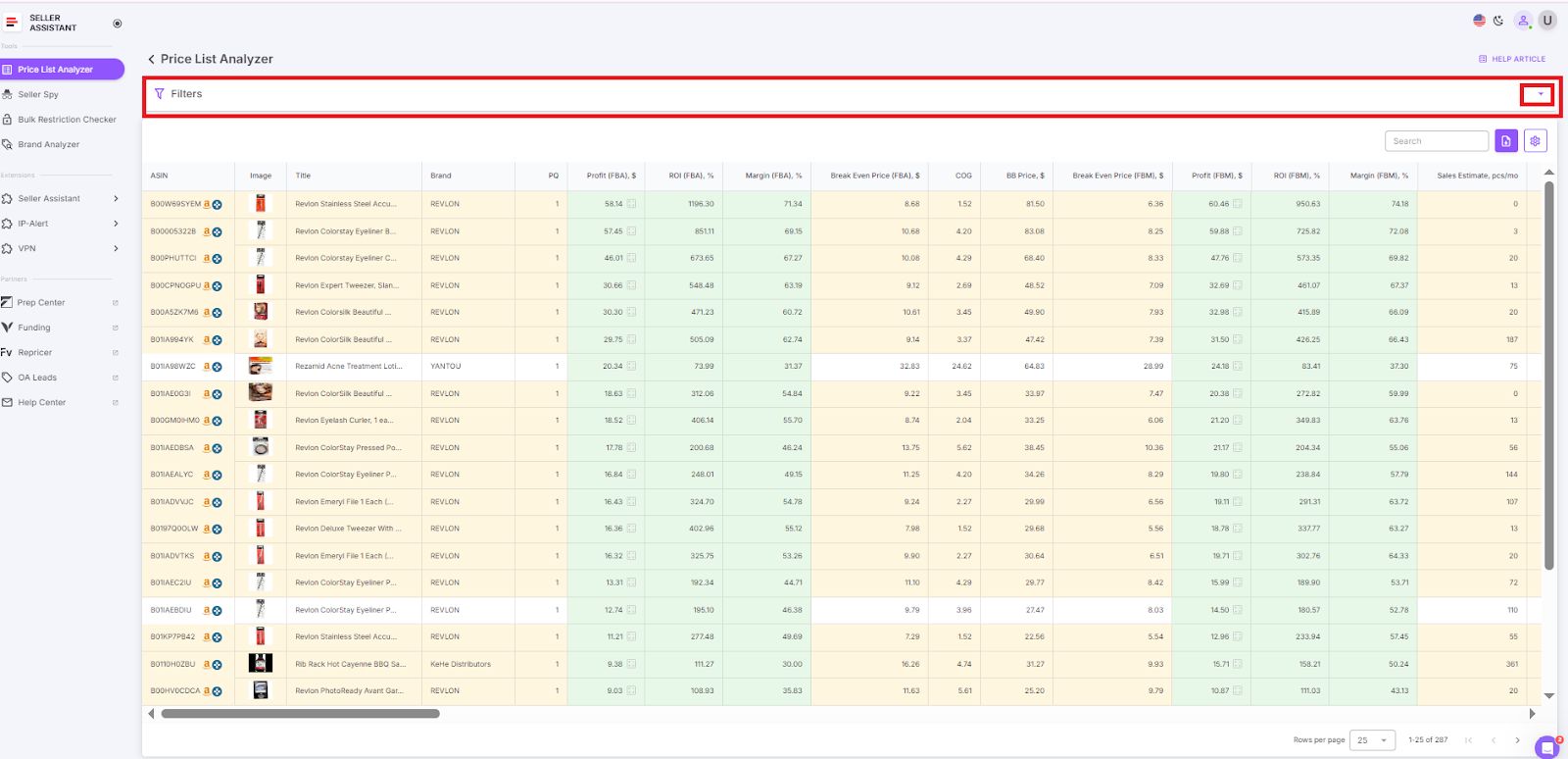
Filter the results
FBA fees calculation for single products on Amazon
For fast, accurate profitability checks, many Amazon sellers use the Seller Assistant Chrome Extension directly on Amazon product pages. This tool lets you instantly calculate all fees and profits while browsing, without switching tabs or copying data manually.
Seller Assistant Extension is a powerful product sourcing tool designed to help you find winning products to sell on Amazon. As a core part of the Seller Assistant software suite, it simplifies product research by showing key data right where you need it – on Amazon search and product pages, supplier websites, and even competitor storefronts.
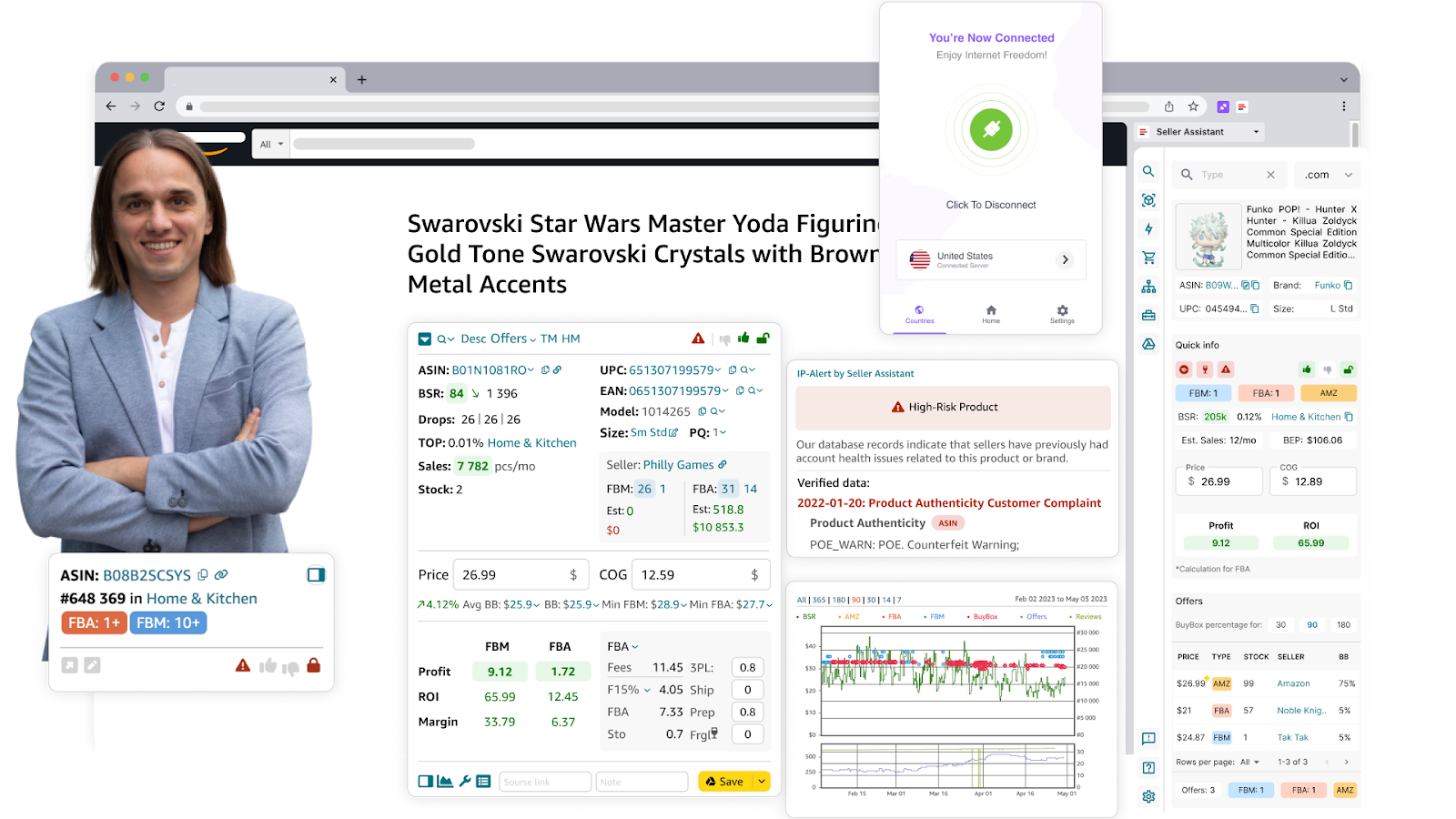
Seller Assistant Extension
It gives you an instant read on profitability, competition, Buy Box potential, and sales viability. The extension also flags crucial risks like product restrictions or potential IP complaints. With built-in Keepa charts and FBM&FBA Profit Calculator, you can quickly decide whether a product is worth reselling – without ever leaving the page.
What it does
- Calculates FBA and FBM fees, including referral, fulfillment, and storage costs
- Estimates profit, ROI, and margin instantly
- Calculates break-even-point
- Customizes inputs like shipping, prep, and logistics costs
- Computes sales tax and VAT (if applicable).
How to use it step-by-step
Step 1. Open the Amazon product page
Navigate to the Amazon listing you’re interested in. Seller Assistant Extension will automatically activate and overlay its FBM&FBA Profit Calculator.
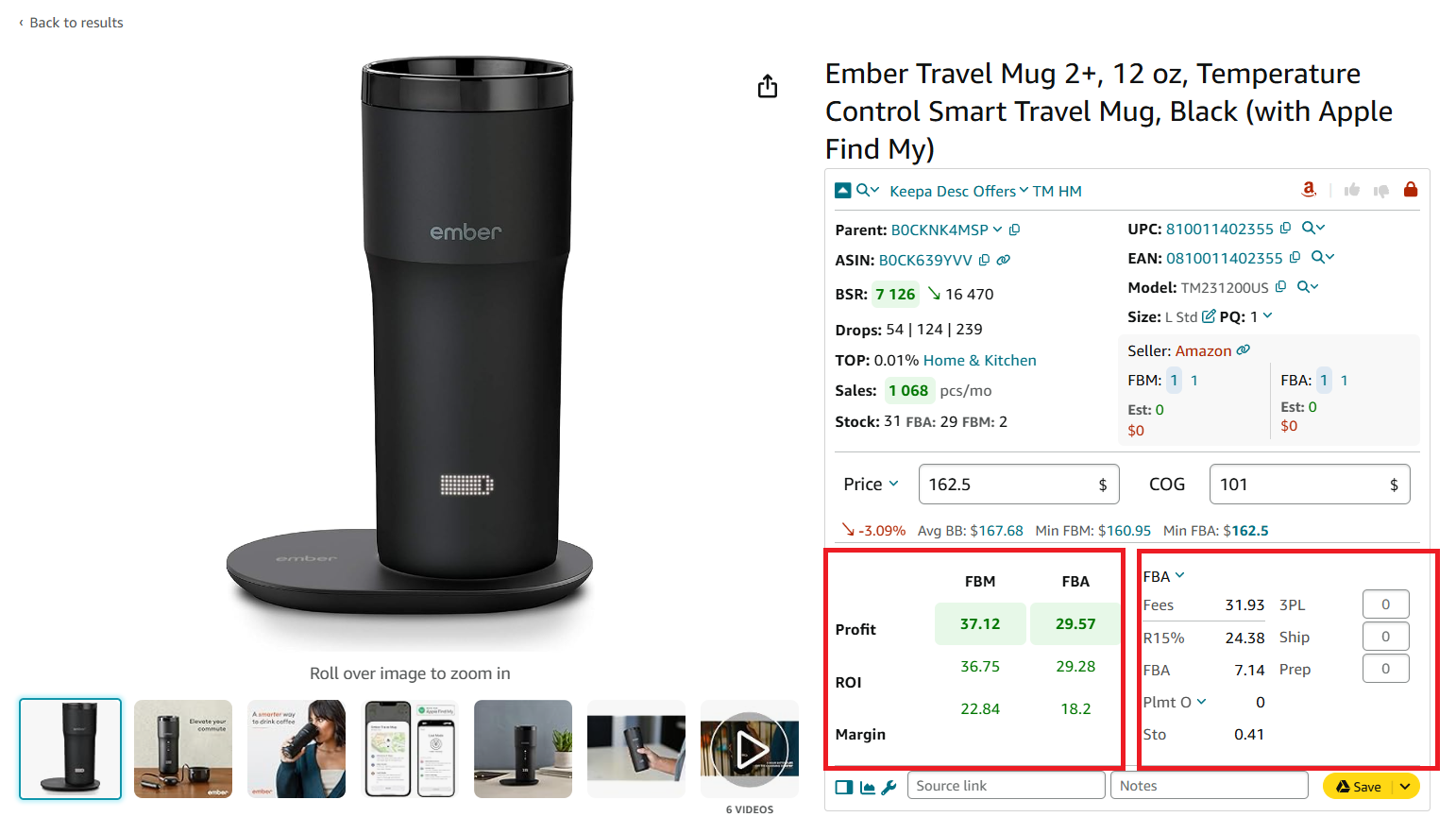
Calculator’s profitability and costs section has 2 subsections
Step 2. Enter your Cost of Goods (COG)
In the extension’s COG field, enter your cost from the supplier. This is the baseline price you paid to acquire the product.
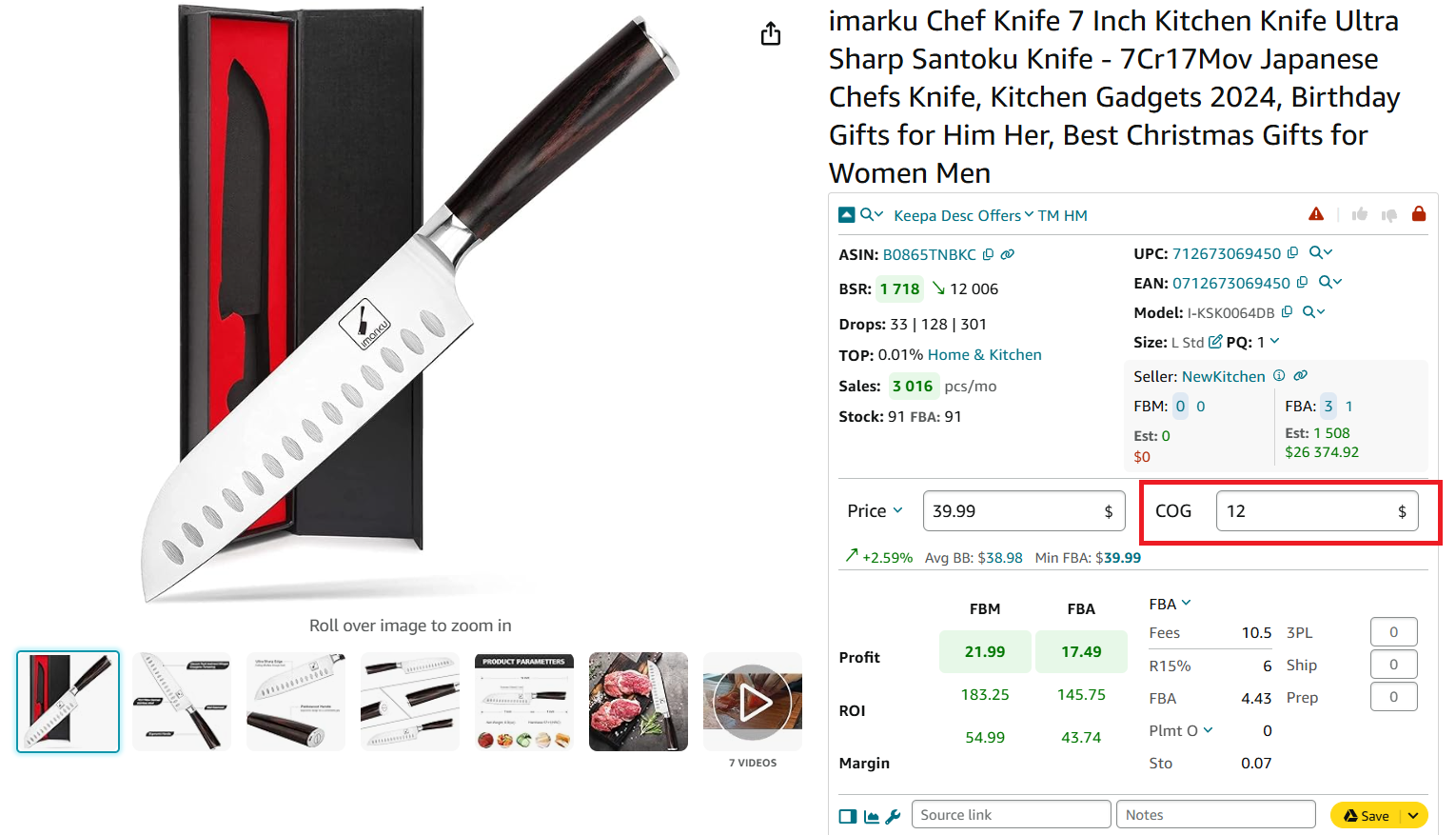
COG is Cost of Goods Sold
Step 3. Choose between FBA and FBM
Select between FBA and FBM to compare the fees and profits.
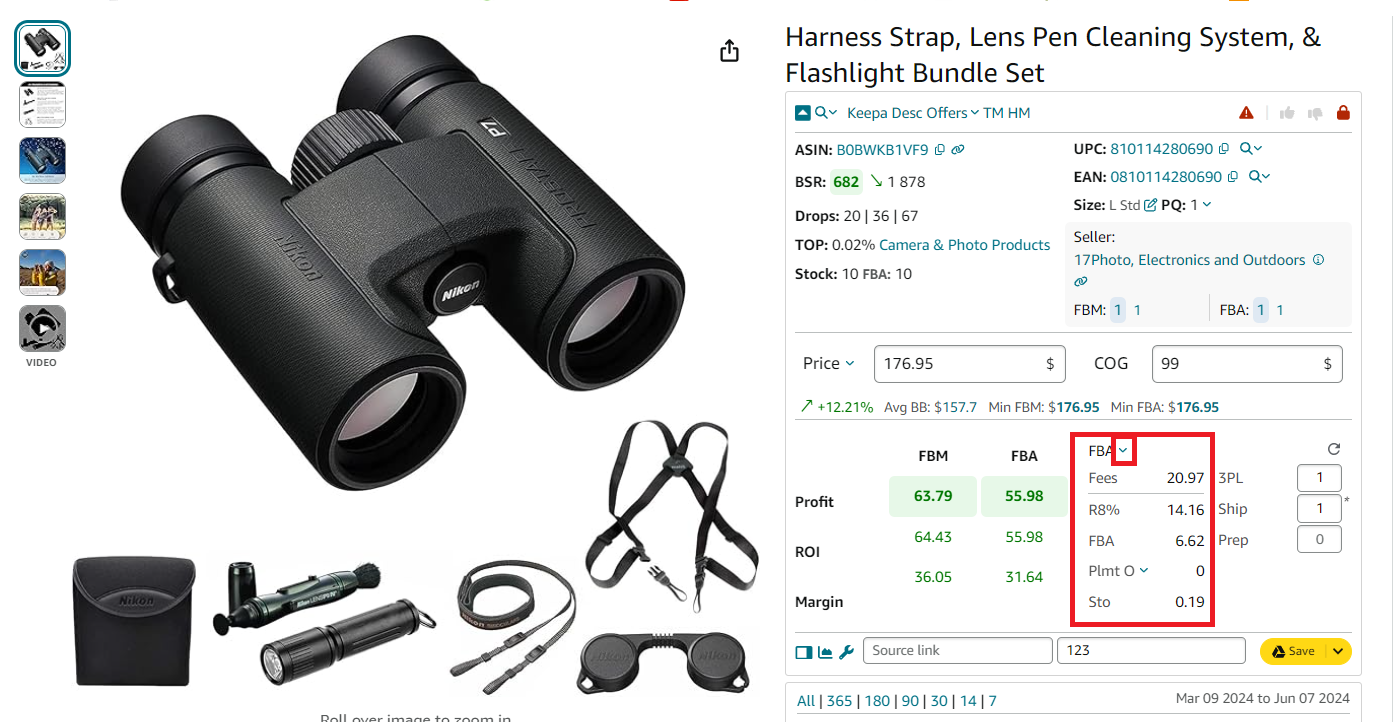
FBA/FBM fees
Seller Assistant will display:
- FBA/FBM fulfillment costs
- Referral fee (R15%)
- Storage fees (Sto)
- Inbound Placement Service Fees (Plmt)
- Digital Services Fee
Step 4. Factor in logistics costs
Configure logistics costs by clicking into the settings:
- Shipping to Amazon (per unit)
- Prep center fees for labeling or packaging
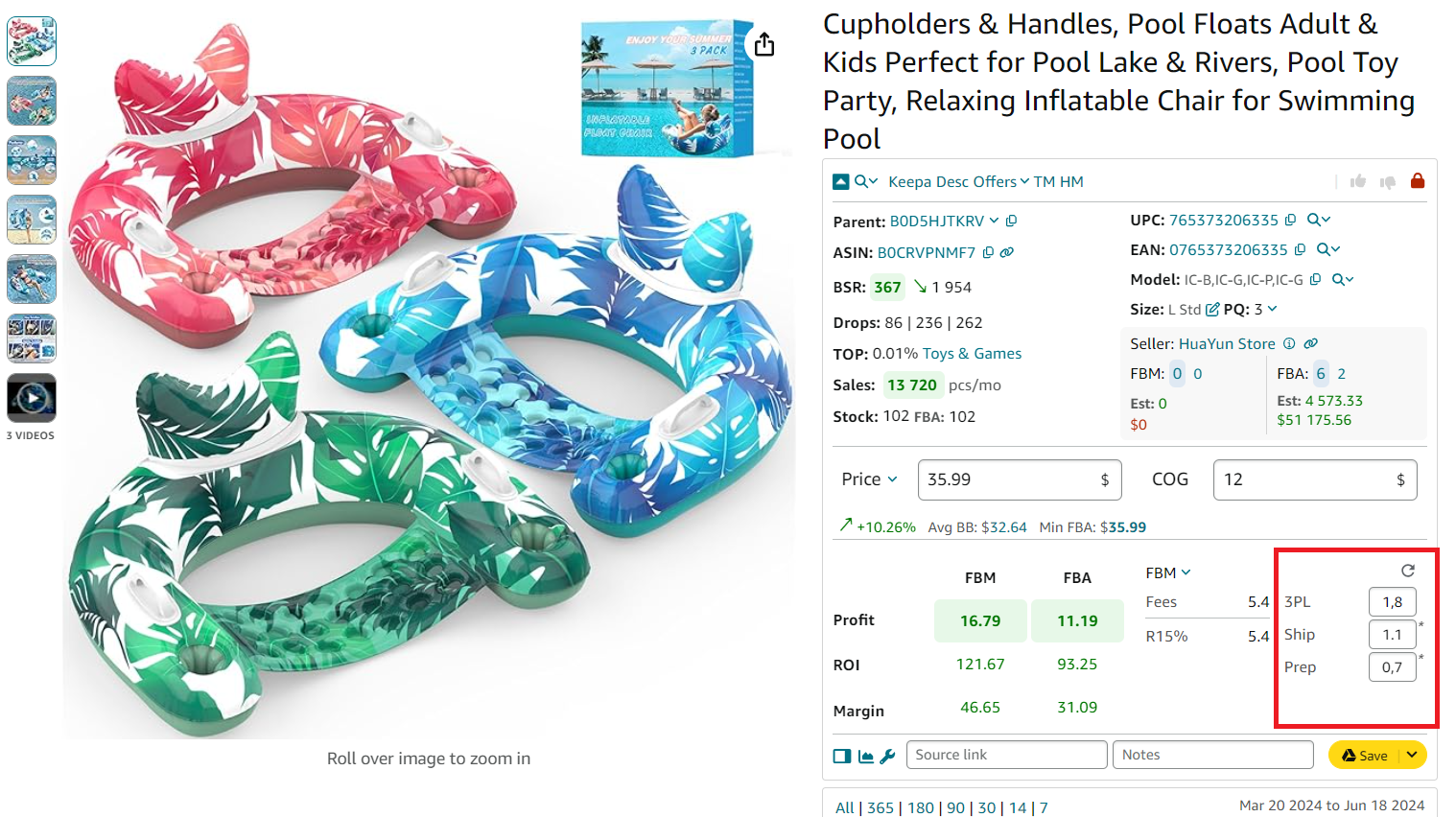
Configure logistics costs
Step 5. Add sales tax or VAT (if applicable)
Click the COG field, then enable:
- Sales Tax toggle for U.S. sales tax
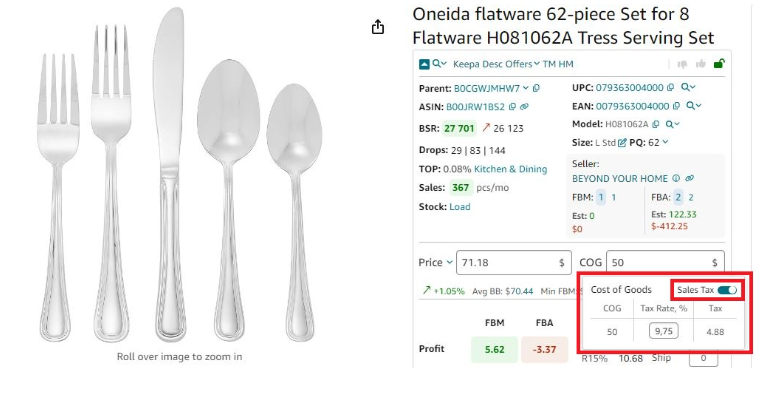
Sales tax calculator
- VAT toggle for European or international sellers
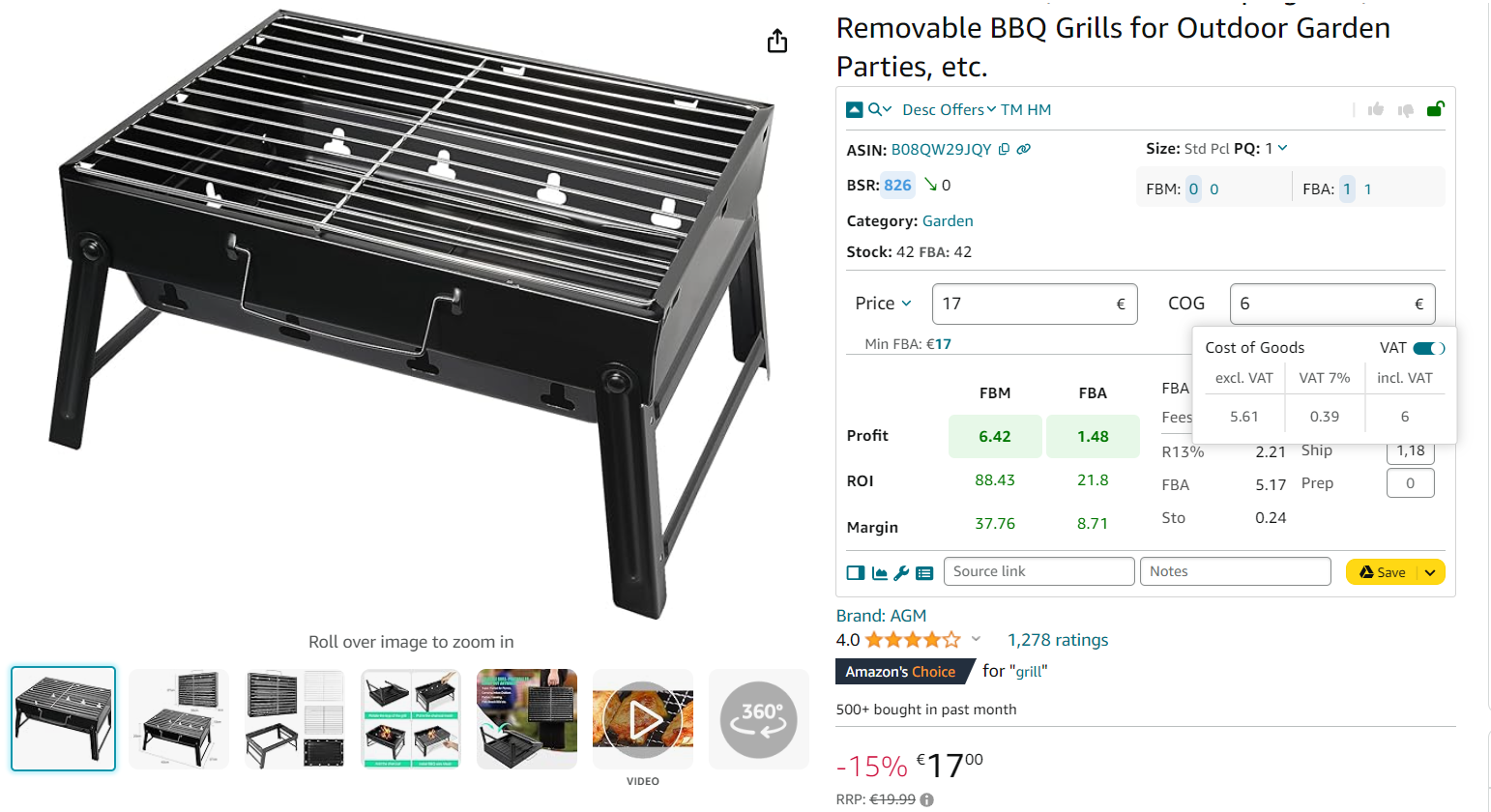
VAT calculator
Step 6. Review the full fee breakdown and profitability
The FBM & FBA Calculator displays:
- FBA Fees
Total Amazon fees, all Amazon fulfillment-related charges
- R15%
Referral fee, usually 15% of sale price
- Plmt
Inbound placement service fee
- Sto
Monthly costs of storage per unit in Amazon’s warehouses.
- 3PL
3PL is third-party logistics costs – (Ship + Prep + Frgl).
- Shipping
Shipping is the cost of shipping per unit to the Amazon fulfillment center.
- Prep
Prep is the preparation center cost. Prep center is a service provider preparing your inventory for fulfillment according to Amazon standards.
- Profit per unit
Profit = Selling price – COG – all fees (referral, FBA, storage, logistics, tax, VAT)
- ROI (%)
ROI = Profit ÷ (COG + sales tax + logistics) × 100%
- Margin (%)
Margin = Profit ÷ Selling price × 100%
- VAT/Sales Tax
Applied if configured for your marketplace.
FBA fees calculation for single products on supplier websites
If you’re sourcing from retail supplier websites, Seller Assistant’s Side Panel View makes profitability analysis easy – right on the same page. It’s designed for side-by-side product research without the need to switch tabs or copy data back and forth.
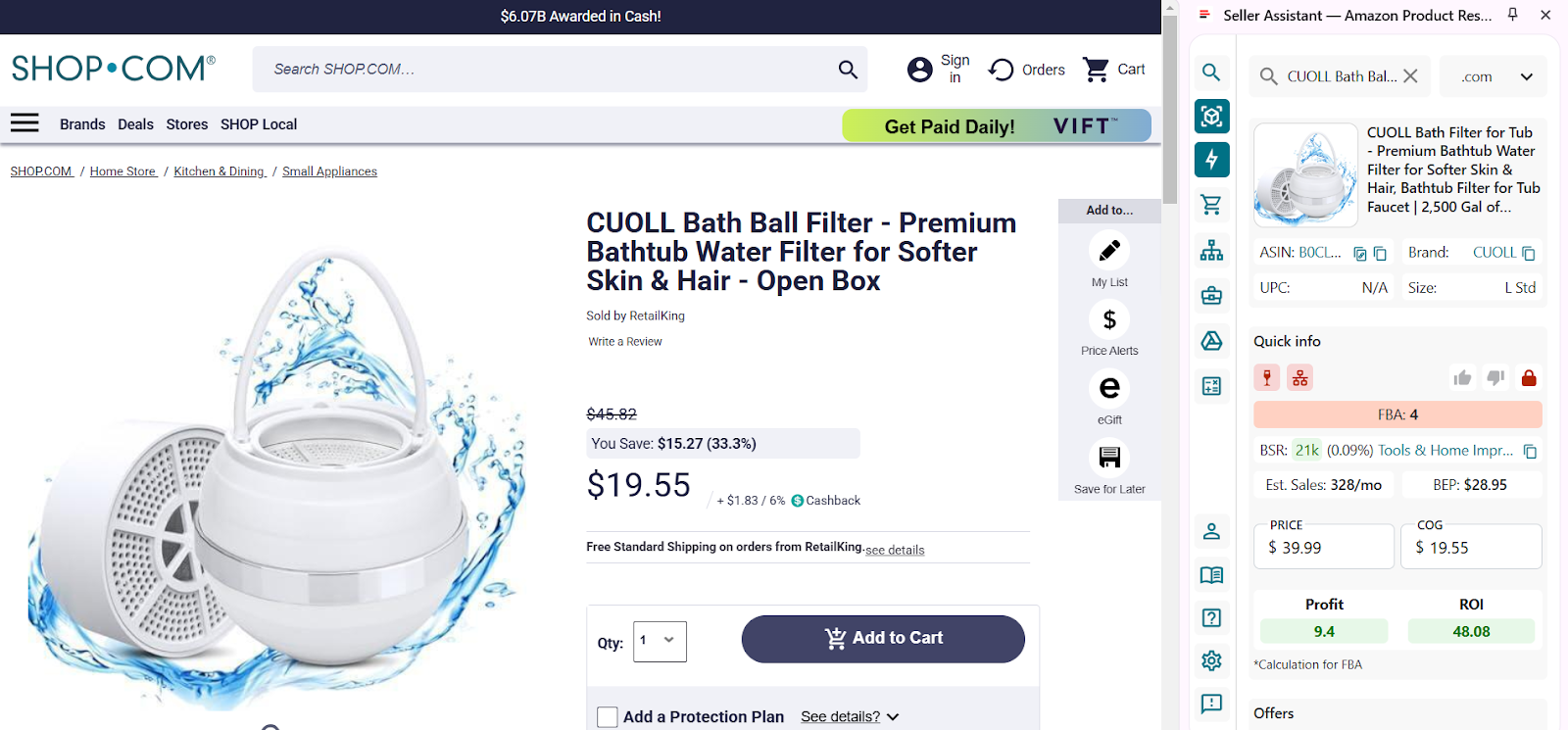
Scroll down in Side Panel View to choose your product and click the product details icon or product image to open the product.
Side Panel View is a sourcing feature inside the Seller Assistant Extension that displays Amazon product data directly on any external website – like supplier pages – via a side panel. This allows you to evaluate a product’s sales potential, profitability, and competition while browsing your supplier catalog.
With Side Panel View, you can make sourcing decisions in real time. It reduces friction, speeds up product research, and ensures you’re evaluating not just price – but true profitability. Whether you’re vetting new suppliers or reviewing existing catalogs, this tool ensures your numbers are accurate before you buy.
What it does
- Calculates FBA and FBM fees, including referral, fulfillment, and storage costs
- Estimates profit, ROI, and margin instantly
- Calculates break-even-point
- Customizes inputs like shipping, prep, and logistics costs
- Computes sales tax and VAT (if applicable).
How to use it step-by-step
Step 1. Open a supplier product page
Navigate to any supplier or wholesale product listing. You can use the Side Panel View on virtually any site – just keep the Seller Assistant Extension installed and active.
Step 2. Launch the Side Panel View
Click the Extensions icon in your Chrome browser toolbar and select Seller Assistant Extension. The Side Panel View will automatically appear on the right-hand side of your screen.
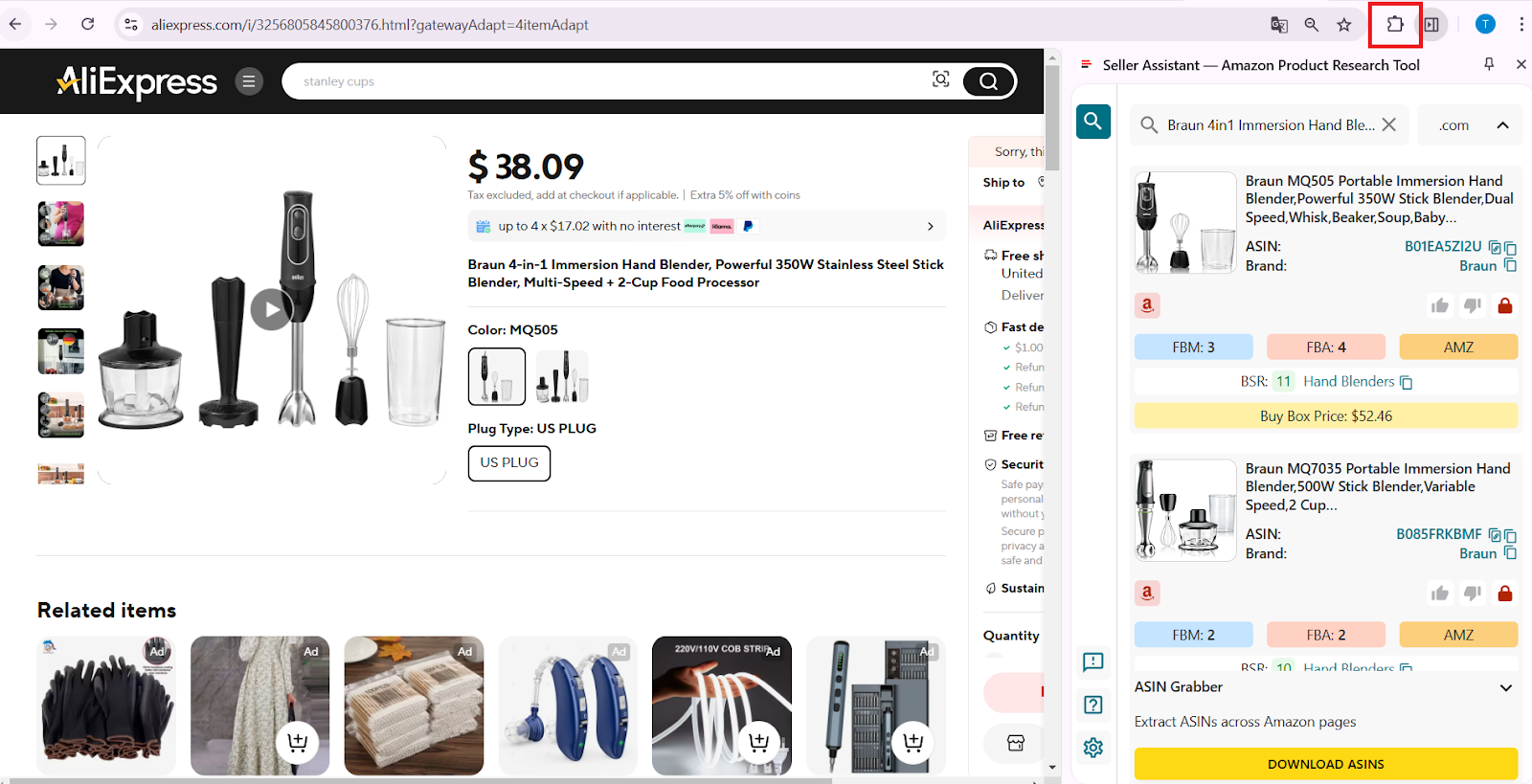
To open Offers, click the Extensions icon to the right of your address bar in Chrome browser and choose Seller Assistant (if you’ve already pinned Seller Assistant).
Step 3. Select the matched Amazon product
Scroll through the side panel to find the correct match. Click on the product details icon or image to open the matching Amazon listing data.
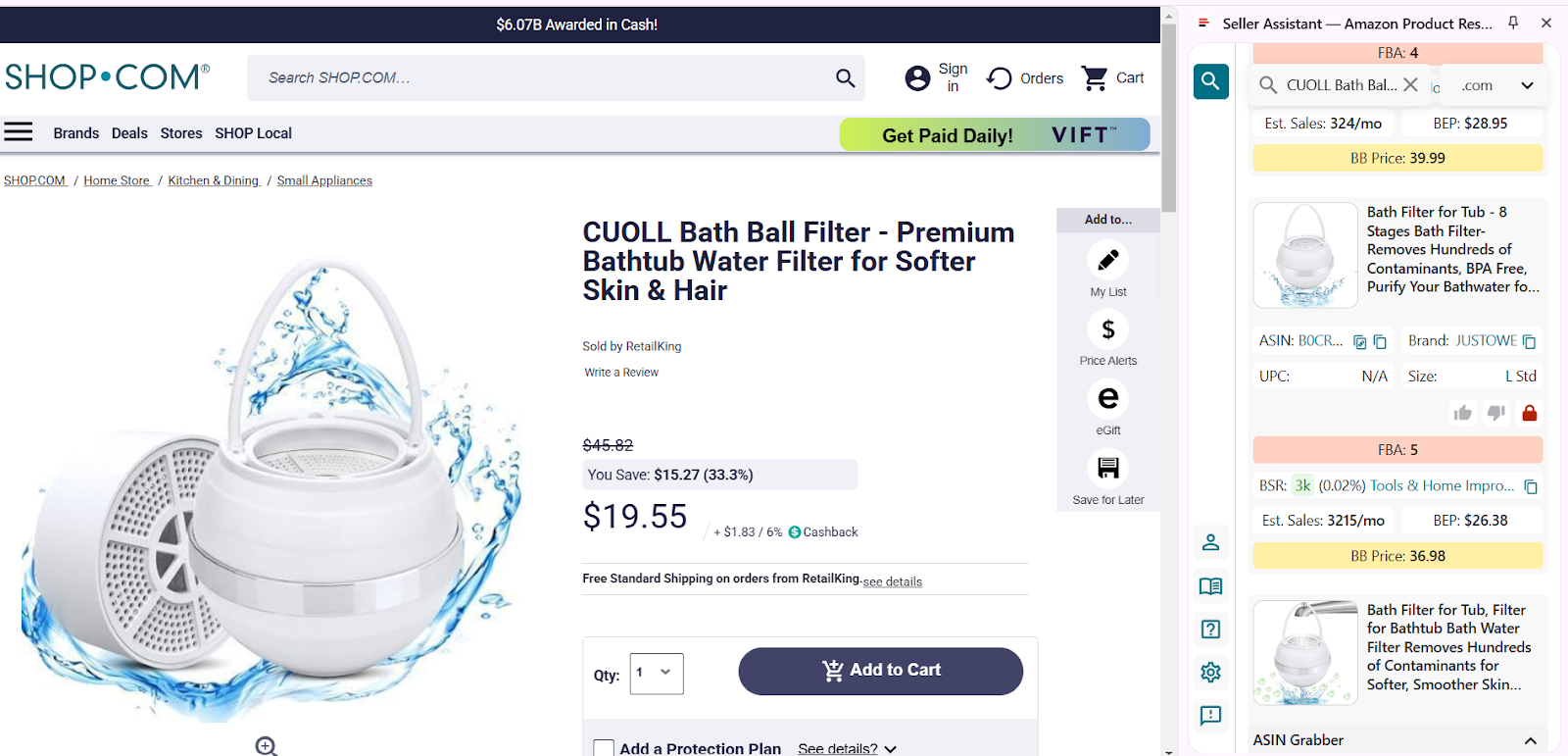
Open a product page on your supplier website and activate Side Panel View
Step 4. Enter the Cost of Goods (COG)
Input your product cost directly into the COG field. Seller Assistant will instantly calculate the estimated profit and ROI using Amazon FBA assumptions. This gives you a first-level check on whether the deal is profitable – without switching tabs.
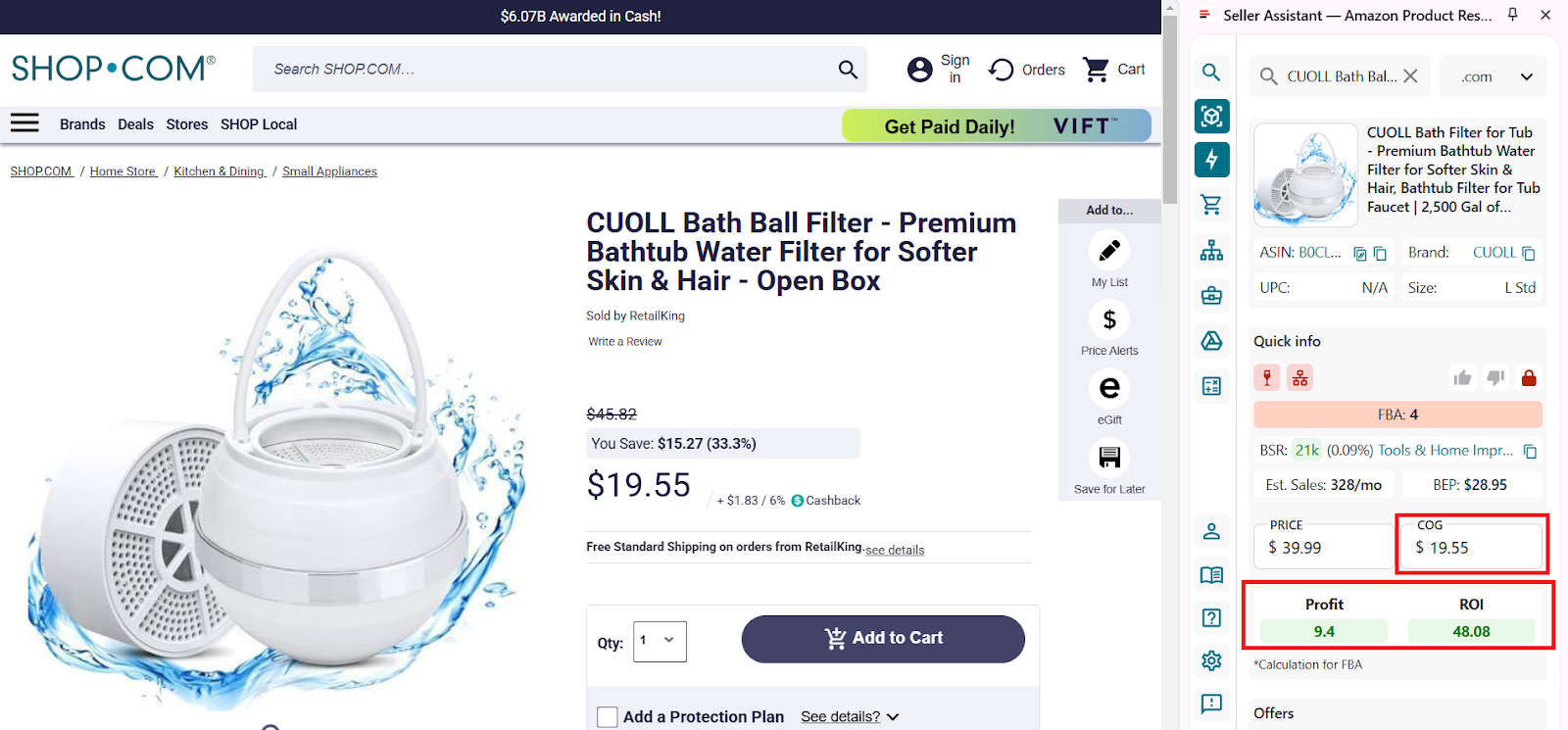
Enter COG (product price at the supplier), and look at the Profit and ROI (the calculation is done for FBA).
Step 5. Use the extended calculator for deeper analysis
Click the calculator icon to open the full FBM and FBA Calculator.
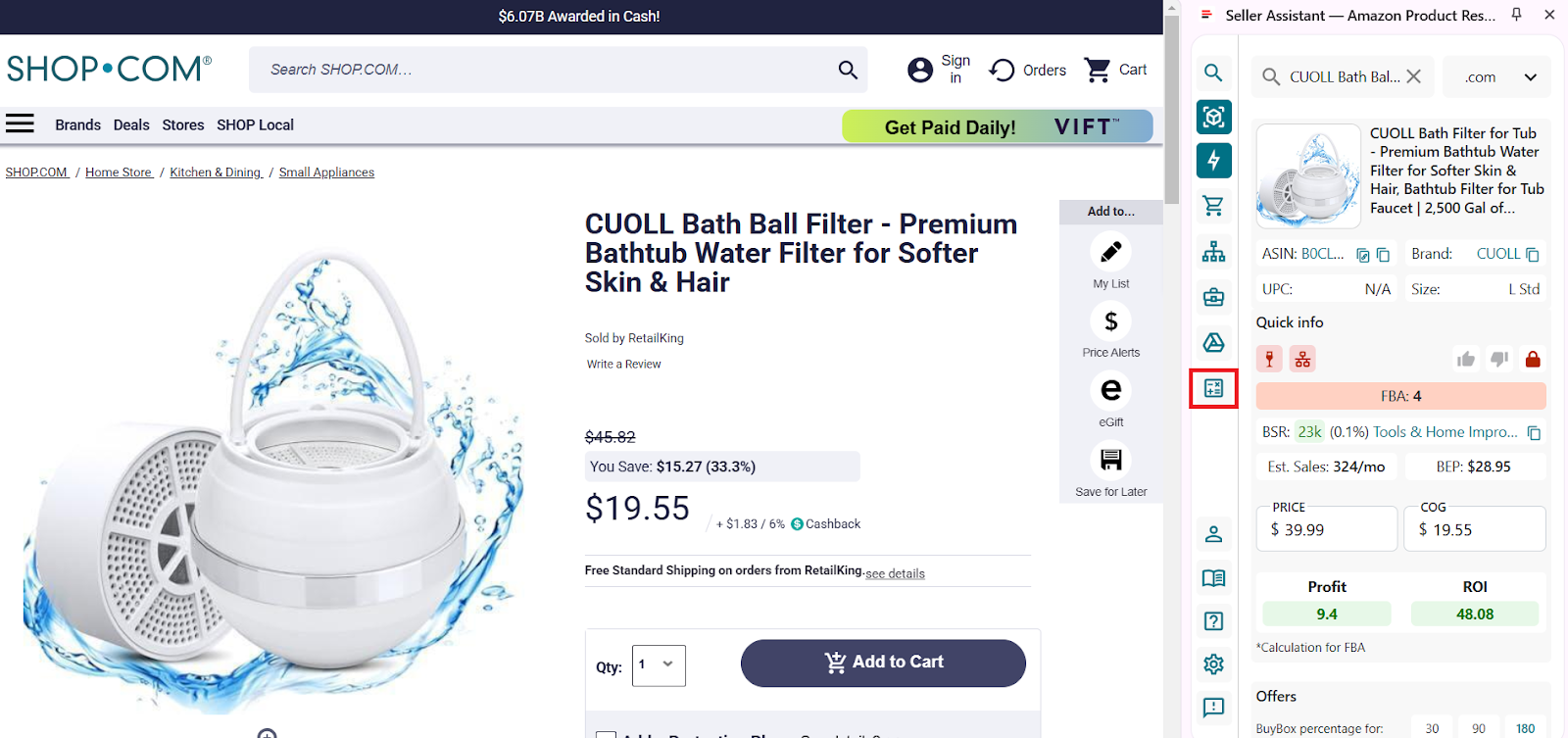
FBM and FBA Calculator
Here, you can:
- Switch between FBA and FBM fulfillment methods
- Enter logistics costs:
- Prep costs (e.g., bubble wrap, labeling)
- Shipping to Amazon
- Adjust package quantity if applicable
- All Amazon fees – referral, FBA, storage, inbound placement – are automatically pulled in.
See all calculator data:
- FBA Fees
Total Amazon fees, all Amazon fulfillment-related charges
- R15%
Referral fee, usually 15% of sale price
- Plmt
- Sto
Monthly costs of storage per unit in Amazon’s warehouses.
- 3PL
3PL is third-party logistics costs – (Ship + Prep + Frgl).
- Shipping
Shipping is the cost of shipping per unit to the Amazon fulfillment center.
- Prep
Prep is the preparation center cost. Prep center is a service provider preparing your inventory for fulfillment according to Amazon standards.
- Profit per unit
Profit = Selling price – COG – all fees (referral, FBA, storage, logistics, tax, VAT)
- ROI (%)
ROI = Profit ÷ (COG + sales tax + logistics) × 100%
- Margin (%)
Margin = Profit ÷ Selling price × 100%
- BEP
Break-even point
- VAT/Sales Tax
Value Added Tax or Sales Tax if applied.
Amazon’s Fee Calculator Tools
Amazon offers sellers 3 fee calculator tools. Two of them are used to estimate FBA fees, while the third one shows you fees charged for existing products you sell on Amazon.
Inline revenue calculator
The Inline revenue calculator shows you the estimate of Amazon FBA fees for each SKU.
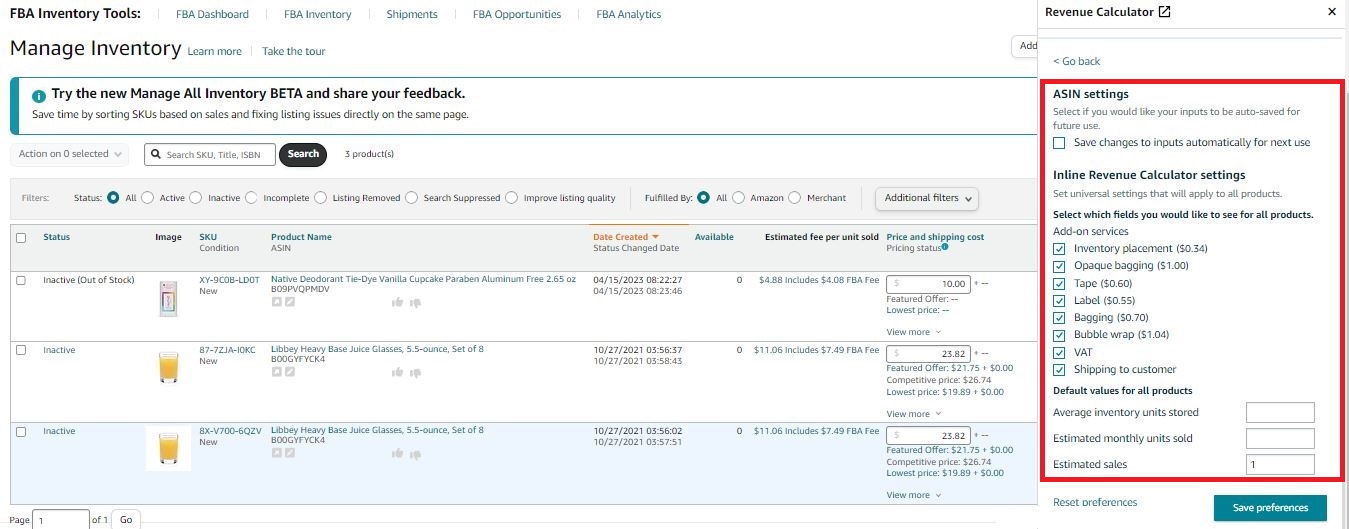
Inline revenue calculator
This tool is handy to see some FBA fee breakdowns, but it doesn’t show all fees. Also, you must enter data manually and can’t save the results.
Fees shown by the Inline revenue calculator
- Referral fees;
- FBA fulfillment fees;
- FBA inbound placement service fees;
- Monthly storage fees;
- Long-term storage fees;
- Variable closing fees;
- Per-item fees;
- Optional Service fees
Fees not shown by the Inline revenue calculator
- Monthly selling plan fees;
- Removal order fees;
- Return processing fees;
- Unplanned service fees;
- FBA inventory storage overage fees;
- Refund administration fees;
- Rental book service fees;
- High volume listing fees;
- FBA Export;
- Prime Wardrobe.
What it does
The Inline revenue calculator allows you to estimate each product’s FBA fees and profits you will get. The fee calculation is based on the list price, estimated shipping cost, and other data.
You can enter the Cost of Goods Sold or shipping cost to calculate the estimated profit. You can also customize the calculator settings.
How to use it
The Inline revenue calculator can be accessed in your Seller Central under Inventory > Manage Inventory by clicking the Estimated fee per unit sold column.
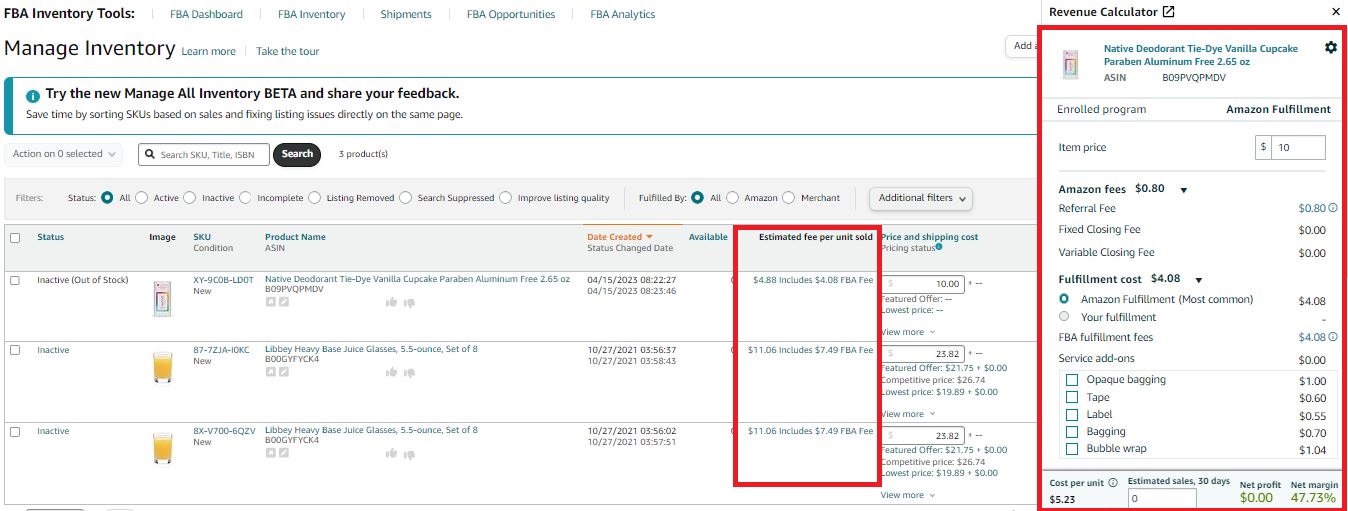
Inline revenue calculator
Revenue Calculator
The Revenue Calculator is a tool that helps sellers estimate product fulfillment costs and make real-time cost comparisons between FBA and FBM fulfillment methods. Its main purpose is to compare which of the two fulfillment methods – Fulfillment by Amazon or Fulfillment by Merchant – is more profitable for delivering your product to the buyer.
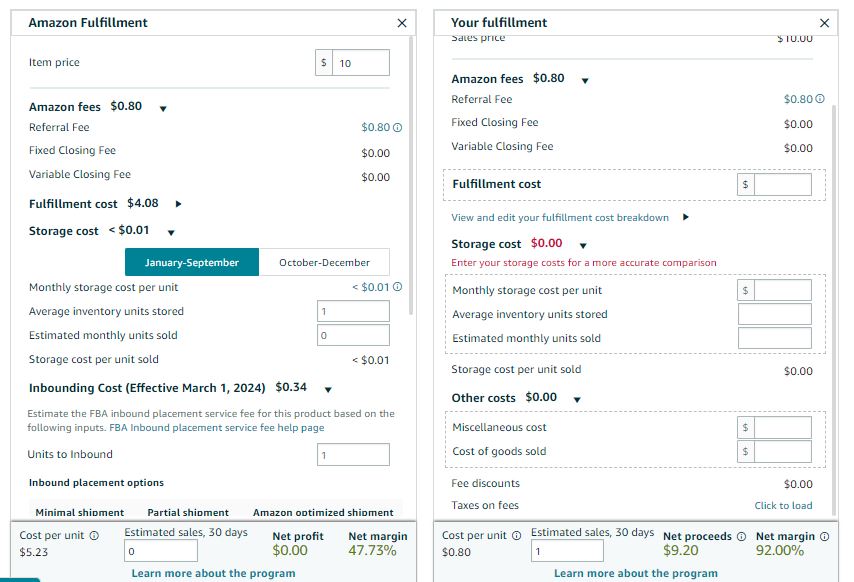
Revenue Calculator
However, it doesn’t show all fees. Also, you can’t use on-page to calculate product profit. That is inconvenient if you research many products and need to estimate all product parameters at once. To access it, you must open your Seller Central each time you need to do a calculation for every product.
In addition, to do calculations, you must enter data manually and can’t save the results.
Related: Amazon FBA Calculator: Free vs. Paid
Fees shown by the Revenue Calculator
- Referral fees;
- FBA fulfillment fees;
- FBA inbound placement service fees;
- Monthly storage fees;
- Long-term storage fees;
- Variable closing fees.
Fees not shown by the Revenue Calculator
- Monthly selling plan fees;
- Per-item fees;
- Removal order fees;
- Return processing fees;
- Unplanned service fees;
- FBA inventory storage overage fees;
- Refund administration fees;
- Rental book service fees;
- High volume listing fees.
What it does
Amazon Revenue calculator helps select between FBA and FBM and gives the idea of what is more cost-effective to deliver the order to the customer – if you do it yourself or if Amazon does it. This calculator doesn’t guarantee to account for all expenses, and it’s better to use third-party tools if you need precise fee calculation.
How to use it
To calculate your FBA fees and the cost of product self-fulfillment, you must enter price and shipping charge details, select the Inbound placement options, number of locations, and inbound regions, and Cost of Goods Sold, your estimated fulfillment costs and other fees, such as FBA bagging and labeling service add-ons. Then add all necessary data about third-party shipment fees and compare the results.
Amazon Fee Preview Report
Amazon Fee Preview Report is used to provide a summary of specific Amazon selling and FBA monthly fulfillment fees. You can also see if Amazon will change fees for any of your orders. However, it doesn’t show many other fees, and you can’t do any calculations there. To do that, you must use another tool.
What it does
You can find in this report summarized estimates of Amazon selling and fulfillment fees for your current FBA inventory. It also shows if there will be any fee changes for you to be informed and correct your profit calculations.
The data in the report are for your information and may be up to 72 hours old.
How to use it
To access the report, in the Reports drop-down menu, select Fulfillment.
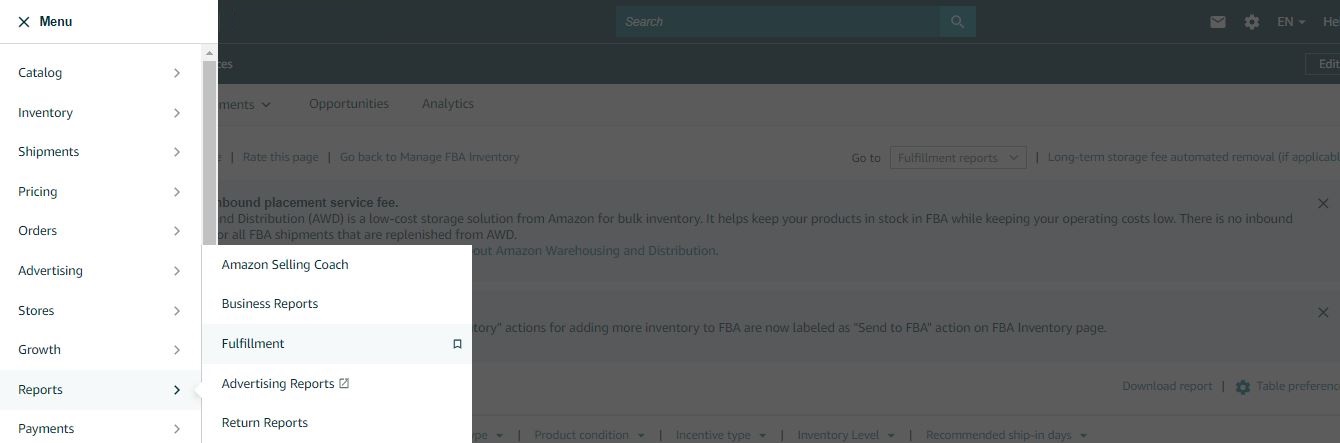
To access the Fee Preview Report, in the Reports drop-down menu, select Fulfillment.
On the left of the page, scroll down to Payments, and click Fee Preview.
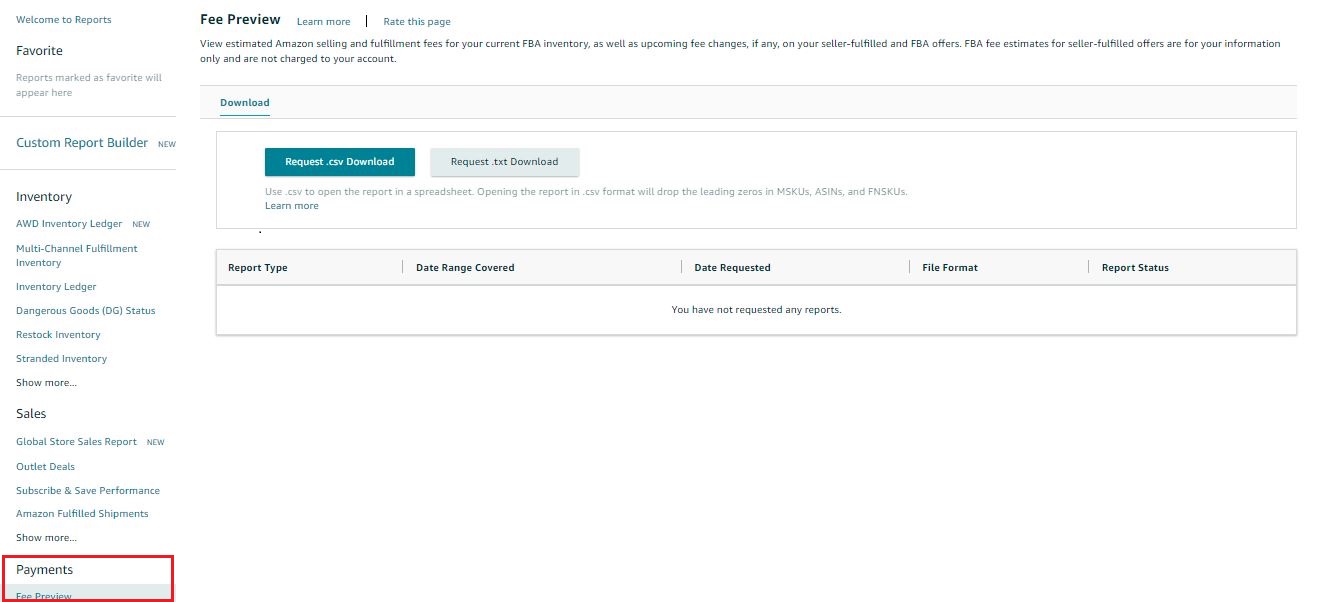
To access the Fee Preview Report, croll down to Payments, and click Fee Preview.
FAQ
How to calculate FBA fees?
To accurately calculate FBA fees, the majority of Amazon sellers use FBA calculators. You can apply one of the two free Amazon fee tools: Inline revenue calculator in the Manage Inventory dashboard in your Seller Central, Amazon Revenue Calculator, and Amazon Fee Preview Report. Another option is to use advanced third-party FBA calculators like Seller Assistant’s FBM&FBA Profit Calculator showing all Amazon fees right on the Amazon search and product pages and in the Side View panel on any website.
How Amazon calculate FBA fees?
There’s no one-size-fits-all cost for FBA fees. Amazon considers product size, weight, and category to determine a base fulfillment fee. They also charge storage fees for items in their warehouses.
How to calculate Amazon FBA storage fees?
To calculate storage FBA fees, you can apply calculators like Seller Assistant’s FBM&FBA Profit Calculator showing all Amazon fees right on the Amazon search and product pages, and in the Side View panel on any website.
Where to find FBA fees on Amazon?
You can find FBA fees in your Seller Central, in the Fee Preview Report.
How can I calculate FBA fees accurately before listing a product?
Use a tool like Seller Assistant Extension to calculate fees and profitability in real time. You can analyze products directly on Amazon or supplier websites, with built-in calculators showing total fees, profit, ROI, and margin instantly.
Final Thoughts
Knowing how to calculate Amazon FBA fees isn’t just about crunching numbers – it’s about protecting your margins and making smarter sourcing decisions. With dozens of fees – from referral and fulfillment to storage and logistics – one wrong estimate can turn a great deal into a loss.
Tools like Seller Assistant simplify this process, giving you accurate, real-time profitability insights directly on Amazon and supplier pages. Whether you’re analyzing bulk price lists or checking a single product, Seller Assistant helps you stay on top of your costs and stay competitive.
Seller Assistant is an all-in-one product sourcing software offering all the features vital for product sourcing. It combines three extensions: Seller Assistant Extension, IP Alert, and VPN by Seller Assistant, tools: Price List Analyzer, Brand Analyzer, Seller Spy, Bulk Restrictions Checker, and API integrations, and features: Side Panel View, FBM&FBA Profit Calculator, Quick View, ASIN Grabber, UPC/EAN to ASIN converter, Stock Checker, and other features that help quickly find high-profit deals. Seller Assistant also offers integration with Zapier allowing to create custom product sourcing workflows.