


For sellers using Fulfillment by Amazon (FBA), Amazon takes care of picking, packing, and shipping your products from their warehouses to your customers. However, before that can happen, you need to get your products to Amazon’s warehouse.
So, how do you ship to Amazon FBA? Amazon has a detailed process in place that you need to follow to successfully send your inventory to their fulfillment centers – Send to Amazon.
In this post, we’ll guide you through the entire process of shipping to Amazon FBA, including creating a shipping plan and shipping inventory from China.
Understanding the Process of Shipping to Amazon FBA
Before you start shipping to Amazon FBA, you need to prepare and package your products according to Amazon’s guidelines. Failing to do so may result in Amazon returning your shipment or repackaging it, which could incur additional costs.
While FBA offers a convenient solution that lets sellers delegate much of the fulfillment process to Amazon, it’s important to comply with Amazon’s guidelines to avoid unnecessary fees.
To ship your inventory to Amazon’s warehouse, you must create a shipping plan by filling in shipment details in the Send to Amazon dashboard, and ensure it is delivered to the correct fulfillment center specified by Amazon. The entire process is managed through your Amazon Seller Central account.
Key Prep Requirements for Shipping to Amazon FBA
Before shipping products to Amazon’s fulfillment centers, ensure they meet FBA’s packaging and preparation standards. Non-compliant shipments may incur additional fees or be returned at your expense.
- General packaging guidelines
All units must have an exterior scannable barcode and be free of theft-prevention devices. Ensure all applicable prep requirements are met if a product falls under multiple categories.
- Loose products
Items like books or shoes must be securely packaged. Footwear must be fully enclosed in shoe boxes or poly bags with suffocation warnings.
- Sold as sets
Sets must be clearly labeled as such to avoid separation during processing. Ensure that barcodes for individual items within the set are covered to prevent scanning errors.
- Boxed units
Boxes must be sturdy, securely closed, and able to pass a 3-foot drop test. If the box has perforations, it should be reinforced or placed in a poly bag with a suffocation warning.
- Poly-bagged units
Poly bags must be transparent, have a minimum thickness of 1.5 mil, and include a suffocation warning if the opening is 5 inches or larger. Bags must be fully sealed with a scannable barcode visible through the bag.
- Bubble wrap
Use bubble wrap for fragile items to ensure they pass a 3-foot drop test. The wrapped product must be tightly sealed and labeled with a scannable barcode on the outside.
- Over-boxing
Required for items that are sharp, fragile, or hazardous. Over-boxing involves placing the product in an additional box for extra protection, especially for items over 10 lbs.
- Hanger removal
Standard-size hangers must be removed, but mini-hangers for baby clothes are permitted. Items like accessories and underwear cannot be shipped on any type of hanger.
- Additional taping
Apply extra tape to secure packaging for products that might leak, fall out, or are not fully sealed within their container.
- Mattress packaging
Mattresses must be packaged in corrugated boxes and correctly classified when creating ASINs. Follow the guidelines to ensure acceptance at fulfillment centers.
- Case-packed products
All items in a box must be identical, with matching SKUs and conditions. Case packs should contain equal quantities, and the maximum is 150 units per case. Larger boxes containing multiple case packs do not qualify as a single case pack and must be separated.
The Workflow of Shipping to Amazon FBA
Once your products are prepared, you must follow Amazon’s shipment creation workflow. This involves creating a shipping plan that outlines the details of your shipment, deciding whether you want Amazon to handle product prep (for a fee), selecting a shipping carrier, and sending your products to the specified Amazon fulfillment center. Once your shipment arrives, Amazon will scan and process it, making it ready for sale.
Here are the general steps involved in shipping to Amazon FBA.
Steps to Ship to Amazon FBA
Step 1. Prepare your products
Prepare your products as described above, and make sure your items are ready for fulfillment. If you prefer, you can use Amazon’s Prep and Label Service to handle this for you. Ensure your products are labeled with unique barcodes (UPC, EAN, or FNSKU) as required by Amazon.
Step 2. Create a Shipping plan
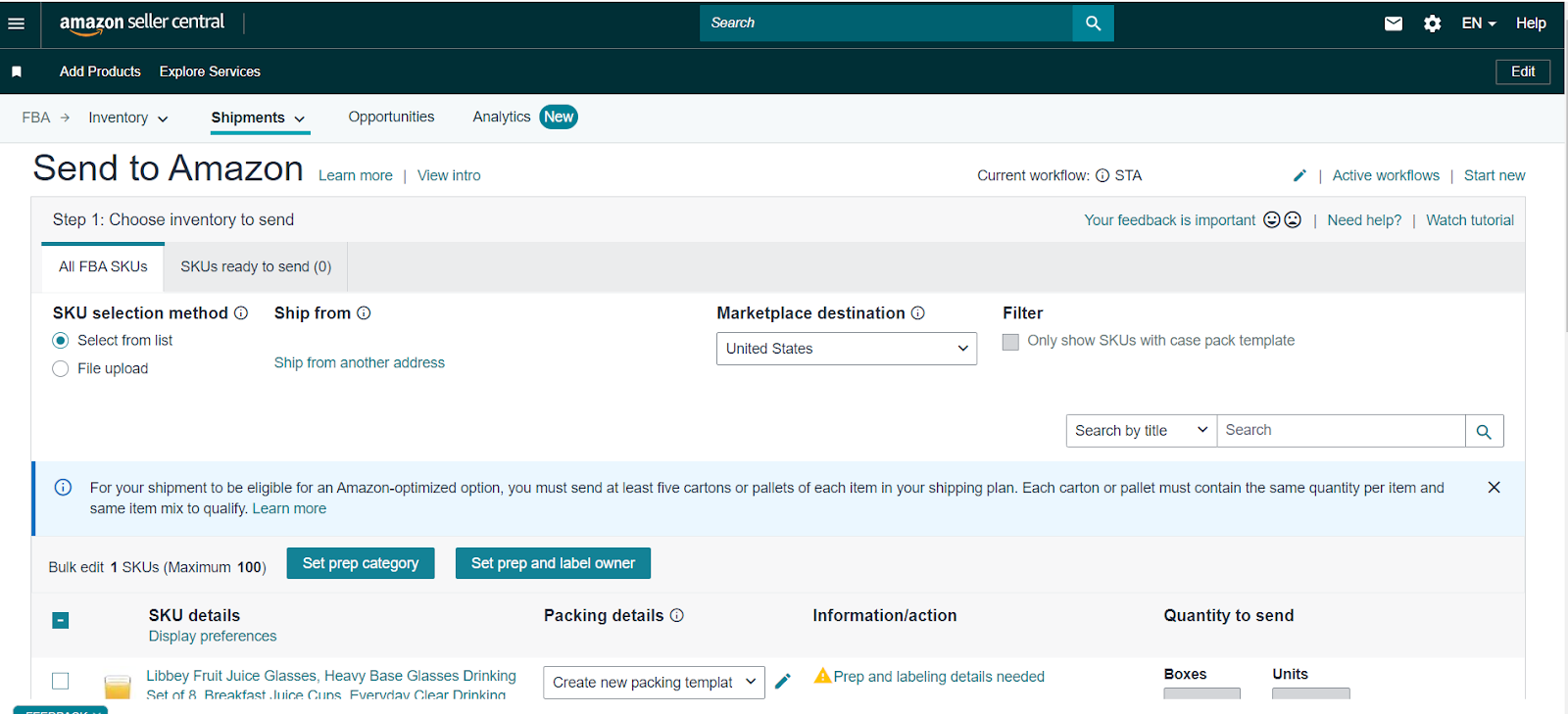
In Seller Central, navigate to “Inventory” and select “FBA Inventory.” Choose the products you want to send and create a shipping plan. Specify the quantity of each product and select the packing type (individual products or case-packed products).
Step 3. Prepare Shipment
Amazon will provide specific instructions on how to prepare your shipment, including packaging and shipping labels. Follow these instructions carefully to avoid delays or issues. Print the provided labels and attach them to your packages.
Step 4. Ship Your Inventory
Choose your preferred carrier or take advantage of Amazon’s partnered carriers, which may offer discounted rates. Ensure the shipment is sent to the correct fulfillment center as specified in your shipping plan.
Step 5. Track Your Shipment
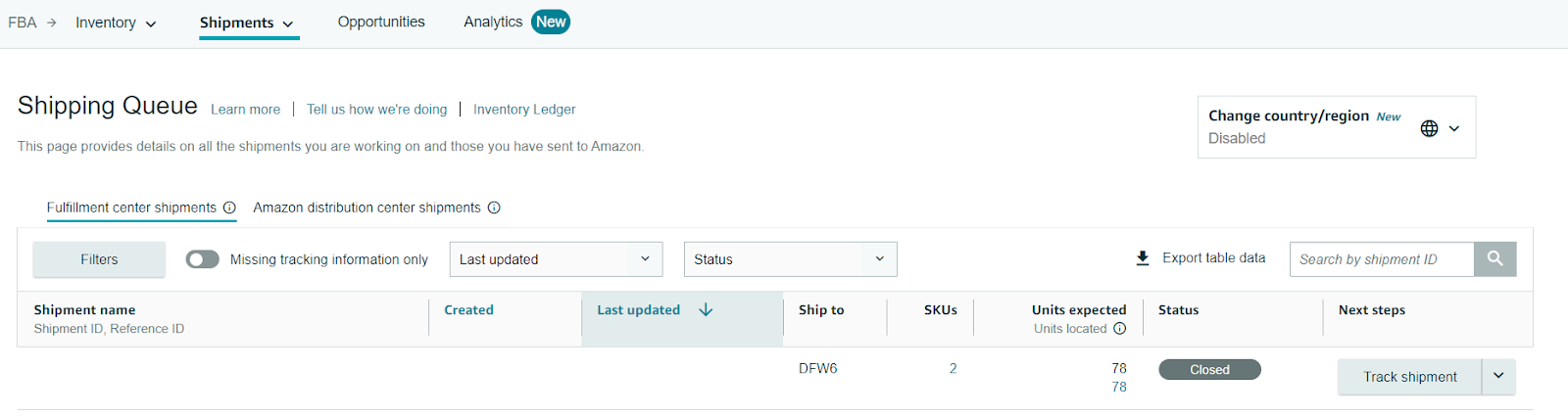
After shipping, monitor the shipment status within Seller Central on the Shipping Queue page to ensure it arrives at the fulfillment center without any problems. Amazon will notify you once the shipment is received, and your products will be available for sale.
What Is a Shipping Plan?
.webp)
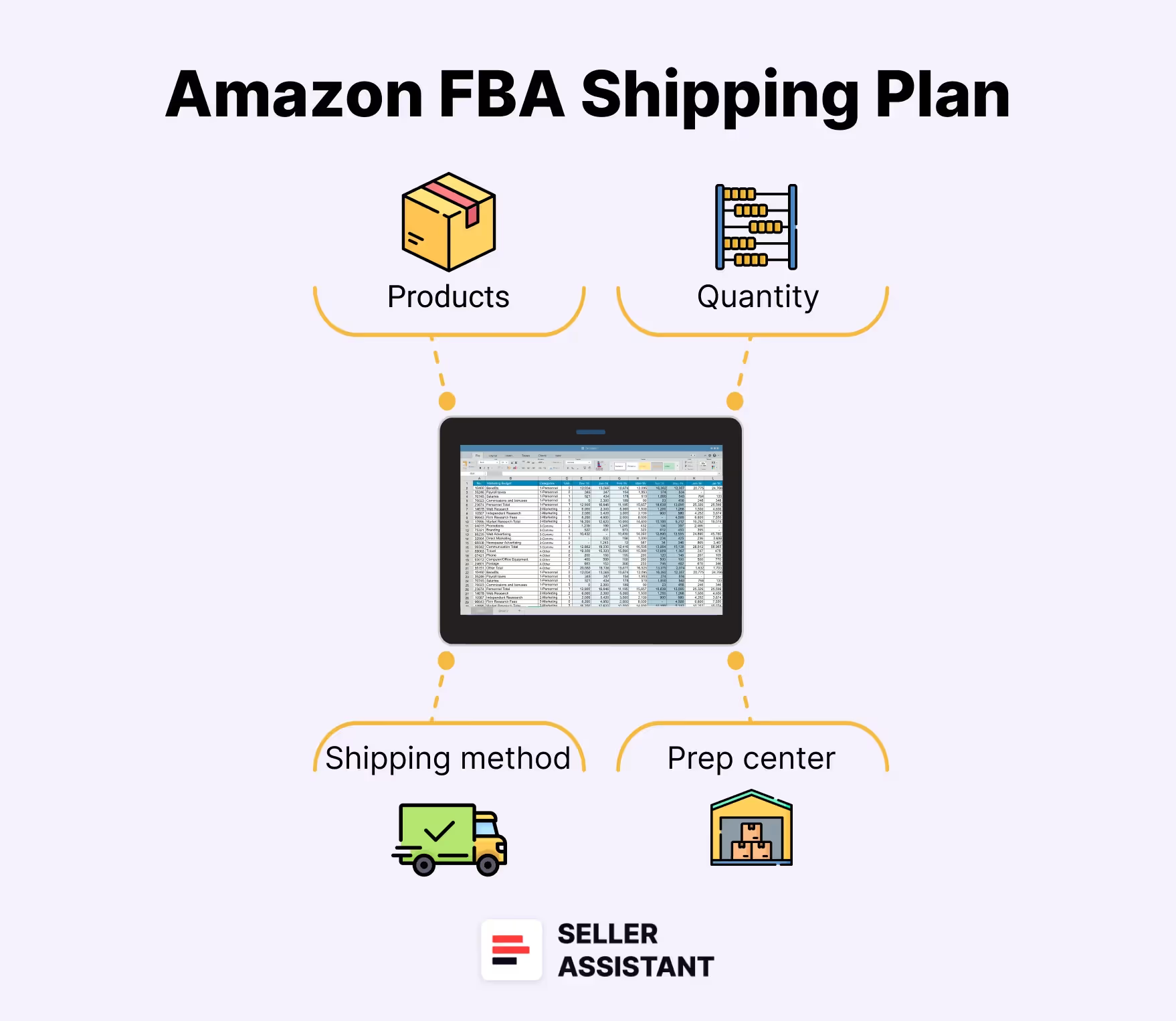
A shipping plan is essential for specifying the products you want to send to Amazon fulfillment centers, their quantity, and how you will deliver them. The shipping plan can be created using the “Send to Amazon” workflow, or by uploading a list of products via an Excel spreadsheet for larger batches.
“Send to Amazon” simplifies the shipment creation process, allowing you to add products directly from the Send to Amazon page.
Key elements to include in your shipping plan
- Products
Specify the exact items you want to fulfill.
- Quantities
Detail how many units of each product you will send and the number of boxes.
- Shipping method
Choose the courier services you’ll use to deliver products to Amazon, e.g., FedEx, UPS, or DHL.
- Prep and labeling
Decide whether you or Amazon will prepare and label your inventory.
How to Create a Shipping Plan Using Send to Amazon
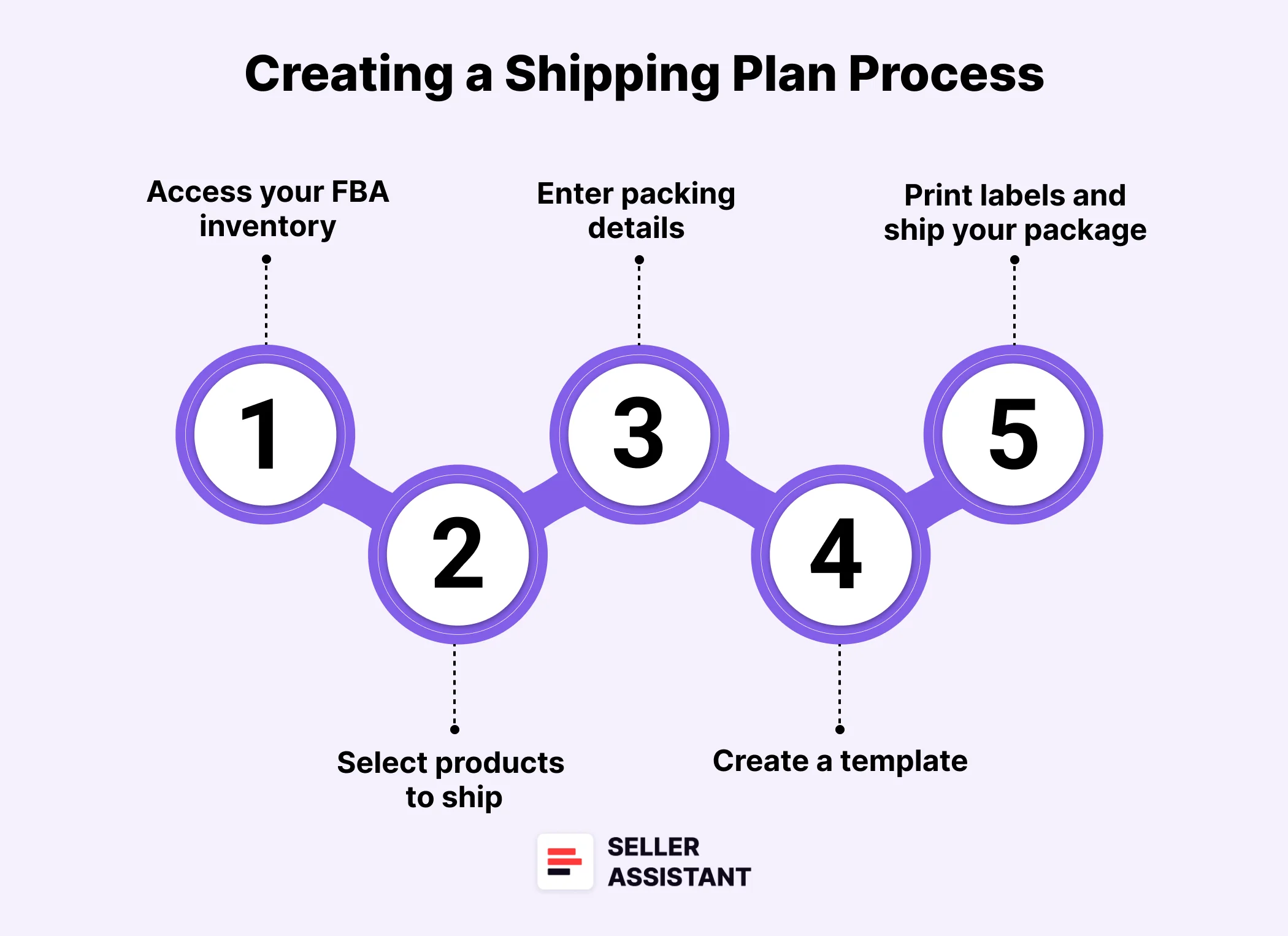
Creating an accurate shipping plan is crucial to ensure your products are accepted at Amazon’s fulfillment centers and processed without issues. The “Send to Amazon” workflow simplifies this process. Here’s how to create your shipping plan.
Steps to creating a Shipping plan
Step 1. Access your FBA inventory
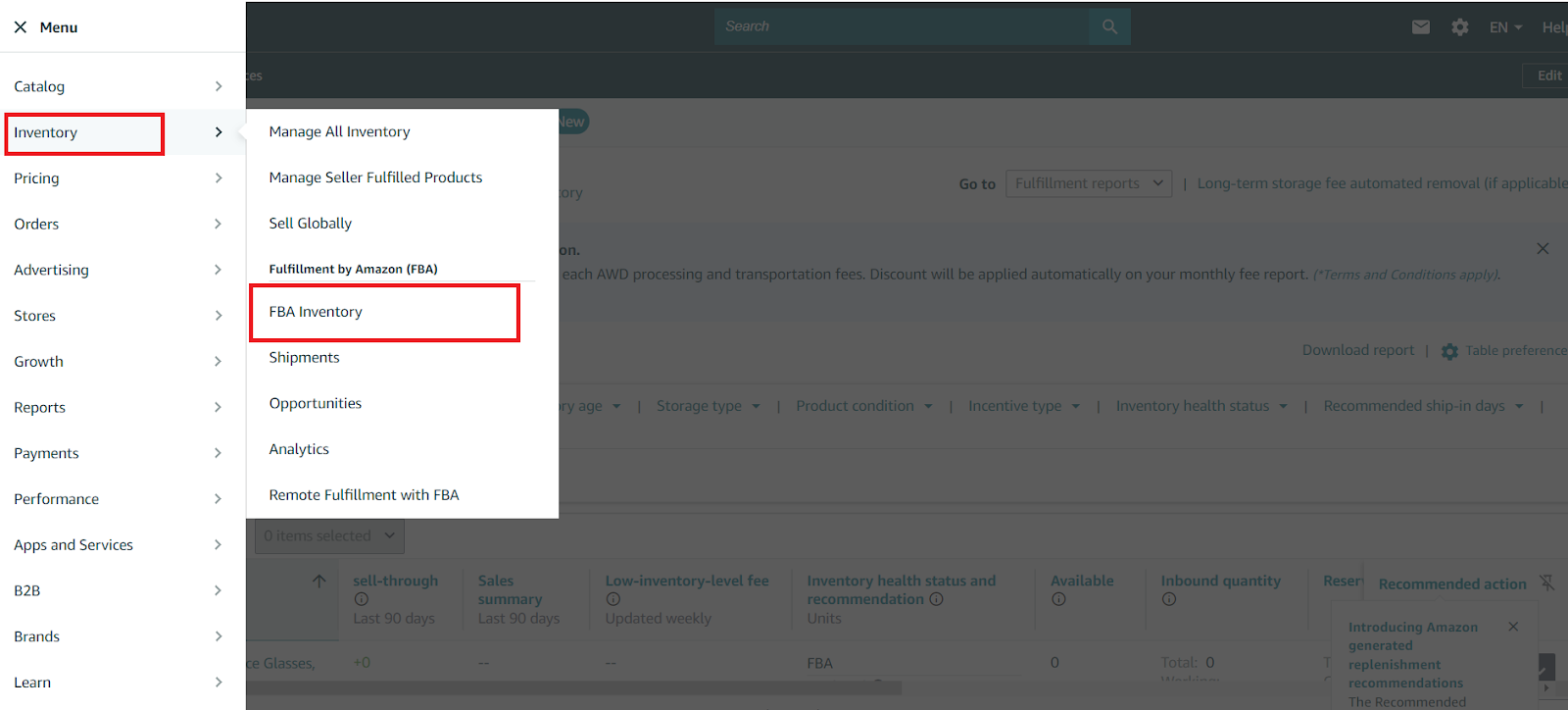
Log in to Seller Central and navigate to “Inventory” > “FBA Inventory” to locate the products you want to ship.
Step 2. Select products to ship
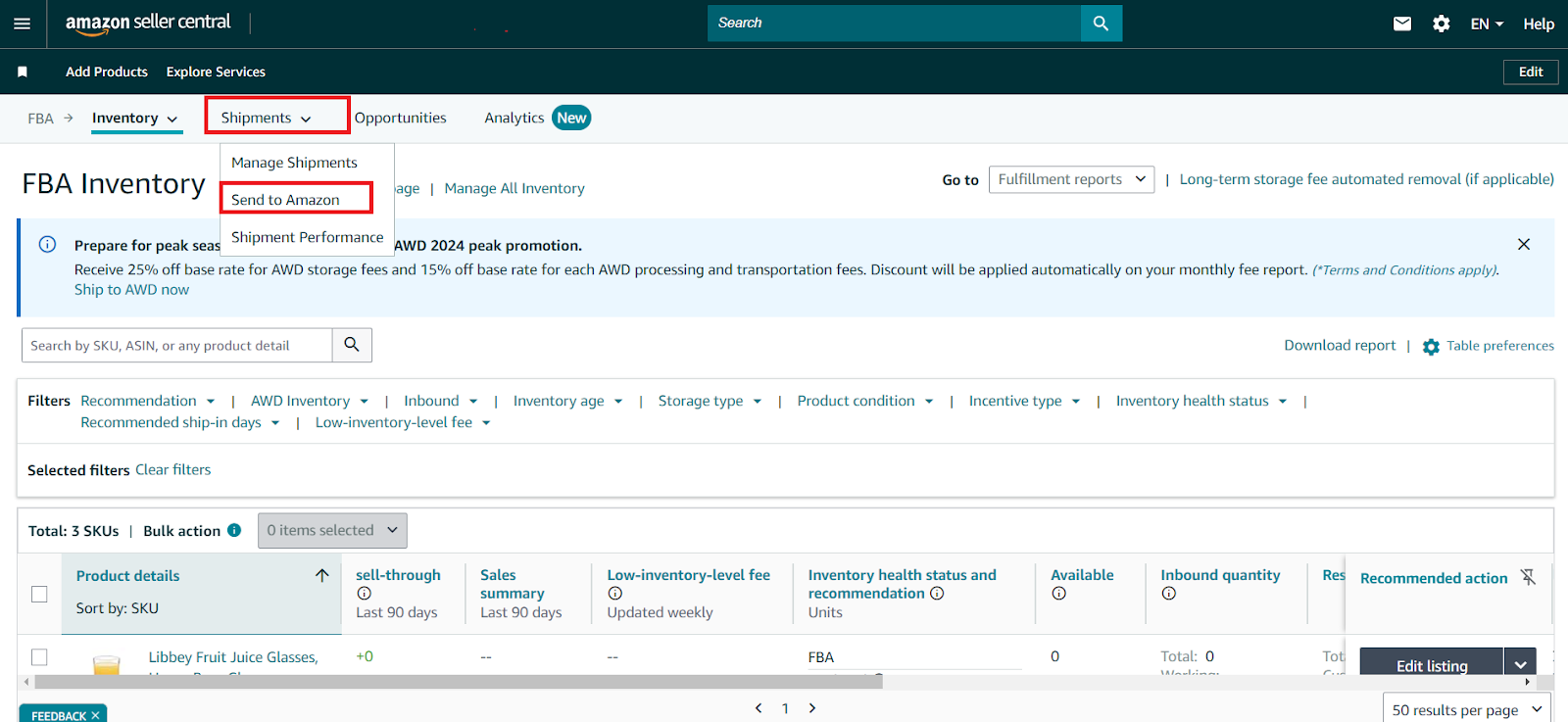
Go to “Shipments” > “Send to Amazon.” Select the products you plan to ship by checking the boxes next to each item.
Step 3. Enter packing details and create a templatesome text
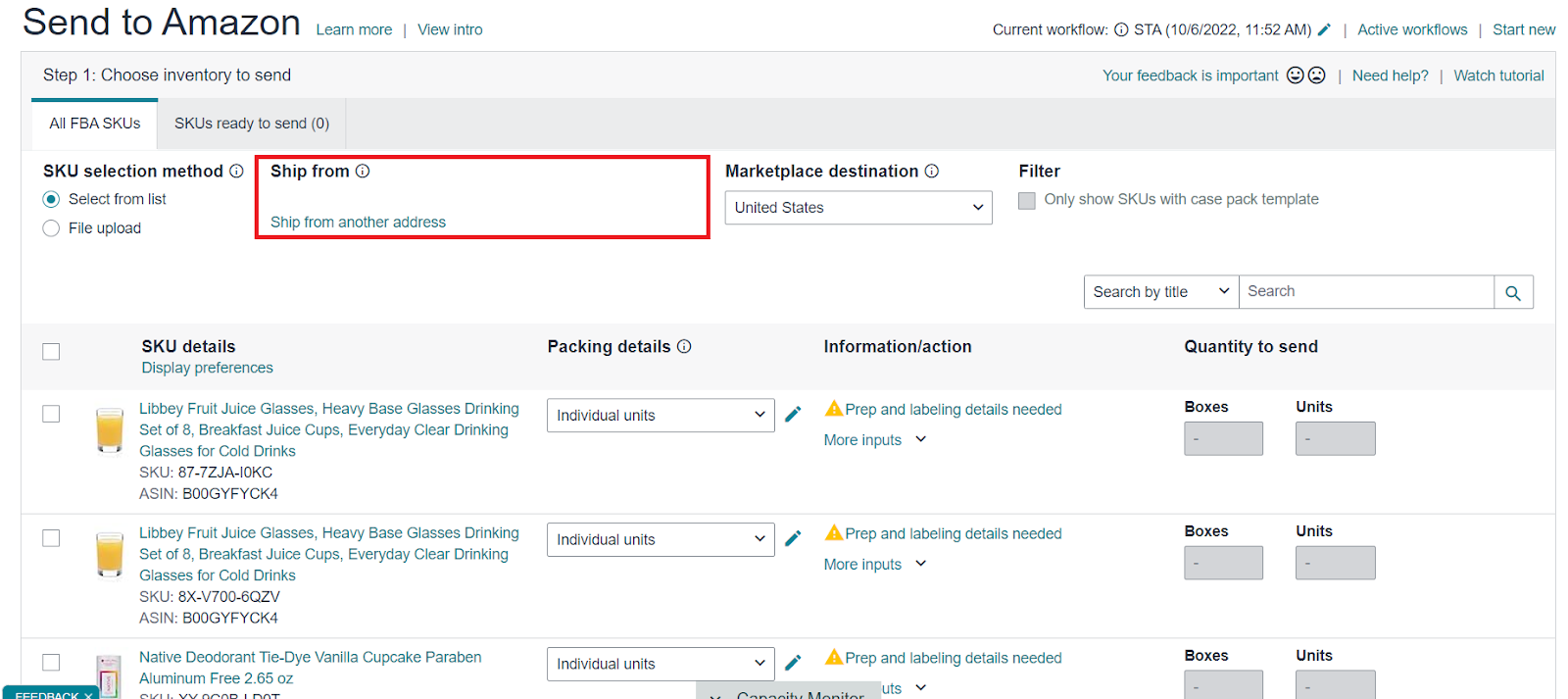
- Verify your shipping address in the “Ship from” field and update it if necessary.
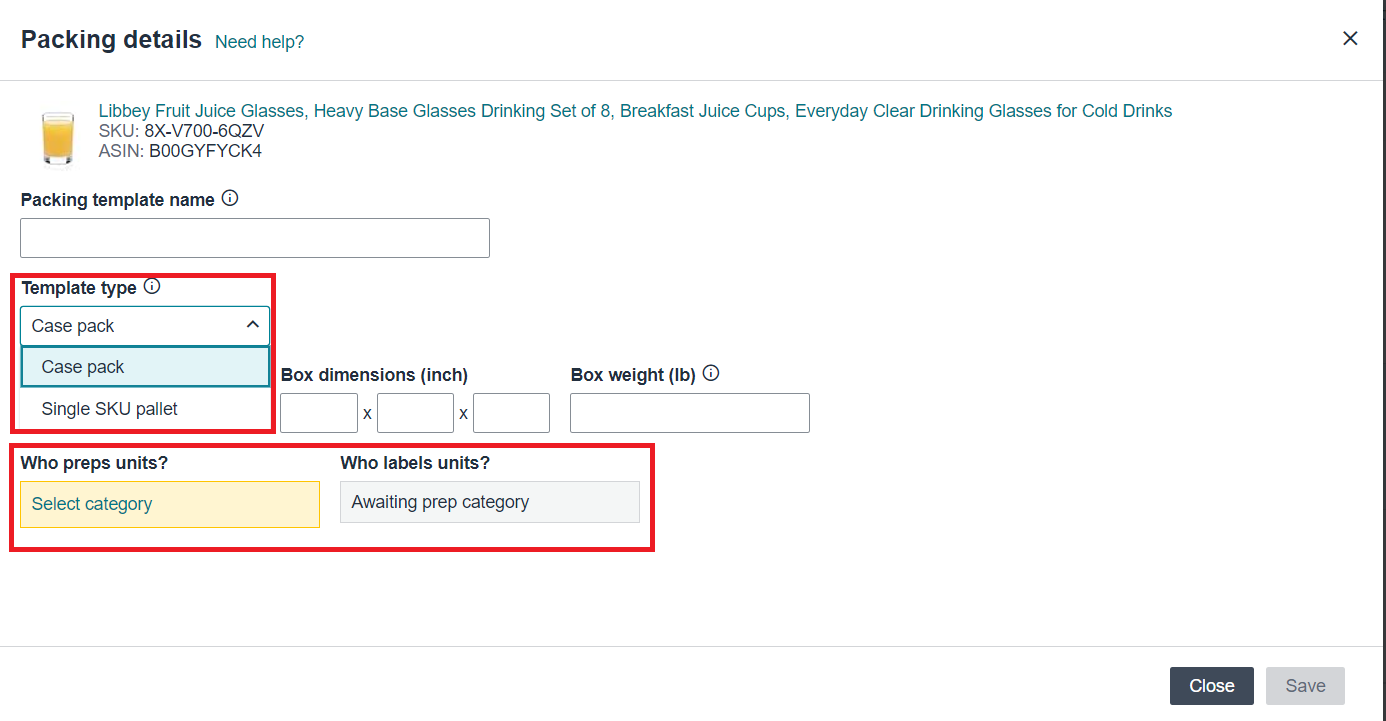
- If this is a new shipment, create a packing template by selecting “Create a new packing template.”
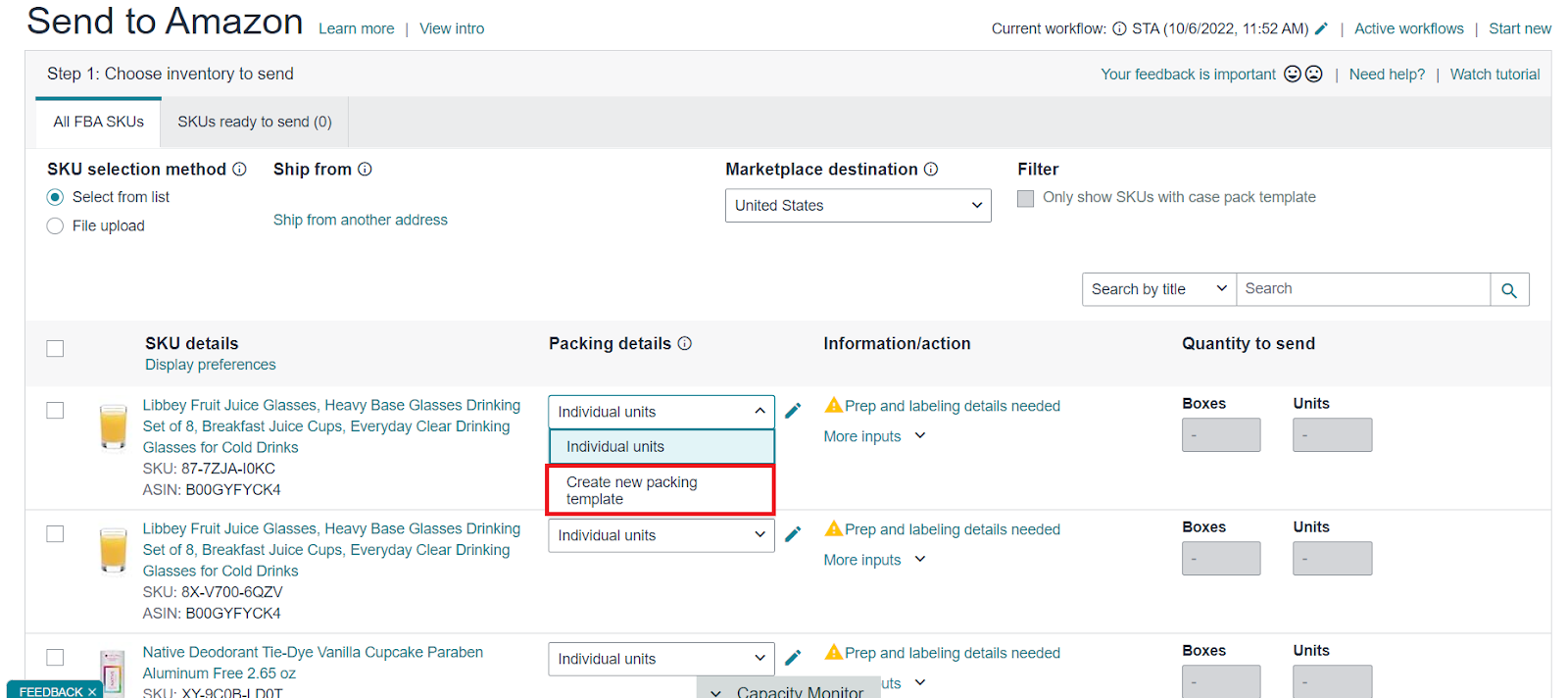
- Choose the template type (Case pack or single SKU), indicate who will prep and label the products, and specify the prep category (e.g., fragile, Apparel). Ensure you follow Amazon’s prep guidelines for each product.
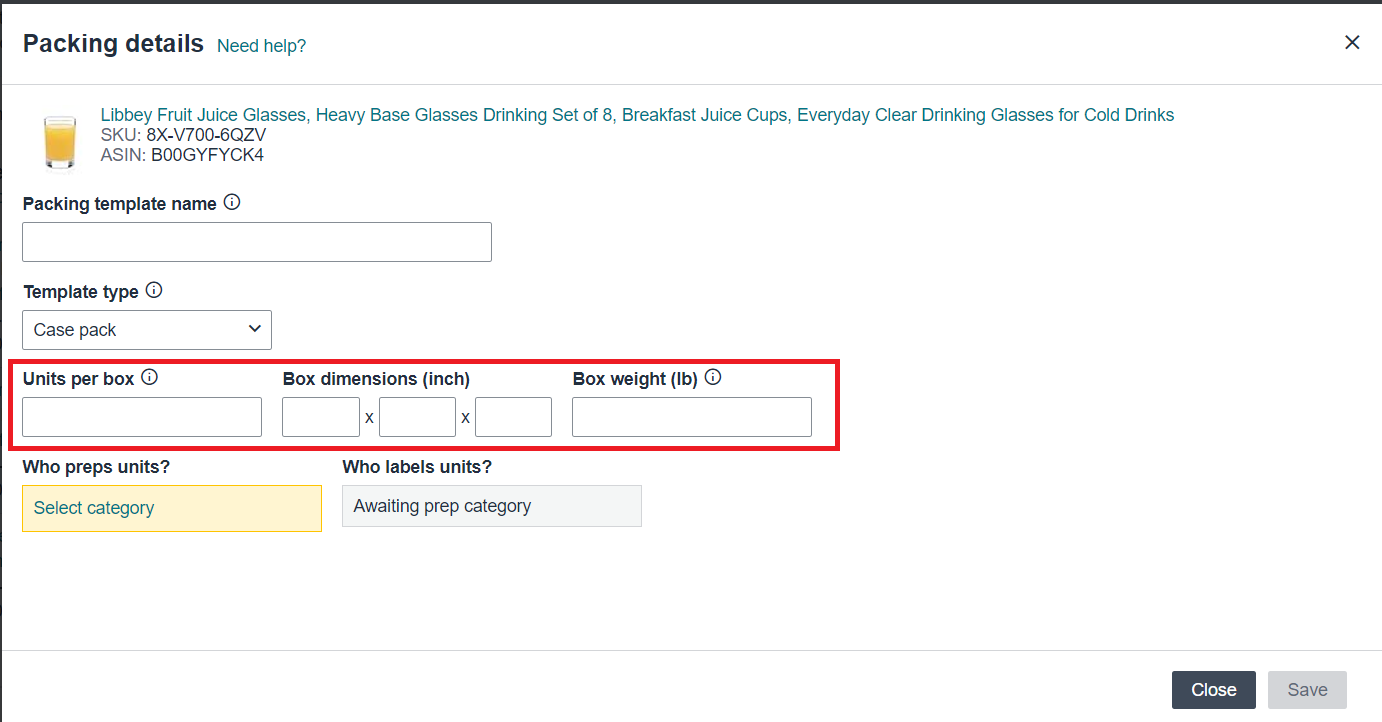
- Add product packing details (units per box, dimensions, and weight).
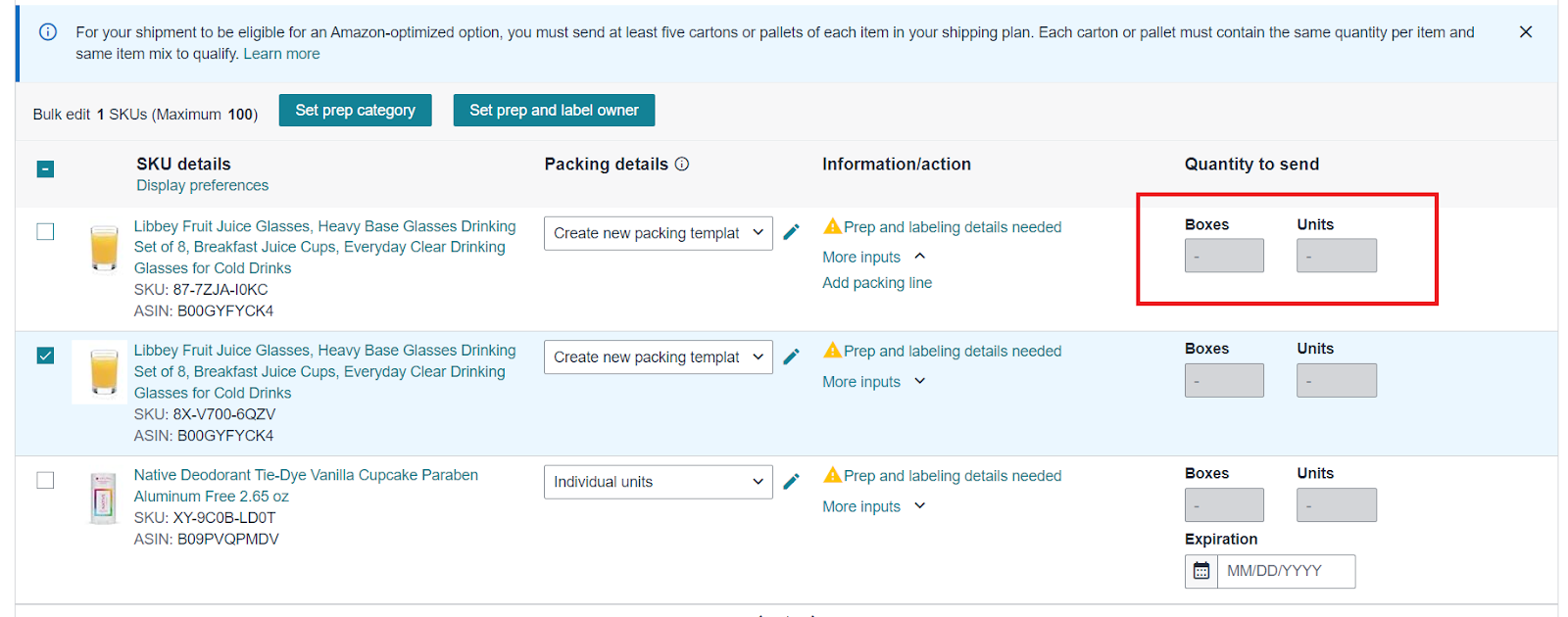
- In the Send to Amazon page, specify the number of units and boxes you intend to send.
Step 4. Confirm shipping details
Review all shipping details, including the ship date, mode of transport (e.g., small parcel delivery or LTL), and the shipping carrier along with the charges. If everything looks correct, click “Accept charges and confirm shipping.”
Step 5. Print labels and ship your package
Print the shipping labels, making sure both barcodes are clearly visible on the package. Drop off your package with UPS or another carrier of your choice, and monitor the shipment status through the Shipping Queue in Seller Central.
How to Send Amazon Inventory from China?
Shipping inventory to Amazon FBA from China involves additional considerations due to the international shipping process.
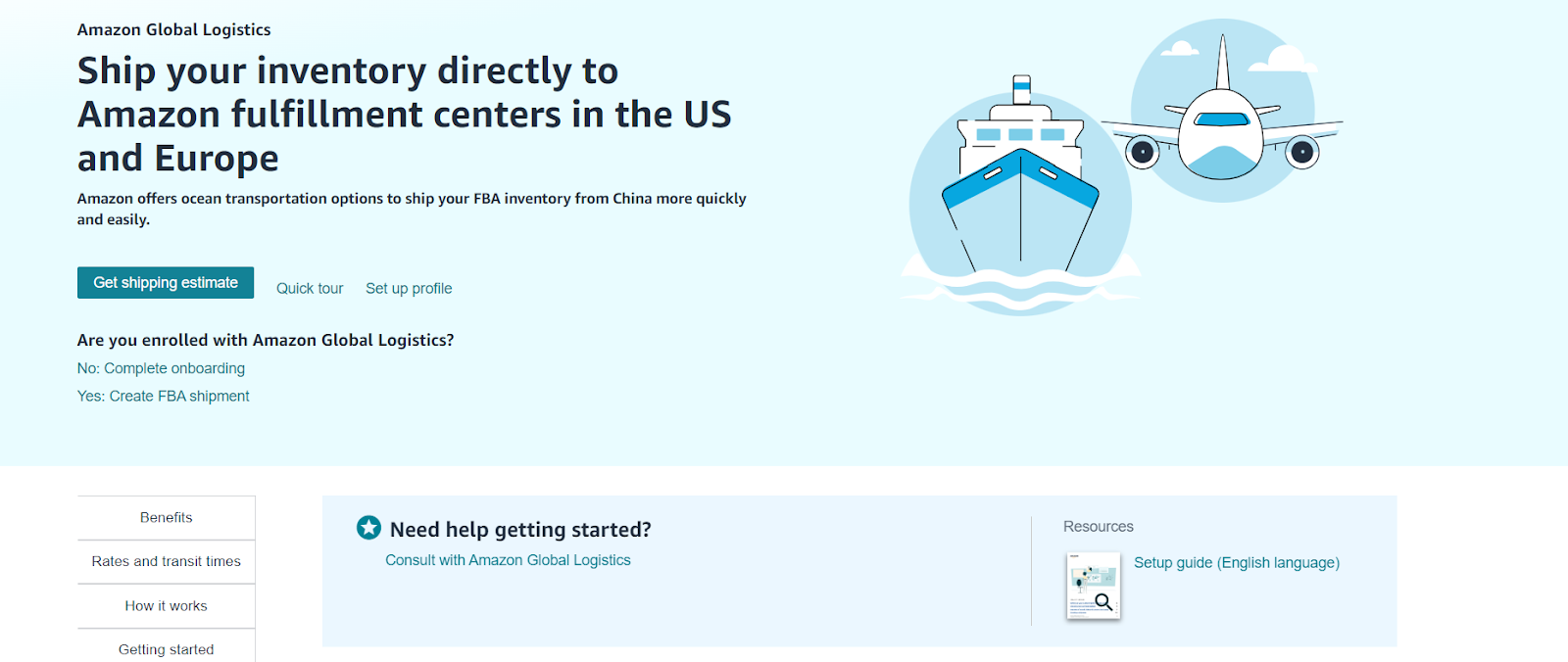
Amazon has introduced a program called Amazon Global Logistics, which enables sellers to book ocean shipments directly through Seller Central. This simplifies the process for sellers to transport their inventory from suppliers in China to Amazon’s fulfillment centers.
Steps to using Amazon Global Logistics
Step 1. Set up your Amazon Global Logistics Account
Register your account with Amazon Global Logistics to start shipping your FBA inventory from China to fulfillment centers in the US and Europe. This service offers competitive rates and streamlined logistics.
Step 2. Evaluate your shipping transportation costs and transit times
- Shipping transportation costs
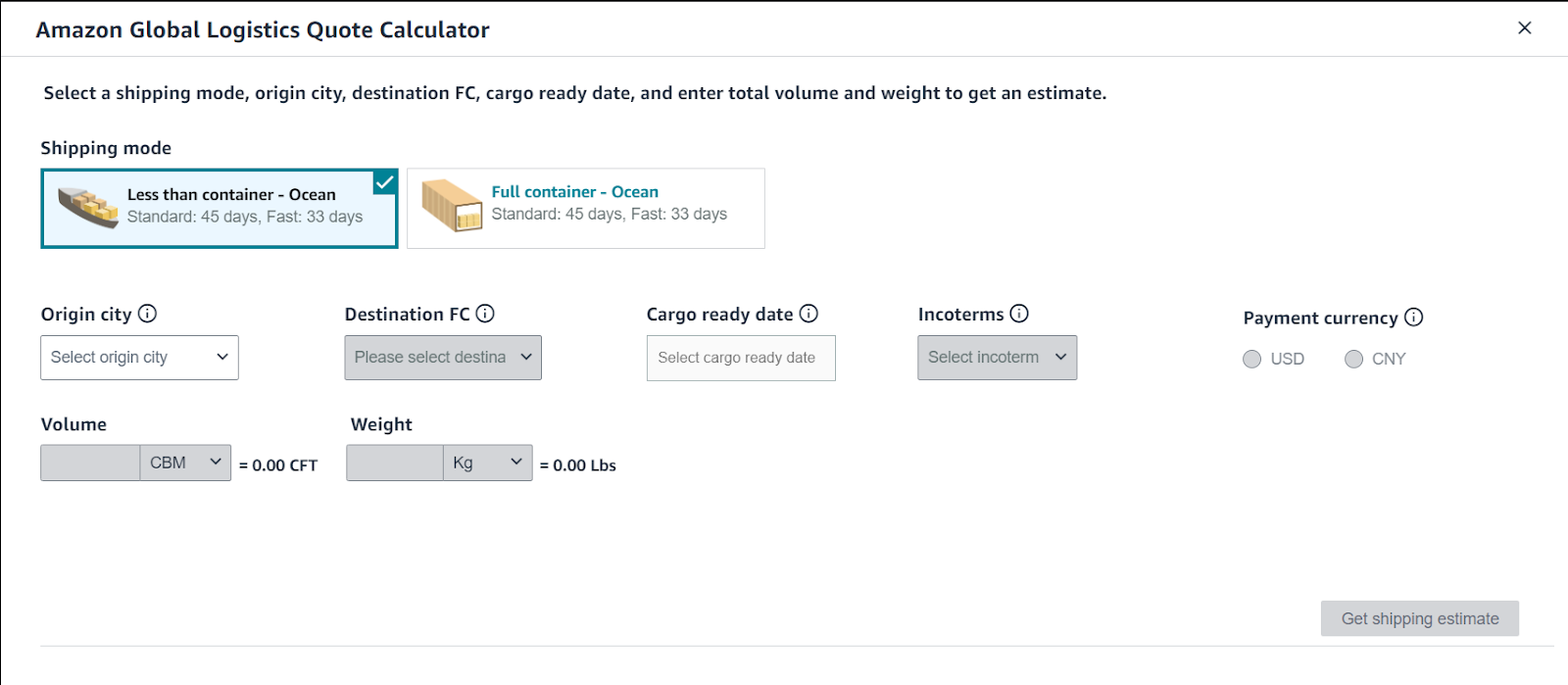
Calculate your shipping transportation costs with Amazon Global Logistics Quote Calculator before creating an FBA shipment. By selecting the origin city, destination fulfillment center, cargo ready date, and entering the total volume and weight, you can generate estimates for each shipping mode.
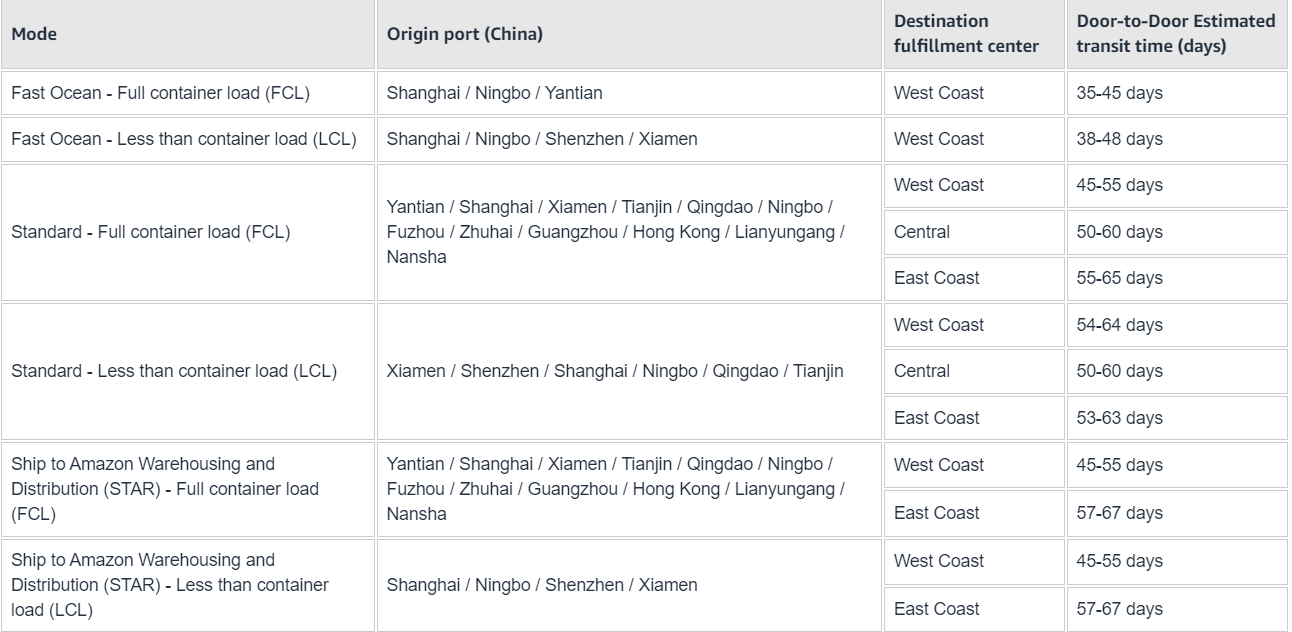
- Typical transit times
Step 3. Complete payment setup
Configure your payment method to pay in either USD or CNY (for a fapiao). This is an essential step to begin using the service.
Step 4. Establish your importer of record
Provide your Importer of Record (IOR) details to ensure smooth customs compliance. Upload the necessary documents, and Amazon will review and approve, or guide you through any additional steps.
Step 5. Create and track your shipment
Use the Send/Replenish Inventory workflow to get a quote and book your transportation. Once your shipment is on its way, track it as it moves into the fulfillment center.
FAQ
Can you deliver items to Amazon for FBA?
Yes, you can send your items directly to Amazon’s fulfillment centers for FBA. You need to follow Amazon’s guidelines for packaging and labeling to ensure your items are processed correctly.
Is it free to send to Amazon FBA?
No, sending items to Amazon FBA is not free. You will incur shipping costs and possibly additional fees if your items require special preparation or labeling. Typically, sellers pay around $0.25 to $0.30 per pound to ship products to an Amazon FBA.
How do I send goods to the Amazon warehouse?
To send goods to an Amazon warehouse, you need to create a shipping plan in Seller Central, prepare your products according to Amazon’s guidelines, and then ship them using your chosen carrier. Amazon will provide specific instructions and labels for the shipment.
Who pays for shipping to FBA?
The seller is responsible for paying the shipping costs to send items to Amazon FBA. You can choose to use your preferred shipping carrier or take advantage of Amazon’s partnered carriers, which may offer discounted rates.
Can you send 1 item to Amazon FBA?
Yes, you can send even a single item to Amazon FBA. However, it’s important to consider the cost-effectiveness, as the shipping and fulfillment fees may impact your profitability.
How much does the FBA charge for shipping?
Amazon doesn’t charge for shipping to FBA, sellers must ship to FBA and pay for it themselves. FBA charges for shipping depend on various factors, including the size, weight, and destination of your shipment. Amazon offers partnered carrier rates that are often more cost-effective than standard shipping services. Typically, sellers pay around $0.25 to $0.30 per pound to ship products to an Amazon FBA.
Final Thoughts
To ensure smooth processing and avoid delays or additional costs when sending your products to Amazon FBA, it’s essential to adhere to Amazon’s inventory standards for fulfillment centers.
Seller Assistant automates and connects every stage of your Amazon wholesale and arbitrage workflow. It brings together in one platform: workflow management tools – Purchase Orders Module, Suppliers Database, Warehouses Database, bulk research & sourcing tools – Price List Analyzer, Bulk Restriction Checker, Sourcing AI, Brand Analyzer, Seller Spy, Chrome extensions – Seller Assistant Browser Extension, IP-Alert Extension, and built-in VPN by Seller Assistant, and integrations & team access features – seamless API connectivity, integrations with Zapier, Airtable, and Make, and Virtual Assistant Accounts.