

If you use Fulfillment by Amazon (FBA), Amazon stores and delivers your orders from their fulfillment centers to your customers.
But how do you get your products to the Amazon warehouse? What steps do you need to take to ship products to Amazon FBA? Amazon has a specific workflow that helps you send inventory to their fulfillment centers; you just need to follow it.
This post tells you how to send products to Amazon FBA, what is Amazon shipping plan and how to create it step by step.
How to Send Inventory to Amazon FBA?
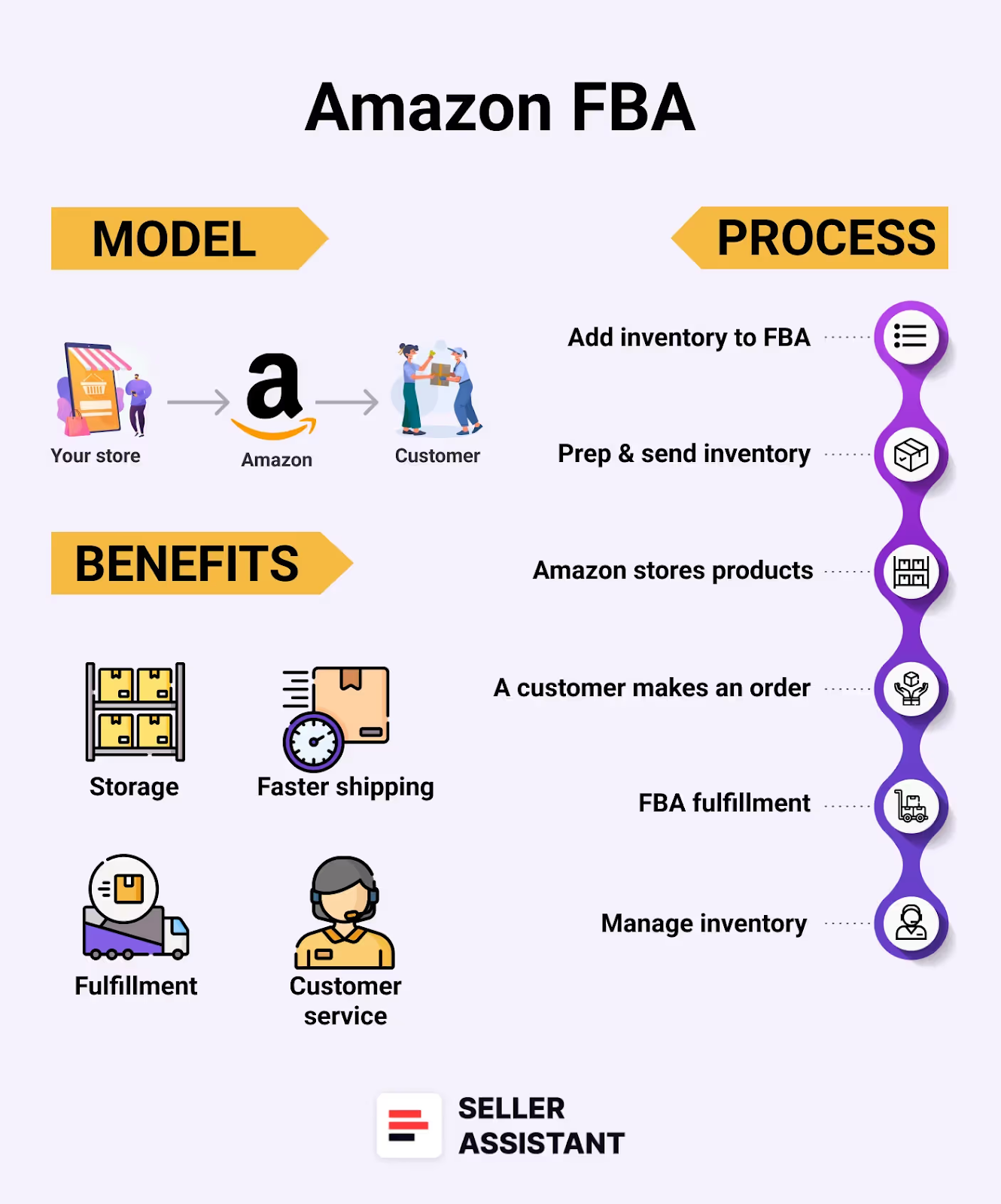
How to Send Inventory to Amazon FBA
Before you can send products to Amazon, you must prepare and package your products according to Amazon’s requirements. If that’s not done, Amazon may return the shipment or repackage your product and charge you for that.
Though FBA is a great solution that relieves sellers from a big part of the fulfillment hassle, the services come with a cost. Therefore, in many cases, being compliant with Amazon’s guidelines helps avoid extra expenses.
To send your inventory to the Amazon warehouse, you must create a shipping plan and deliver it to the fulfillment center that Amazon specifies. The shipping plan is created in your Amazon Seller Central.
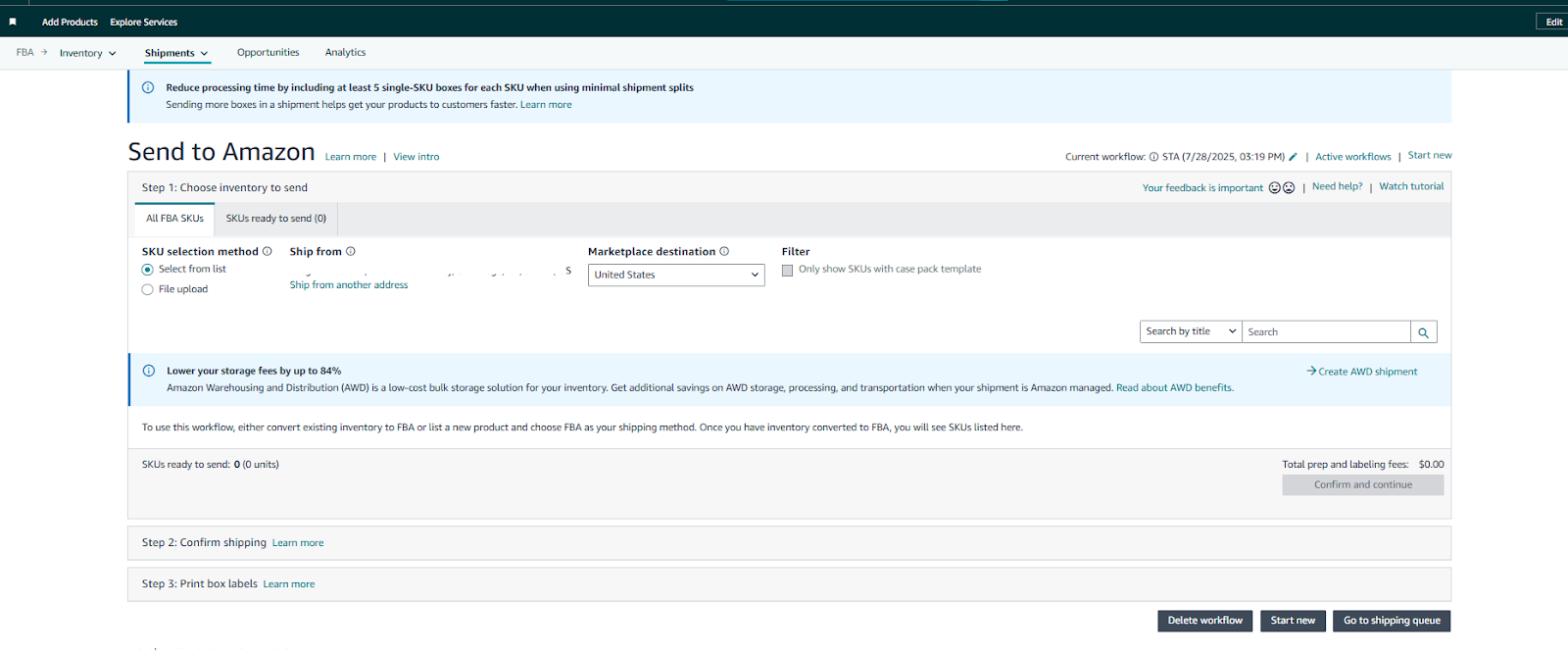
Send to Amazon
How Does Sending to Amazon FBA Work?
To send your products to Amazon FBA, after you’ve prepared your products, you must follow a shipment creation workflow. Amazon requires you to create a Shipping plan describing what and how you want to send, and whether you want Amazon to prep your shipment for a fee to comply with FBA requirement, select a shipping carrier, and send your products to the Amazon fulfillment center. There Amazon scans it, and it will be ready for sale. Amazon will then deliver your shipment to the fulfillment centers close to your customers.
Below you can find general steps involved in this process.
Steps to sending products to Amazon FBA
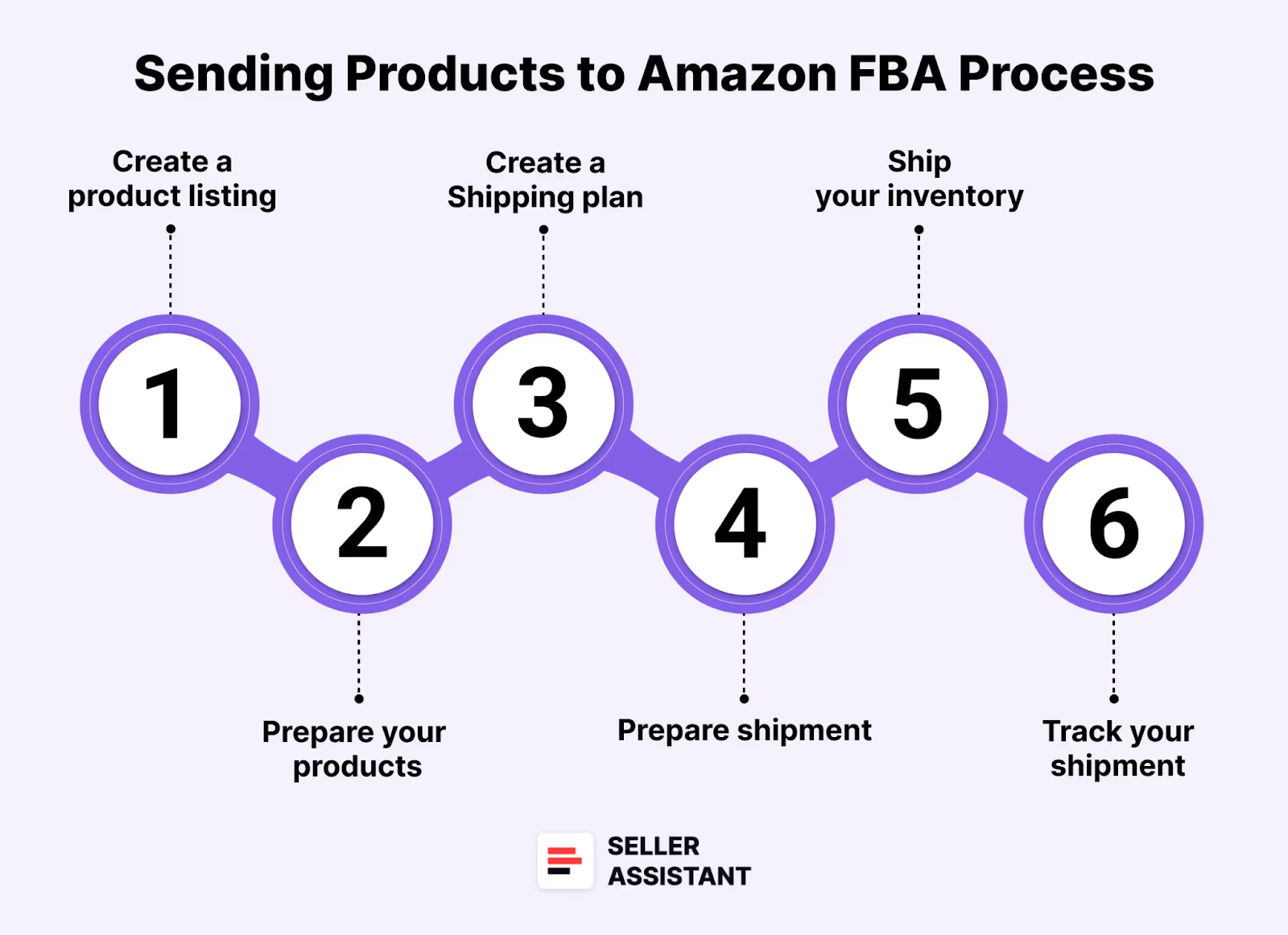
Steps to sending products to Amazon FBA
- Step 1. Create a product listing
Before sending inventory, ensure your product is listed on Amazon. You can do this by either creating a new listing or adding your product offer to an existing one if the product already exists in Amazon’s catalog.
-
Step 2. Prepare your products
- Amazon has specific guidelines on how to prep your products. This includes packaging, labeling, and ensuring that your items are ready for fulfillment.
- Use Amazon’s Prep and Label Service if you prefer Amazon to handle this for you.
- Label your products with unique barcodes (UPC, EAN, or FNSKU ) as required by Amazon.
-
Step 3. Create a Shipping plan
- In Seller Central, go to “Inventory” and select “FBA Inventory.”
- Choose the products you want to send and create a Shipping plan (we will discuss in detail how to do it below in this post).
- Specify the quantity of each product you are sending and select the packing type (individual products or case-packed products).
-
Step 4. Prepare shipment
Amazon will provide you with specific instructions on how to prepare your shipment, including packaging and shipping labels. Follow these instructions carefully to avoid delays or issues.
Print the provided labels and attach them to your packages.
-
Step 5. Ship your inventory
- You can choose your preferred carrier or use Amazon’s partnered carriers, which may offer discounted shipping rates.
- Ensure the shipment is sent to the correct Amazon fulfillment center as specified in your Shipping plan.
-
Step 6. Label your boxes and ship your inventory
- You’ll need two types of labels for each carton:
- Amazon box labels – used by Amazon to identify your shipment
- Shipping labels – used by your carrier
- Once labeled:
- Drop off the cartons at your carrier’s location
- Or schedule a pickup (note: carriers may charge a pickup fee).
- You’ll need two types of labels for each carton:
-
Step 7. Track your shipment
After shipping your inventory, monitor the shipment status within Seller Central on the Shipping Queue page to ensure it arrives at the fulfillment center without issues. Once received, Amazon will notify you, and your products will be available for sale.
What is the Shipping Plan?
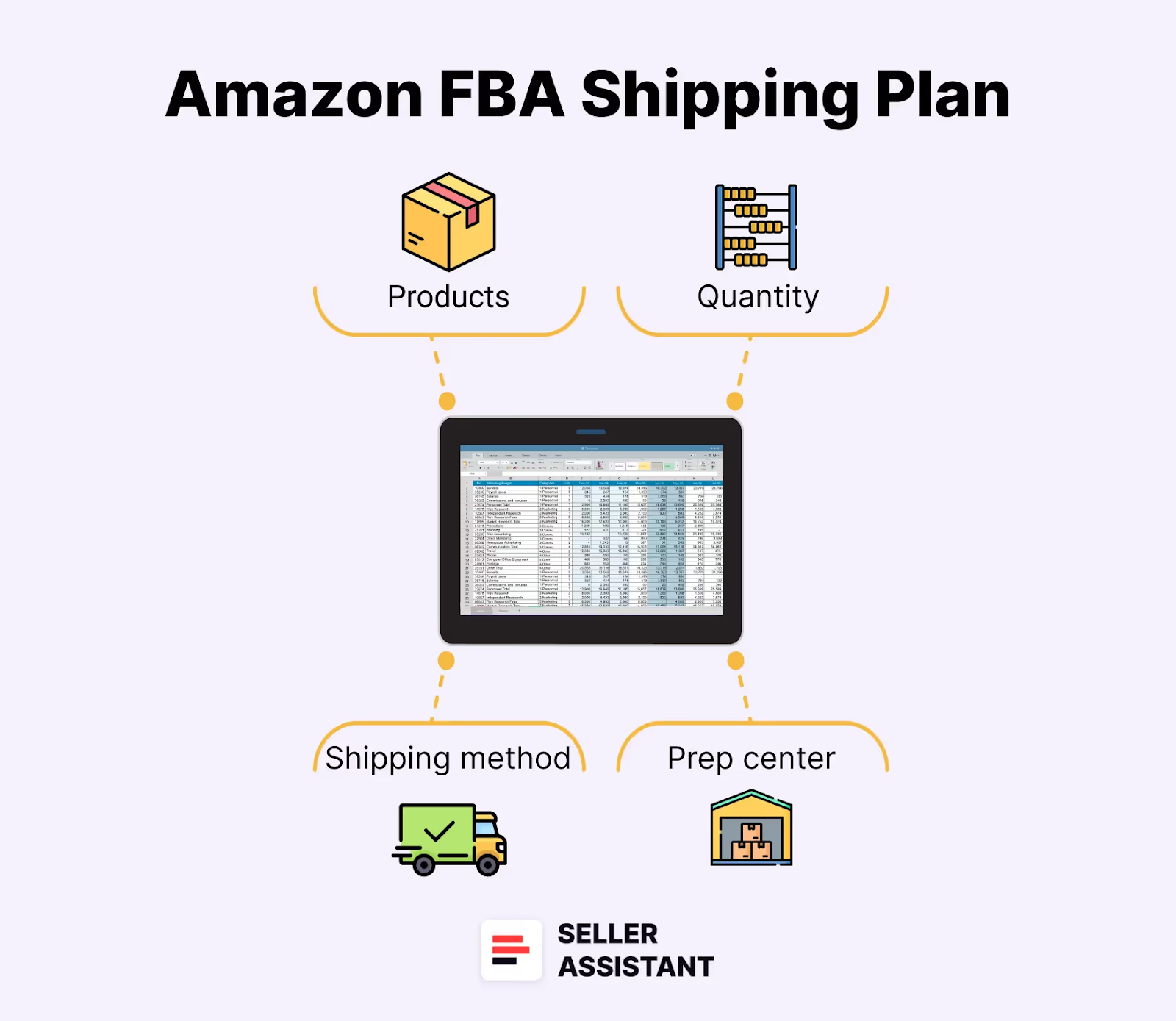
What is Amazon Shipping Plan
With a shipping plan, you specify the products you want to send to Amazon fulfillment centers, their quantity, and how you deliver them to Amazon.
A shipping plan is created following the Send to Amazon workflow or by uploading the list of products using an Excel spreadsheet for multiple products.
Send to Amazon is a simplified shipment creation workflow that saves you time replenishing inventory. It allows you to create your shipments by adding products from the Send to Amazon page.
Things to include in the shipping plan
To complete a shipping plan, you need to add specific data as described below.
Specify products you want to send
Select the exact items you want to fulfill.
Add quantity to each product
Specify how many units of each product you will send, and the number of boxes.
Input shipping method and carrier details
Add the courier services you’ll use to deliver products to Amazon, e.g., FedEx, UPS, DHL.
Specify who will prepare and label your inventory
You can prep it yourself, outsource it to the Amazon prep center (the service is paid), or use the third-party prep center.
Benefits of Send to Amazon
Utilizing the Send to Amazon offers several advantages for sellers, streamlining the shipping process and reducing errors. This tool simplifies your workflow with a guided process and provides customizable templates that save time and effort.
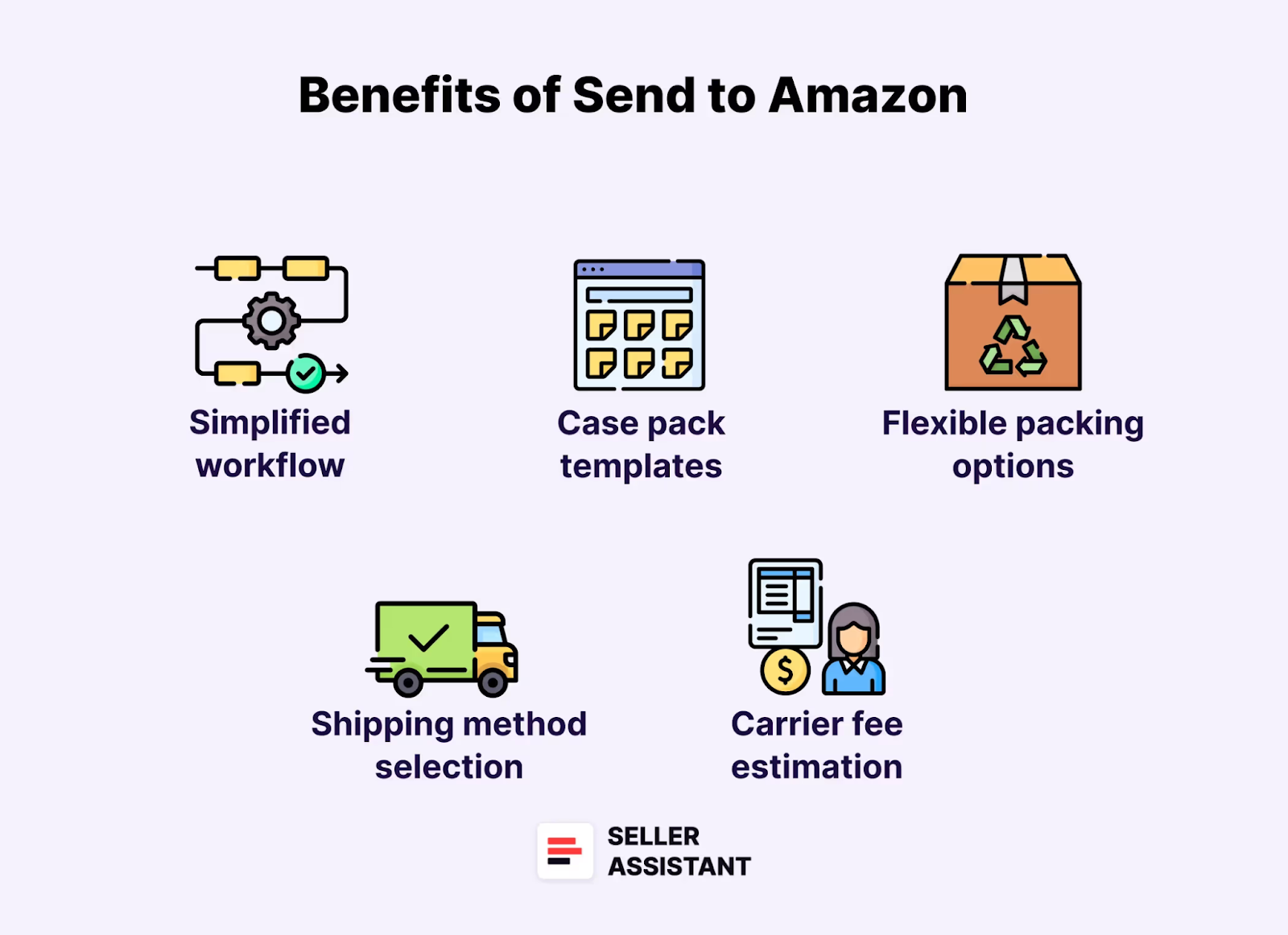
Benefits of Send to Amazon
Simplified workflow
Send to Amazon reduces the complexity of the shipping process by breaking it down into manageable steps. It helps sellers avoid mistakes by clearly specifying the required information and its correct format.
Case pack templates
If you frequently use boxes with the same dimensions for multiple products, you can benefit from generated case pack templates. These templates save you from repeatedly entering box weights, sizes, and other preparation details.
Flexible packing options
With “Send to Amazon,” you can easily pack both single-SKU and mixed-SKU boxes. Additionally, you have the flexibility to adjust quantities before finalizing your shipments.
Shipping method selection
You can choose between shipping your items as individual boxes (small parcel delivery) or as pallets (less than truckload delivery). This flexibility ensures that you can select the most efficient method for your needs.
Carrier fee estimation
The tool allows you to estimate carrier fees, helping you decide whether to ship your products as separate boxes or pallets. This feature ensures cost-effectiveness by allowing you to choose the best shipping option for your budget.
How to Create a Shipping Plan With Send to Amazon?
It is essential to correctly create a Shipping plan to ensure your products are timely accepted at the fulfillment centers and properly processed by Amazon. You can do it with the Send to Amazon workflow. Below are the key steps of this workflow.
Steps to sending products to Amazon FBA
Step 1. Prepare your products
Package your products according to Amazon’s guidelines. Use Amazon’s checklist to ensure the products are properly prepped.
Step 2. Start creating your shipments
Go to Inventory > Shipments in your Seller Central. This is where you’ll start creating your shipment workflow for sending products to FBA.
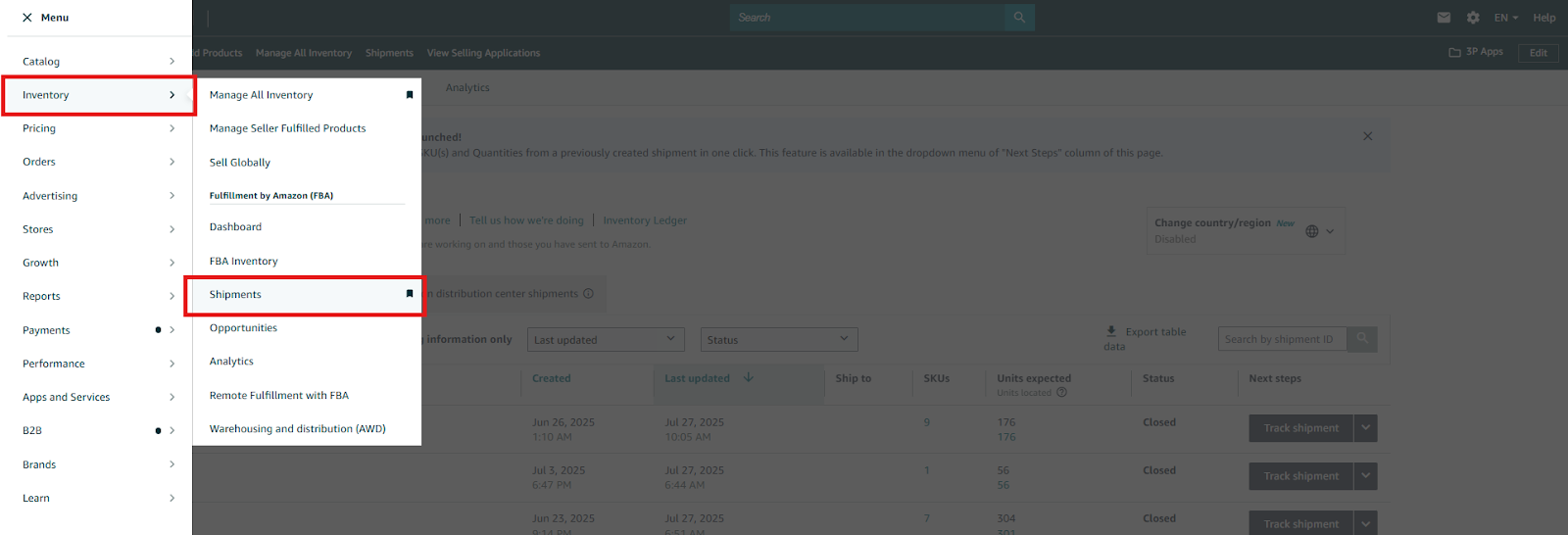
Go to Inventory > Shipments in your Seller Central
- Step 3. Initiate the Send to Amazon (STA) workflow
You will get to the Shipping Queue dashboard. In the upper menu, select Shipments > Send to Amazon”
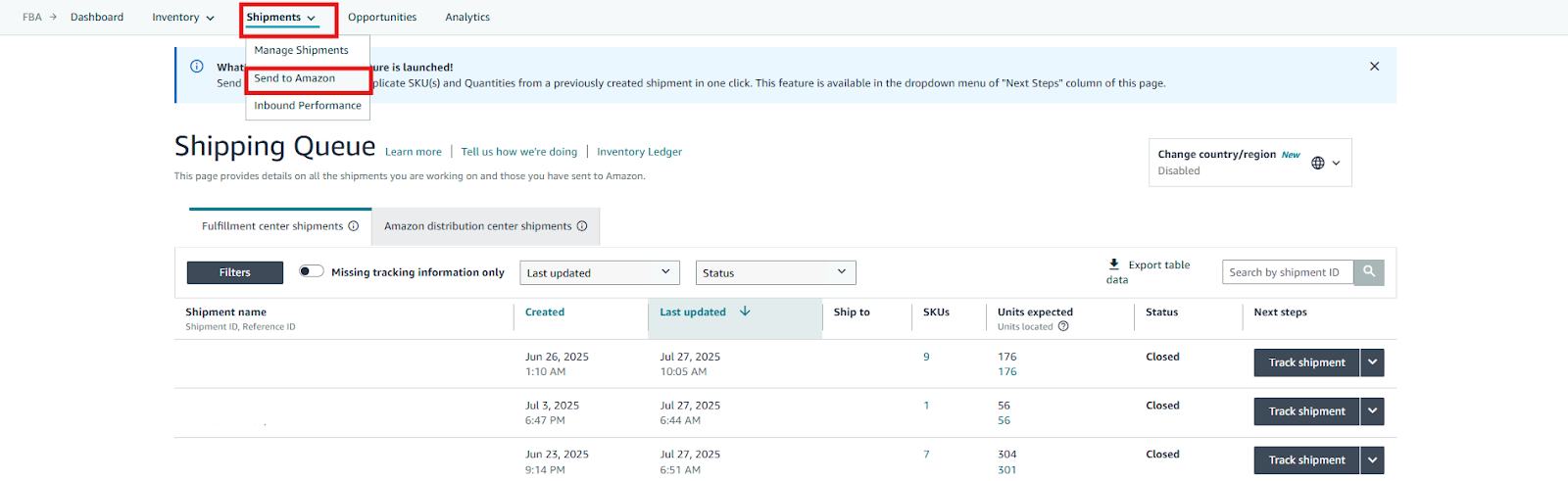
In the upper menu, select Shipments > Send to Amazon”
Step 4. Choose the ship-from address
- Confirm or change the address to ship from
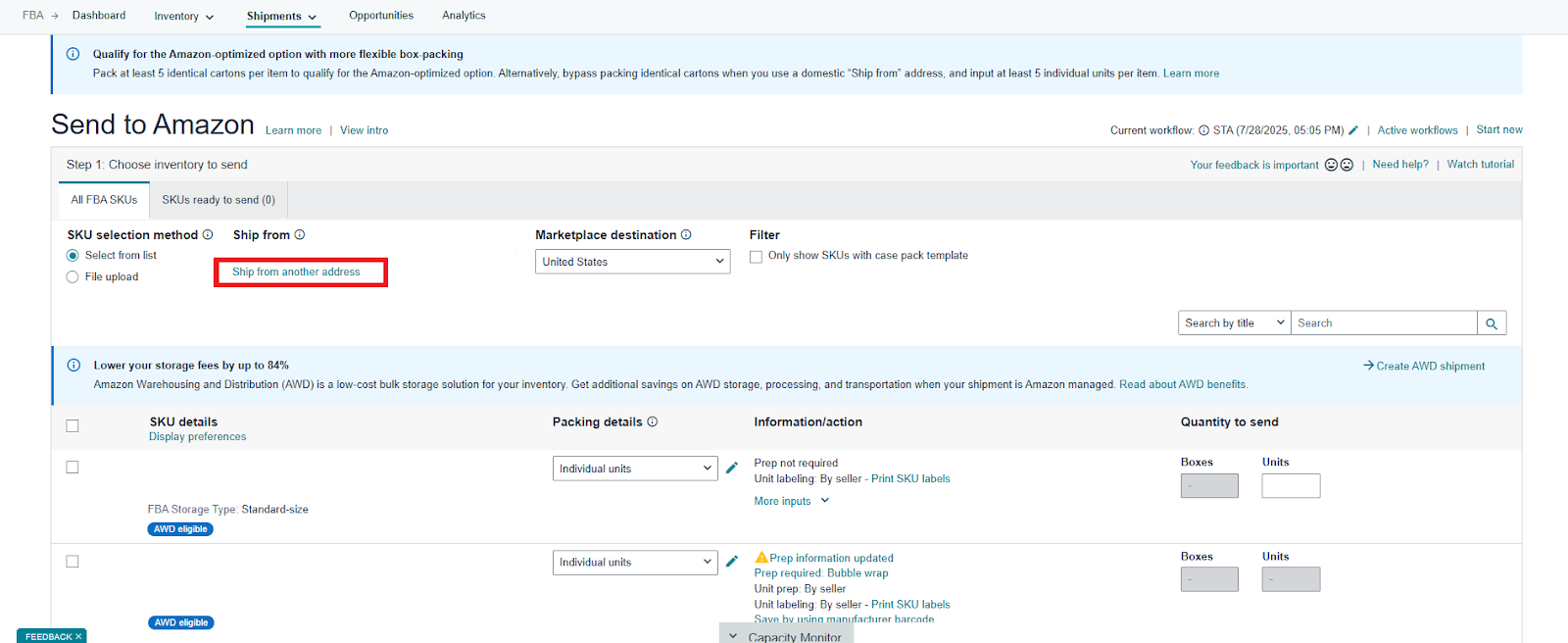
Confirm or change the address to ship from
- Or select “Ship from another address” to add another ship-from address
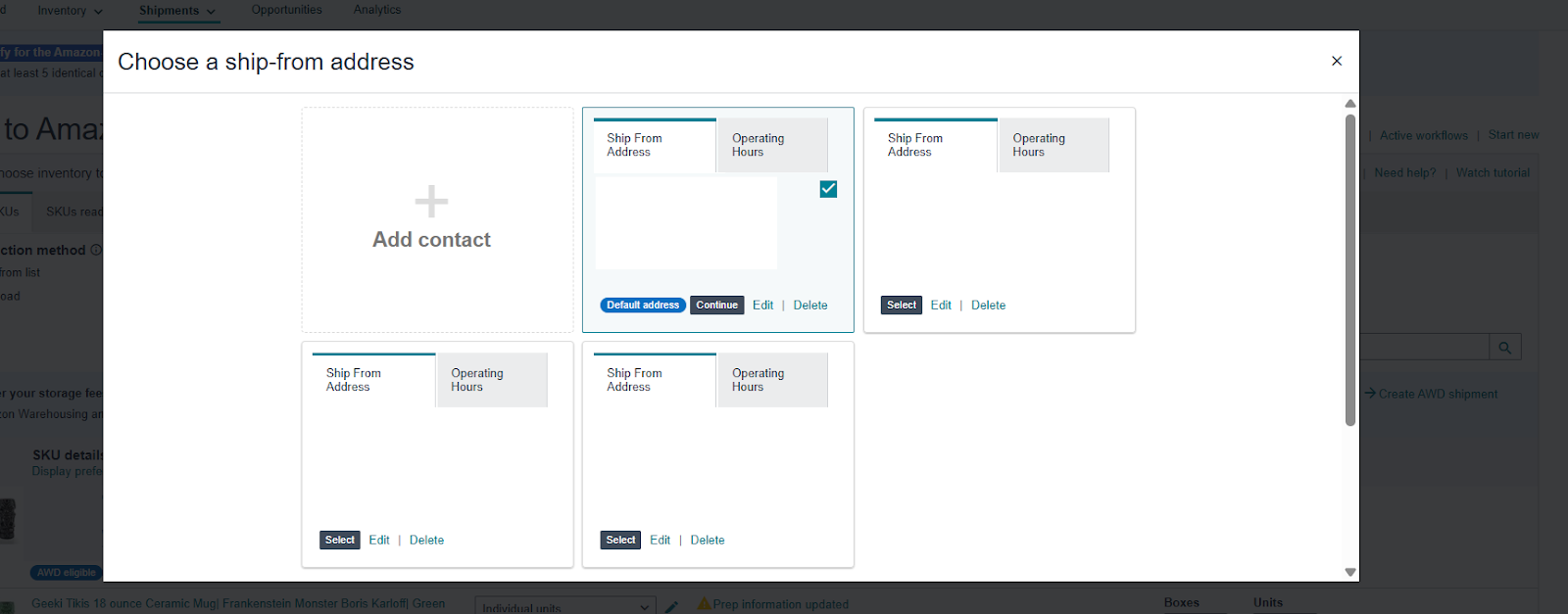
select “Ship from another address” to add another ship-from address
Step 5. Choose inventory to send
Select the products (SKUs) you want to ship. You can either pick them directly from your inventory list or upload them using a flat file. Confirm the Ship from address and Marketplace destination.
- To add products to the shipment using search:
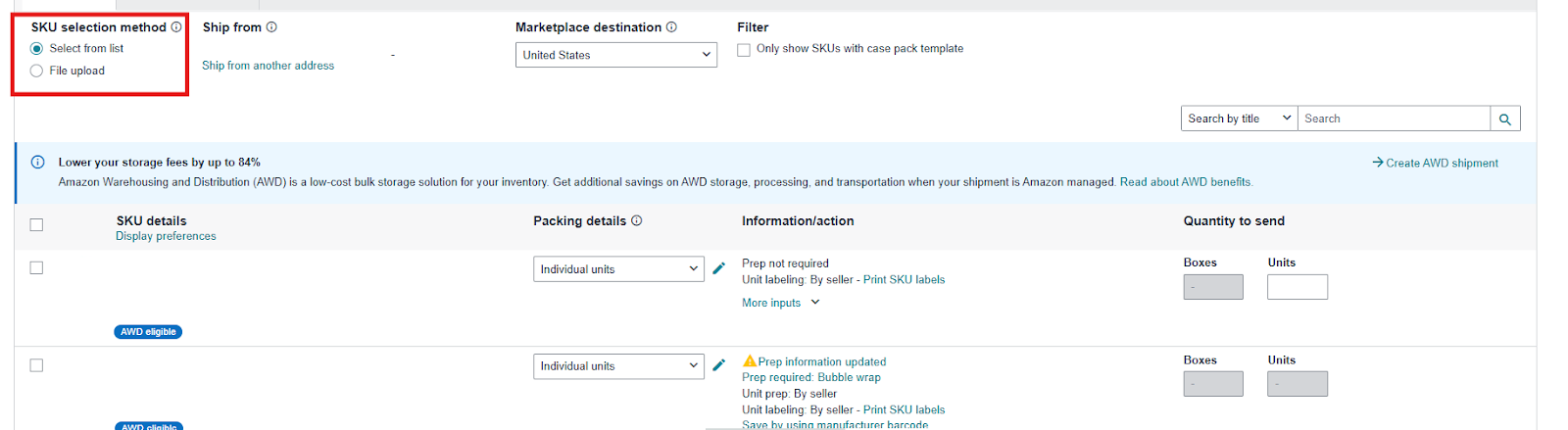
To add products to the shipment using search choose the option Select from list
- Choose the option Select from list (one SKU at a time). Search by SKU, title, ASIN, or FNSKU

Search by SKU, title, ASIN, or FNSKU
-
Then enter the required quantity in the Units field.
-
To add products to the shipment using a flat file:
- Choose the option File upload – you can generate a template, add the necessary SKUs directly in the downloaded flat file and set the required quantities. This is faster if you’re working with many products at once.
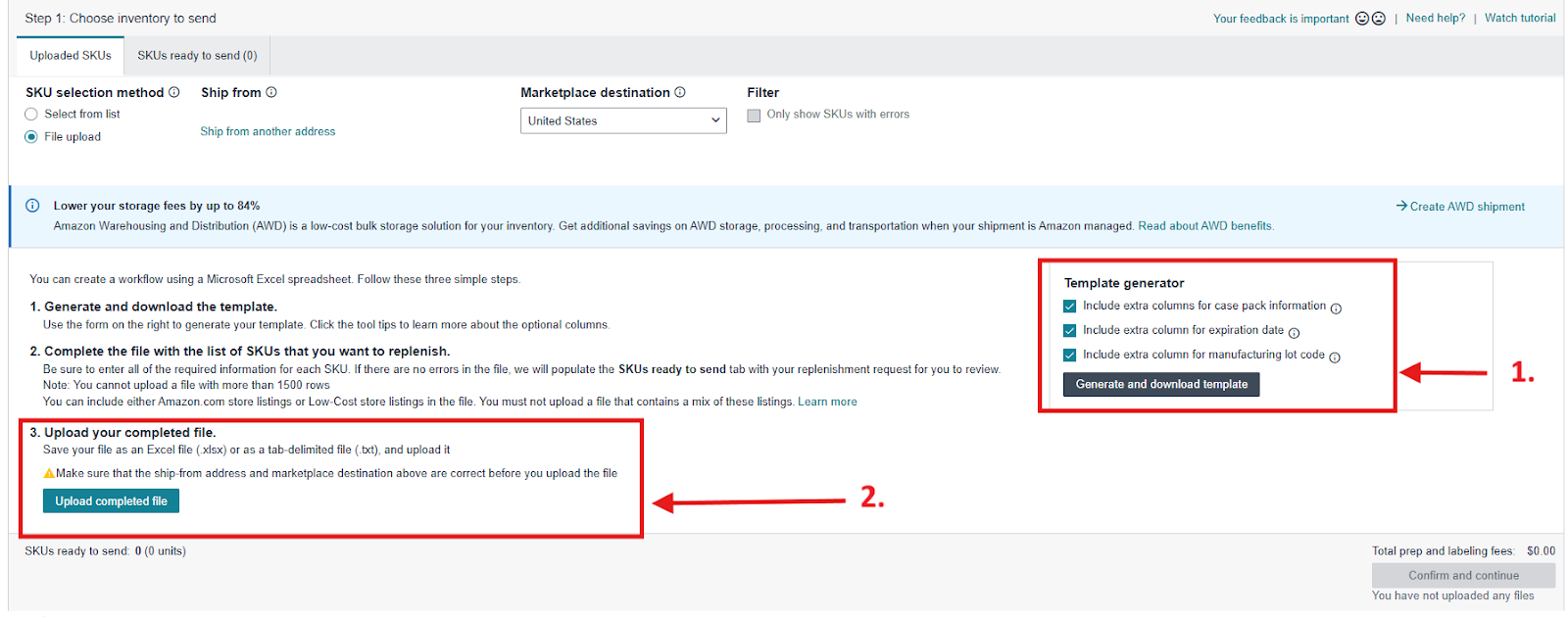
To add products to the shipment using a flat file choose the option File upload
Step 6. Choose how products are packed
Specify how your products are packaged: in one or several boxes. Enter box details: provide the dimensions, weight, and quantity of boxes. This ensures Amazon knows how the shipment will arrive and allows the system to generate accurate shipping labels.
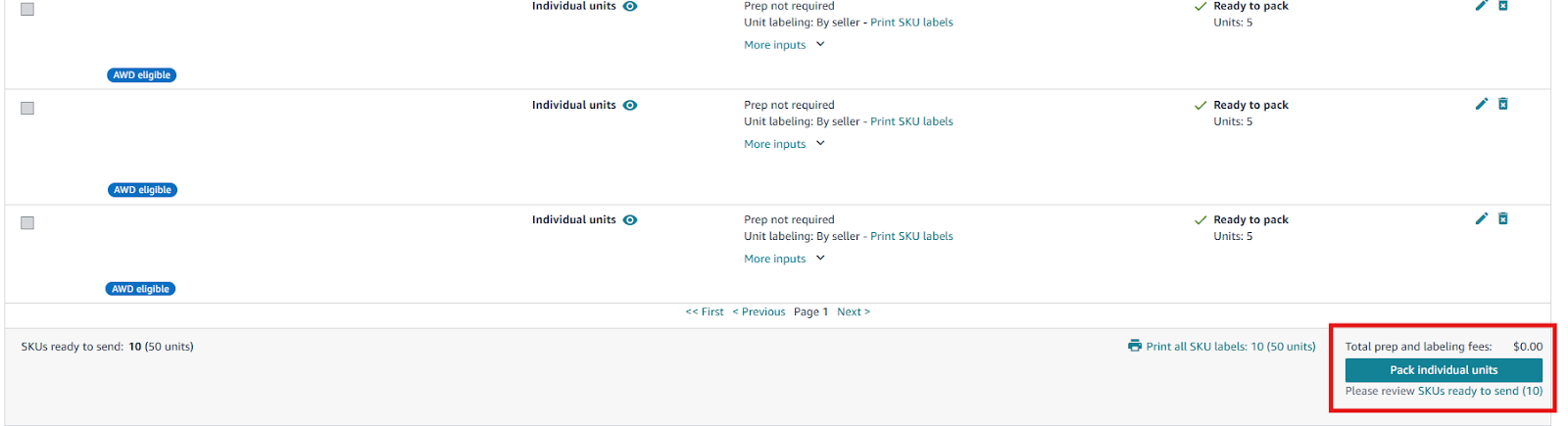
Choose how products are packed
- Everything will fit into one box – if all units fit into a single carton, confirm and add carton dimensions
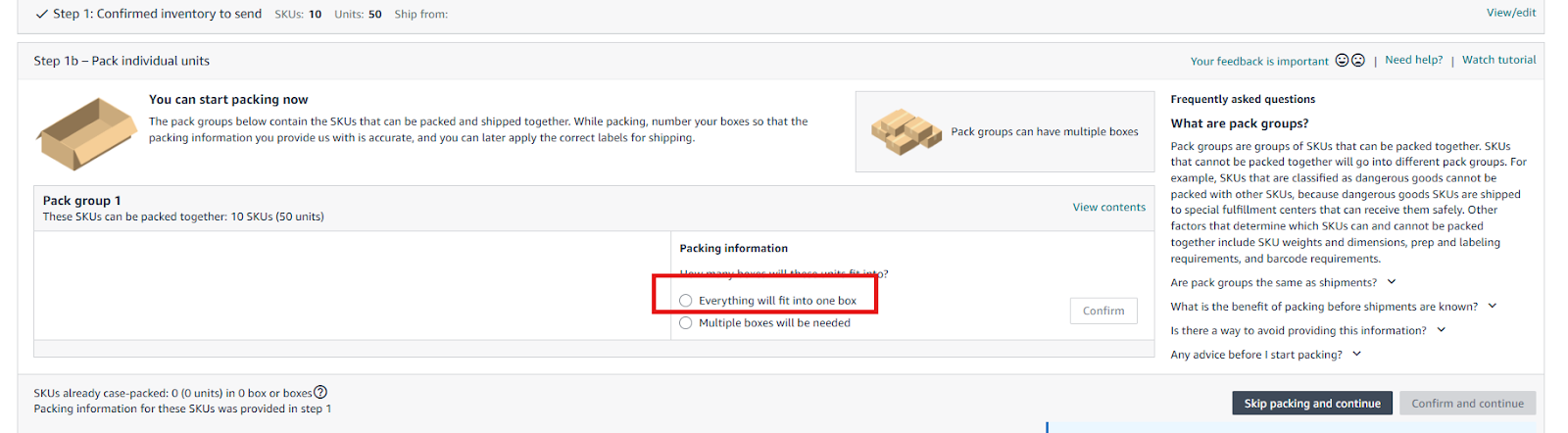
Specify how your products are packaged: Everything will fit into one box
- Multiple boxes will be needed – if items are spread across several boxes.
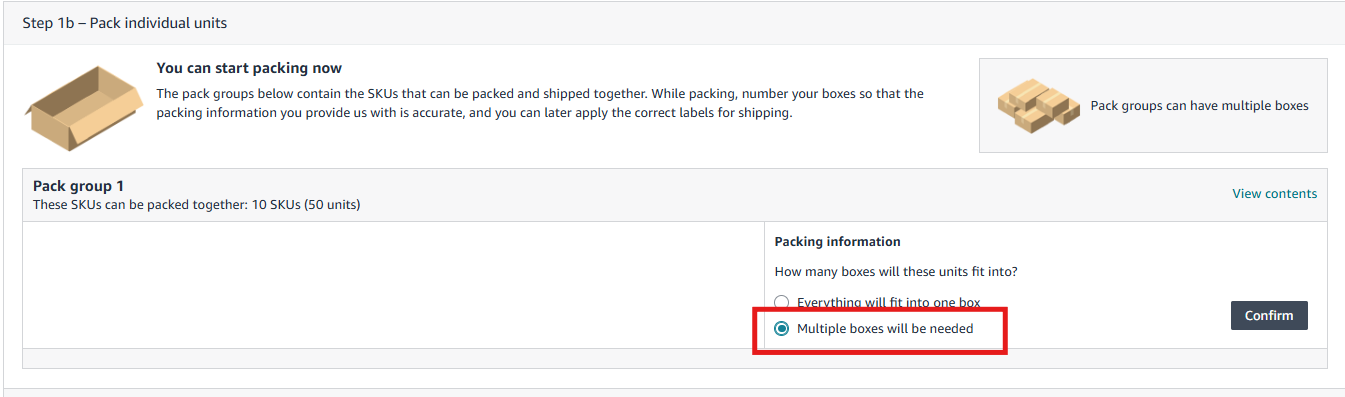
Specify how your products are packaged: Multiple boxes will be needed
Step 7. Set ship date
Choose the date when your products will be shipped out. This is important for scheduling pickup or drop-off with the carrier.
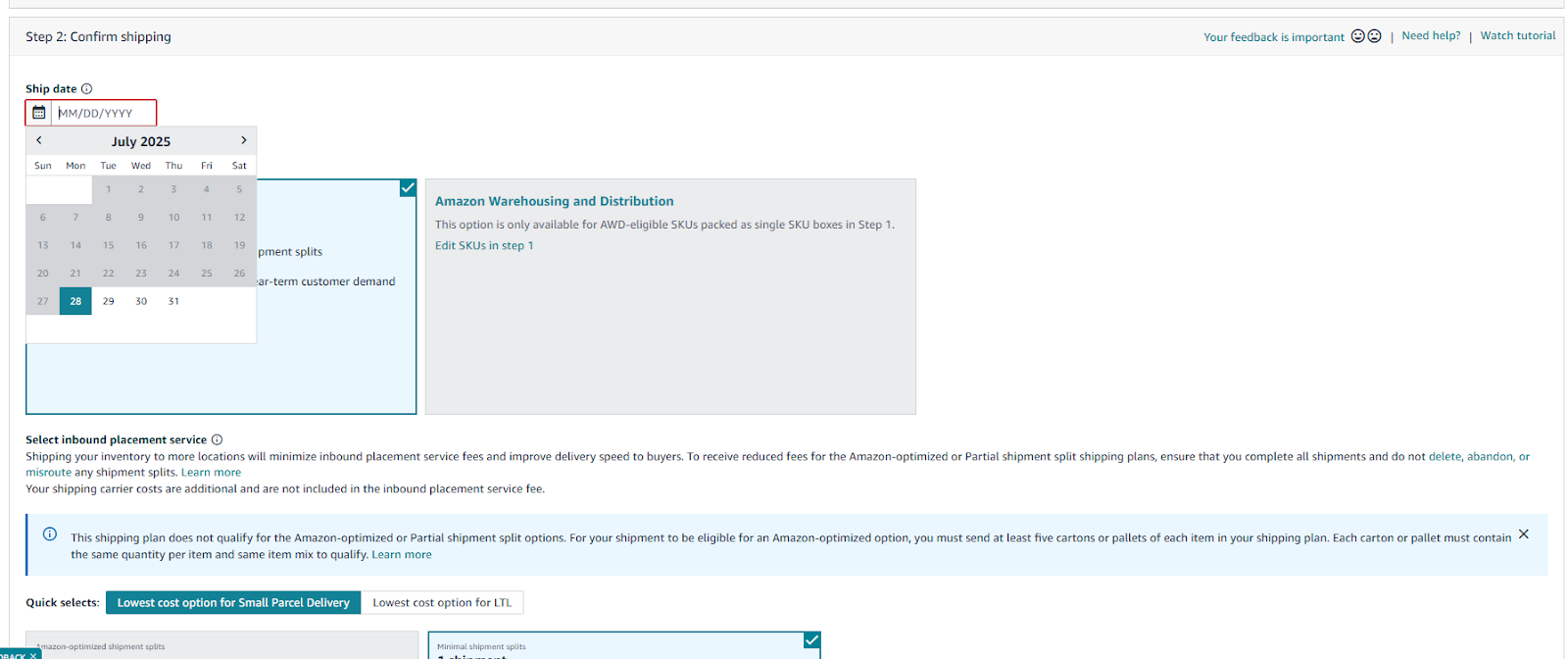
Choose the shipping date
Step 7. Choose shipping mode
- Select whether you’re sending products as Small Parcel Delivery (SPD) – when shipping boxes individually, or Less than Truckload (LTL/FTL) – when sending pallets.
- Choose carrier and costs: You can use Amazon partnered carrier (UPS) for discounted rates or non-Amazon carrier if you have your own logistics partner. Costs are displayed based on your shipment size and weight.
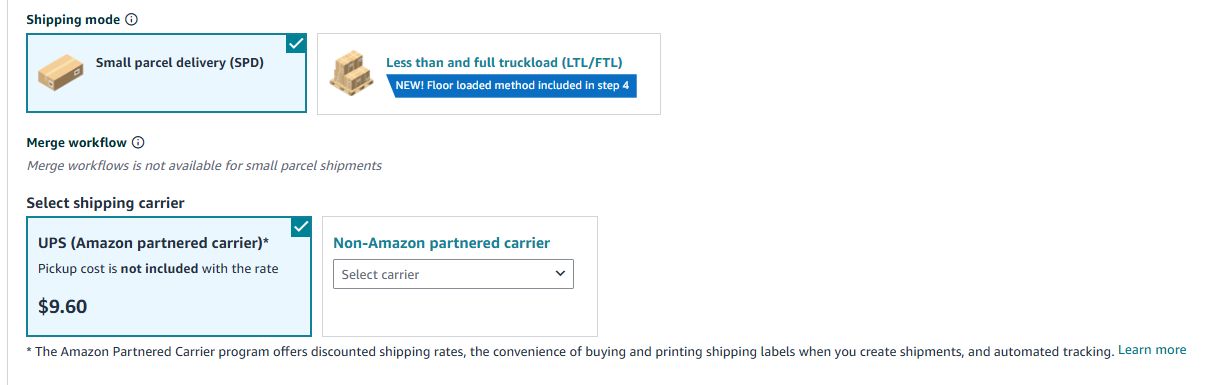
Choose carrier and costs
- Specify inbound shipment option: Minimal shipment split – when sending inventory to one location for a fee (ranges from $0.16 to $0.68 per unit depending on size/weight) or Amazon-optimized shipment split – when sending to multiple locations yourself with no fee (requires at least 5 identical cartons/pallets per item).
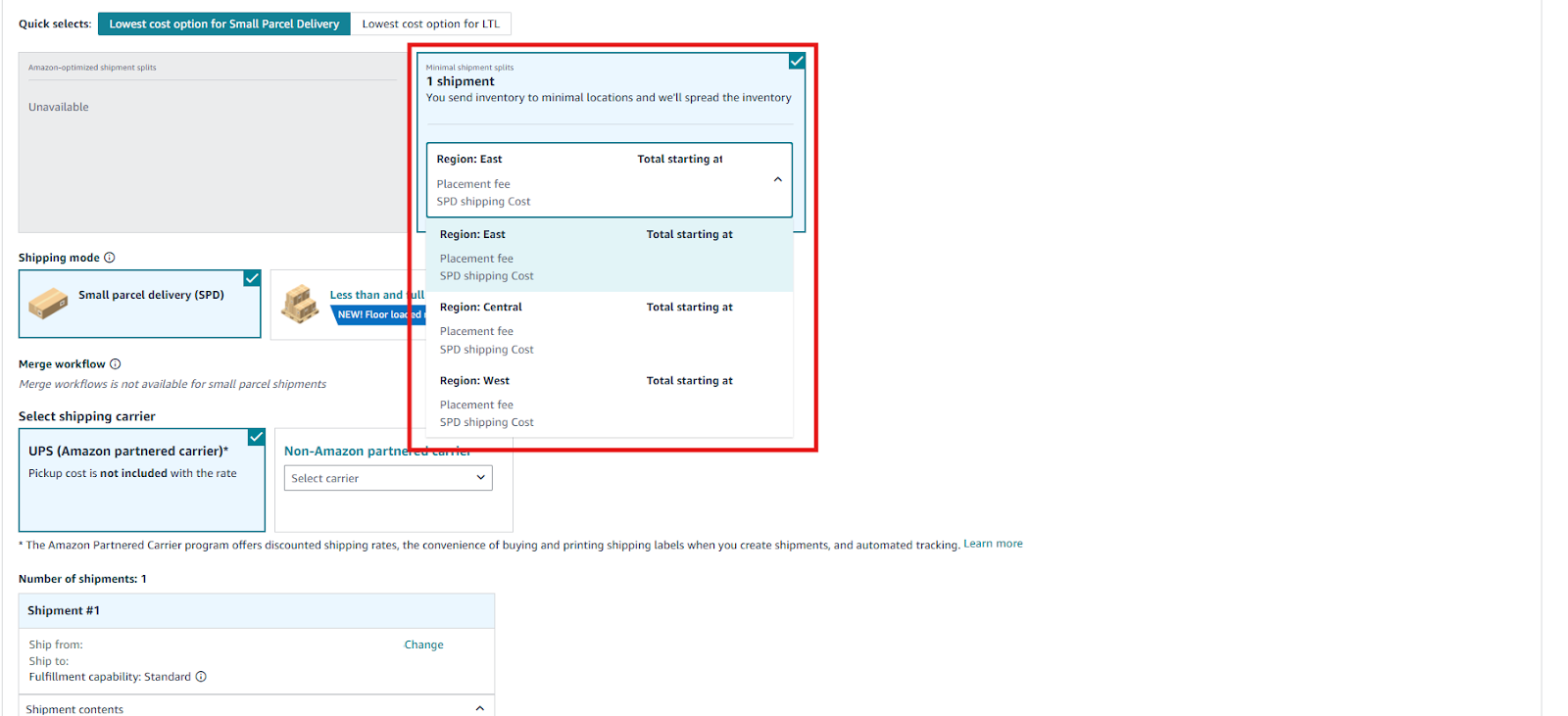
Choose shipping mode
Step 8. Confirm charges and shipping
Review the estimated shipping charges. Once ready, click Accept charges and confirm shipping to lock in the carrier fees.
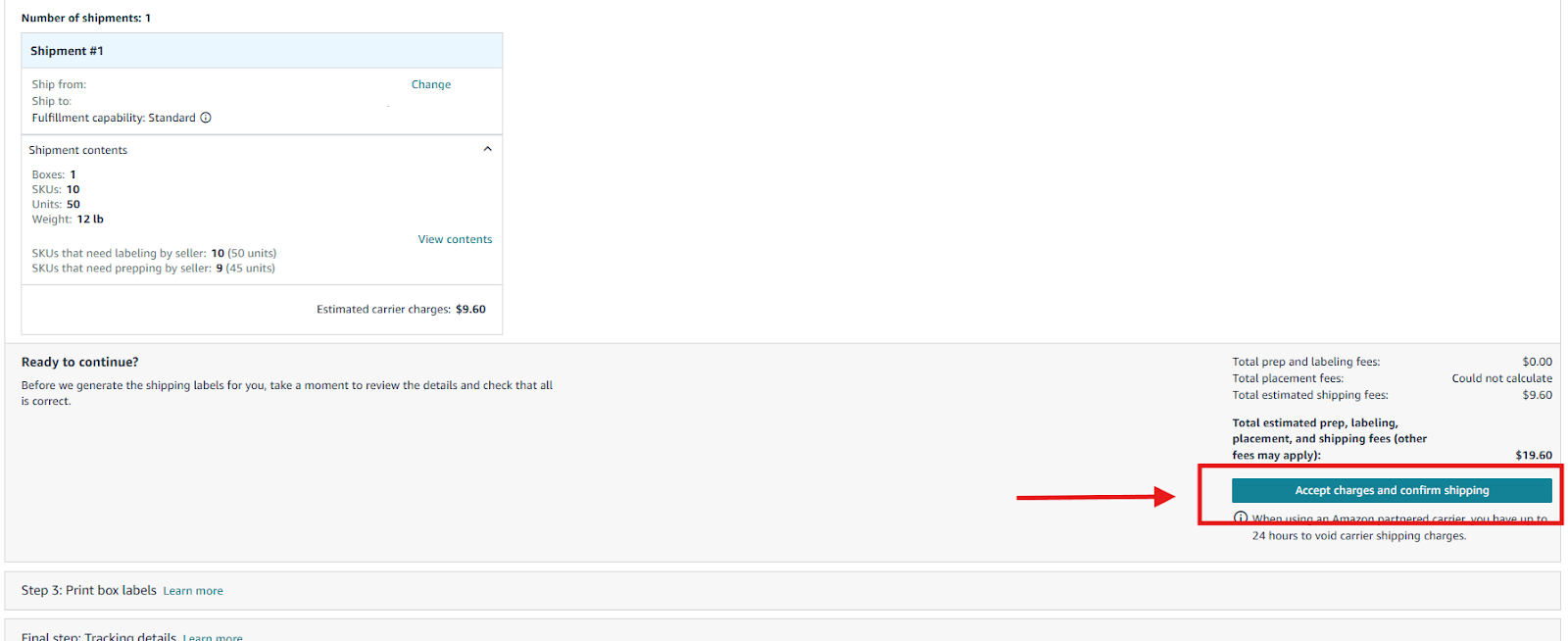
Confirm charges and shipping
Step 9. Print shipping labels
Download and print the box and shipping labels. Attach one FBA box ID label and one carrier label to each carton. After this step, your shipment status changes to Ready to ship.
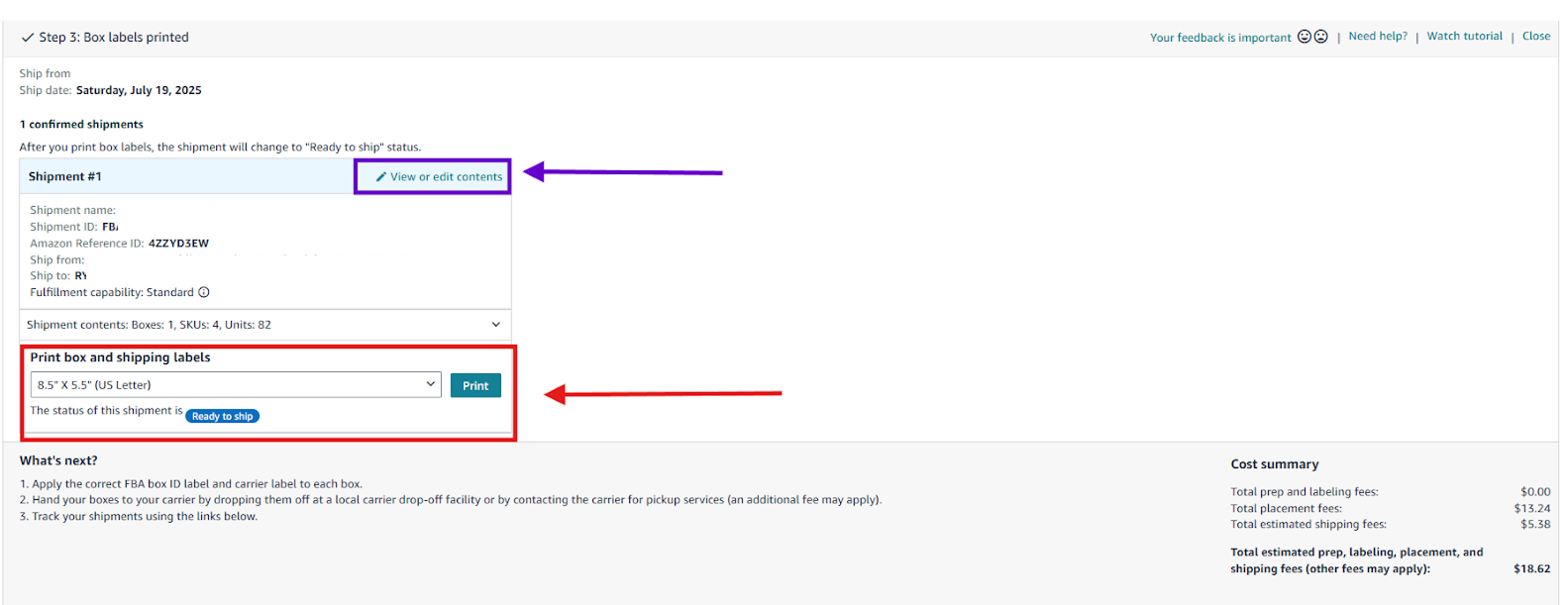
Print shipping labels
Step 10. Track shipment and wait for inventory check-in
- Track the shipment from the Shipping Queue. There you’ll see:
- When your shipment was created
- Shipping and delivery dates
- Check-in status
- Final inventory received
- Your inventory isn’t live until Amazon finishes processing, which can take 1–6 weeks.
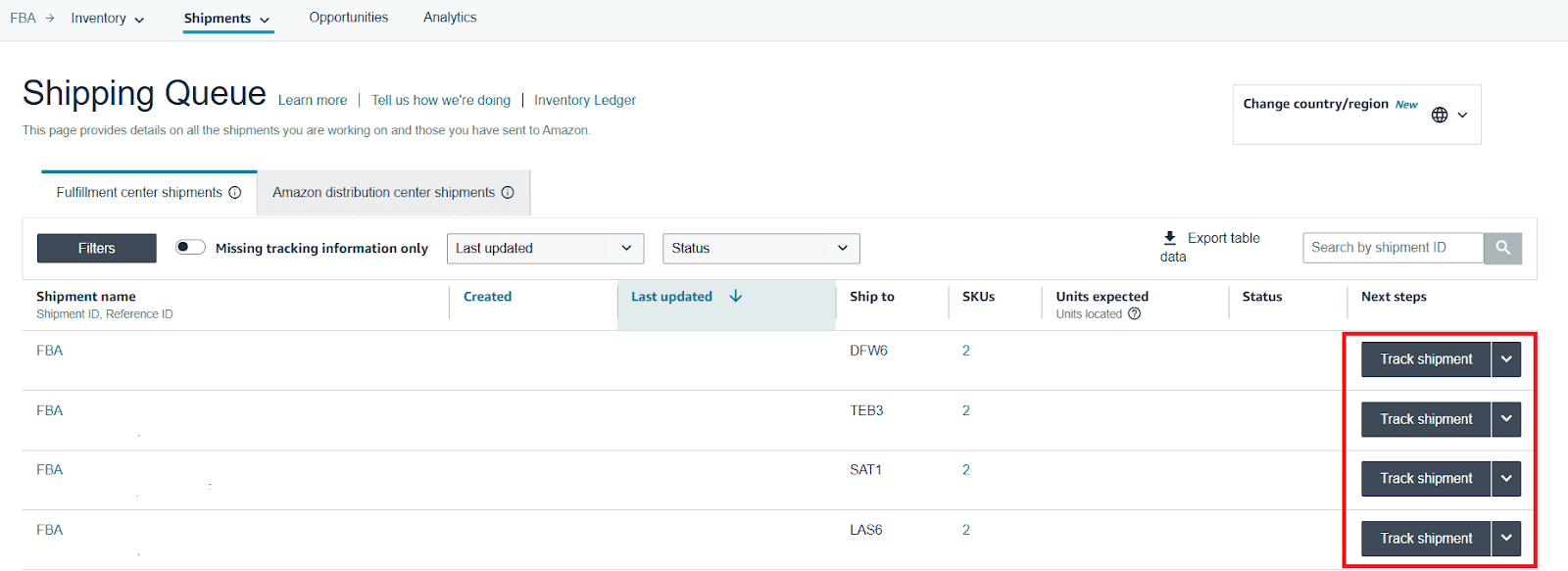
Track the shipment from the Shipping Queue
How Much Does It Cost to Ship to Amazon FBA?
Shipping costs to Amazon FBA can vary widely depending on several factors. Below are key points to consider that will help you understand the potential costs and how to minimize them.ый
Average cost per pound
Typically, sellers pay around $0.25 to $0.30 per pound to ship products to an Amazon FBA warehouse. However, the exact cost to ship to Amazon depends on the weight and size of your shipment, the location you’re shipping from, and the specific FBA warehouses receiving your inventory. The cost per unit tends to decrease as you ship more units in a single batch, making bulk shipping more cost-effective.
Inbound Placement Service Fees
Amazon’s Inbound placement service fee has been a significant factor in increasing shipping costs for many sellers. Therefore, it’s important to factor it in. To quickly calculate it alongside other FBA fees and expenses on the Amazon product pages or on the supplier website, you can use Seller Assistant’s FBM&FBA calculator.
If you calculate product profitability and Amazon fees for single products, FBM&FBA calculator shows Inbound placement service fee in the Inbound Placement Fee line on the Amazon product pages and supplier websites. You can also choose the type of Inbound placement service fee in the calculator, and preset the shipment split in Seller Assistant settings.
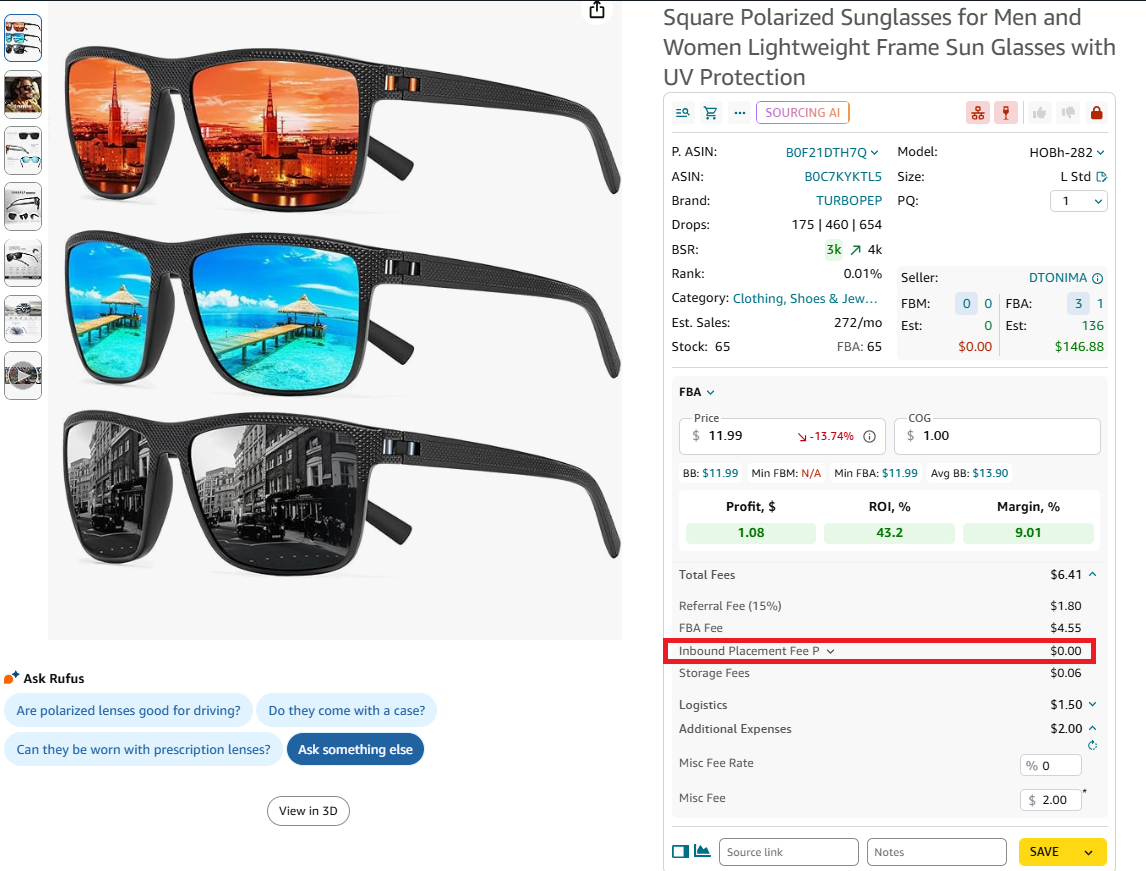
Seller Assistant’s FBM&FBA calculator - Inbound Placement Service Fee
For bulk products, you can see all Amazon fees, including Inbound placement service fee, in Seller Assistant’s Price List Analyzer. After uploading your supplier spreadsheet, you will get all essential product data in the UI table to instantly choose best-selling deals.
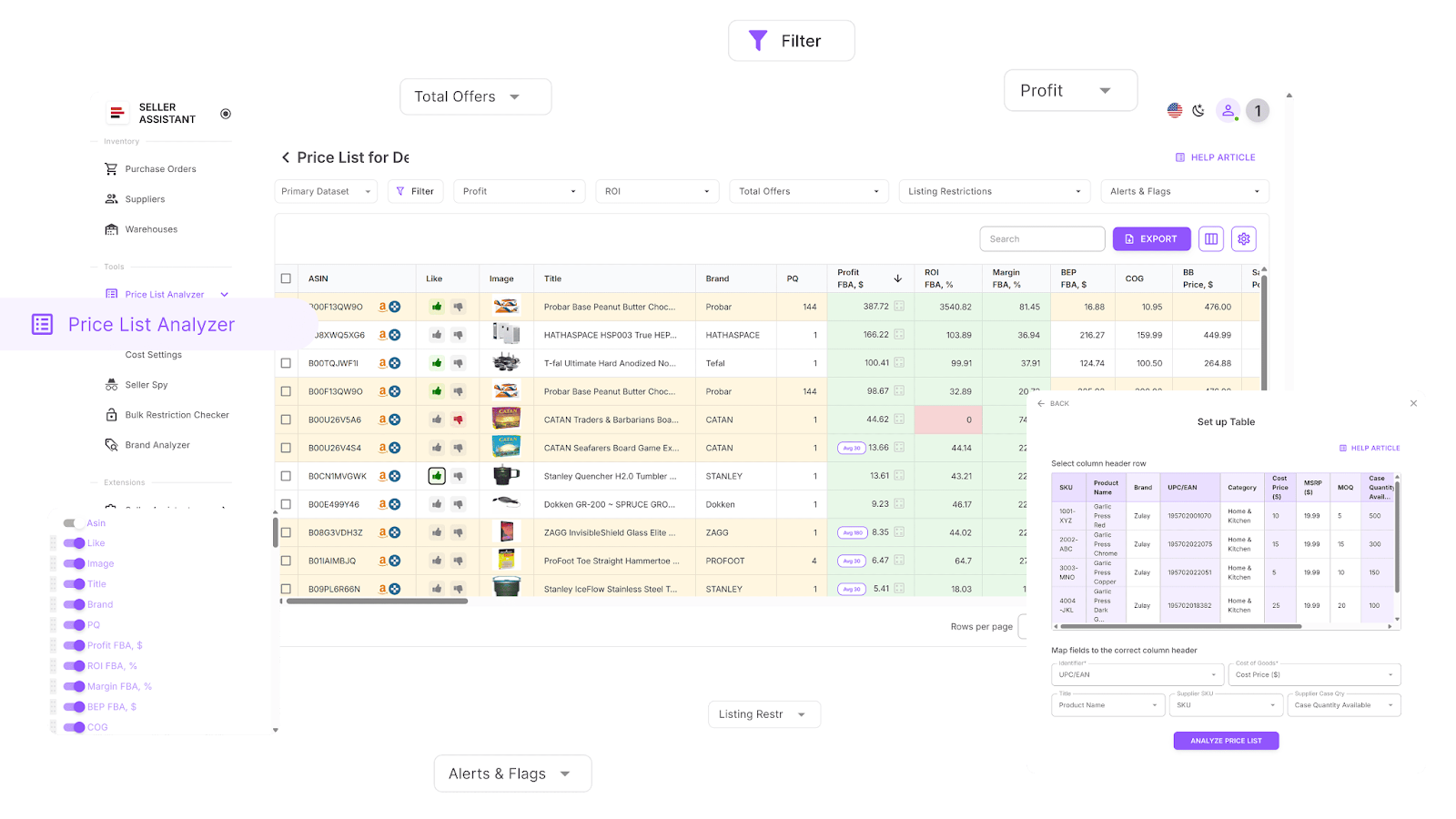
Seller Assistant’s Price List Analyzer
Note. Seller Assistant is an end-to-end Amazon workflow management platform that integrates 10+ wholesale-focused solutions into one connected system. It combines sourcing workflow automation, bulk research and intelligence tools, and integrated Chrome extensions – giving you everything you need to streamline finding deals, managing suppliers, and creating purchase orders.

Seller Assistant is an end-to-end Amazon workflow management platform
With Seller Assistant, every step of your Amazon wholesale and arbitrage workflow is automated and connected.
Cost mitigation through shipment splitting
You can potentially reduce or eliminate the inbound placement fee by splitting your shipment across multiple warehouses. When creating your shipment in Seller Central, you should have the option to select this, which might lower your overall shipping costs.
Choosing the cheapest shipping method
The most economical way to ship to Amazon FBA is by using Amazon-partnered carriers, such as UPS. When creating shipments in Seller Central, selecting Amazon’s partnered carriers usually offers the best rates, making it a cost-effective choice for sellers.
FAQ
How should I prepare my products before shipping to Amazon FBA?
Ensure your products are properly labeled, packaged, and meet Amazon’s preparation requirements. You can also use Amazon’s Prep and Label Service if you prefer to have them handle these tasks.
What are the packaging options for shipping products to Amazon FBA?
You can pack your products as individual boxes (small parcel delivery) or on pallets (less than truckload delivery). Amazon provides flexibility in choosing the packaging method that best suits your shipment.
How can I reduce shipping costs to Amazon FBA?
To reduce costs, consider using Amazon-partnered carriers, which often offer the best rates. Additionally, shipping larger quantities at once can lower the cost per unit.
What happens after I ship my products to Amazon FBA?
After shipping, you can track your shipment in Seller Central to ensure it arrives at the fulfillment center. Once received, Amazon will notify you, and your products will be ready for sale on the platform.
Final Thoughts
When sending your products to Amazon FBA, you should follow their standards of sending inventory to fulfillment centers. That helps avoid customer delivery delays and extra costs.
Also, don’t forget that FBA fulfillment costs money, and you must thoroughly calculate your expenses for your products to be profitable. Seller Assistant helps you quickly and conveniently account for all expenses while doing product sourcing.