

Amazon wholesale is one of the most profitable business models 25% of sellers use. By buying products in bulk at a discounted rate, you can resell them on Amazon and keep the difference.
While finding Amazon wholesale suppliers is key to success, choosing the right products to sel l is equally important. But how do you know the products are good to buy wholesale?
This guide will tell you what and how to buy for Amazon wholesale, and how to ensure the products you buy will sell on Amazon and bring you the profit you expect.
How Does Amazon Wholesale Work?
.webp)
Amazon Wholesale
Related: Amazon FBA for Beginners
Selling on Amazon: How to Make Money?
How to Sell on Amazon for Beginners - Complete Guide
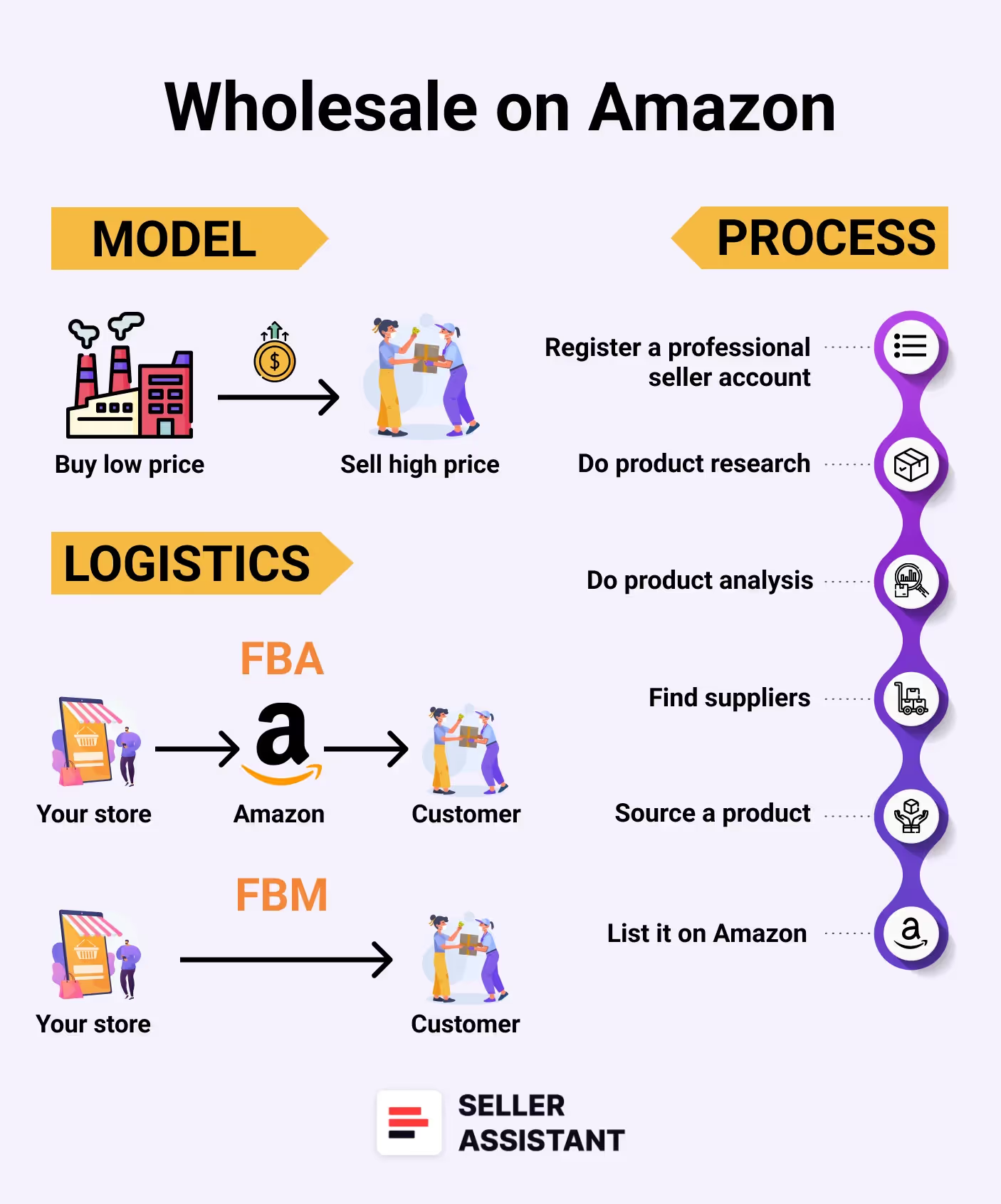
With the Amazon wholesale business model, sellers buy products in bulk from brands or distributors for a low wholesale price and resell them at a higher retail price on Amazon. This way, they pocket the difference.
In a wholesale business model, your key tasks are to find a product supplier (brand or distributor) and choose their most popular and profitable products to resell on Amazon. This process is called direct sourcing.
With direct sourcing, you get a list of supplier products, find the match to these products on Amazon, choose those with good sales volumes and high-profit margins, and resell them.
Steps of buying wholesale to sell on Amazon
Here’s how direct sourcing works for Amazon wholesale step-by-step.
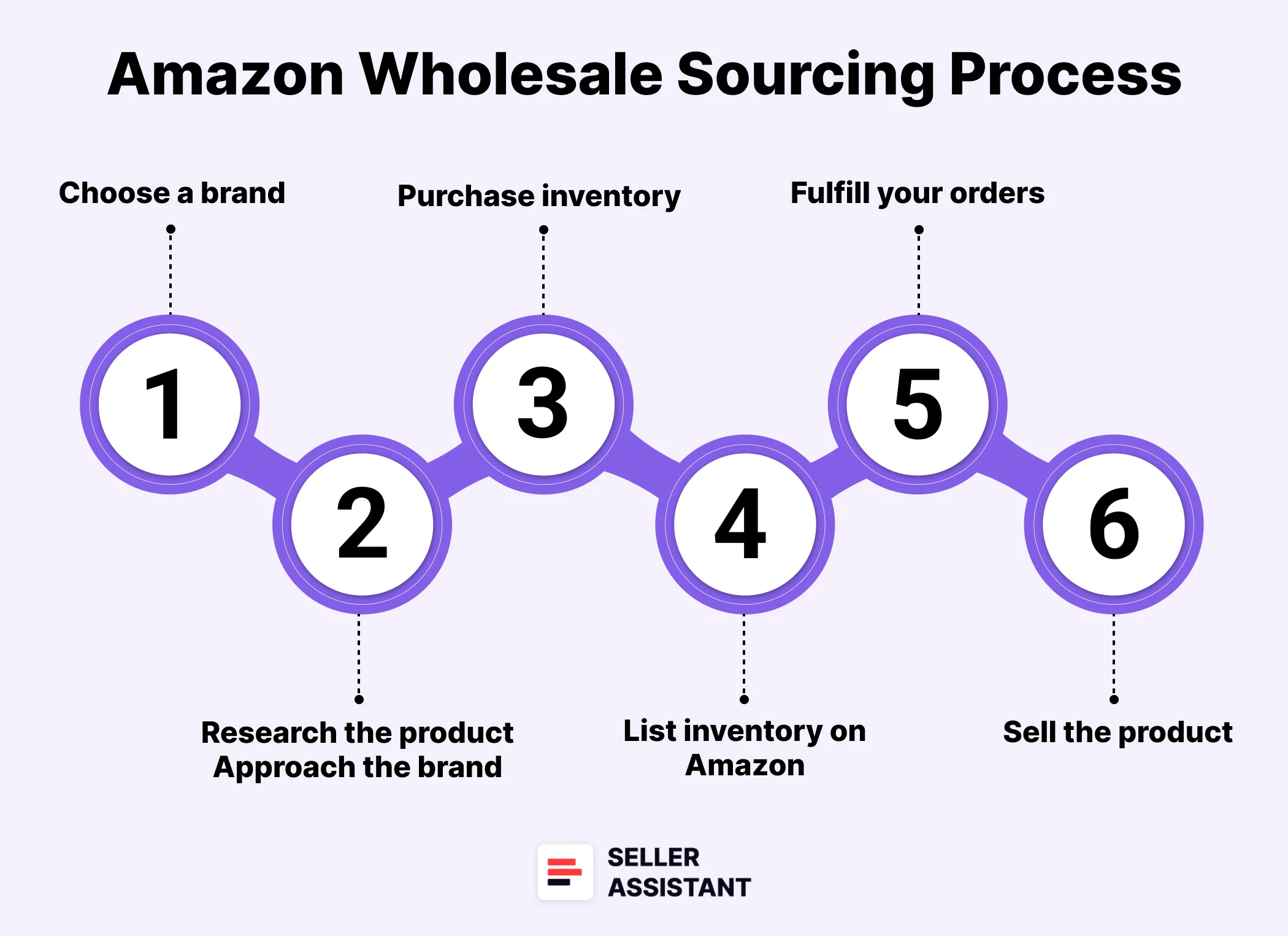
Steps to Amazon wholesale
Related: Seller Assistant Extension Review
Seller Assistant — the Ultimate Tool for Amazon Online Arbitrage
How to Dropship on Amazon with Seller Assistant
Amazon Wholesale: How to Sell Wholesale on Amazon
Step 1. Select a product category
Decide on a particular category and subcategories of products to target. Focus on areas that interest you, balancing between the category’s popularity and the level of competition.
Keep in mind that the most popular categories often face steep competition. Also, evaluate the profit potential. A clearly defined niche will streamline your efforts. Take into account factors such as market demand and profitability when making your choice.
Step 2. Find a potential supplier
Search for suppliers that provide products within your selected category. These could be brands or distributors. Prioritize suppliers with a solid reputation and a wide selection of products. Ensure they are resale-friendly, meeting criteria discussed later in this guide.
Tip. Use tools like Seller Assistant’s Brand Analyzer to automate brand research. It can determine whether a brand is suitable for resale by evaluating if it meets your revenue goals and other sales criteria.
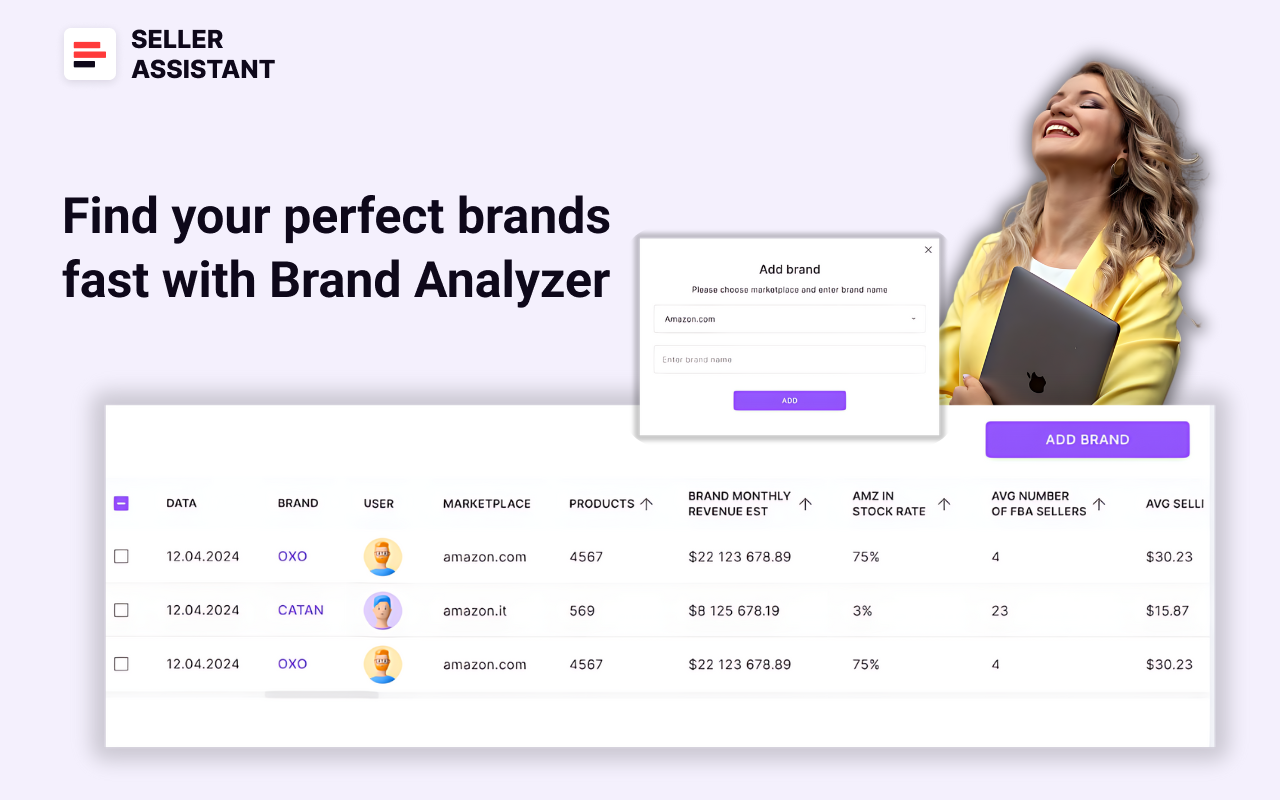
Brand Analyzer
Brand Analyzer assesses factors such as the brand’s size, product range, potential earnings, competition level, average Buy Box price, and review quality. To use it, simply enter the brand name, and after the analysis is completed, review the results.
Step 3. Verify the supplier
Conduct thorough checks on your shortlisted suppliers to confirm their reliability and the quality of their products. Verify if the supplier is legitimate on LinkedIn, Whois, or ScamAdviser. Review feedback, request references, and validate their business credentials to avoid potential problems down the line. If you approach a brand’s reseller, make sure the supplier is a distributor, not a retailer.
Step 4. Reach out to the supplier
Contact your chosen suppliers via their website, phone, or email. Introduce yourself and your business, and explain your interest in setting up a wholesale account with them.
Step 5. Submit an application
Fill out and submit the supplier’s application form, typically found on their website. You’ll need to provide business details such as a reseller’s permit, business license, and your contact information. Briefly describe your business and intentions.
Step 6. Obtain approval and open a wholesale account
After the supplier approves your application, you can open a wholesale account. This grants you access to purchase products at wholesale prices.
Step 7. Request a wholesale price list
Ask your supplier for a wholesale inventory list, including product descriptions and wholesale prices. This list will help identify products that are likely to sell well and generate profit on Amazon.
Step 8. Research wholesale list for deals
Use the supplier’s wholesale price list to identify profitable deals to resell on Amazon. Look for products that meet your profit margin and ROI expectations, are in demand, and are free from restrictions or risks, such as Amazon policy violations, meltable items that can’t be sold year-round via FBA, bulky items that increase shipping costs, or other risks. Confirm your eligibility to sell these products.To streamline this process, consider product sourcing software for identifying profitable deals efficiently.
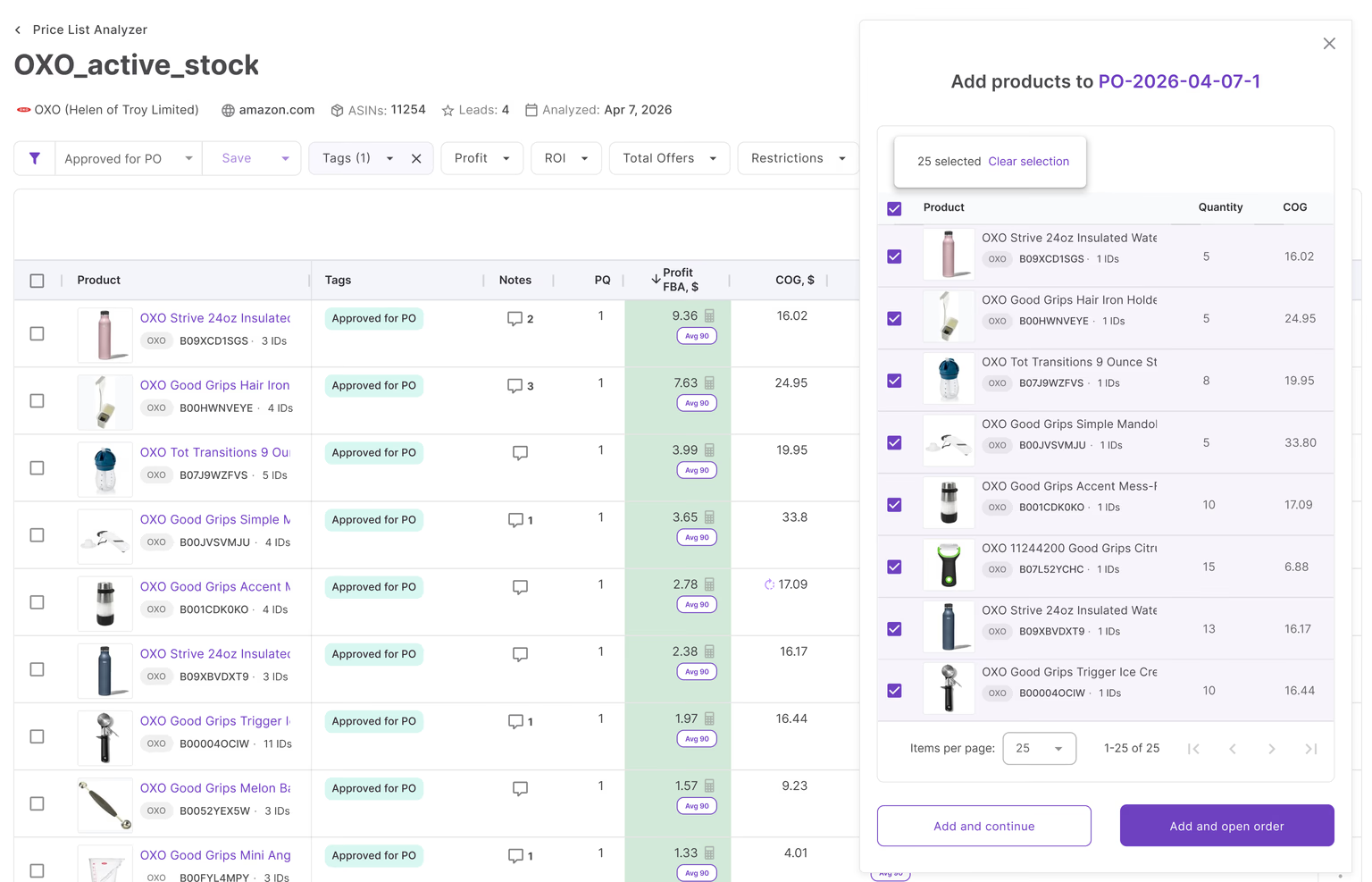
Tip. Seller Assistant’s Price List Analyzer can automate this task by matching supplier products to Amazon listings, calculating profitability, and other key metrics. Filter results to pinpoint the best deals while flagging potential risks.
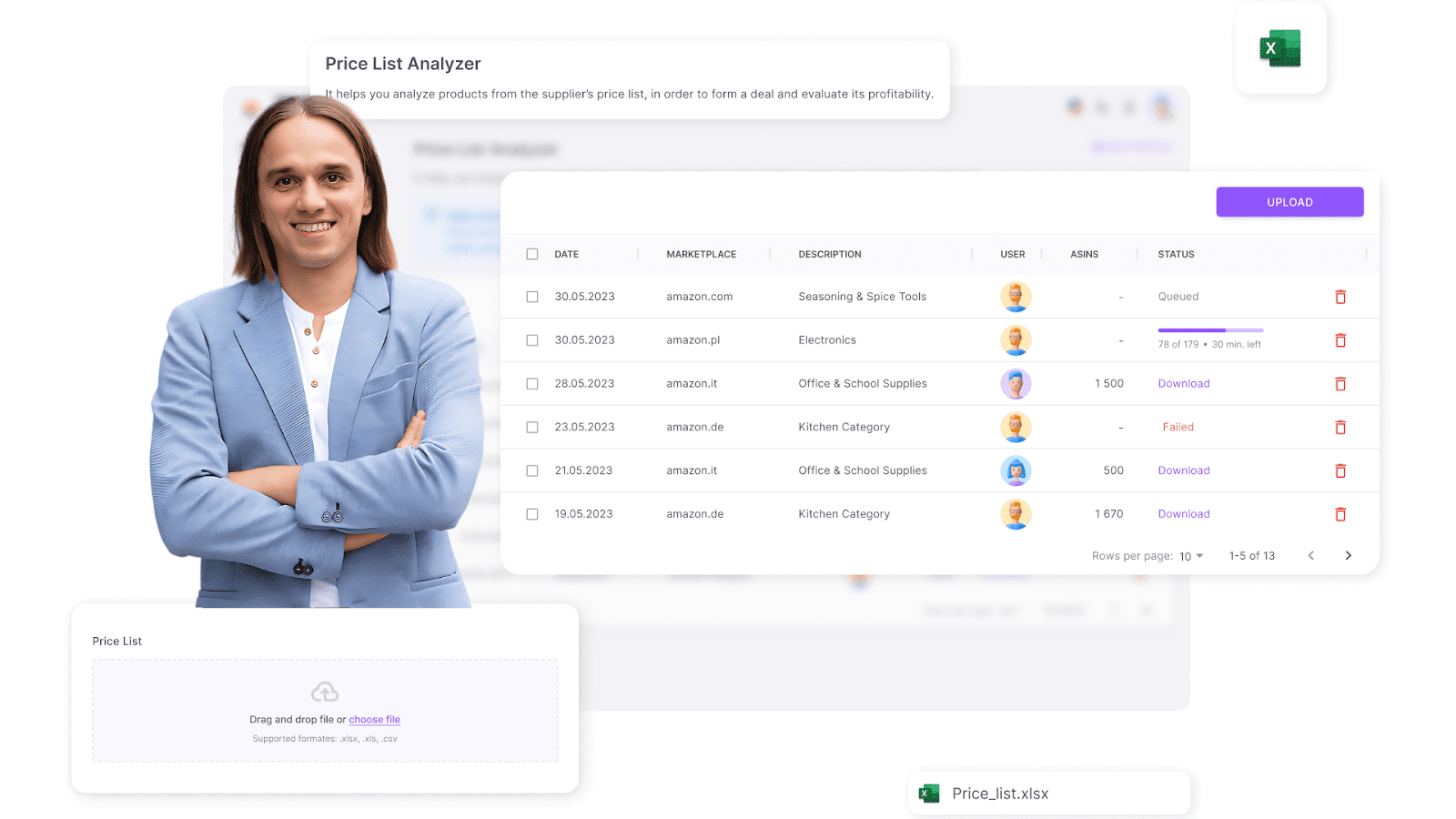
Price List Analyzer
Step 9. Negotiate with the supplier
Discuss terms with your supplier to secure the most competitive prices. Aim for a long-term partnership by ordering in larger volumes and committing to regular purchases to qualify for better discounts.
Step 10. Pay for your order
Complete your purchase using the supplier’s accepted payment methods, which typically include ACH transfers, wire transfers, or credit cards.
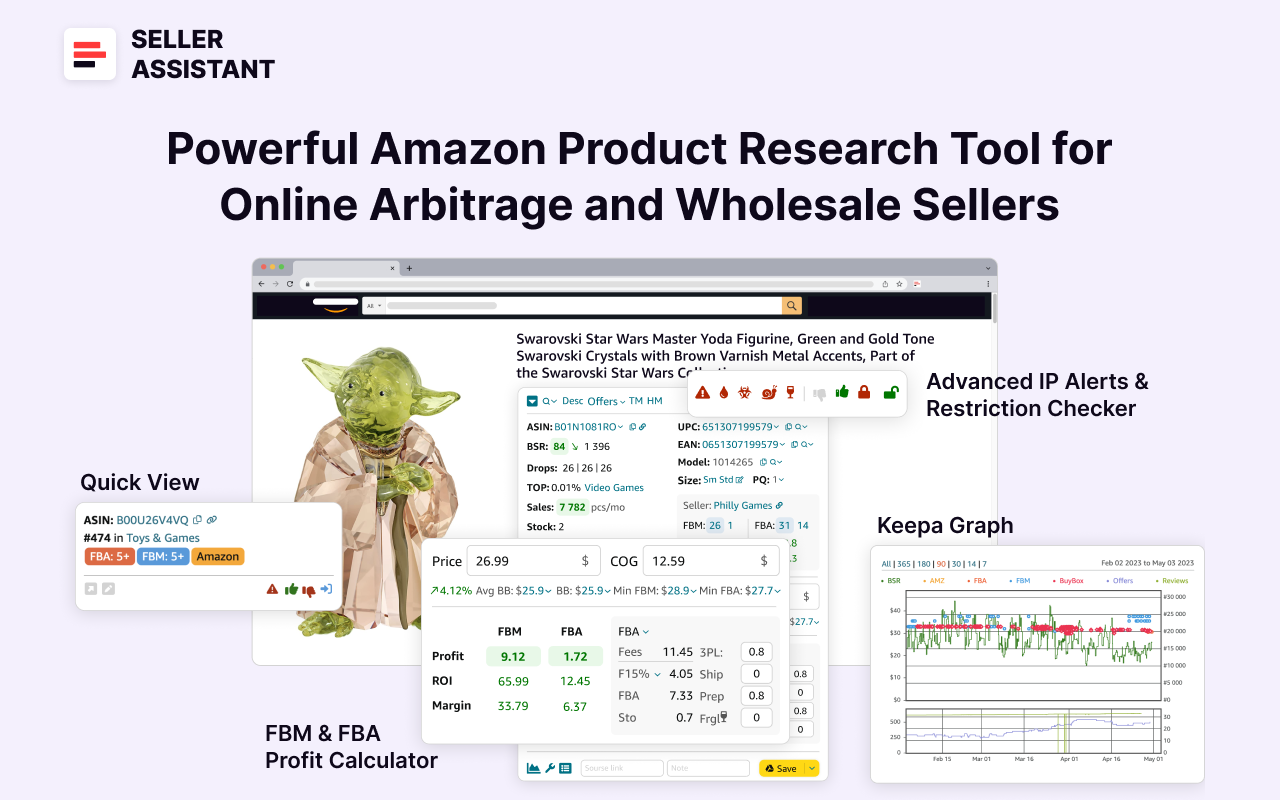
Seller Assistant
Seller Assistant shows all essential product data on Amazon search, product, and inventory pages, and on any website to help you find high-margin deals. By using this FBA and FBM product sourcing software, you can easily identify products that have the potential to be sold well on Amazon.
Related: Amazon Wholesale: All You Need To Know
How to Negotiate Prices With Amazon FBA Wholesale Suppliers
How to Find a Supplier for Amazon?
There are many ways to choose suppliers. In the strategy we propose, you start by selecting a popular category that is not restricted on Amazon and you don’t need the approval to sell it.
Then, you look for a resale-friendly brand for wholesale – do brand research. Typically, that should not be very popular brands like Nike or Apple, because they have very high Minimum Order Quantities (MOQ), and a rigid reseller network, and it’s very challenging to approach them. Brand research helps ensure that you can resell products under this brand. And it’s not restricted on Amazon.
To validate that the brand is resell-friendly, make sure it meets a number of criteria below.
Related: How to Buy and Sell Amazon Return Pallets in 2024
Amazon Wholesale: How to Sell Wholesale on Amazon in 2024
How To Negotiate Prices With Amazon FBA Wholesale Suppliers
Criteria for brand research
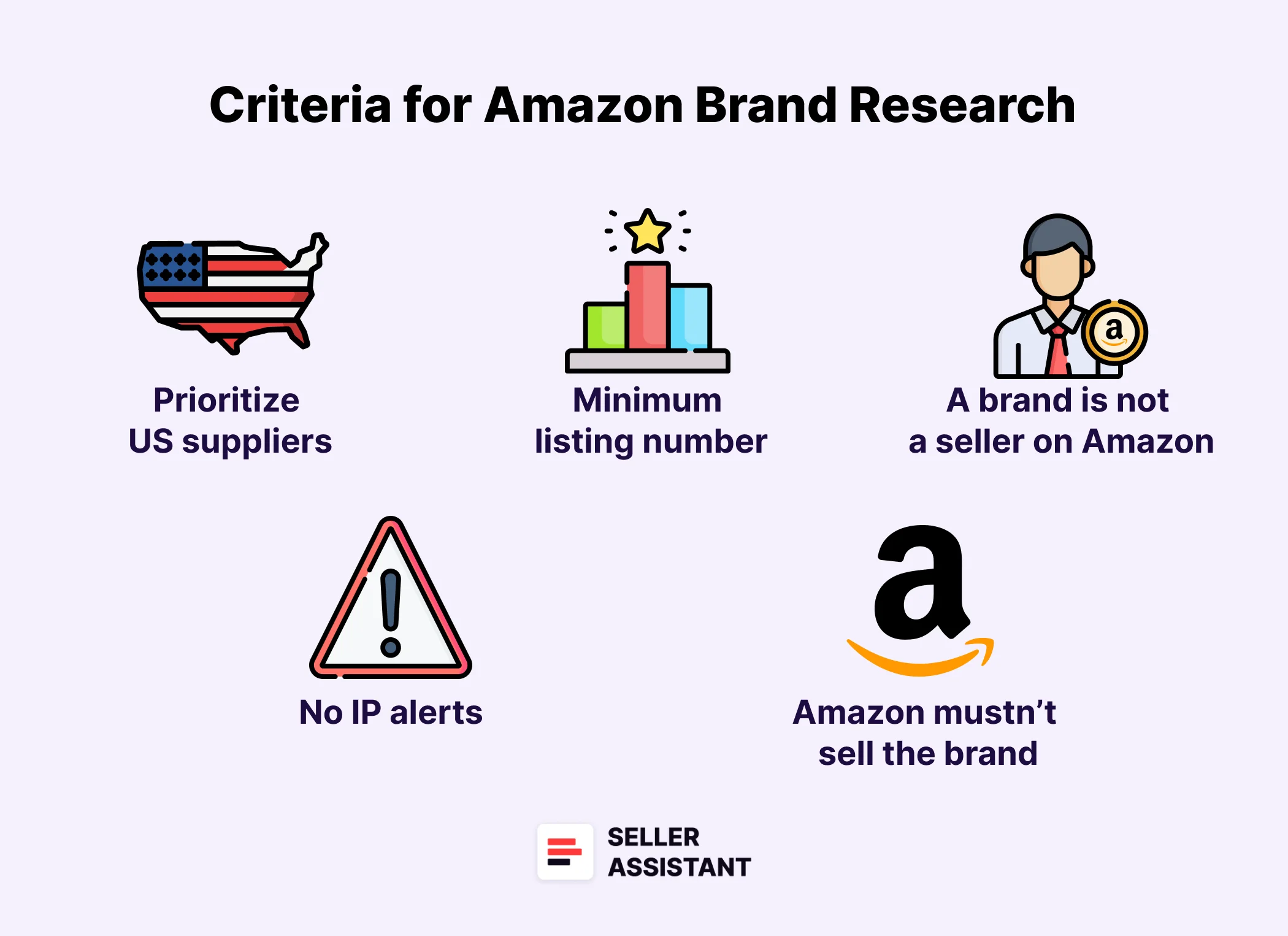
Criteria for brand research
Related: 12 Ways to Find Wholesale Suppliers for Amazon FBA
How to Find Amazon FBA Wholesale Suppliers
How to Buy Wholesale to Sell on Amazon?
Restrictions and selling eligibility
Begin by confirming that the brand and its products are eligible for sale on your Amazon seller account and are not restricted by Amazon. Amazon prohibits listing restricted products without prior approval (which requires an application) and will block the sale of items if your account is ineligible. Ensuring this upfront prevents potential financial losses.
Tip. Seller Assistant’s Bulk Restrictions Checker can help you verify eligibility and restrictions for bulk products simultaneously. Upload your wholesale list and download a detailed report indicating whether products are gated or ungated and if you can sell them based on your seller account.
If you see a green open lock icon, you can sell them. If you see a red closed lock, you can’t sell products without Amazon’s approval and they are gated. If the tool shows a red closed lock with an exclamation mark, you are not eligible (can’t) sell products on your account.
Potential revenue
Ensure the brand aligns with your profitability goals by evaluating its monthly revenue and average selling price. Reviewing the total monthly revenue from the brand’s products helps you gauge potential earnings and decide if the brand is worth reselling. The average selling price, reflected by the average Buy Box price, offers insight into the pricing range of the brand’s products.
Avoid brands selling on Amazon
Verify that the brand does not sell its products directly on Amazon. Brands that sell on Amazon often discourage competition and may impose restrictions on resellers. Similarly, stay away from brands with exclusive distributors on Amazon, as they typically do not allow other sellers to participate.
Steer clear of private label brands
Do not attempt to resell brands owned by private label sellers. Private label brands involve trademarked products sold under a unique label, making them ineligible for resale. These sellers often have brand names matching or resembling their storefront names, a single seller for their products, and a limited catalog of fewer than 50 items.
Amazon’s competition
If Amazon itself sells a brand’s products, it becomes significantly harder to compete for the Buy Box, lowering your chances of making sales. Amazon’s share of the brand’s products is called the Amazon In-Stock Rate. When Amazon accounts for over 30% of a brand’s products, it’s better to explore other options to avoid heavy competition.
Competition from FBA and FBM sellers
Increased competition can lead to reduced profit margins, as sellers often lower prices to win sales. The Average FBA Seller Count is a useful metric to assess the intensity of competition for a brand’s products. If this count exceeds 15, it indicates strong competition and the likelihood of thinner profit margins.
IP alerts and Amazon policy violations
If you negotiate with a brand’s distributor, you must make sure a brand doesn’t file IP complaints against resellers because it doesn’t want other sellers to resell. Also, you must make sure brand’s products don’t have Amazon policy violations like authenticity concerns, product condition, safety, and various other infringements.
Tip. You can check a brand for IP complaints, Amazon policy violations, and their nature with Seller Assistant’s IP Alert® Extension. This is a dedicated tool created for Amazon sellers to automatically detect and steer clear of products that might pose intellectual property risks or violate Amazon’s policies. This extension reviews products and brands on Amazon, identifying any history of IP-related complaints or policy breaches and flagging items with potential issues.
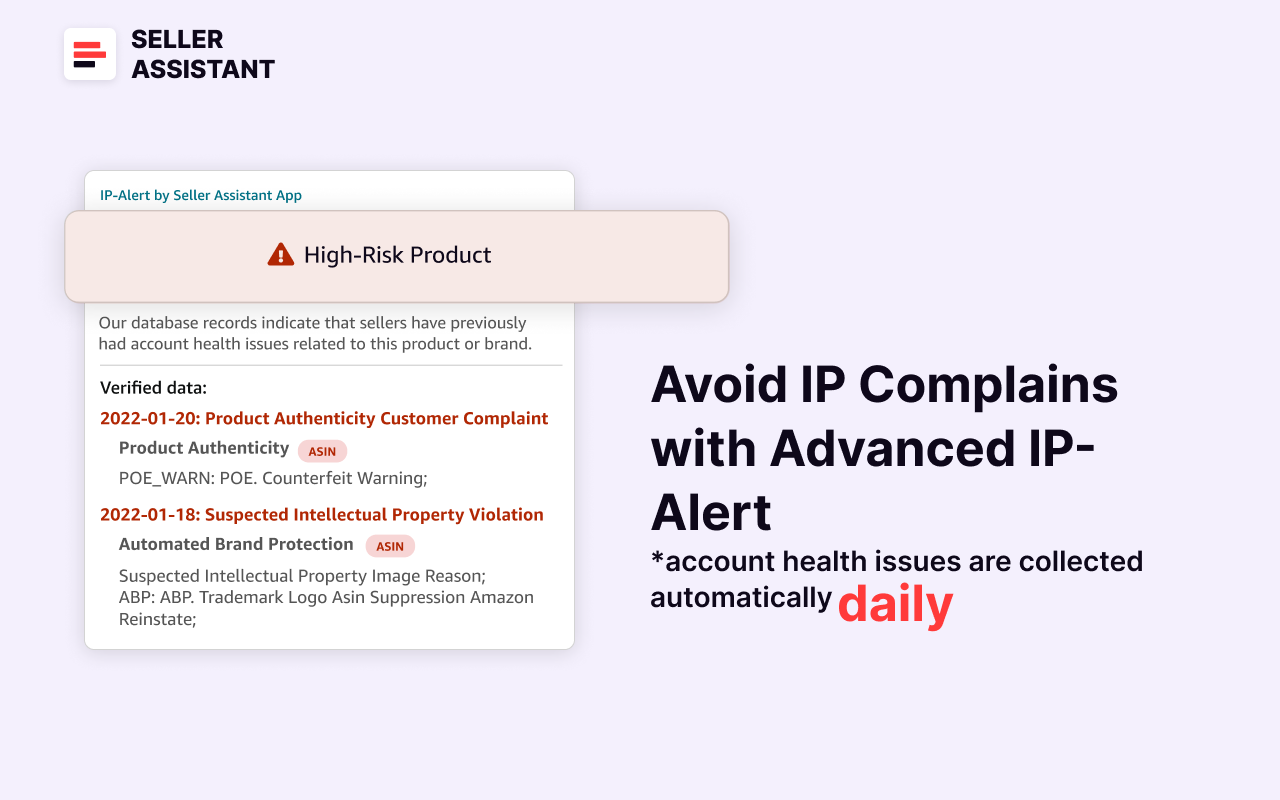
Seller Assistant’s IP Alert extension
Related: How to Check Product Restrictions on Amazon?
Amazon Restricted Products – Complete Guide for Sellers
How to Find Amazon Wholesale Deals?
The next important thing before you buy products from a supplier is research of your wholesale list that helps identify profitable deals. This helps make sure the products will sell, will bring you profit, and meet other essential criteria.
To simplify and automate this process, we will turn to Seller Assistant’s Price List Analyzer, a popular and effective product-sourcing tool.
Below we will describe detailed steps to research wholesale products for Amazon in bulk and how to verify questionable deals if necessary.
Amazon wholesale price list analysis with Seller Assistant
Price List Analyzer by Seller Assistant is a wholesale list scanner for bulk Amazon price list analysis. It enables users to automate identifying profitable leads on their wholesale lists.
Price List Analyzer
Tailored for Amazon wholesale, online arbitrage sellers, and dropshippers, this tool simplifies bulk product research and supports faster, data-driven decision-making. It enriches your list with a lot of valuable data ready available for filtering and processing.
To process a wholesale price list with Price List Analyzer, all you need to do is upload your price lists and download .xls files with potentially profitable deals.
Step-by-step price list analysis with Price List Analyzer
Step 1. Access Price List Analyzer
Log in to your Seller Assistant personal account and open Price List Analyzer.
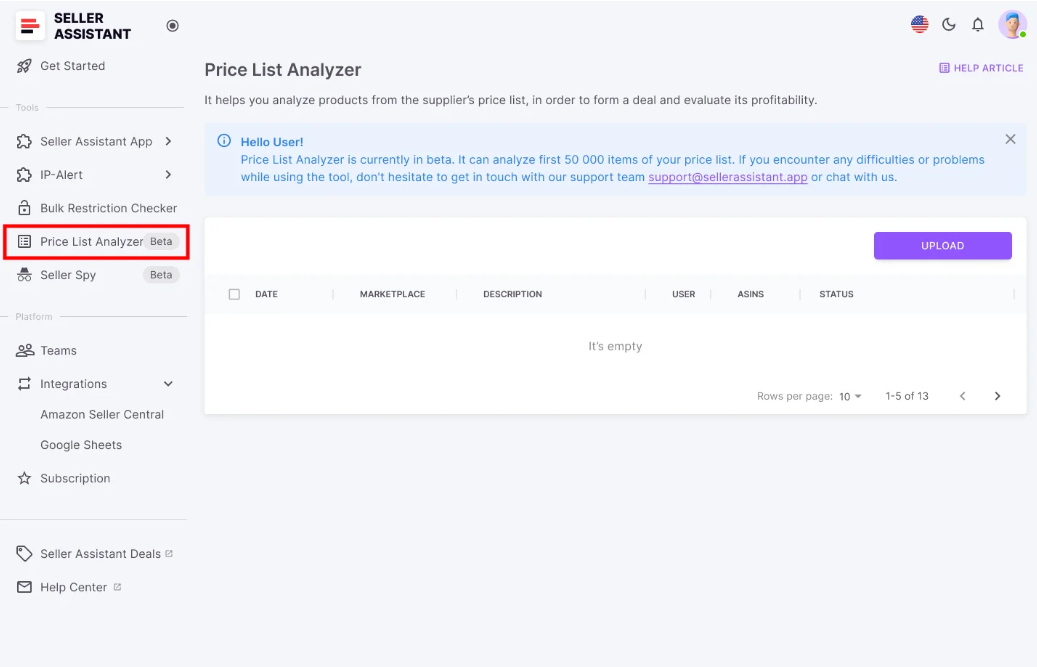
Open your Seller Assistant personal account and access Price List Analyzer
Step 2. Upload your wholesale price list
Click the “Upload” button, select your marketplace, and drag or choose your prepared Excel file with the wholesale list. Add a file name to quickly identify the processed results.
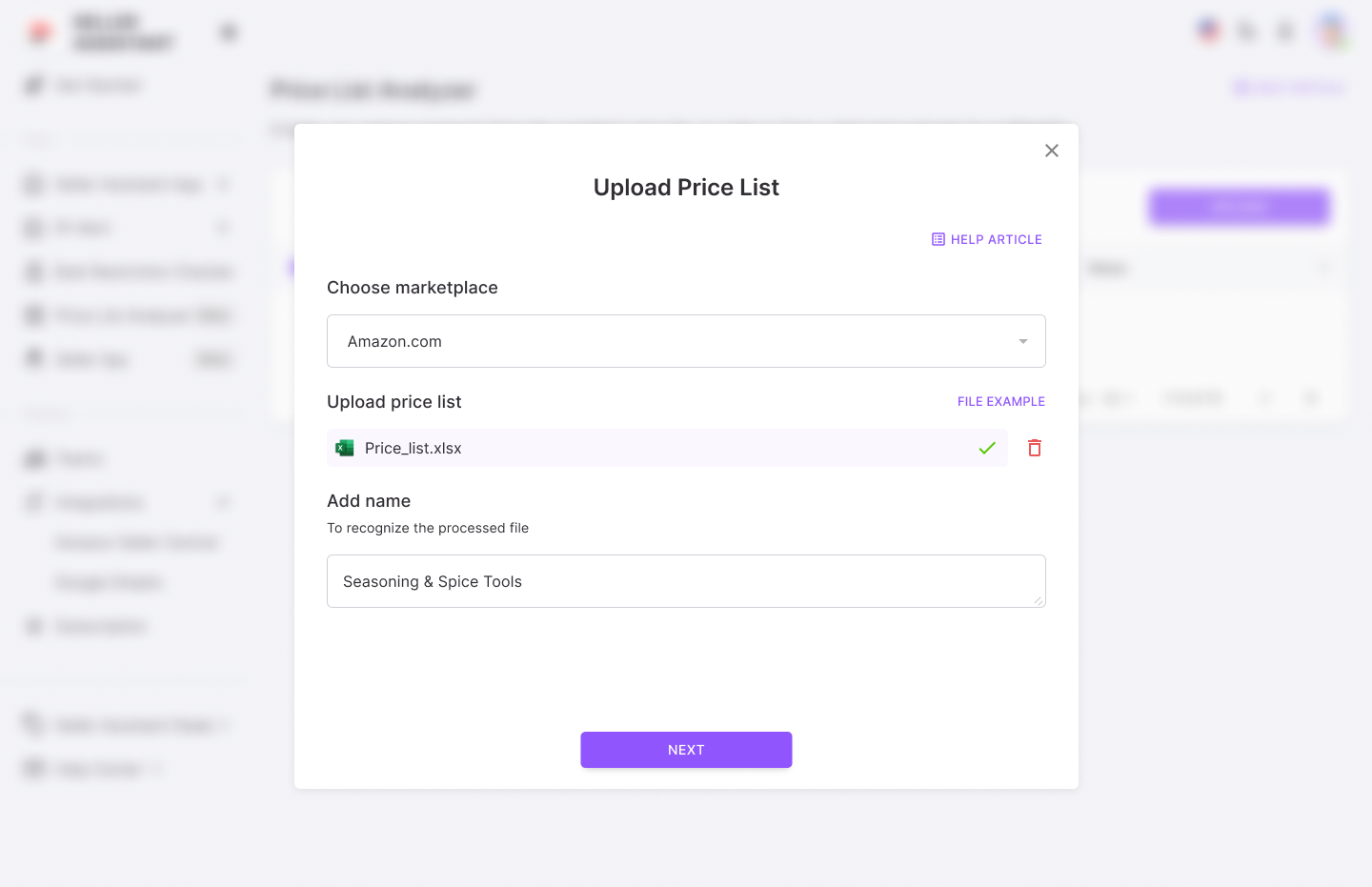
Upload your wholesale price list
Step 3. Prepare your file for analysis
Map the key columns in your file for UPC/EAN, supplier price (COG), and optionally, product titles. The columns you must map are highlighted in the preview table. If your file contains multiple sheets, select the one to process, and choose the starting row for data processing. Ensure the selected row contains the required data. Click “Analyze Price List” to begin processing.
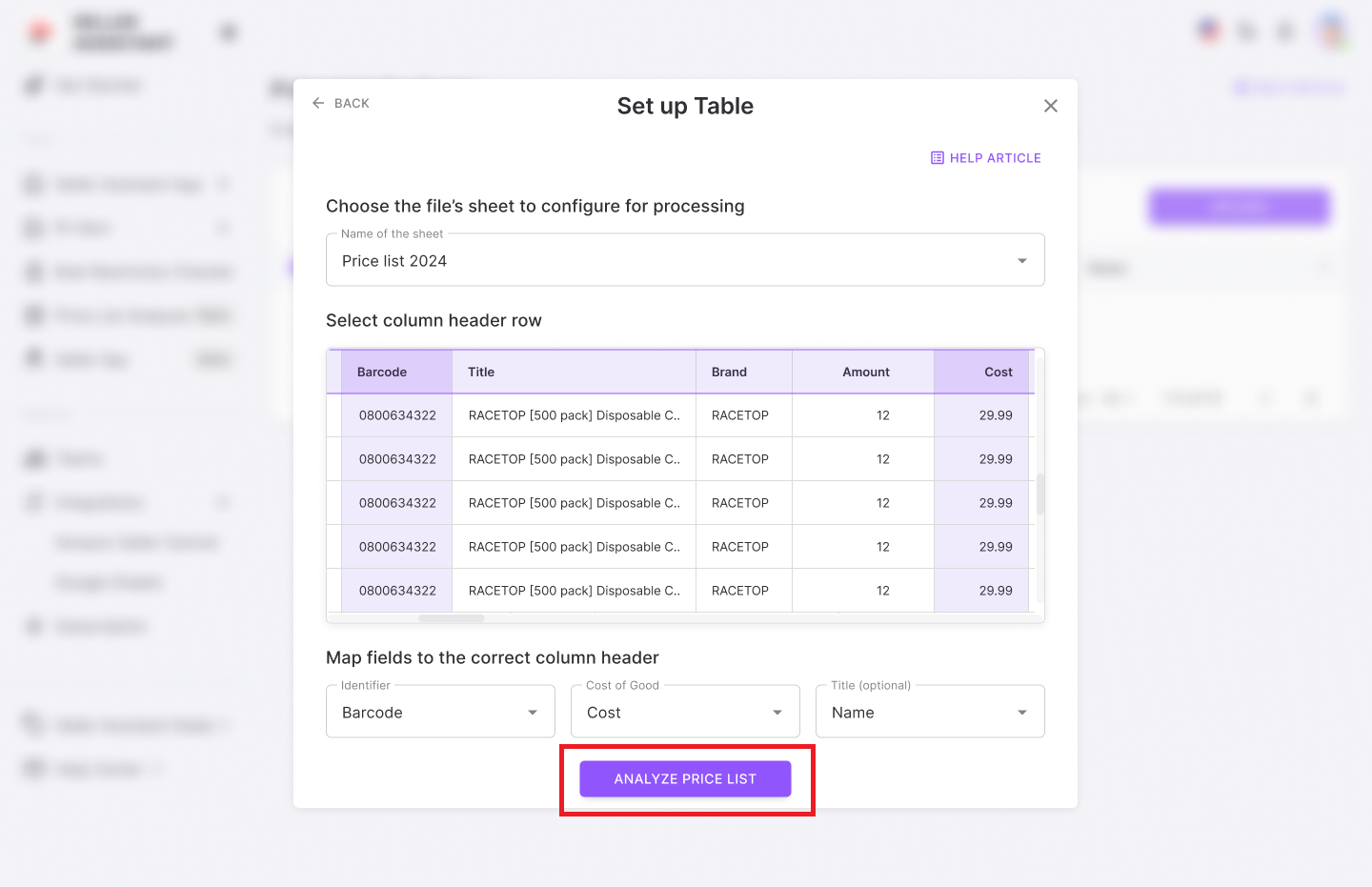
Start price list processing
Step 4. Review the Price List Analyzer results
After processing is complete, you will receive a detailed report with key metrics for each product. Download the .xls file for a comprehensive breakdown.
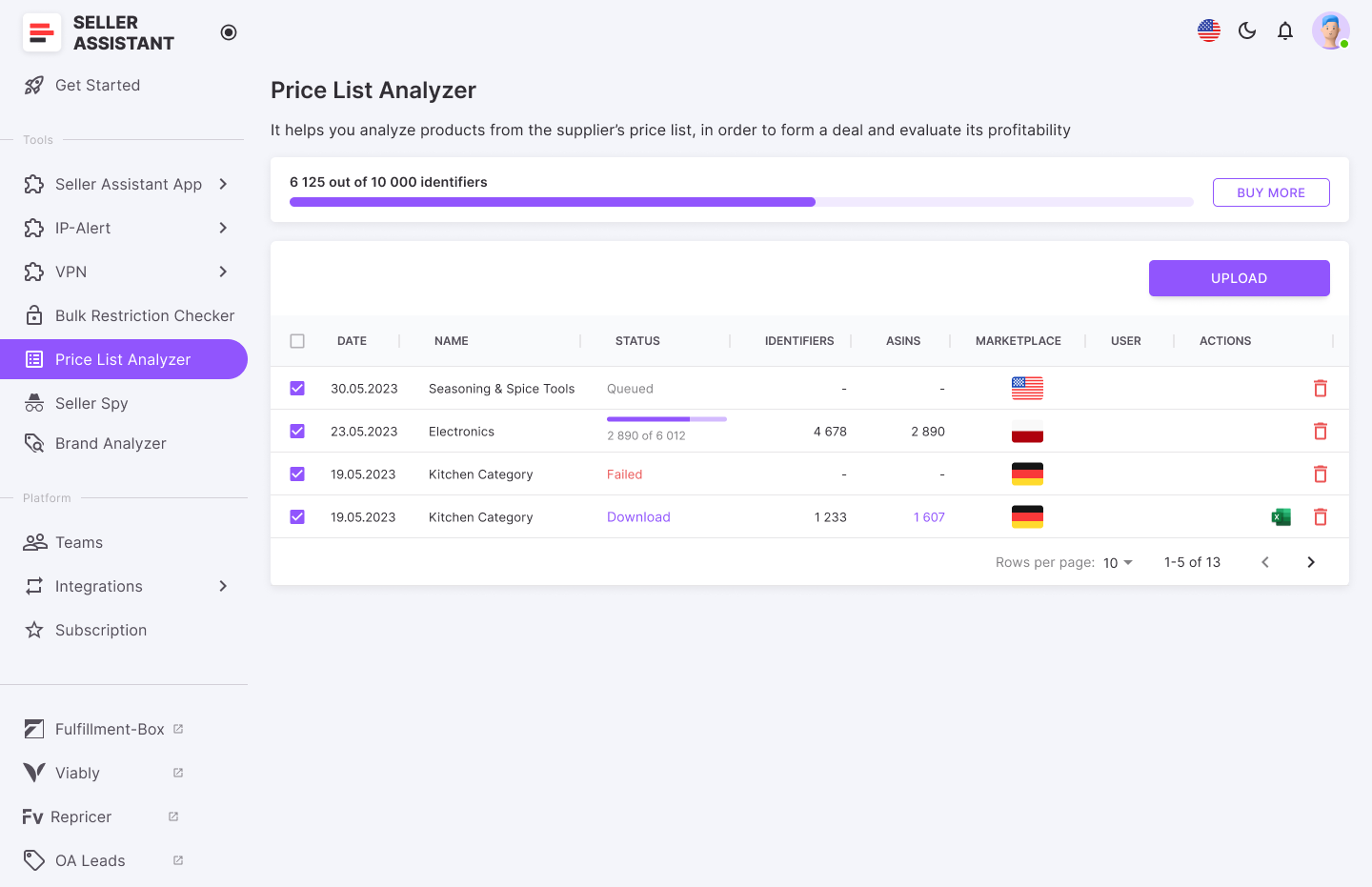
Get the Price List Analyzer results
Report data includes
Product identification and details
- ASIN
Amazon Standard Identification Number for the product
- Link
Direct link to the product listing on Amazon
Visual representation of the product
- Title
Product name or title as it appears on Amazon
- Brand
Manufacturer or brand of the product
- Category
The product’s category on Amazon
- Model, manufacturer, part number
Specific details related to the product’s manufacturing necessary to match the product to supplier catalog
Sales performance metrics
Indicator of the product’s sales ranking within its category. Shows how well the product sells
- Top BSR
Top helps understand the product’s sales velocity as a percentage. If the Top equals 0.5% or less, the product sells well. If the Top equals 1% or more, a product is a slow-mover
- Sales Estimate (pcs/month)
Estimated number of units sold per month. Helps understand average product sales to estimate how many units to order
- Sales Estimate ($/month)
Estimated revenue per month from product sales. Helps understand how much money you can potentially earn from product sales/month
Pricing and profitability
- COG (Cost of Goods)
Cost of goods before tax. Product price at the supplier
- Cost of Goods incl. VAT
Total cost including VAT
Current price of the product winning the Buy Box on Amazon
- Break-Even price (FBA/FBM)
The minimum product price with 0% profit for Fulfillment by Amazon (FBA) or Fulfillment by Merchant (FBM). If you go below break-even threshold, you lose money on the product
- Profit (FBA/FBM)
Estimated profit per unit using FBA or FBM fulfillment methods. Shows how much money you earn on the product
- ROI (FBA/FBM, %)
Return on investment for FBA or FBM orders, as a percentage
- Margin (FBA/FBM, %)
Profit margin after costs, expressed as a percentage
Fulfillment costs
- Total FBA/FBM fees
Overall fees associated with FBA or FBM services
Fulfillment by Amazon fees
- Referral fee
Amazon’s percentage-based fee on the sale
Cost to store the product in Amazon’s warehouse
- Variable Closing Fee
A fee applied for books, music, video, blu-ray, and DVDs (BMVD) on top of other fees
- Inbound shipping costs (FBA)
Cost of shipping the product to an Amazon warehouse (for FBA)
- Prepare/labeling cost (FBA/FBM)
Cost for preparing or labeling the product for shipment
- Fragile/bubble wrapping (FBA/FBM)
Additional cost if the product requires special packaging for fragility
Tax and compliance
- VAT on fees
Value-Added Tax applied to fees. Applicable if you sell internationally
- Sales tax rate (%)
Applicable sales tax rate
Total sales tax applied to the transaction
- Apply sales tax
Option to apply sales tax to the product or not
- VAT on fees rate (%)
Percentage of VAT applied to fees
Product restrictions and flags
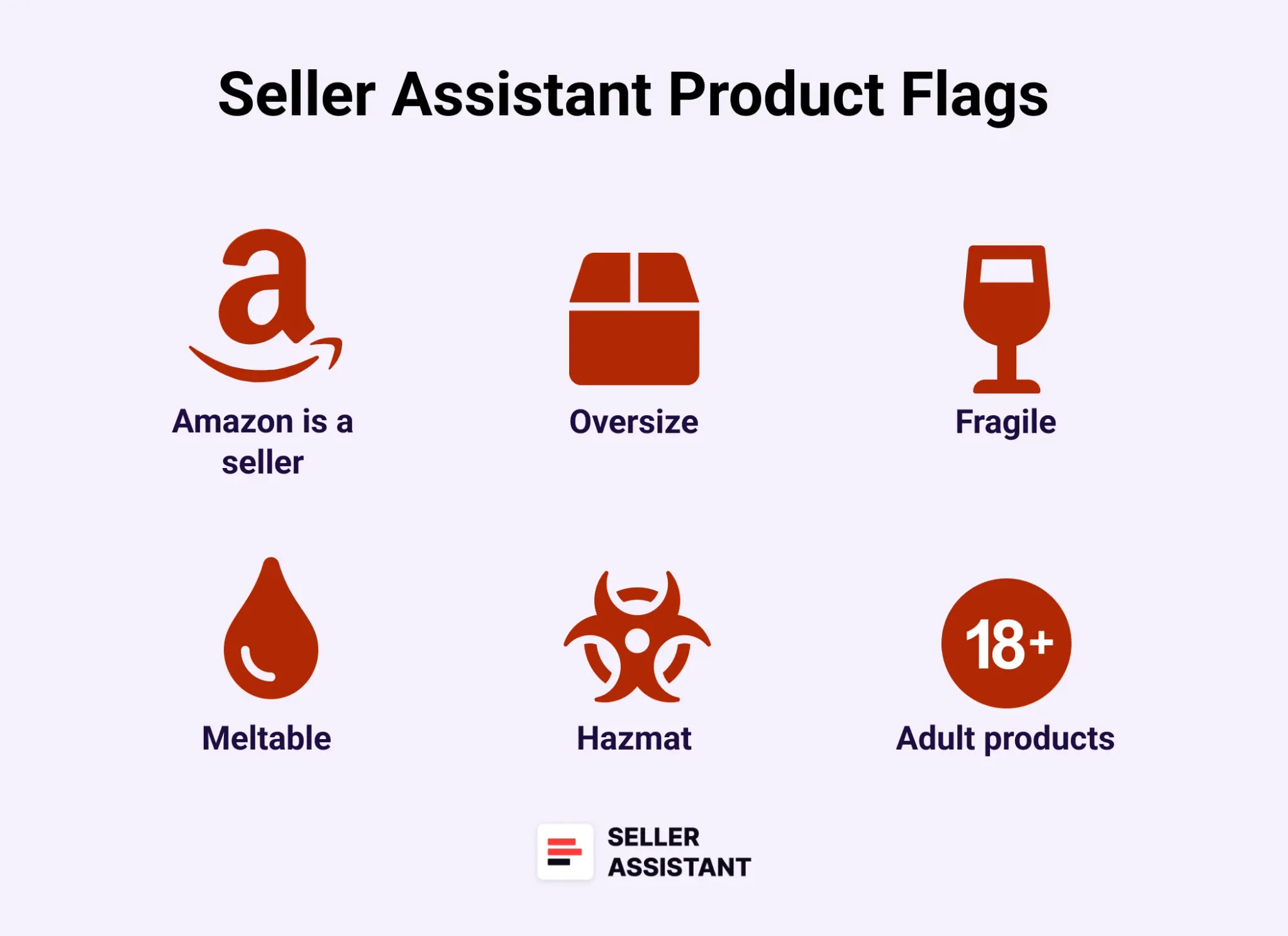
Product restrictions and flags
- Warning
Shown if the product has any alerts, for example: no FBA Fees, no Buy Box price, no COGs, ASIN not found, set or bundle, approval required, too low FBA ROI, too high FBA ROI. For such products, more detailed research is required
Marks if the product is considered oversize by Amazon
Indicates if the product is classified as hazardous material
Alerts for products that can melt in certain conditions
Marks fragile products requiring special handling
Indicates the risk of intellectual property complaints
- Variation flag
Denotes if the product has multiple variations (size, color, etc.)
- Set/bundle flag
Marks if the product is part of a set or bundle
Dimensions and Packaging
- Height, width, length, weight (in/cm/lbs/kg)
Physical dimensions and weight of the product, useful for calculating shipping costs
- Product volume (cu ft/cu cm)
The product’s volume, helpful for storage and shipping calculations
- Package quantity
Number of units in a package
Additional identifiers
- UPC, EAN, GTIN
Global Trade Item Numbers used for identifying the product in various marketplaces
- Parent ASIN
The parent ASIN, if the product has multiple variations
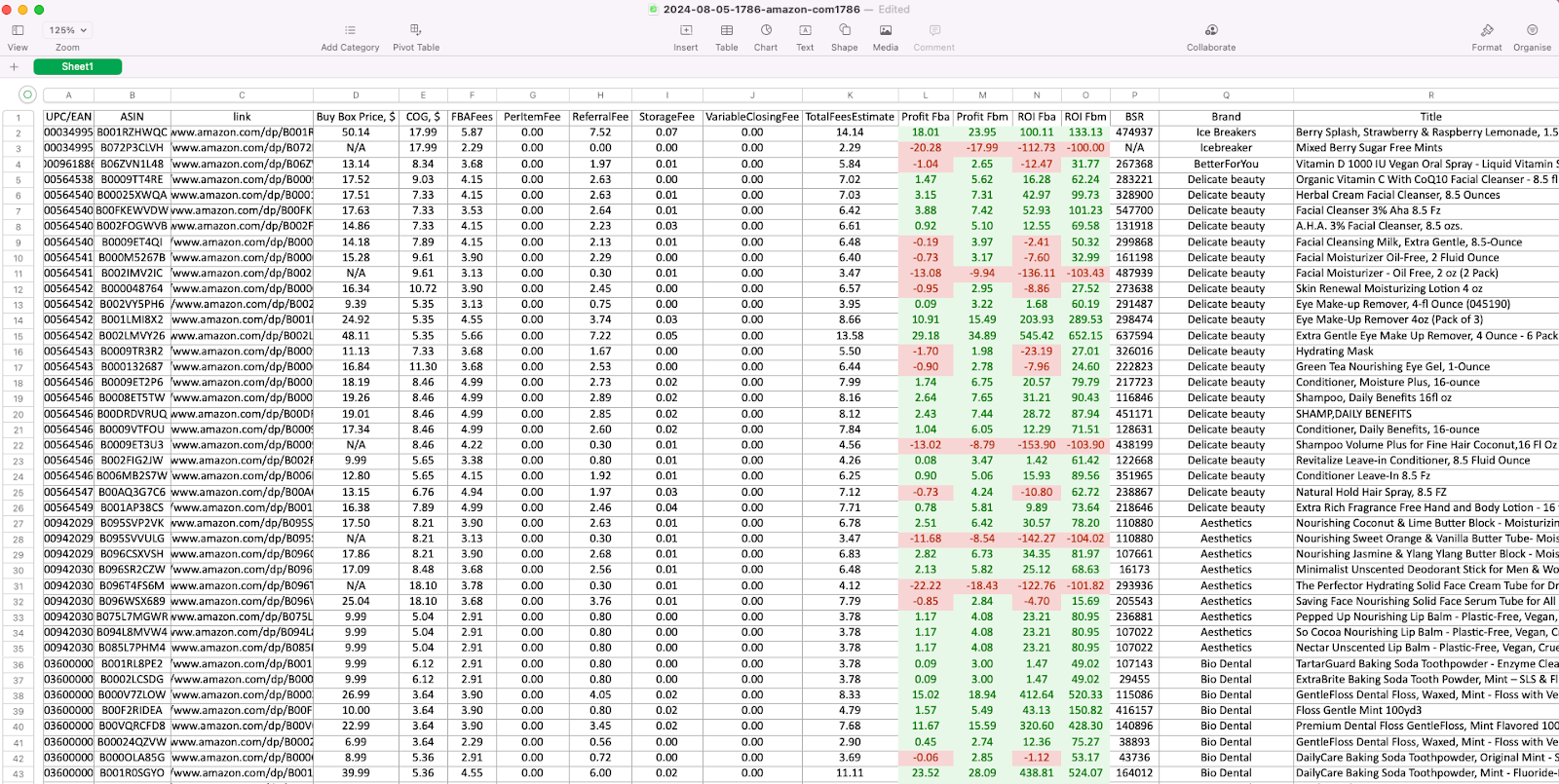
Price List Analyzer results table
Step 5. Filter results
Utilize filtering options to sort the data by metrics such as profit, ROI, BSR, and more. This allows you to quickly identify the most promising deals to sell.
Advanced product research
Typically, automated research quickly pinpoints profitable deals suitable for selling and those having certain risks or issues which makes them unsellable on Amazon. However, some leads may have warnings or missing data.
Such cases may include no Buy Box price, sets or bundles, too low or too high ROI, and more. These deals require more detailed research, and you must review all deals metrics one-be-one to understand whether the deal is viable or not. Here’s how you can do it with Seller Assistant Extension.
Seller Assistant Extension is a powerful product sourcing tool designed to help you identify top-selling products for resale on Amazon. It provides a user-friendly dashboard that displays key product data directly on Amazon product and search pages, as well as on supplier websites.
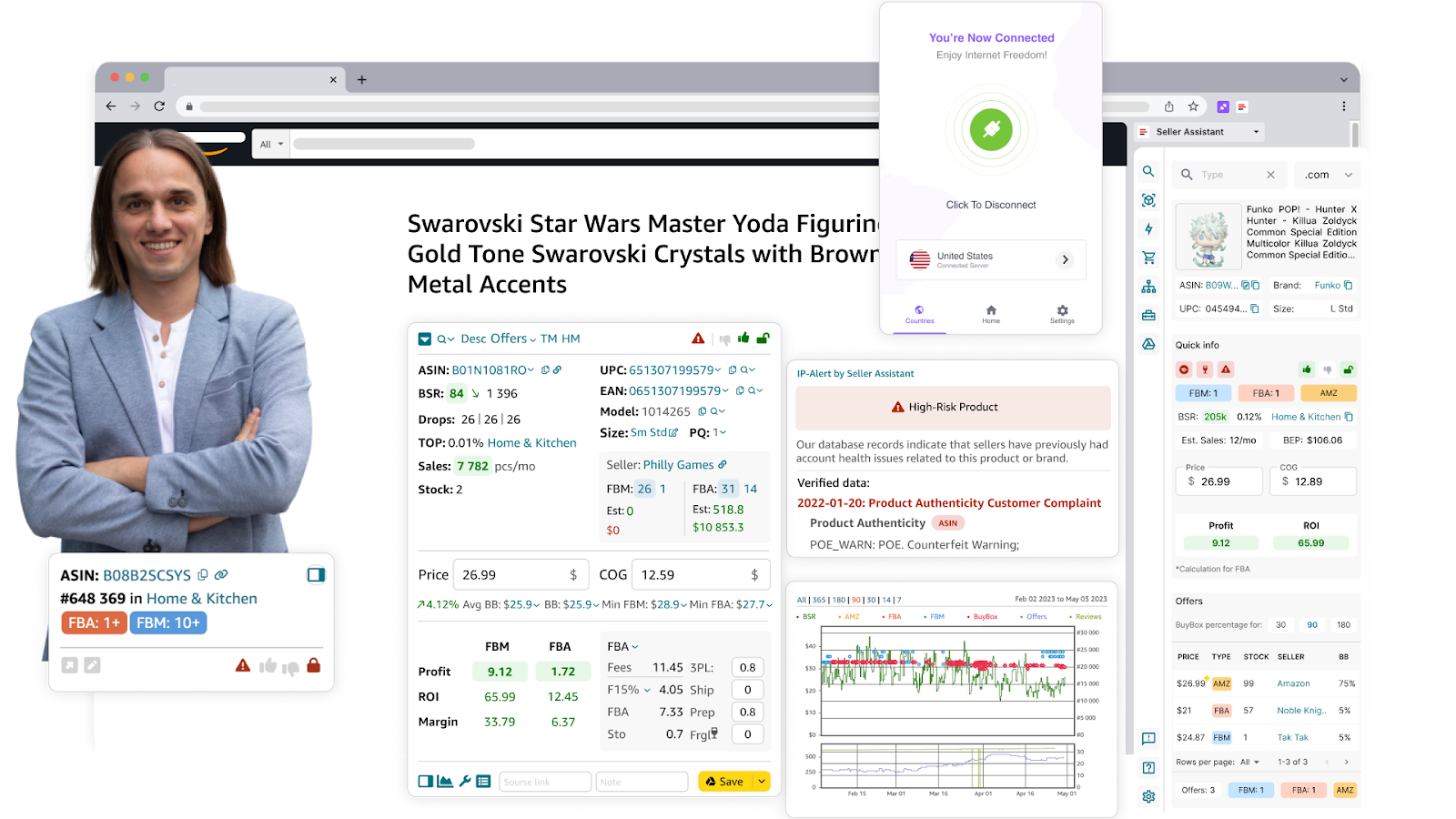
Seller Assistant Extension
With this tool, you can easily conduct in-depth product research to determine if a product is worth reselling and ensures a profitable investment. It enables you to assess product sales performance, competition intensity, Buy Box potential, and estimated sales volume.
Additionally, it flags product restrictions, potential IP complaints, and other hidden risks. The extension also calculates profitability, highlights the most successful product variations, and includes integrated Keepa charts to analyze sales history.
Related: Amazon FBA for Beginners
What to Sell on Amazon 2024
Selling on Amazon: How to Make Money?
How to Sell on Amazon for Beginners - Complete Guide
Step-by-step advanced product research with Seller Assistant Extension
Step 1. Remove the referral from the product link
Delete a referral (part of the link, starting with ref=). It can give you wrong information about the product. Click the product ASIN to remove the referral.
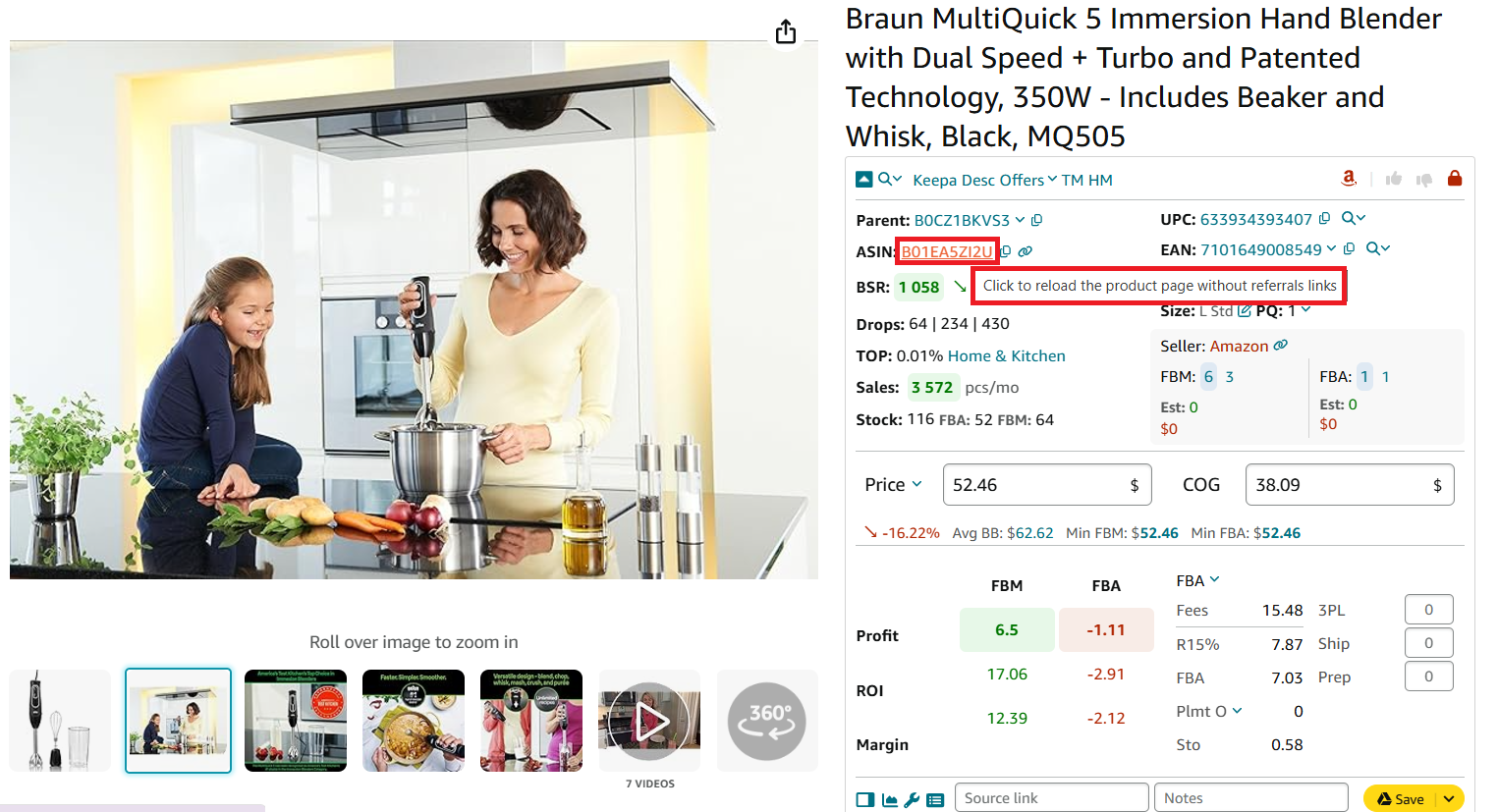
Click the product ASIN to remove the referral
Step 2. Check how well the product sells
- Look into the product’s BSR (Best Sellers Rank) and its trend. Anything between 1 and 100,000 is a “good” BSR with 1 being the best seller in its category. If product sales grow, the arrow next to the product is green and points down, while if it declines, the arrow is red and points up. You can also compare the product’s current BSR (the first BSR figure in line) with the average BSR over 90 days (or 30 and 180 days in the pop-up).
- Examine the Top figure. It expresses the product’s sales velocity as a percentage. If the Top equals 0.5% or less, the product sells well. If the Top equals 1% or more, a product is a slow-mover.
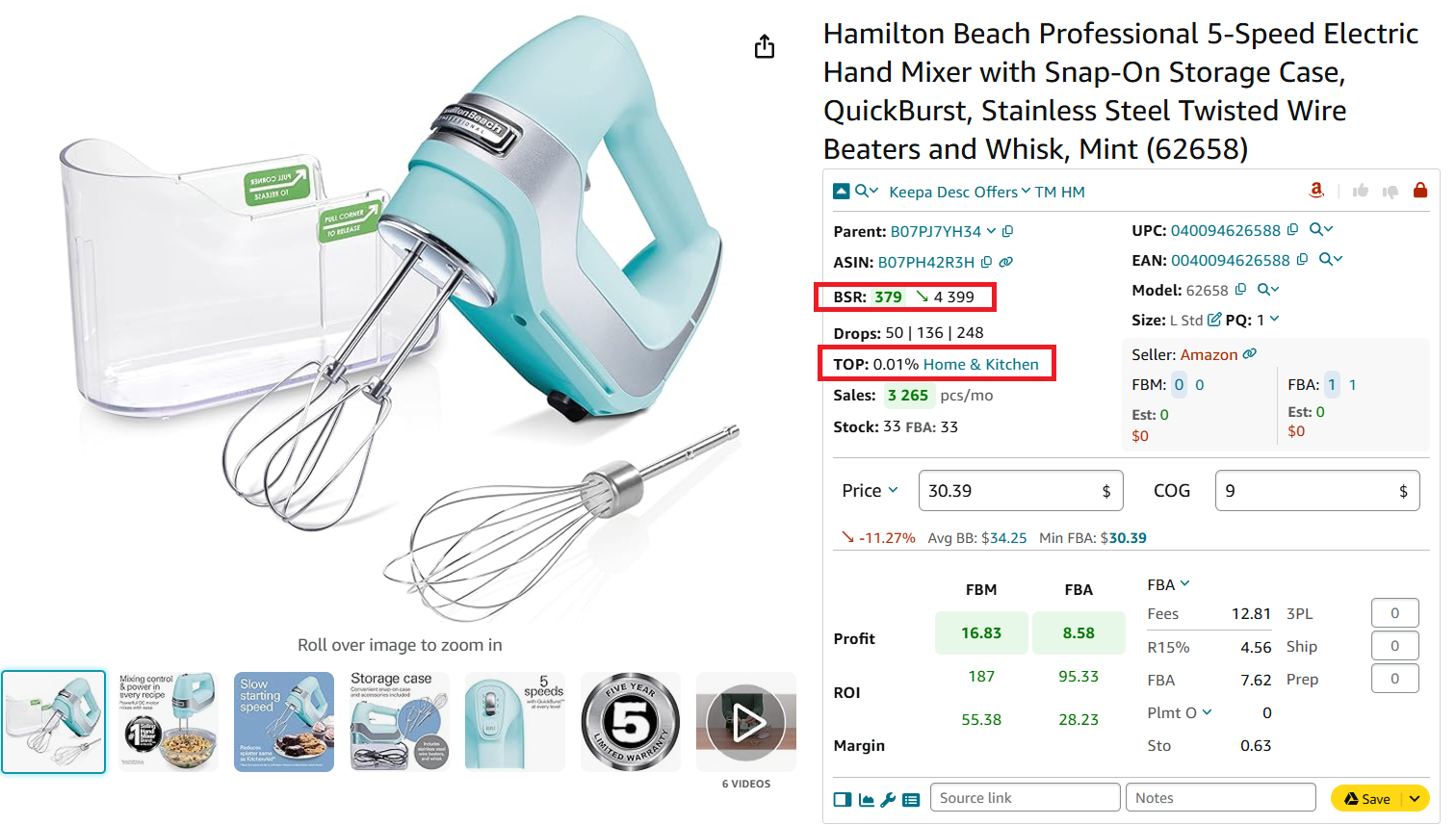
Check how well the product sells
Step 3. Identify how many units you can sell
- Review Drops (BSR drops). This figure indicates how many products were actually sold during 30, 90, and 180 days. It helps estimate if you can sell the number of products you want to get the expected money.
- Look into Sales. It shows estimated product sales in pieces per month based on BSR. This helps estimate how many units you can potentially sell. If you hover a mouse over the Sales figure, you can see potential sales in pieces per month and the monthly sales amount in the marketplace currency.
- Review your potential sales. The Est figure indicates how many p=units you can potentially sell if you become one more seller on the listing.
- Examine competitor stock. Stock is the quantity of products available for offer on Amazon by FBA and FBM sellers. The figures of products in stock are shown by FBA and FBM sellers separately.
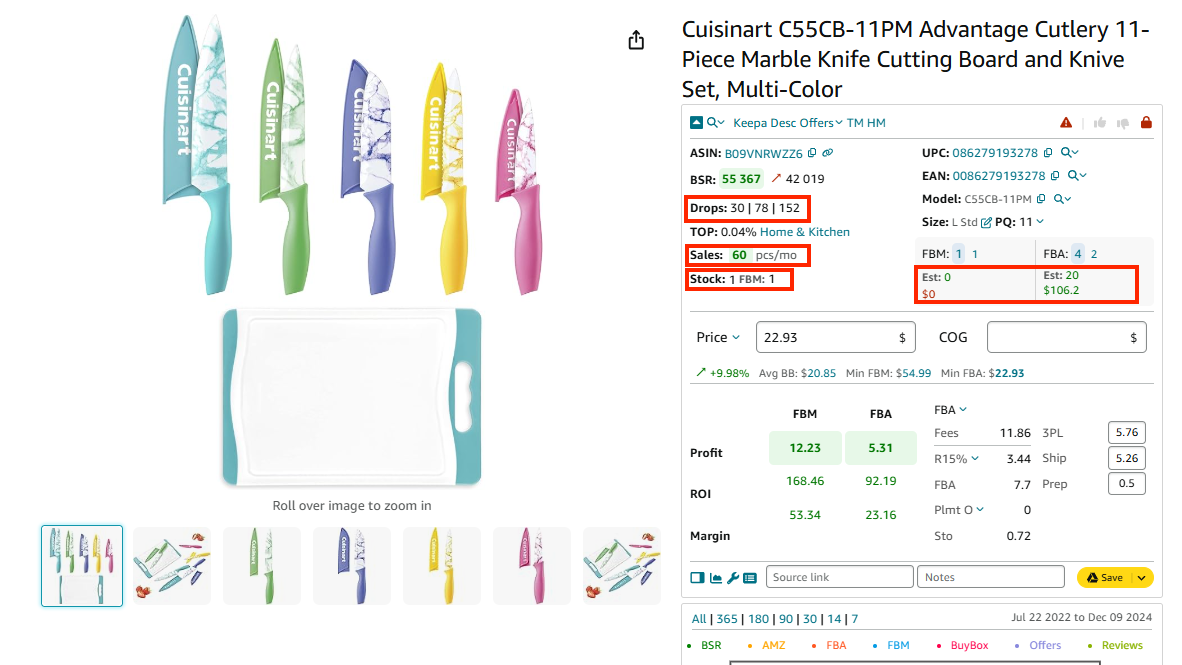
Identify how many units you can sell
Step 4. Find out competition intensity
- Look into FBA or FBM seller count. The number on a blue background is the count of all FBA or FBM seller offers. The number on the white background next to it is the count of FBA or FBM sellers offering the Buy Box price +5% (your potential competitors). The recommended count of FBA and FBM seller offers must range from 2 to 15.
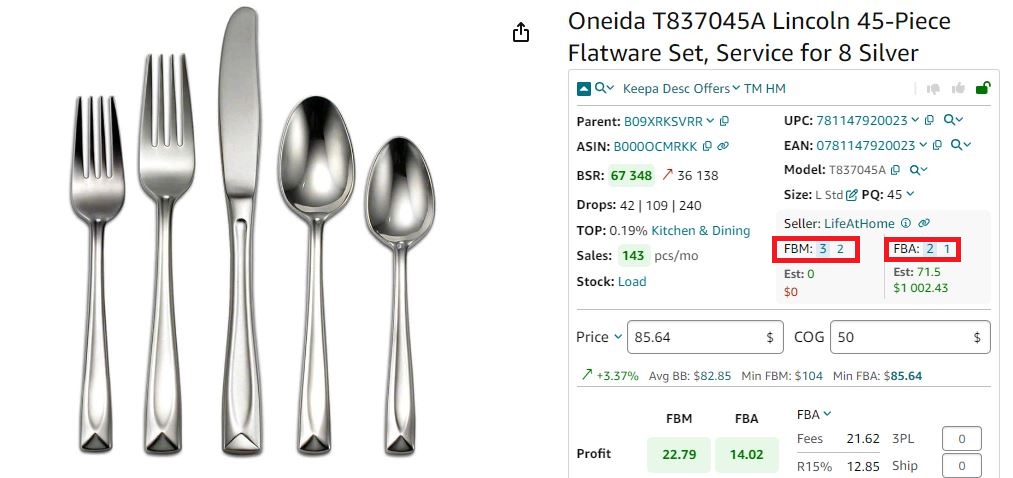
Seller Assistant shows the number of FBA and FBM offers
- Research all seller Offers. Offers is the Extension’s feature that allows to research all seller offers of a product. Clicking it opens the window with all competitor offers on the listing and their details: product price, seller type (FBA, FBM, or Amazon), condition, units in stock, seller mane, and seller’s Buy Box share. This lets you research your competitors at a glance and estimate your chances of getting the Buy Box.
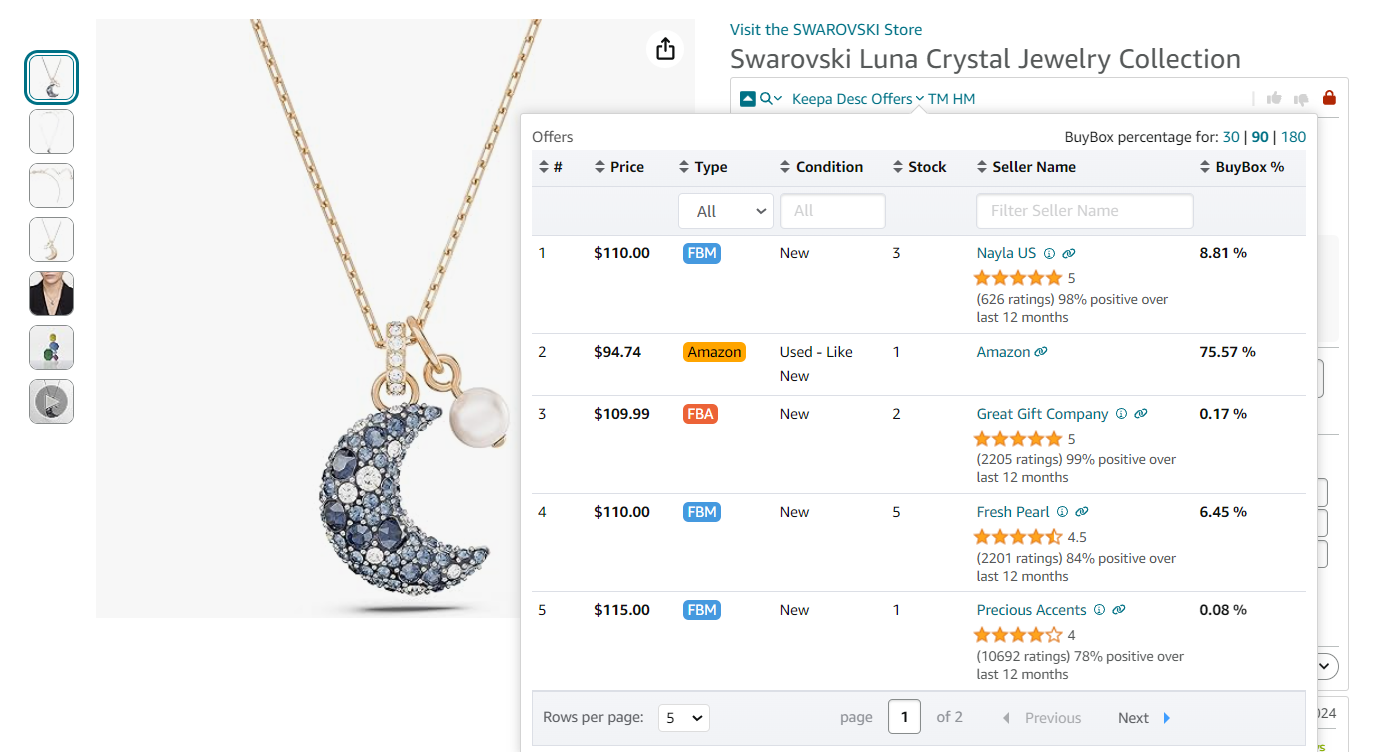
Offers is the extension’s feature that allows to research all seller offers of a product
Step 5. Check if Amazon is a seller
If Amazon is a Buy Box seller, Seller Assistant alerts you with the Red Amazon icon on the product and search pages. In this case, it’s very difficult to compete.
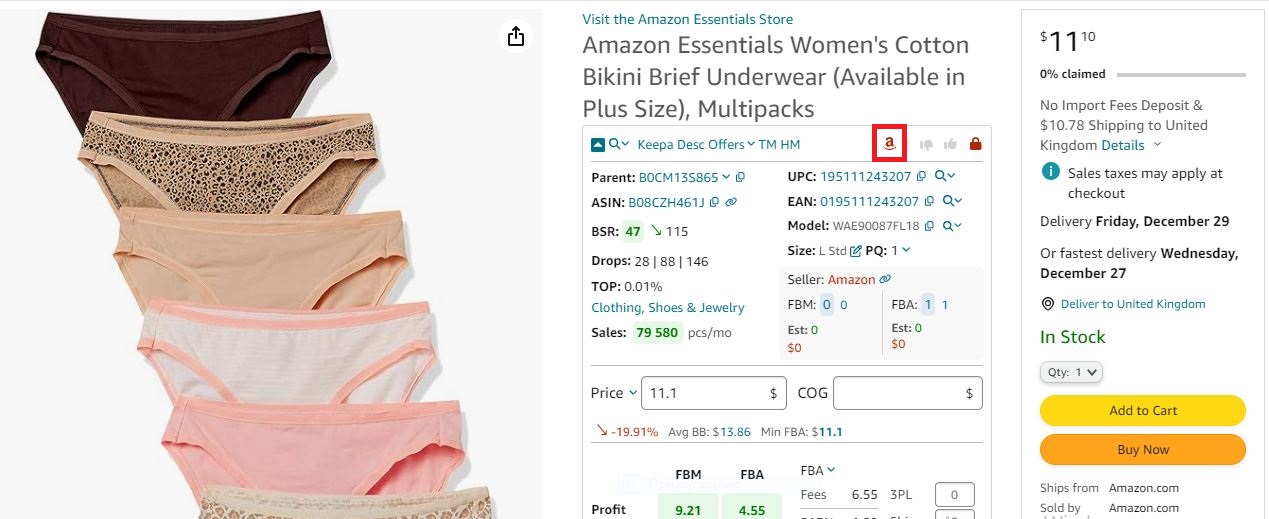
If Amazon is a seller, Seller Assistant shows the red Amazon icon on the product pages
Step 6. Research the listing history
The product listing must be at least half a year old to understand how it sells. If there’s no data on the Keepa chart integrated within Seller Assistant, a product is new. With the new products it’s difficult to judge how well they will sell over time and reselling them can be risky.
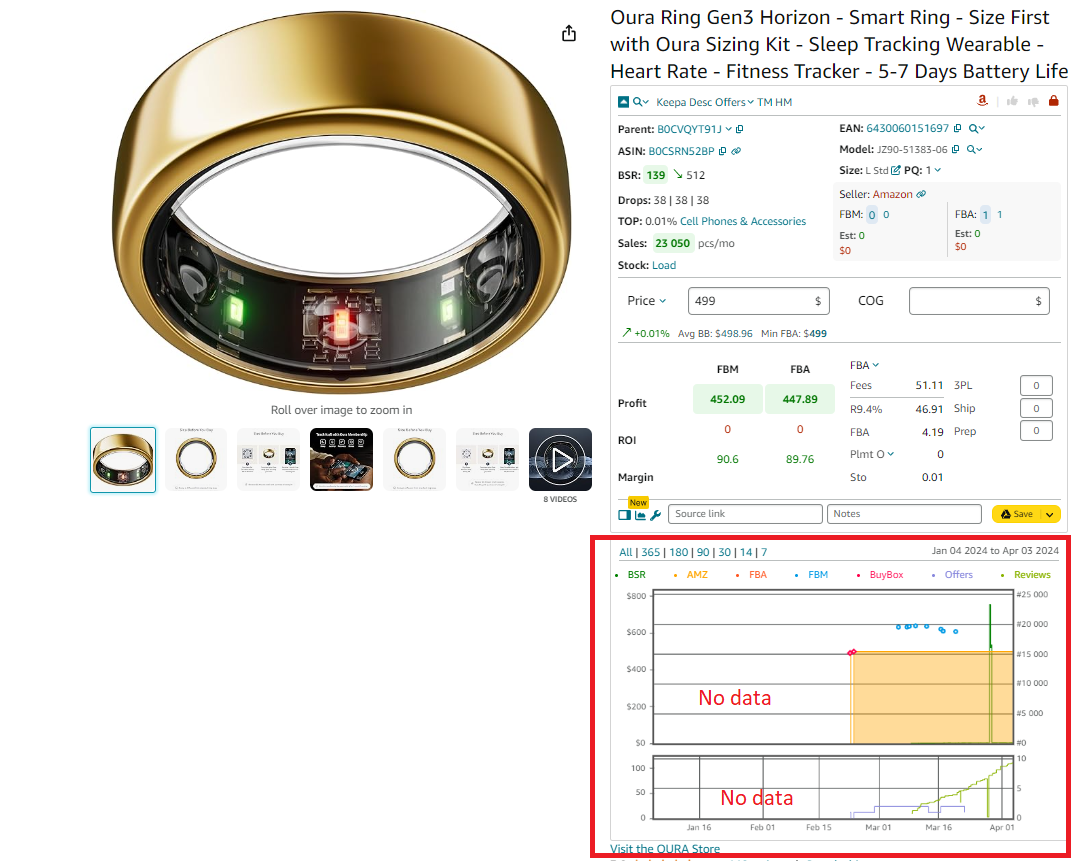
Keepa chart
Step 7. Find out the product’s selling price
Seller Assistant displays the average Buy Box price (Avg BB), and if it goes up or down compared to a 90-day price (green arrow up or red arrow down). It also shows the lowest FBA (Min FBA) and lowest FBM (Min FBM) offers. You can use these indicators to calculate if your product will be profitable and understand the price level you can set.
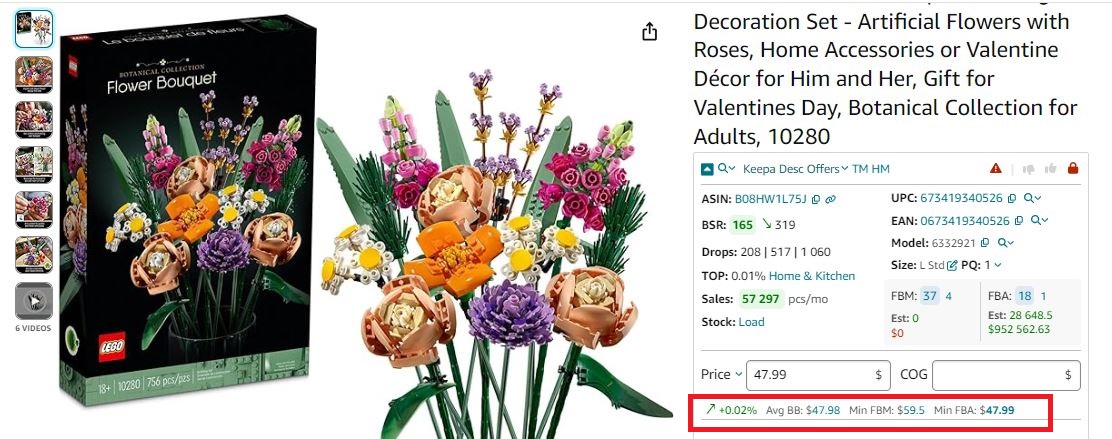
Step 8. Identify the best-selling variations
If a product has variations (different attributes of the same products such as size, color, style, etc.), you must select one of the best-selling variations. Seller Assistant’s Variation Viewer shows all variations’ rating share, total ratings, and the rating percentage per variation (Share). The most profitable variations have the highest rating percentage. To access the feature, click the small arrow next to parent ASIN.
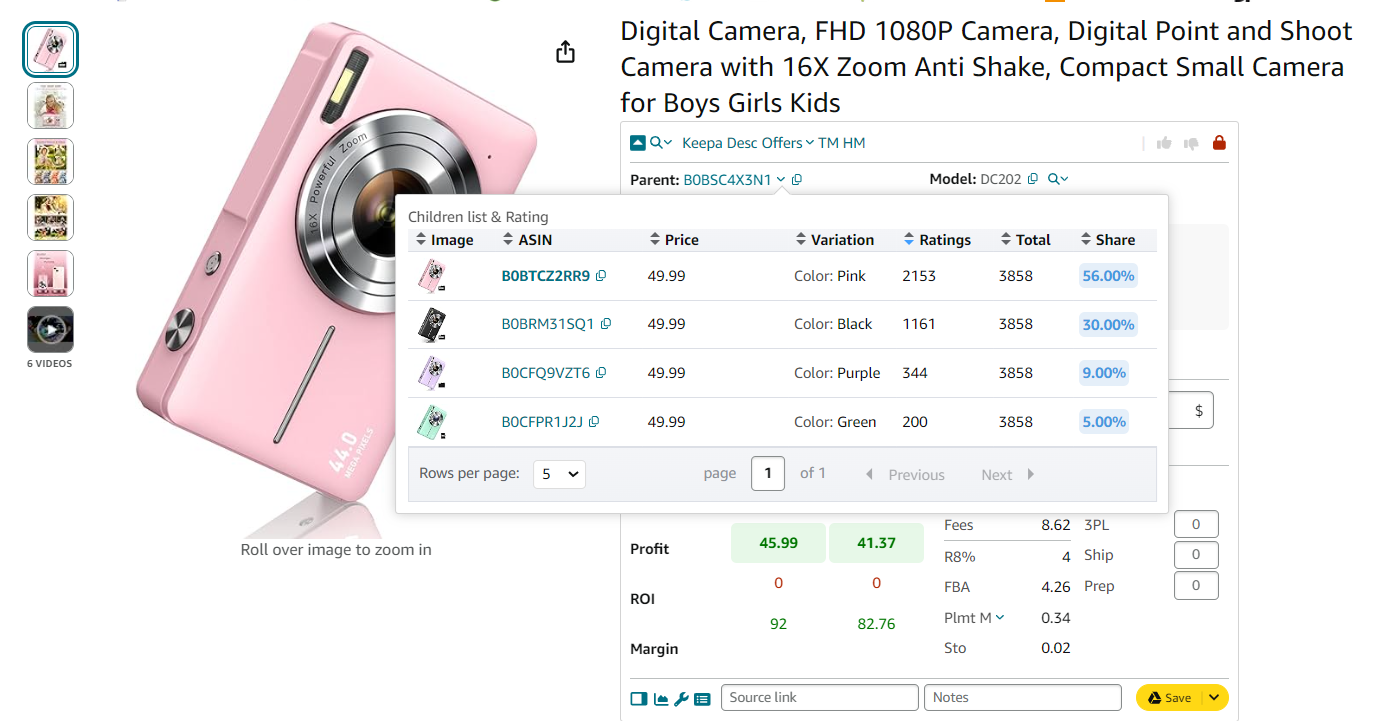
Variation Viewer
Step 9. Research product reviews
A successful product should generally have a 4-5 star rating and minimal negative reviews. Review data is accessible via a separate Keepa chart in Seller Assistant.
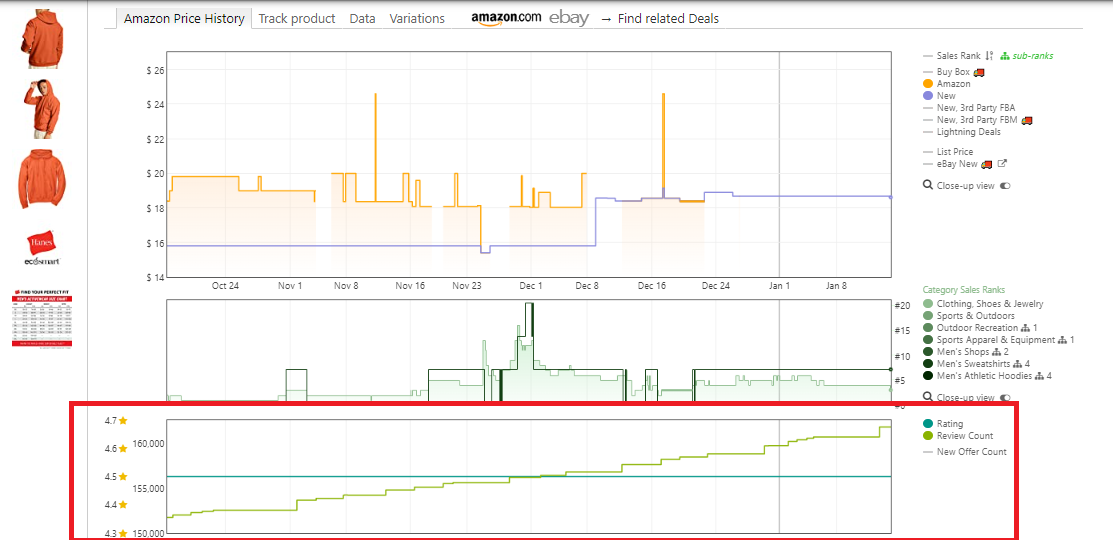
Reviews are available on the separate Keepa chart built into Seller Assistant
Step 10. Check product restrictions
Before purchasing inventory, confirm that you can list the product on Amazon. Seller Assistant indicates this with a green open lock for ungated products and a red closed lock restricted products.
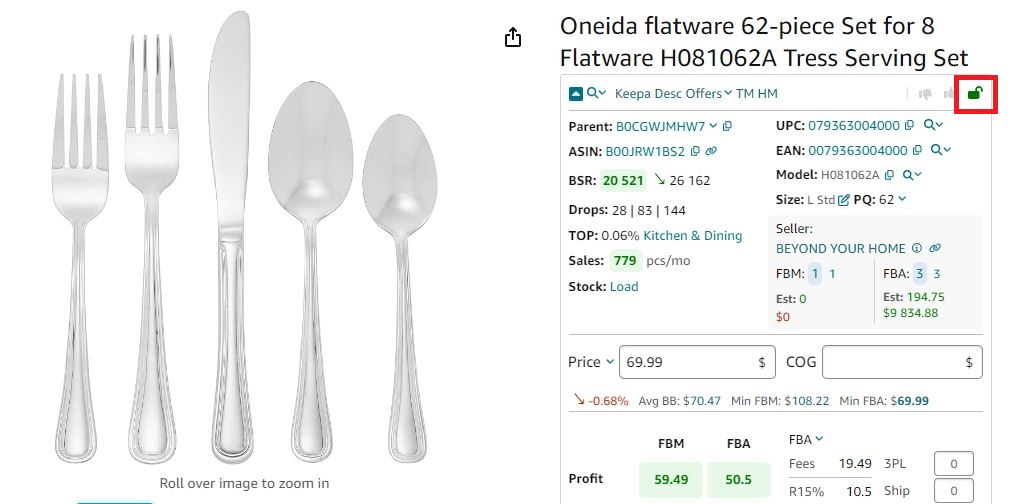
If you see a green open lock icon in Seller Assistant, you can sell a product
Step 11. Check product for alerts
Seller Assistant shows various product flags on the Amazon product pages, such as IP alerts, heavy and bulky, fragile, meltable, hazardous materials, adult products, and other indications. Some show it’s risky to sell a product (IP complaints and Amazon policy violations, a red warning sign icon), while others may indicate extra packaging costs (fragile, adult products ), specific handling and delivery times (heavy and bulky, hazmat ), or seasonality with FBA (meltable ).
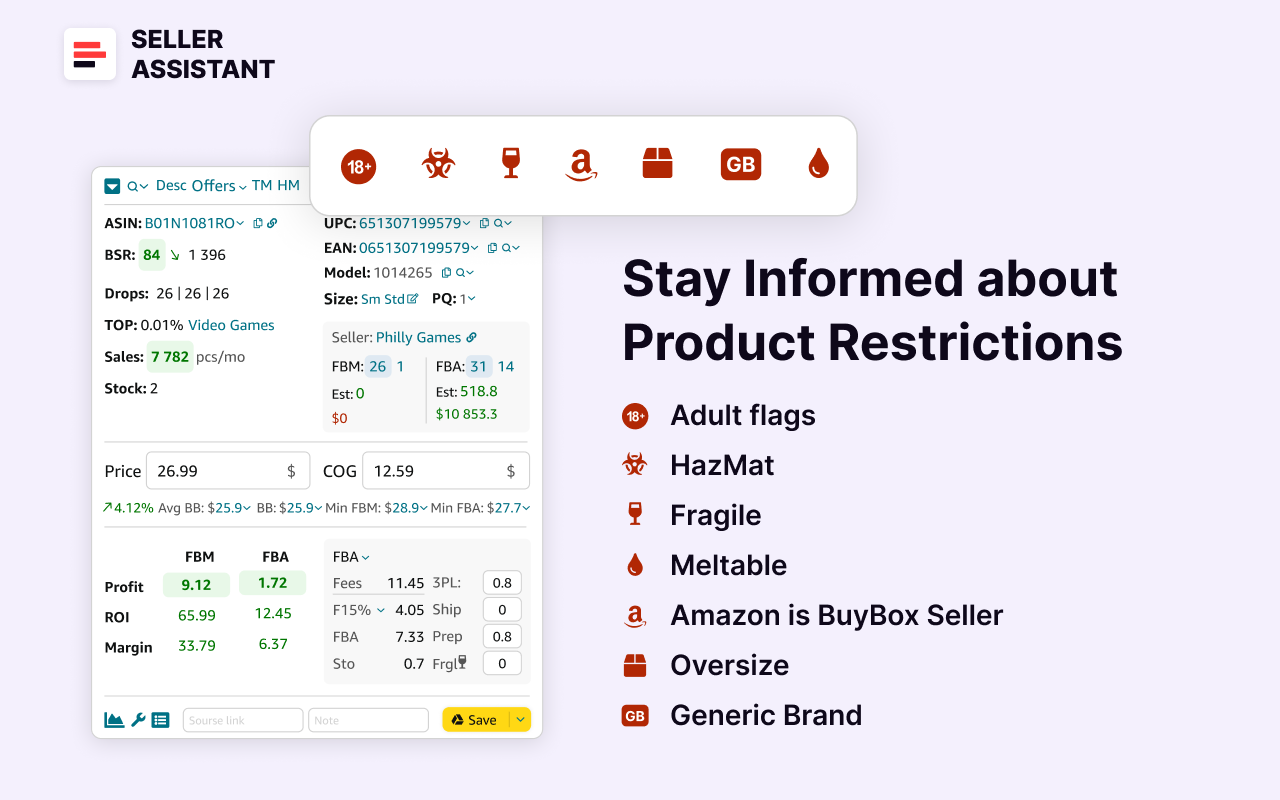
Seller Assistant’s product flags
Step 12. Calculate product profitability
Use Seller Assistant’s FBA&FBM profit calculator to determine ROI based on the Cost of Goods Sold (COG, the purchase price from the supplier, enterable), FBA or FBM fees, and logistics costs.
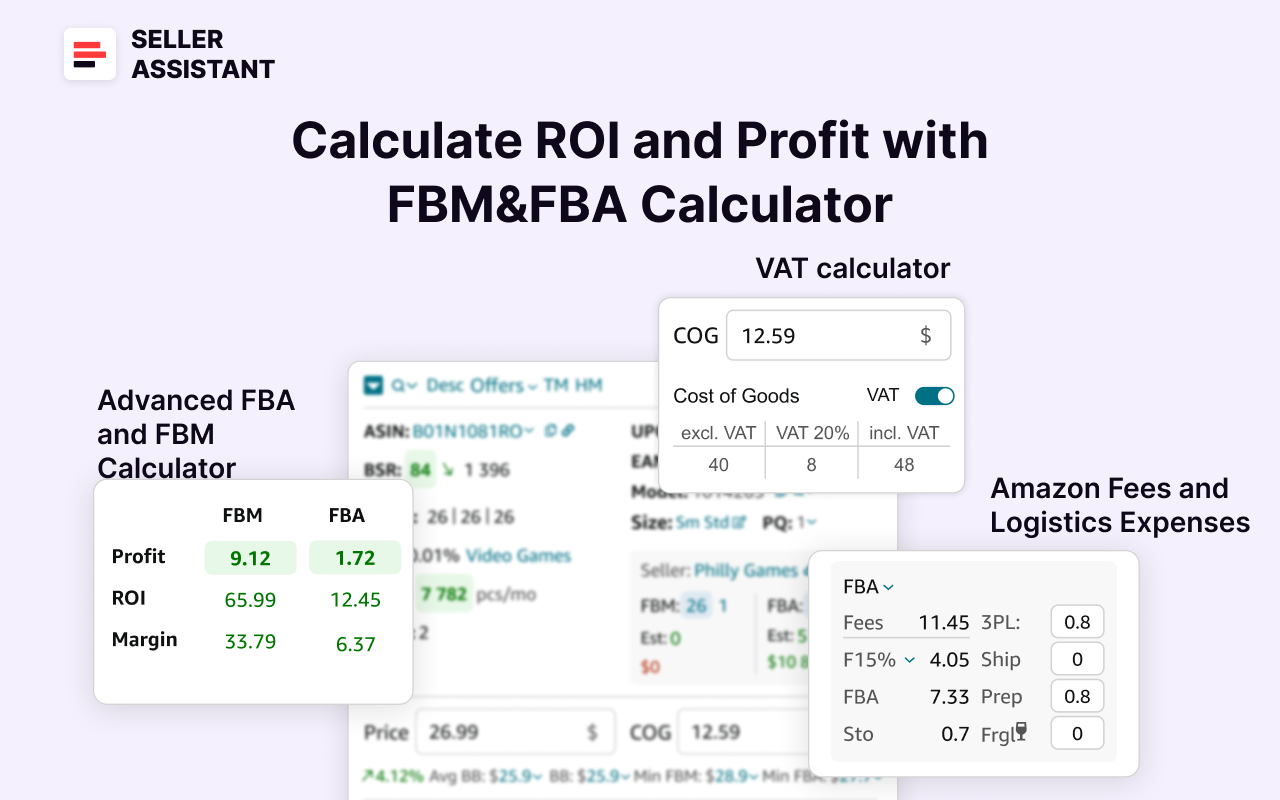
Seller Assistant’s FBA&FBM profit calculator
7 Tips to Buy Wholesale Products to Sell on Amazon
When buying wholesale products to sell on Amazon, here are several tips to consider.
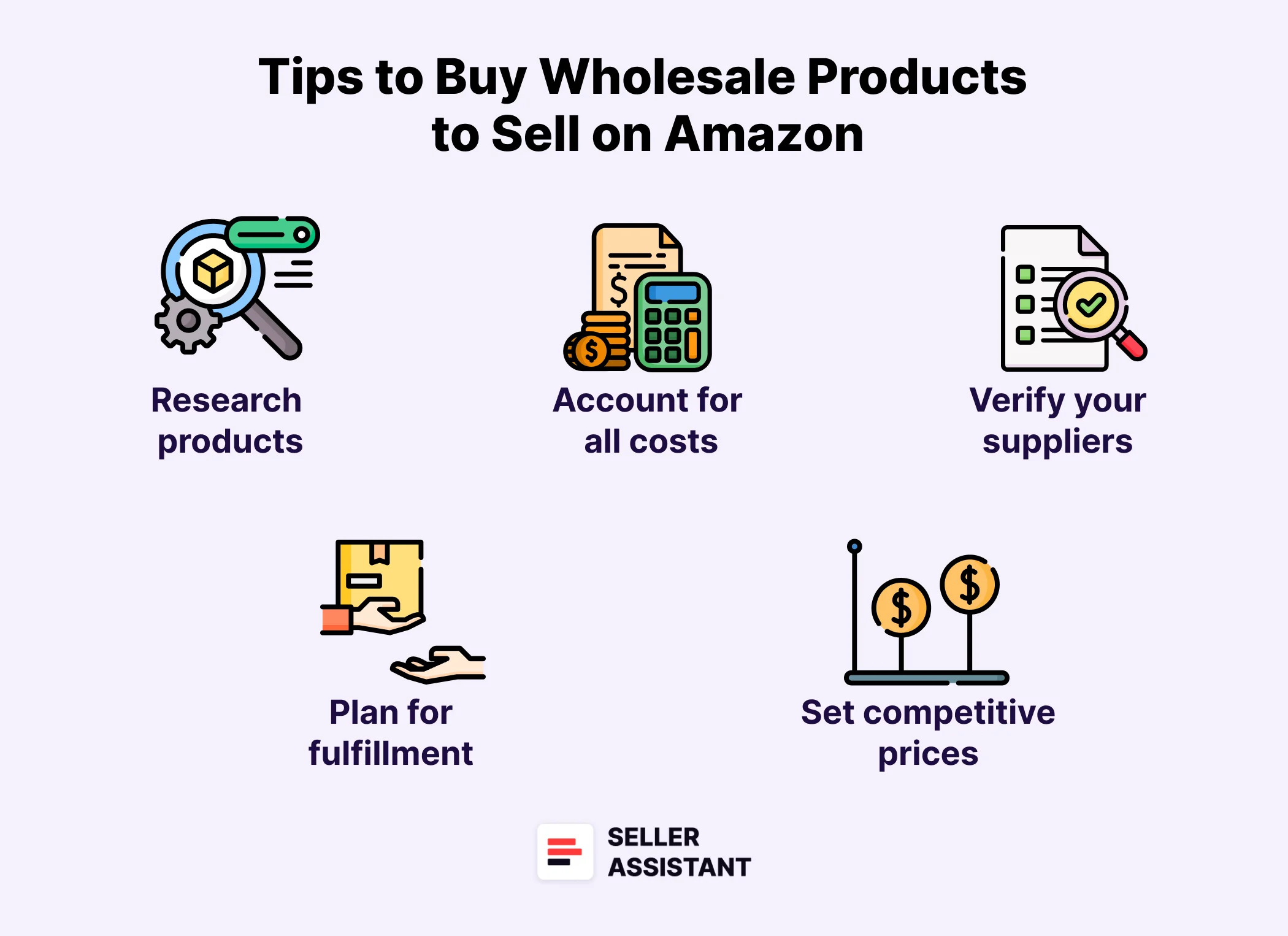
Tips to Buy Wholesale Products to Sell on Amazon
Tip 1. Research products before buying
Always do thorough research on products before purchasing them wholesale. This includes understanding product demand, costs, potential profit margins, and product flags. Use Seller Assistant for effective and quick product research.
Tip 2. Don’t give up if a supplier says no
If a supplier doesn’t answer immediately or initially refuses to do business, don’t get discouraged. Keep the dialogue open, be persistent, and try to understand their reservations. Sometimes, just maintaining the relationship can lead to future opportunities.
Tip 3. Convince suppliers of added value
Demonstrate to suppliers how partnering with your business can bring them additional benefits. This might include writing a proposal, a commitment to specific purchase volumes, faster inventory turnover, or access to new customers on Amazon. Get a reseller certificate to show you are a serious business.
Tip 4. Account for all costs
Accurately calculate all costs associated with your wholesale Cost of Goods Sold, Amazon fees, shipping and logistics, and any additional fees that may apply. This helps in setting the right price and maintaining profitability.
Tip 5. Verify your suppliers
Ensure the reliability and legitimacy of your suppliers to avoid scams and quality issues. Check the supplier on business directories. Research and make sure they have an advanced website, contact and payment details, active social media, and read Google references. Look up the supplier on LinkedIn, Whois, or ScamAdviser.
Tip 6. Plan for fulfillment and shipping
Decide whether to use Amazon’s fulfillment services (FBA) or handle fulfillment yourself. FBA can simplify shipping and returns but comes at a cost. Negotiate with a supplier to ship your products to Amazon, if possible.
Tip 7. Set competitive prices and reprice
Set prices that are competitive yet profitable. Keep an eye on market changes and competitor pricing, and adjust your prices accordingly to stay competitive and attractive to customers.
Related: Amazon Account Health – A Guide for FBA Sellers
Amazon Account Health Assurance
What is Amazon Seller Account Health Rating?
How To Avoid Amazon Seller Account Suspension?
FAQ
Can you sell wholesale on Amazon?
Yes, you can sell wholesale products on Amazon. You’ll buy products in bulk at a discounted rate from a brand or manufacturer and then resell them on Amazon for a profit.
How to buy bulk items and sell them on Amazon?
To buy bulk for Amazon, you’d find a brand selling in ungated categories, research the products to ensure they will sell and bring profit, negotiate wholesale pricing, then list the products on Amazon and fulfill orders through FBA or FBM.
Where to buy items to resell on Amazon?
There are two main options for buying items to resell on Amazon: wholesalers who sell products in bulk at a discount, or retail arbitrage where you buy items from stores at a discount and resell them for a profit on Amazon. If you buy in bulk, you must approach brands or distributors directly.
Can I buy wholesale and sell?
Yes, buying wholesale allows you to purchase items in bulk at a discounted rate. You can then resell these items at a higher price to make a profit.
Final Thoughts
The key task of wholesale sellers who buy bulk products and sell them on Amazon is to find suppliers who sell these products cheaply and resell them on Amazon with maximum profit. You must carefully research the products to make sure they will bring the profit you expect because you invest a lot of money in these products.
FAQ - Selling Wholesale on Amazon