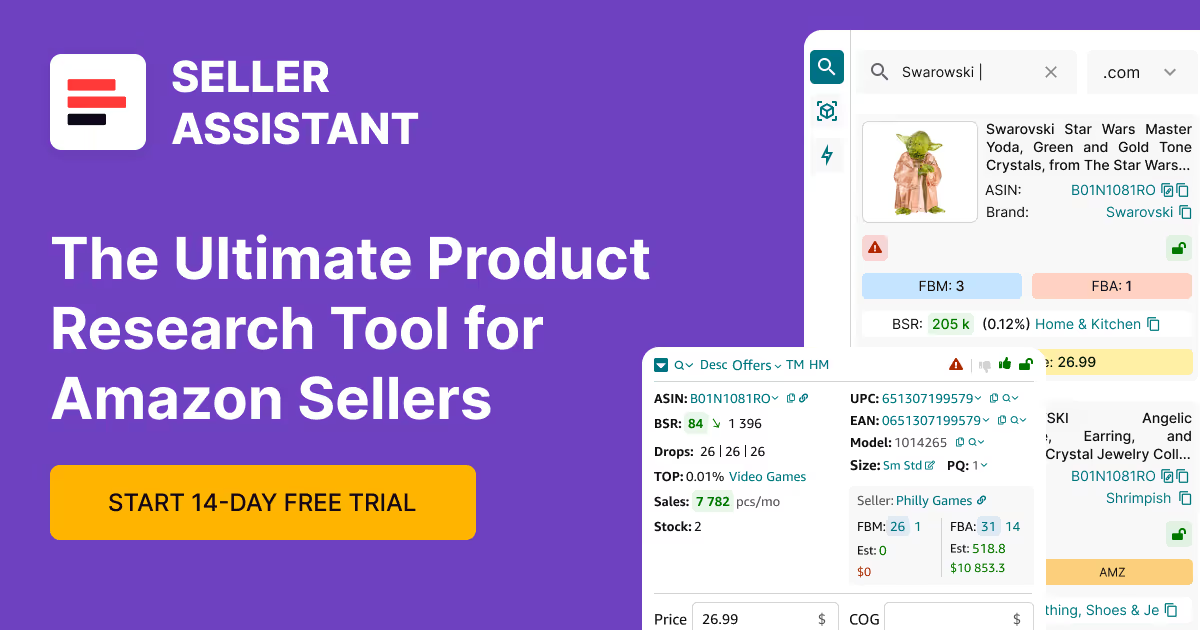


If you are an Amazon seller, you want to use the most efficient, convenient, and secure tool to find products you can sell with maximum profit. Seller Assistant is a product sourcing software that meets all these criteria.
In addition to a comprehensive toolkit of product sourcing extensions, tools and features, Seller Assistant offers you a personalized approach by using and managing your Personal Account.
In this post, we will discuss how Personal Account works in Seller Assistant and its benefits for Amazon sellers.
What Is Seller Assistant Personal Account?
Seller Assistant personal account is an account that you create in Seller Assistant software. This gives you access to multiple product sourcing tools and features it offers. It allows you to quickly and effectively find high-profit products to sell on Amazon.
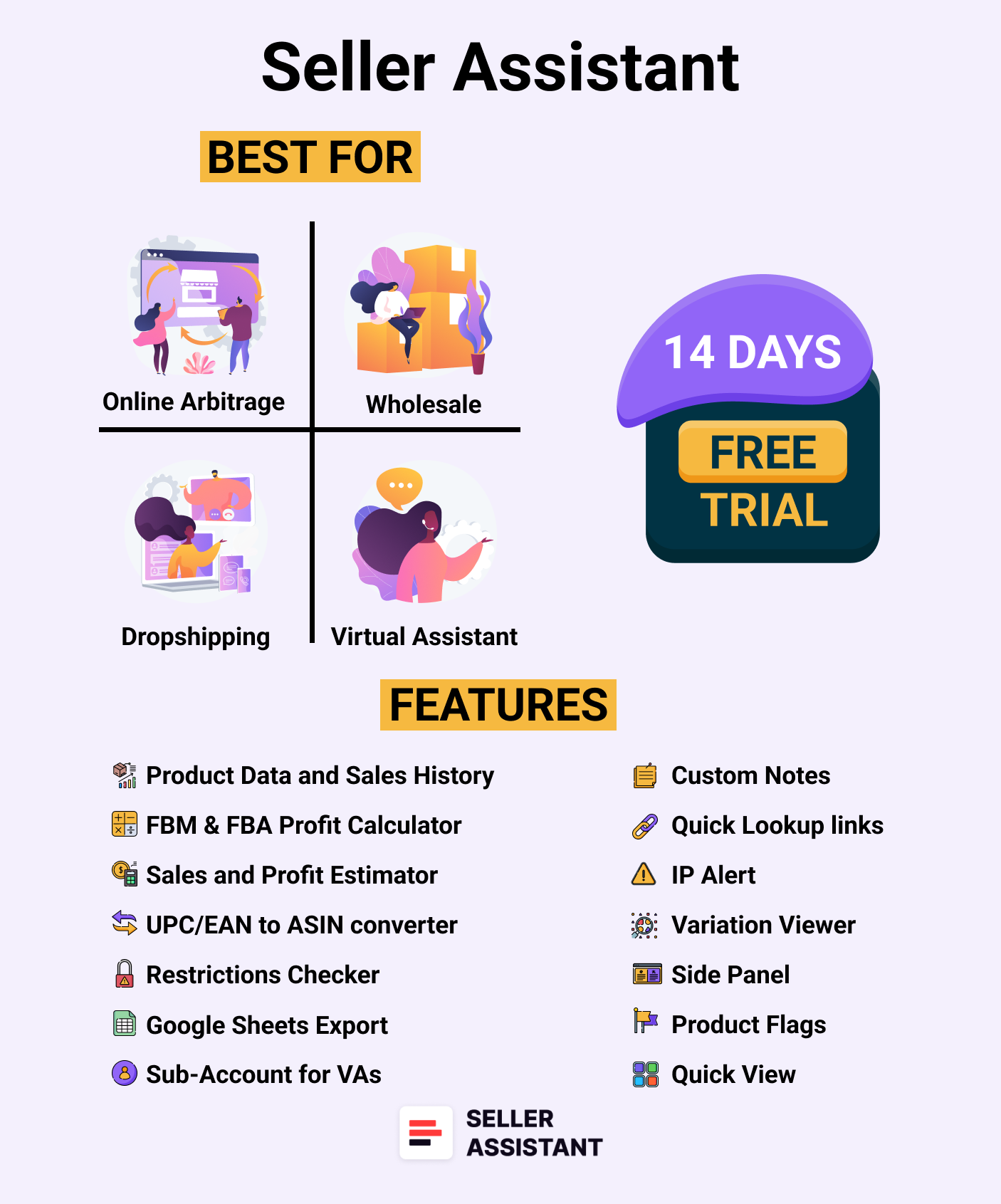
Seller Assistant
With the Personal Account, you can conveniently manage access to two extensions: Seller Assistant Browser Extension, and IP-Alert Chrome Extension by Seller Assistant, Amazon seller tools: Price List Analyzer, Brand Analyzer, Seller Spy, Bulk Restriction Checker, and API integrations, and features: Storefront Widget, Side Panel View, FBM&FBA Profit Calculator, Quick View, ASIN Grabber, UPC/EAN to ASIN converter, Stock Checker, IP Alert, and Restriction Checker.
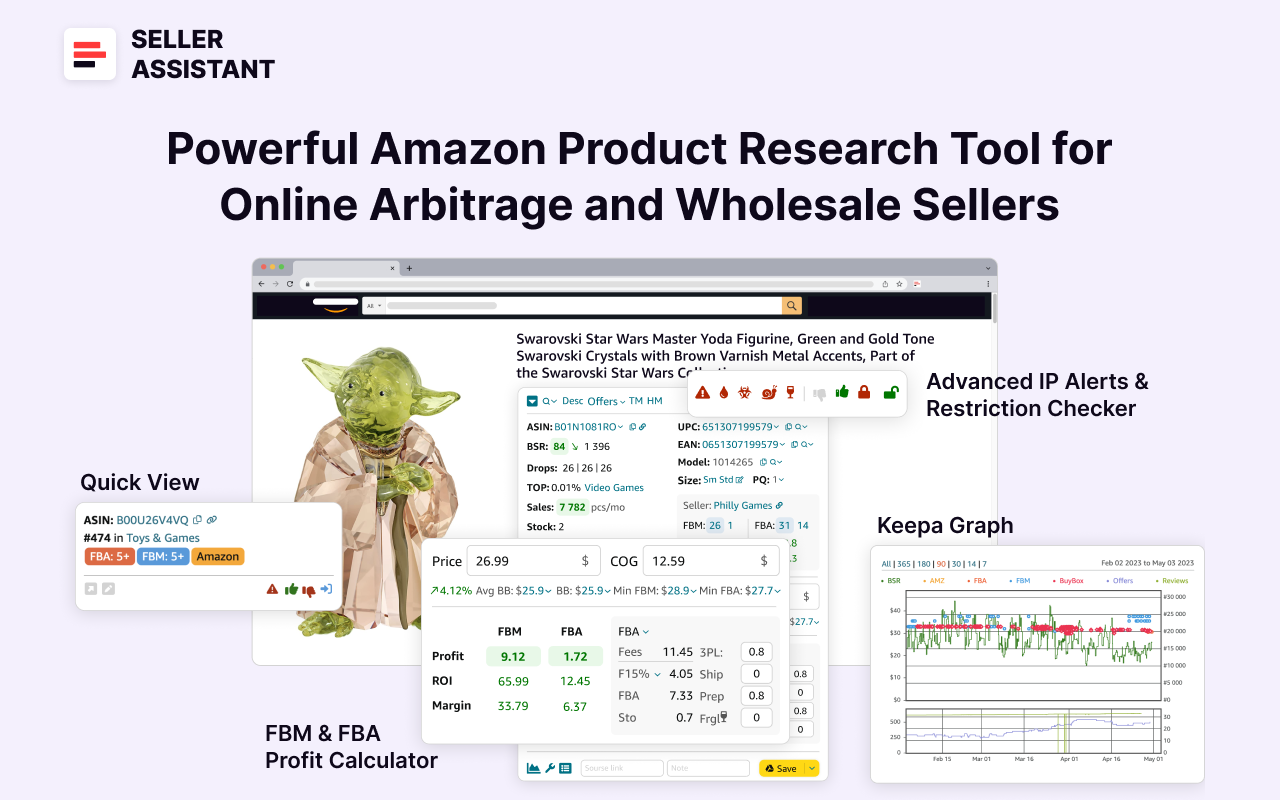
Seller Assistant - Powerful Amazon Product Research Tool for Online Arbitrage and Wholesale Seller
From your Personal Account, you can manage your Teams and integrations with your Amazon Seller Central account, Google Sheets, API and your subscription.
Additionally, you can personalize your account and view your product research history.
Personal Account Functionality
Seller Assistant Personal Account has a clear and convenient structure.
Your Personal Account in Seller Assistant has a sidebar menu with five sections:
- Get Started;
- Tools;
- Extensions;
- Partners
- Help Center.
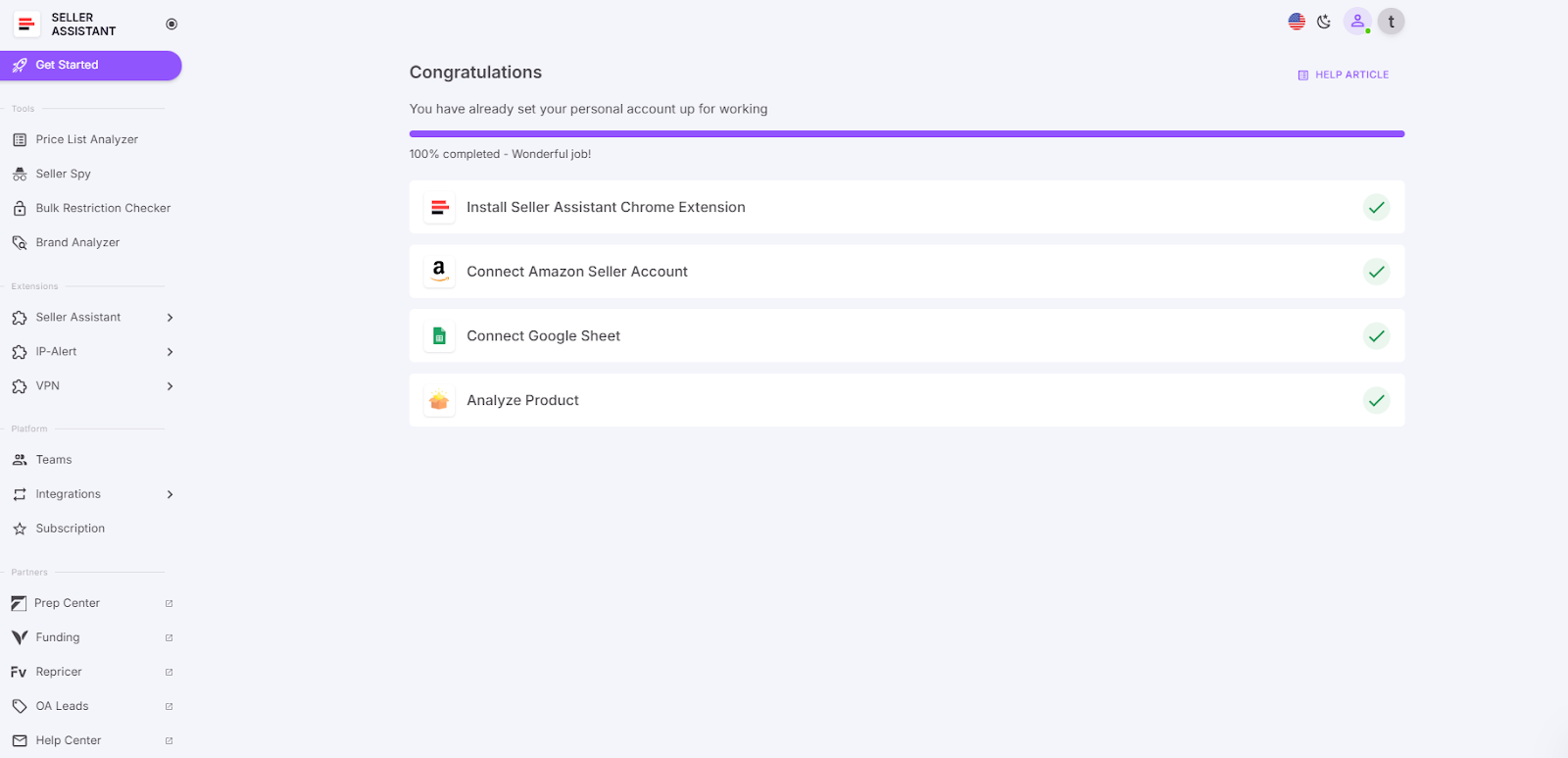
Your Personal Account in Seller Assistant has a sidebar menu with five sections
Also, in the upper right-hand corner, you can change language, edit your profile, manage API Keys, manage your subscription, and access the help center if you have any questions.
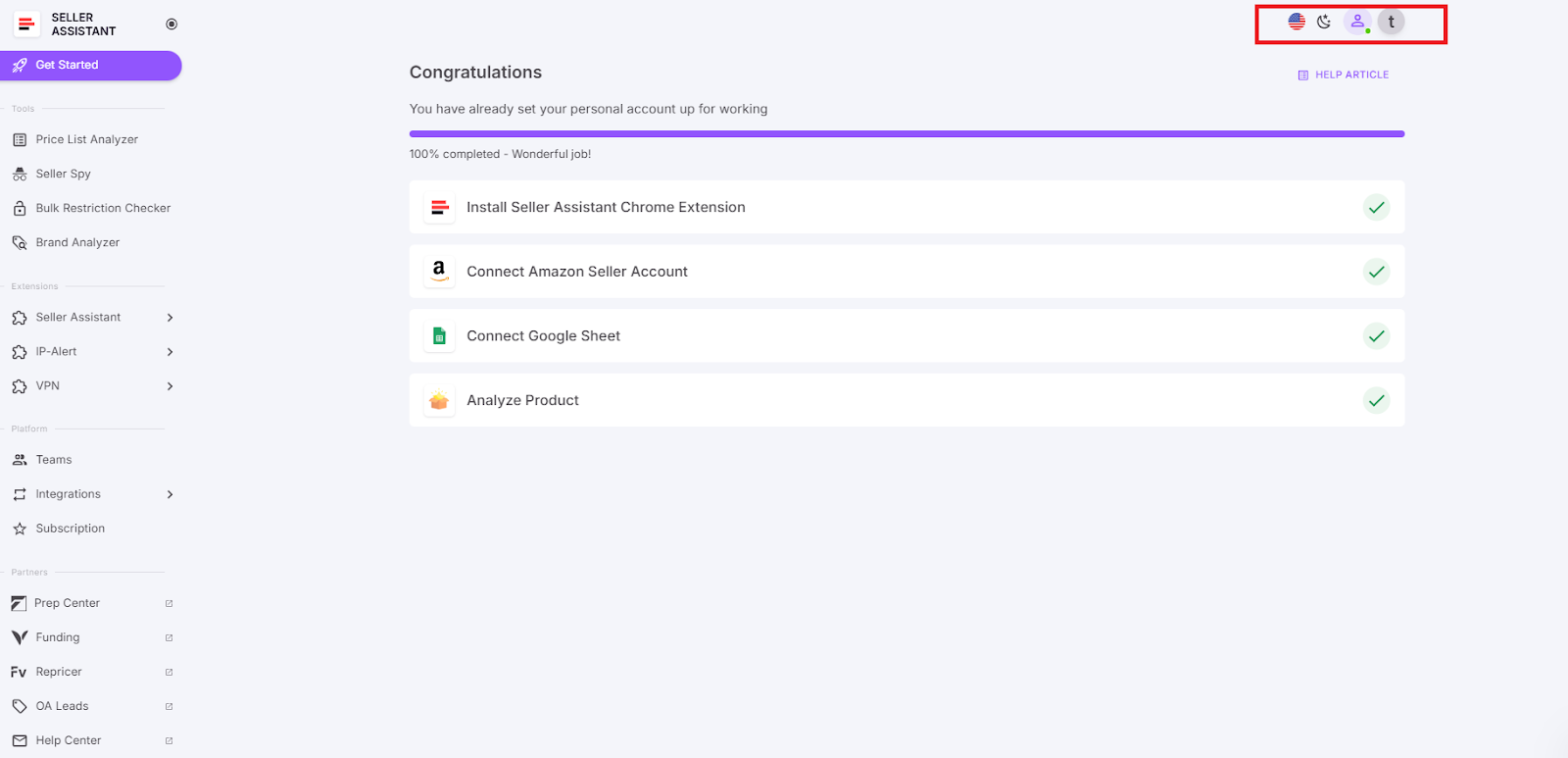
Also, in the upper right-hand corner, you can change language, edit your profile, manage your subscription, and access the help center if you have any questions.
Get Started block
When you register or log into Seller Assistant, you get to your Personal Account. The first section on the menu is Get Started.
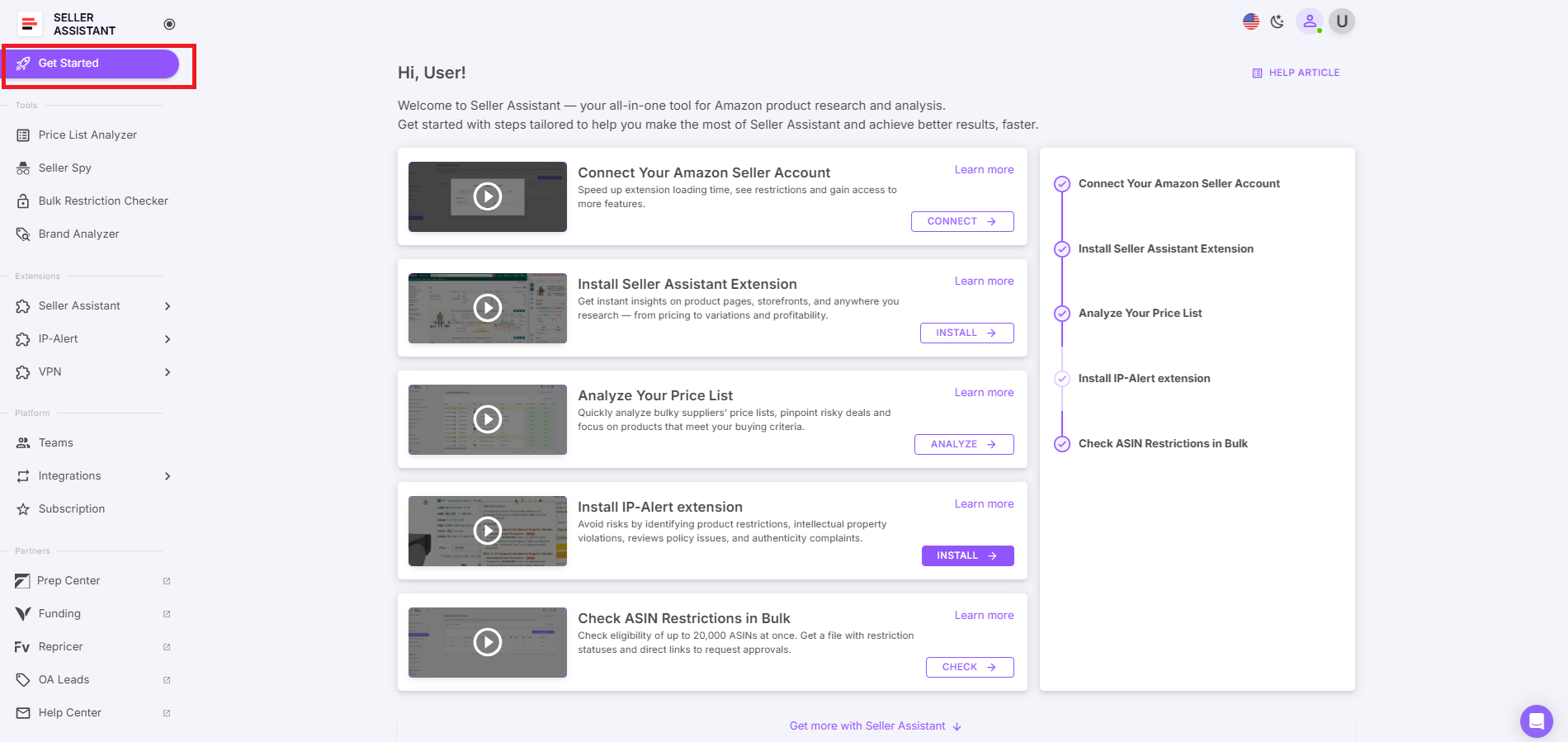
Get Started section
The Get Started section helps you start with Seller Assistant. To do product sourcing with Seller Assistant, you will need to install Seller Assistant Extension for Chrome, Edge, or Firefox browser and set up your Seller Assistant account.
Then, it is recommended to connect your Amazon Seller account and Google Sheets to Seller Assistant so that all of its tools and features are fully operational.
When that’s done, you can start researching products with Seller Assistant.
Tools block
The Tools section allows you to access Seller Assistant tools. These are Price List Analyzer, Seller Spy, Bulk Restriction Checker, and Brand Analyzer.
Price List Analyzer
Price List Analyzer is a bulk Amazon product sourcing tool that automates research of supplier price lists and helps identify the most profitable deals to sell on Amazon.
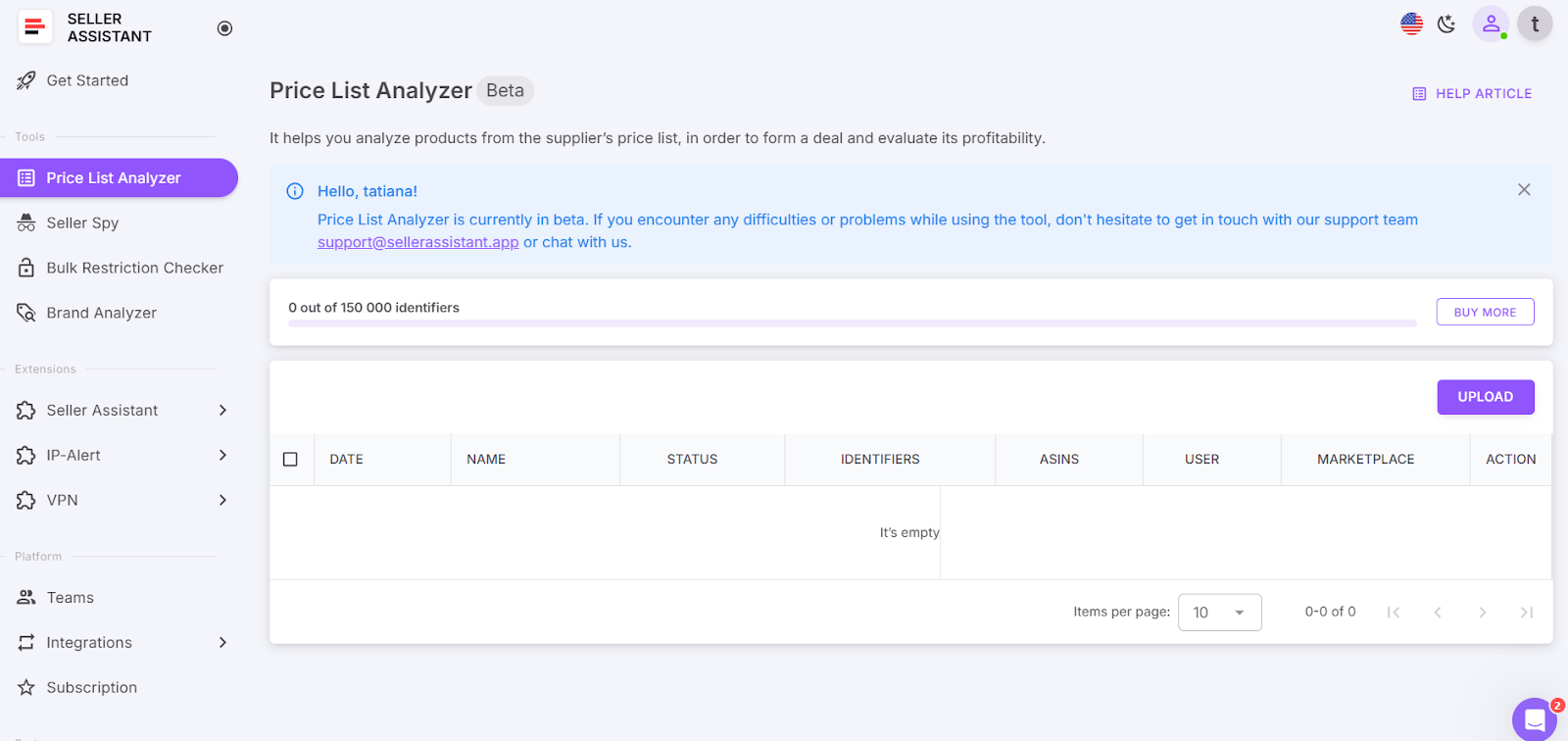
Price List Analyzer
This is a great tool for Amazon wholesale and online arbitrage sellers, and dropshippers because it simplifies the process of bulk product research, and helps effortlessly select high-margin leads.
The tool automatically matches your supplier products to Amazon, calculates profitability for each product, and shows other essential metrics.
You can filter the results by any metric you need, and see which deals are profitable, and which have hidden risks or alerts.
To process a supplier price list with Price List Analyzer, upload your price list and download .xls files with potentially profitable deals.
Related: Price List Analyzer by Seller Assistant
Seller Spy
Seller Spy is Seller Assistant’s tool that automates analyzing your competitors. It automatically tracks your competitors and allows you to estimate what new brands and products they started or stopped selling, and how they price each product.
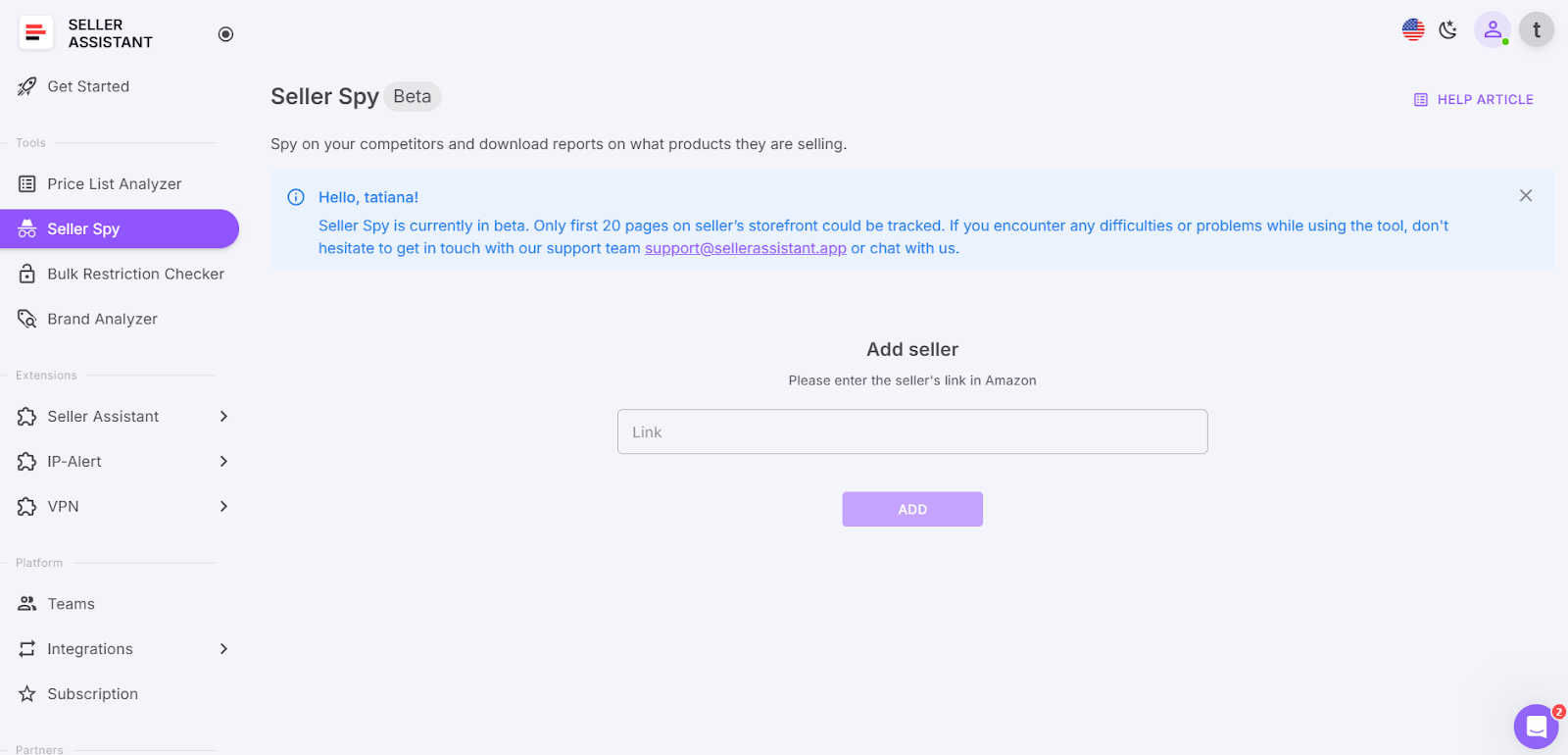
Seller Spy
You can use this data to add the same or similar products to your Amazon store and adjust prices if necessary.
It helps you see what products your competitors add or remove from selling, discover what products your competitors are selling that you’re not and expand your offerings. And track competitor pricing to ensure your products remain competitively priced and maximize your profit margins.
To analyze your competitor, click the Seller Spy button. Enter the link to the Amazon storefront of the seller you want to track. Download the Excel file. It will show the date a product was added or removed from the competitor’s offers; product’s status (added or removed); product image, ASIN, link, and current selling price.
Related: Seller Spy by Seller Assistant
Bulk Restriction Checker
Seller Assistant’s unique Bulk Restrictions Checker allows you to check restrictions of bulk ASINs at a time. Bulk Restriction Checker helps automatically identify restricted products on your bulk list and verify if you can sell products on your Amazon account. All you need to do is upload your file with ASINs and download a report with restrictions and your selling eligibility.
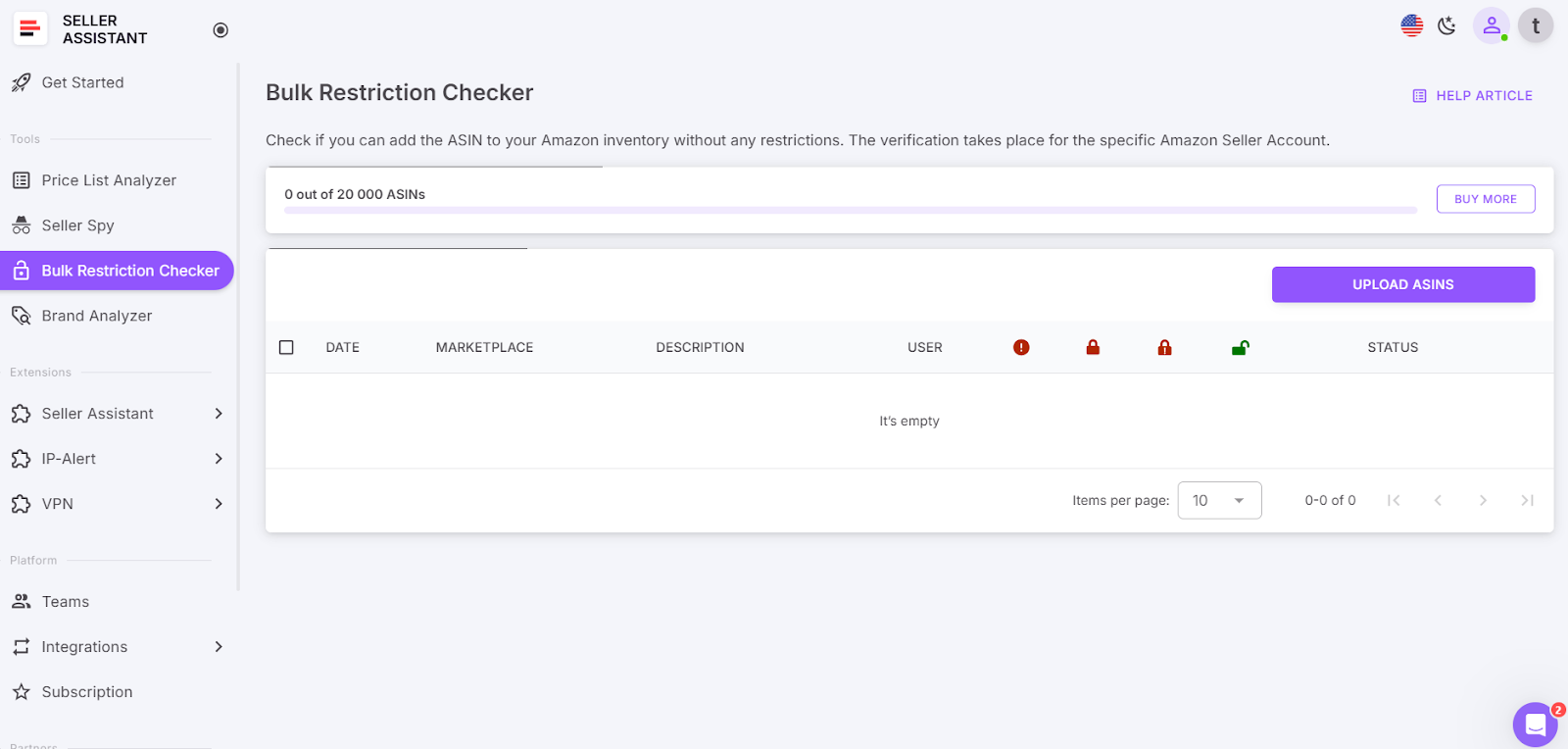
Bulk Restriction Checker
If you can sell a product on Amazon, it will be marked with the green open lock.
If a product or brand is restricted, it will be marked with the red closed lock.
If you can’t sell it on your Amazon seller account, it will be marked with the red closed lock with an exclamation mark.
To analyze bulk ASINs for restrictions, access Bulk Restriction Checker. Choose your marketplace, enter your ASIN list, type the name of your file in the “Description” field, and click the “Upload” button. Download the report and see which products you can or can’t sell on Amazon.
Related: Bulk Restriction Checker by Seller Assistant
Brand Analyzer
Another Seller Assistant’s product sourcing tool is Brand Analyzer. This Amazon brand research tool helps identify profitable brands.
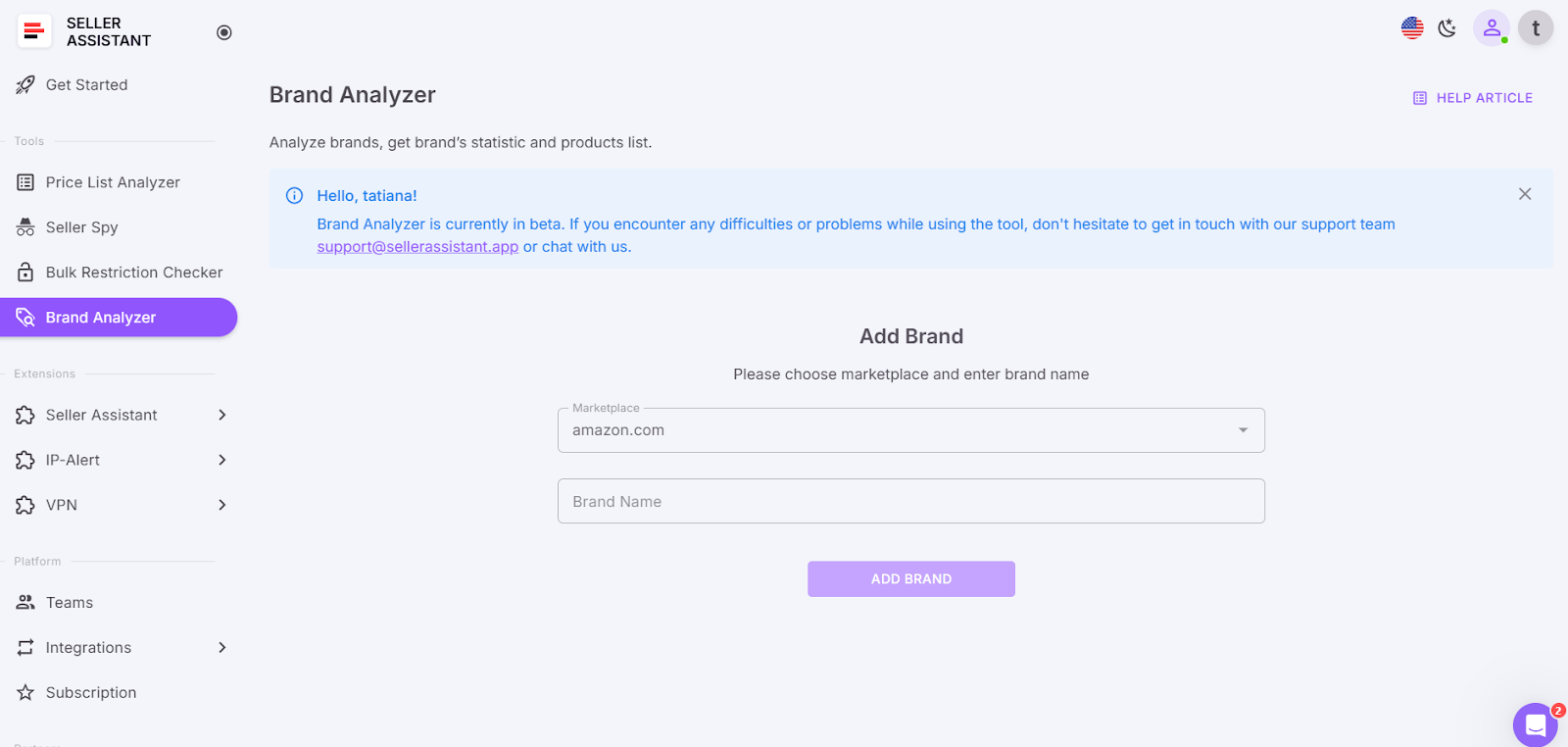
Brand Analyzer
Selecting profitable brand research is the first step in your product research. Brand analyzer automates this process and helps identify if the brand meets your revenue targets and other selling criteria and whether it’s worth reselling on Amazon.
All you need to do is type brand name, and get all necessary data about the brand to understand if it’s resale-friendly. You can also download a report with all brand’s products and their detailed metrics.
To analyze a brand, access Brand Analyzer. Choose your marketplace, and type in the brand name you want to research. Once the analysis is complete, review the data. To access the brand’s store on Amazon, click the Amazon “A” icon. To get a detailed report with all the metrics for each product, click to download the Excel file with the report. If necessary, filter results. Use the filters available in Excel tables to sort products by necessary metrics.
Related: Brand Analyzer by Seller Assistant
Extensions block
The Extensions section in your personal account allows you to access 2 Seller Assistant extensions: Seller Assistant Browser Extension, IP-Alert Chrome Extension by Seller Assistant.
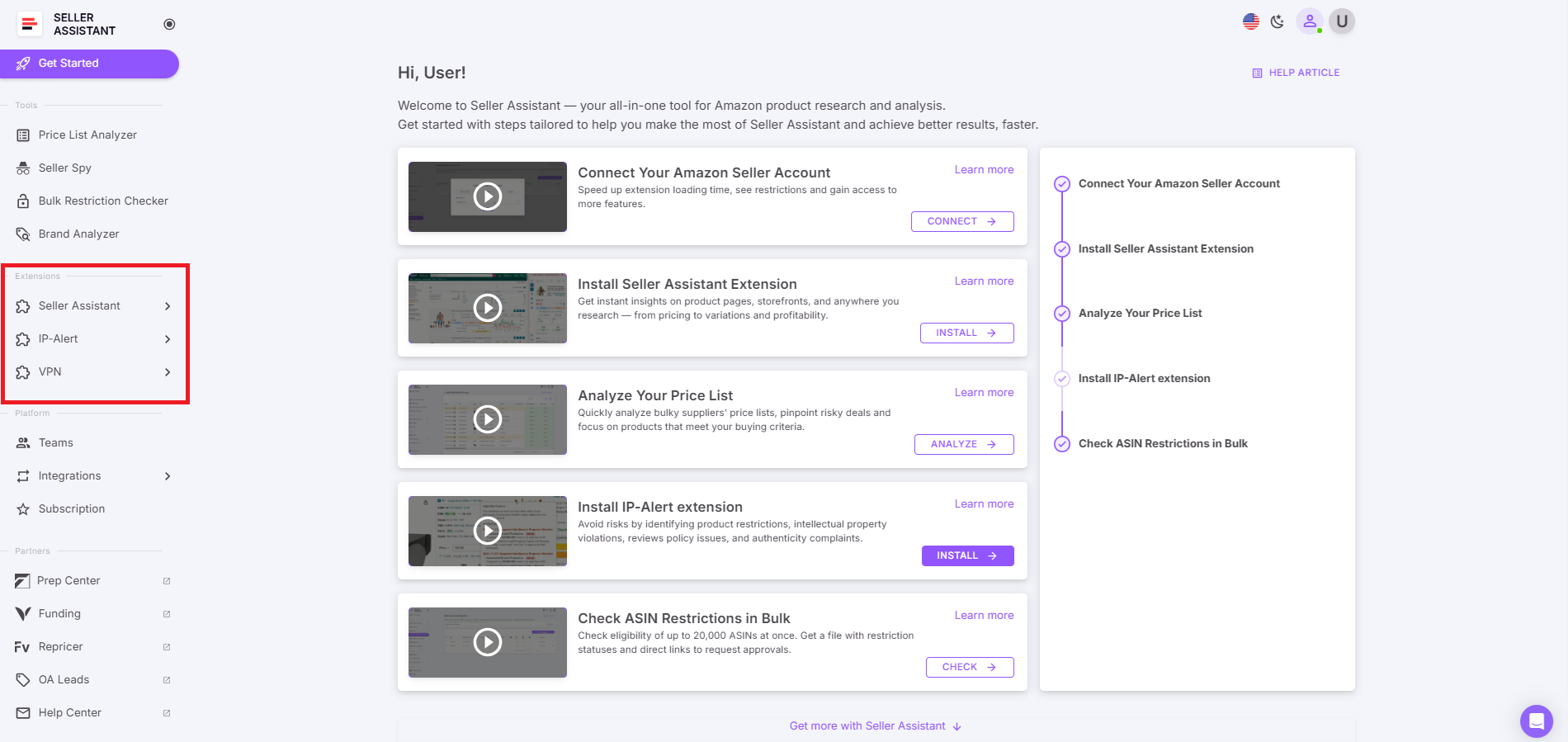
Extensions block
Seller Assistant Extension
Seller Assistant Extension is a comprehensive product sourcing tool that helps find winning products to sell on Amazon.
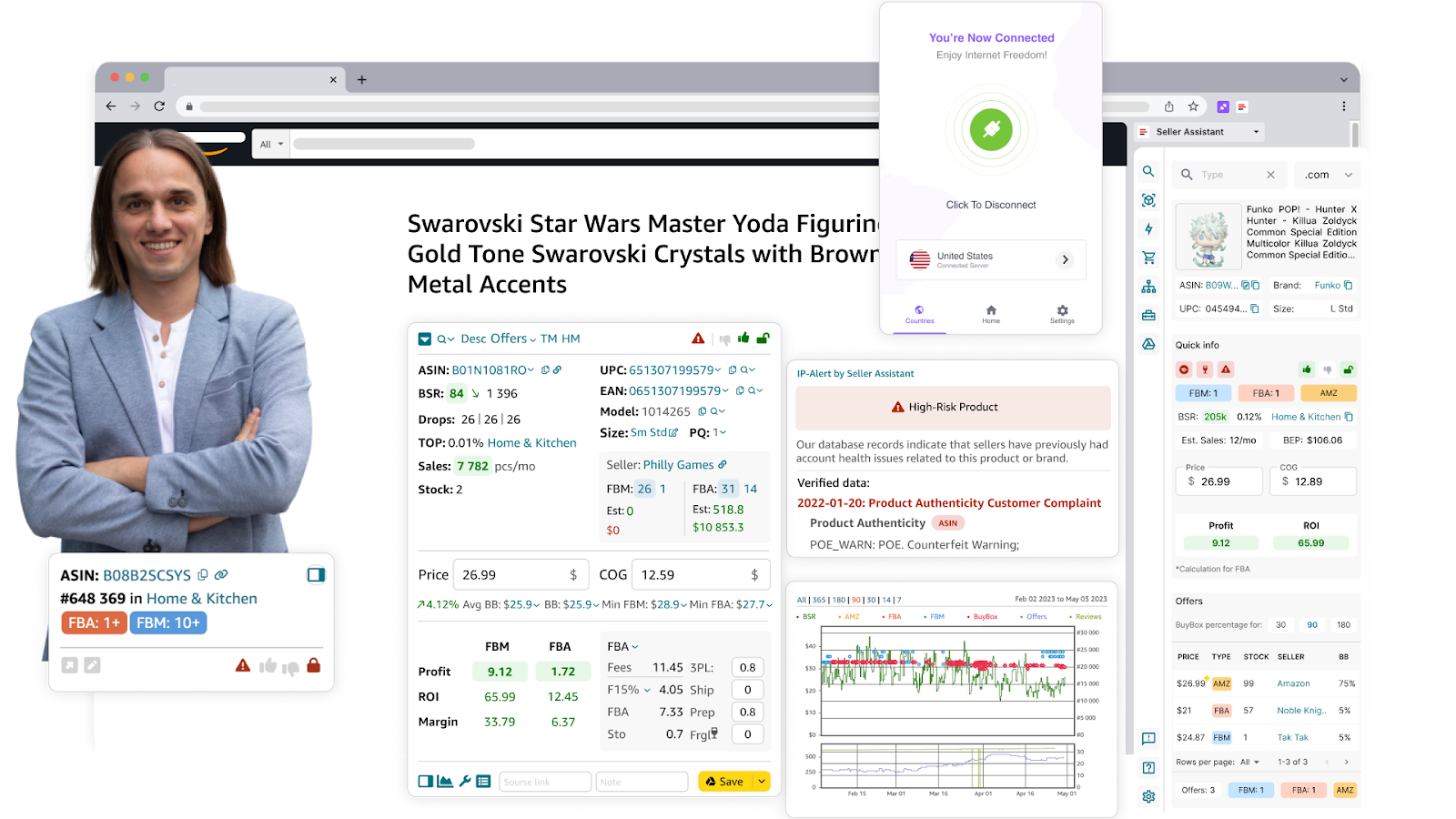
Seller Assistant Extension
The extension appears on the Amazon search, product, and inventory pages, and offers Side Panel View on any website. It conveniently shows you key product data to decide if it’s worth selling. It also provides quick links to find product suppliers.
Seller Assistant is a one-stop shop tool for online arbitrage, wholesale sellers, dropshippers, and virtual assistants engaged in product sourcing.
4 subsections of Seller Assistant Extension section
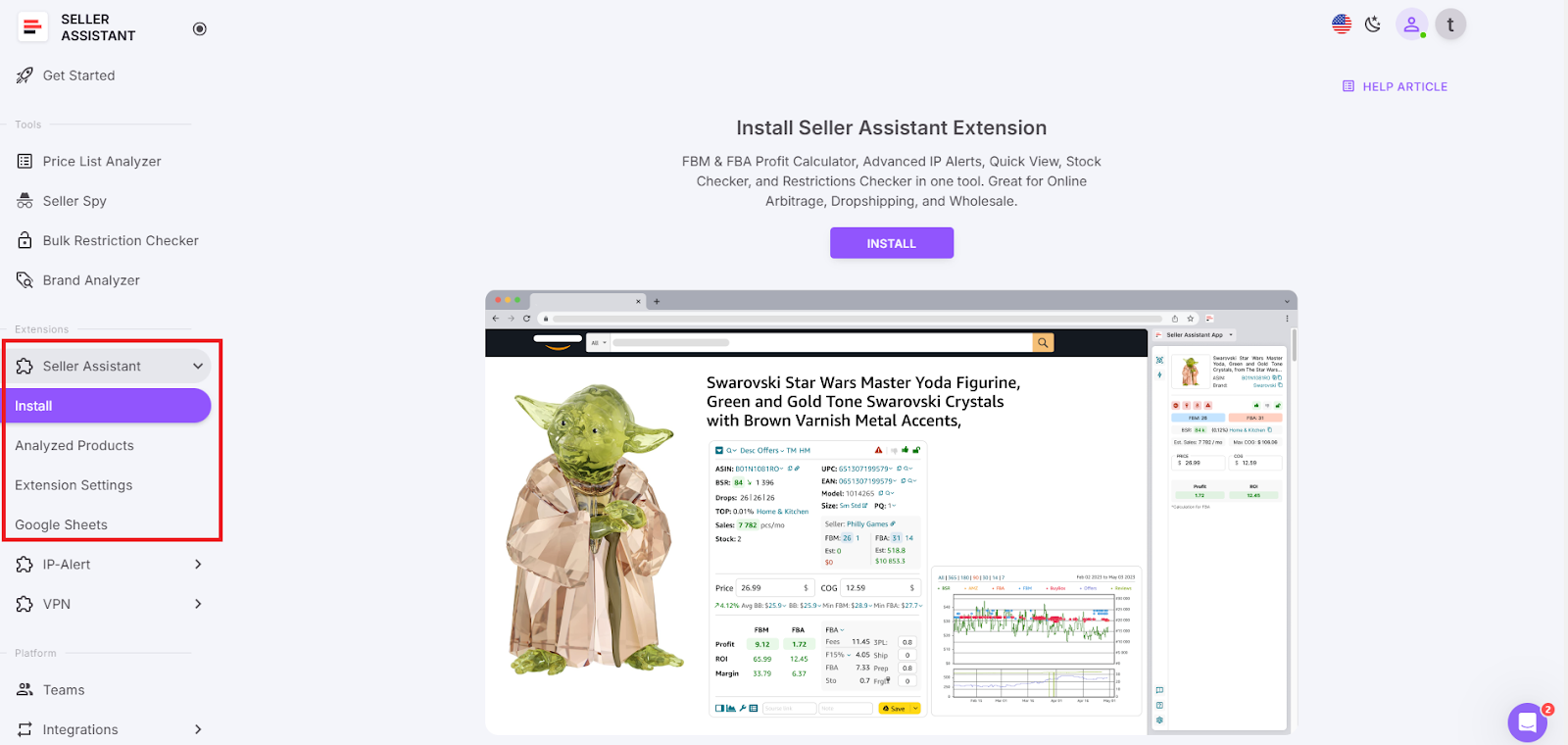
4 subsections of Seller Assistant Extension section
- In the Install subsection, you can install Seller Assistant extension;
- In the Analyzed Products subsection, you can review and filter the products you’ve previously researched;
- In the Extension Settings subsection, you can change marketplace to configure cost settings, FBA and FBM logistics parameters, and select VAT and tax settings;
- In the Google Sheets subsection, you can connect and set up export to your Google Sheets. You can choose from over 100 product values available for export.
IP Alert
The IP Alert button allows you to access and install the IP-Alert® Extension by Seller Assistant. This unique tool allows users to easily identify and avoid risky Amazon products and brands with intellectual property issues.
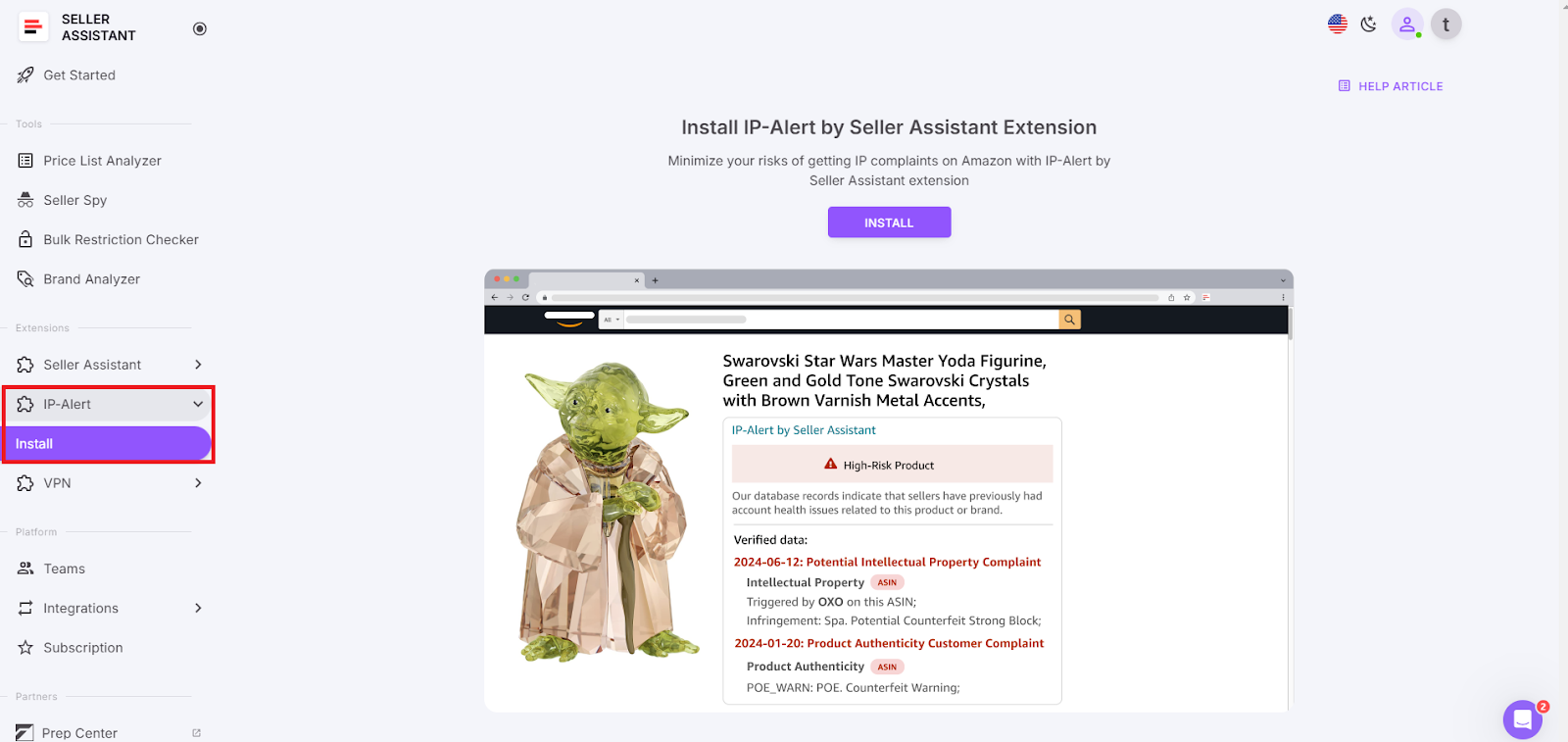
IP Alert by Seller Assistant
Seller Assistant’s exclusive database of Amazon product policy violations provides immediate updates on the type and date of each violation, and helps you to avoid high-risk products.
IP Alert appears on the Amazon product pages in Seller Assistant extension, on search pages in Quick View, and in the Side Panel View on any supplier website. Products with IP complaints or other Amazon policy violations are marked with the red triangle icon with exclamation mark.
To get started with IP Alert, you need to install the extension in your Chrome Browser, create a personal account in Seller Assistant, and open a search or product page on Amazon or Side Panel View on any website. Then, check the brand or ASIN for IP alerts as we described above.
Platform block
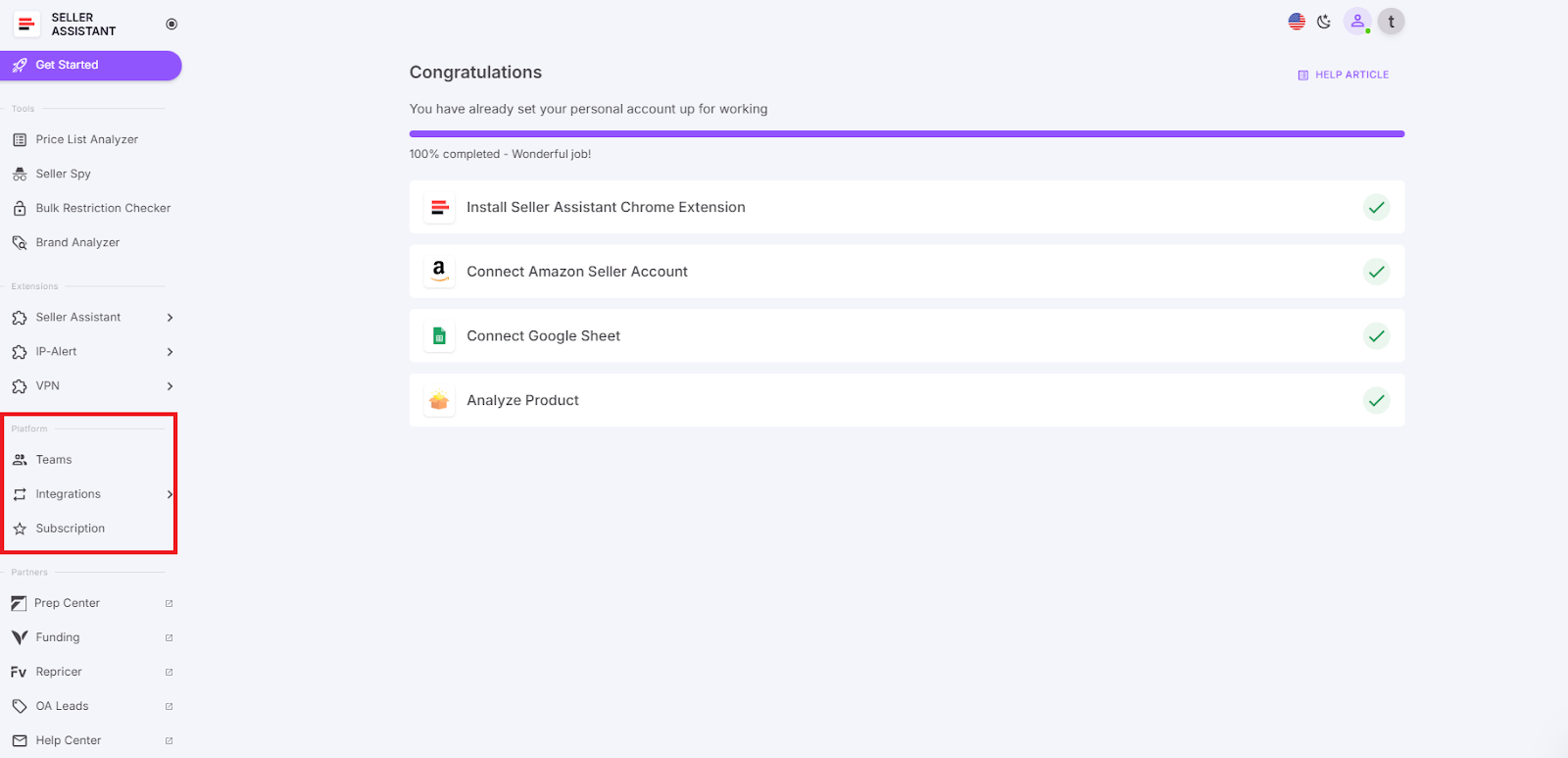
Platform block
In the Platform section, you can find 3 subsections: Teams, Integrations, and Subscriptions.
Teams allow you to securely set up teamwork with your employees or virtual assistants through accounts that are linked to the team. You can team up with several users. A team member does not need to have an active subscription or connect an Amazon account.
Teams
In Teams, you can create a team, invite a new team member, and delete a team if you no longer need it.
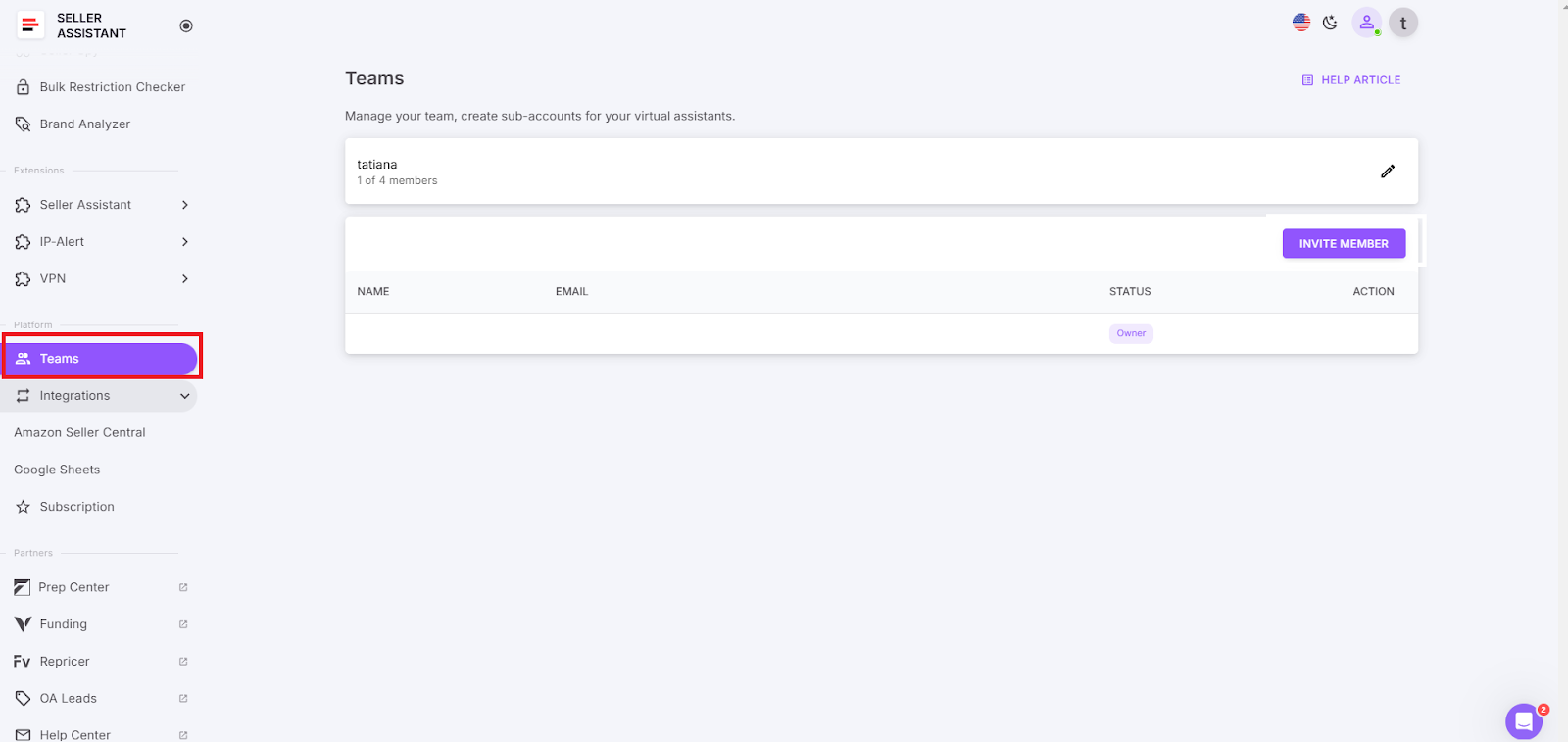
Teams
Seller Assistant’s Teams provides a special solution for sellers working with lead-sourcing teams - Virtual Assistant Account.
With this feature, sellers can invite virtual assistants, employees, or other team members to perform tasks like lead sourcing, checking Amazon product and brand restrictions without accessing the seller’s Amazon Seller Central account.
Integrations
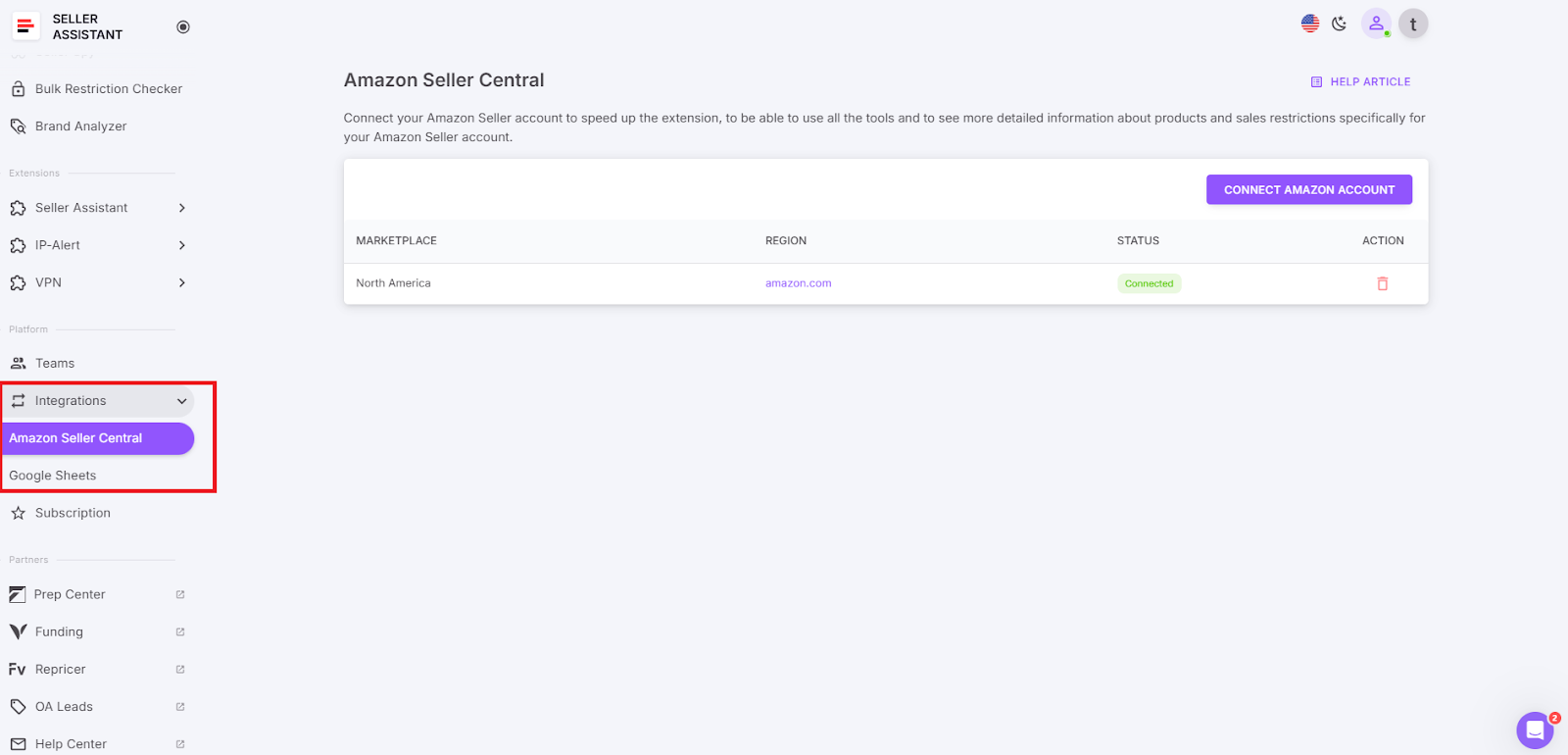
In the Integrations, you can manage integrations with your Amazon seller account and Google Sheets.
Integrations
Connecting your Amazon seller account is necessary to access all tools and features of Seller Assistant. If you use the Extension, it will work without a connected Amazon account, but the features may be limited.
In this section, you can connect and disconnect your Amazon seller account and Google Sheets.
Subscription
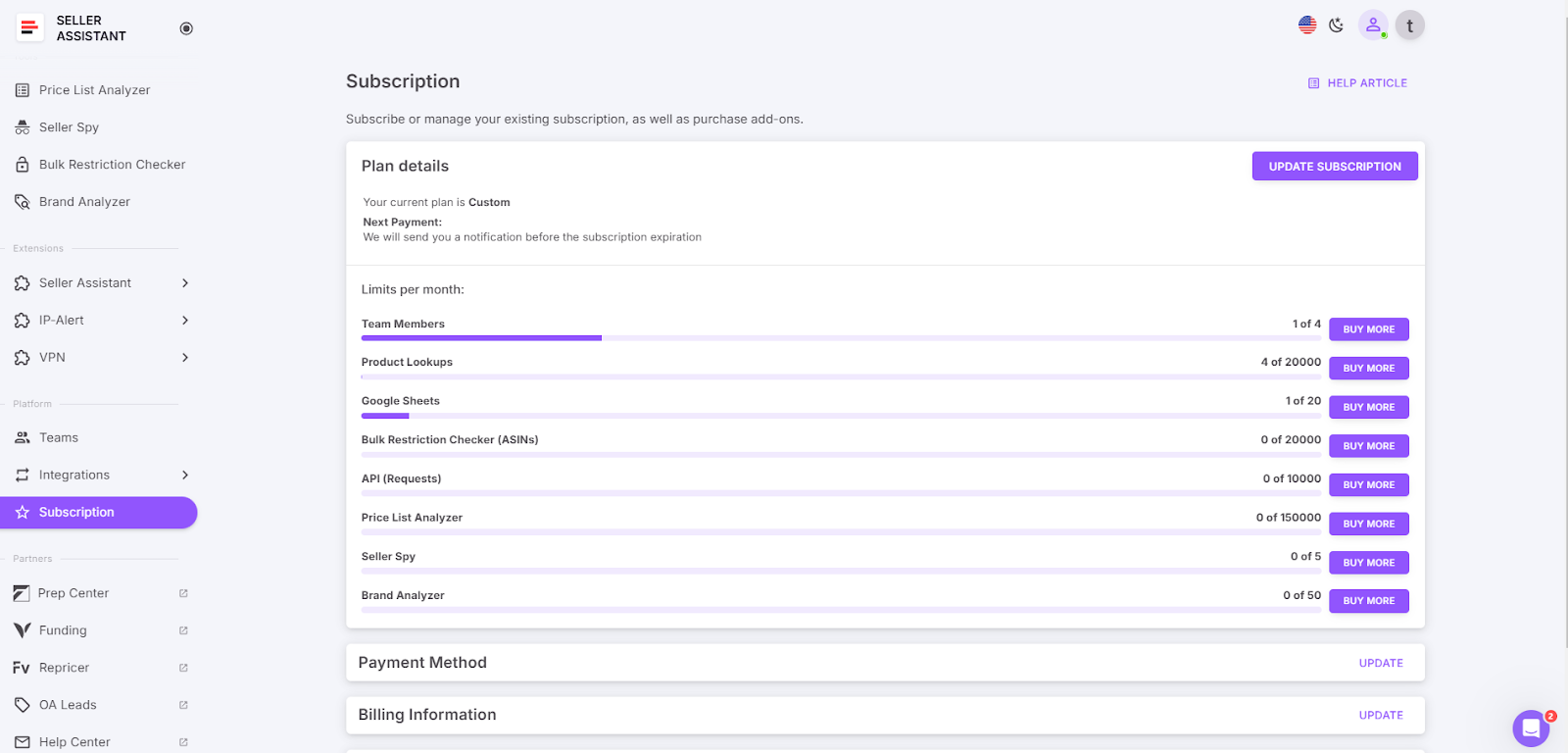
In Subscription, you can manage your subscription settings. You can see when you have to make your next payment and can purchase add-ons.
Subscription
Partners block
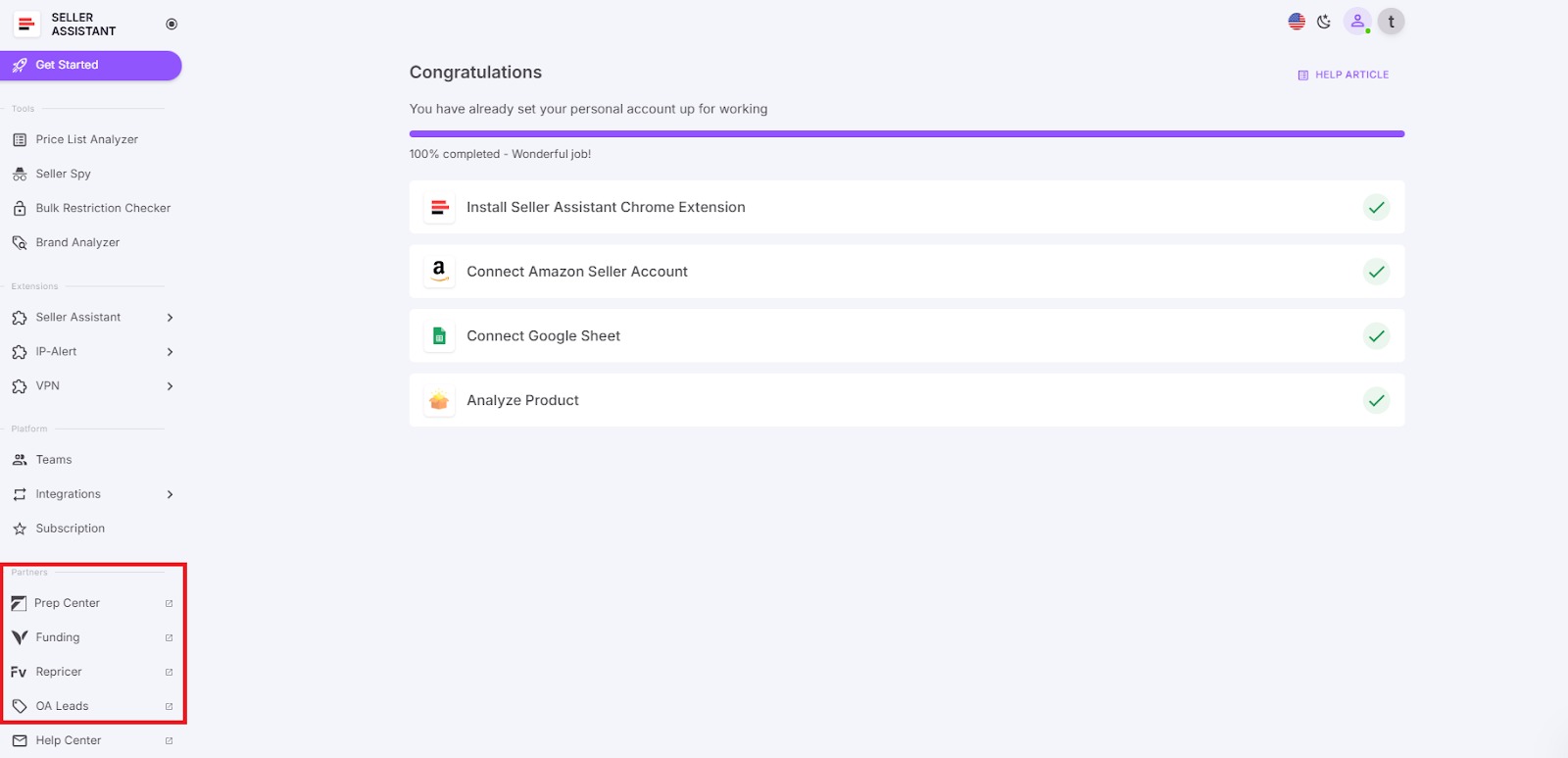
In the Partners block, you can find service providers providing valuable services for Amazon sellers in addition to product sourcing Seller Assistant offers.
In the Partners block, you can find service providers providing valuable services for Amazon sellers in addition to product sourcing Seller Assistant offers.
These partners are integrated into your Seller Assistant personal account to offer comprehensive solutions for Amazon prep and fulfillment, and repricing and analytics.
Fulfillment-Box
Fulfillment-Box is an international network of fulfillment and FBA prep centers with warehouses in Europe, USA, Canada, Turkey, and China. They offer a complete solution for
e-commerce businesses by combining standard 3PL services with FBA preparation.
Fulfillment-Box also provides assistance with legal issues in Europe, ensuring your operations are smooth and compliant. Their consistently expanding warehouse network means you can rely on them for efficient and scalable fulfillment services.
Feedvisor
Feedvisor is the leading AI-first performance optimization platform for Amazon sellers and brands. Their advanced technology uses artificial intelligence to enhance visibility, profitability, automate repricing, and enhance operational efficiency.
Feedvisor helps you make data-driven decisions, optimize pricing strategies, and maximize advertising spend.
Help Center
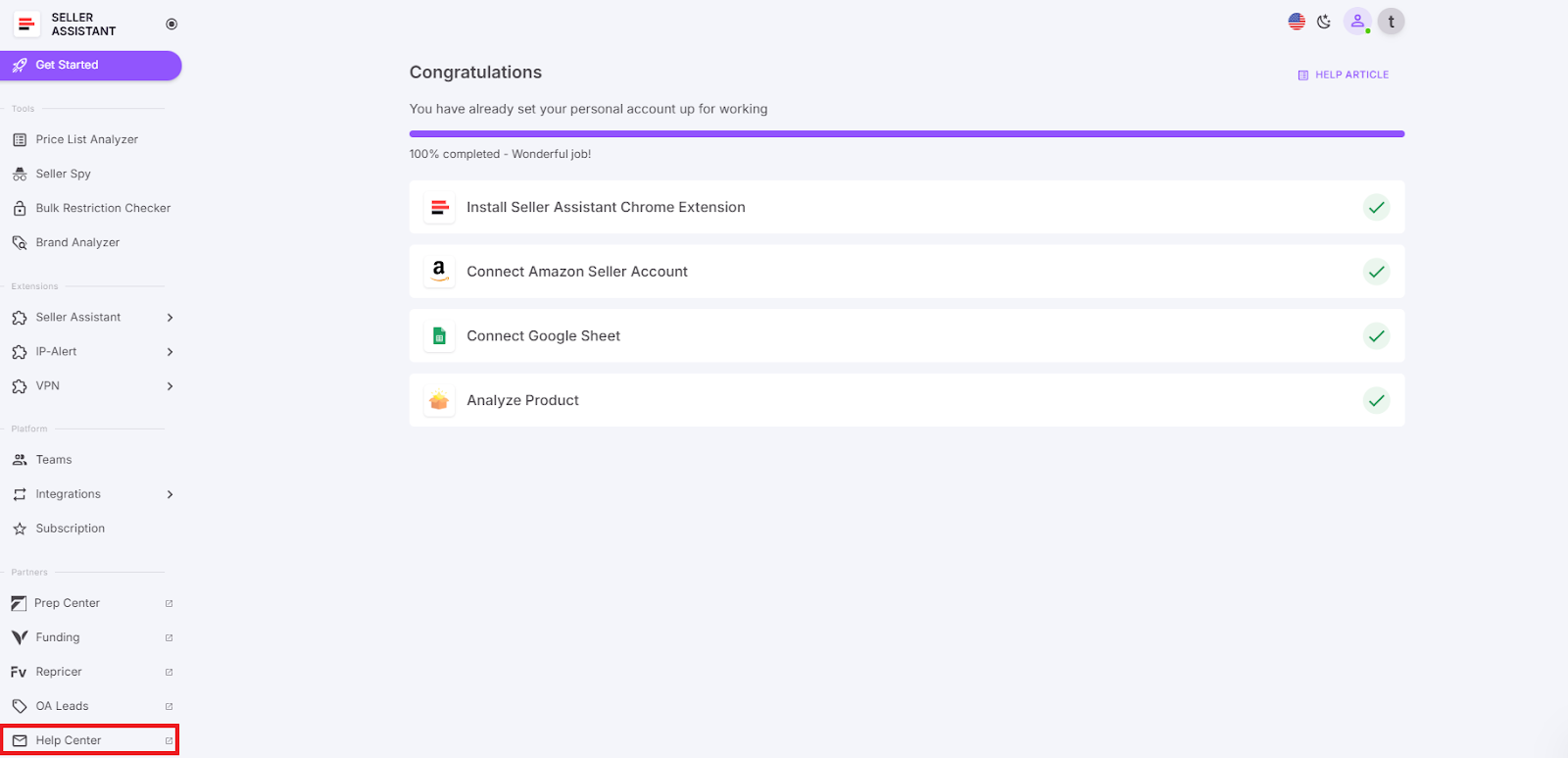
With the Help Center button, last but not least in the menu, you can access Seller Assistant help center if you have any questions. You can search for the article you need.
Help Center
Benefits of Using a Personal Account
The majority of product sourcing tools available on the market don’t offer personal account options. For your convenience and enhanced user experience, Seller Assistant provides a Personal Account. From there, you can access Seller Assistant ’s tools and manage your account settings. Here are some general advantages of Seller Assistant Personal Account.
All Seller Assistant tools in one place
From your Personal Account, you can access all Seller Assistant Extension and tools: IP Alert, Bulk Restrictions Checker, and UPC/EAN to ASIN converter.
Security
Personal Account comes with security features that help protect your information. Additionally, the Teams option allows employees to work with your data without accessing your Amazon seller account credentials. You can also set limitations on Google Sheets data they have access to.
Personalization
With a personal account, you can access personalized features and customize your preferences. You can quickly change your settings, connect and disconnect Google Sheets, invite team members, and more.
Convenience
A Personal Account simplifies access to Seller Assistant tools. You can quickly and conveniently navigate the software and find what you need.
Privacy
You can control your privacy settings with a personal account. This means you can choose who can see your information and what information is shared.
.png)
Benefits of Using a Personal Account
How to Get Started with Seller Assistant Personal Account
After registering an account in Seller Assistant and filling in the registration form, you will be redirected to your Personal Account.
You will see the Get Started block. The Get Started section helps you start with Seller Assistant. To do product sourcing with Seller Assistant, you will need to install Seller Assistant Extension extension for Chrome, Edge, or Firefox browser and set up your Seller Assistant account.
Then, it is recommended to connect your Amazon Seller account and Google Sheets to Seller Assistant so that all of its tools and features are fully operational.
When that’s done, you can start researching products with Seller Assistant.
Steps to create Seller Assistant account
- Step 1. Go to Seller Assistant website
Open Seller Assistant website and click “Start free trial” to get a free trial.
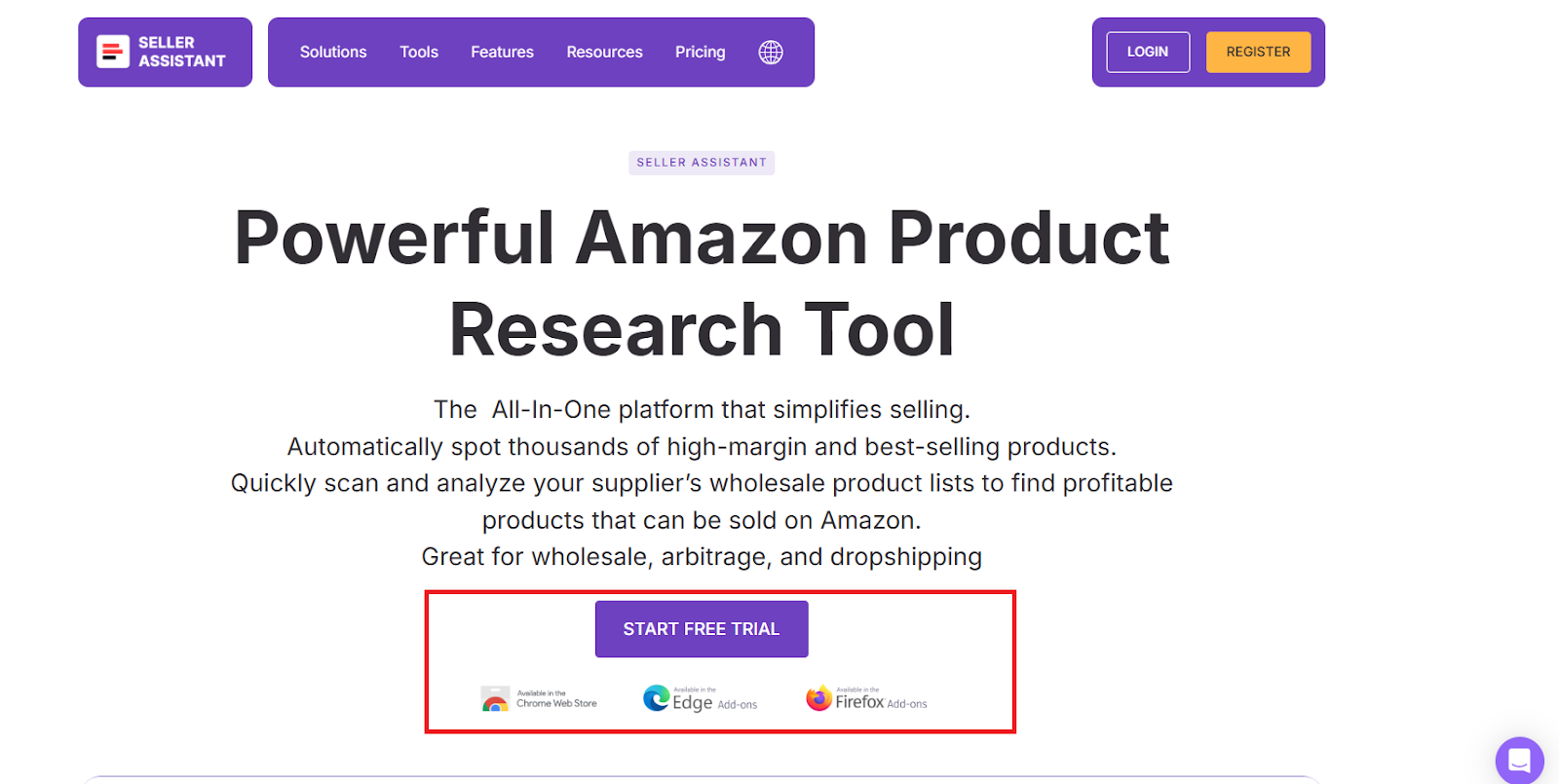
Go to Seller Assistant website
- Step 2. Create your Seller Assistant account
You will be redirected to your account creation page. Create your Seller Assistant account, enter your name, email, and tick the “I agree to privacy policy & terms” box, and click the Sign Up button.
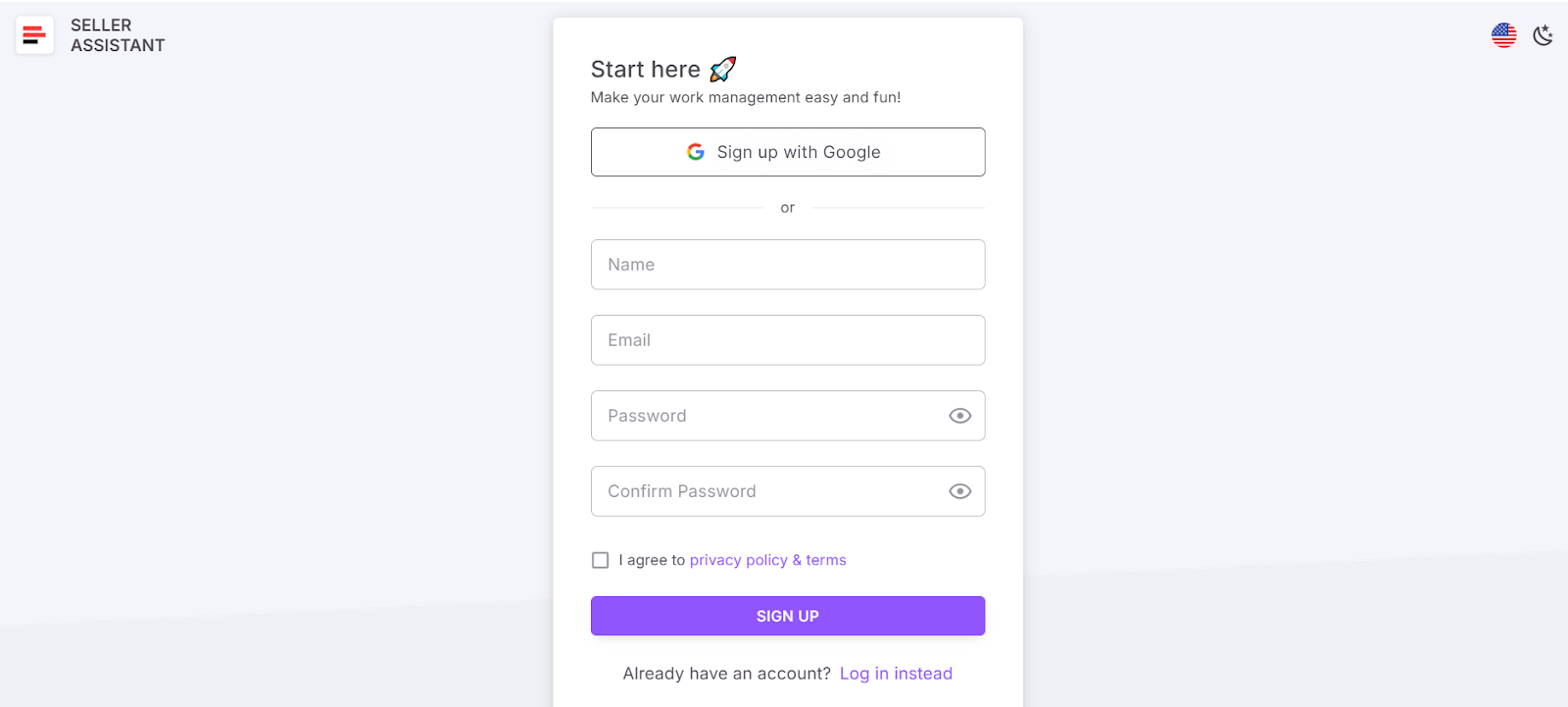
Create your Seller Assistant account
- Step 3. Verify your email
Check your email and verify your email address in the email from Seller Assistant.
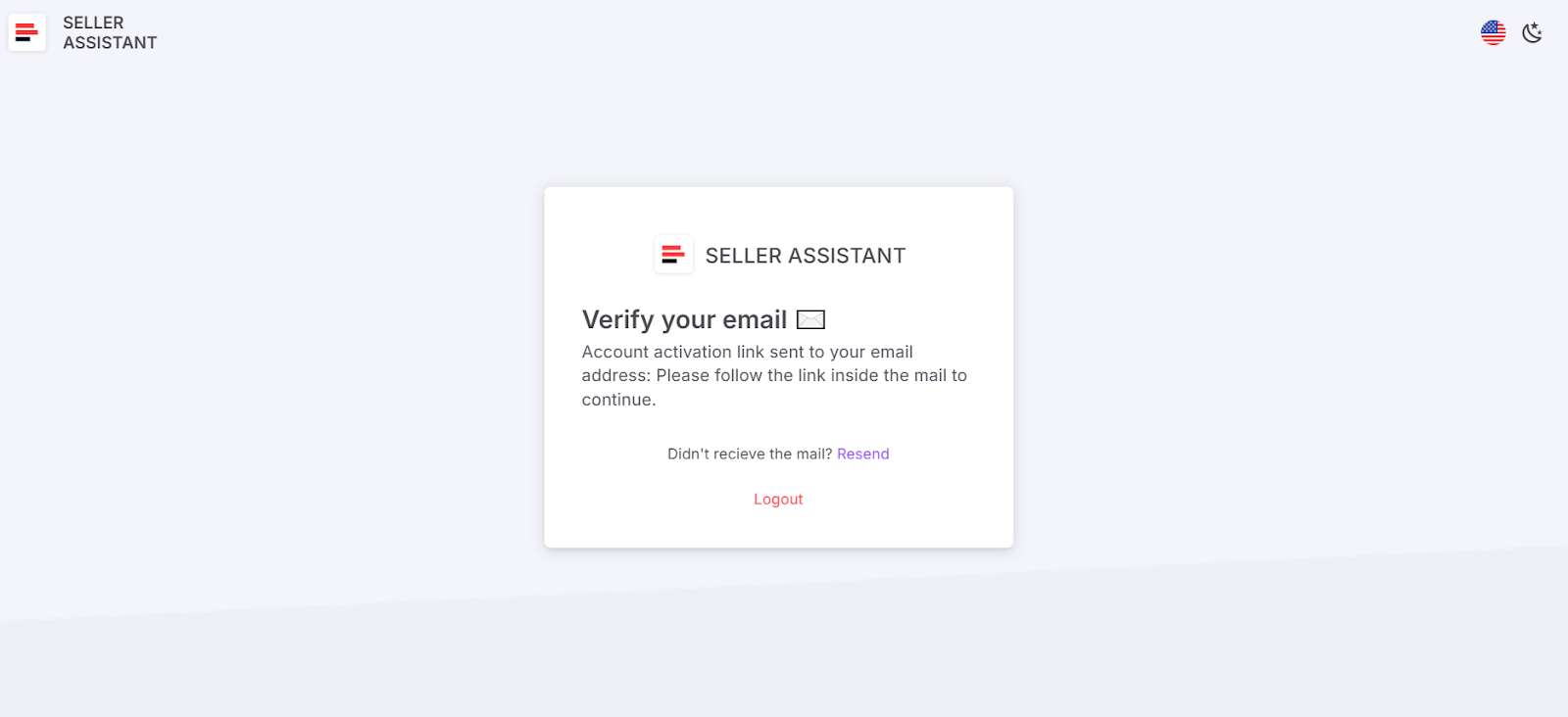
Verify your email
- Step 4. Follow the onboarding steps
Complete 4 onboarding steps: add your business role, business type, experience in Amazon business, and the way you got to know about Seller Assistant.
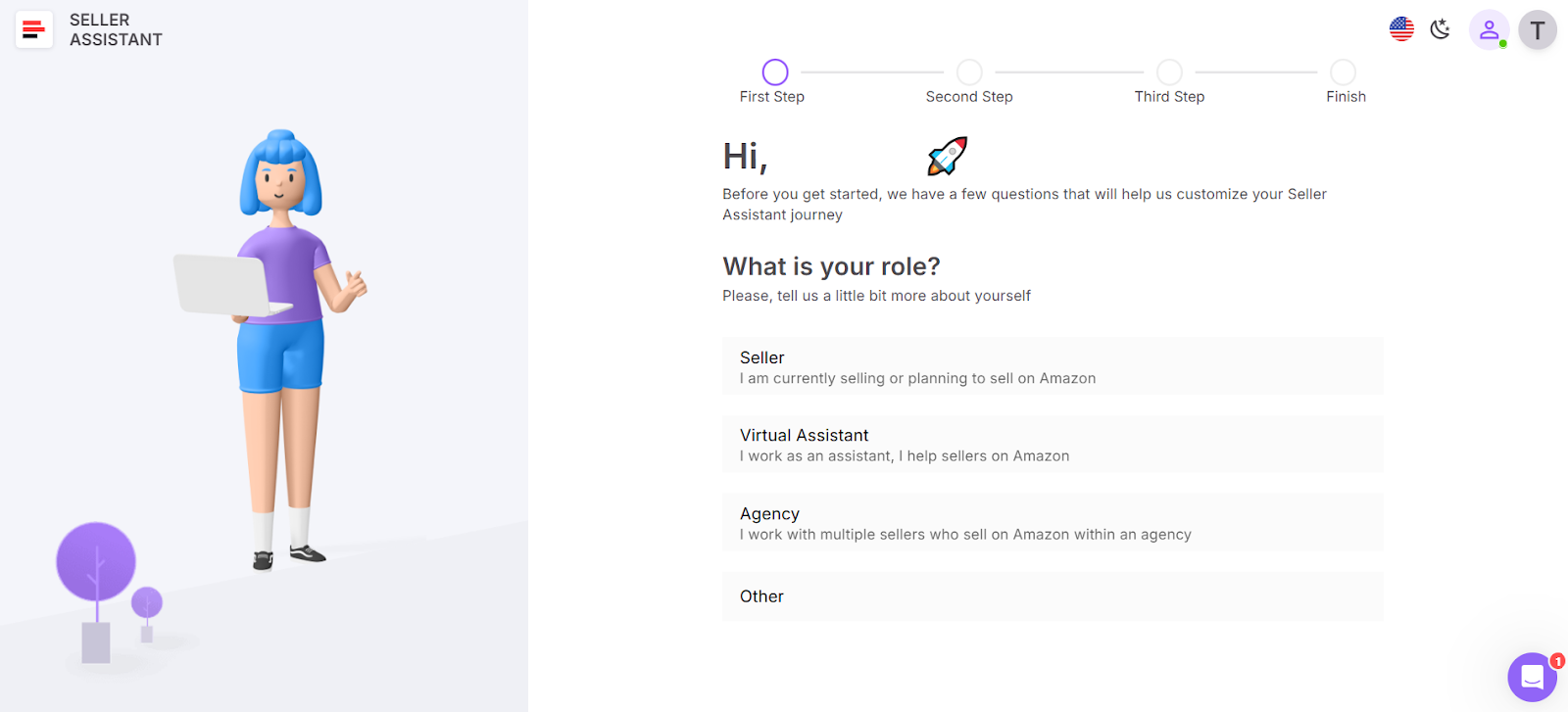
Follow the onboarding steps
- Step 5. Choose the subscription plan
Select the subscription plan that suits your business needs and enter your payment method details.
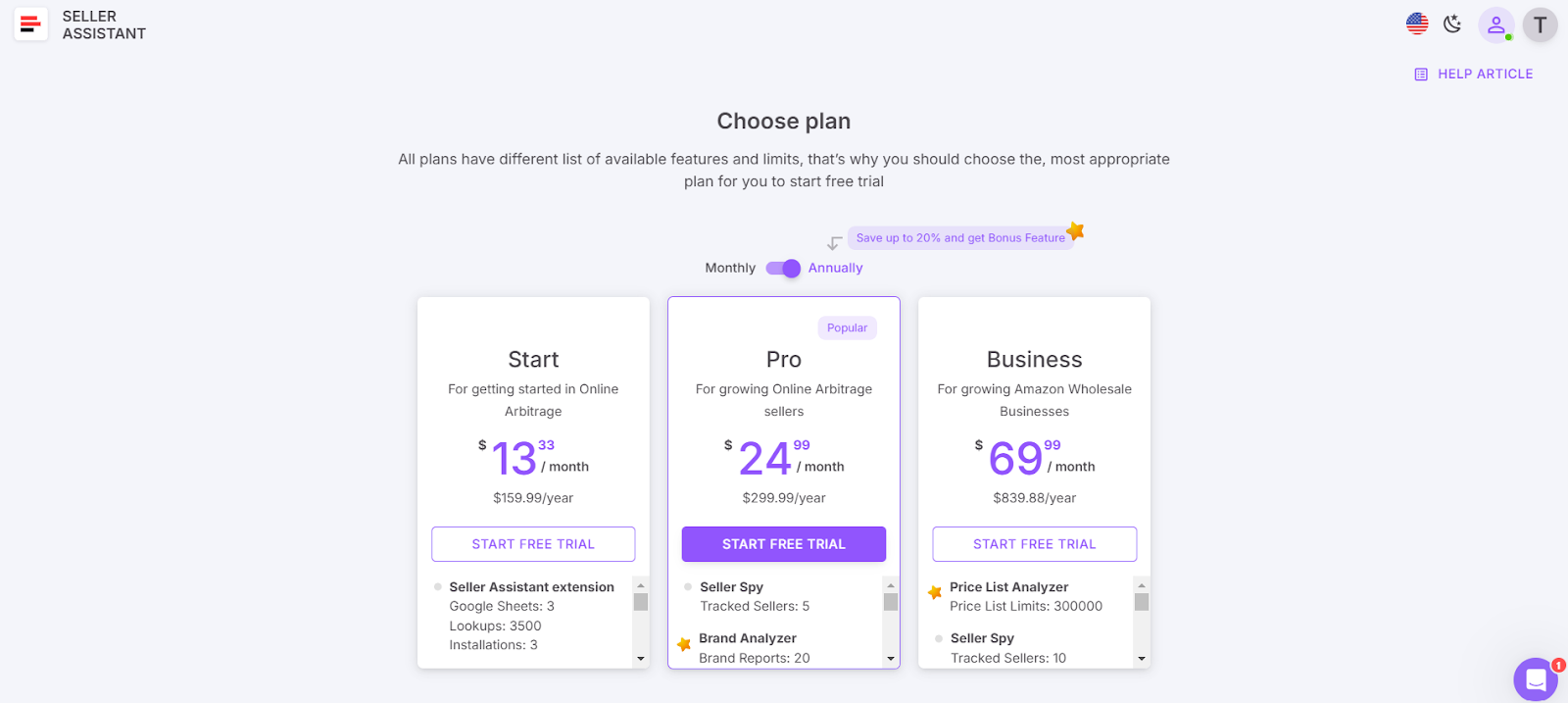
Choose the subscription plan
- Step 6. Access your Personal Account
After selecting your subscription plan you will be redirected to your Seller Assistant Personal Account. In it, you can access all Seller Assistant extensions, tools, and features, including Seller Assistant Extension.
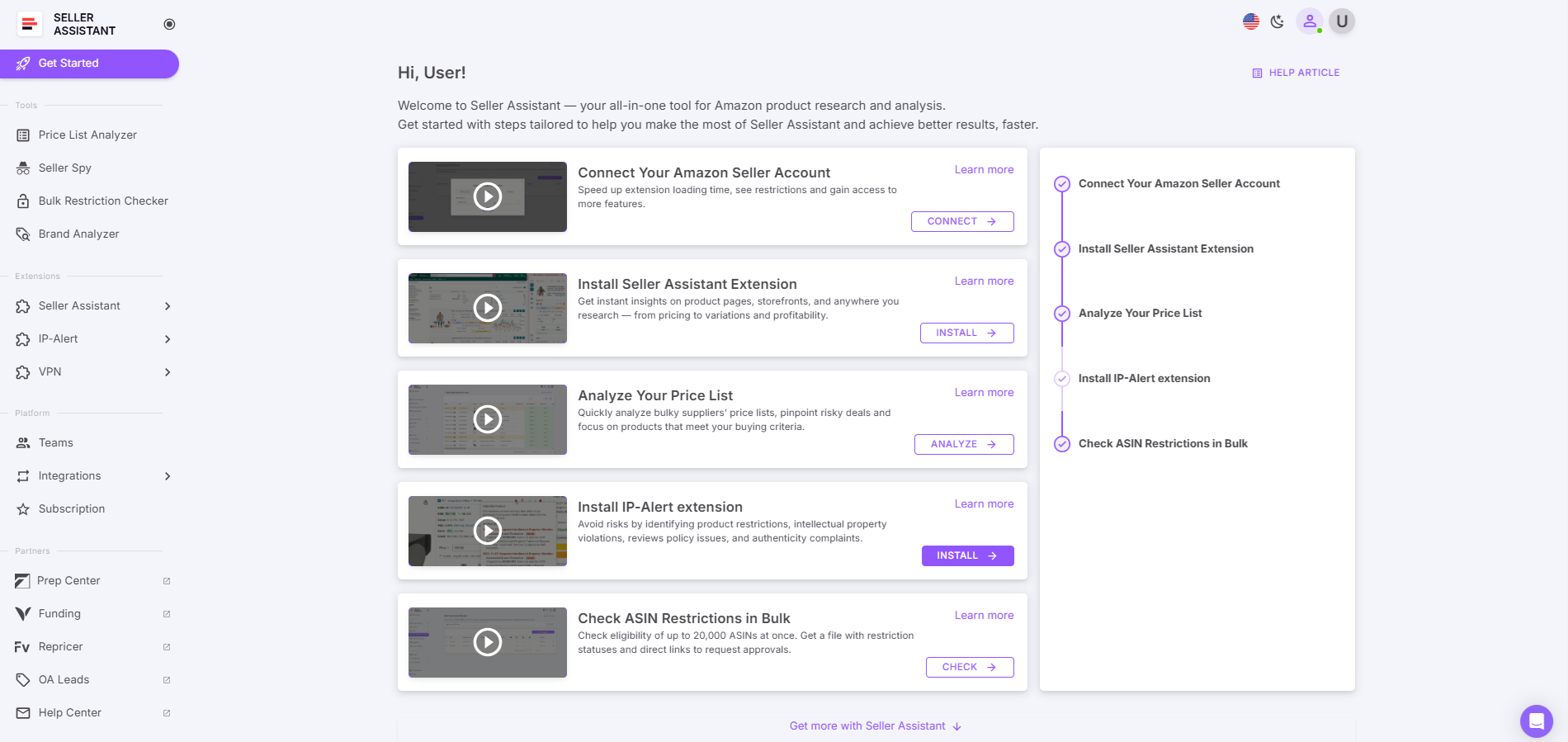
Access your Personal Account
- Step 7. Install the Extension
In the side menu, click Seller Assistant > Install, and click the Install button. Seller Assistant will automatically identify your browser, and you will be redirected to the Chrome store, Edge, or Firefox. Install Seller Assistant Extension.
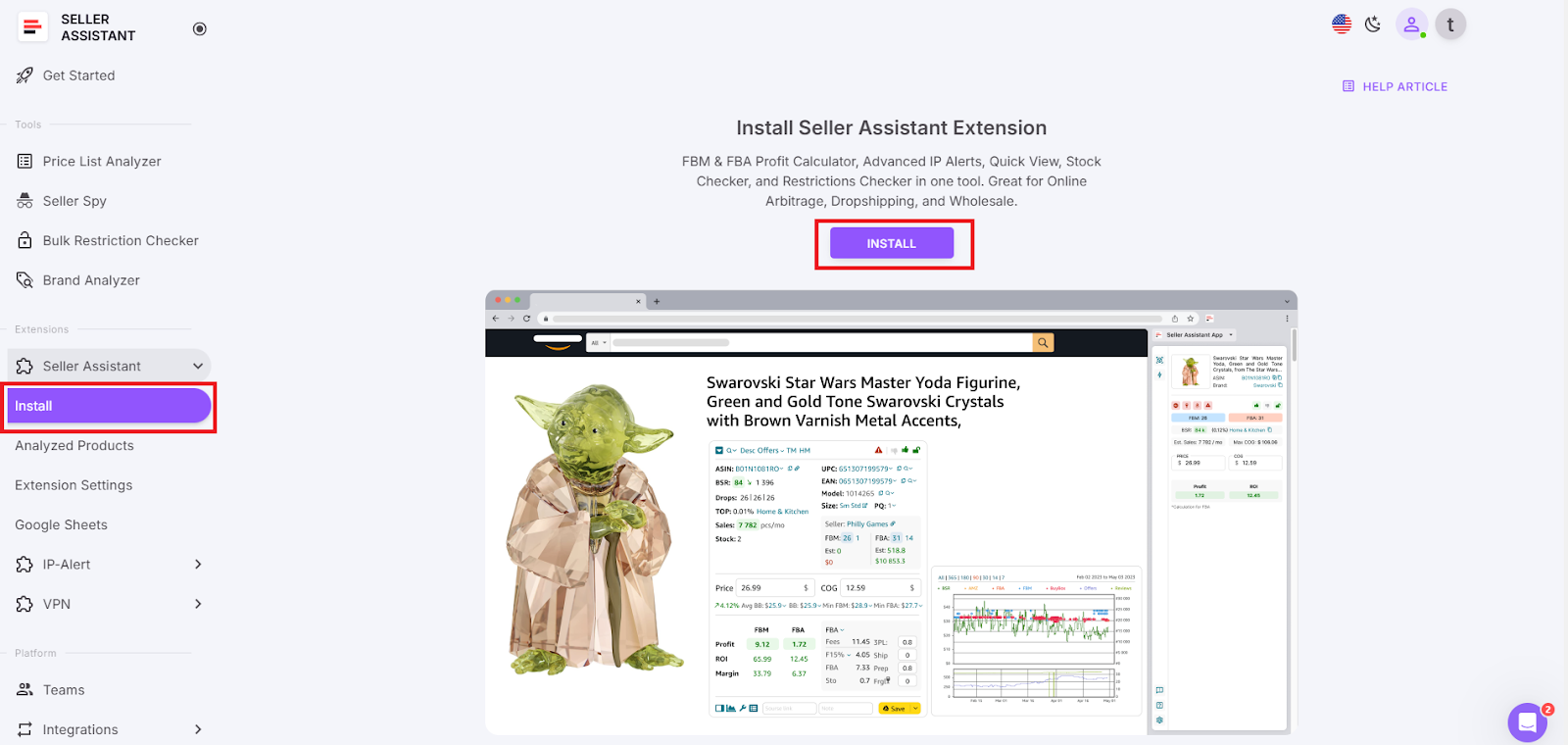
Install the Extension
- Step 8. Connect your Amazon Seller Account
After you install the Extension, it is recommended to connect your Amazon account to Seller Assistant. This will allow the Extension to provide you with personalized data about eligibility to sell products on Amazon, fees, and restrictions.
In the side menu, go to Platform > Integrations > Amazon Seller Central, and click the Connect Amazon Account button.
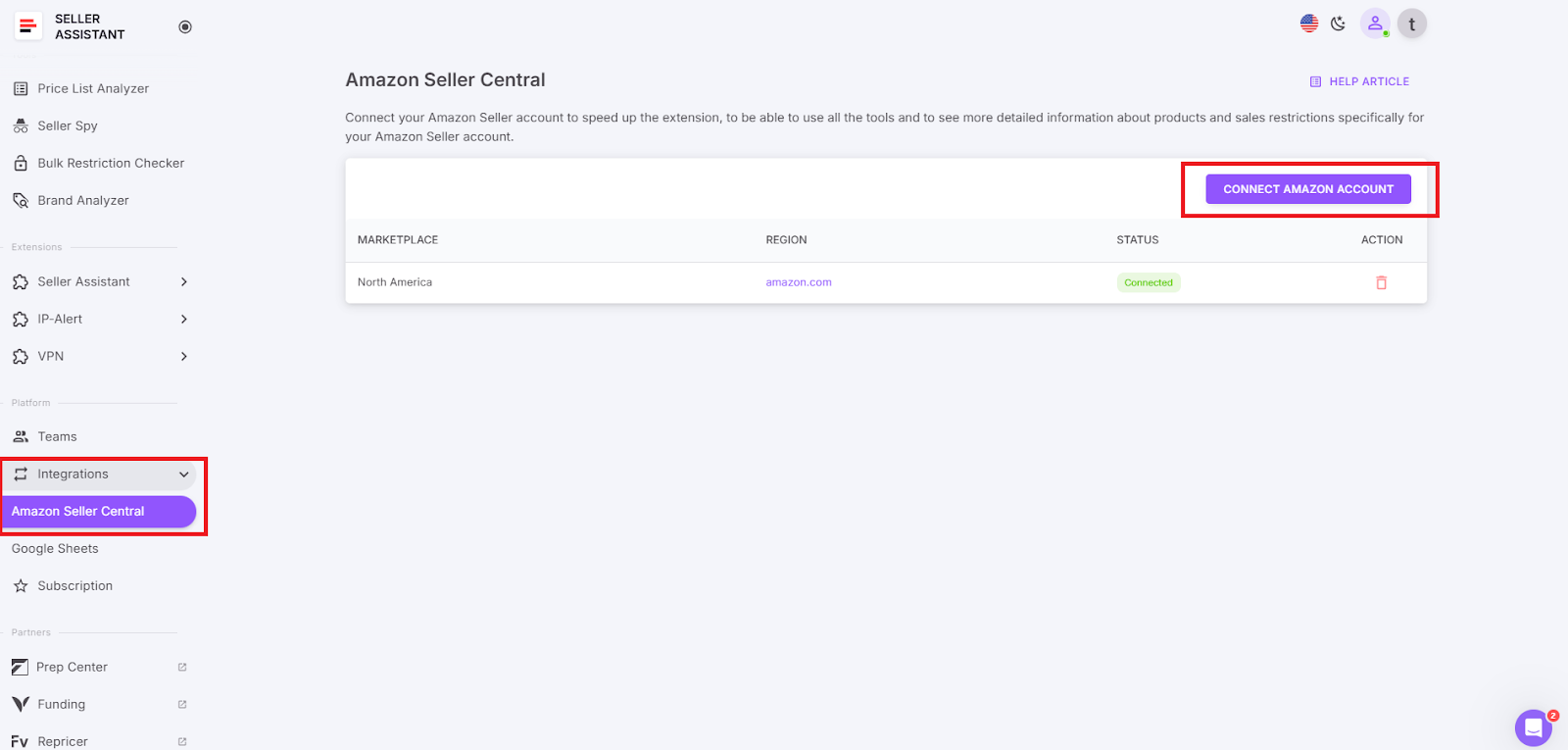
Connect your Amazon Seller Account
Choose your marketplace and click “Connect” to redirect to Seller Central. To authorize Seller Assistant, check the access authorization checkbox at the bottom of the page and click Confirm. You will be redirected back to your Seller Assistant account and your Amazon Seller Account is connected.
- Step 9. Connect Google Sheets to Seller Assistant
Create a spreadsheet in your Google Drive
- Create a new spreadsheet in your Google Drive that meets the following criteria:
- Make sure you have Editor permission if it’s a shared spreadsheet;
- The sheet does not contain merged or protected cells;
- The spreadsheet has available free rows.
- Navigate to the Google Sheets section
Open your Seller Assistant personal account, click “Integrations” in the side menu and select Google Sheets.
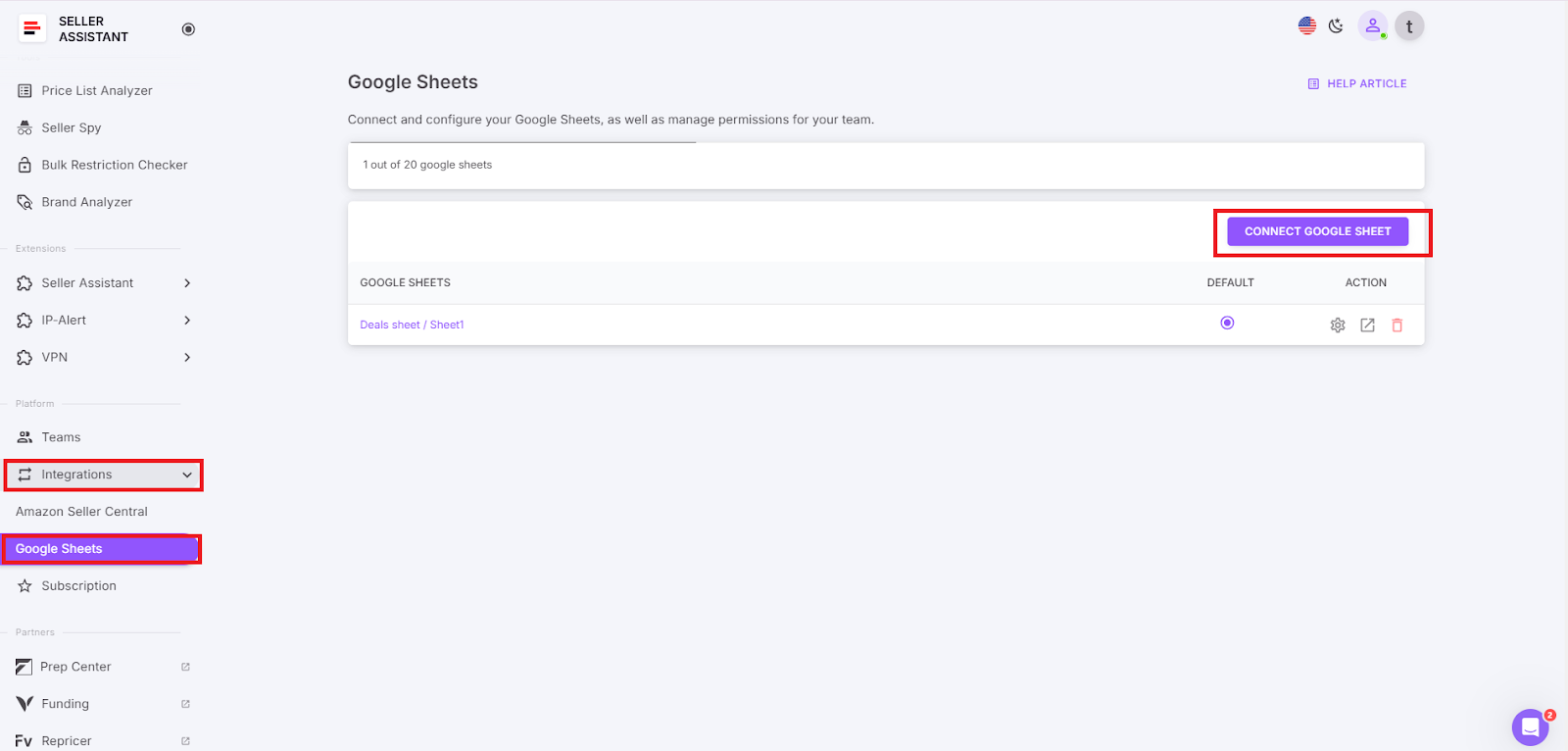
Navigate to the Google Sheets section
- Click the “Connect Google Sheet” button
Find the “Connect Google Sheet” button in the upper-right side of the page and click it.
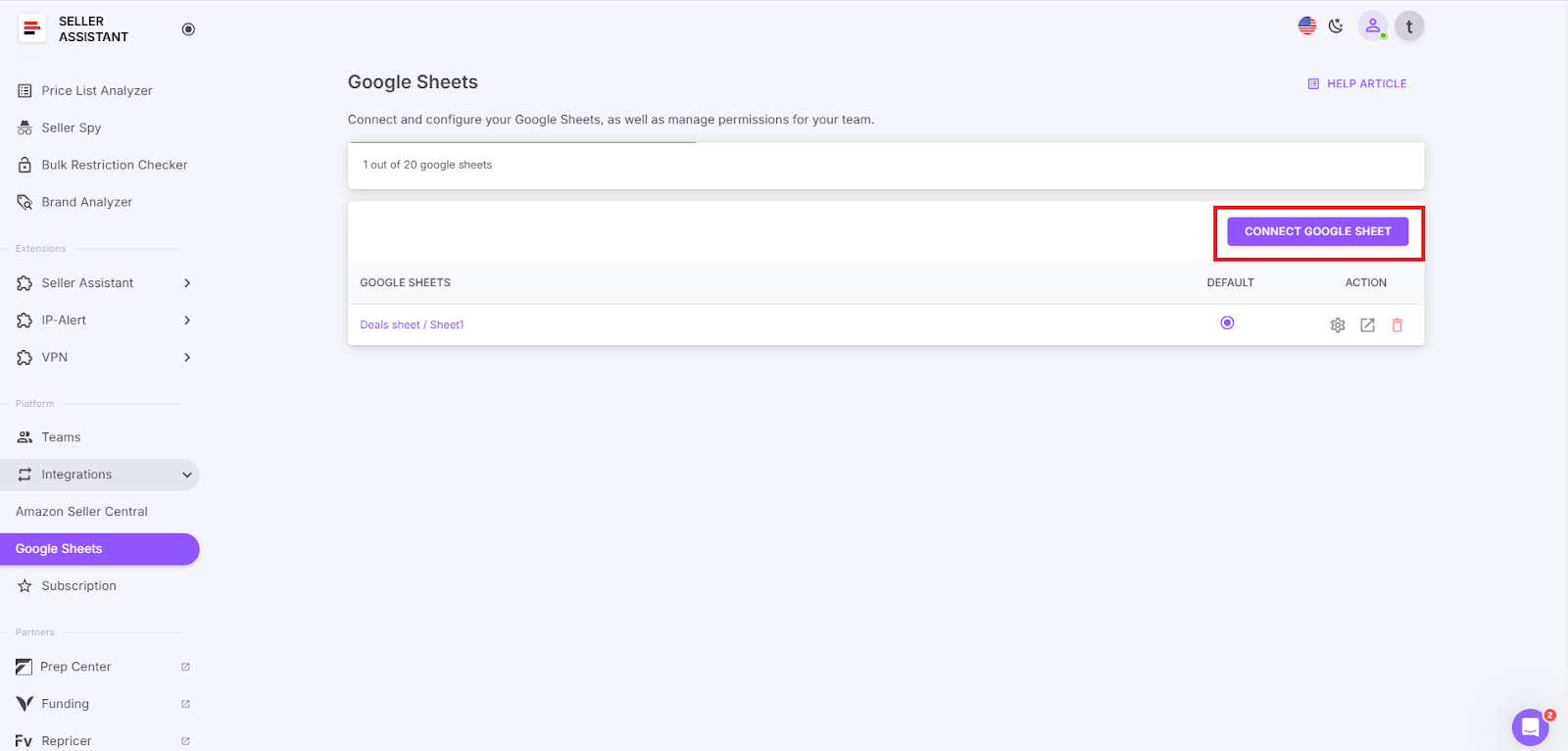
Click the “Connect Google Sheet” button
- Select a Google Sheet
Create a new spreadsheet or choose an existing one you want to connect.
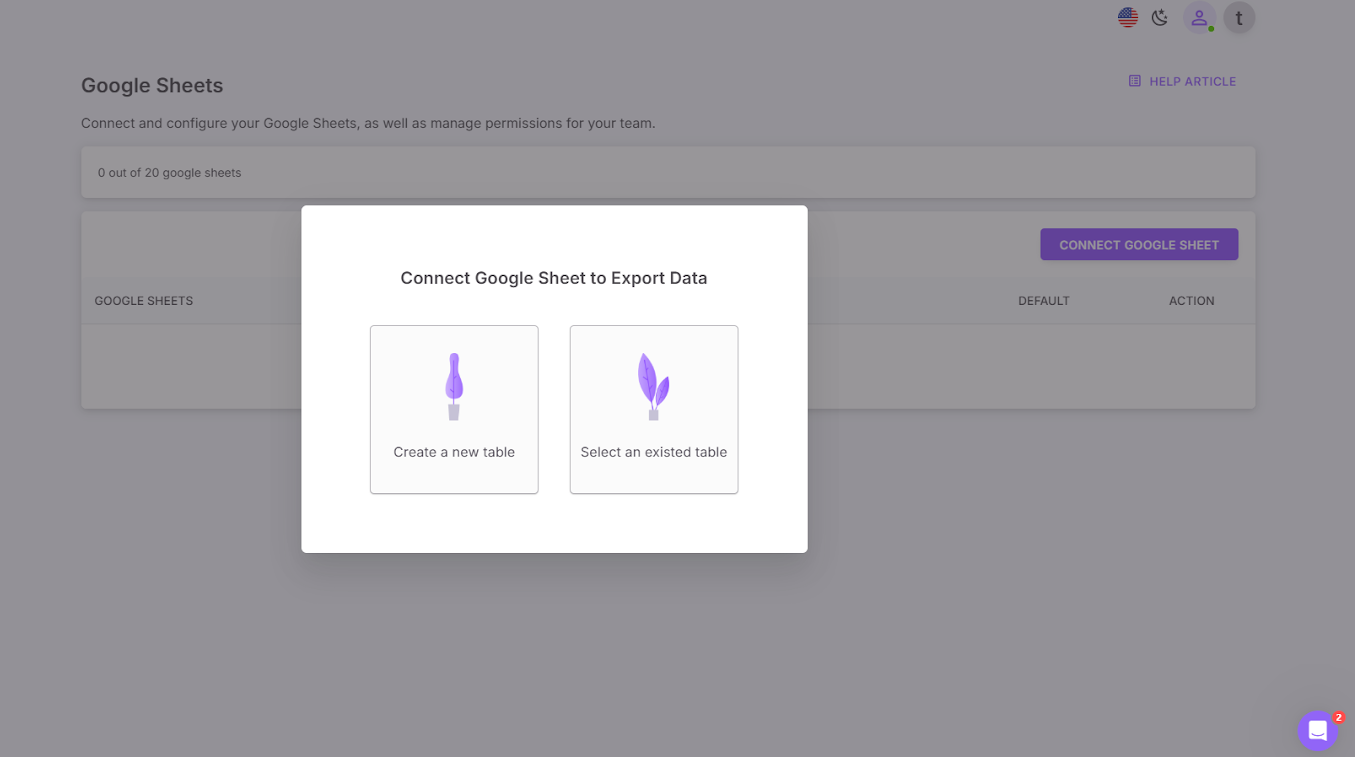
Select a Google Sheet
- Select your Google Account
In the pop-up window, choose the Google account you want to connect to Seller Assistant.
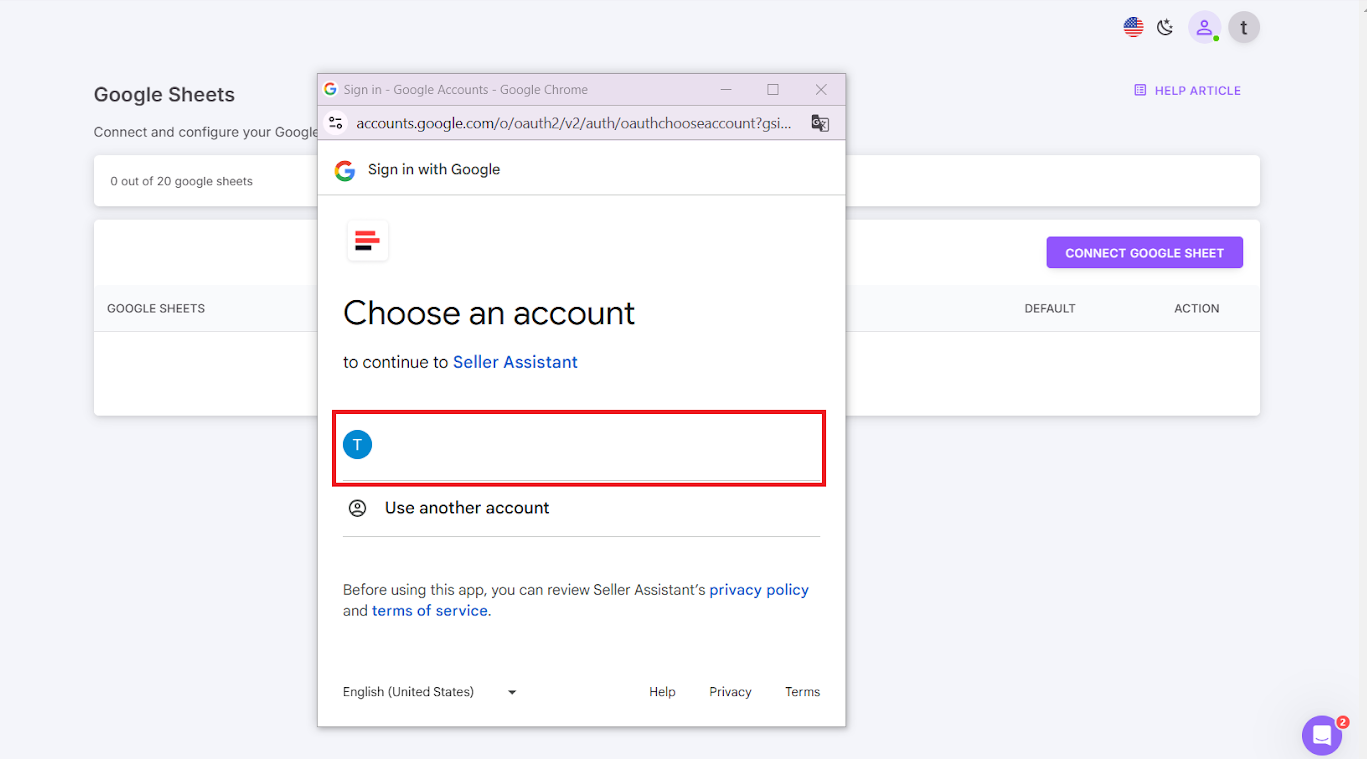
Select your Google Account
- Allow access to your Google Sheet
Authorize Seller Assistant to access your selected Google Sheet you want to connect.
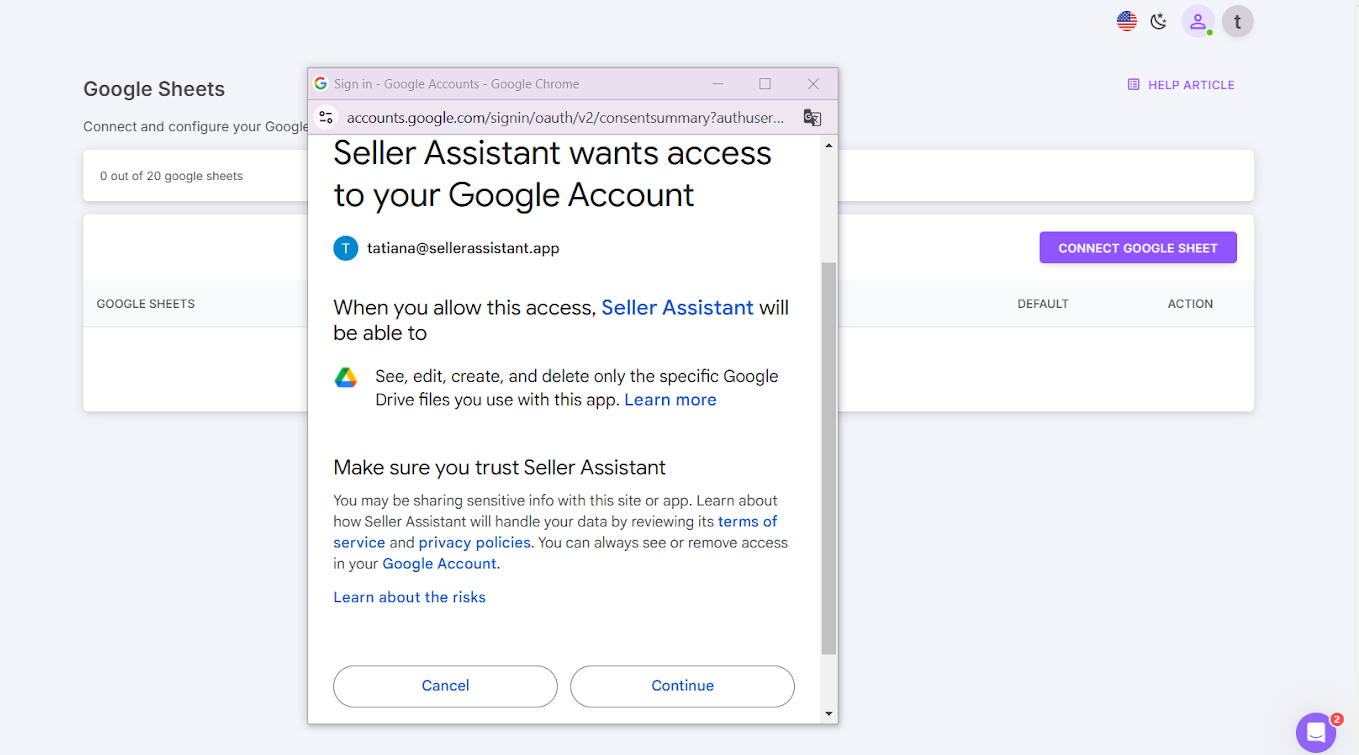
Authorize Seller Assistant to access your selected Google Sheet you want to connect
- Select Google Sheet to connect
Select the sheet in your Google Drive where you want to export the data.
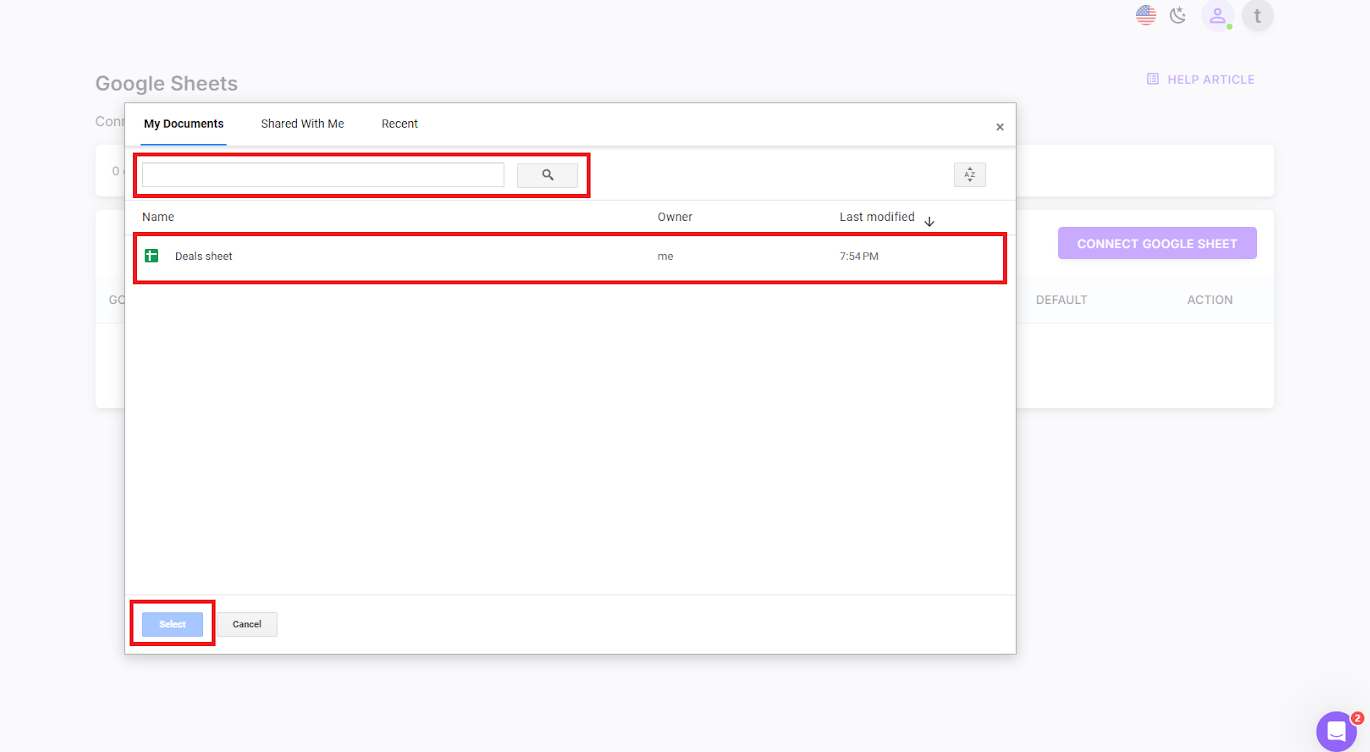
Select Google Sheet to connect
- Configure your Google Sheets
Configure your Google Sheet to export data from Seller Assistant. Drag and drop the variables you want to use into the corresponding table cells within the Google Sheets. Select from more than 100 variables. If necessary, use the filter function to quickly locate specific metrics.
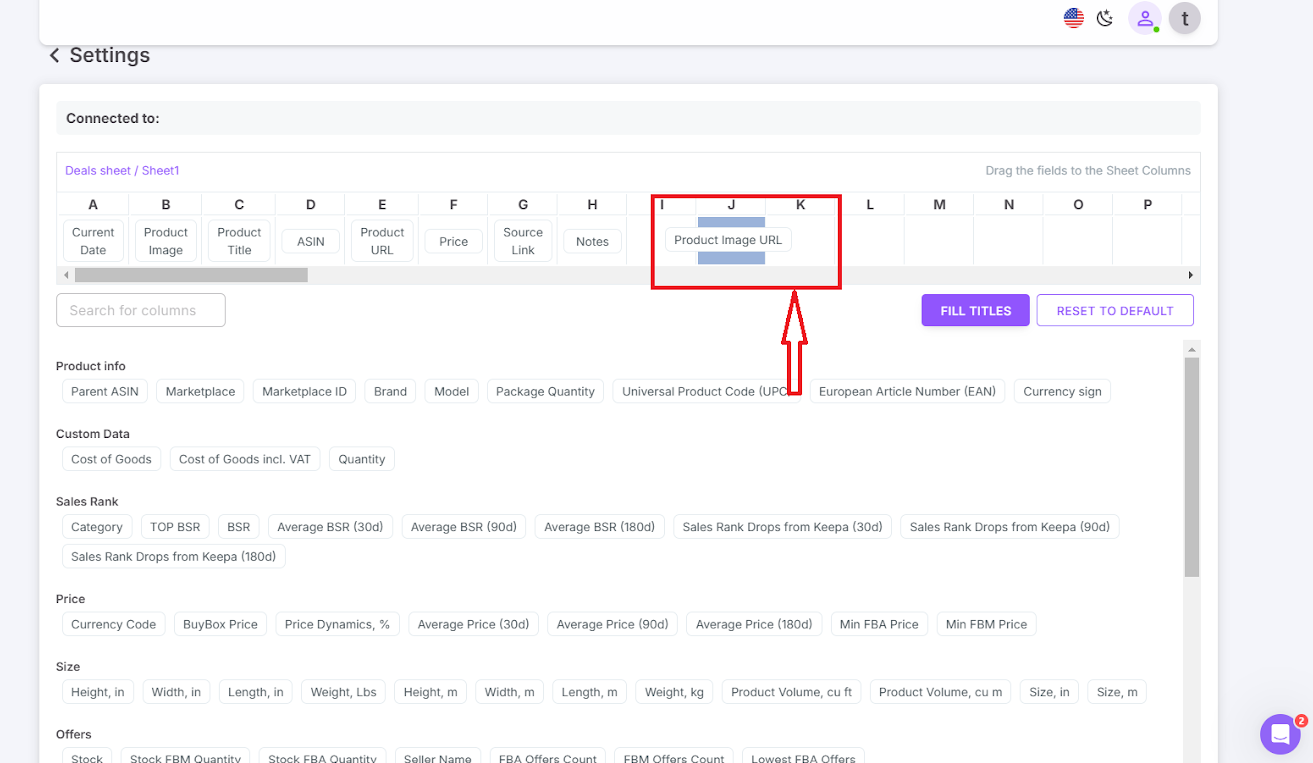
Configure your Google Sheet to export data from Seller Assistant
- Set up Google Sheet
Once you’ve added the selected variables, click the “Fill Titles” button. This will automatically generate the header row in your Google Sheets spreadsheet.
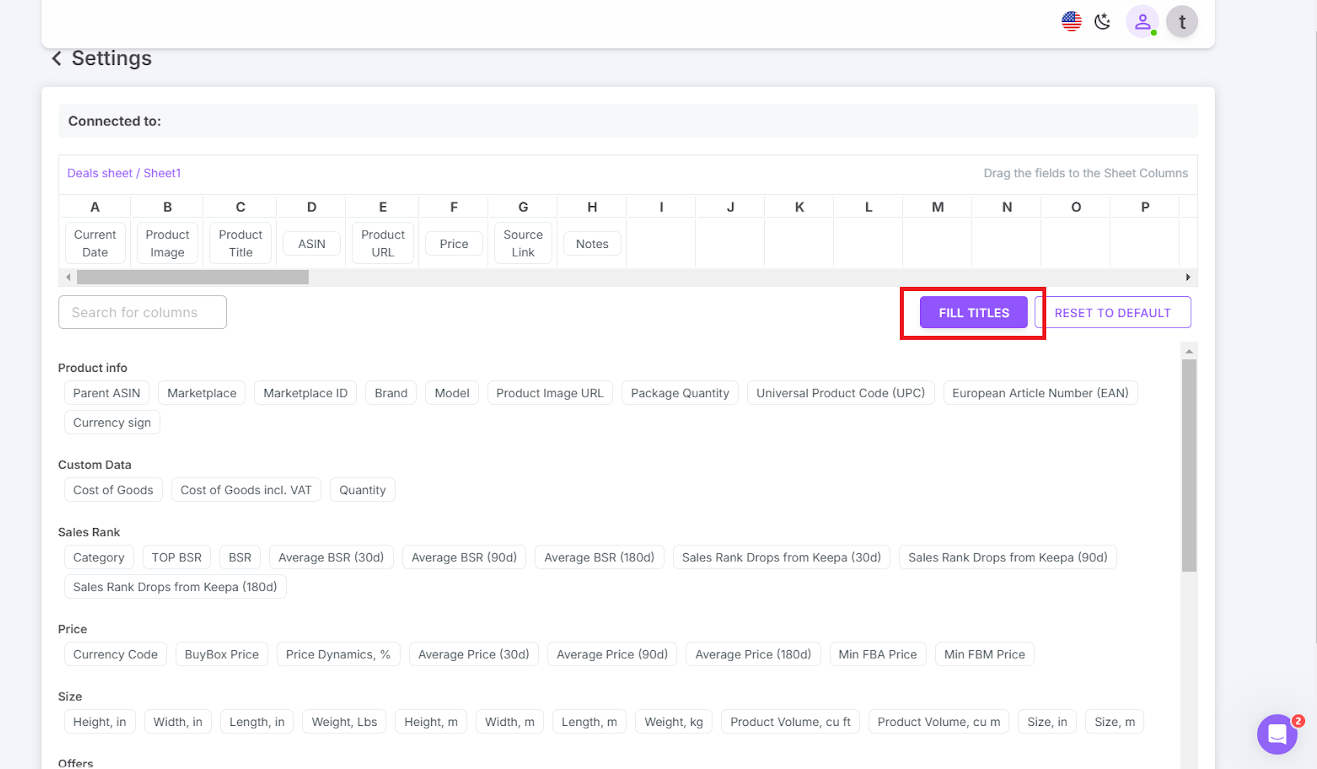
Set up Google Sheet
- Start saving your data to Google Sheets in one click
After you’ve connected and configured your Google Sheet, you can save your data with one click on the Amazon product pages or on your supplier website in Site Panel View with the “Save” button as described above.
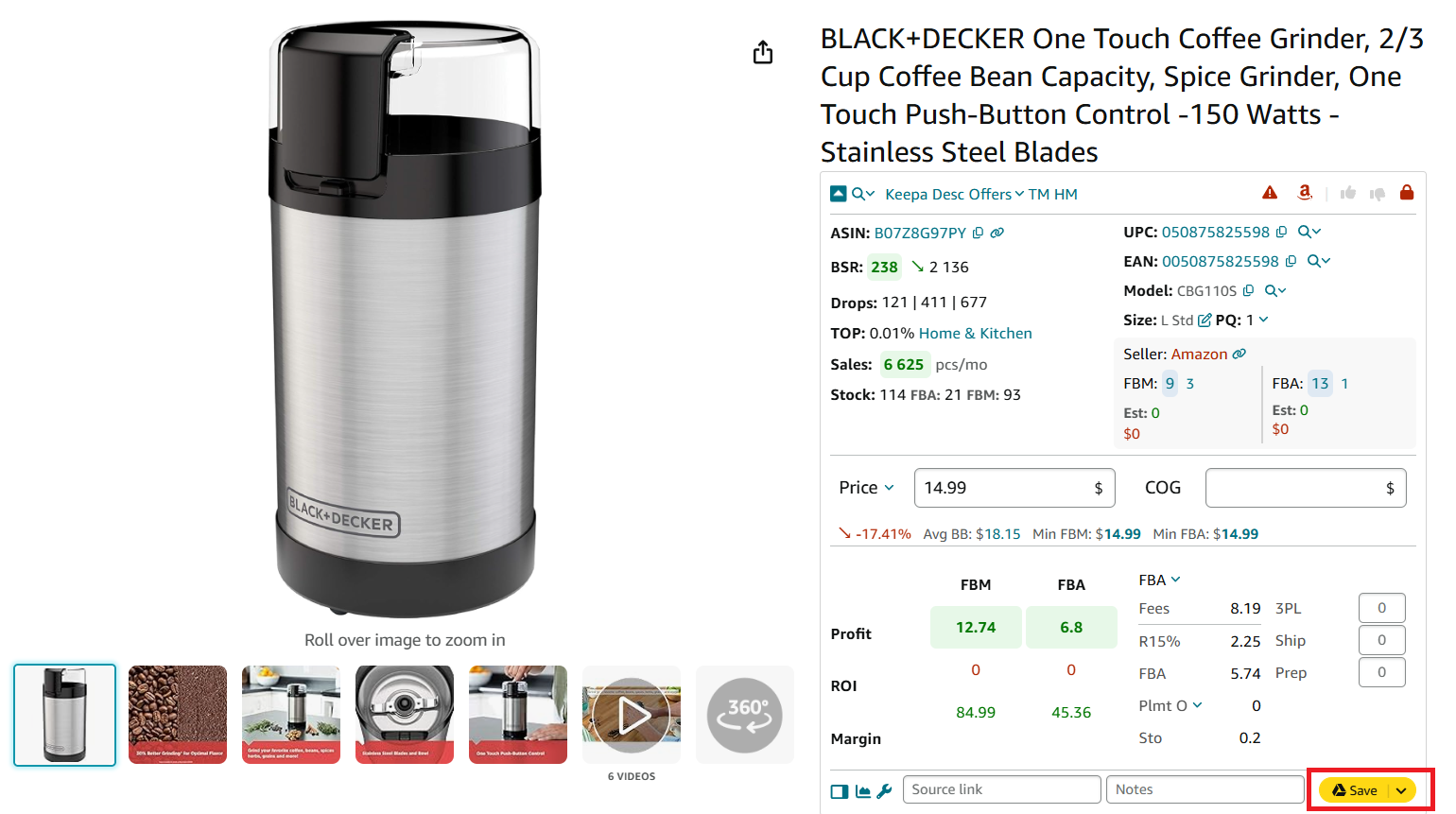
Start saving your data to Google Sheets in one click
- Step 10. Start product sourcing with Seller Assistant
When you’re done with Seller Assistant installation, you can start using it.
FAQ
What is Seller Assistant ?
Seller Assistant is a comprehensive product sourcing software that helps find winning products to sell on Amazon. The extension appears on the Amazon search, product, and inventory pages, and offers Side Panel View. It conveniently shows you key product data to decide if it’s worth selling. It also provides quick links to find product suppliers.
What is Seller Assistant Personal Account?
Seller Assistant personal account is an account that you create on the software. That gives you access to multiple product sourcing tools and features it offers. That allows you to quickly and effectively find high-profit products to sell on Amazon.
Why have a Seller Assistant Personal Account?
A Seller Assistant Personal Account gives you a secure hub to access all its tools, manage settings, and collaborate with team members while protecting your Amazon seller credentials. It offers convenience, personalization, and control over your data.
Final Thoughts
In conclusion, Seller Assistant helps its users quickly access all the software’s product sourcing tools and features and effectively find winning products for their Amazon business.