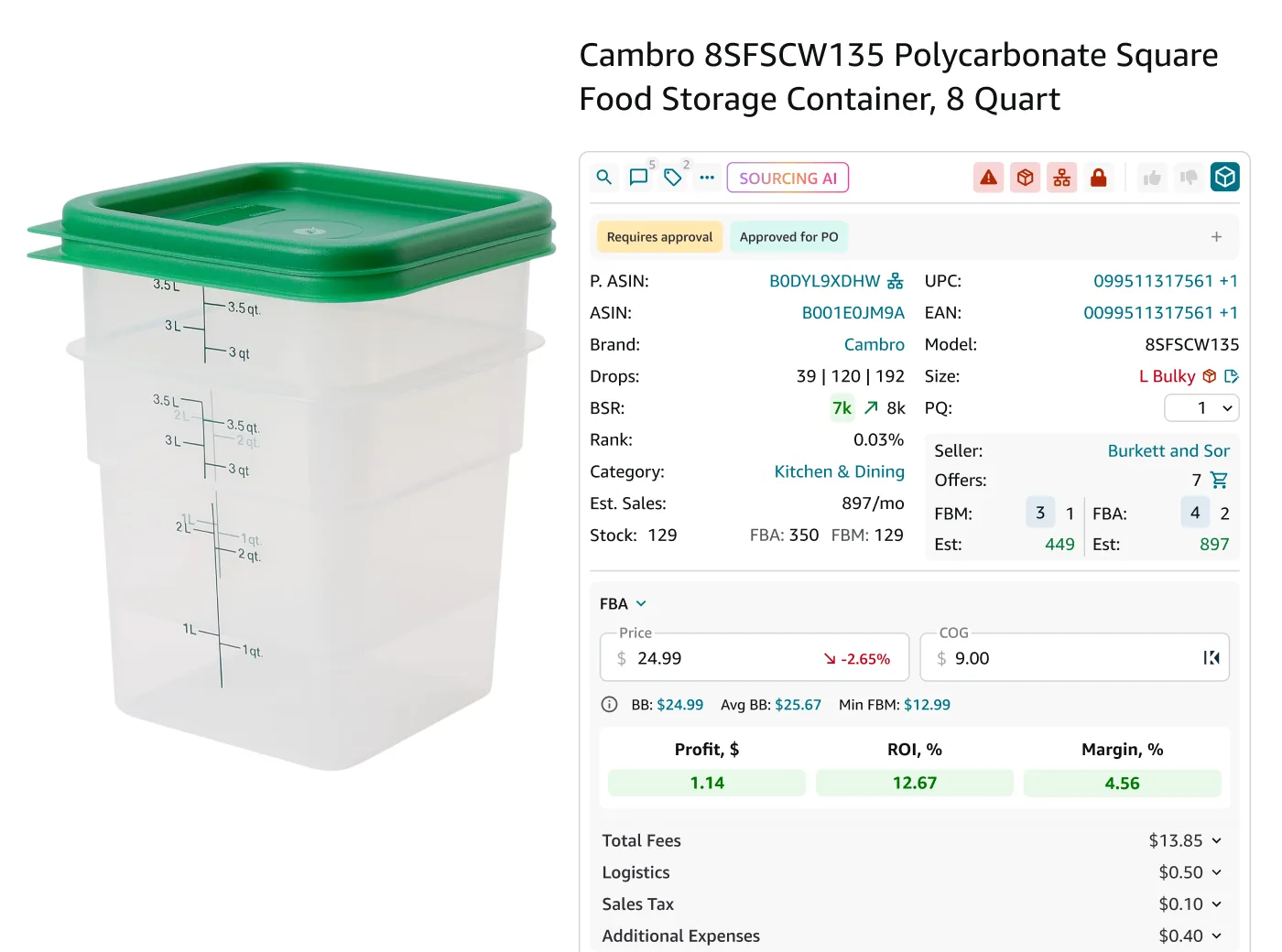


Managing product data efficiently is crucial for success on Amazon. Many Amazon sellers involved in product sourcing do that with Google Sheets, a widely accessible data storage and processing tool.
When you research products on Amazon, you have dozens of product metrics to save to Google Sheets. One of the most popular product sourcing tools, Seller Assistant, provides you with all necessary product research data and lets you quickly export them to Google Sheets. In this post, we will explore how to do that.
How to Save Amazon Product Data to Google Sheets
How to Use Google Sheets for Product Sourcing?
When you look for profitable products on Amazon, you must process tons of data. If you need to store and process bulk data and quickly share them, Google spreadsheets is a good choice.
Organize your search
Save profitable product ideas and supplier research and add as many parameters as you need. List these ideas in your sheet along with other details like ASIN, title, URL, price, ROI, BSR, etc.
Track and research
Leverage Google Sheets’ built-in formulas and functions to analyze your data. Calculate profit margins, compare prices across suppliers, and identify potential bestsellers.
Charts and pivot tables
Visualize your data using charts and pivot tables. Analyze trends, identify top-performing products, and make data-driven sourcing decisions.
Integrate with seller tools
Connect Google Sheets with product sourcing tools like Seller Assistant to get key Amazon product data.
Google Sheets for Product Sourcing
Related: Seller Assistant Extension Review
Seller Assistant — the Ultimate Tool for Amazon Online Arbitrage
What Data Can You Import to Google Sheets with Seller Assistant?
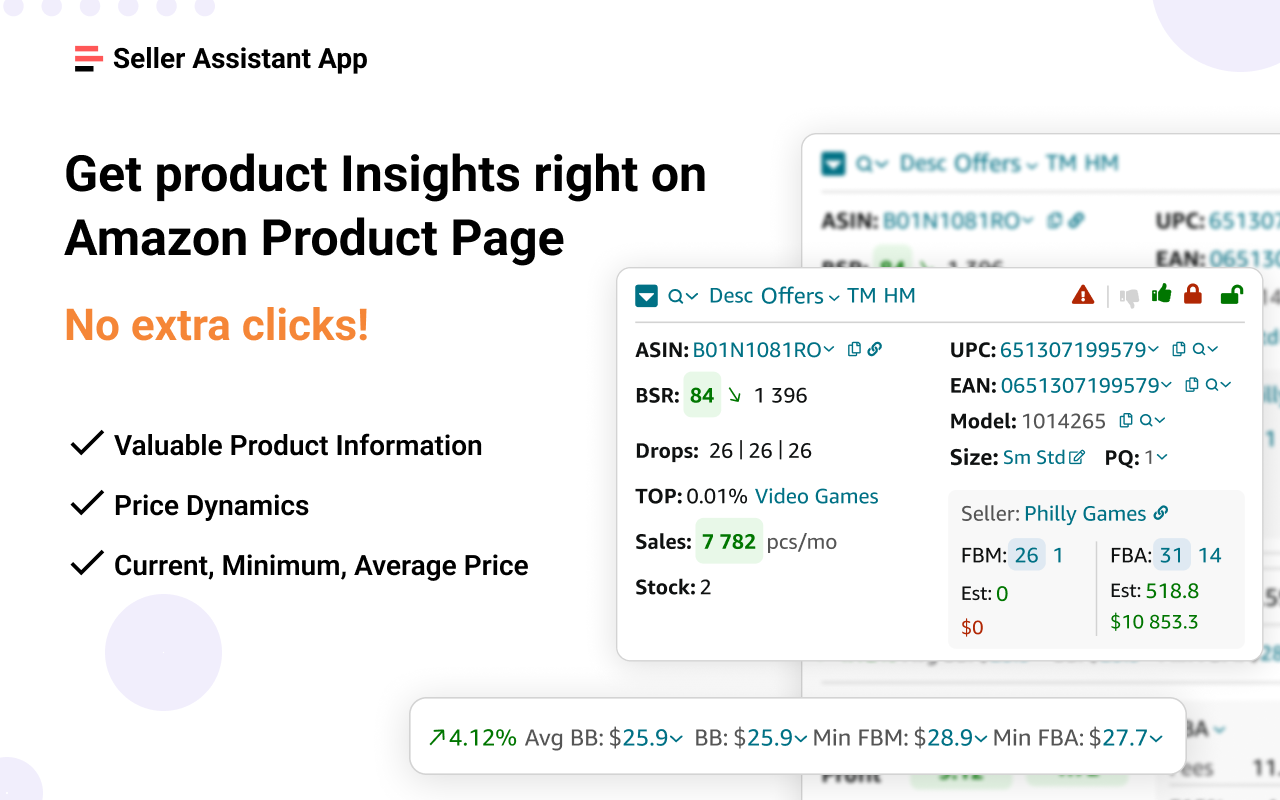
Seller Assistant is a product sourcing extension that combines multiple product research features, such as the FBA&FBM Calculator, Advanced IP Alerts, Stock Checker, Quick View, and Restrictions Checker, to provide a comprehensive tool for sellers.
Seller Assistant
That helps sellers calculate crucial metrics such as ROI and profit margin, gain insights into Amazon referral and FBA fees, analyze both current and historical data like BSR, product flags, and IP alerts, number of FBA and FBM sellers, estimated sales volume, monitor competitors, add product notes, and much more, directly on the Amazon product and search pages.
By using the Seller Assistant, sellers can export all these data to Google Sheets with just a single click. With over 80 product characteristics available for export, you can effortlessly save all these valuable results directly to Google Sheets and use a filter to find specific data.
The app simplifies the entire process, making it easier for Amazon sellers to engage in online arbitrage, wholesale sourcing, or find profitable dropshipping products.
How to Quickly Export Data to Google Sheets with Seller Assistant?
To export your product sourcing results to Google Sheets using Seller Assistant, you must connect your Google Sheets account, set up the export settings, and save your data. By doing so, you can easily access and collaborate on your data, as well as process it further for future reference.
How to connect Google Sheets to Seller Assistant?
To export your Seller Assistant product souring data to Google Sheets, you need to connect your Google Sheets account to the extension. Here are the steps to do so.
Steps to connecting Google Sheets to Seller Assistant
Step 1. Create a new spreadsheet in your Google Drive that meets the following criteria:
- You have Editor permission if it’s a shared spreadsheet;
- The sheet does not contain merged or protected cells;
- The spreadsheet has available free rows.
Step 2. Go to the account settings of Seller Assistant and navigate to the Google Sheets section.
Step 3. Click the “Connect” button and select your Google account.
Step 4. Choose the specific Google account you want to integrate with Seller Assistant.
Step 5. Select the specific sheet in your Google Drive where you want to export the data from the available options. Now you are ready to seamlessly export your data.
Related: How to connect Google Sheets to Seller Assistant?
How to set up export to Google Sheets?
After integrating your Google Sheets, you will need to configure it to export data from Seller Assistant. Follow the steps below to set up export to Google Sheets.
Steps to setting up export Google Sheets to Seller Assistant
Step 1. Go to the Google Sheets section in your Seller Assistant account settings.
Step 2. Simply drag and drop the required variables into the appropriate table cells within the Google Sheets interface.
Step 3. Select from more than 80 available variables that can be exported. If necessary, use the filter function to quickly locate specific metrics.
Step 4. Once you’ve added the selected variables, click the “Fill Header” button. This will automatically generate the header row in your Google Sheets spreadsheet.
Related: How to set up export to Google Sheets?
How to save data to Google Sheets?
Now when you’ve set up your export, you can save your data to Google Sheets. Follow the steps below to save Amazon product information to Google Sheets.
Steps to saving data to Google Sheets
Step 1. Open your product on the Amazon website.
Step 2. If needed, add a note to the product.
Step 3. Click the “Save” button to start the saving process.
Step 4. Choose your spreadsheet from the dropdown menu or connect a new sheet.
Step 5. You’ve successfully saved data to Google Sheets. Now you can access and manage it in one click.
Related: How to save data to Google Sheets?
Seller Assistant Extension Review
FAQ
How do I import data from Amazon to Google Sheets?
To save your product data to Google Sheets you can use Seller Assistant. For that, you need to connect your Google Sheets account to this product-sourcing extension, set up the export settings, and save your data.
How do I sync Amazon with Google Sheets?
If you are using Seller Assistant to sync with Google Sheets, you must connect your Google Sheets account to this product-sourcing extension, set up the export settings, and save your data.
How do I link Amazon Seller Central to Google Sheets?
While direct linking isn’t available, several tools like Seller Assistant bridge the gap. This service lets you save Amazon product sourcing data to specific Google Sheets with just a few clicks.
How do I set up export to Google Sheets?
To set up export to Google Sheets with Seller Assistant, in the Google Sheets section drag and drop the required variables into the appropriate table cells within the Google Sheets interface. Once you’ve added the selected variables, click the “Fill Header” button. This will automatically generate the header row in your Google Sheets spreadsheet.
How do I export data from Amazon?
You can export data from Amazon to Google Sheets with Seller Assistant. Select the required variables, and save your data.
Does Amazon sell data to Google?
No, Amazon doesn’t sell individual customer data to Google or other companies. While they may share aggregated, non-identifiable data for research purposes, they prioritize user privacy and don’t disclose personal information.
Final Thoughts
In conclusion, integrating Amazon product sourcing tools with Google Sheets offers a valuable resource for research, analysis, and decision-making for Amazon sellers. This method helps manage key product information within a familiar platform.
Seller Assistant offers a quick and streamlined integration with Google Sheets. This all-in-one product-sourcing browser extension shows all key product data directly on the Amazon product and search pages and lets you save it to Google Sheets in one click.
With its FBM&FBA Profit Calculator,Quick View, Stock Checker, Restrictions Checker, and other product research functionalities, you can get insights into product profitability, demand, flags, and competition to make informed product sourcing decisions.