


A purchase order is rarely finished the moment it’s created – a supplier changes a cost, a quantity gets revised, a product needs to be added or dropped – and each of those small edits means reopening the order, finding the right line, and updating it by hand.
Seller Assistant’s Purchase Orders Module already recalculates totals the moment something changes; its MCP Server lets an AI assistant make that change for you – “update the cost on this ASIN,” “add these products to the PO I made yesterday” – without opening the order at all.
Why a Purchase Order Rarely Stays as First Created
Creating a purchase order is rarely the end of the process. Supplier costs can change, quantities may need to be adjusted, products can be added or removed, and purchasing details may need correction before the order is finalized. What starts as a complete PO can quickly become outdated.
The problem is that every small change creates another maintenance task. You need to find the right purchase order, locate the relevant product, change the field, and check whether the update affected the rest of the order. When you manage multiple supplier orders, these small edits can turn into a steady stream of repetitive work.
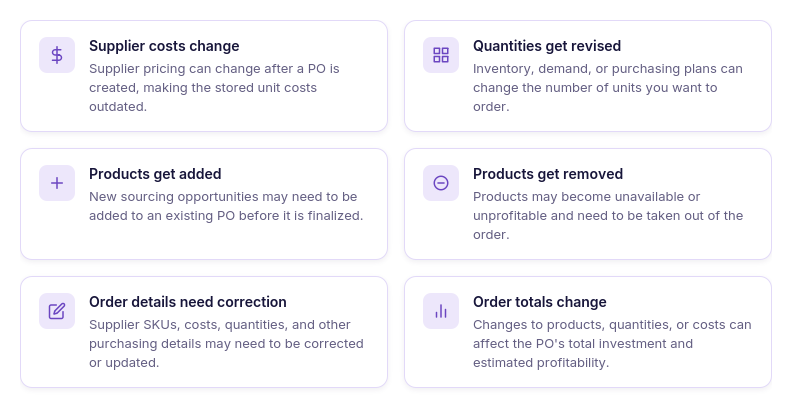
Supplier costs change
A supplier may change the unit cost after a PO has already been created. Updating the cost keeps the order aligned with the latest supplier pricing and prevents outdated purchasing data from carrying forward.
Quantities get revised
The number of units you plan to buy can change as inventory availability, demand, or purchasing plans shift. Adjusting quantities in the PO keeps the order aligned with what you actually intend to purchase.
Products get added
A seller may find another profitable product or decide to consolidate purchases with the same supplier. Adding the product to an existing PO can be more practical than creating a separate order.
Products get removed
Not every product remains a good fit while an order is being prepared. A product may become unavailable, lose profitability, or no longer fit the purchasing plan, requiring the PO to be adjusted.
Order details need correction
Supplier SKUs, costs, quantities, and other purchasing information can contain errors or become outdated. Correcting these details before the order is finalized helps keep the PO consistent with the actual purchase.
Order totals change with the data
Changes to products, quantities, or costs can affect the total amount invested in the order and its estimated profitability. Keeping the underlying data current means the order’s calculations can reflect those changes instead of relying on outdated numbers.
Why Asking AI About a Purchase Order Is Not the Same as Updating It
A general AI assistant can explain how to update a purchase order, suggest what should change, or calculate a new value from information you provide. But without access to your actual data, it cannot see which PO needs attention or apply changes to the order itself.
Updating an existing PO requires more than a useful answer in chat. The assistant needs access to the relevant order, the ability to identify the right product and purchasing data, and a way to send supported changes back to the purchasing system – with seller confirmation before those changes are applied.
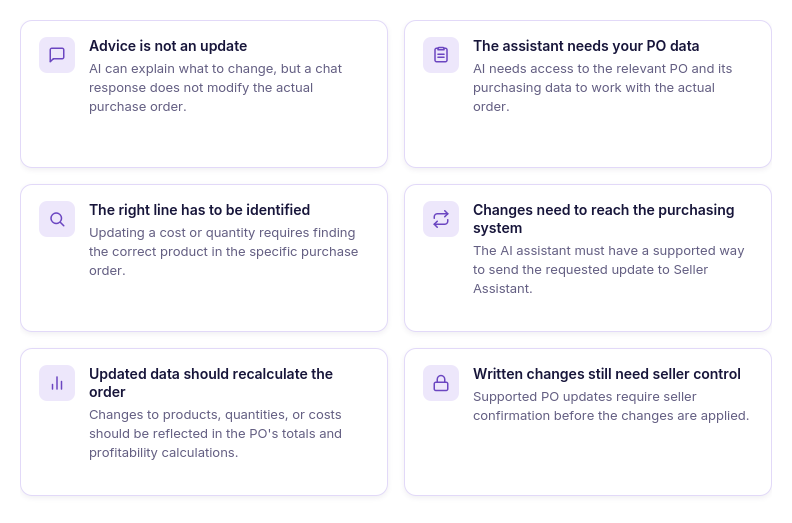
Advice is not an update
AI can explain what should be changed in a purchase order or calculate a new value based on the information you provide. But the response itself does not modify the actual PO.
The assistant needs your PO data
To update an existing order, AI needs access to the relevant purchase order and its product and purchasing information. Without that connection, you would still have to find the order and provide its details manually.
The right line has to be identified
Changing a cost or quantity requires finding the actual product in the specific purchase order. An AI assistant needs access to the order data to work with the correct product instead of relying on information copied into the chat.
Changes need to reach the purchasing system
A response in chat is not enough when the goal is to update an actual purchase order. The AI assistant needs a supported way to send the requested change to the PO.
Updated data should recalculate the order
Changing a product, quantity, or cost can affect the purchase order’s totals and profitability calculations. The updated data needs to remain connected to the PO so you can review the resulting numbers.
Written changes still need seller control
AI can assist with making supported changes, but those changes should not be applied without the seller’s confirmation. This keeps the seller in control of what gets written to the purchase order.
How Seller Assistant Keeps Purchase Orders Updated with AI
Updating a purchase order through AI requires more than a chat interface. In Seller Assistant, the workflow is supported by two connected tools: Purchase Orders Module, where purchase orders and their data are stored and managed, and Seller Assistant MCP, which connects an AI assistant with supported Seller Assistant operations through natural-language requests.
Purchase Orders Module provides the underlying purchasing workspace for managing products, quantities, costs, suppliers, warehouses, order status, and purchase order calculations. Seller Assistant MCP adds the conversational layer, allowing sellers to find and review existing purchase orders, request supported updates, and work through changes in chat while keeping the purchase order itself as the source of the underlying data.
How Purchase Orders Module keeps purchase order data connected
Seller Assistant’s Purchase Orders Module provides a centralized workspace for creating, maintaining, and managing supplier orders. Once a purchase order exists, the module keeps the key information behind it – supplier, warehouse, products, quantities, costs, expenses, and other order details – together in one structured workflow instead of spreading updates across separate spreadsheets or documents.
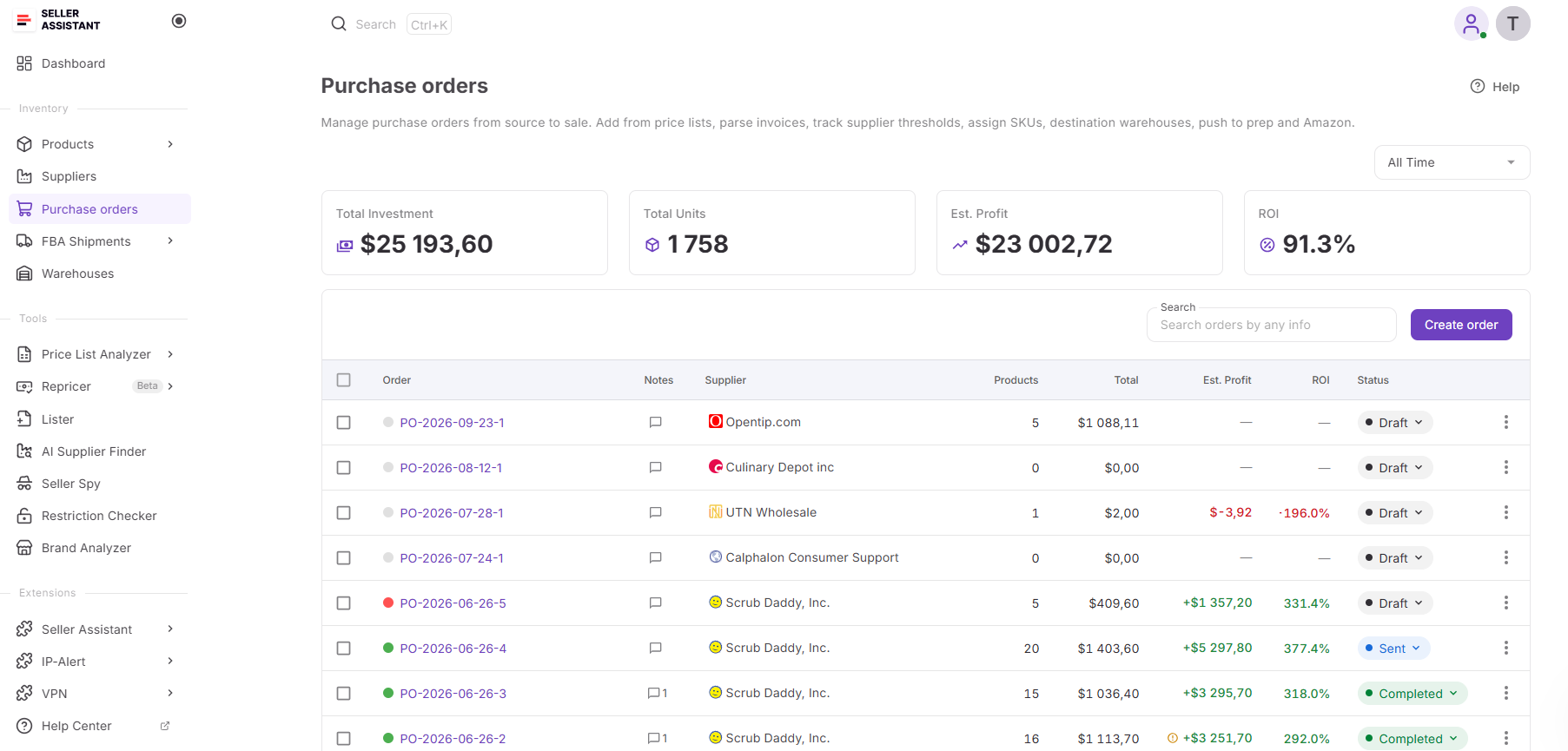
For Amazon wholesale sellers, online arbitrage sellers, and dropshippers, Purchase Orders Module supports more than simply storing an order. Sellers can add or edit products, change quantities and costs, review purchasing expenses, check expected profitability, manage supporting documents, track order status, and access previous purchase orders from the same workspace. This connected structure is what makes it possible for AI-assisted workflows to work with actual PO data instead of only explaining what the seller should change.
What you can do with Purchase Orders Module
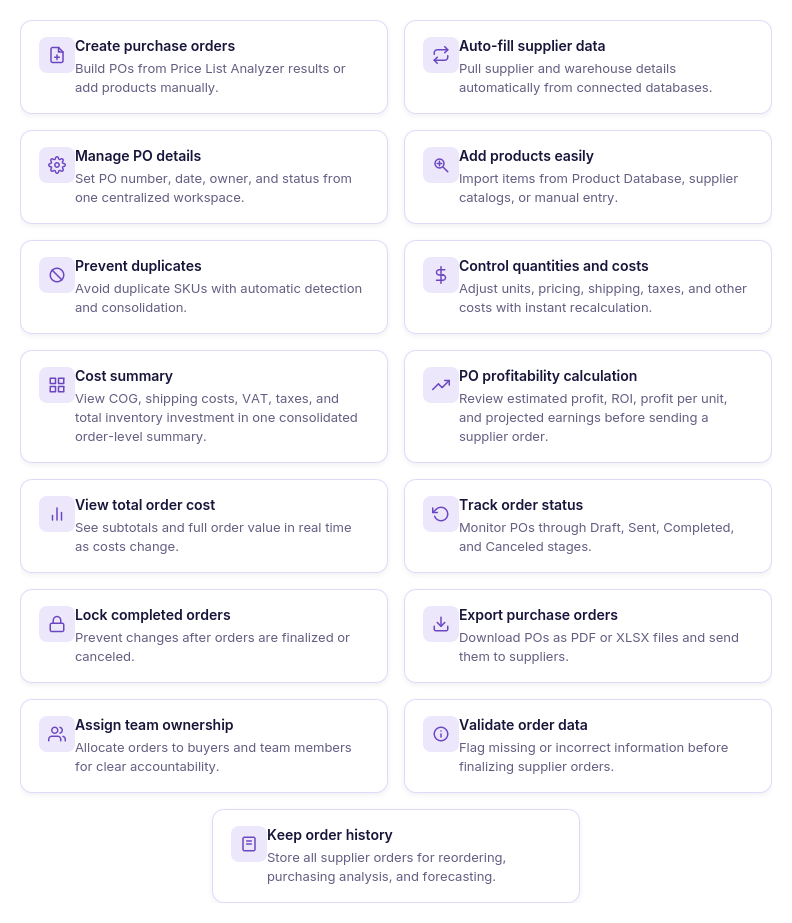
- Create purchase orders efficiently
Build structured supplier orders manually or use products already researched in Seller Assistant without having to recreate purchasing information from scratch.
- Connect suppliers and warehouses
Assign the relevant supplier and destination warehouse so the core purchasing and fulfillment information stays linked to the order.
- Add and organize products
Add products from supplier price lists, analyzed data, product search, or manual entry while helping prevent duplicate product lines.
- Set quantities and unit costs
Enter or adjust order quantities, unit costs, supplier SKUs, and other product-level purchasing information as the order develops.
- Update purchasing expenses
Add or change shipping costs, taxes, and other expenses while the order totals reflect the updated purchasing data.
- Review total order costs
See the subtotal, shipping, taxes, miscellaneous expenses, and total investment together in the purchase order.
- Monitor purchase order profitability
Review estimated profit, ROI, profit per unit, and total investment to understand how the current order data affects its expected economics.
- Adjust the product mix
Add or remove products and change quantities or costs when the purchasing plan changes before the order is finalized.
- Store purchasing documents
Keep invoices, packing slips, supplier correspondence, and other relevant documents attached to the appropriate purchase order.
- Work with your team
Assign orders to team members, add notes, and keep purchasing information available within a shared workflow.
- Track purchase order status
Manage orders through Draft, Sent, Completed, and Canceled stages while maintaining the history of previous purchasing activity.
- Export purchase orders
Generate PDF or Excel versions of purchase orders for supplier communication and internal purchasing workflows.
How Purchase Orders Module provides AI-assisted PO updates
For AI to help maintain a real purchase order, there needs to be an actual purchasing system behind the conversation. Purchase Orders Module provides that structure: products belong to a specific order, the order is connected to a supplier and warehouse, and quantities, costs, expenses, profitability, and status remain part of the same purchasing record.
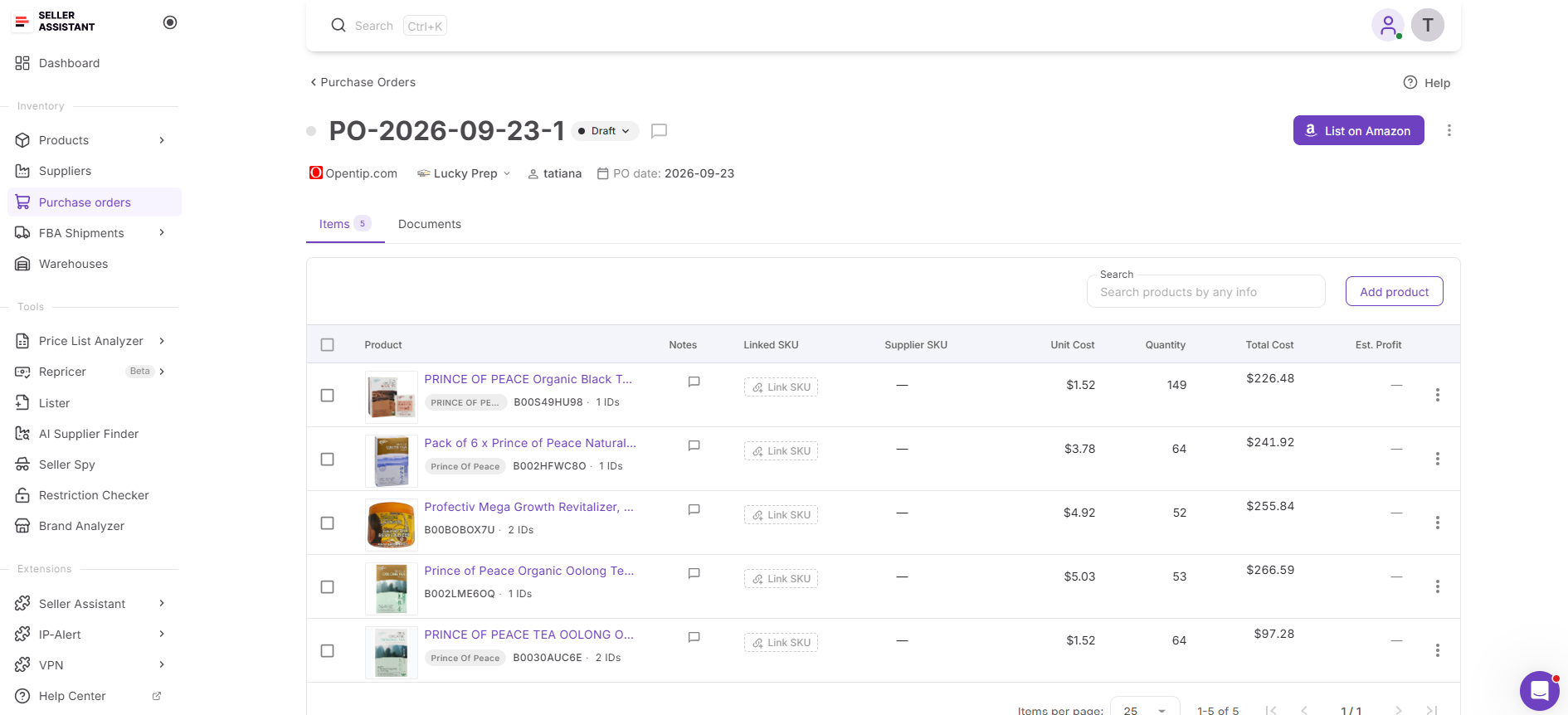
This means an AI-assisted workflow does not have to stop at telling a seller which fields to change or generating a list of suggested corrections. When connected through Seller Assistant MCP, supported operations can work with the purchase order itself, allowing sellers to find relevant orders, make supported updates, and review the resulting data through conversation.
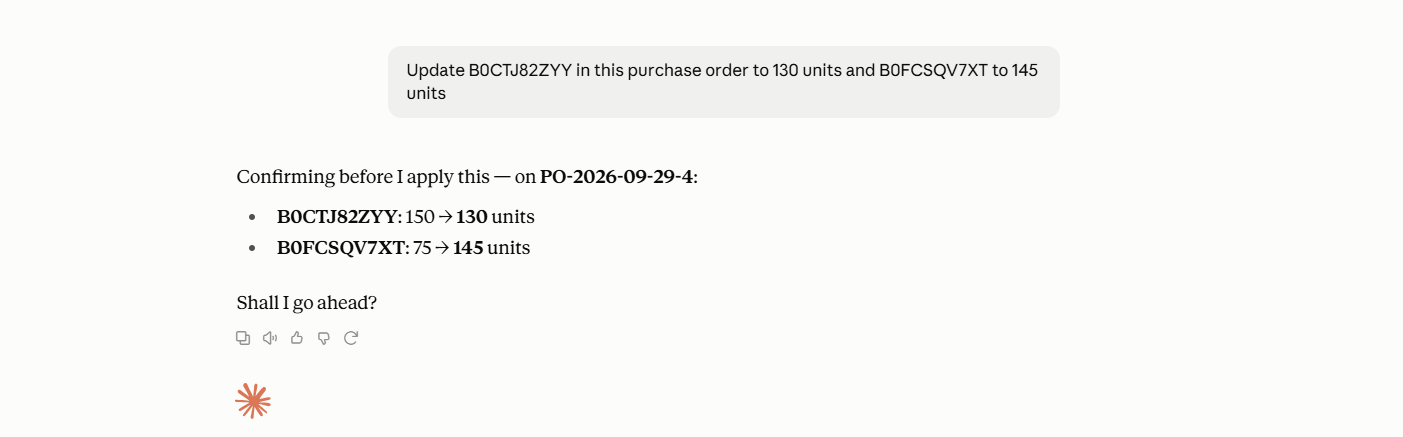
Purchase Orders Module remains the system where purchase orders are stored, reviewed, updated, tracked, and managed, while MCP Server provides the connection that lets supported parts of this workflow be handled through an AI assistant. This keeps the actual PO and its calculations connected while making routine maintenance easier to handle through chat.
How Seller Assistant MCP brings purchase order updates into chat
Seller Assistant MCP Server connects AI assistants with Seller Assistant tools and account data, allowing sellers to work with supported purchase order operations through natural-language requests. Instead of asking ChatGPT or Claude how to change a purchase order and then making those edits manually in the dashboard, MCP gives the assistant a way to work with the actual order and its supported data.
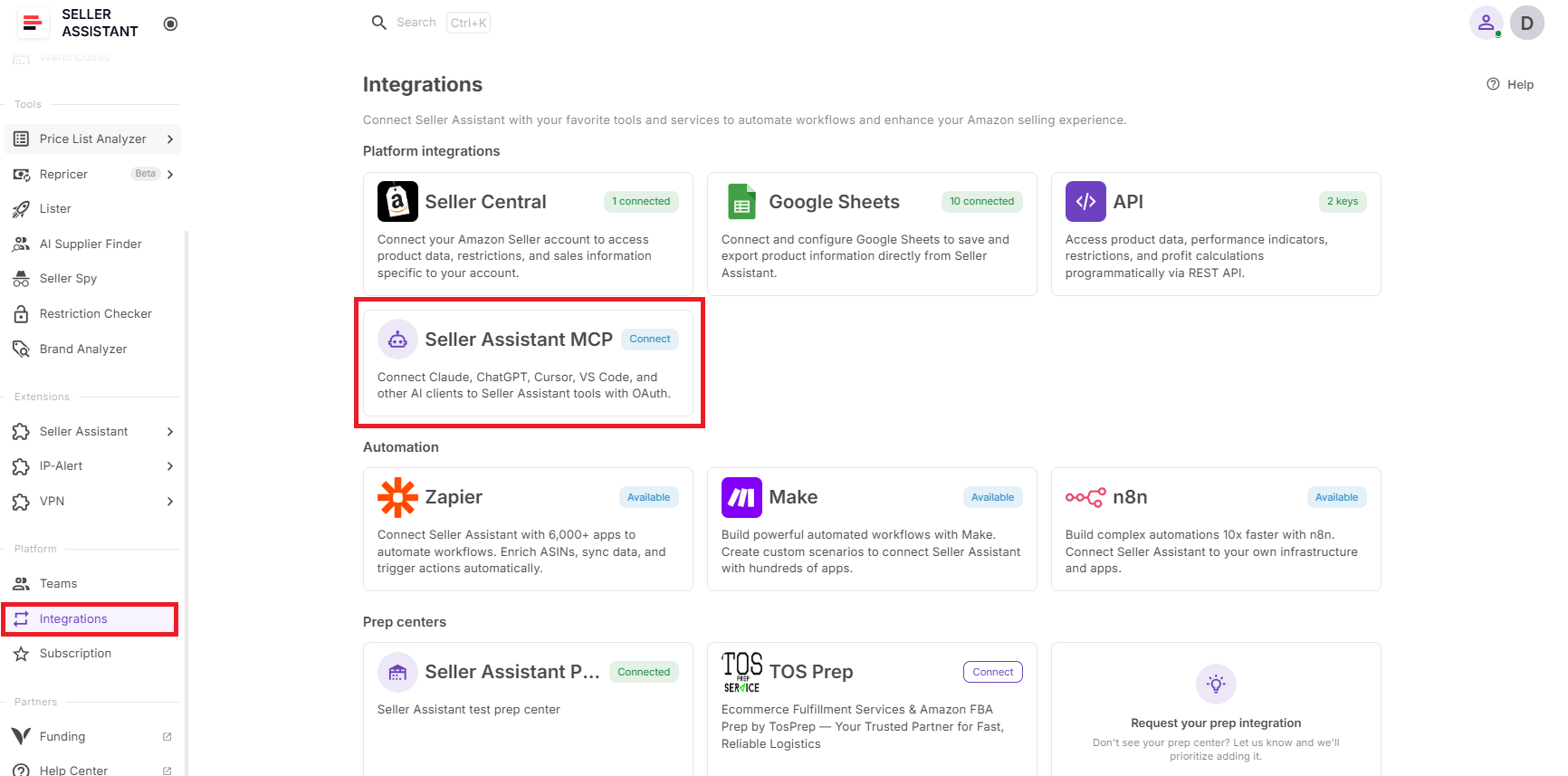
For purchase order maintenance, this makes AI more than a source of instructions. Sellers can ask it to find the relevant PO, review its current information, identify what needs to change, and make supported updates through follow-up requests, with confirmation before supported write actions are applied. Purchase Orders Module remains the system where the purchase order is stored and managed, while MCP provides the connection that lets the AI assistant work with it.
What you can do with Seller Assistant MCP for purchase orders
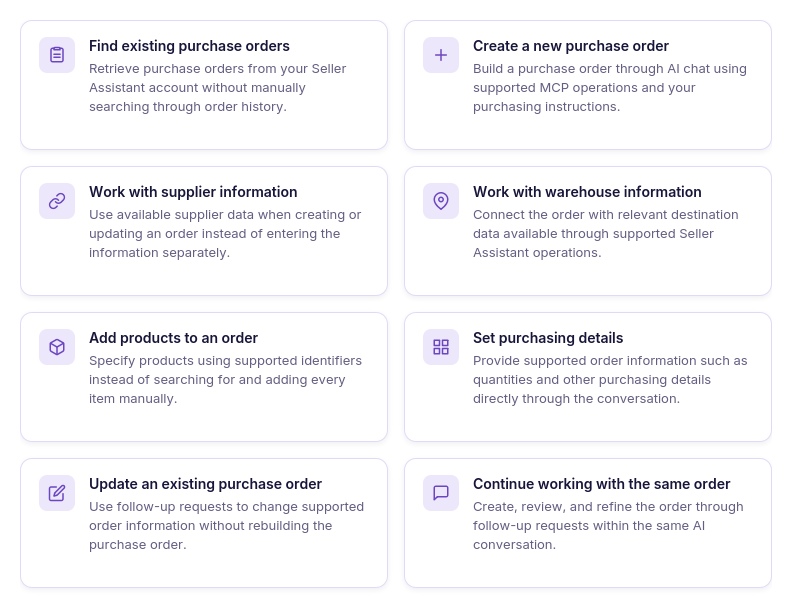
- Find existing purchase orders
Ask AI to pull the relevant purchase orders from your Seller Assistant account instead of searching through the order history yourself.
- Create a new purchase order
Describe the order you want to build and use supported MCP operations to create it directly within your Seller Assistant purchasing workflow.
- Work with supplier information
Use supplier details available through supported Seller Assistant operations when working with a purchase order instead of handling that information separately.
- Work with warehouse information
Link the purchase order to the appropriate destination using warehouse information available through supported Seller Assistant operations.
- Add products to an order
Tell the AI which products you want to include using supported product identifiers, without having to locate each item manually in the dashboard.
- Set purchasing details
Provide quantities and other supported purchasing information through the conversation instead of filling in each field individually.
- Update an existing purchase order
Ask AI to make supported changes when quantities, costs, or other editable order information needs to be corrected or updated.
- Continue working with the same order
Use follow-up requests to review and refine the purchase order without starting the workflow over in another interface.
How MCP turns purchase order updates into a conversation
MCP reduces the navigation and repetitive editing involved in keeping a purchase order current by letting sellers describe changes in natural language. Instead of opening the purchasing dashboard, searching through order history, finding the right product line, and updating each value separately, the seller can ask AI to find the relevant PO, review it, and work through supported changes in the conversation.
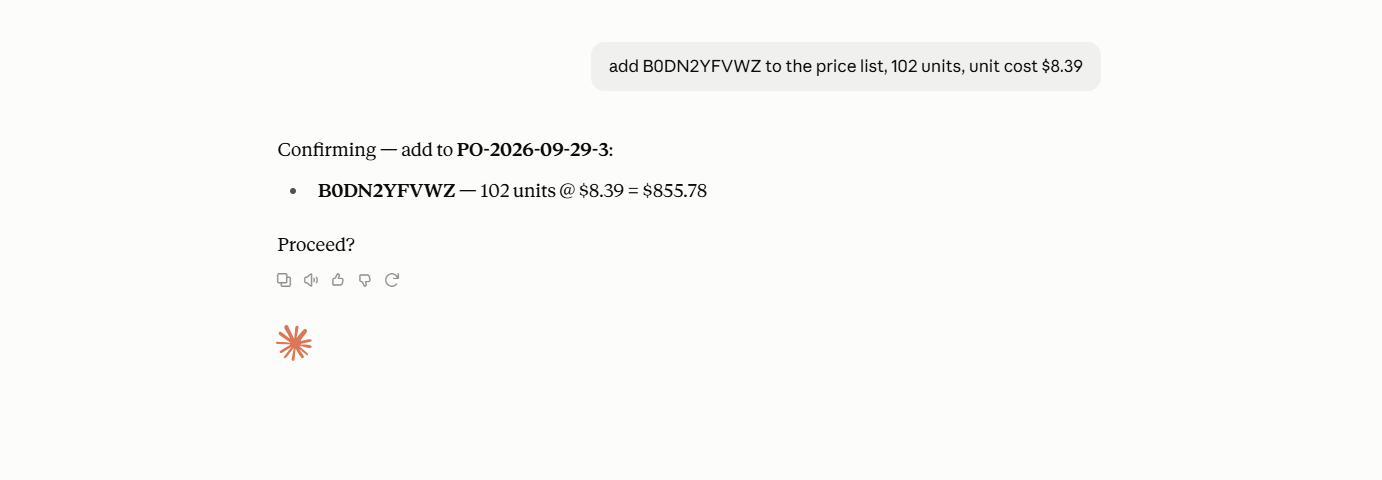
Purchase Orders Module continues to provide the underlying purchasing structure and stores the actual order. MCP gives the AI assistant access to supported Seller Assistant data and operations, while the seller provides the instructions and confirms supported write actions before they are applied.
Practical Ways to Update Purchase Orders with AI
AI is most useful for purchase order maintenance when each request maps to a specific purchasing action. Instead of searching through purchase order history, opening the right order, and editing each product line manually, sellers can use supported MCP operations to find existing POs, review their data, make supported changes, and check the updated order through conversation.
The seller still decides what needs to change and why. AI reduces the repetitive operational work involved in finding the right order, locating the relevant product, applying supported updates, and reviewing the result in Seller Assistant.
| Purchase Order Task | How AI Helps | Prompt Example |
|---|---|---|
| Find an existing purchase order | Retrieve the relevant PO using available order information instead of searching through the purchase order history manually. | ”Find the purchase order I made for [supplier] last week.” |
| Update a product’s unit cost | Change supported cost information when supplier pricing has been updated. | ”Update the unit cost for [product] to $X.” |
| Change product quantities | Adjust the number of units in an existing order through a follow-up request. | ”Change the quantity for [product] to 50 units.” |
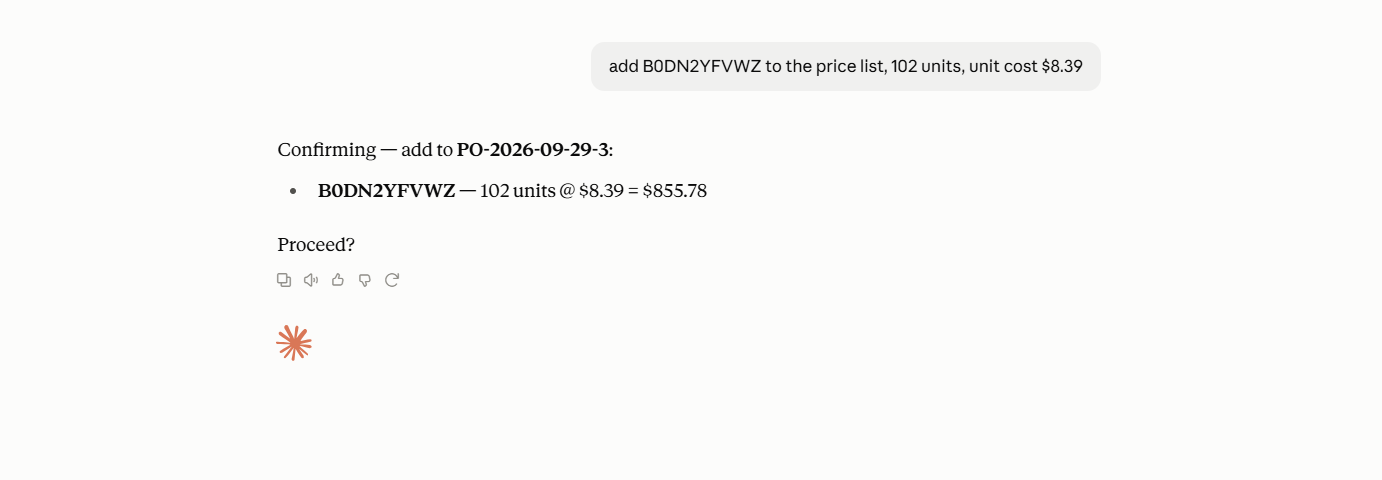
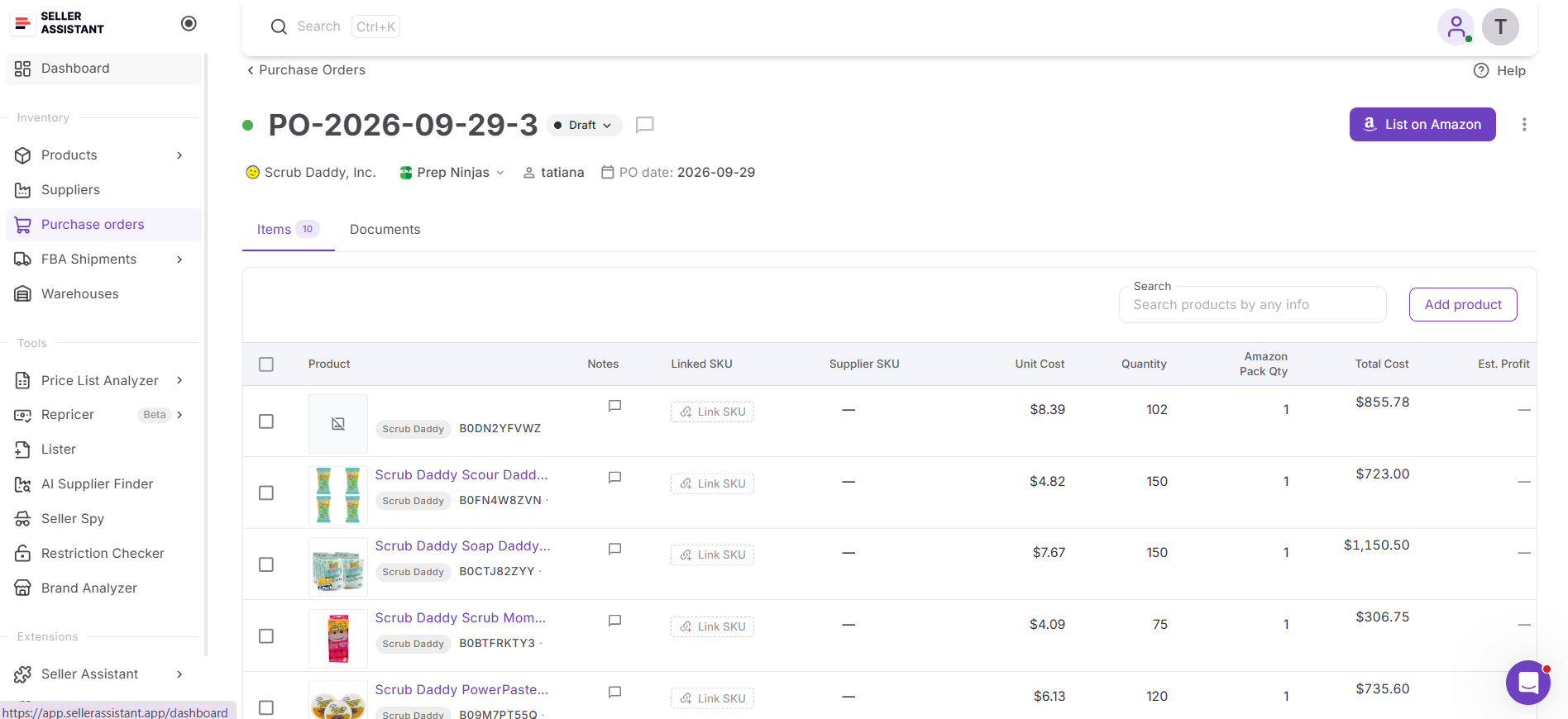
| Add a product to an existing PO | Add another product to the order using a supported product identifier without manually navigating to the product entry fields. | ”Add ASIN [ASIN] to this purchase order with a quantity of 50.” |
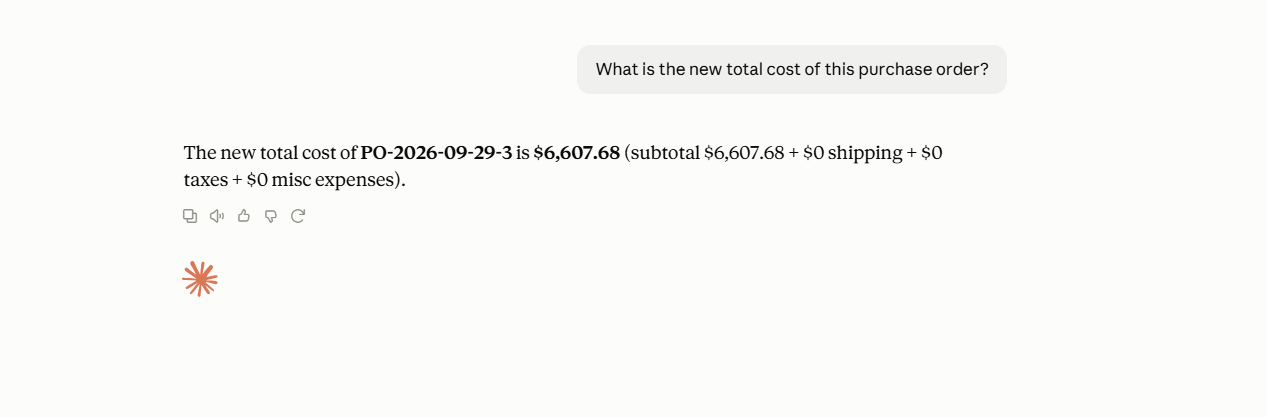
| Review the updated order | Retrieve the order after changes to check the current data and resulting totals. | ”What is the new total cost of this purchase order?” |
Find the purchase order that needs an update
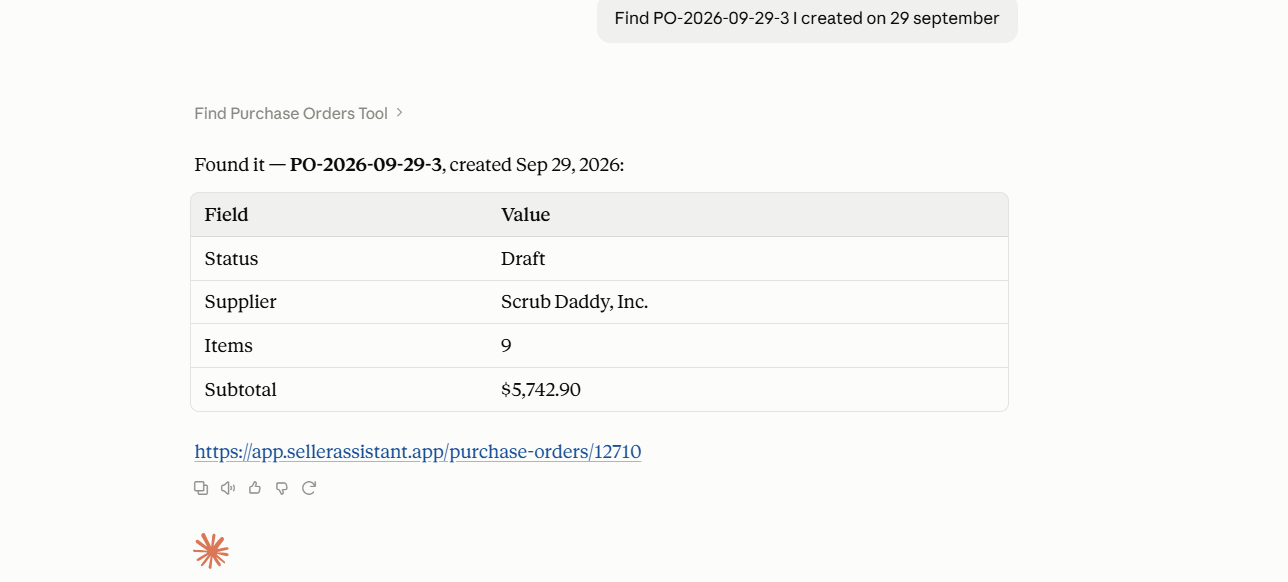
When you know an order needs attention, start by asking AI to locate the relevant purchase order. Instead of browsing through the purchase order history manually, you can describe the supplier, timing, or other available order information in the request.
Prompt example
“Find the purchase order I made for [supplier] last week.”
Why it matters
Finding the correct PO is often the first manual step in a maintenance task. Using AI to retrieve the relevant order reduces the time spent searching before you can make the actual update.
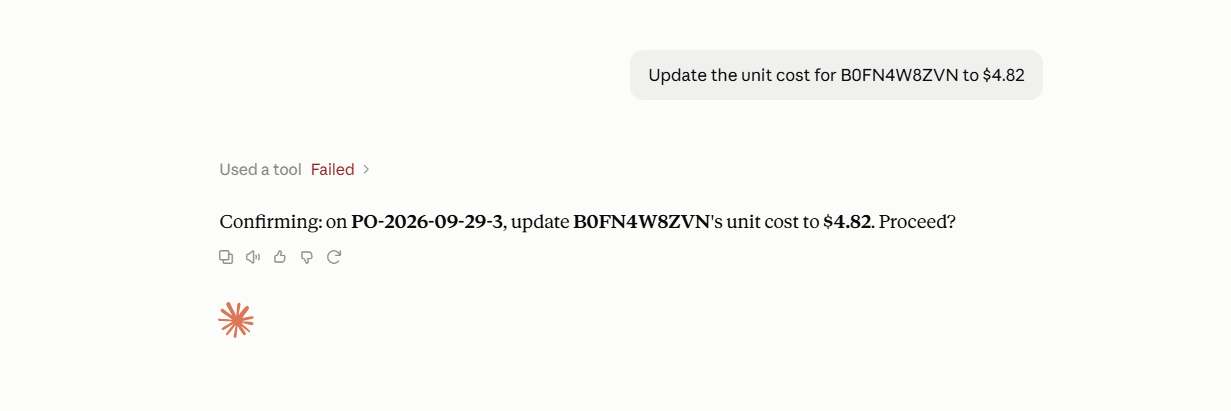
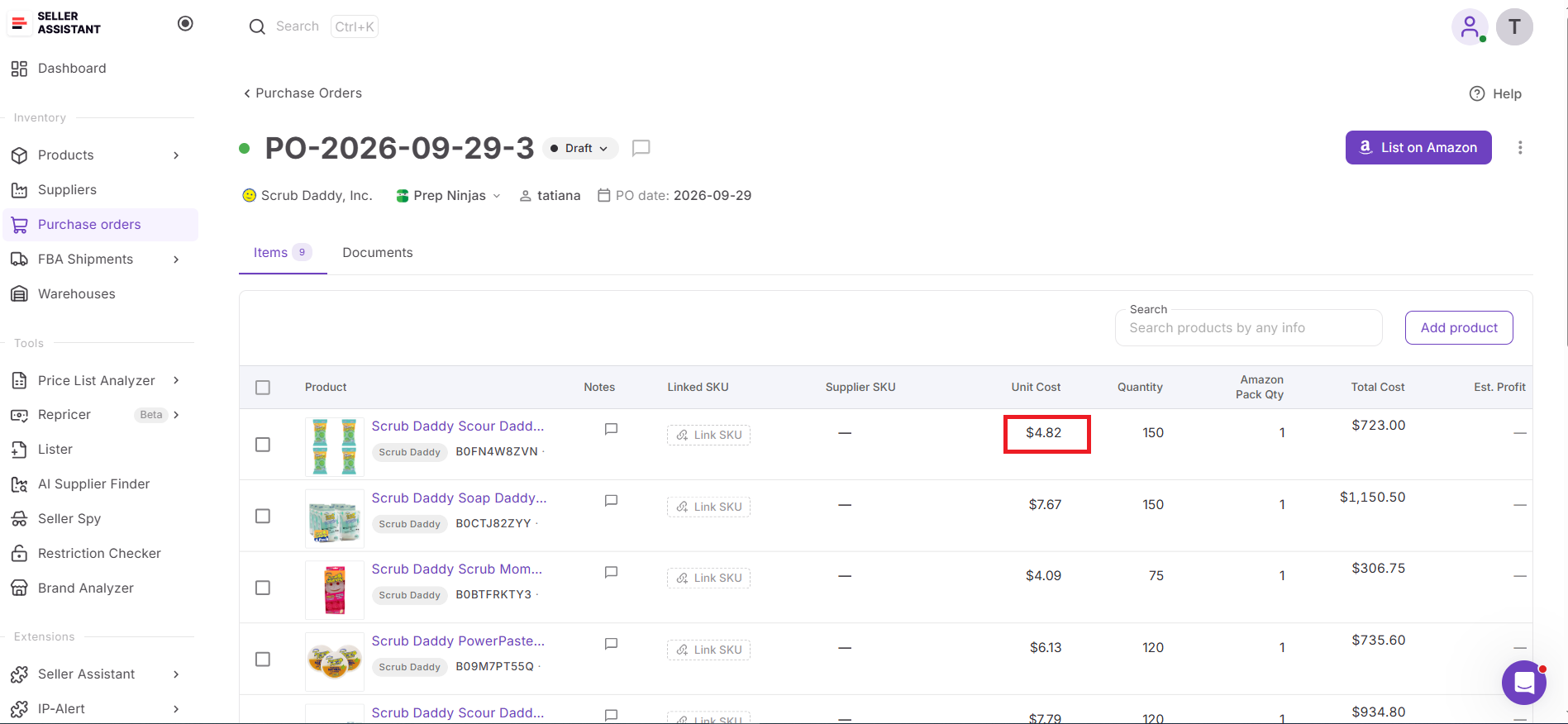
Change a product’s unit cost
Supplier pricing can change after a purchase order has been created, leaving the stored unit cost out of date. When the relevant update is supported, tell the AI assistant which product and cost should be changed.
Prompt example
“Update the unit cost for [product] to $X.”
Why it matters
A cost correction can affect the overall economics of the purchase order. Updating the value in the actual PO keeps the purchasing data aligned with the latest information instead of leaving the old cost in place.
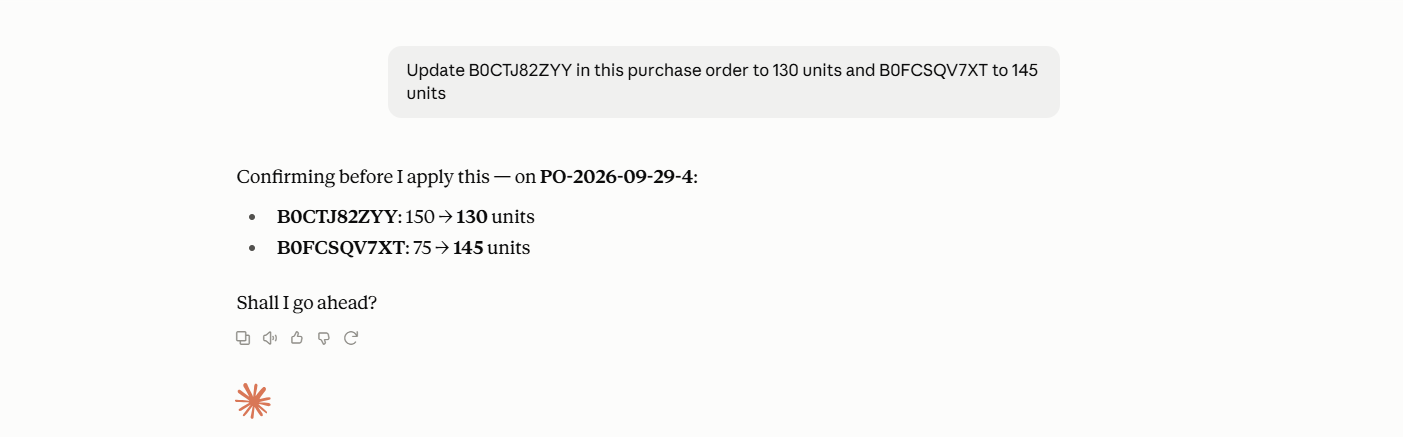
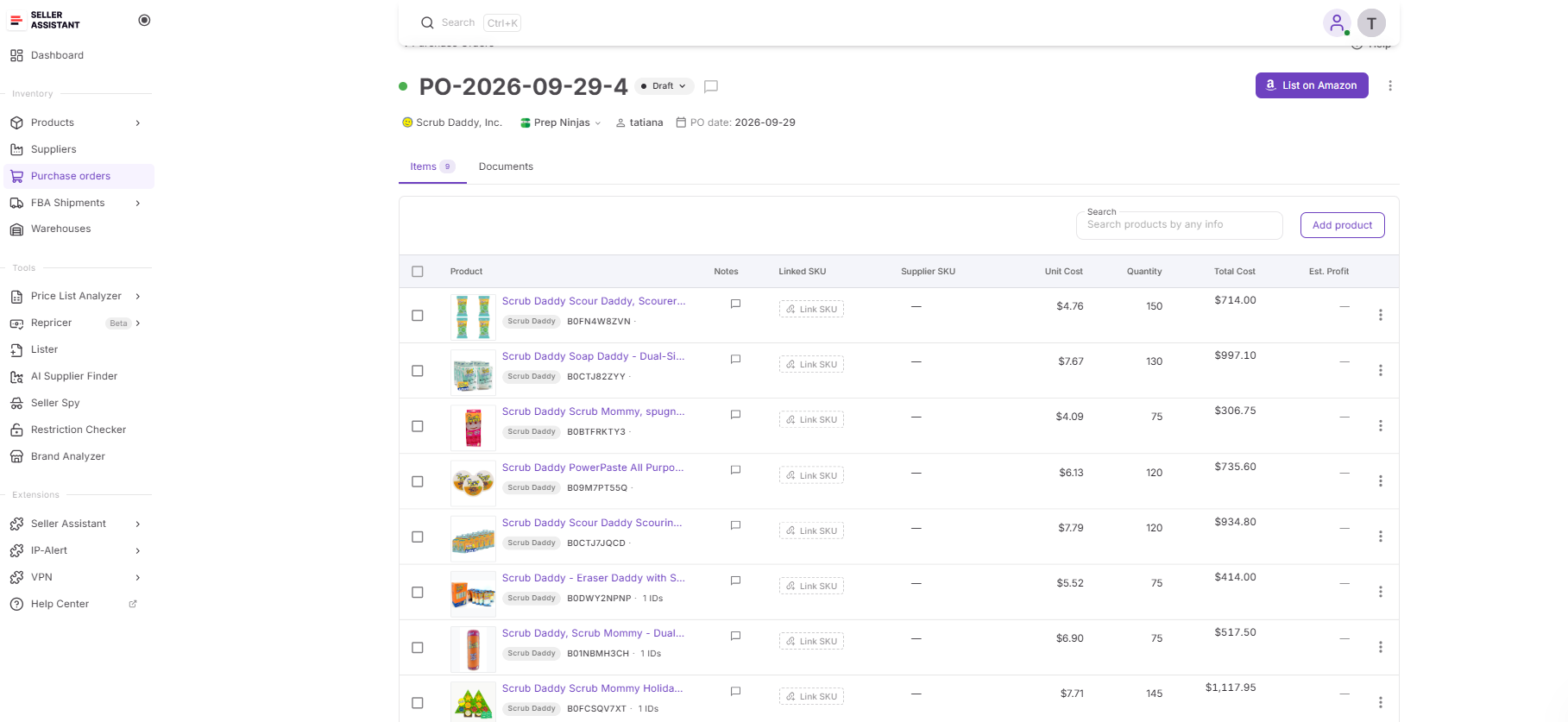
Change product quantities
The quantity you plan to purchase can change because of supplier availability, inventory needs, or a revised purchasing decision. Rather than opening the order and locating the product line manually, you can provide the new quantity through the conversation.
Prompt example
“Change the quantity for [product] to 50 units.”
Why it matters
Quantity changes are a common part of PO maintenance, especially when an order contains multiple products. A conversational request makes these small adjustments easier to handle without repeating the same navigation steps.
Add a product to an existing PO
Sometimes an existing purchase order needs one more product before the order is finalized. When the relevant operation is supported, you can specify the product and quantity directly in the conversation.
Prompt example
“Add ASIN [ASIN] to this purchase order with a quantity of 50.”
Why it matters
Adding another product does not always require rebuilding the order or starting a separate purchasing workflow. Working with the existing PO lets you extend the order while keeping the purchasing information together.
Review the updated order
After making a supported change, ask AI to retrieve the updated order information and check the result. This gives you a way to verify that the intended data is reflected in the purchase order and review the new totals.
Prompt example
“What is the new total cost of this purchase order?”
Why it matters
An update is only useful when you can confirm the resulting order data. Reviewing the updated PO helps catch mistakes and shows how changes to products, quantities, or costs affected the order.
How to Keep a Purchase Order Updated with AI Step by Step
Step 1. Connect Seller Assistant MCP to your AI assistant
Connect Seller Assistant MCP Server to a supported AI assistant such as ChatGPT or Claude and authorize access to your Seller Assistant account. This gives the assistant access to supported purchase order data and operations through natural-language requests.
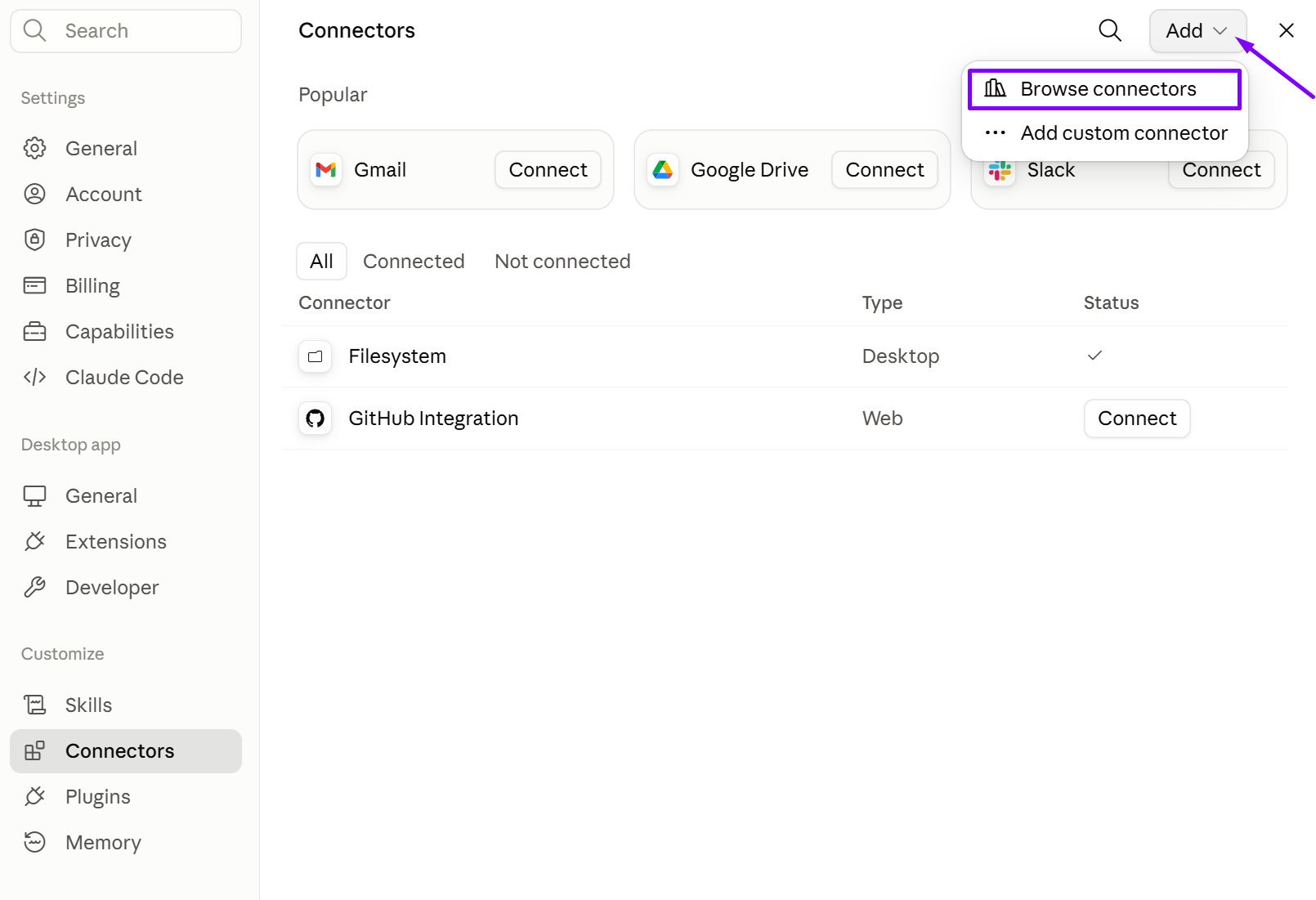
Without the MCP connection, AI can explain how to update a purchase order, but it cannot work with the actual PO in your Seller Assistant account.
Step 2. Tell AI which purchase order you need to update
Start by describing the purchase order you want to work on, using details such as the supplier, date, or other available order information. AI can use that context to find the relevant PO instead of requiring you to search through the purchase order history manually.
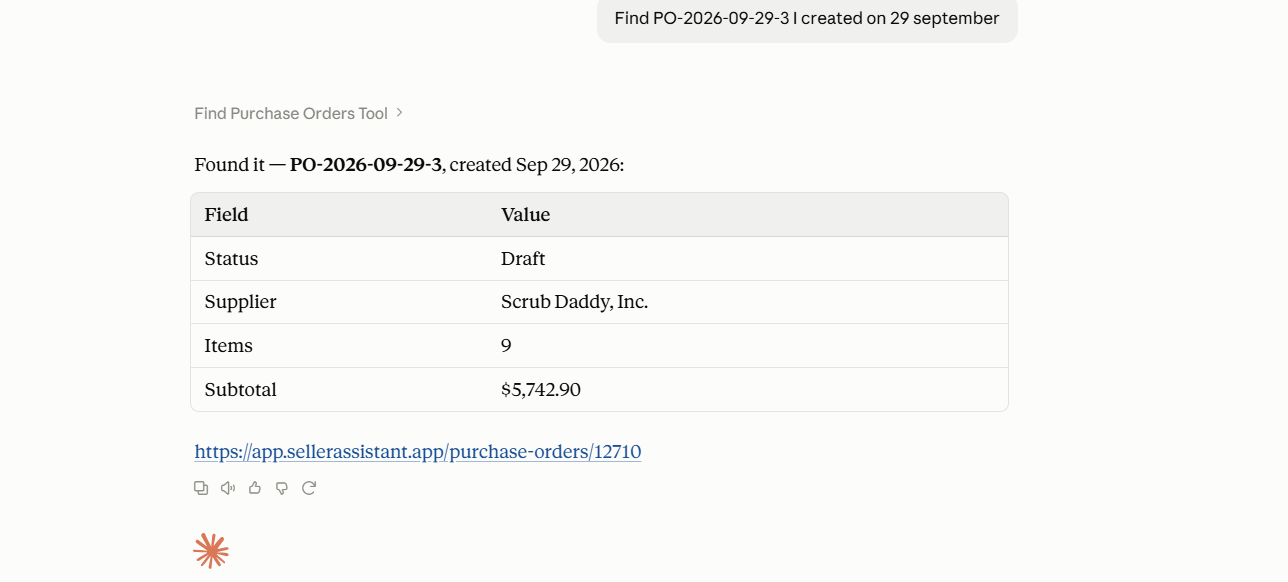
This gives the assistant a starting point for working with the actual order rather than discussing a hypothetical purchase order.
Step 3. Change the unit cost for a product
When supplier pricing changes, tell AI which product needs a new unit cost and provide the updated value. The assistant can use the relevant purchase order data to work with the product that needs the change.
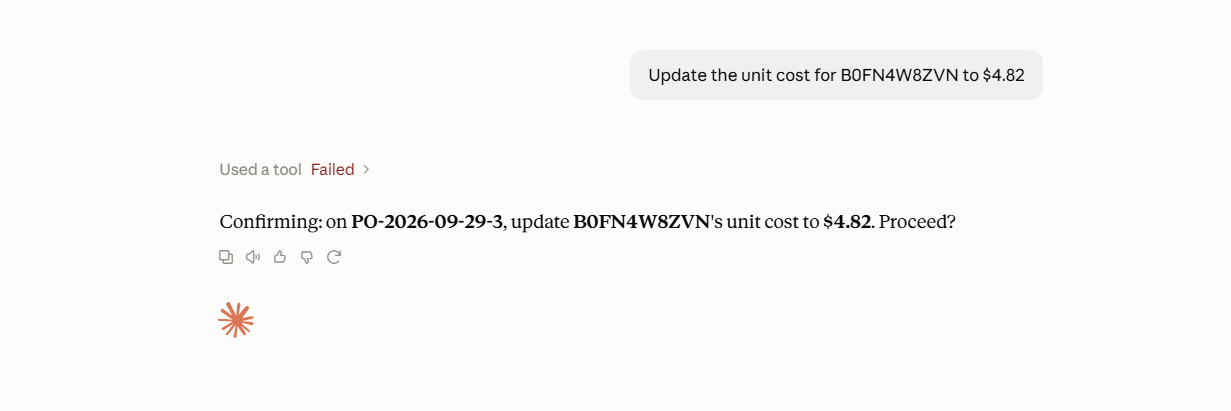
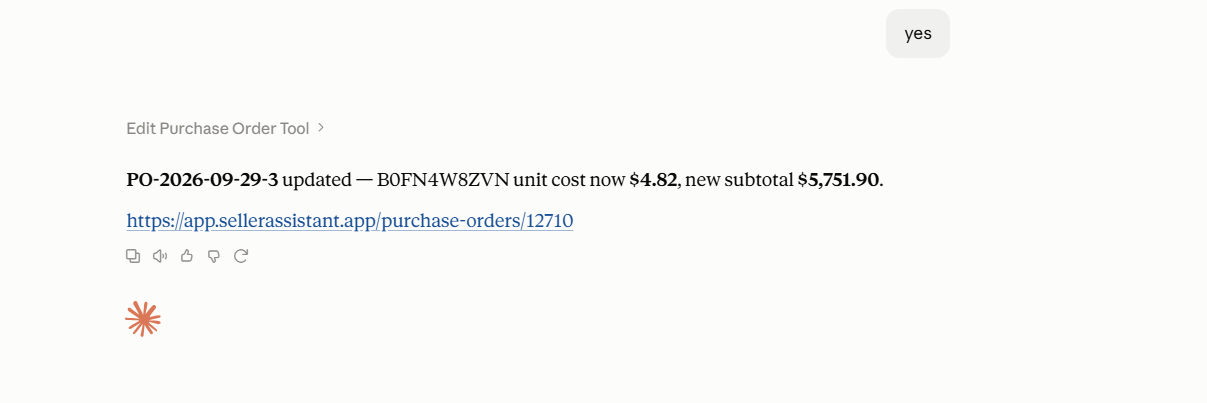
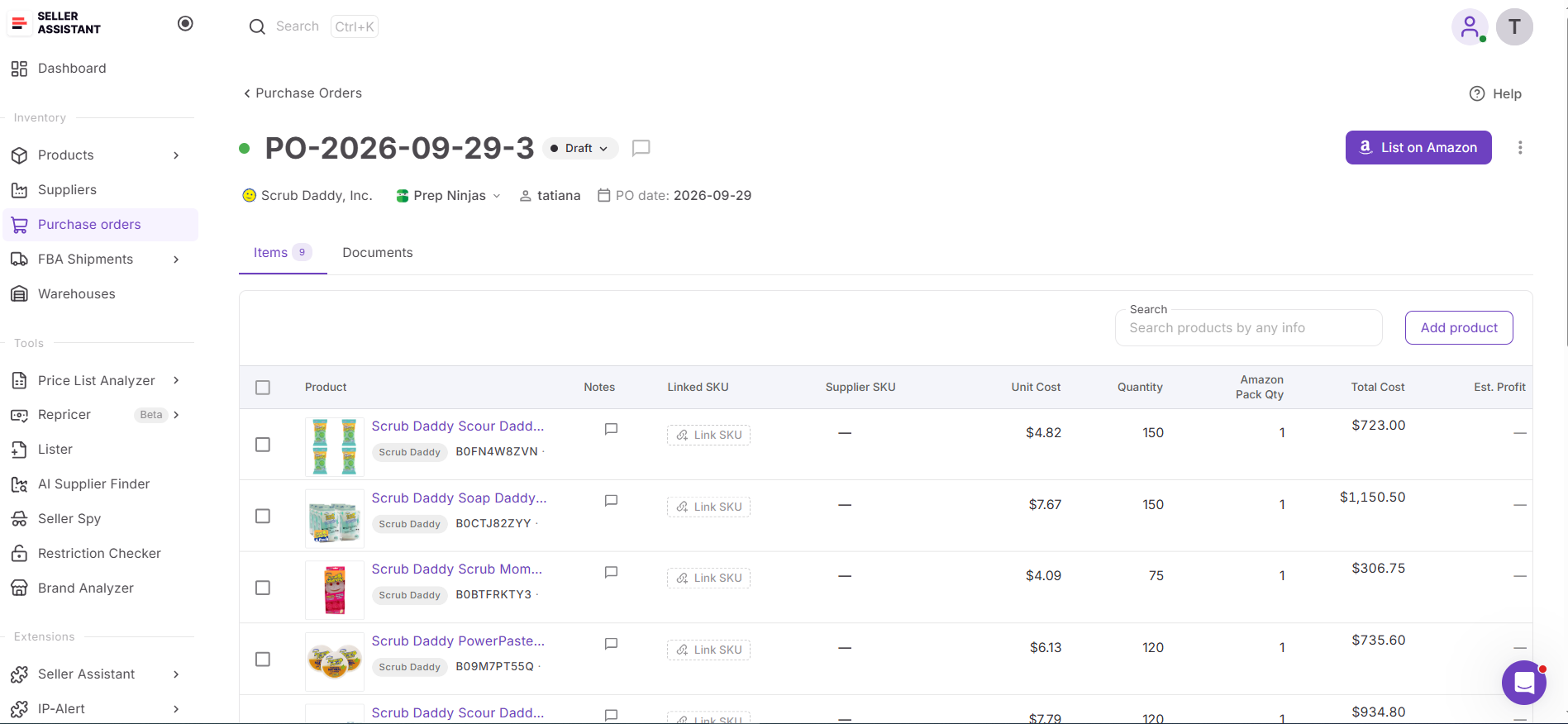
Keeping the unit cost current helps ensure the purchase order reflects the latest supplier pricing and related order calculations.
Step 4. Adjust SKU quantities
Tell AI when the number of units for a product needs to change because of updated inventory, supplier availability, or a revised purchasing plan. The new quantity can be provided directly in the conversation instead of locating and editing the product line manually.
“Change the quantity for [product] to 50 units.”
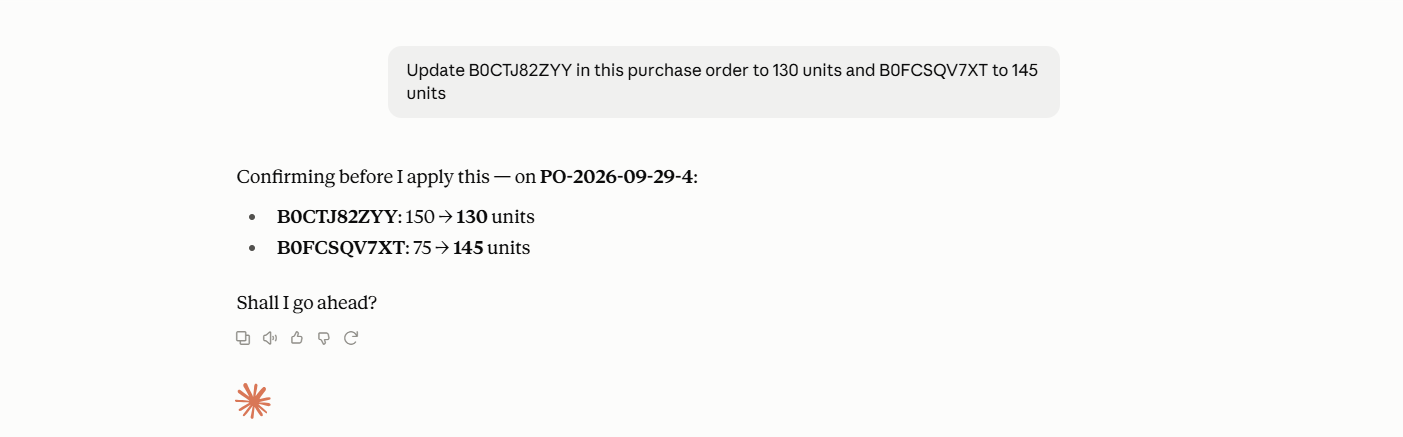
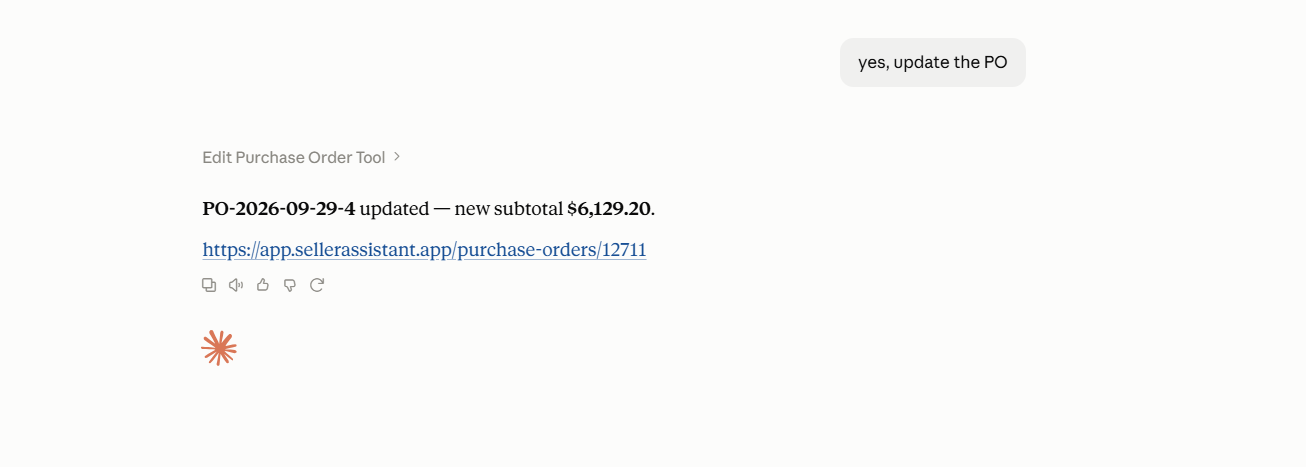
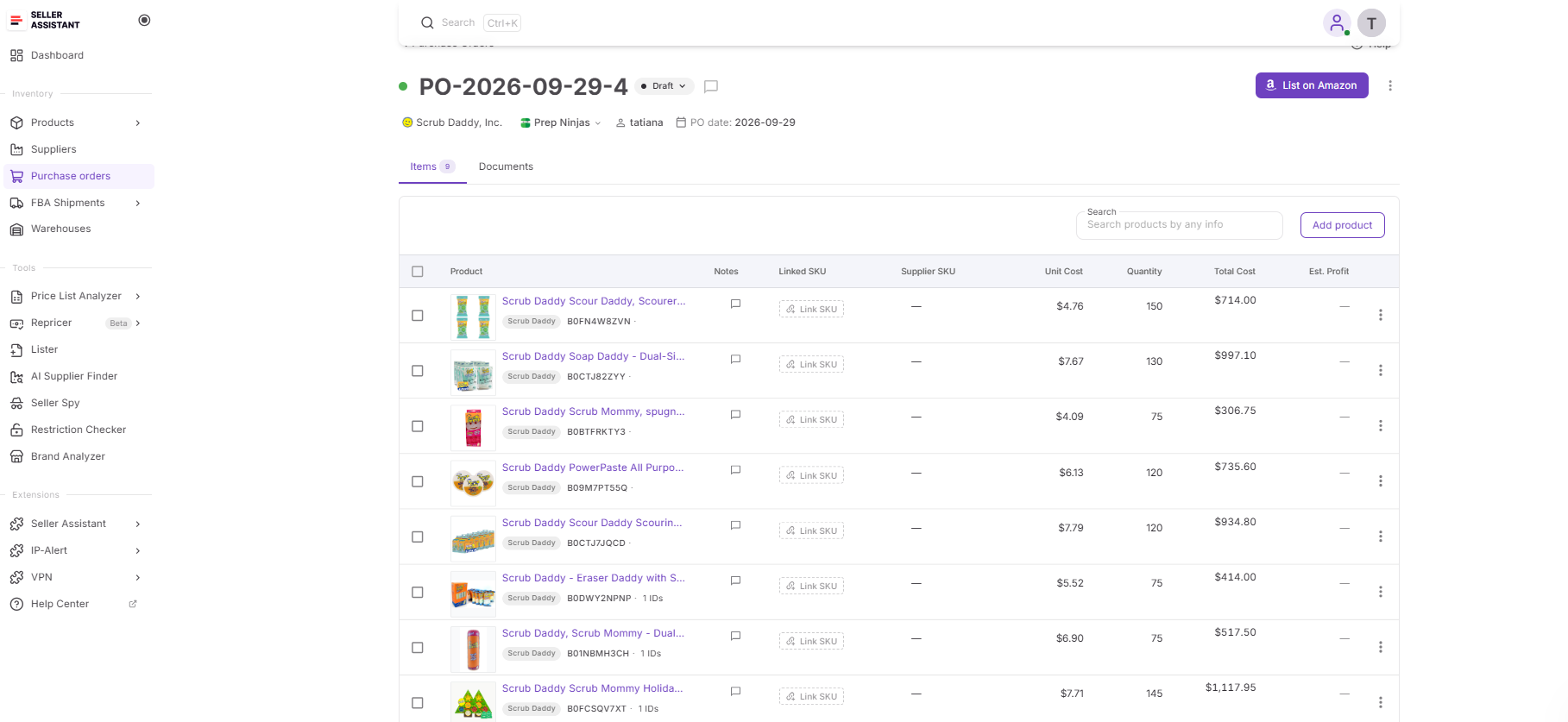
This makes routine quantity changes easier to handle, especially when several products in the same PO need adjustments.
Step 5. Add another product to the PO
When you decide to include another product in an order that is already being prepared, ask AI to add it to the existing purchase order using a supported product identifier. You can also provide the quantity as part of the same request.
“Add ASIN [ASIN] to this purchase order with a quantity of 50.”
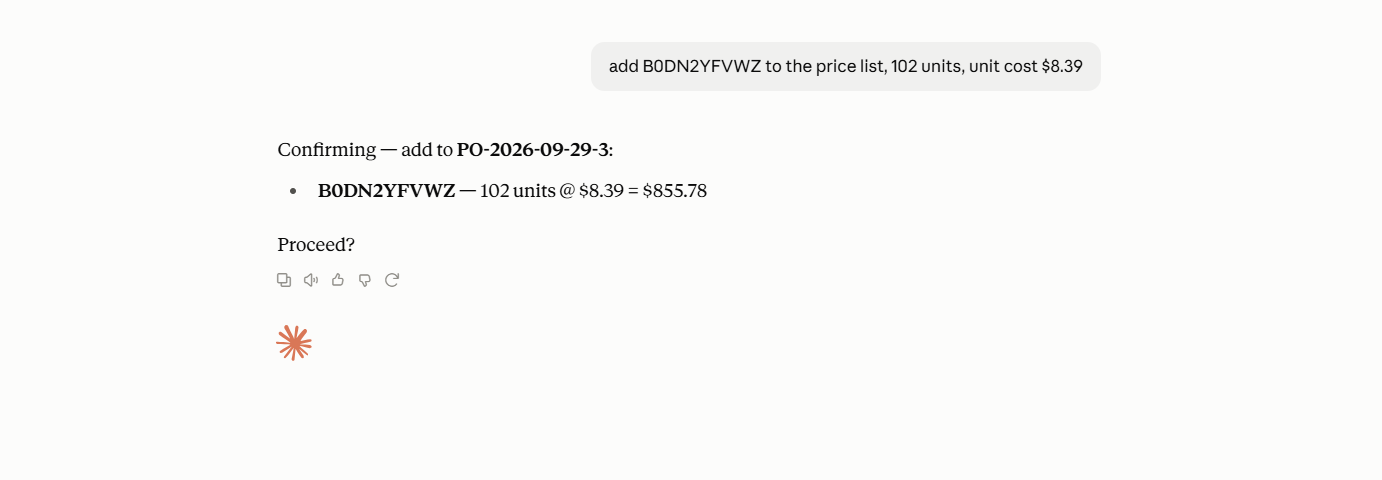
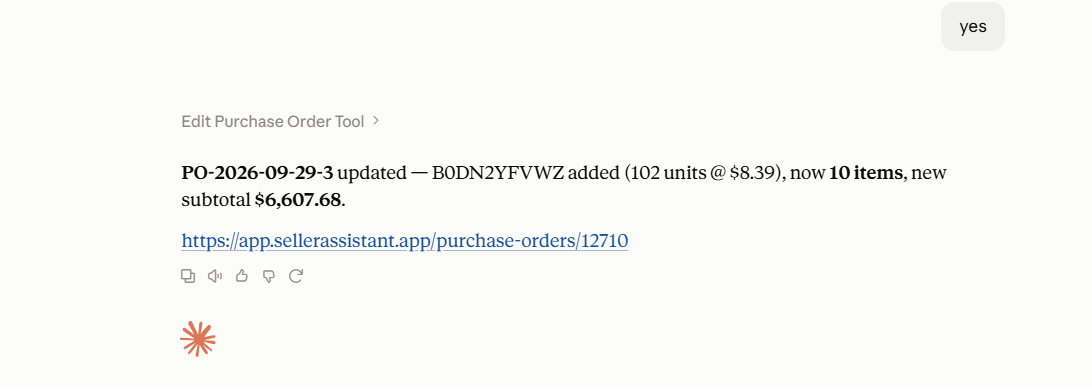
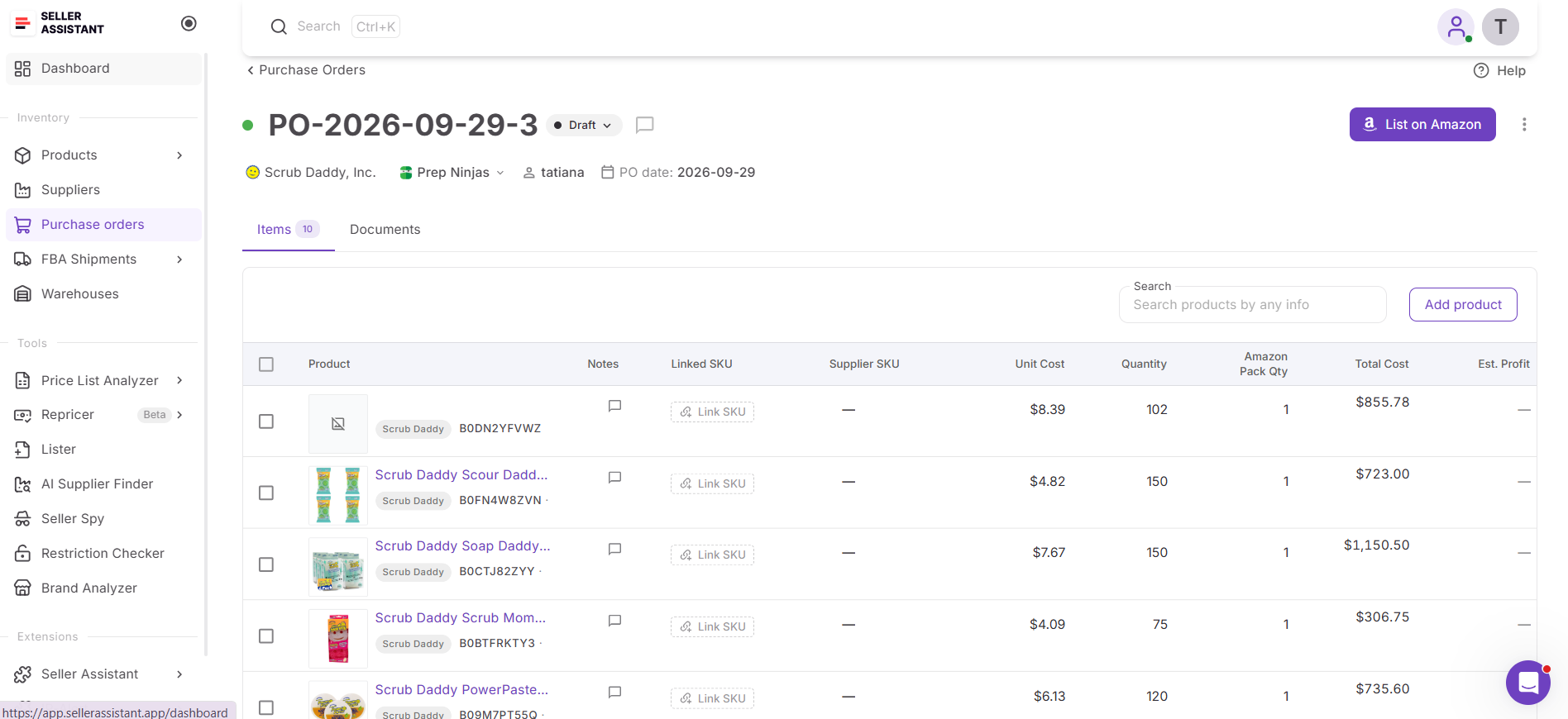
Adding the product to the existing PO keeps the purchasing workflow together instead of requiring you to rebuild the order or start a separate one.
Step 6. Check the updated purchase order
After making a supported change, ask AI to retrieve the purchase order and check the updated information. Review the changed products, quantities, costs, and resulting order totals to make sure the PO now reflects your intended purchasing plan.
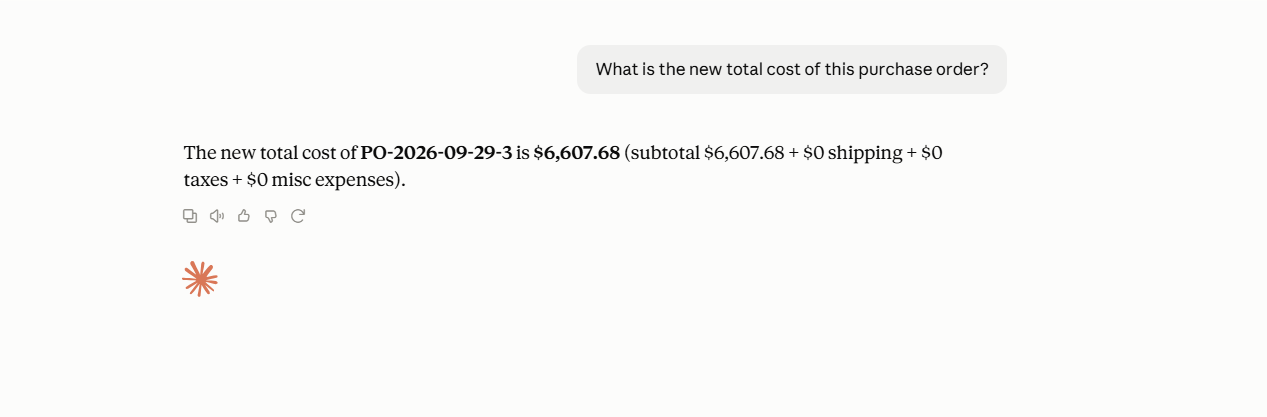
This final check helps confirm that the requested updates were applied correctly and lets you see how the changes affected the order.
FAQ
Can AI update a purchase order after it has already been created?
Yes, supported Seller Assistant MCP operations can be used to make changes to an existing purchase order rather than creating a new one from scratch. The exact actions available depend on the purchase order operations supported by MCP.
How do I update a purchase order when supplier costs change?
When a supplier changes pricing, you can provide the new cost for the relevant product and ask AI to update the supported purchasing data in the existing PO. After the change, review the order to make sure the updated cost is reflected where expected.
Can I manage a purchase order without opening the dashboard?
You can handle supported PO operations through an AI assistant connected to Seller Assistant MCP, so you do not need to navigate to the relevant order for every supported update. Some Purchase Orders Module workflows, such as working with documents or exporting a PO, still require the Seller Assistant dashboard.
Does Seller Assistant recalculate the PO after I change a cost or quantity?
Purchase Orders Module keeps order calculations connected to the purchasing data, so changes to relevant order information can affect the resulting totals and profitability figures. The seller should still review the updated order after making changes to confirm that the results match the intended purchase.
Can AI change a completed or canceled purchase order?
Purchase order status rules still apply when working through MCP, and completed or canceled orders are locked in the Purchase Orders Module. In those cases, the status of the order determines whether further changes can be made through the supported workflow.
Final Thoughts
A purchase order does not stop changing once it has been created. Supplier costs, quantities, and product selections can shift throughout the purchasing process, so keeping each PO accurate is an ongoing part of Amazon wholesale operations.
Seller Assistant’s Purchase Orders Module keeps the actual order data and calculations connected, while Seller Assistant MCP lets sellers work with supported purchase order operations through an AI conversation. Instead of turning every small change into a manual search-and-edit task, sellers can find the relevant PO, make supported updates, confirm them, and recheck the result in a simple conversational workflow.
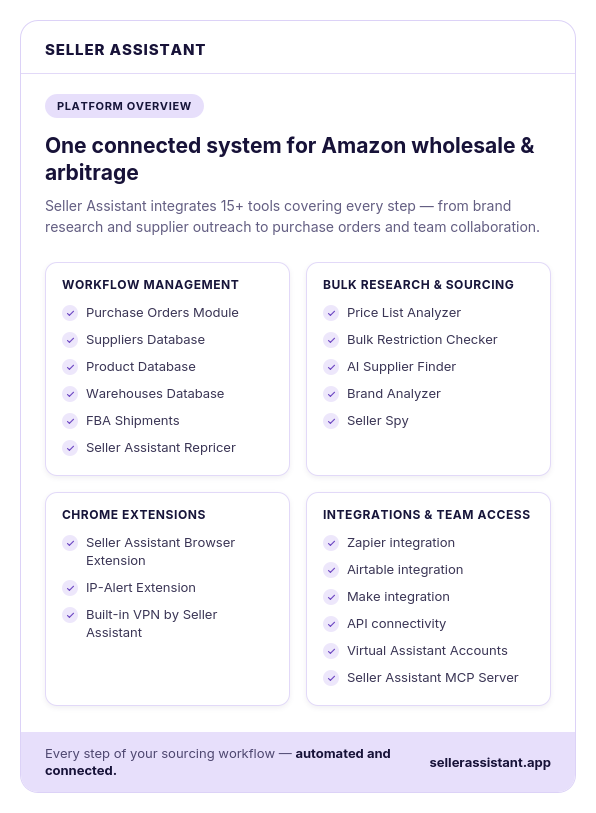
Seller Assistant automates and connects every stage of your Amazon wholesale and arbitrage workflow. It brings together in one platform: workflow management tools – Purchase Orders Module, Suppliers Database, Product Database, Warehouses Database, FBA Shipments, bulk research & sourcing tools – Price List Analyzer, Bulk Restriction Checker, AI Supplier Finder, Brand Analyzer, Seller Spy, Amazon repricing tool – Seller Assistant Repricer, Chrome extensions – Seller Assistant Browser Extension, IP-Alert Extension, and built-in VPN by Seller Assistant, and integrations & team access features – Seller Assistant MCP Server, seamless API connectivity, integrations with Zapier, Airtable, and Make, and Virtual Assistant Accounts.