


A profitable lead doesn’t turn itself into an order – someone still has to open the analyzed list, select the right products, find and manage the supplier, and build the purchase order by hand, checking costs and quantities along the way.
Seller Assistant already connects Price List Analyzer to the Purchase Orders Module in the dashboard; its MCP Server lets an AI assistant carry a lead through that same path from chat – “analyze this list,” “show me the profitable leads,” “create a purchase order from these” – across one conversation instead of three separate screens.
Why Finding Profitable Leads Is Only the Beginning
Finding products with attractive profit and ROI solves an important part of Amazon sourcing, but it does not create a supplier order. Once the analysis is finished, sellers still need to decide which products actually belong in the purchase, determine quantities, confirm costs, connect the right supplier and destination, and review the order before committing capital.
This gap becomes more noticeable with large supplier catalogs. A shortlist may contain dozens of promising products, but each one still has to move from a sourcing candidate into a structured purchase order. As order size grows, small decisions around quantities, costs, and product selection can also change the economics of the complete PO – even when the individual leads initially looked profitable.
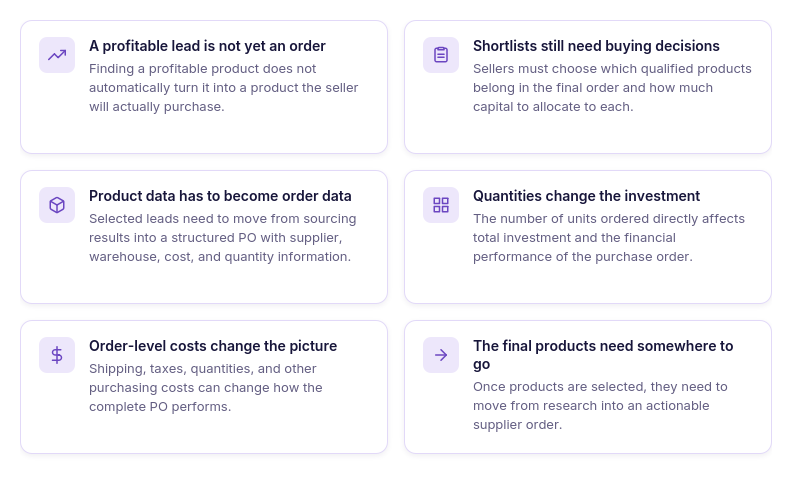
A profitable lead is not yet an order
Profit, ROI, and other sourcing metrics can identify products worth considering, but they do not determine what will actually be purchased. Sellers still need to turn individual opportunities into a final selection of SKUs for a specific supplier order.
Shortlists still need buying decisions
Several products may meet the initial sourcing criteria without all of them belonging in the final PO. Sellers have to decide which products justify the investment and how much inventory they want to purchase.
Product data has to become order data
Once products are selected, sourcing information needs to move into a structured purchase order with the relevant supplier, warehouse, SKUs, costs, and quantities. Re-entering this information manually adds another operational step between research and purchasing.
Quantities change the investment
Choosing a product is only part of the purchasing decision – sellers also need to decide how many units to order. Increasing or reducing quantities changes the amount of capital committed and can affect the overall performance of the order.
Order-level costs change the picture
A group of individually profitable products does not automatically produce the expected result at the PO level. Unit costs, shipping, taxes, quantities, and other purchasing expenses affect total investment and expected returns across the complete order.
The final products need somewhere to go
After the seller decides what to buy, those products need to become an actionable supplier order rather than remain a shortlist in the research stage. A structured PO provides the product, quantity, cost, supplier, and delivery information needed to move sourcing into procurement.
Why Asking AI to Build a Purchase Order Is Not Enough
AI can explain how to move from supplier research to purchasing, suggest what information a purchase order should contain, or help define criteria for selecting products. But knowing the workflow is different from actually running it. A general AI chat does not automatically have access to the supplier catalog you analyzed, the products you shortlisted, or the purchasing data stored in your sourcing account.
This creates the same manual gap sellers face without AI: the recommendations may happen in the conversation, but the actual work still happens elsewhere. To connect sourcing with purchasing, the assistant needs access to the real data and supported operations behind the workflow – not just knowledge of how Amazon sourcing works.
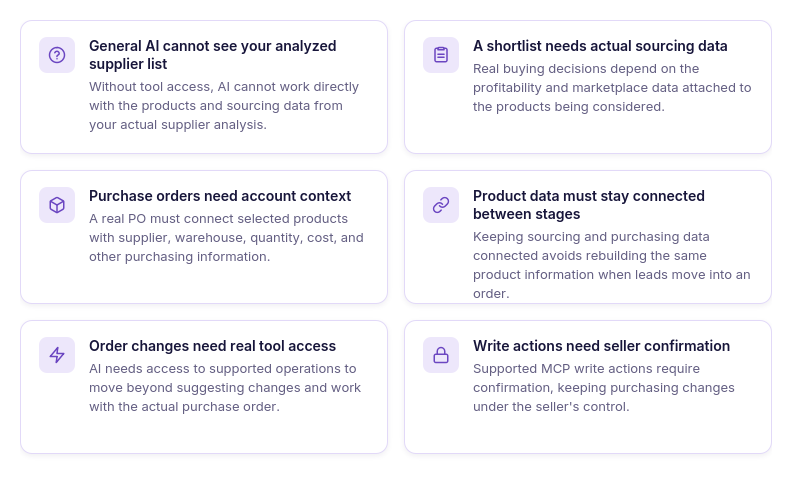
General AI cannot see your analyzed supplier list
Without access to your sourcing tools, AI does not know which products were matched, what profitability was calculated, or which leads came from your actual supplier catalog. Sellers have to provide that information manually before the assistant can work with it.
A shortlist needs actual sourcing data
Deciding which leads should move forward requires the metrics attached to the real products under consideration. Generic advice about ROI, profit, demand, or competition cannot replace the data generated during supplier-list analysis.
Purchase orders need account context
Creating a real PO involves more than listing a few ASINs. The order needs to connect products with purchasing information such as the supplier, warehouse, quantities, unit costs, and other order details.
Product data must stay connected between stages
If sourcing and purchasing are disconnected, sellers may have to transfer information that already exists upstream into the order manually. Keeping product, supplier, and warehouse data connected reduces repeated data entry as products move from analysis into purchasing.
Order changes need real tool access
Explaining that a quantity or cost should be changed is different from updating the actual purchase order. For AI to participate in the operational workflow, it needs supported access to the tools where those actions take place.
Write actions need seller confirmation
AI-assisted purchasing should not mean handing over the final buying decision. When supported MCP write or delete operations are requested, the seller confirms the action before it runs, keeping changes to purchasing data under seller control.
What Seller Assistant Tools Make an AI-Assisted Price-List-to-PO Workflow Possible
Moving from supplier analysis to a real purchase order requires more than AI that understands Amazon sourcing. The assistant needs access to the analyzed products, a way to work with supported sourcing and purchasing operations, and a structured place where selected products become an actual supplier order.
Seller Assistant connects these parts through three tools. Price List Analyzer turns supplier catalogs into structured Amazon sourcing data and helps identify products worth considering. Seller Assistant MCP Server connects supported Seller Assistant data and operations to AI assistants such as ChatGPT and Claude. Purchase Orders Module takes selected products into the purchasing stage, where sellers can manage suppliers, warehouses, quantities, costs, order profitability, and PO status. Together, they connect supplier analysis → AI-assisted selection → purchase order creation and management without rebuilding the workflow between each stage.
Seller Assistant tools that connect the price-list-to-PO workflow
| Tool | Role in the Workflow | What It Does | Workflow Stage |
|---|---|---|---|
| Price List Analyzer | Turns a supplier catalog into sourcing data | Matches supplier products with Amazon listings, calculates profitability, analyzes demand, pricing, competition, restrictions, and other sourcing metrics, and helps narrow the catalog into purchasing candidates. | Analyze → shortlist |
| Seller Assistant MCP Server | Connects the workflow with AI chat | Gives ChatGPT, Claude, and other supported AI assistants access to Seller Assistant data and supported operations, allowing sellers to retrieve leads and continue supported sourcing and purchasing actions through natural-language requests. | Retrieve → act |
| Purchase Orders Module | Turns selected products into a structured supplier order | Creates and manages POs with products, suppliers, warehouses, quantities, costs, profitability data, order statuses, and purchasing history. | Create → review → purchase |
Together, the three tools create a connected flow: supplier price list → analysis → shortlist → AI-assisted actions → purchase order → order review → purchasing.
How Price List Analyzer prepares supplier products for purchasing
Seller Assistant’s Price List Analyzer is designed to process supplier catalogs in bulk for Amazon wholesale, online arbitrage, and dropshipping sellers. Instead of researching potential products individually, sellers can upload an .xlsx or .xls supplier file with product identifiers and COG and analyze hundreds or thousands of catalog items within a single workflow.
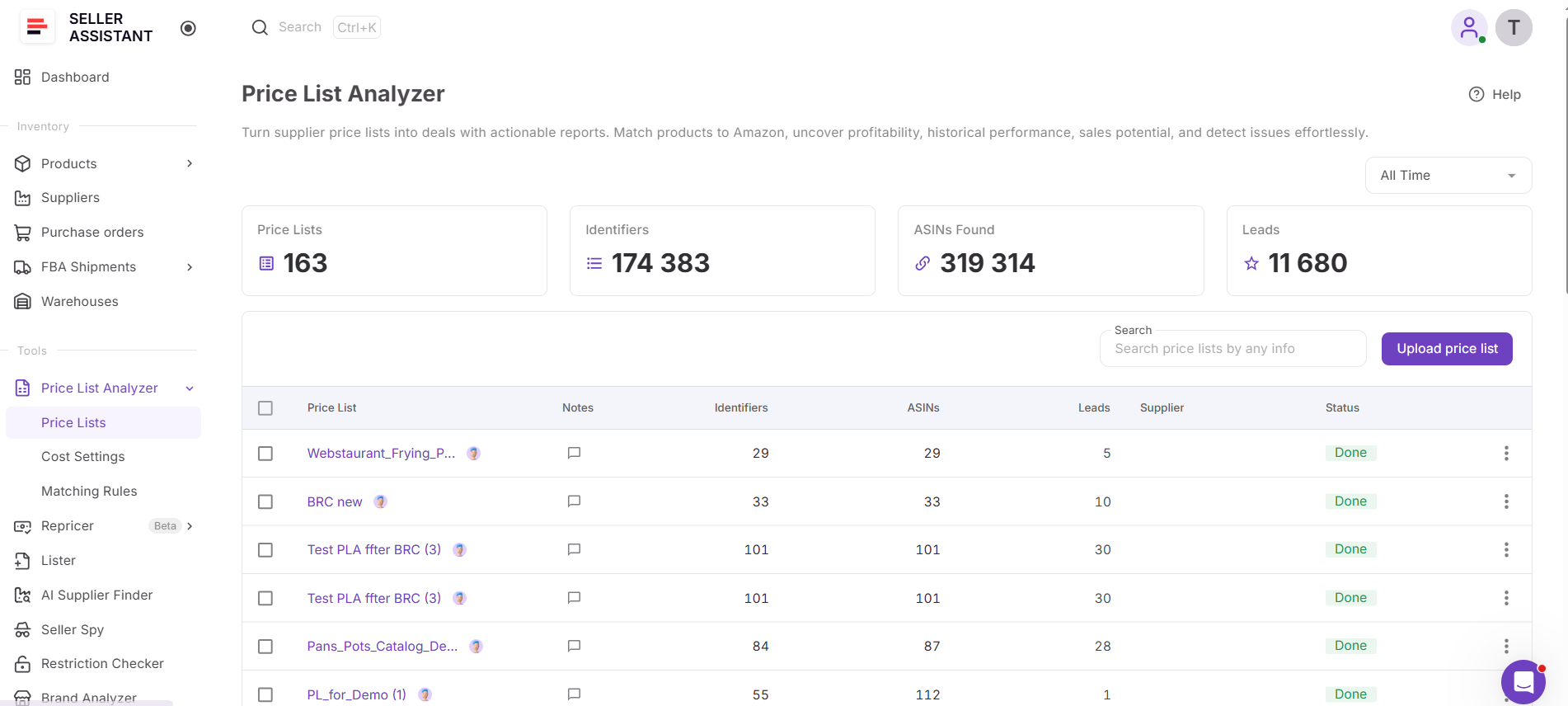
Price List Analyzer connects supplier products with their corresponding Amazon listings and creates a structured sourcing dataset for matched items. It brings profitability, demand, sales history, pricing and Buy Box data, competition, restrictions, warnings, and other product information into one place. This gives sellers the product-level data they need to evaluate a supplier catalog, narrow it into stronger sourcing candidates, and determine which products are worth moving into the purchasing stage.
What Price List Analyzer does
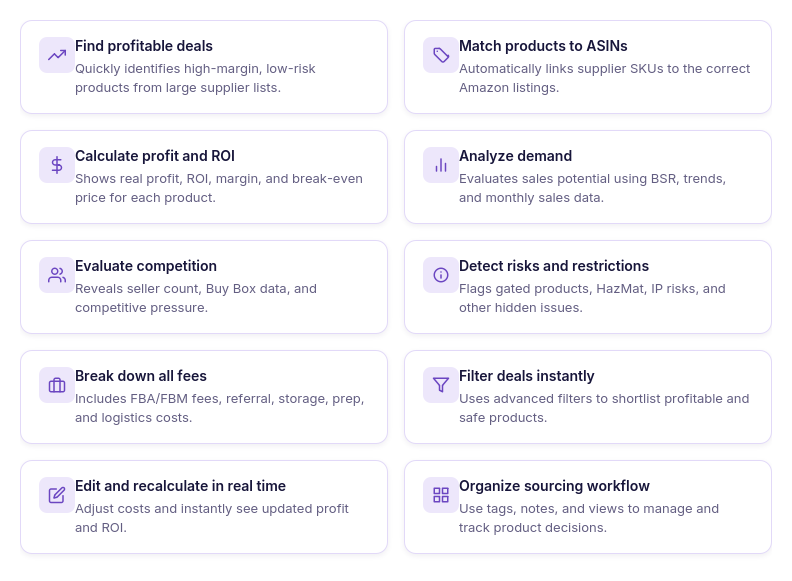
- Analyze supplier catalogs at scale
Process hundreds or thousands of supplier products together instead of researching potential buys one Amazon listing at a time.
- Match supplier products to Amazon
Connect supplier product identifiers with corresponding Amazon ASINs, reducing the manual work of finding the correct listings.
- Calculate FBA and FBM profitability
Review profit, ROI, margin, break-even price, Max COG, seller proceeds, and detailed costs based on Amazon fees and configured sourcing expenses.
- Validate product demand
Evaluate sales potential using sales estimates, Monthly Sold, current and historical BSR, and Sales Rank Drops across different periods.
- Analyze pricing and Buy Box history
Review current Buy Box prices alongside historical averages and price dynamics to understand whether current pricing is consistent with previous performance.
- Evaluate real competition
Check total offers, Buy Box-eligible FBA and FBM offers, top sellers, Buy Box share, and Amazon presence around each ASIN.
- Detect restrictions and sourcing risks
Identify restrictions, warnings, and product flags including HazMat, meltable, fragile, oversize, IP-related risks, missing Buy Box data, and other issues requiring attention.
- Filter products by your sourcing criteria
Narrow analyzed catalogs by profitability, demand, competition, pricing, restrictions, risk, brand, category, tags, and other available metrics, and save views for repeated research workflows.
- Test different cost scenarios
Change COG, shipping and prep costs, package quantity, fees, taxes, and other cost assumptions to recalculate profitability without uploading the supplier file again.
- Organize and review sourcing leads
Use likes and dislikes, tags, notes, and saved views to organize candidates, document sourcing decisions, and coordinate product research across a team.
- Export the leads you need
Export the complete analysis, filtered results, or selected products depending on which sourcing data you need for the next stage.
- Turn analyzed products into purchase orders
Select sourcing candidates and use Add to PO to continue with them in Seller Assistant’s purchase orders workflow without manually rebuilding the product list.
How Price List Analyzer helps narrow a supplier catalog into buying candidates
Analyzing a supplier catalog is not only about calculating profitability for every product. Price List Analyzer combines the different metrics sellers use when evaluating potential inventory, making it possible to reduce a large supplier file progressively rather than treating every matched product as an equal buying opportunity.
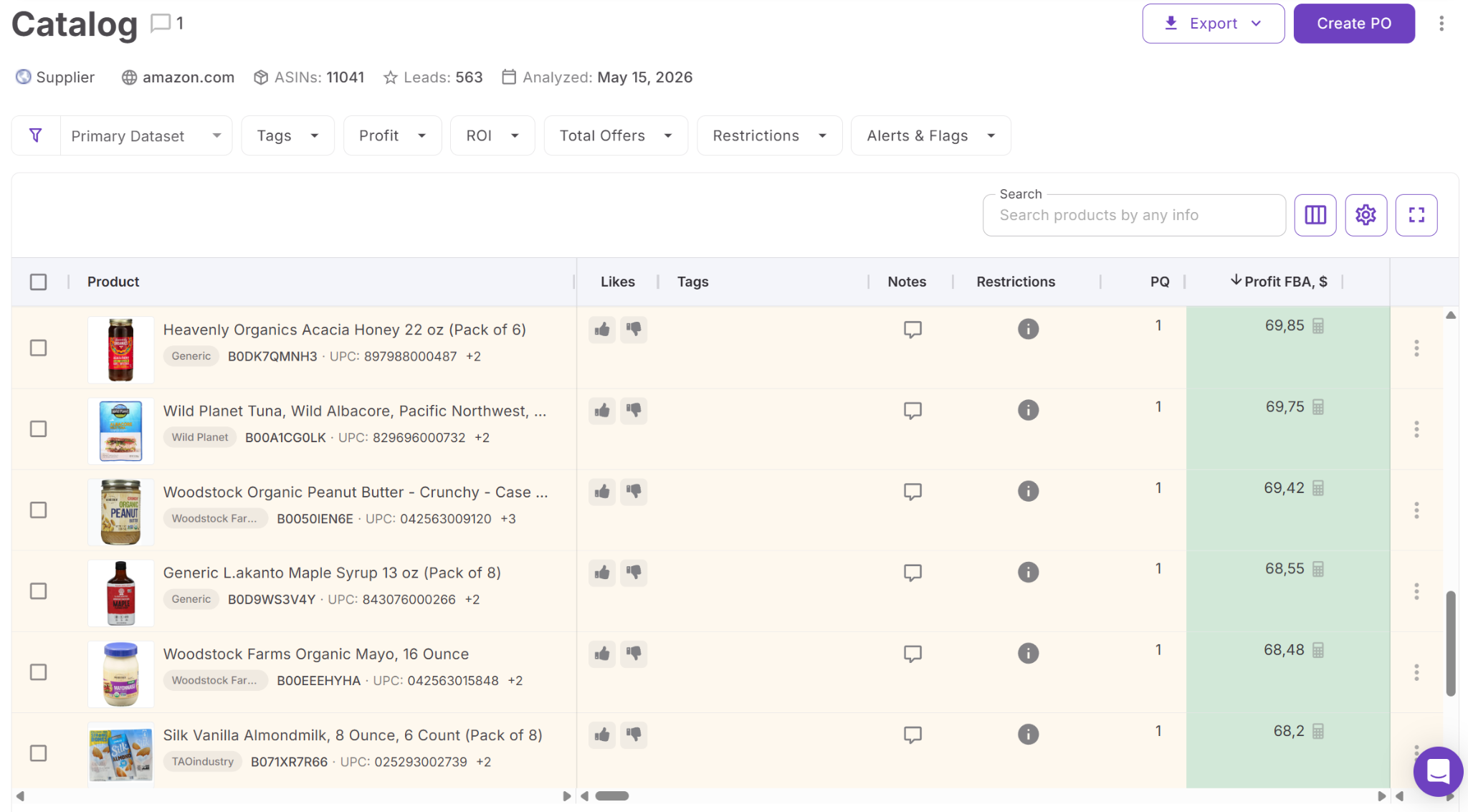
Sellers can start with profitability requirements and then refine the results using demand, competition, pricing history, restrictions, warnings, and other sourcing factors. Products that do not meet the required criteria can be excluded from consideration, while stronger candidates can be organized into a focused shortlist for deeper review.
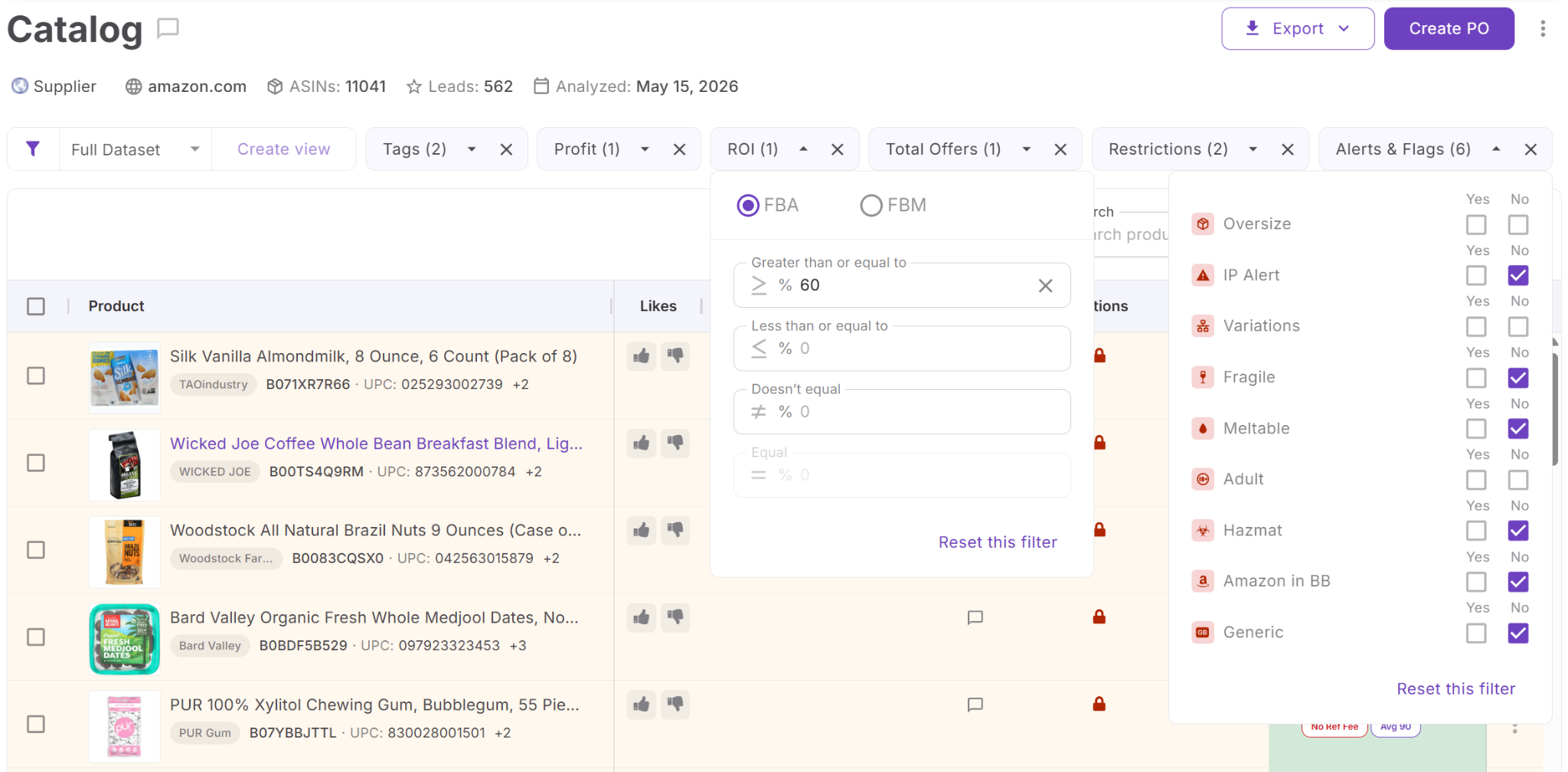
This shortlist connects product research with purchasing. Instead of returning to the original supplier file when it is time to build an order, sellers can work from already analyzed candidates, select the products they want to purchase, and move those products directly into the purchase orders workflow.
How Seller Assistant MCP connects analyzed leads with purchase orders
Seller Assistant MCP Server connects AI assistants with Seller Assistant tools and account data, allowing sellers to work with supported sourcing and purchasing operations through natural-language requests. Instead of analyzing products in one place, discussing them with ChatGPT or Claude in another, and then manually rebuilding the selected products inside a purchase order, MCP helps connect these stages through the same conversation.
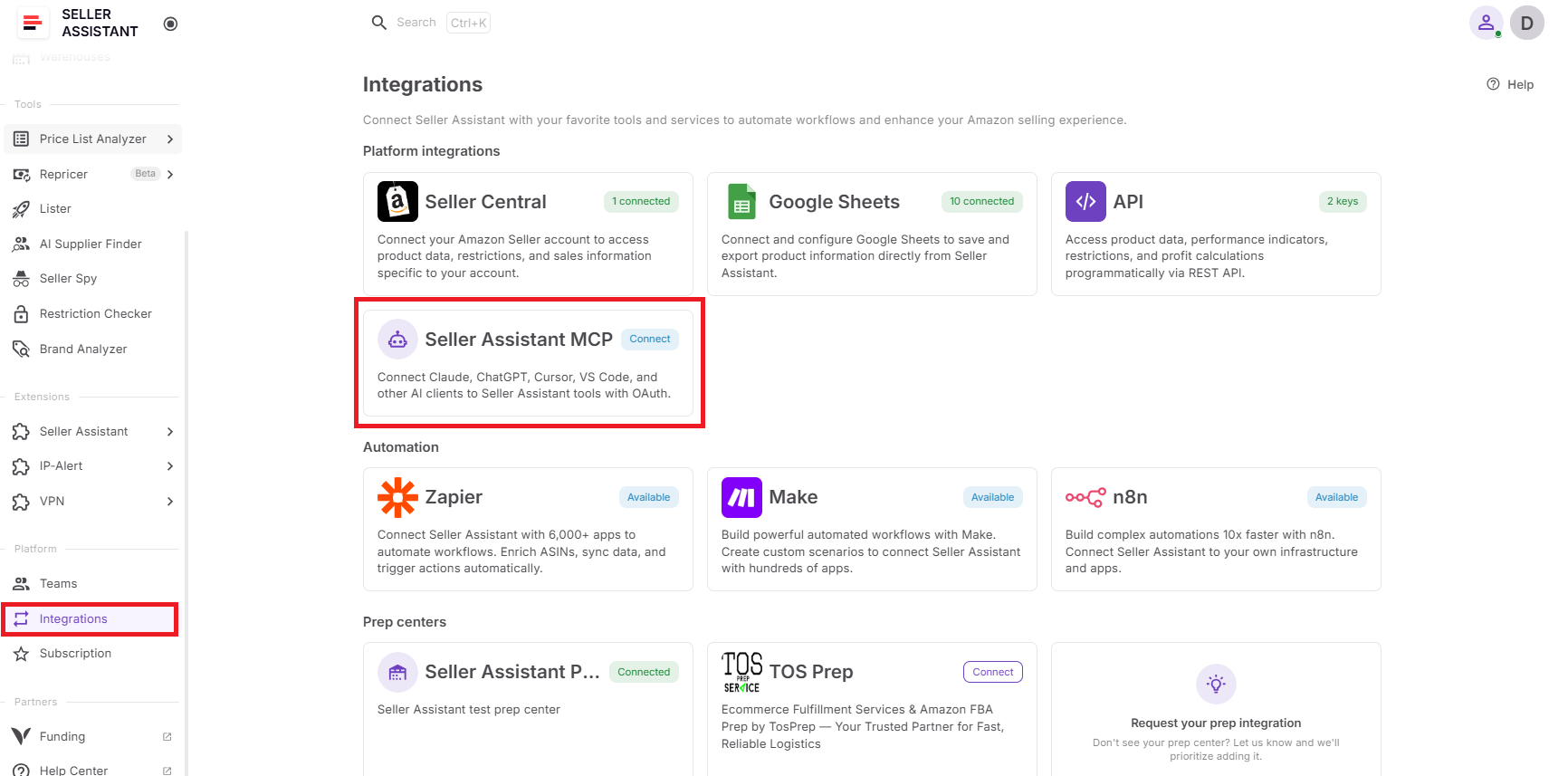
For the price-list-to-PO workflow, MCP acts as the bridge between product analysis and purchasing. The assistant can work with supported Price List Analyzer operations, retrieve actual sourcing leads, help narrow the products under consideration, and continue supported actions into purchase orders. Price List Analyzer still performs the underlying product research, while MCP provides the conversational layer for moving through the workflow.
What you can do with Seller Assistant MCP from price list to purchase order
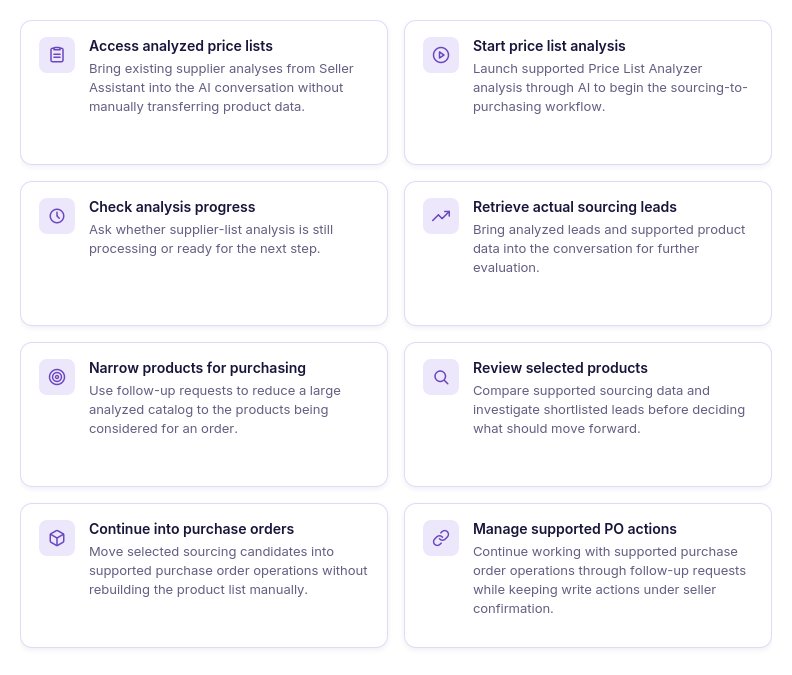
- Access your analyzed price lists
Ask AI to retrieve price lists from your Seller Assistant account and continue working with existing supplier analysis without manually copying the catalog into the conversation.
- Start a new price list analysis
Run a supported Price List Analyzer analysis when you need to process a supplier catalog before moving products toward purchasing.
- Check analysis progress
Ask whether the price list is still being processed or whether results are ready so you know when you can continue to the next stage.
- Retrieve actual sourcing leads
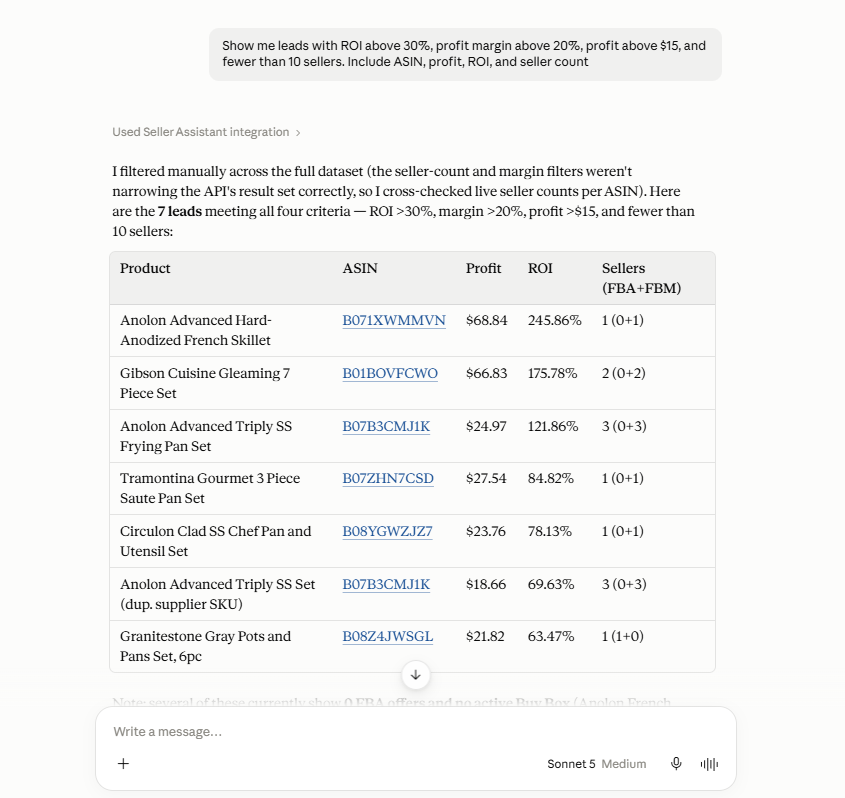
Bring analyzed leads and supported data such as ASIN, profit, ROI, and seller counts into the conversation instead of working from hypothetical products or manually copied rows.
- Narrow products before creating an order
Use follow-up requests to reduce a large set of analyzed leads to the products you want to consider for a specific supplier order.
- Review selected products before purchasing
Compare supported sourcing data for shortlisted products and investigate individual leads before deciding which ones should move into the purchase order workflow.
- Continue selected products into purchase orders
Use supported purchase order operations to move from analyzed sourcing candidates toward an actual supplier order instead of ending the AI workflow with a disconnected shortlist.
- Work with the order through follow-up requests
Continue with supported purchase order operations in the same conversation, refining the purchasing workflow without starting over after the sourcing stage.
How MCP keeps supplier analysis and purchasing connected
MCP makes the AI conversation a working interface between supported stages of the Seller Assistant workflow. Instead of moving through Price List Analyzer → spreadsheet or copied shortlist → AI chat → purchase orders as separate processes, sellers can continue from analyzed supplier data toward purchasing through a sequence of natural-language requests.
Price List Analyzer remains responsible for matching and analyzing supplier products. MCP gives the AI assistant access to supported Seller Assistant data and operations, while Purchase Orders Module provides the structured purchasing environment where selected products become supplier orders. The seller remains responsible for deciding what to buy and confirming supported write actions before they are executed.
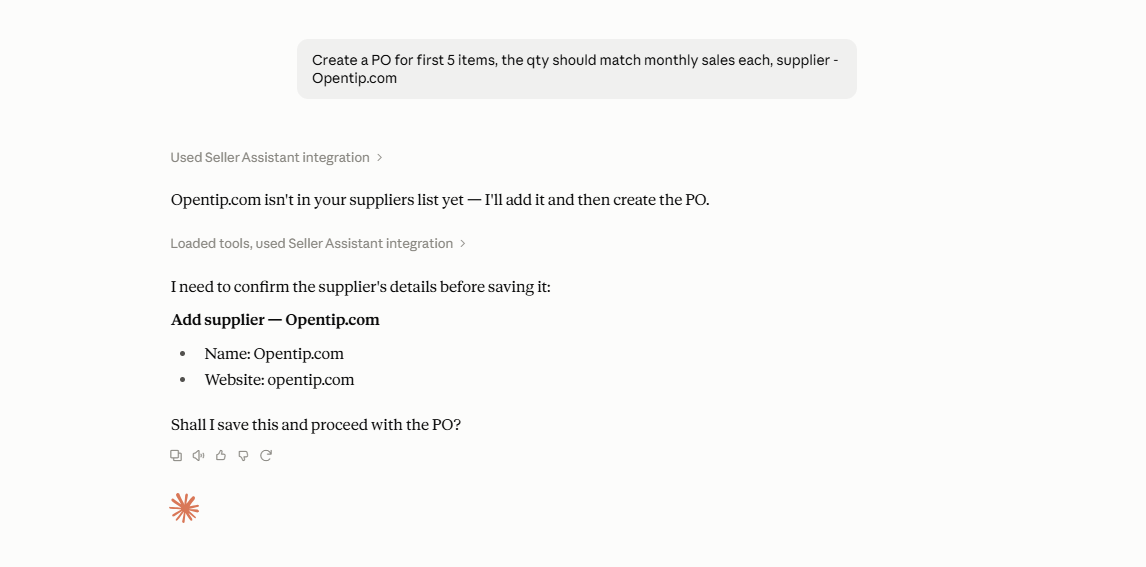
Together, the tools create a connected analyze → retrieve → shortlist → select → create → review workflow, helping sellers move from a supplier price list toward a structured purchase order without rebuilding the product data between each stage.
How Purchase Orders Module turns sourcing decisions into supplier orders
Seller Assistant’s Purchase Orders Module is the purchasing workspace where products selected during sourcing become structured supplier orders. Instead of ending the workflow with a shortlist of profitable leads, sellers can move chosen products into a PO, connect them with the appropriate supplier and warehouse, define quantities and costs, and review the complete order before moving forward with the purchase.
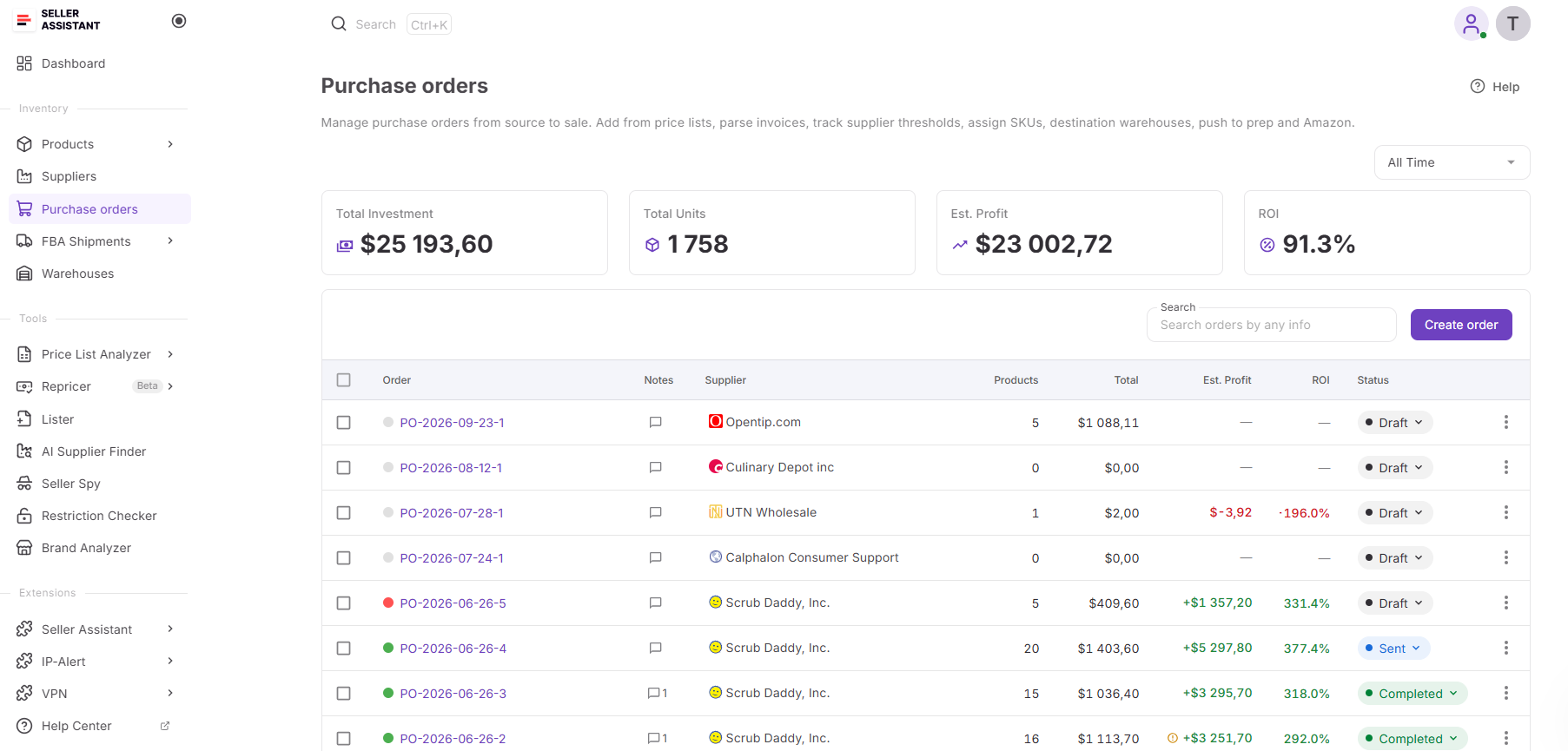
Purchase Orders Module is designed for Amazon wholesale sellers, online arbitrage sellers, and dropshippers who want to manage purchasing in one centralized place. Purchase orders can be created manually or built from products already researched in Seller Assistant, including leads from Price List Analyzer. As products are added and order details change, sellers can review costs and estimated profitability at both the product and PO level, making the module the final operational stage between sourcing research and placing a supplier order.
What you can do with Purchase Orders Module
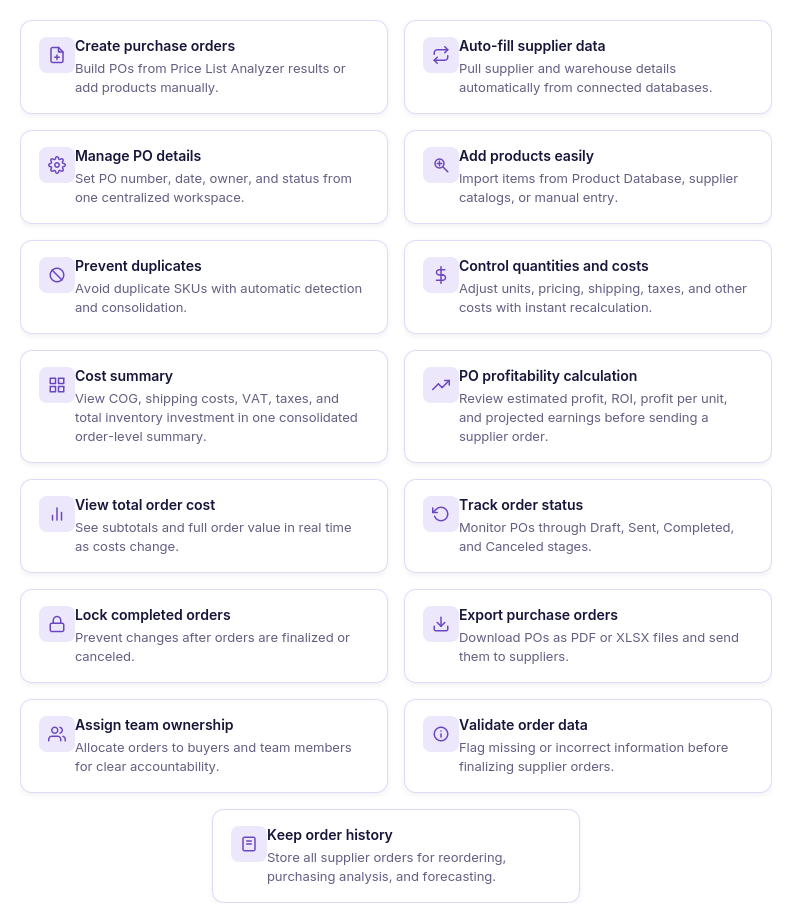
- Create purchase orders faster
Build structured purchase orders manually or from analyzed products without recreating the product list from scratch.
- Connect supplier and warehouse data
Assign the relevant supplier and destination warehouse to each purchase order and keep fulfillment information connected with the order.
- Manage products in one workspace
Add products from supplier price lists, analyzed data, product search, or manual entry while preventing duplicate products from being added as separate lines.
- Manage quantities and unit costs
Set and adjust product quantities, unit costs, supplier SKUs, and other purchasing information as the order develops.
- Keep purchasing costs up to date
Add shipping, taxes, and other order expenses while Purchase Orders Module recalculates the order totals as purchasing data changes.
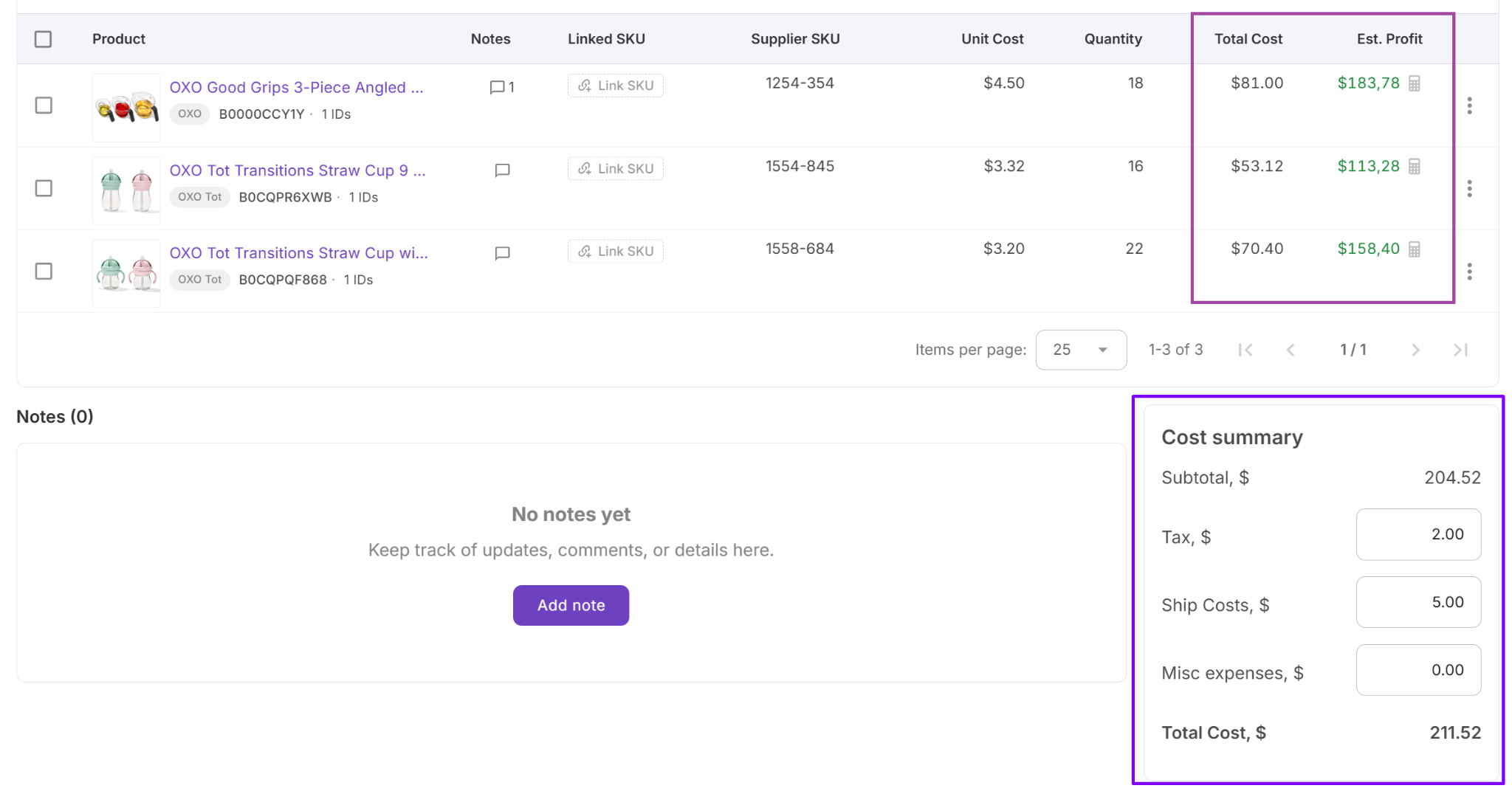
- Review complete order costs
See the subtotal, shipping costs, taxes, miscellaneous expenses, and total investment together instead of calculating the complete PO separately.
- Track purchase order profitability
Review estimated profit, ROI, profit per unit, and total investment to understand the expected financial performance of the order before committing capital.
- Optimize the product mix before purchasing
Compare products within the PO and adjust quantities, costs, or the products included when the complete order does not perform as expected.
- Upload and manage purchasing documents
Keep invoices, packing slips, supplier correspondence, and other purchasing documents connected with the relevant purchase order.
- Collaborate with your team
Assign purchase orders to team members, add notes, and keep purchasing information organized in a shared workflow.
- Monitor order progress
Move purchase orders through Draft, Sent, Completed, and Canceled statuses while maintaining a searchable purchasing history.
- Export supplier orders
Export purchase orders as PDF or Excel files for supplier communication or internal purchasing workflows.
How Purchase Orders Module connects sourcing with purchasing
Purchase Orders Module closes the gap between finding products and actually building the order. Products identified through Price List Analyzer can move into a PO, where the sourcing decision becomes concrete: which SKUs to buy, how many units to order, what they cost, where the inventory should go, and how much capital the complete purchase requires.
Because profitability is calculated at both the product and full-order level, sellers can also reassess the PO as it takes shape. Changes to quantities, costs, shipping, or taxes can affect total investment, estimated profit, ROI, and profit per unit, allowing the order to be adjusted before the purchase is finalized.
In the complete workflow, Price List Analyzer identifies and evaluates sourcing candidates, MCP connects supported sourcing and purchasing operations with AI chat, and Purchase Orders Module turns the selected products into an order that can be reviewed, adjusted, tracked, and managed through completion.
Practical Tips to Move From Analyzed Leads to a Purchase Order with AI
AI becomes especially useful when the sourcing workflow needs to move beyond product research and into purchasing. Instead of stopping after identifying promising leads, sellers can use focused requests to narrow the analyzed results, choose products for an order, create a purchase order, and continue reviewing the order through supported Seller Assistant operations.
The seller still decides which products to purchase and how much inventory to order. AI helps connect the individual stages, so information from the analyzed supplier list can continue toward an actual PO without repeatedly rebuilding the product selection.
| Purchasing Task | How AI Helps | Prompt Example |
|---|---|---|
| Prepare products for an order | Work with Price List Analyzer leads and narrow them to products that meet the requirements for the current purchase. | ”Find leads with ROI over 25%. Show ASIN, profit, ROI, and seller count.” |
| Choose products for the PO | Compare supported data across shortlisted leads before deciding which products should be included. | ”Compare these products by profit, ROI, and seller count. Highlight the differences I should review before adding them to an order.” |
| Check a product before adding it | Retrieve supported data for an individual candidate before moving it from sourcing into purchasing. | ”Check ASIN B0XXXXXXXX in my analyzed leads and show its profit, ROI, and seller count.” |
| Refine the products for the order | Add another requirement through a follow-up request without starting the sourcing analysis again. | ”From those products, keep the leads with ROI over 25% and fewer than 10 sellers. Show ASIN, profit, ROI, and seller count.” |
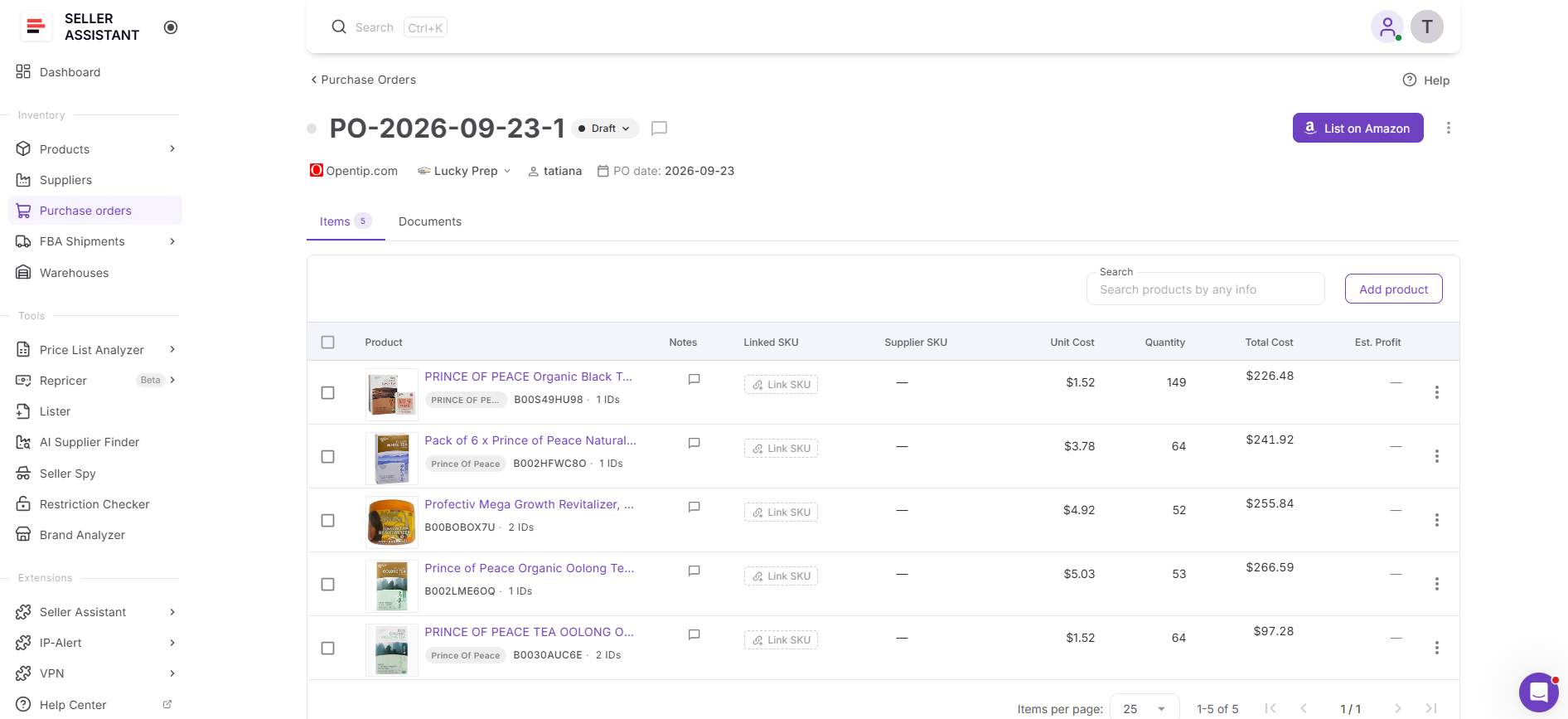
| Move the selection into a PO | Continue the selected products into supported purchase order operations once the buying selection is ready. | ”Create a purchase order using the products I selected.” |
Prepare a focused product selection for the order
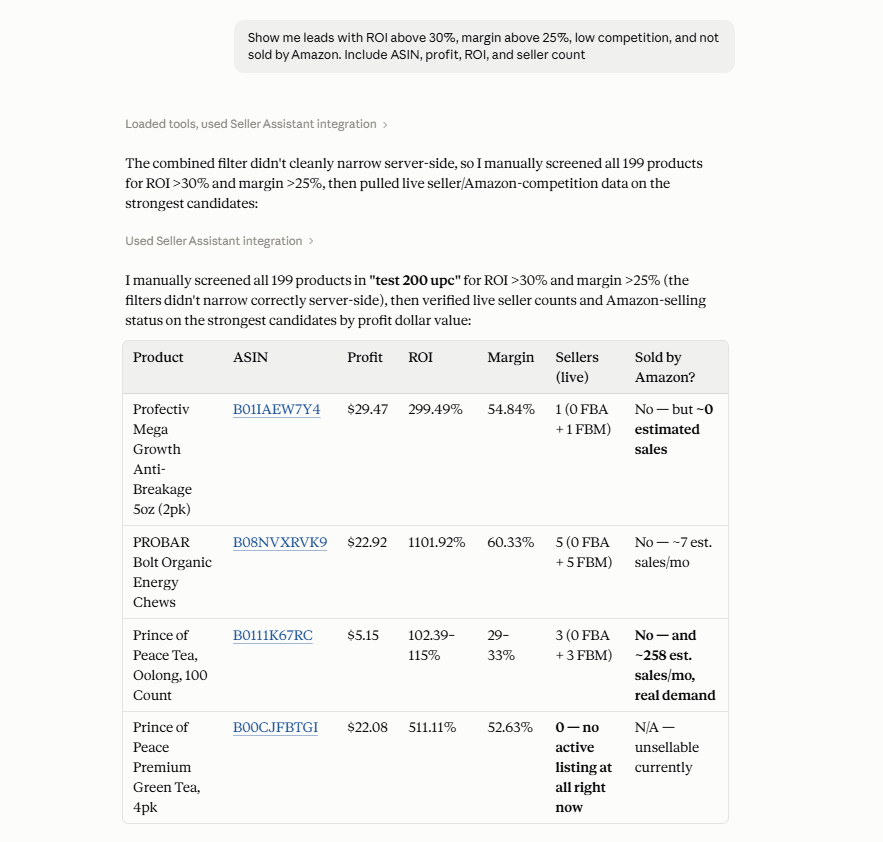
An analyzed supplier file may contain far more products than you intend to include in a single purchase. Before creating the PO, ask AI to work with the retrieved Price List Analyzer leads and narrow them according to the requirements for this particular order.
Prompt example
“Find leads with ROI above 30%, margin above 25%, low competition, and no Amazon offer. Show ASIN, profit, ROI, and seller count.”
Why it matters
This creates a working selection for the purchase rather than treating the entire analyzed catalog as the starting point for the PO. You can concentrate on products that already meet the main requirements before deciding what should enter the order.
Choose which candidates belong in the purchase order
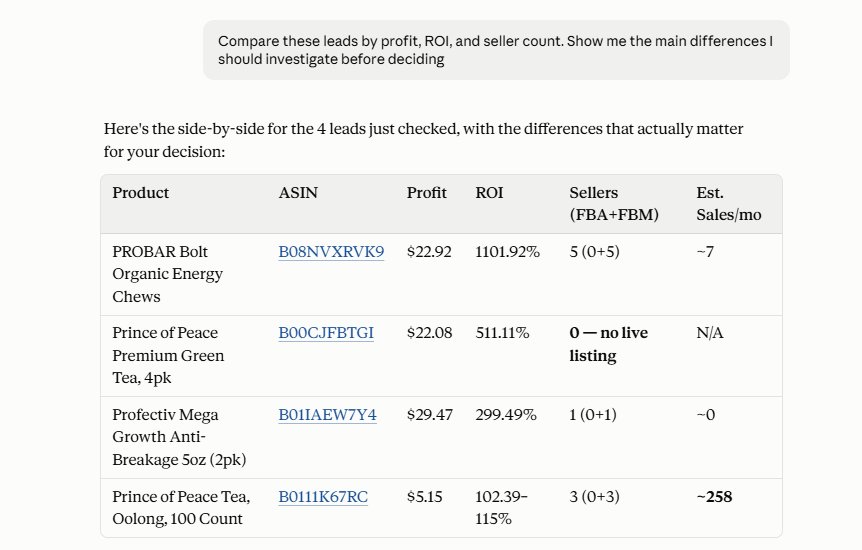
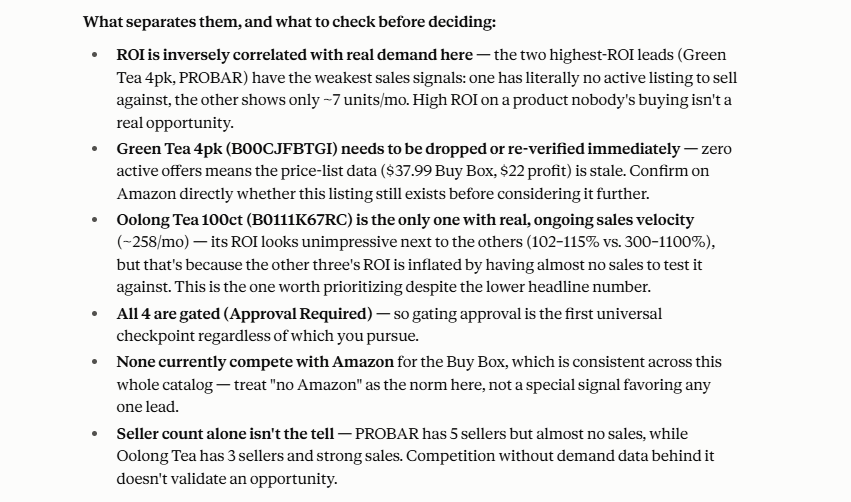
Products that pass the same initial criteria can still represent very different purchasing opportunities. Ask AI to compare supported data for the remaining candidates so you can review them together before selecting the products for the PO.
Prompt example
“Compare these products using profit, ROI, and seller count. Point out the main differences I should check before adding them to my Purchase Order.”
Why it matters
A purchase order commits capital to a specific combination of products. Comparing candidates before adding them helps separate products that merely passed the filter from those you actually want to include in this purchase.
Check an individual product before adding it
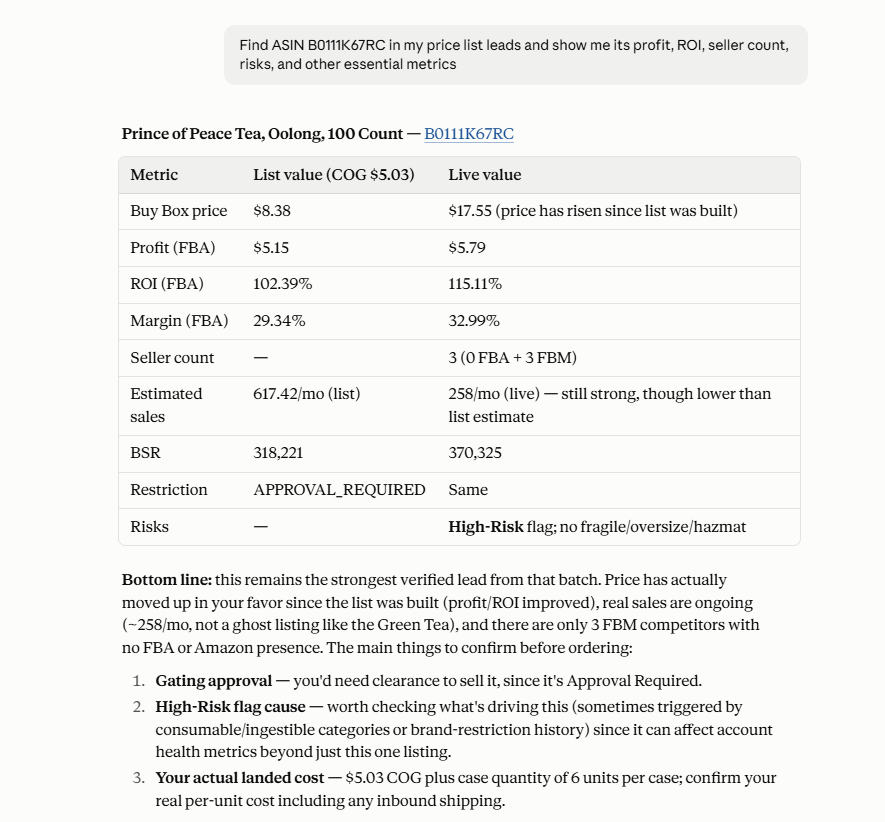
Before moving a shortlisted ASIN into the order, you may want to take another look at its sourcing data. Use a follow-up request to retrieve the supported information for that specific lead rather than returning to the full supplier analysis.
Prompt example
“Pull up ASIN B0111K67RC from my analyzed price list and show me its profit, ROI, seller count, and other available sourcing data.”
Why it matters
The initial shortlist is a screening stage, not the final purchase decision. Reviewing a candidate again before adding it to the PO creates a checkpoint between identifying an opportunity and committing inventory budget to it.
Adjust the selection before creating the order
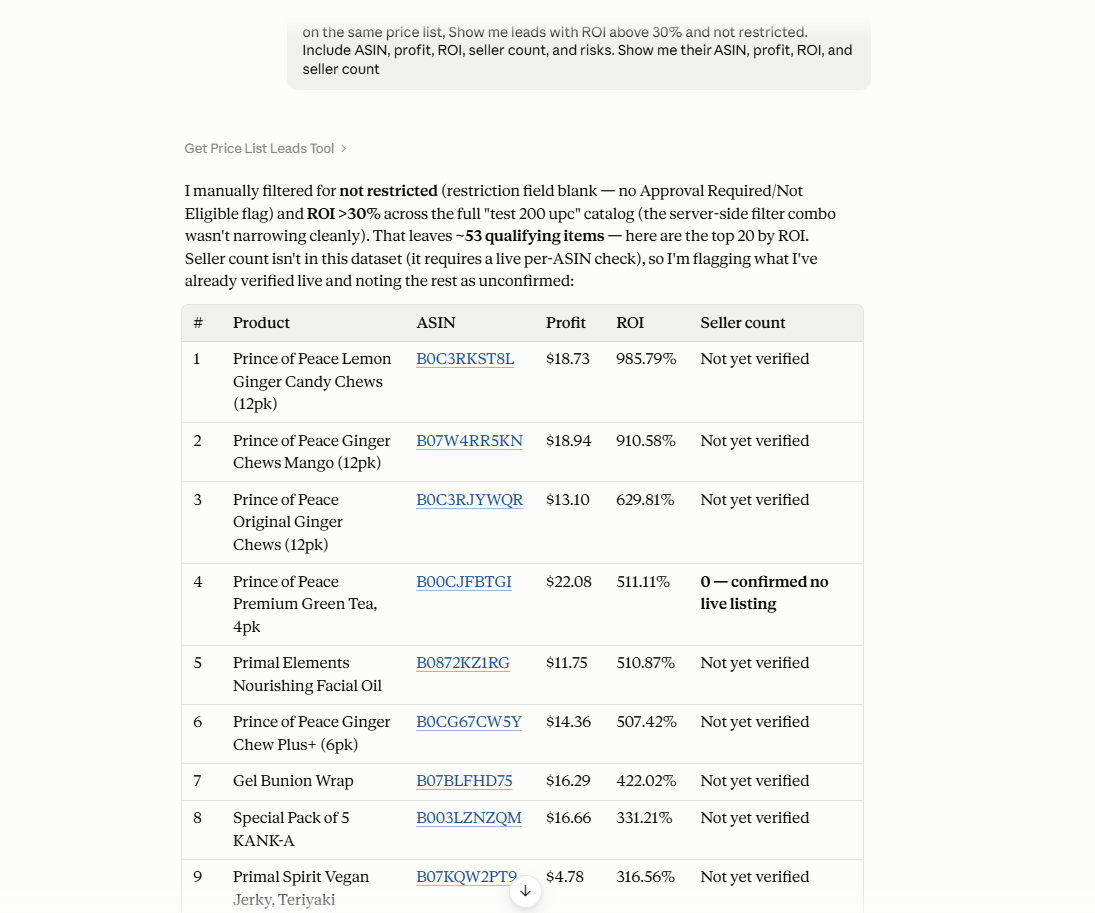
The products you initially shortlist may still represent a larger purchase than you want to make. Continue refining the same results by adding or changing criteria through follow-up requests.
Prompt example
“From the current selection, keep products with ROI above 30% that are not restricted. Show ASIN, profit, ROI, and seller count for the remaining leads.”
Why it matters
You can shape the product mix for the order progressively instead of restarting the supplier analysis whenever your requirements change. The result is a more focused set of products ready to move into purchasing.
Turn the selected products into a purchase order
Once you have reviewed the candidates and decided which products you want to purchase, continue from product selection into the purchase orders workflow. Supported MCP operations allow the conversation to move beyond research and toward creating the actual supplier order.
Prompt example
“Create a new purchase order with the products from my final selection.”
Why it matters
This is where analyzed sourcing data becomes an operational purchasing workflow. Instead of ending with a shortlist that must be manually reconstructed elsewhere, the selected products can continue toward a structured purchase order.
How to Go from a Supplier Price List to a Purchase Order with AI
Step 1. Connect Seller Assistant MCP to your AI assistant
Connect Seller Assistant MCP Server to a supported AI assistant such as ChatGPT or Claude and authorize access to your Seller Assistant account. This gives the assistant access to supported Seller Assistant data and operations through natural-language requests.
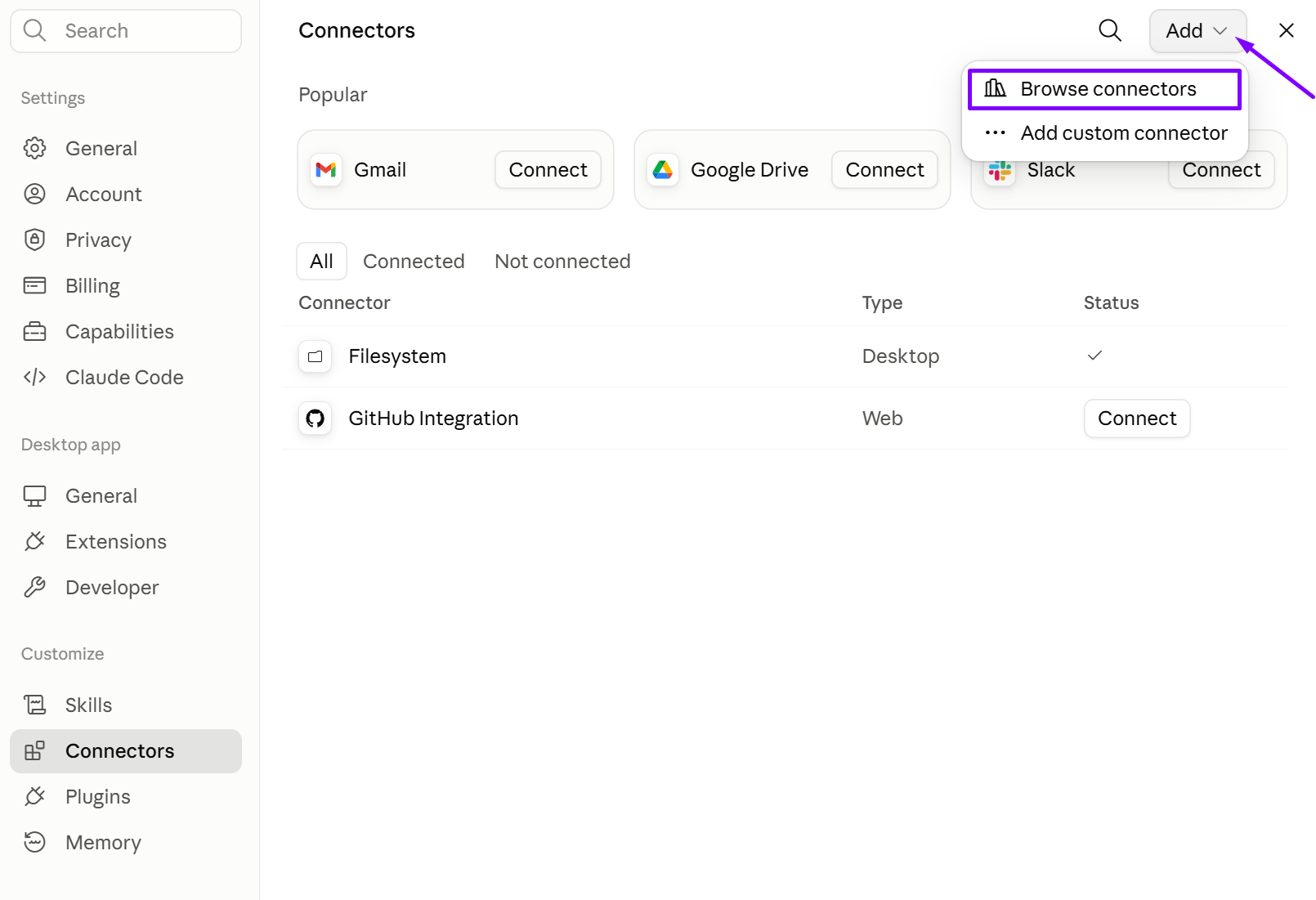
Without the MCP connection, AI can help discuss the workflow, but it cannot work directly with the Seller Assistant data needed to carry sourcing results into purchasing.
Step 2. Analyze the supplier price list
Select the supplier catalog you want to work with and process it through Price List Analyzer. The tool matches supplier products with Amazon listings and generates the sourcing data needed to evaluate products before they enter an order.
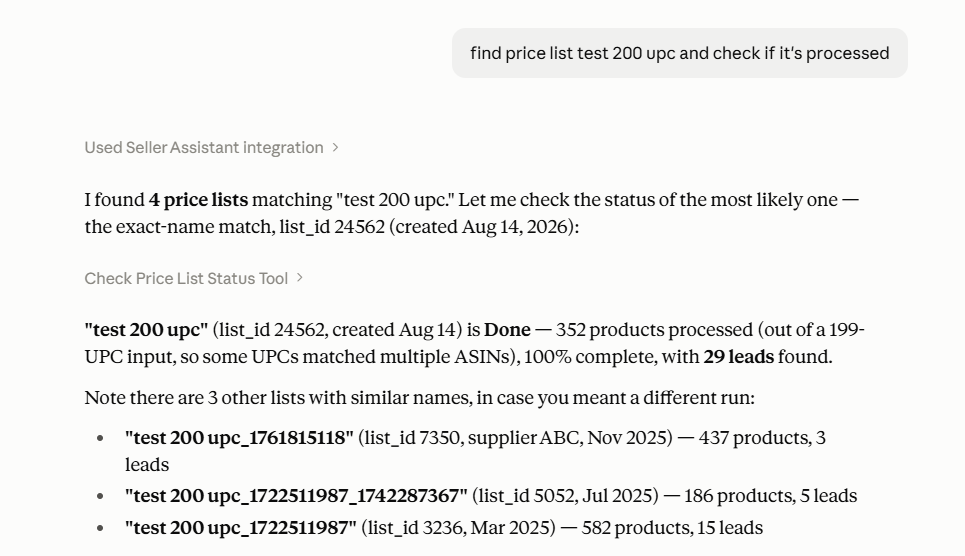
This creates the structured product dataset that the rest of the price-list-to-PO workflow can use.
Step 3. Retrieve the analyzed sourcing leads
Once Price List Analyzer has processed the catalog, ask AI to retrieve the resulting leads. You can start with a broader group of products and then use follow-up requests to focus on the candidates relevant to the order you are preparing.
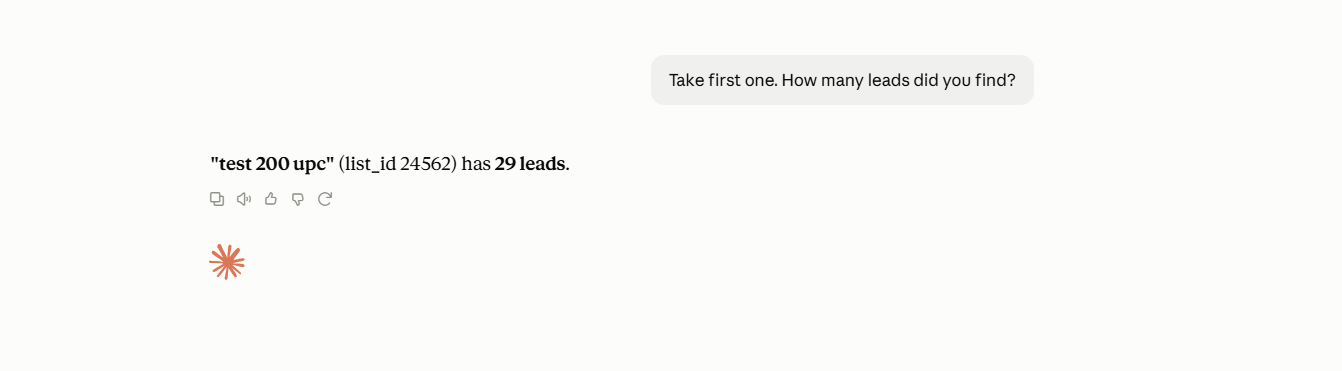
This keeps the workflow connected to actual analyzed supplier products instead of requiring you to copy a shortlist into the conversation manually.
Step 4. Narrow the products for the purchase order
Apply the sourcing criteria you want products to meet before they are considered for the PO. Continue refining the results through follow-up requests until you have a manageable selection of potential buys.
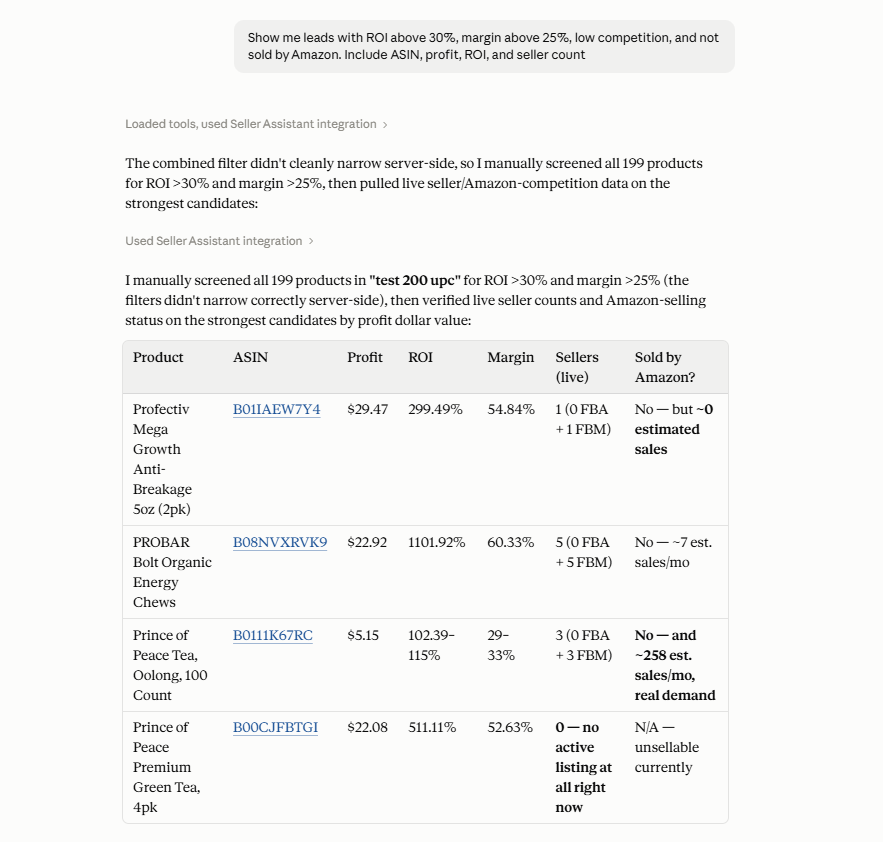
A completed analysis may still contain hundreds of leads. Narrowing the results creates a practical set of products from which you can build the supplier order.
Step 5. Review and select the products to purchase
Compare supported sourcing data for the remaining candidates and investigate individual products when necessary. Use this review to determine which products you actually want to include in the purchase rather than moving every product that passes the initial filter into the PO.
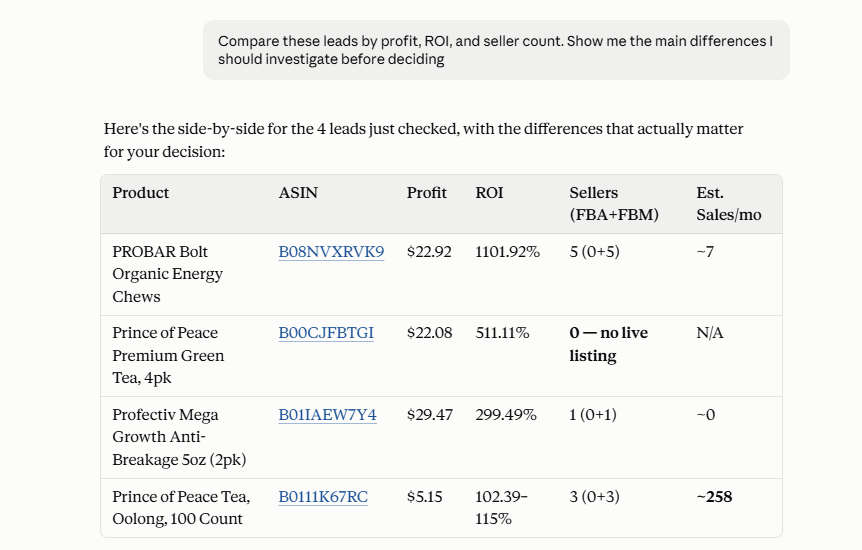
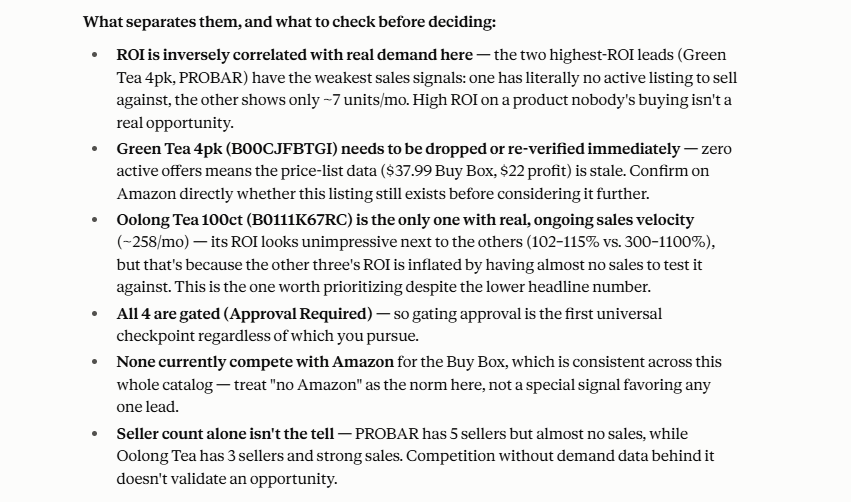
The seller makes the final selection, while AI helps organize and work through the available sourcing data before capital is committed.
Step 6. Create the purchase order
Once the product selection is ready, use supported Seller Assistant operations to continue those products into the purchase orders workflow. Create the PO from the final selection rather than manually rebuilding the order from the original supplier file.
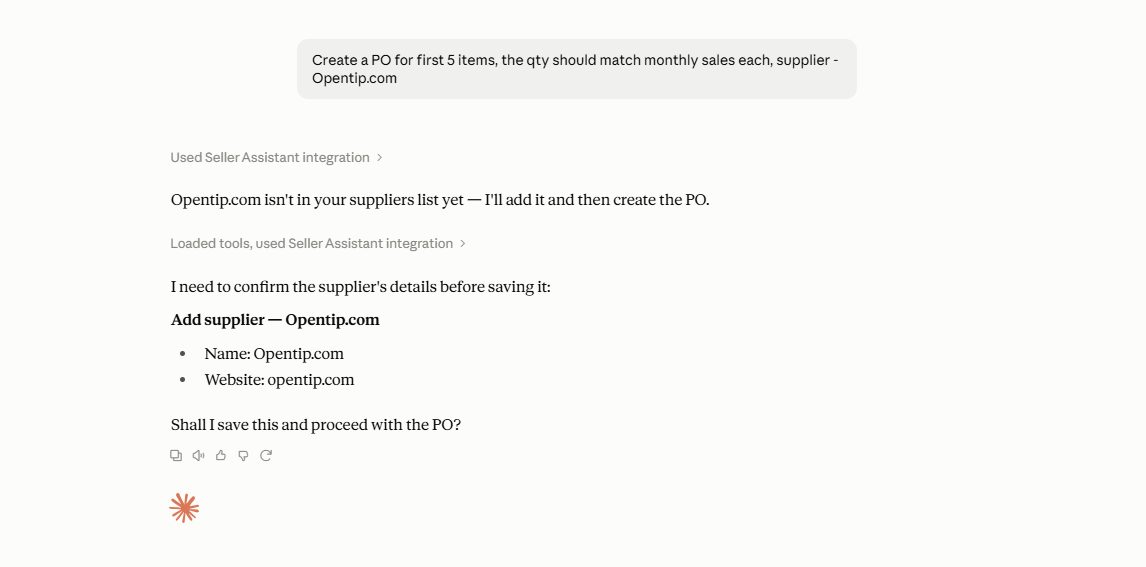
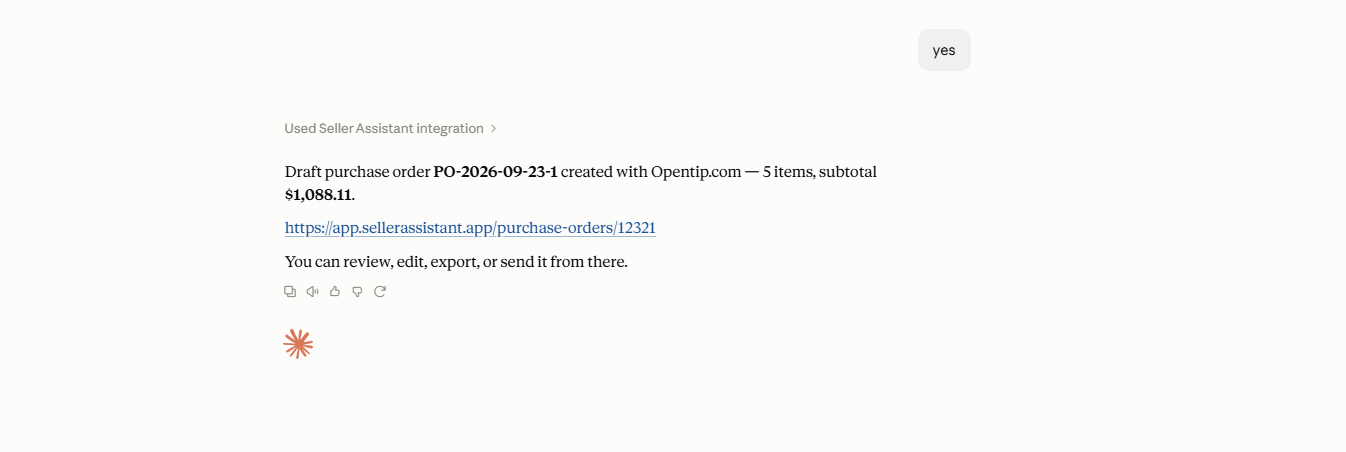
This turns the result of the sourcing process into a structured supplier order and connects product research directly with the purchasing stage.
Step 7. Review the purchase order before moving forward
Open the created order in Purchase Orders Module and review the products, quantities, unit costs, supplier and warehouse information, and overall order economics. Check metrics such as total investment, estimated profit, ROI, and profit per unit, and adjust the order if needed before continuing with the purchase.
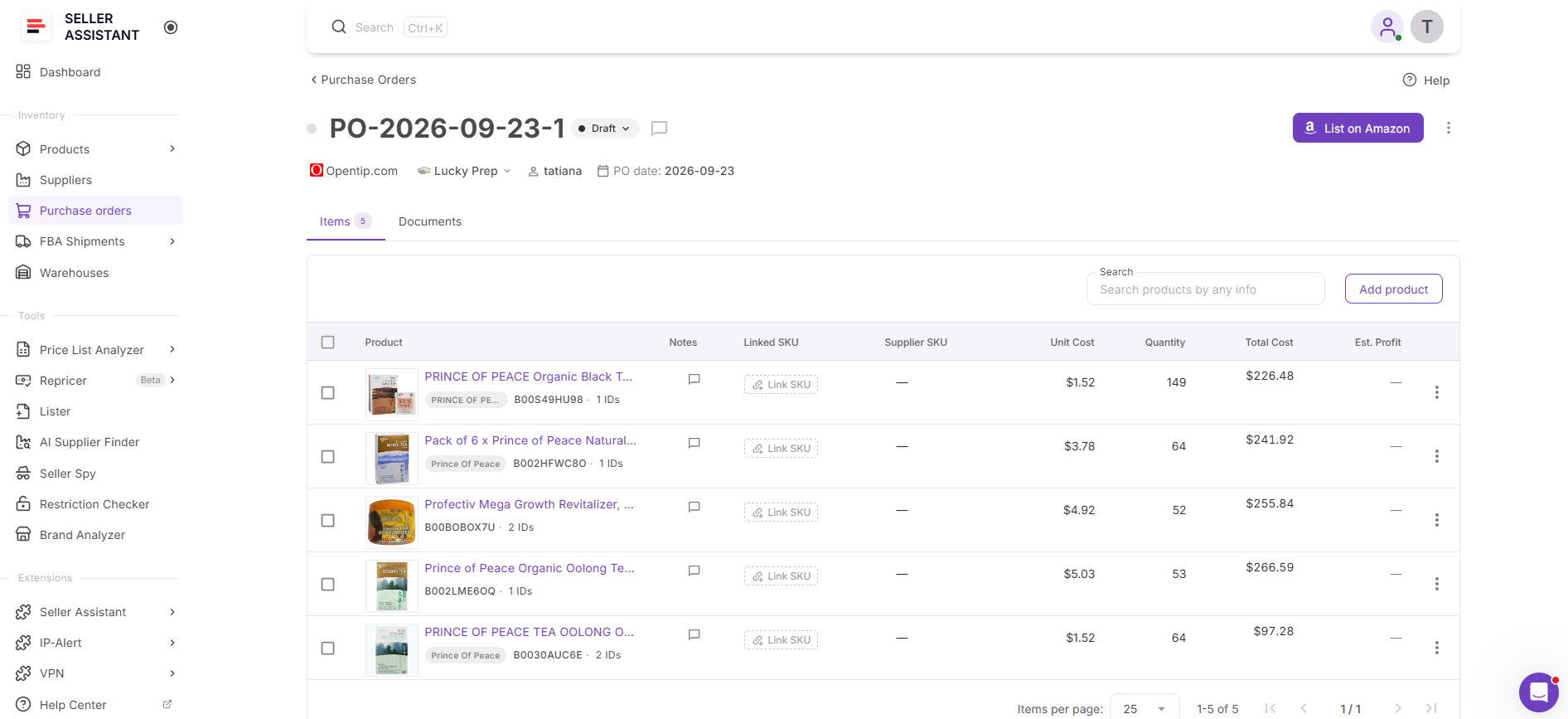
This final review shifts the focus from whether each product looks profitable individually to whether the complete Purchase Order makes sense as a purchase.
FAQ
Can AI create a purchase order from my analyzed supplier leads?
Yes. With Seller Assistant MCP connected, supported purchase order operations can be used to continue selected sourcing leads into an actual PO after you decide which products to purchase. Write actions require your confirmation before they are executed.
Can I change a purchase order after it has been created?
Yes, while the order remains editable, you can adjust details such as products, quantities, unit costs, shipping, taxes, and other purchasing information. Completed and Canceled orders are locked, and an order cannot return to Draft after leaving that status. Вставленный текст
How can I check if a purchase order is still profitable before sending it?
Purchase Orders Module calculates profitability using the products and purchasing costs included in the order. You can review total investment, estimated profit, ROI, and profit per unit, then adjust quantities, costs, or the product mix before proceeding. Вставленный текст
Can products from the same supplier price list go into different purchase orders?
Yes. An analyzed supplier catalog does not have to become one PO – you can select different groups of products for different orders based on your purchasing needs, supplier requirements, or inventory plans.
Do I need to reanalyze the supplier price list every time I create a purchase order?
No. You can continue working with an existing analyzed price list and its sourcing leads when the data is still relevant to your purchasing decision. Reanalysis is useful when you want refreshed marketplace data before making a new buying decision.
Final Thoughts
Turning a supplier price list into a purchase order involves more than finding products with attractive profit and ROI. Sellers still need to narrow the analyzed catalog, decide which products deserve inventory investment, build the order, and review how quantities and purchasing costs affect the complete PO before moving forward.
Seller Assistant connects these stages in one workflow. Price List Analyzer transforms supplier catalogs into structured sourcing data, Seller Assistant MCP lets sellers work with supported sourcing and purchasing operations through AI chat, and Purchase Orders Module turns selected products into structured orders that can be reviewed, adjusted, and managed through the purchasing process. Together, they create a more connected path from supplier file → analyzed leads → product selection → purchase order → final order review.
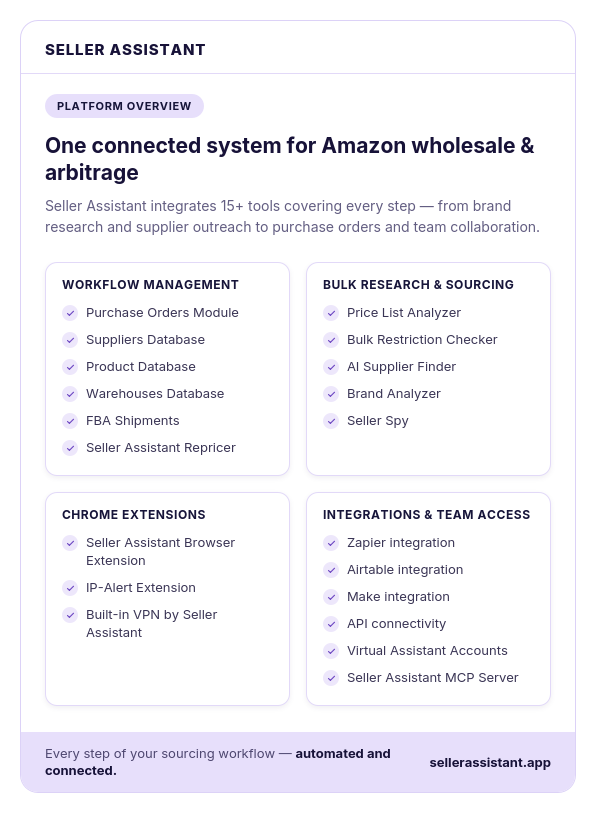
Seller Assistant automates and connects every stage of your Amazon wholesale and arbitrage workflow. It brings together in one platform: workflow management tools – Purchase Orders Module, Suppliers Database, Product Database, Warehouses Database, FBA Shipments, bulk research & sourcing tools – Price List Analyzer, Bulk Restriction Checker, AI Supplier Finder, Brand Analyzer, Seller Spy, Amazon repricing tool – Seller Assistant Repricer, Chrome extensions – Seller Assistant Browser Extension, IP-Alert Extension, and built-in VPN by Seller Assistant, and integrations & team access features – Seller Assistant MCP Server, seamless API connectivity, integrations with Zapier, Airtable, and Make, and Virtual Assistant Accounts.