


Managing supplier orders without a system is one of the fastest ways to stall your Amazon wholesale business. Whether you’re running bulk online arbitrage, wholesale, or dropshipping operations, you need a structured way to request and track inventory – and that starts with a proper Amazon FBA Wholesale Purchase Order.
A PO isn’t just a document; it’s your control panel for cost, quantity, and delivery accuracy.
In this post, we’ll walk you through what a strong purchase order should include, share a template, and show how Seller Assistant helps you create, send, and manage POs automatically – without the spreadsheet chaos.
Why Create an Amazon Purchase Order
A purchase order (PO) is a formal document created by the buyer – you, the Amazon seller – and sent to a supplier to request products under agreed terms. It includes the items you’re ordering, quantities, unit prices, delivery instructions, and payment details. A PO acts as a binding agreement that outlines what you expect to receive.
Unlike invoices (which are issued by the supplier), a PO originates from you and signals a clear intent to purchase. It protects your business by reducing miscommunication, tracking expenses, and keeping your sourcing organized – especially when you scale.
Who needs to create a purchase order?
Any Amazon seller who buys products in bulk or repeatedly works with suppliers benefits from POs.
Sellers who need POs
- Wholesale sellers ordering catalog products at scale
- Online arbitrage (OA) sellers buying from bulk price lists
- Dropshippers coordinating fulfillment with external suppliers
- Hybrid sellers doing a mix of all of the above.
Even if you’re not at high volume yet, building the habit of using POs early makes scaling smoother and safer.
Reasons to create a purchase order
Keep your orders organized
POs help you track what was ordered, in what quantity, at what cost, and from which supplier. No more digging through emails or versioned spreadsheets.
Reduce costly errors
By specifying exact ASINs, SKUs, and delivery locations, POs reduce the risk of receiving wrong or mislabeled inventory – especially when using prep centers.
Streamline communication
Suppliers know exactly what you expect. There’s no back-and-forth over missing details, and it speeds up fulfillment and invoicing.
Build a clear reorder history
Each PO acts as a historical log. When it’s time to restock, you know exactly what you ordered, how much you paid, and when it arrived.
Calculate true cost of goods sold
POs allow you to track all costs tied to sourcing – including shipping and taxes – which gives you a more accurate COGs for repricing and profit analysis.
Create accountability in your team
For sellers working with virtual assistants (VAs), POs act as a source of truth. No duplication, no miscommunication – just one documented workflow.
Protect yourself in disputes
If a supplier delivers the wrong item or under-ships, your PO becomes a written record of what was agreed. It’s your proof if things go wrong.
What Should an Amazon Purchase Order Include
A well-structured Amazon FBA purchase order template ensures accurate communication with suppliers and prep centers. Below are the key elements every PO should contain – whether you create it manually or using a tool like Seller Assistant.
Buyer and supplier contact details
Include full company names, addresses, phone numbers, and email contacts for both parties. This prevents delays with invoicing, customs, or fulfillment issues.
PO number and issue date
Assign a unique PO number for tracking and follow-up. Include the date the order was issued so both parties can refer to the correct version.
Product identifiers: ASINs, titles, SKUs, and quantities
For each product, list the Amazon ASIN, product title, internal SKU (if applicable), and quantity. This level of precision reduces pick/pack errors and helps with prep center coordination.
Unit pricing and line totals
Specify the price per unit and calculate the total per line item. This ensures suppliers can verify totals and lets you track ROI and margin clearly.
Shipping and billing addresses
Clarify where the goods are going (your prep center or warehouse) and where the bill should be sent. Mistakes here can cause costly reroutes.
Payment terms and method
Document whether you’re paying via Net 15, credit card, wire transfer, or other methods. Include due dates and any applicable discounts (e.g., for bulk or prepayment).
Tax, shipping, and additional charges
Add line items for sales tax (if not wholesale exempt), shipping costs, and any extra fees like rush handling. This helps calculate true landed cost.
Internal notes and supplier instructions
Use this field for prep requirements, delivery deadlines, minimum order quantity notes, or instructions like “apply FNSKU labels” or “bundle SKUs.”
Amazon FBA PO Template – Sample Purchase Order for Sellers
Below is a typical purchase order example for Amazon sellers. You can create one like this manually or use a tool like Seller Assistant to auto-generate and export it as PDF/XLSX.
PO Summary
PO Number SA-2025-045
Date Sept 20, 2025
Buyer Your Company LLC
Supplier Acme Wholesale
Ship To Prep Center X
Payment Terms Net 15 via ACH
Product list
| ASIN | Product Title | SKU | Qty | Unit Price | Total |
|---|---|---|---|---|---|
| B08XYZ1234 | BlenderPro 500W High-Speed Blender | BLD-500 | 40 | $22.00 | $880.00 |
| B07ABC4567 | EcoBottle 24oz BPA-Free Water Bottle | ECO-BOT-24 | 60 | $5.00 | $300.00 |
| B09FTR7890 | GlowLight USB Rechargeable Desk Lamp | GLOW-USB | 30 | $12.50 | $375.00 |
Order totals
- Subtotal: $1,555.00
- Shipping: $85.00
- Sales Tax: $0.00 (wholesale exempt)
- Total Due: $1,640.00
Notes
- Products must be polybagged and labeled with FNSKU
- Test order – reorder expected within 30 days
- Deliver to the prep center within 10 business days
Why Manual Purchase Orders Don’t Scale
Creating your own purchase orders in spreadsheets or Word documents may work when you’re placing a few test orders. But as your Amazon business grows – more suppliers, more SKUs, more team members – manual PO workflows become a bottleneck. Here’s why.
Repeated data entry leads to mistakes
Copying and pasting ASINs, SKUs, prices, and quantities across files creates opportunities for human error – especially when rushed or done by a virtual assistant.
No version control
When POs are saved in email threads or local folders, it’s easy to lose track of which version is final – or if it was even sent. This causes delays, double orders, and confusion during reorders.
Hard to trace product sourcing
If you’re analyzing a price list, finding winning products, and then manually typing them into a PO, you lose traceability. Later, it’s unclear where a product came from or what its profit metrics were.
No live order status
Manual POs don’t track whether an order is sent, received, or partially fulfilled. You’ll need yet another system (or memory) to figure out what’s pending and what’s complete.
Prep centers rely on accurate POs
If you’re using a prep center, the PO is often the only document they see. Any mismatch in SKUs, quantities, or delivery instructions can delay check-in or create labeling errors.
Not scalable for teams
When you have multiple people sourcing, buying, or managing supplier relationships, everyone needs a single source of truth. Spreadsheets don’t support collaborative or role-based workflows well.
How to Automate Purchase Orders with Seller Assistant
Manual purchase orders may get the job done early on – but they break the moment you try to scale. That’s why Seller Assistant includes a built-in Purchase Orders Module designed for Amazon FBA, OA, and dropshipping sellers.
Instead of spreadsheets, Seller Assistant lets you create, send, and manage POs from a single Note. Seller Assistant is an end-to-end Amazon workflow management platform that integrates 10+ wholesale-focused solutions into one connected system. It combines sourcing workflow automation, bulk research and intelligence tools, and integrated Chrome extensions – giving you everything you need to streamline finding deals, managing suppliers, and creating purchase orders.

The platform aggregates: workflow management tools – Purchase Orders Module, Suppliers Database, Warehouses Database to organize, automate, and scale every step of your wholesale and arbitrage operations; bulk research & sourcing tools – Price List Analyzer, Bulk Restriction Checker, Sourcing AI, Brand Analyzer, Seller Spy to evaluate supplier price lists, verify selling eligibility and restrictions, open new brands, and discover winning product ideas from competitors to expand your product catalog; Chrome extensions – Seller Assistant Browser Extension, IP-Alert Extension, and built-in VPN by Seller Assistant to deep-research products, check IP claims and compliance, and access geoblocked supplier sites directly within your browser; and integrations & team access features – seamless API connectivity and integrations with Zapier, Airtable, and Make, plus Virtual Assistant Accounts for secure, scalable team collaboration.
With Seller Assistant, every step of your Amazon wholesale and arbitrage workflow is automated and connected.
dashboard – with product, supplier, and warehouse data already connected.
How Seller Assistant helps create purchase orders
Comparison: Manual PO creation vs using Seller Assistant
| Step | Manual PO creation | With Seller Assistant |
|---|---|---|
| Add supplier details | Type supplier name, address, email each time | Auto-filled from Suppliers Database |
| Assign PO number & date | Manually enter and track numbers | Generated automatically with unique ID & issue date |
| Add products | Copy/paste ASINs, SKUs, prices from spreadsheets | Import directly from Price List Analyzer, supplier records, or manual entry with duplicate checks |
| Calculate totals | Enter unit price × quantity, then add tax/shipping manually | Auto-calculates subtotal, shipping, tax, and total cost |
| Add warehouse info | Re-enter prep center address for each PO | Auto-filled from Warehouses Database |
| Track order status | No tracking (use notes or spreadsheets) | Built-in statuses: DraftSentCompletedCanceled |
| Export PO | Save as doc or spreadsheet, reformat for sharing | One-click export to PDF/XLSX, ready to send to suppliers |
| Team collaboration | Risk of overwriting spreadsheets, poor version control | VA accounts with secure access, edits logged in shared workspace |
How Purchase Orders Module simplifies your workflow.
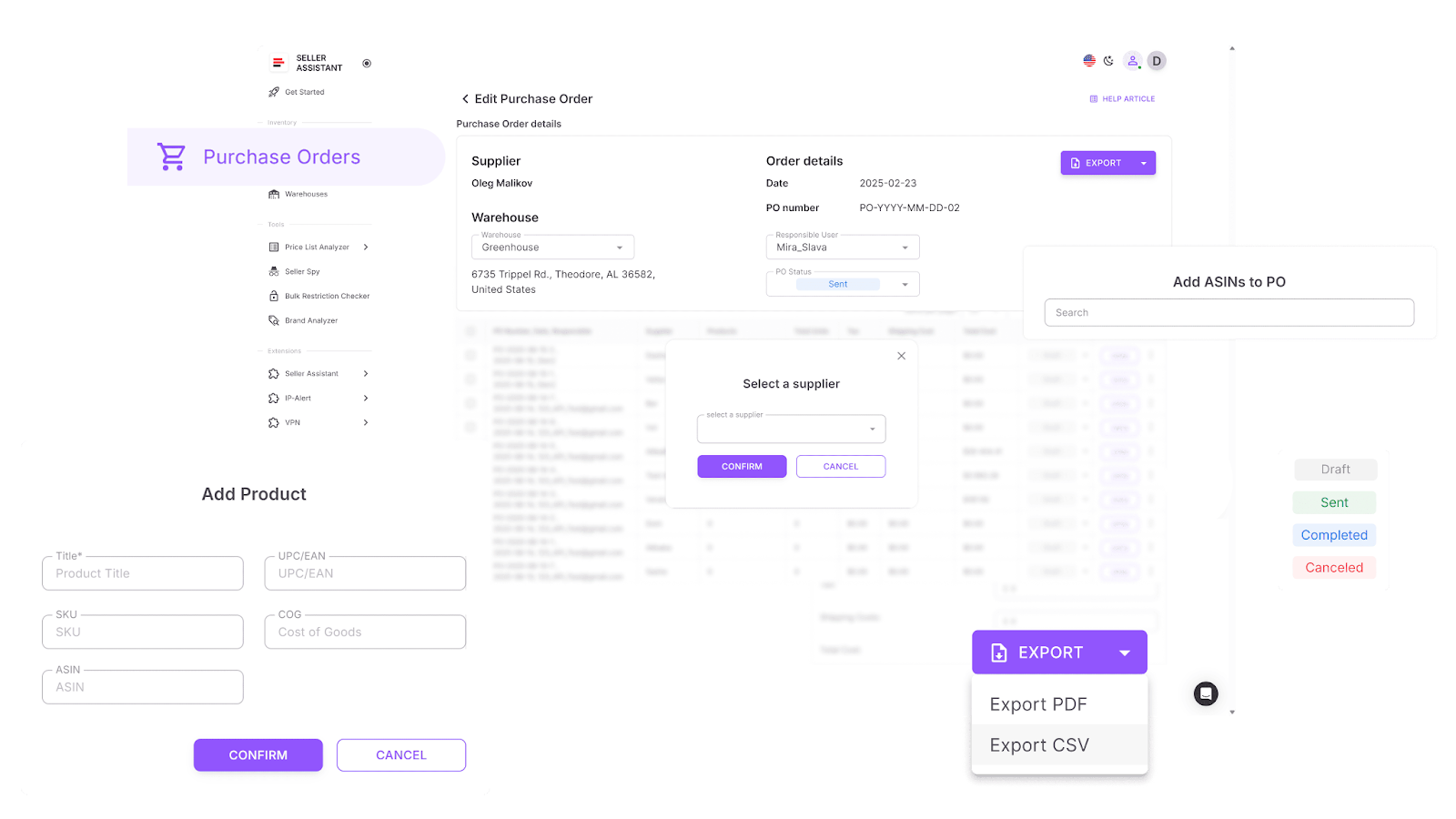
- Create POs directly from price list analysis
After scanning a supplier price list with Seller Assistant’s Price List Analyzer, you can select winning products and generate a ready-to-send PO instantly – no copy-pasting needed.
- Pre-fill supplier and prep center details
Seller Assistant pulls contact info and delivery addresses from your saved Suppliers Database and Warehouses Database – eliminating manual data entry.
- Auto-calculate product costs and totals
As you add products, the module calculates unit cost, subtotal, shipping, and tax – giving you accurate landed cost from day one.
- Track every PO from draft to completion
Each purchase order is assigned a unique ID and tracked through status stages: Draft, Sent, Completed, or Canceled. You and your team always know what’s in progress.
- Edit, duplicate, or export with one click
You can modify existing POs, duplicate them for reorders, and export them as PDF or XLSX formats for suppliers – all from one place.
- Fully VA-friendly
Your VAs can help create and manage POs in Seller Assistant – it allows you to create teams and supports team roles by showing who created the PO.
How to Create a Wholesale Purchase Order with Seller Assistant
Creating a PO manually might take 30–60 minutes. With Seller Assistant, it takes just a few clicks – and every key detail is pulled from your saved records. Here’s how the process works.
- Step 1. Choose a supplier
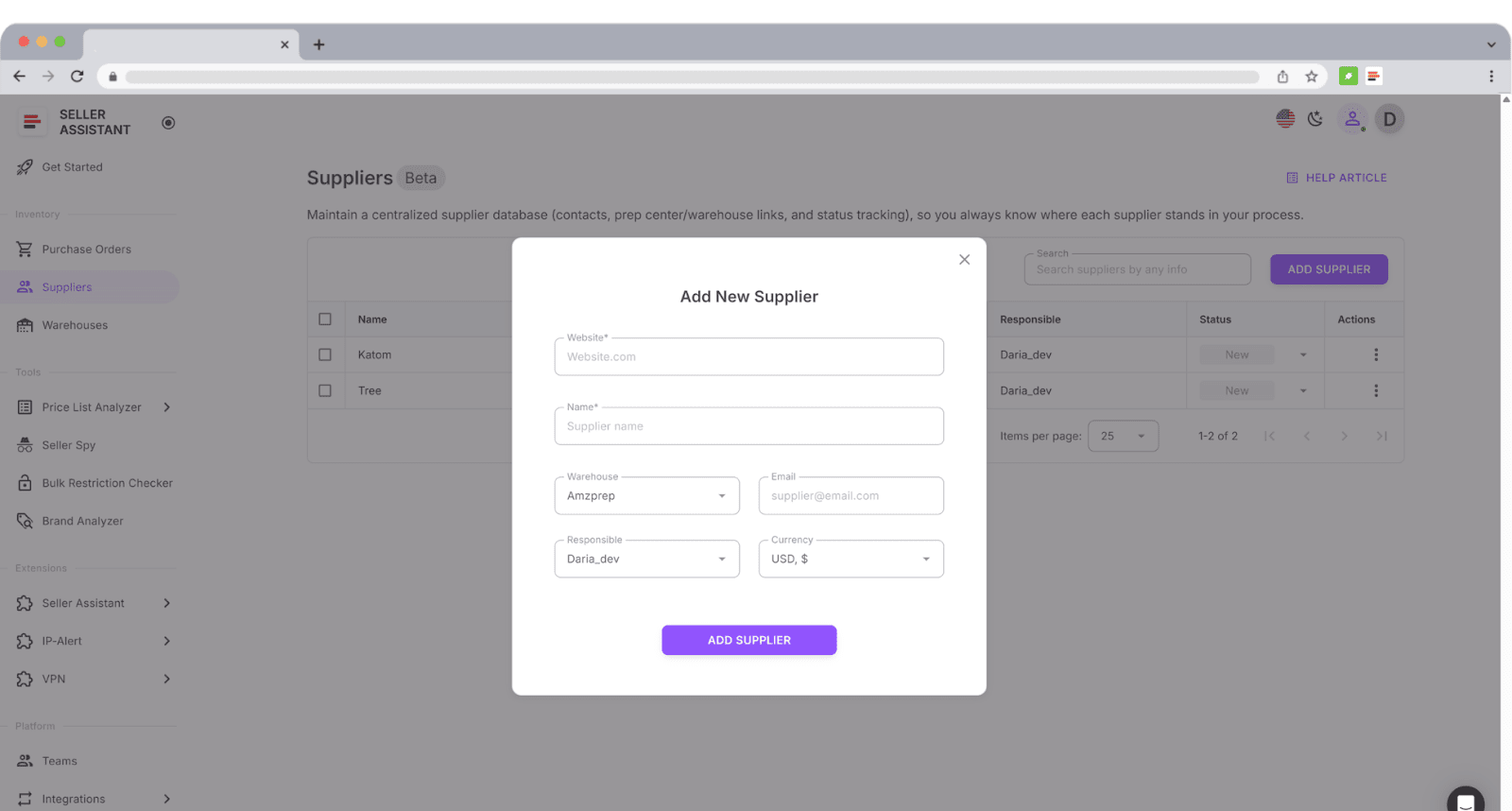
Start by selecting a supplier from your Suppliers Database or entering a new one. Seller Assistant automatically fills in address, contact info, and payment terms.
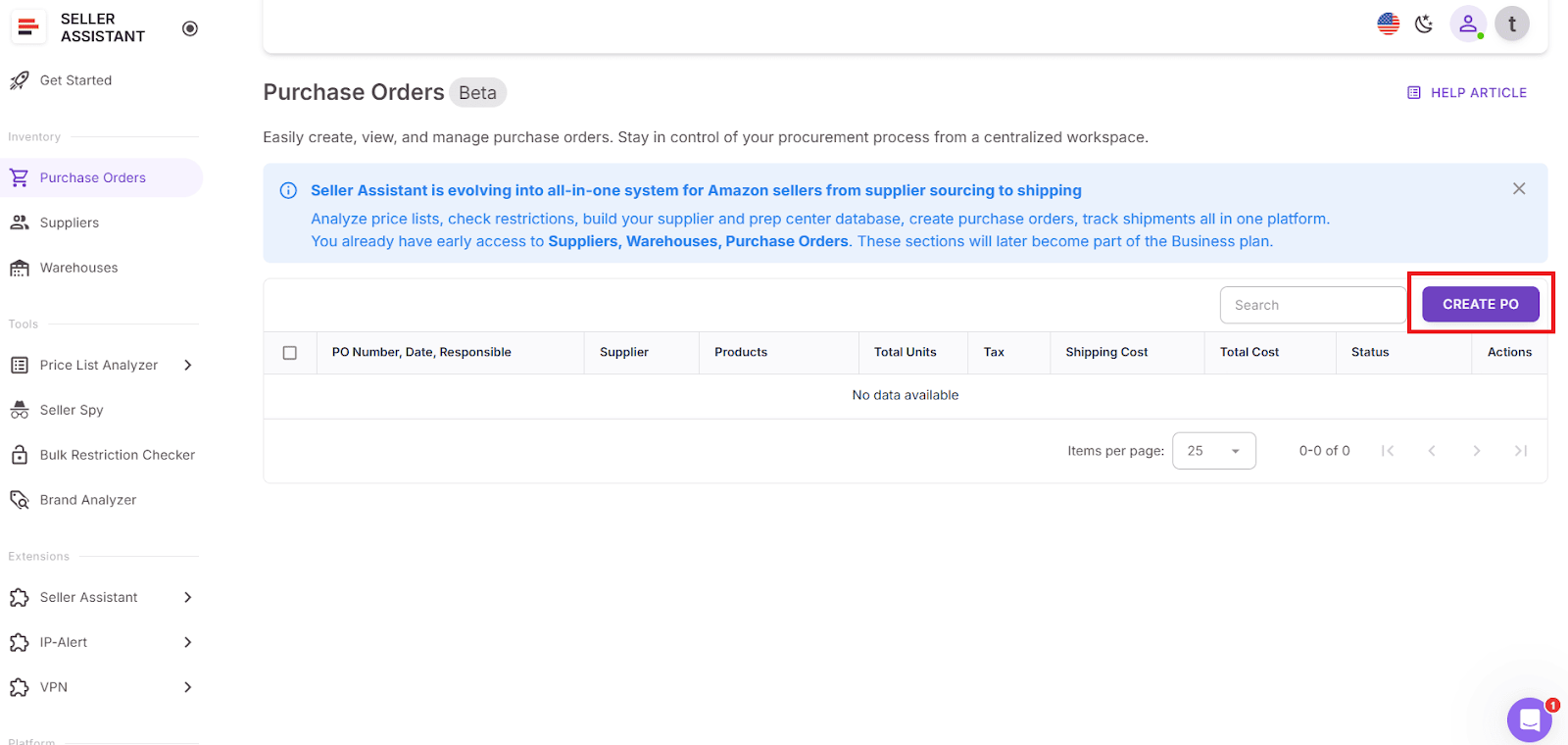
- Step 2. Click “Create PO”
This opens a new draft purchase order with a unique PO number, issue date, assigned team member (optional), and pre-filled supplier and buyer details.
- Step 3. Customize the draft
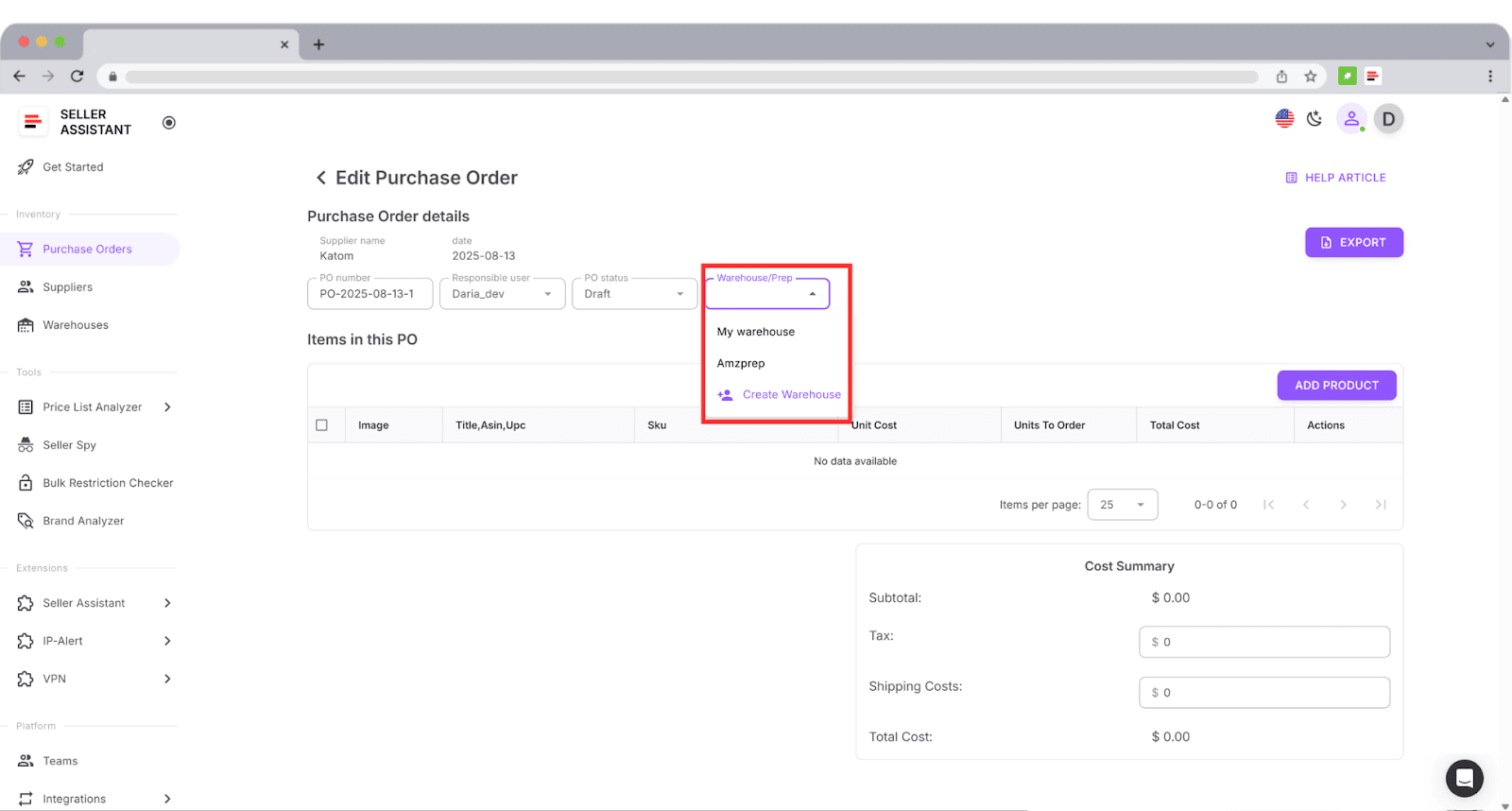
Review the pre-filled PO. You can update the PO number, assign a team member responsible for the order, and choose the correct prep center or warehouse from your Warehouses Database.
- Step 4. Add products
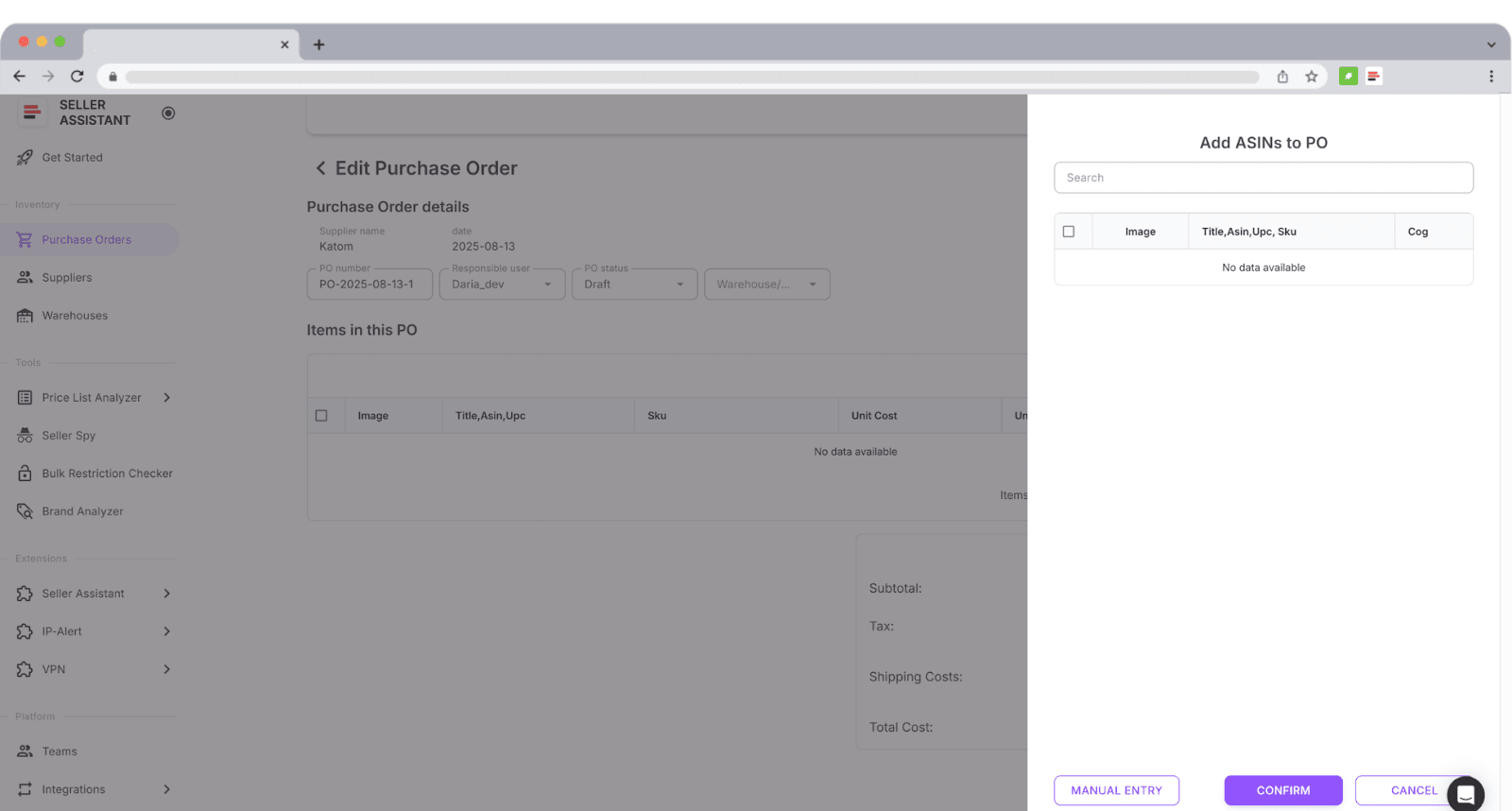
- You have three ways to add products:
- From Price List Analyzer – select winning items from a scanned price list
- You have three ways to add products:
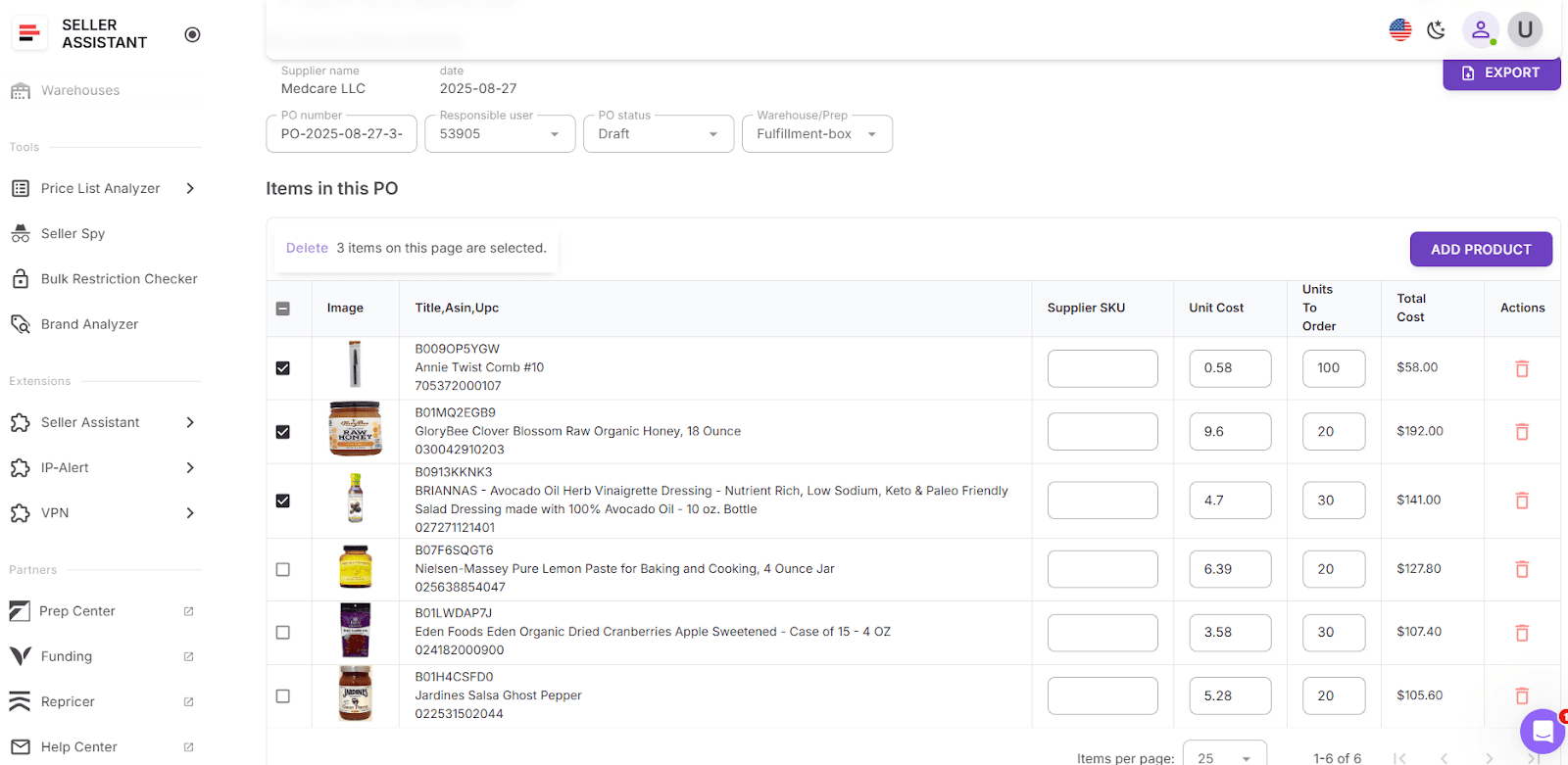
- From supplier records – reuse previously saved products
- From scratch – add products by ASINs, UPCs, or titles (e.g. for Keepa finds or test buys)
-
All fields are auto-aligned and duplicates are flagged automatically.
-
Step 5. Set costs, tax, and shipping
Adjust quantities and unit costs as needed. Add shipping and tax (if applicable). The PO will calculate subtotal, taxes, and total due in real time.
- Step 6. Review and export
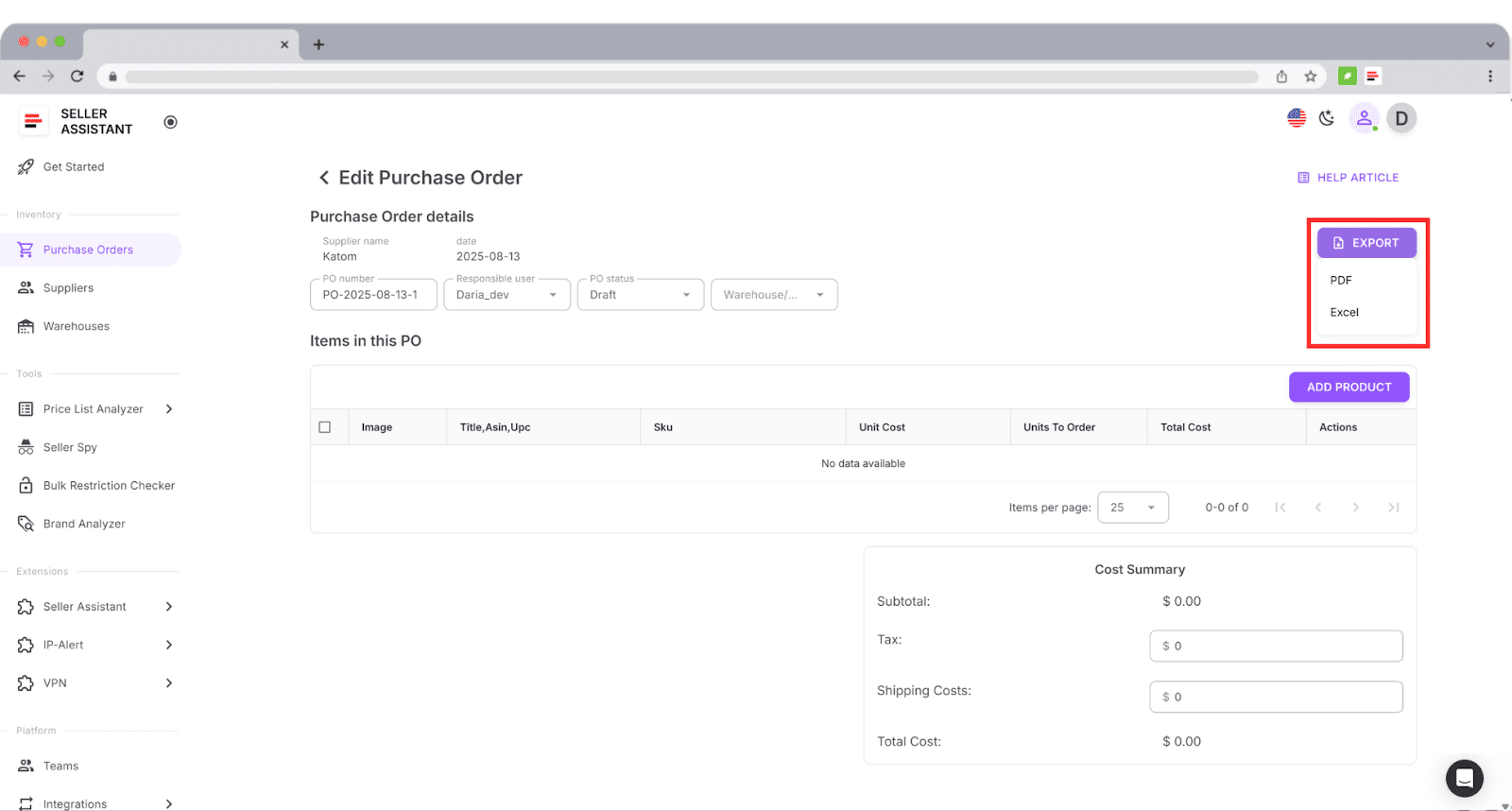
You can review the PO, then export it in PDF or XLSX format for emailing to suppliers. All POs are saved and searchable for future use.
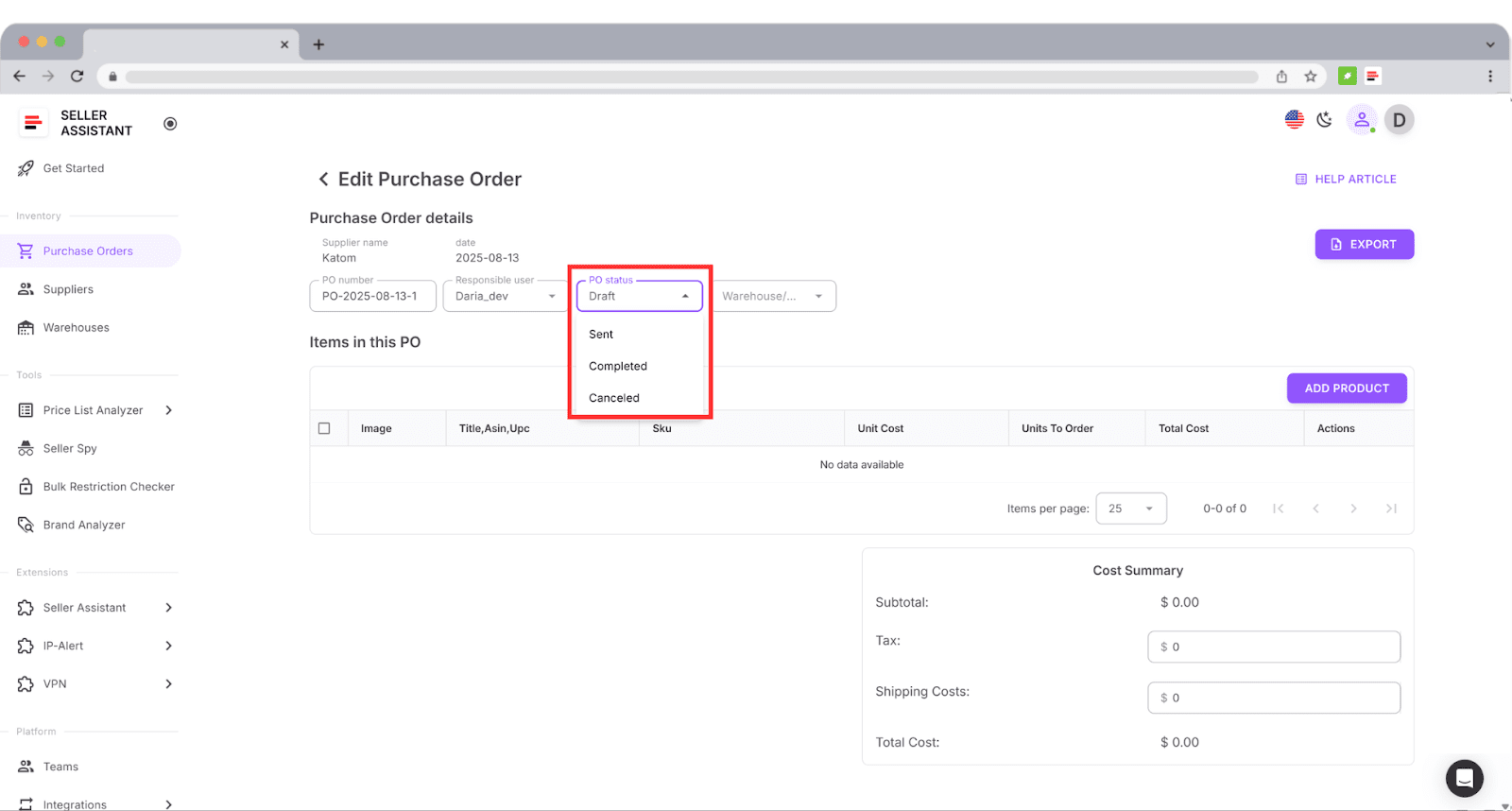
- Step 7. Track PO status
- Each PO has a live status:
- Draft – still editing
- Sent – order placed
- Completed – fully received
- Canceled – archived or voided
- This helps your team stay aligned and prevents accidental duplicate orders.
- Each PO has a live status:
Why Seller Assistant Is Built for Wholesale and Online Arbitrage Sellers
Seller Assistant isn’t just another sourcing add-on – it’s a workflow platform designed to automate Amazon wholesale from discovery to order routing. Here are the 7 ways it helps wholesale and OA sellers scale with fewer mistakes and more profit.
Structure your wholesale workflow
Say goodbye to scattered spreadsheets. Seller Assistant organizes your entire process – from supplier discovery to purchase order creation – so every SKU is tracked without duplication or errors.
Analyze bulk price lists in minutes
Price List Analyzer bulk-matches supplier SKUs to Amazon listings with over 70 product metrics. You can instantly filter for ROI, restrictions, and risks, turning raw spreadsheets into actionable shortlists.
Discover the right brands and suppliers
Use Sourcing AI, Brand Analyzer, Seller Spy, and Storefront Widget to target brands with high demand and strong margins. Then pinpoint real distributors who allow authorized resale.
Centralize supplier and warehouse data
Your Suppliers Database and Warehouses Database sync across all tools. Terms, tags, and routing rules flow automatically, keeping sourcing, prep, and POs consistent and mistake-free.
Create purchase orders in one click
Turn shortlisted items into structured POs instantly with Purchase Orders Module. Seller Assistant auto-fills supplier info, warehouse addresses, and product costs, making reorders fast and accurate.
Research products directly on Amazon
With Seller Assistant Extension, you see profitability, competition, restrictions, and sales history right on Amazon and supplier websites. This makes deal validation faster and more reliable.
Reduce risk and protect margins
Built-in tools like IP-Alert Extension, Bulk Restriction Checker, Alerts and Flags, and FBM&FBA Profit Calculator safeguard your account and confirm products are compliant and profitable before you buy.
FAQ
How to create a PO number in Amazon?
Amazon Seller Central does not provide PO numbers, so sellers must create their own. Most use a simple format like YEAR-SUPPLIER-001 to keep POs organized and searchable.
What is Amazon FBA wholesale?
Amazon FBA wholesale is a business model where sellers buy branded products in bulk from authorized distributors and send them to Amazon fulfillment centers. Sellers earn by reselling those products at scale using FBA logistics.
How do I create a purchase order?
You can make a purchase order manually in a spreadsheet by listing supplier details, product identifiers, quantities, costs, and delivery addresses. Tools like Seller Assistant automate this process and generate ready-to-send POs in one click.
Can I create purchase orders inside Seller Central?
No, Seller Central does not include a purchase order system. You must use your own templates or third-party workflow tools to create and manage POs.
Do dropshippers need purchase orders?
Yes, if you order in bulk from a supplier, even dropshippers benefit from POs. They help track costs, shipments, and supplier agreements while reducing the risk of errors or disputes.
Final Thoughts
A purchase order may look like just another form, but in Amazon wholesale it’s the backbone of your sourcing process. Without it, inventory management, supplier communication, and profit tracking quickly fall apart.
Manual POs can work when you’re small, but they slow you down as soon as you start managing multiple suppliers and prep centers. That’s where Seller Assistant changes the game. With its Purchase Orders Module, integrated databases, and bulk sourcing tools, Seller Assistant gives you everything you need to create, send, and track POs in seconds. It replaces messy spreadsheets with a structured system built for wholesale and OA sellers.
Seller Assistant automates and connects every stage of your Amazon wholesale and arbitrage workflow. It brings together in one platform: workflow management tools – Purchase Orders Module, Suppliers Database, Warehouses Database, bulk research & sourcing tools – Price List Analyzer, Bulk Restriction Checker, Sourcing AI, Brand Analyzer, Seller Spy, Chrome extensions – Seller Assistant Browser Extension, IP-Alert Extension, and built-in VPN by Seller Assistant, and integrations & team access features – seamless API connectivity, integrations with Zapier, Airtable, and Make, and Virtual Assistant Accounts.