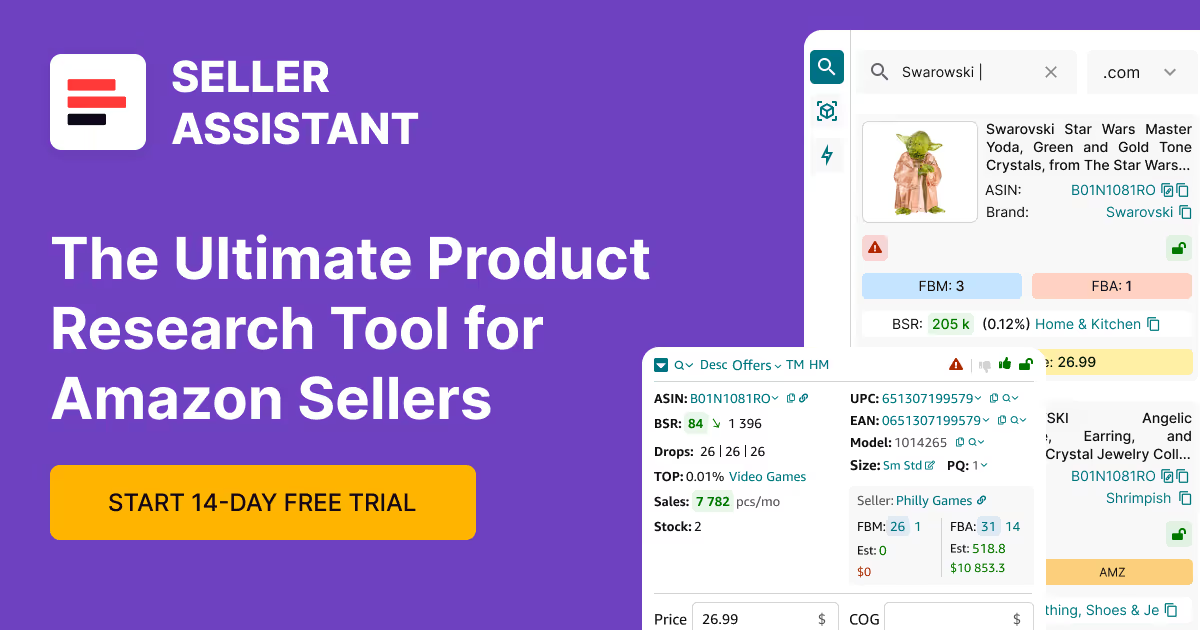



Amazon wholesale sourcing doesn’t break at product research – it breaks when it’s time to actually place orders. As supplier lists grow, many sellers still rely on spreadsheets, emails, or notes to create purchase orders, which leads to wrong quantities, missing details, and costly delays.
To scale reliably, you need a structured way to turn supplier data into accurate purchase orders.
In this post, you’ll learn how to create purchase orders directly from the Suppliers Database in Seller Assistant, so supplier details, routing, and product data stay consistent from sourcing to purchasing.
From Supplier Chaos to Structured Purchasing
Creating purchase orders directly from the Suppliers Database is not just a convenience – it changes how Amazon sellers manage procurement. Instead of rebuilding orders from scratch or copying supplier details between tools, you start with accurate, pre-filled data and move straight into purchasing.
This reduces errors, speeds up order creation, and keeps supplier terms, routing, and product data aligned across your workflow. As your supplier network grows, this approach becomes essential for maintaining control and avoiding costly mistakes.
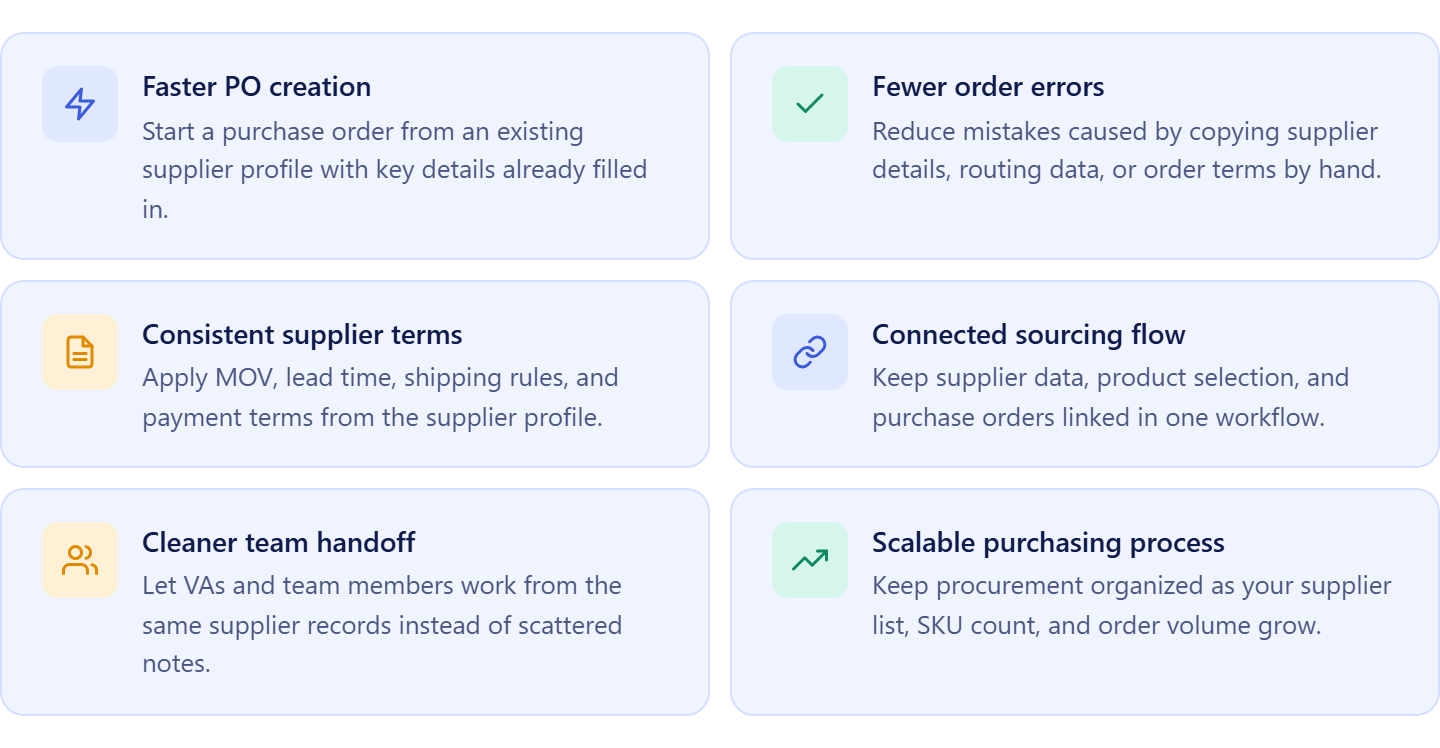 Faster transition from supplier to purchase order
When you create a PO from a supplier profile, key details like contact information, terms, and routing are already filled in. This removes repetitive setup and lets you focus on selecting products and confirming quantities.
Fewer manual errors in orders
Manual data entry is one of the main sources of mistakes in wholesale operations. Starting from the Suppliers Database ensures consistent supplier details, reducing the risk of incorrect addresses, missing terms, or wrong order configurations.
Consistent application of supplier terms
Each supplier has specific requirements such as MOV, lead time, and shipping rules. Creating purchase orders from the database ensures these terms are applied correctly every time, preventing rejected or delayed orders.
Better alignment between sourcing and purchasing
Supplier data, product selection, and purchase orders stay connected in one workflow. This makes it easier to move from sourcing decisions to execution without losing information or duplicating work.
Scalable workflow for growing operations
As you add more suppliers and team members, structured PO creation becomes critical. A database-driven approach keeps procurement organized, transparent, and easy to manage at scale.
What Tools Create Purchase Orders from Suppliers Database
Creating purchase orders from the Suppliers Database removes the need to manually rebuild supplier details every time you place an order – but this only works when supplier data and purchasing tools are connected. Seller Assistant simplifies this by linking structured supplier profiles with a dedicated purchase order workspace.
Instead of re-entering supplier contacts, terms, and routing details, you move from a supplier profile to a ready-to-send PO in a few clicks, keeping orders accurate and consistent.
This workflow is powered by two core tools: Seller Assistant’s Suppliers Database and Seller Assistant’s Purchase Orders Module.
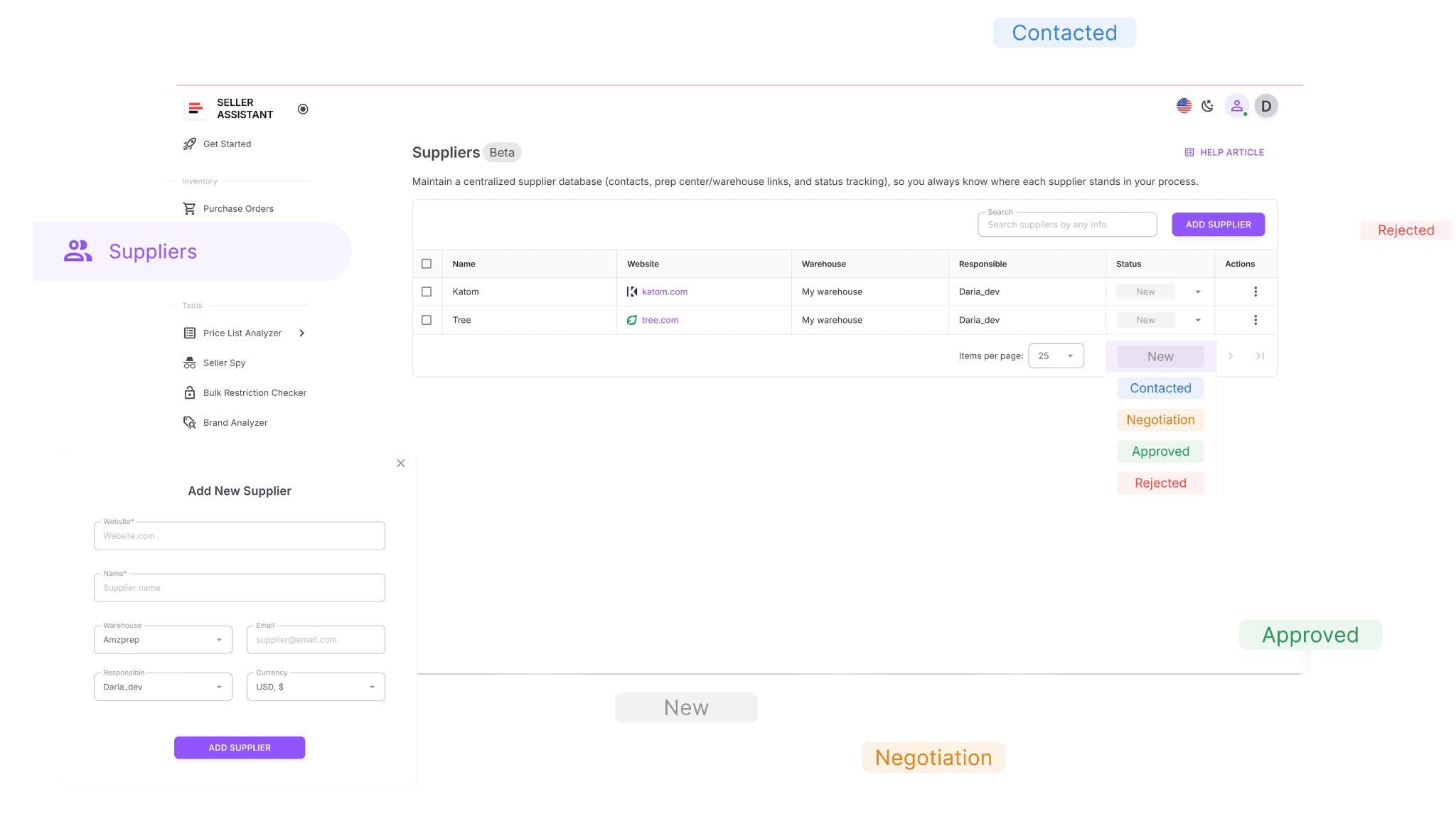
Suppliers Database
Suppliers Database is where your supplier relationships are stored and organized. It contains contact details, purchasing terms, routing rules, and relationship status in one place. Because this data is already structured and up to date, it becomes the starting point for purchase orders – you don’t need to re-enter supplier information or double-check terms before creating a PO.
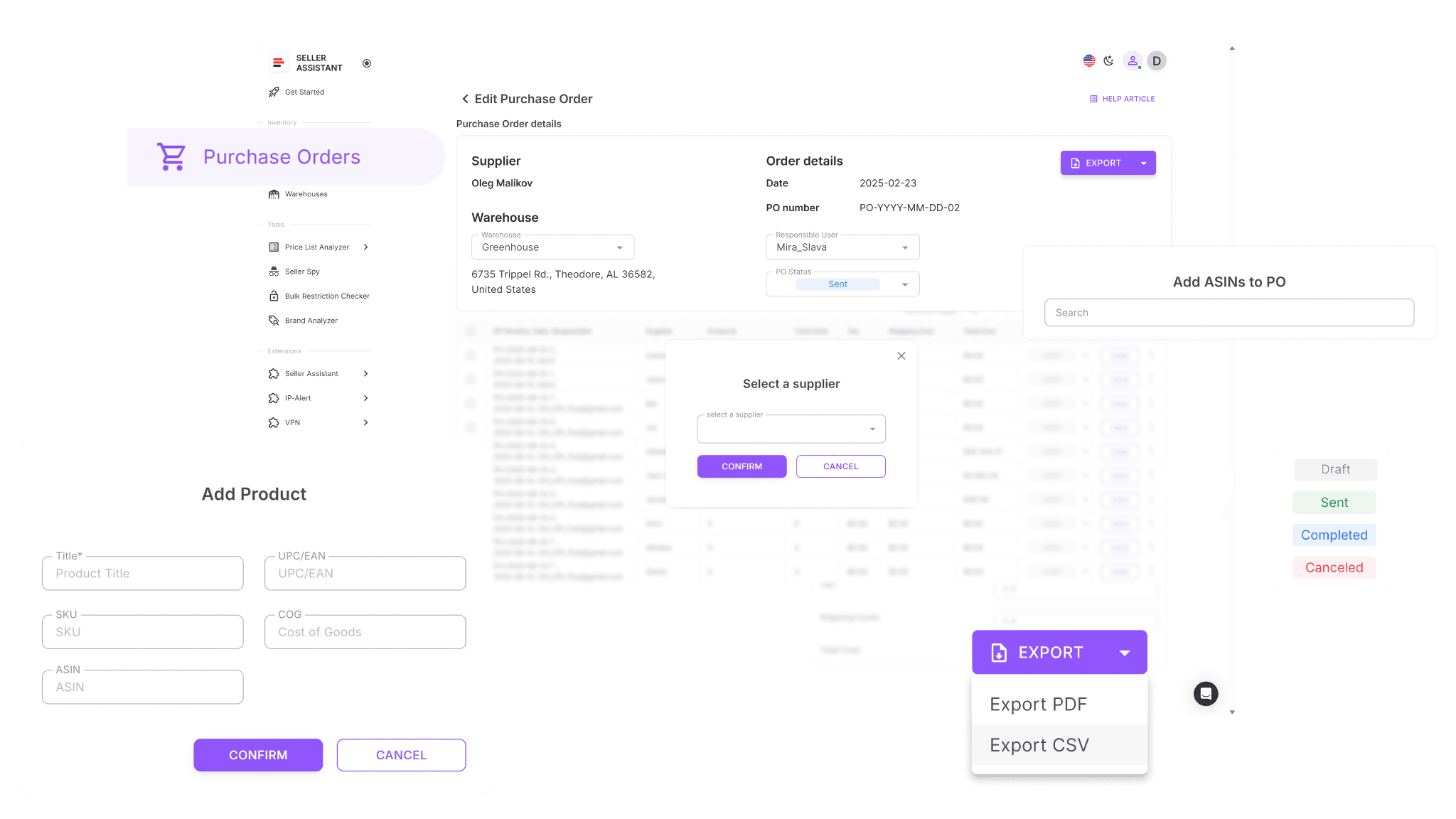
Purchase Orders Module
Purchase Orders Module is where purchasing is executed. It takes supplier data from the Suppliers Database and creates structured purchase orders with key details already filled in. You can add products, adjust quantities, and manage costs while the system calculates totals automatically, keeping every order accurate.
How they work together
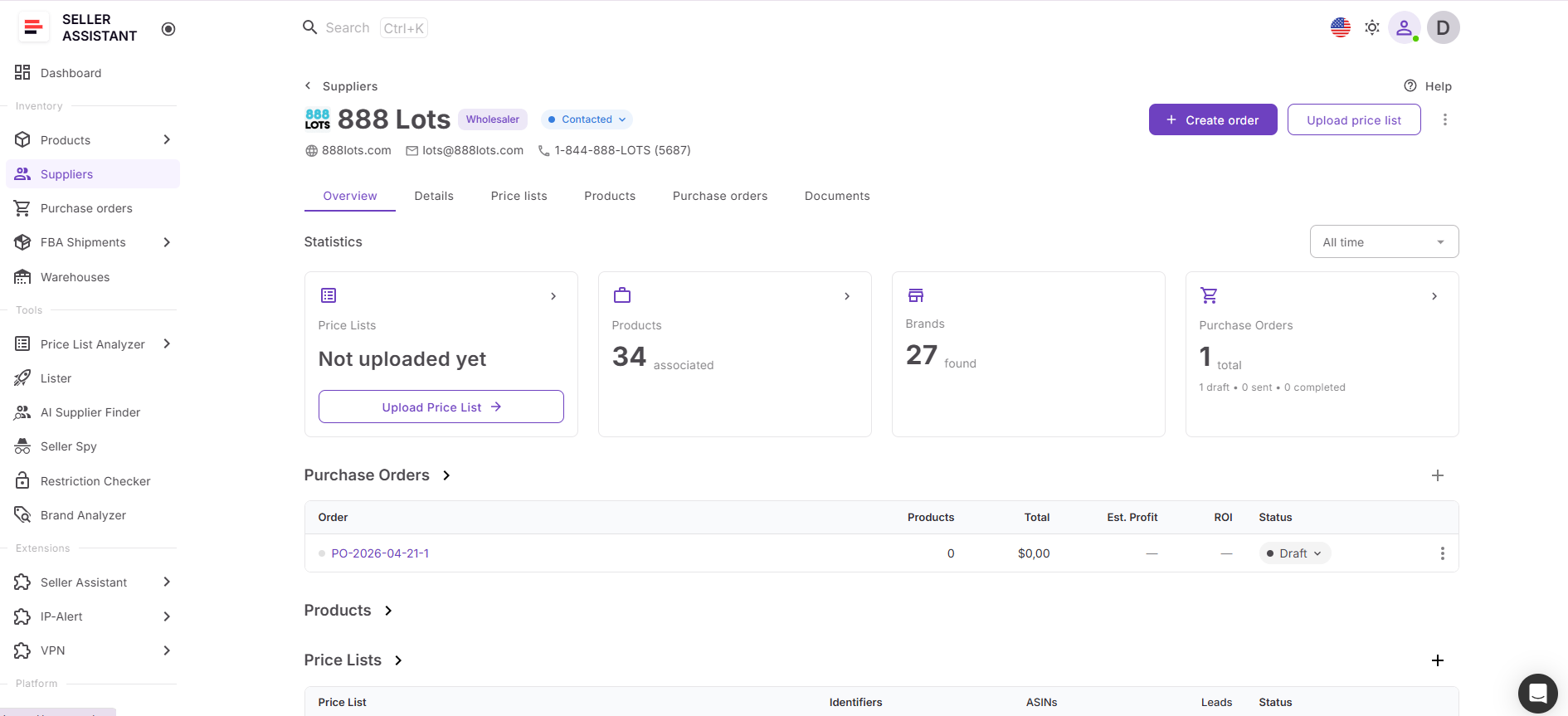
You open a supplier profile and create a purchase order directly from it. The system carries over supplier details, default warehouse, and key terms into the PO. From there, you add products and finalize the order without re-entering data. This keeps supplier information consistent and reduces the risk of errors across your workflow.
How this fits into your workflow
Creating purchase orders from the Suppliers Database connects supplier management with purchasing. After sourcing products and organizing suppliers, you move directly into order creation without breaking context. Supplier data flows into purchase orders automatically, helping you scale procurement faster while maintaining accuracy.
Note. Seller Assistant is an end-to-end Amazon workflow management platform that integrates 15+ wholesale-focused solutions into one connected system. It combines sourcing workflow automation, bulk research and intelligence tools, and integrated Chrome extensions – giving you everything you need to streamline finding deals, managing suppliers, and creating purchase orders.

The platform aggregates: workflow management tools – Purchase Orders Module, Suppliers Database, Product Database, Warehouses Database, FBA Shipments to organize, automate, and scale every step of your wholesale and arbitrage operations; bulk research & sourcing tools – Price List Analyzer, Bulk Restriction Checker, AI Supplier Finder, Brand Analyzer, Seller Spy to evaluate supplier price lists, verify selling eligibility and restrictions, open new brands, and discover winning product ideas from competitors to expand your product catalog; Chrome extensions – Seller Assistant Browser Extension, IP-Alert Extension, and built-in VPN by Seller Assistant to deep-research products, check IP claims and compliance, and access geoblocked supplier sites directly within your browser; and integrations & team access features – seamless API connectivity and integrations with Zapier, Airtable, and Make, plus Virtual Assistant Accounts for secure, scalable team collaboration.
With Seller Assistant, every step of your Amazon wholesale and arbitrage workflow is automated and connected.
What Is Suppliers Database?
Suppliers Database is Seller Assistant’s centralized system for managing all supplier information in one place. It stores supplier profiles, contact details, terms, and relationship status in a structured format that keeps everything organized and easy to access.
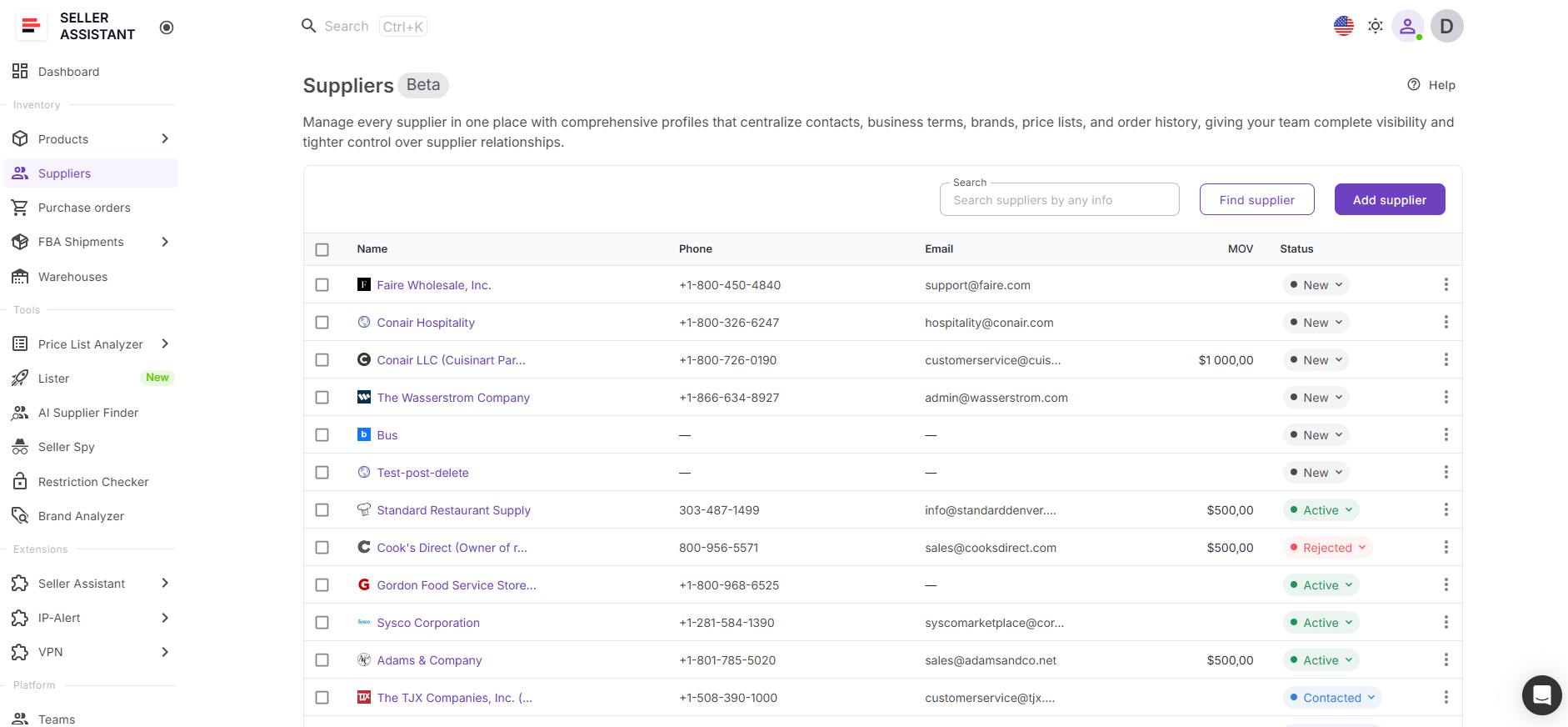
Instead of tracking suppliers across spreadsheets, emails, and notes, you work with a single source of truth that connects directly to purchasing. Supplier data flows into Purchase Orders Module automatically, so you can create accurate purchase orders without re-entering details or missing important terms.
What you can do with Suppliers Database
Suppliers Database helps you structure supplier relationships and turn them into a consistent purchasing process. It keeps supplier data clear and reusable, so every order is based on the same accurate information.
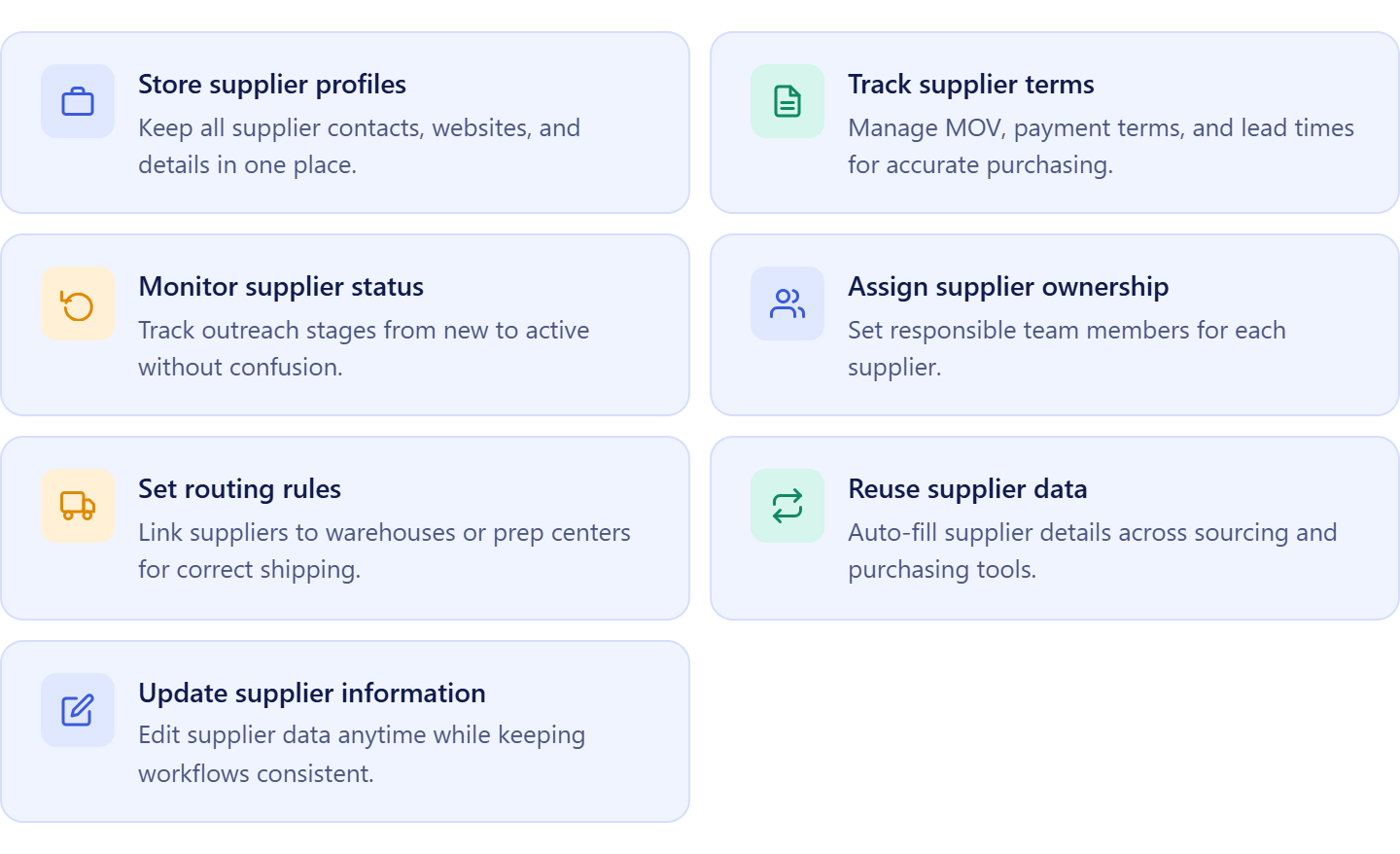
- Store supplier profiles in one place
Keep contact details, websites, and core supplier data centralized
- Manage supplier terms and conditions
Track minimum order value, payment terms, lead time, and shipping rules
- Track supplier relationship status
Monitor each supplier’s stage to manage outreach and avoid duplication
- Assign suppliers to team members
Set clear ownership to keep your team aligned
- Link suppliers to warehouses
Assign default prep centers or ship-to locations for correct routing
- Use supplier data in purchase orders automatically
Apply saved supplier details directly when creating purchase orders
- Update supplier information anytime
Edit supplier data as relationships evolve without breaking workflows
How Suppliers Database improves your purchasing workflow
Suppliers Database turns supplier management into a structured, scalable system. Instead of storing supplier details in static files, you work with dynamic profiles that connect directly to Purchase Orders Module.
You can add suppliers manually or from tools like AI Supplier Finder, define their terms, and track their status. Once saved, supplier data is reused automatically in purchase orders, reducing manual input and preventing mistakes.
Suppliers Database works closely with Purchase Orders Module to ensure every order uses the correct supplier details, terms, and routing. This connection keeps purchasing consistent, eliminates repeated data entry, and helps you scale your procurement process without losing control.
What Is Purchase Orders Module?
Purchase Orders Module is Seller Assistant’s dedicated workspace for handling supplier orders from creation to completion within one system. Instead of preparing purchase orders manually in spreadsheets, the module uses connected supplier, product, and warehouse data to build structured orders automatically. This keeps your purchasing process organized, reduces errors, and ensures every order follows a consistent workflow as your operation grows.
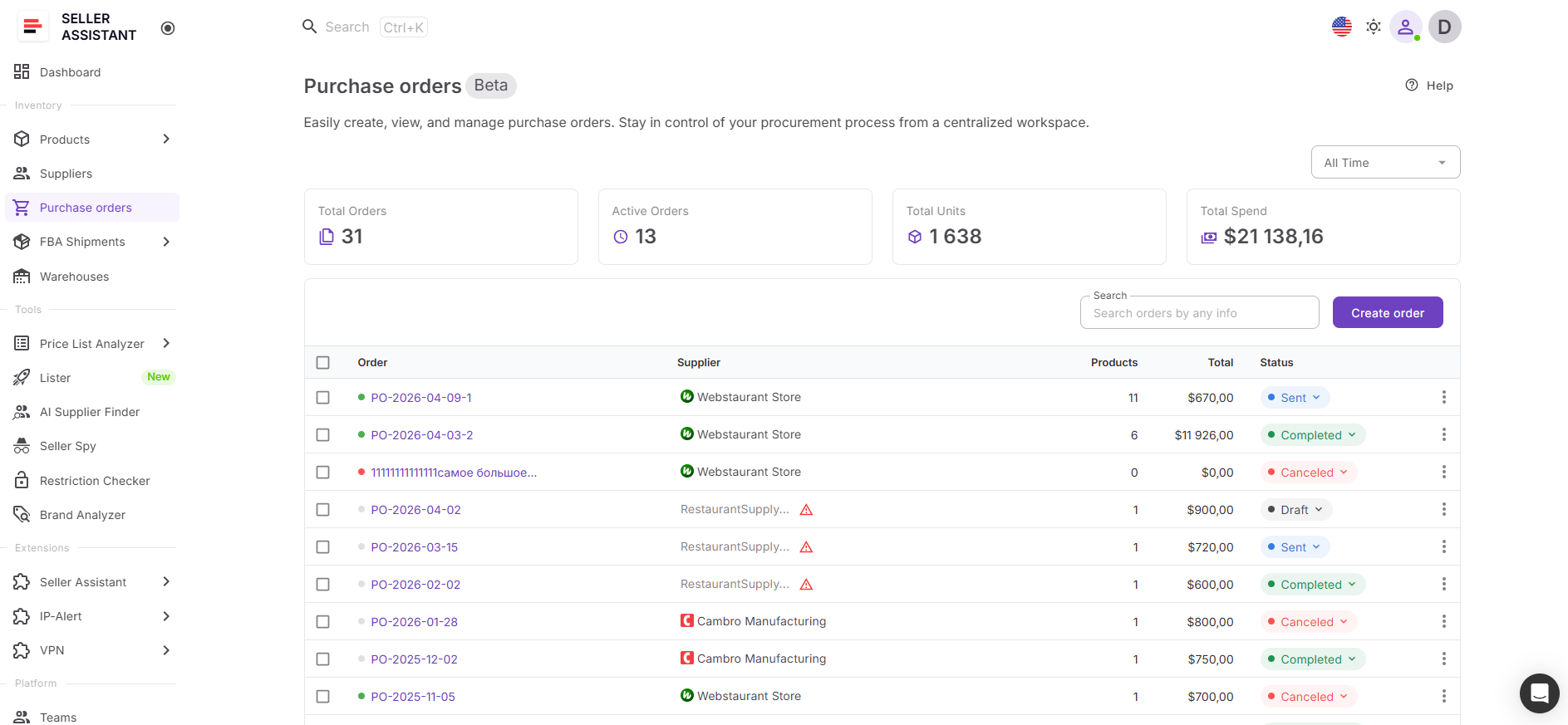
What you can do with Purchase Orders Module
Purchase Orders Module provides a reliable system for managing supplier orders without relying on scattered documents or manual templates. It brings all key data together and automates routine steps, so your purchasing remains accurate and easy to control.
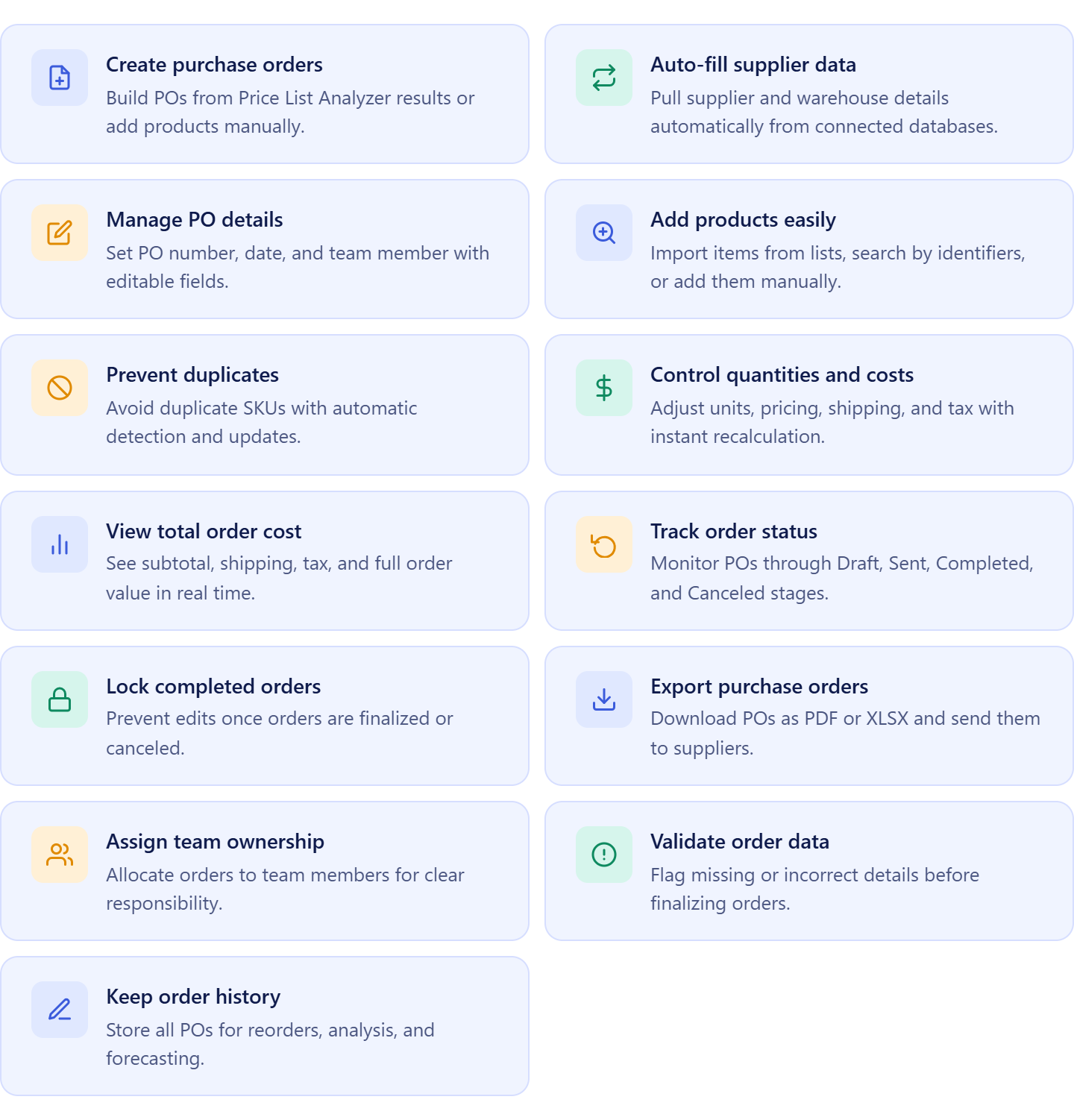
- Create purchase orders quickly
Generate orders from sourced products or add items manually when needed
- Auto-fill supplier and shipping details
Use data from Suppliers Database and Warehouses Database to avoid repeated entry
- Manage order details in one place
Control PO number, date, and assigned team member centrally
- Add products from multiple sources
Import from price lists, search by identifiers, or enter products manually
- Prevent duplicate SKUs
Automatically merge duplicate items within the same order
- Adjust quantities and costs easily
Update units, pricing, shipping, and tax with automatic recalculation
- View full order cost instantly
See subtotal, shipping, tax, and total cost in real time
- Track order status
Move orders through Draft, Sent, Completed, and Canceled stages
- Lock completed orders
Protect finalized or canceled POs from edits
- Export and send orders
Download POs as PDF or XLSX for supplier communication
- Assign orders to team members
Keep responsibilities clear across your team
- Detect missing data early
Get alerts for incomplete supplier or routing details
- Maintain complete order history
Store all POs for reorders, tracking, and forecasting
How Purchase Orders Module structures your purchasing workflow
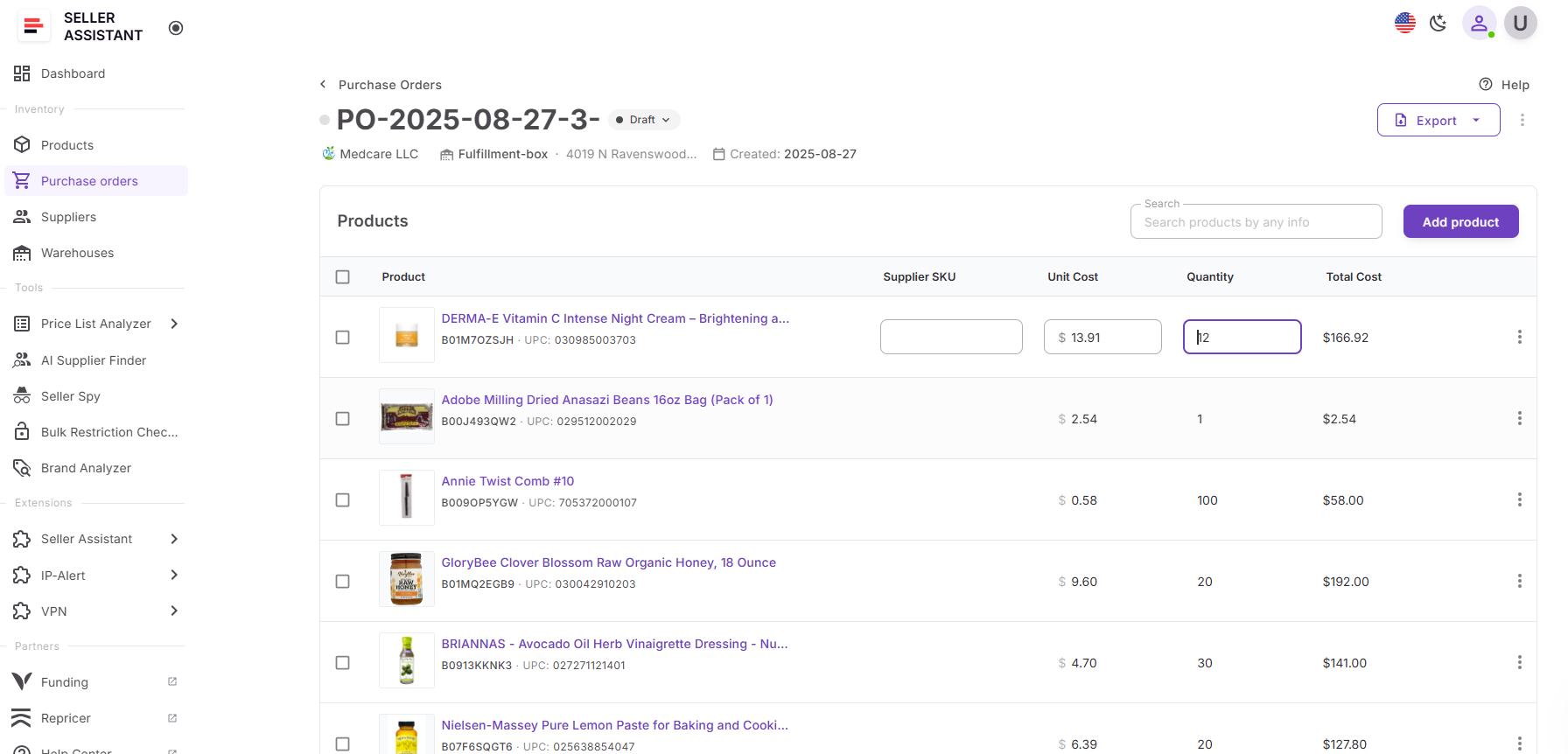
Purchase Orders Module turns purchasing into a clear, repeatable process inside Seller Assistant. You create a new order, select a supplier from Suppliers Database, and the system generates a draft with a unique number and prefilled supplier details. From there, you add products, assign a warehouse, and adjust quantities and costs while totals update automatically.
Products can be added from supplier price lists, Product Database, Price List Analyzer, product search, team data, or manual input. If the same product is added more than once, the system updates the existing line instead of duplicating it.
Because the module is directly connected to Suppliers Database, supplier details such as contact information, terms, and default routing flow automatically into each purchase order. This ensures every order uses accurate supplier data without re-entry, while built-in metrics like total orders, units, and spend help you track procurement performance and scale with control.
How to Turn Suppliers Database Into Ready-To-Send Purchase Orders
The process starts with your Suppliers Database. After sourcing suppliers, defining terms, and setting routing rules, each supplier profile already contains structured data – contact details, payment terms, minimum order values, and default warehouse. At this stage, your supplier is fully prepared for purchasing, but in a traditional workflow, you would still need to manually copy this information into a purchase order.
Instead of rebuilding supplier details, you open a supplier profile and create a purchase order directly from it. The system automatically applies supplier data, routing, and key terms, so you don’t need to re-enter or verify them again. You simply add products, review quantities, confirm costs, and finalize the order.
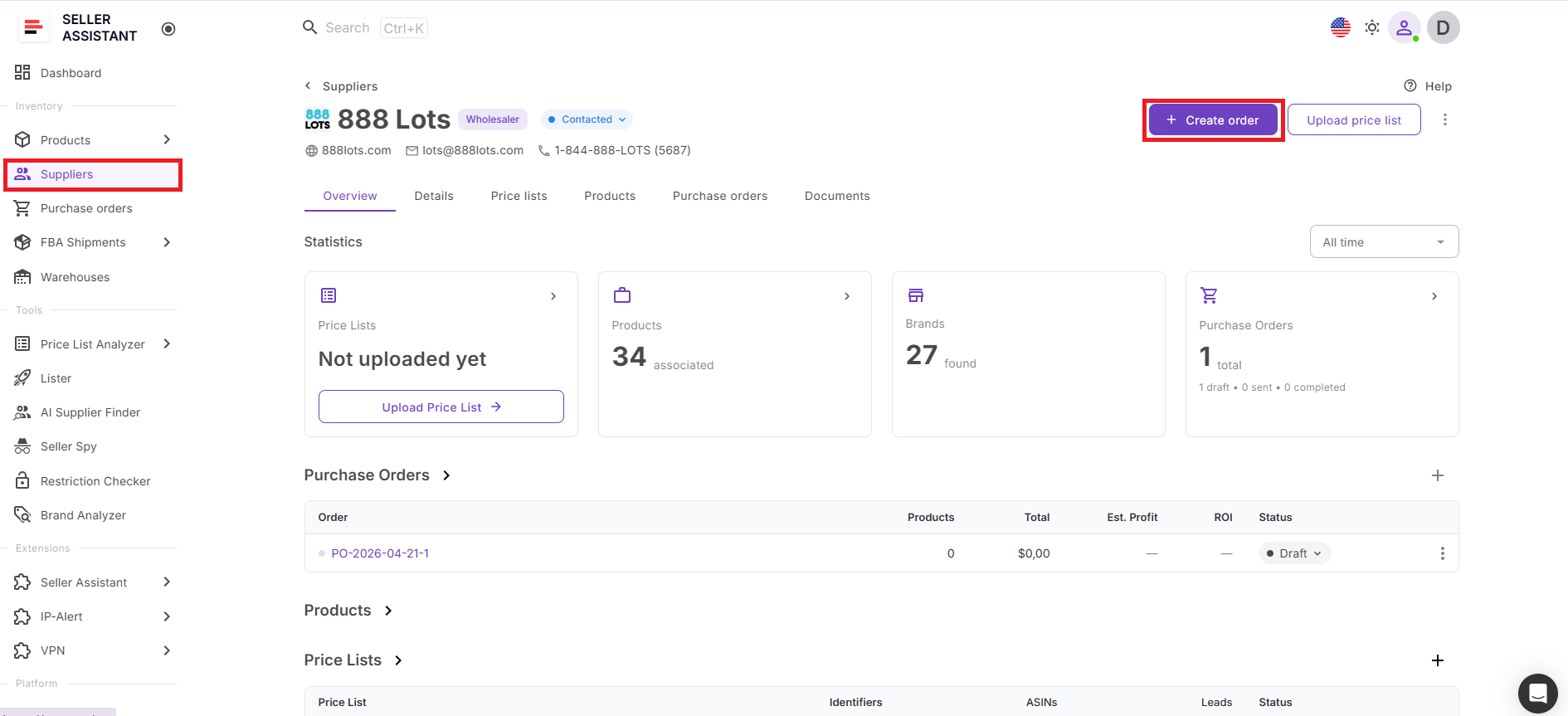
Once created, your purchase orders are ready to export and send to suppliers in one flow. This keeps supplier data consistent, reduces manual errors, and allows you to move from supplier management to purchasing much faster.
How to Create A Purchase Order from Suppliers Database Step by Step
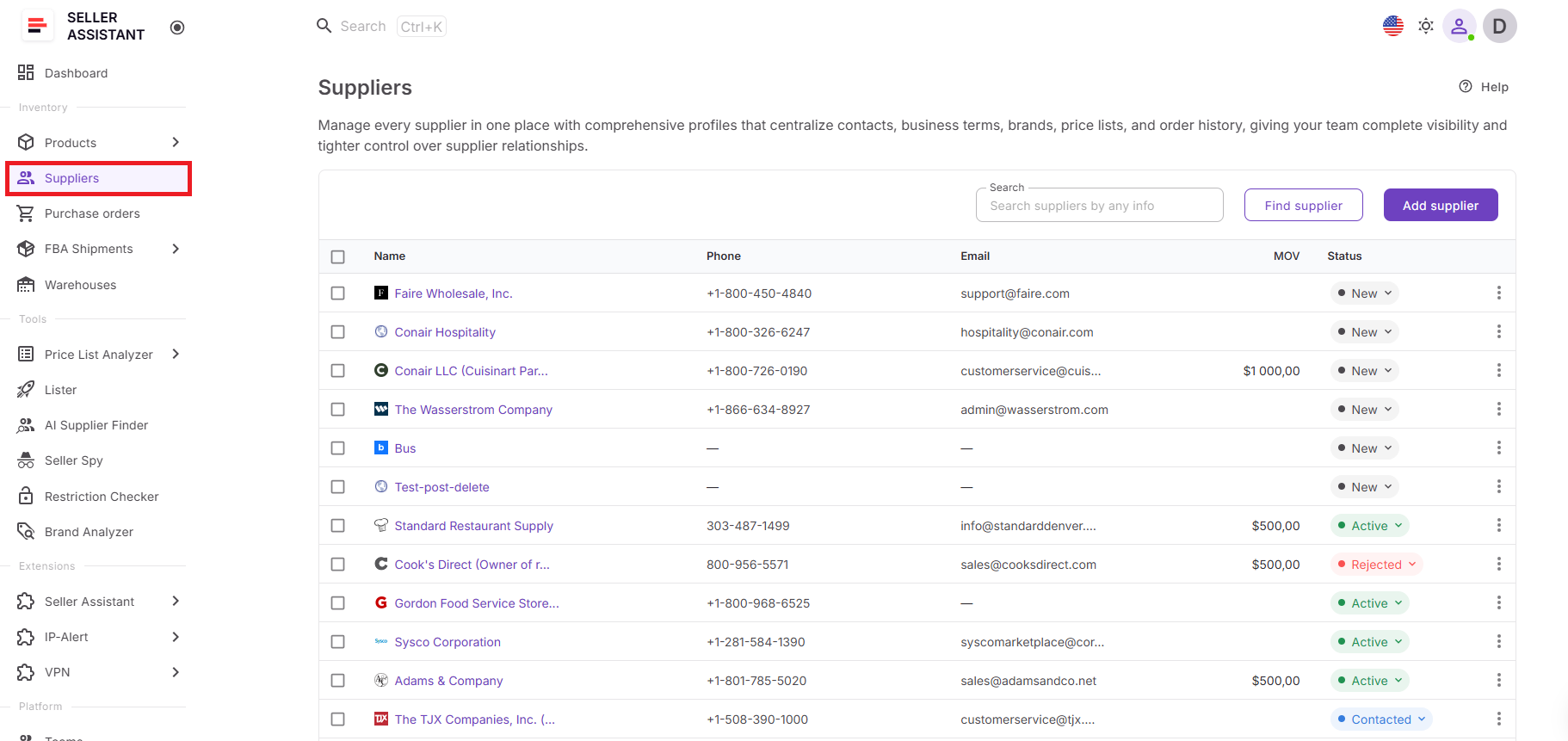
Step 1. Open Suppliers Database
Log in to Seller Assistant and go to Inventory → Suppliers. This opens your Suppliers Database, where all supplier profiles are stored.
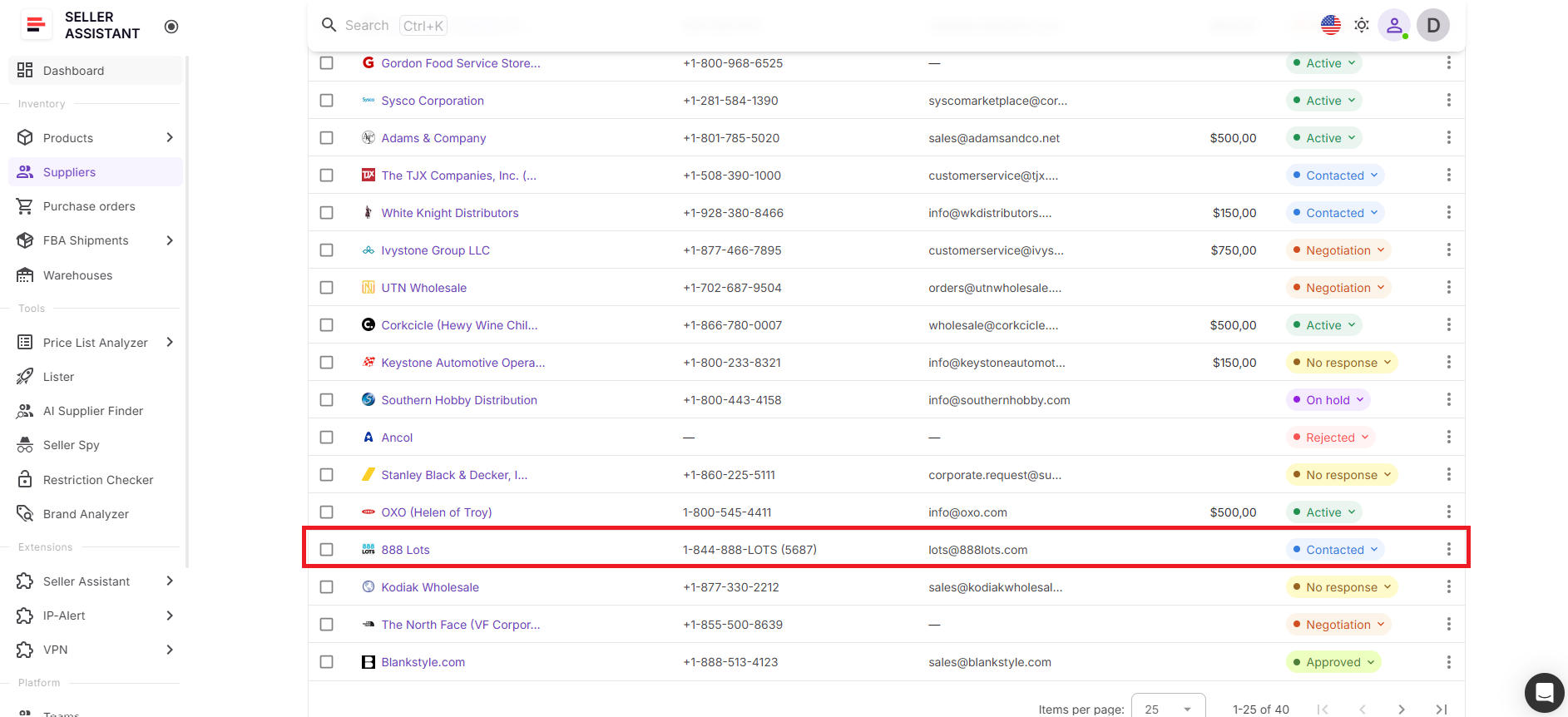
Step 2. Choose a supplier
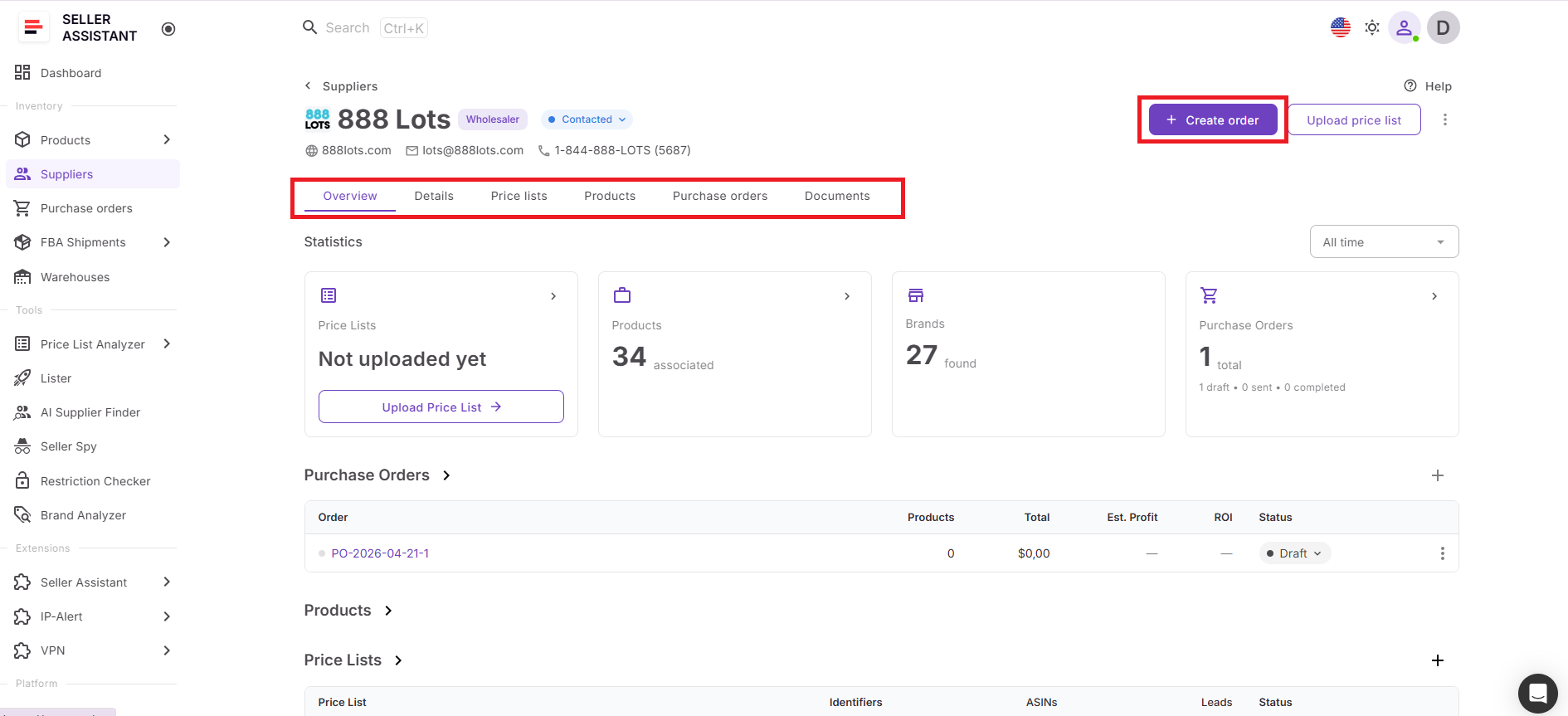
Find the supplier you want to order from and open their profile. Check that the contact details, terms, and default warehouse are correct before creating the order.
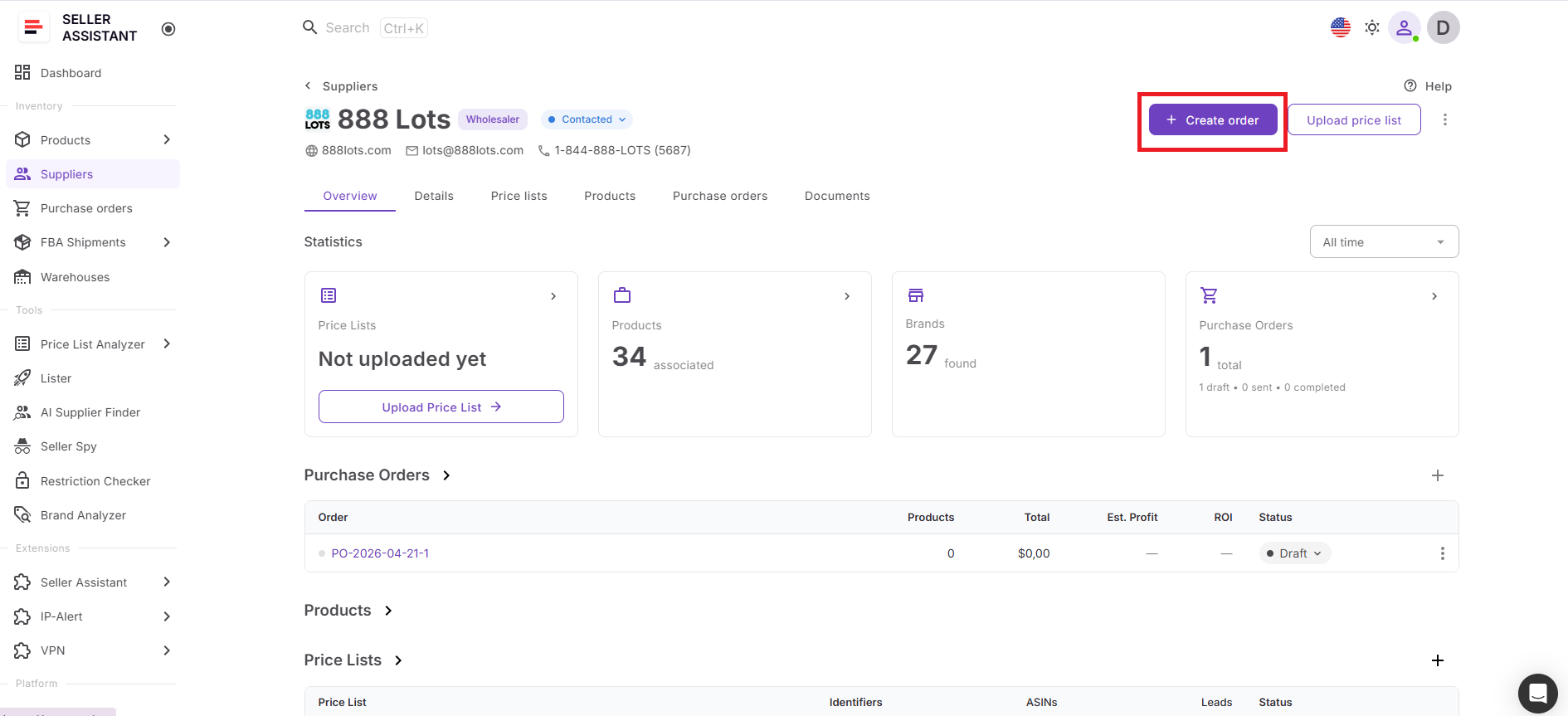
Step 3. Click create order
Click Create Order in the supplier profile. Seller Assistant opens a new purchase order with supplier details already pre-filled.
Step 4. Review purchase order details
Check the PO number, supplier, warehouse, owner, creation date, and status. Update any details if needed before adding products.
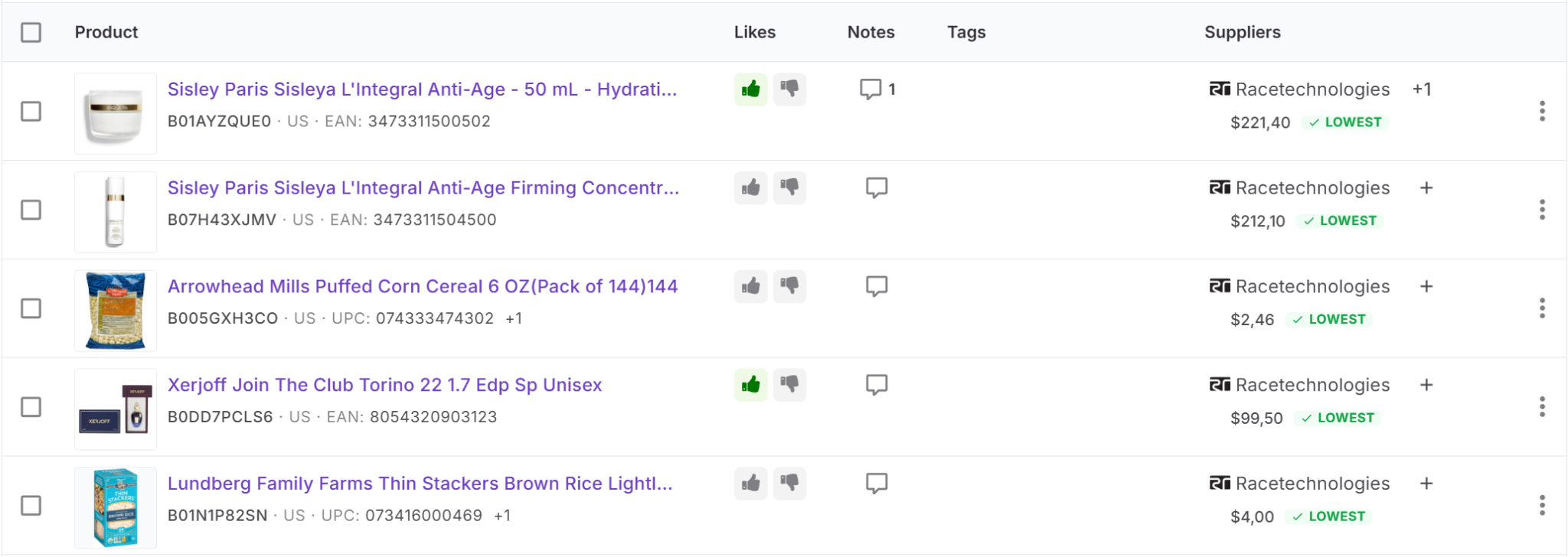
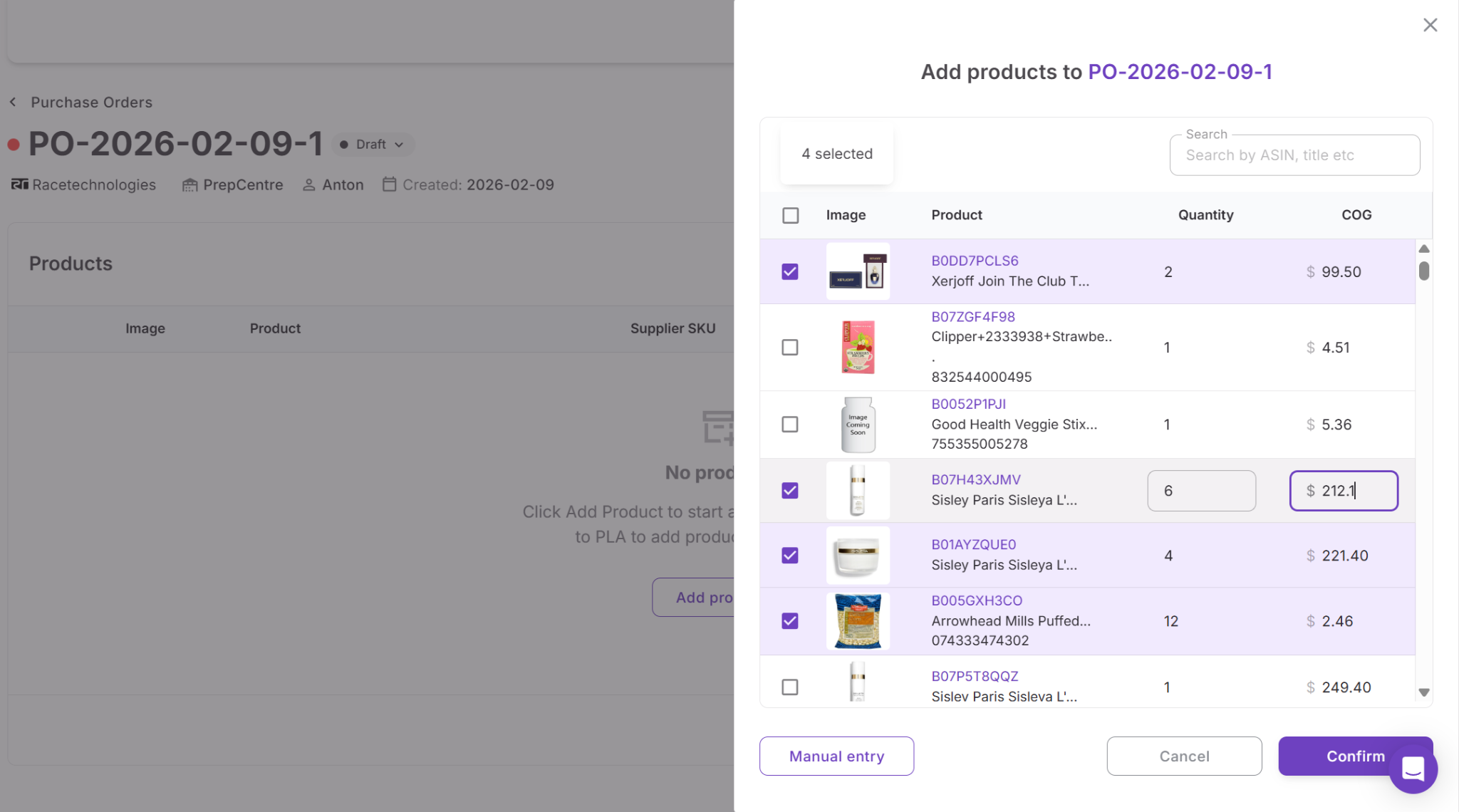
Step 5. Add products to the PO
Add products to the purchase order from available sources such as Product Database, Price List Analyzer, supplier price lists, ASIN search, or manual entry.
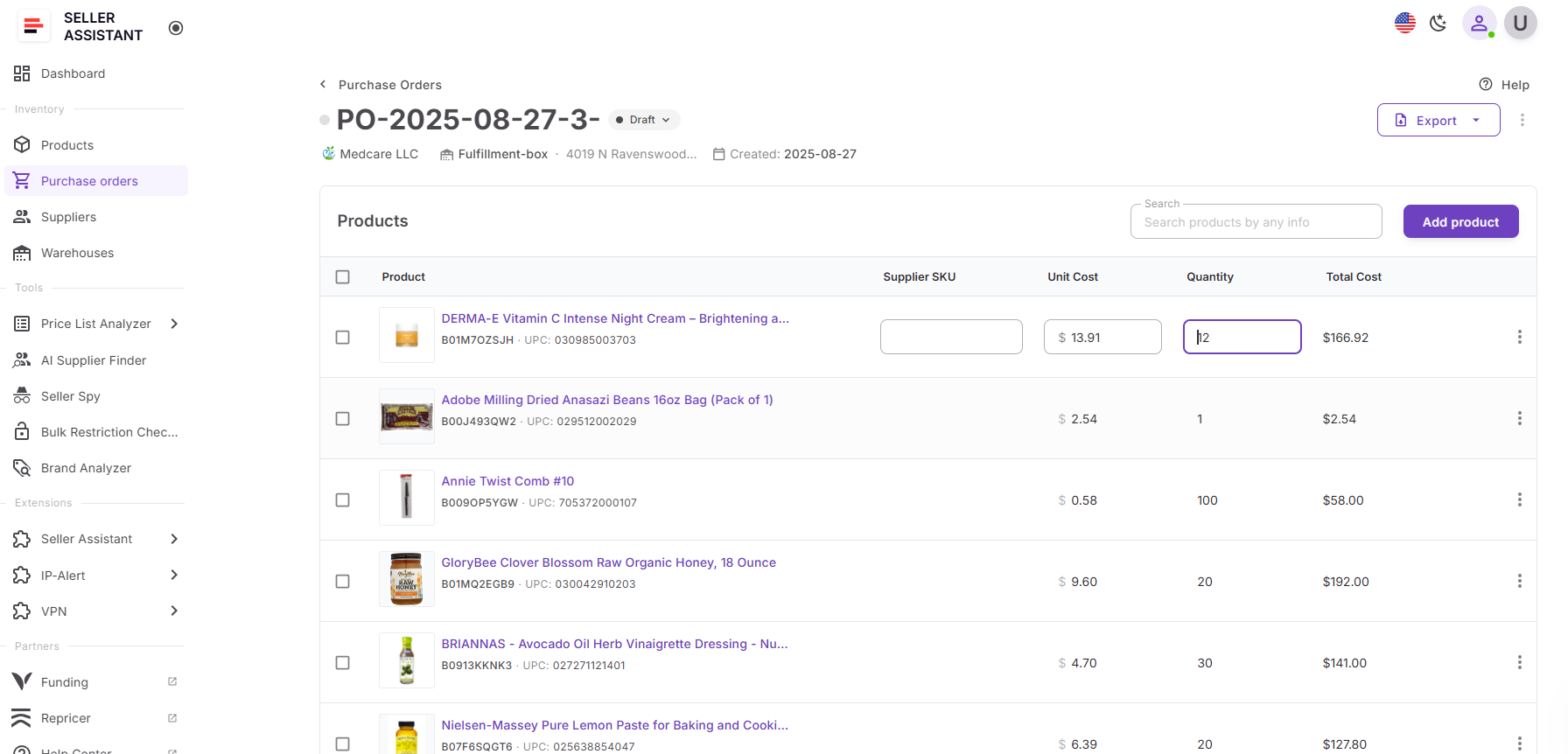
Step 6. Confirm quantities and costs
Review each product line. Adjust quantity, unit cost, supplier SKU, shipping, or tax if needed. Totals update automatically.
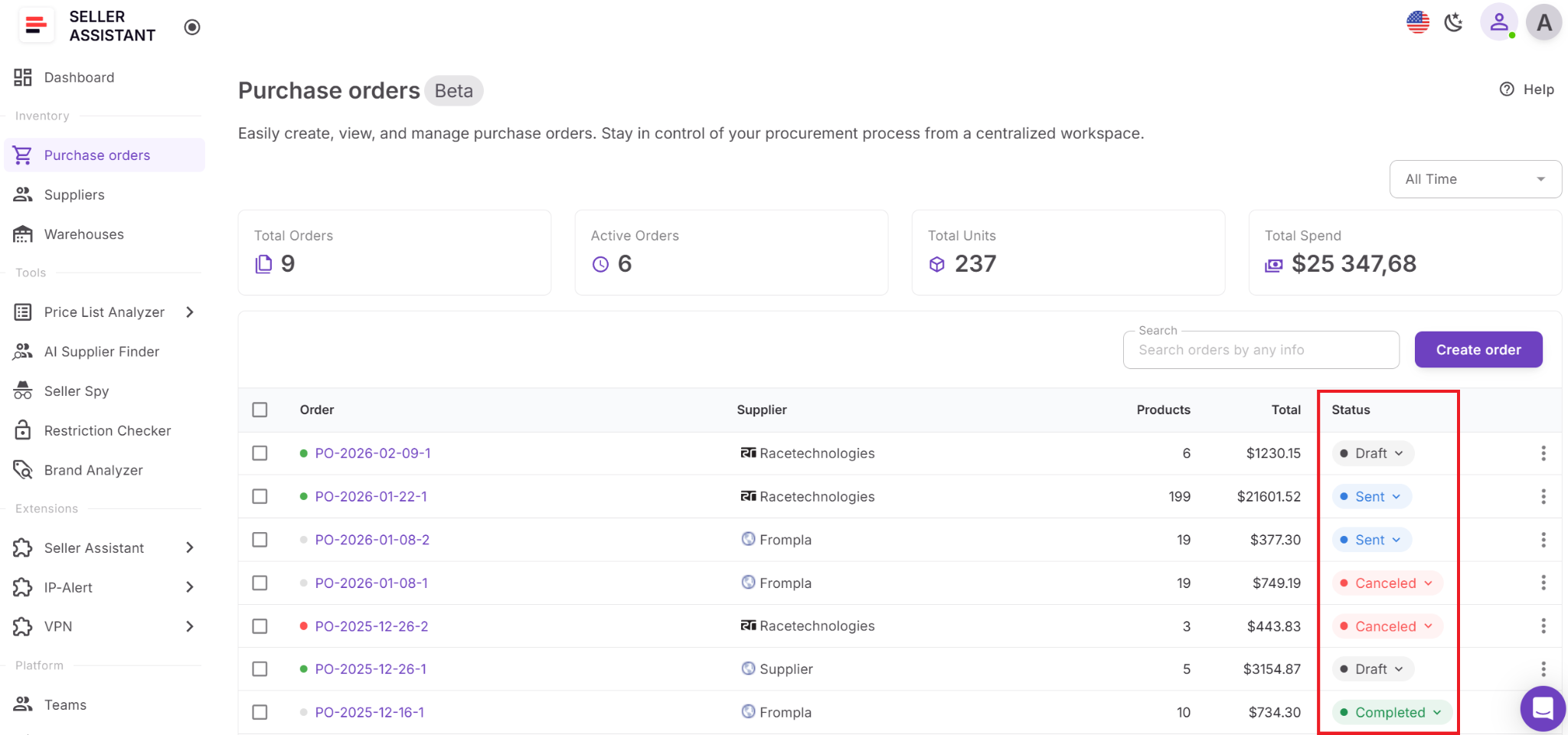
Step 7. Set order status
Keep the PO in Draft while preparing it. After sending it to the supplier, change the status to Sent. Later, mark it Completed or Canceled.
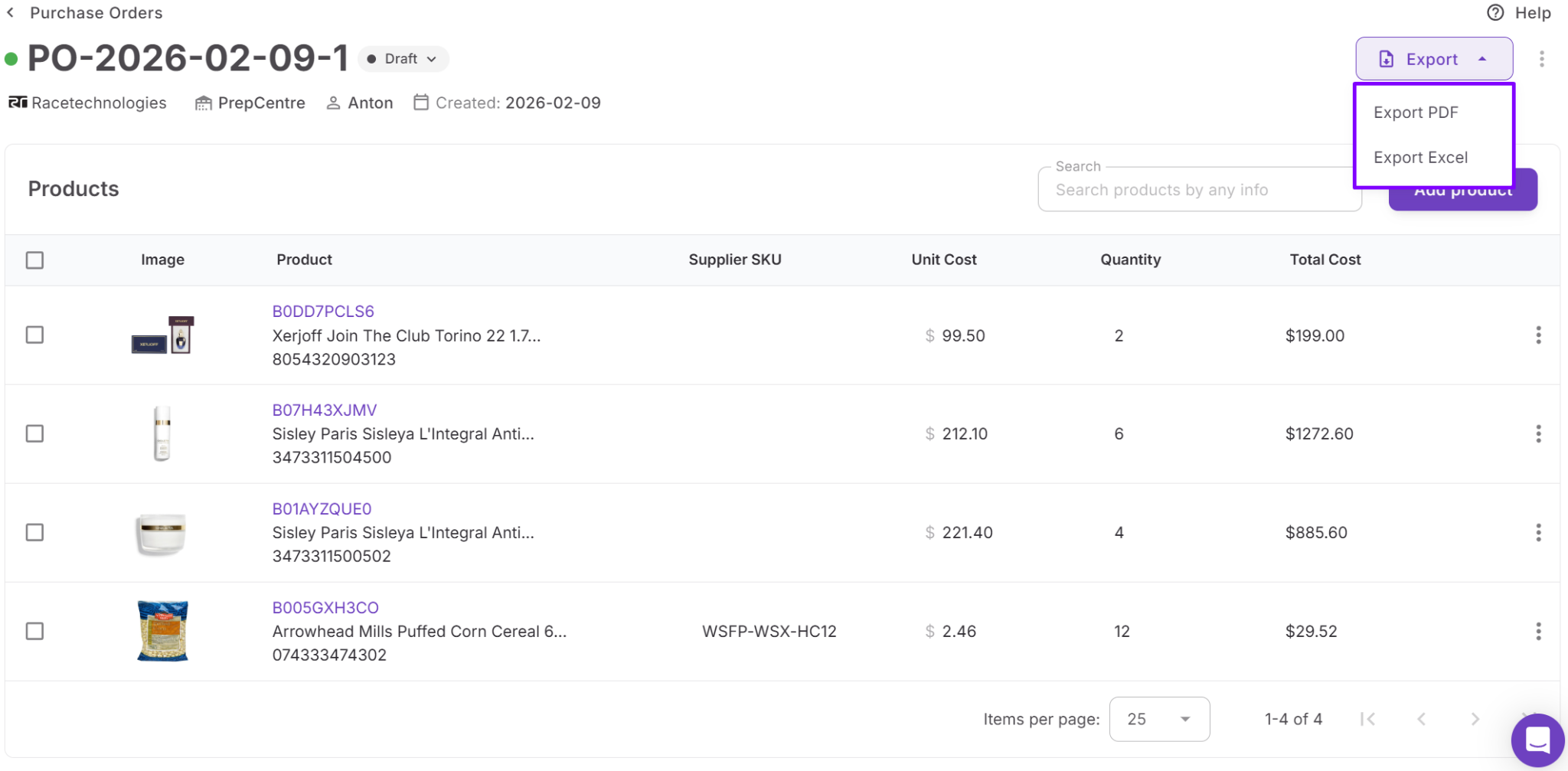
Step 8. Export and send the PO
Export the purchase order as PDF or XLSX and send it to your supplier.
FAQ
Can I create a purchase order without adding a supplier first?
No, a supplier must exist in the Suppliers Database before creating a purchase order from it. This ensures that all supplier details, terms, and routing information are applied correctly from the start.
Do supplier terms automatically apply to purchase orders?
Yes, supplier terms such as MOV, lead time, and routing settings are pulled from the supplier profile. This helps keep every order consistent and reduces the risk of missing important requirements.
Can I edit supplier details after creating a purchase order?
Yes, you can update supplier details in the Suppliers Database at any time. However, changes will not automatically update existing purchase orders that were already created.
How do I add products to a purchase order created from a supplier?
You can add products from multiple sources including Product Database, Price List Analyzer, supplier price lists, or manual entry. The system organizes products inside the PO and updates totals automatically as you add or edit items.
Can my team create and manage purchase orders together?
Yes, purchase orders are shared across your Seller Assistant workspace. Team members and virtual assistants can create, edit, and track orders while working with the same supplier data.
Final Thoughts
Creating purchase orders from Seller Assistant’s Suppliers Database gives Amazon sellers a more reliable way to manage procurement as operations grow. Instead of rebuilding supplier details and risking errors, you start with structured data and move directly into purchasing with everything already aligned.
By connecting supplier profiles with the Purchase Orders Module, you reduce manual work, keep terms and routing consistent, and create orders faster. This approach helps you maintain control over your workflow, avoid costly mistakes, and scale your wholesale business with a clear and repeatable purchasing process.
Seller Assistant automates and connects every stage of your Amazon wholesale and arbitrage workflow. It brings together in one platform: workflow management tools – Purchase Orders Module, Suppliers Database, Warehouses Database, FBA Shipments, bulk research & sourcing tools – Price List Analyzer, Bulk Restriction Checker, Sourcing AI, Brand Analyzer, Seller Spy, Chrome extensions – Seller Assistant Browser Extension, IP-Alert Extension, and built-in VPN by Seller Assistant, and integrations & team access features – seamless API connectivity, integrations with Zapier, Airtable, and Make, and Virtual Assistant Accounts.