

With several suppliers and a handful of purchase orders open at once, simple questions get slow to answer: which order went to which supplier, what’s still sitting in Draft, what you paid last time. Each answer means opening the module, scanning the list, and clicking into orders one by one.
Seller Assistant’s Purchase Orders Module already keeps every order stored with its supplier, warehouse, and status – and its MCP Server lets an AI assistant look them up for you in plain language: “find my open orders for [supplier],” “what did I order from them last time.”
This post shows how to track every Amazon purchase order by asking instead of clicking.
Why Tracking Purchase Orders Gets Harder with Every New Supplier
Managing a few purchase orders is easy enough when you only have one or two suppliers. As the number of suppliers and open orders grows, simple questions such as which PO belongs to a supplier, which orders are still in Draft, or what you ordered last time can take several clicks and a search through purchase order history.
The problem is not that the information is missing – it is that it is spread across multiple orders that need to be checked individually. For Amazon wholesale sellers, online arbitrage sellers, and dropshippers, that turns basic order tracking into repetitive administrative work and makes it easier to overlook an order that still needs attention.
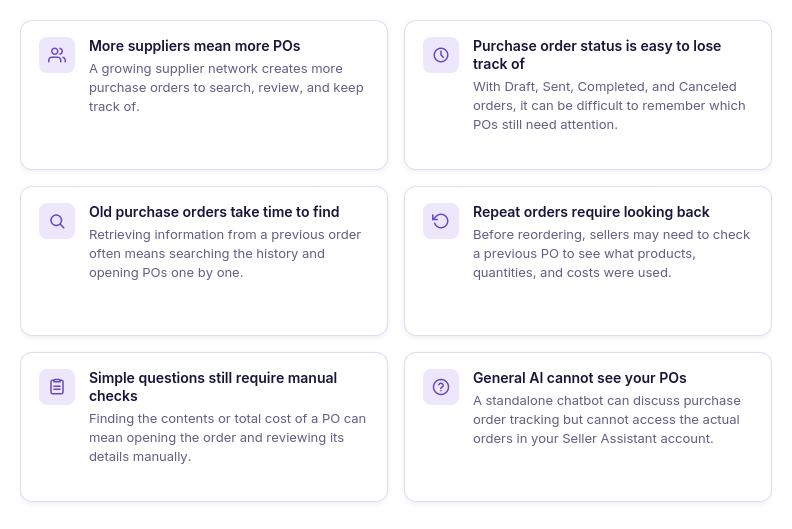
More suppliers mean more orders to keep track of
Each supplier can have multiple purchase orders at different stages, with different products, quantities, and costs. As your supplier network grows, finding one specific order becomes harder because there are simply more records to search through.
Open orders can slip through the cracks
A PO can remain in Draft while another order has already been sent or completed. Without regularly checking your purchase order list, it is easy to lose sight of which orders are still active and which ones no longer need attention.
Finding an old purchase order takes time
Previous orders often contain useful information about what you bought, from whom, and under what purchasing conditions. Retrieving that information manually means scanning purchase order history and opening individual orders until you find the one you need.
Repeat orders require looking back at previous purchases
When it is time to reorder from a supplier, sellers often need to check what they purchased previously before deciding what to buy again. That means finding the old PO, reviewing its products and quantities, and checking the associated purchasing data before creating the next order.
Simple questions still require opening individual orders
Questions such as what is in a specific PO or what its total cost is should be quick to answer. When the only option is to open the order and review its details manually, even small checks become another dashboard task.
General AI cannot see your actual purchase orders
A standalone AI assistant can explain how purchase order tracking works or suggest a way to organize your POs. But it cannot tell you which of your orders are in Draft, what you ordered from a specific supplier, or what a particular PO contains without access to your actual purchasing data.
Why AI Needs Access to Your Orders to Track Them
A general AI assistant can explain how to organize purchase orders, suggest ways to search through them, or tell you what information a good tracking system should contain. But questions like “which of my POs are still in Draft?” or “what did I order from this supplier last time?” require access to the actual purchase orders and the data stored inside them.
That access is what turns AI from a source of general advice into a practical tracking assistant. Instead of asking the seller to copy order details into the chat, an AI agent with access to the relevant purchasing system can retrieve the right orders, compare their information, and answer questions based on the current data.
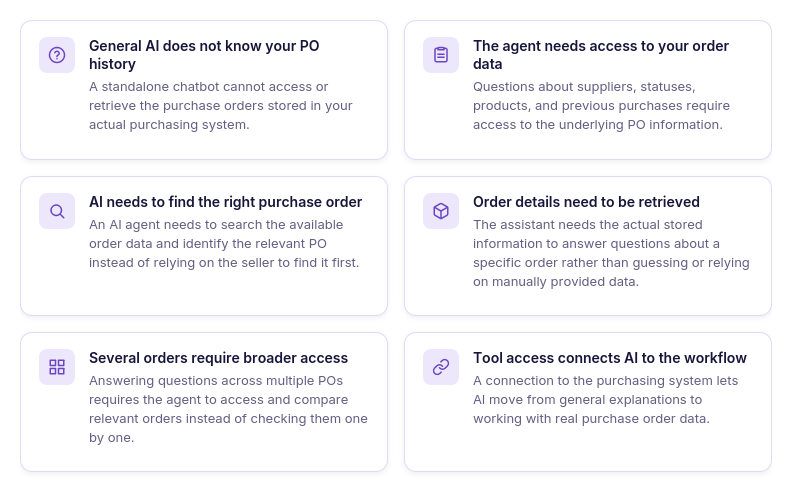
General AI does not know your purchase order history
A standalone chatbot has no automatic view of the purchase orders in your purchasing system. It can explain how PO history works, but it cannot retrieve a specific order or compare your actual purchase orders without access to the underlying data.
The agent needs access to your order data
Questions about suppliers, statuses, products, quantities, or previous purchases can only be answered accurately from the information stored in the actual orders. Without that connection, the seller still has to search for the relevant PO and provide its details manually.
AI needs to find the right purchase order
A tracking assistant needs to identify the correct order among all the purchase orders in the system. Access to the underlying data allows it to search using available order information instead of relying on the seller to locate and open the PO first.
Order details need to be retrieved, not guessed
Knowing that a purchase order contains products, quantities, costs, and a status is not enough to answer questions about a specific order. An AI agent needs access to the stored information so it can return the actual details rather than generate an answer based on assumptions.
Tracking several orders requires more than one manual lookup
A seller may want to know which orders are still open, what was purchased from a particular supplier, or which PO contains a certain product. An AI agent with access to the purchasing data can work across the relevant orders instead of requiring the seller to check each one separately.
Tool access connects AI to the actual workflow
For AI to answer questions about real purchase orders, it needs a way to access the system where those orders are stored. This connection lets the agent move from explaining how purchase order tracking works to retrieving information from the seller’s actual purchasing data.
How Seller Assistant Makes AI-Assisted Purchase Order Tracking Possible
Tracking purchase orders with AI requires two parts working together: a structured purchasing workspace that stores the actual order data and a connection that lets an AI assistant access that information. Seller Assistant brings these layers together through the Purchase Orders Module and Seller Assistant MCP Server, allowing sellers to move from manually searching through order history to asking questions about their purchase orders in natural language.
Purchase Orders Module keeps purchase orders organized with their suppliers, warehouses, products, quantities, costs, statuses, and other order details. Seller Assistant MCP Server connects supported purchase order data and operations with AI assistants such as ChatGPT and Claude, so the assistant can retrieve relevant order information through conversation while supported changes remain subject to seller confirmation.
How Purchase Orders Module keeps your purchase order history organized
Seller Assistant’s Purchase Orders Module provides a centralized workspace for storing, organizing, and managing supplier orders. Instead of keeping purchase order details across separate files or trying to remember where a specific order was placed, sellers can keep suppliers, warehouses, products, quantities, costs, statuses, and other order information connected within the same purchasing workflow.
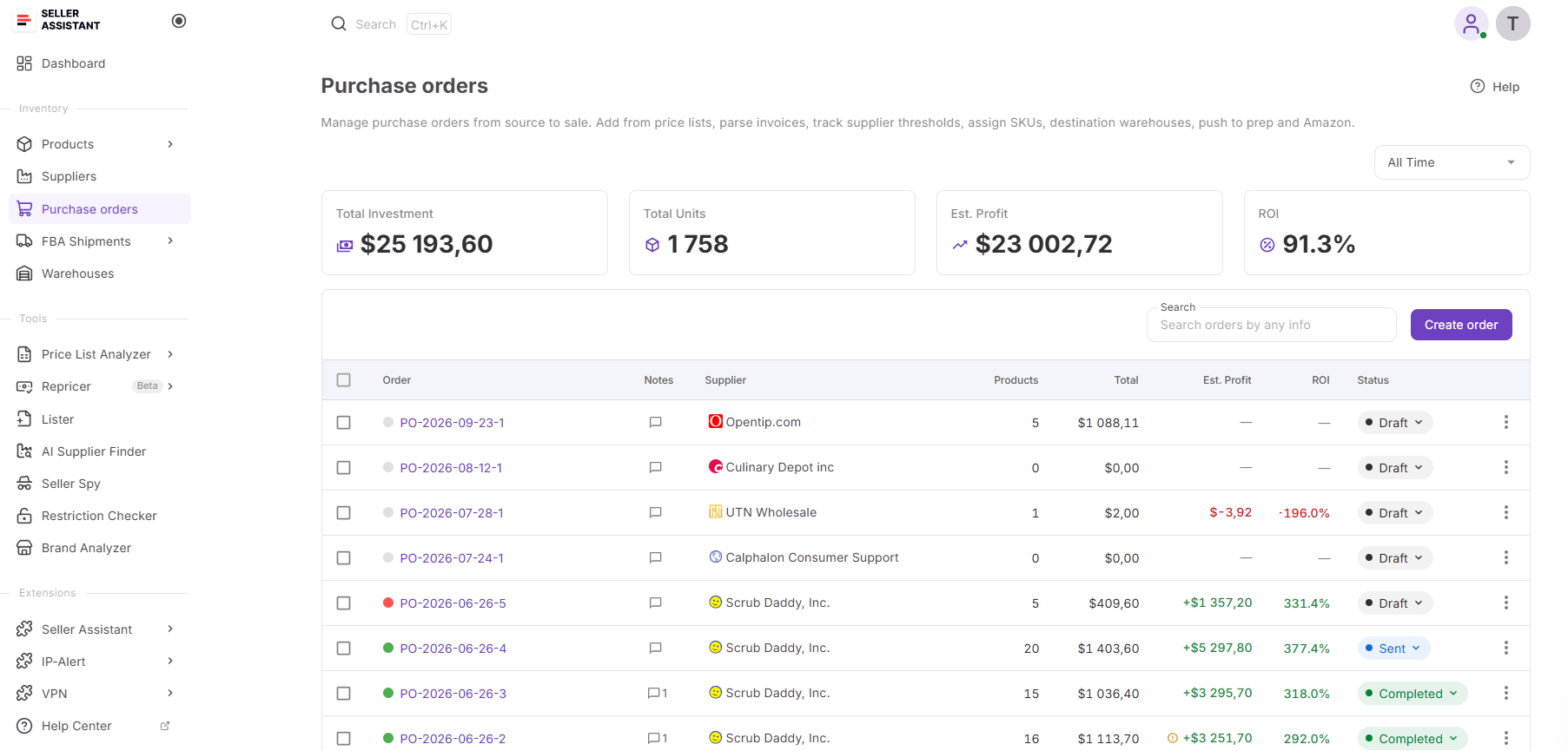
For Amazon wholesale sellers, online arbitrage sellers, and dropshippers, the module also makes previous purchasing activity easier to review. Sellers can access past orders, check their current status, review product and cost information, monitor order history, and use the stored data when they need to answer questions about previous purchases. This structured order history is also what gives AI-assisted tracking something real to work with instead of relying on information copied into a chat.
How Purchase Orders Module helps you manage your orders
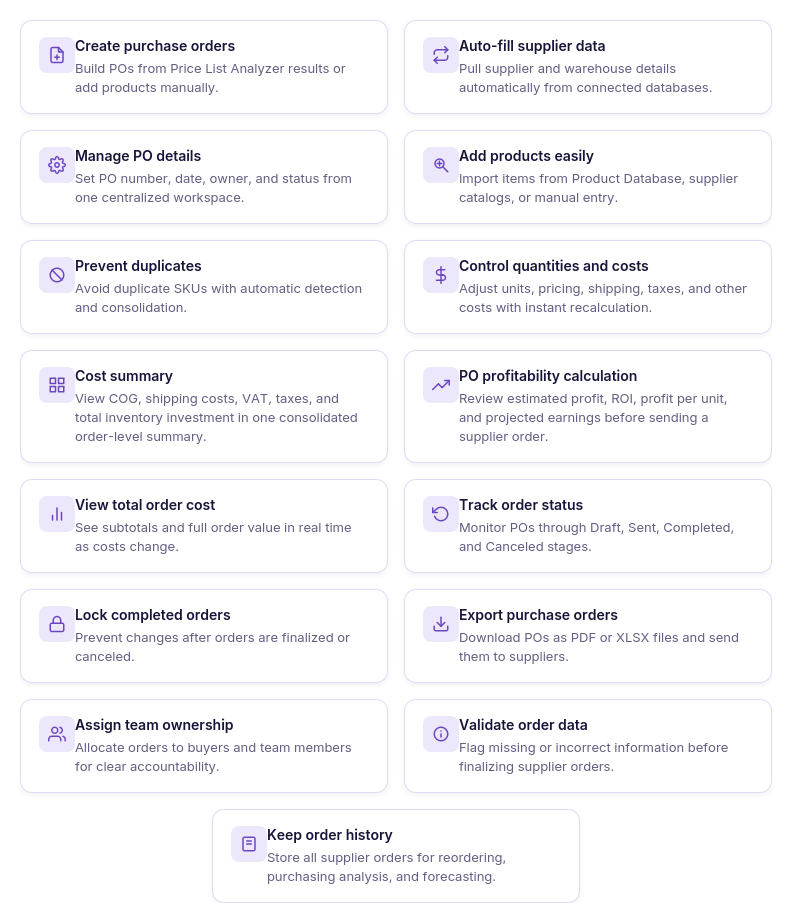
- Build purchase orders efficiently
Create organized supplier orders manually or use products already researched in Seller Assistant without entering the same purchasing data again.
- Link suppliers and warehouses
Associate each PO with the appropriate supplier and destination warehouse so essential order information stays together.
- Add and organize products
Bring products into a purchase order from supplier price lists, analyzed data, product search, or manual entry while avoiding duplicate items.
- Enter quantities and unit costs
Add or change product quantities, unit costs, supplier SKUs, and other purchasing details directly within the order.
- Manage additional purchasing costs
Record shipping, taxes, and other expenses so the PO reflects the full cost of the purchase.
- Check the complete order cost
Review the subtotal, shipping, taxes, other expenses, and total investment in one place.
- Review purchase order profitability
See estimated profit, ROI, profit per unit, and total investment to evaluate the expected financial outcome of the order.
- Adjust products and quantities
Update the products included in the PO or change their quantities and costs as your purchasing plans evolve.
- Keep purchasing documents together
Attach invoices, packing slips, supplier correspondence, and other relevant files to the corresponding purchase order.
- Coordinate purchasing with your team
Assign POs to team members, leave notes, and keep relevant purchasing information accessible within the shared workflow.
- Monitor purchase order status
Follow orders through Draft, Sent, Completed, and Canceled stages while keeping the purchasing history available.
- Export purchase order data
Create PDF or Excel versions of your POs for supplier communication or other internal purchasing processes.
How Purchase Orders Module provides the foundation for AI-assisted PO tracking
For AI to answer questions about your purchase orders, there needs to be a structured purchasing environment behind the conversation. Purchase Orders Module provides that structure by keeping each order connected to its supplier, warehouse, products, quantities, costs, status, and other purchasing information.
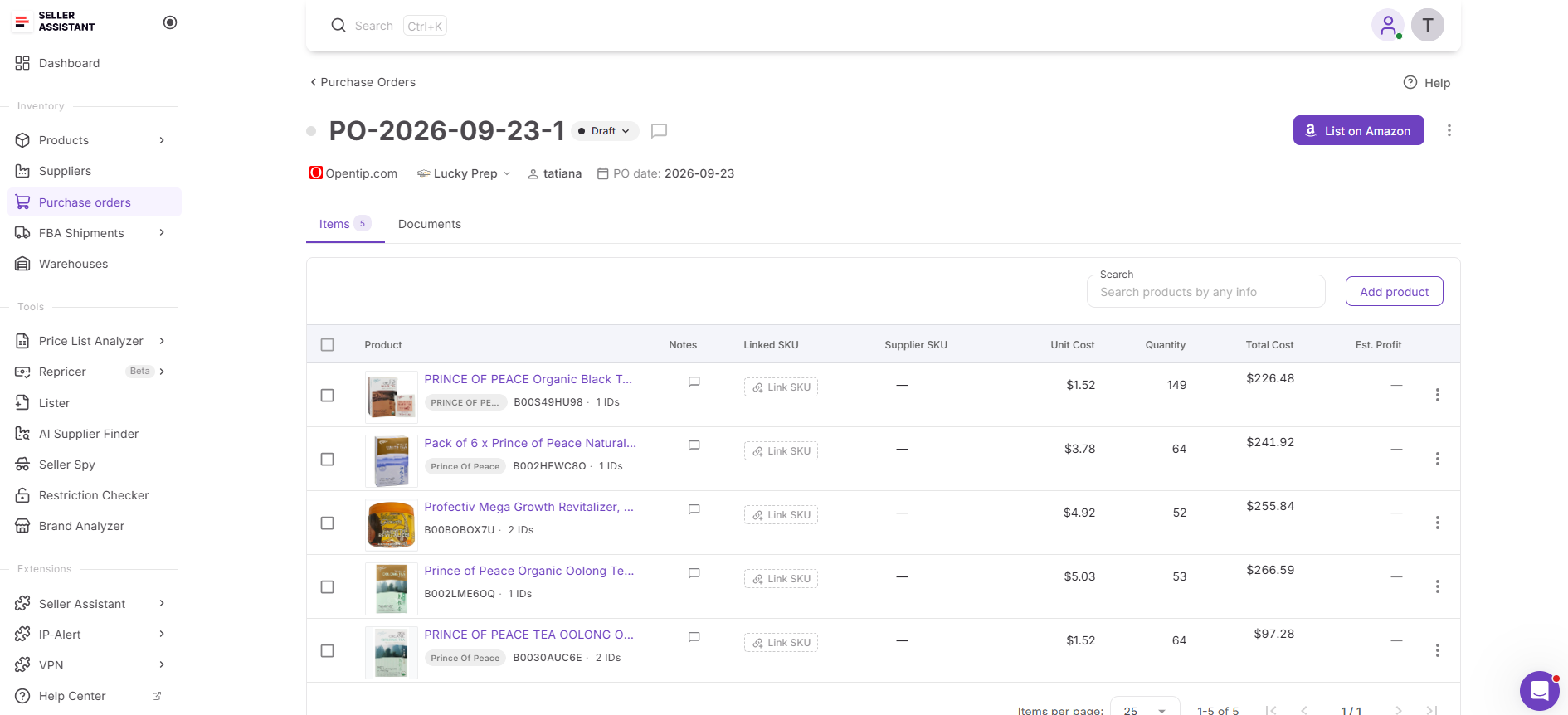
This means an AI-assisted tracking workflow does not have to rely on a list of orders copied into the chat or information the seller remembers from previous purchases. When connected through Seller Assistant MCP, supported operations can work with the purchase order data stored in the module, giving the AI assistant access to the actual orders relevant to the seller’s request.
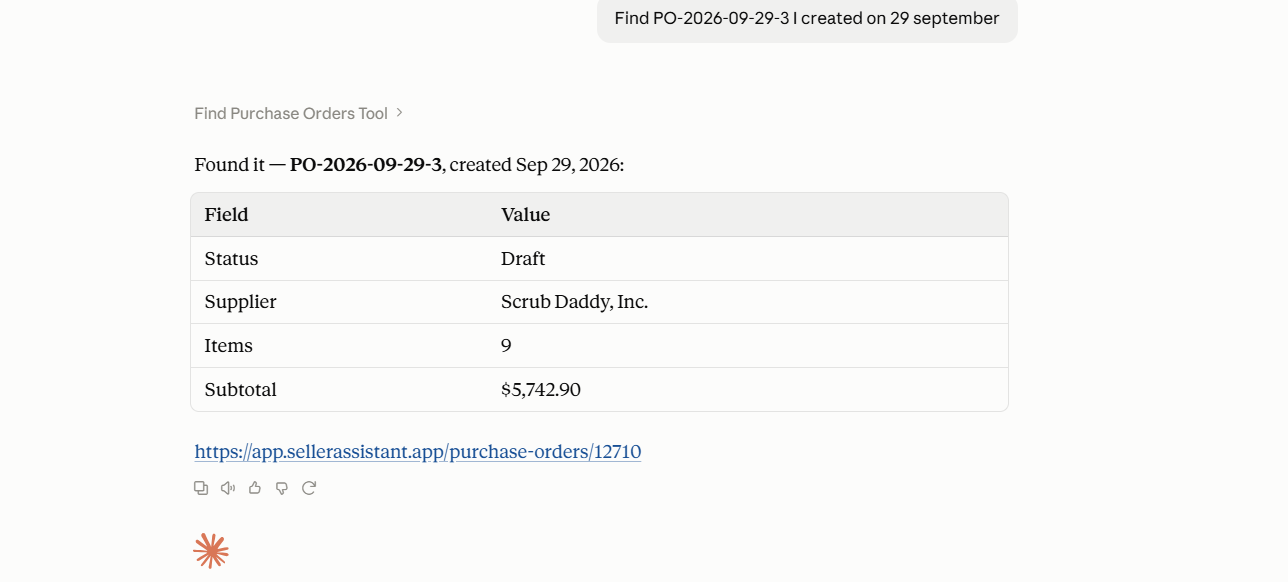
Purchase Orders Module remains the system where purchase orders are stored, reviewed, updated, tracked, and managed, while MCP provides the connection that allows supported parts of that workflow to be accessed through AI chat.
How Seller Assistant MCP brings purchase order tracking into AI chat
Seller Assistant MCP Server gives an AI assistant a way to work with supported Seller Assistant data and operations through natural-language requests. For purchase order tracking, this means sellers can ask questions about their actual orders instead of manually searching through the purchase order list every time they need a supplier, status, previous purchase, or order total.
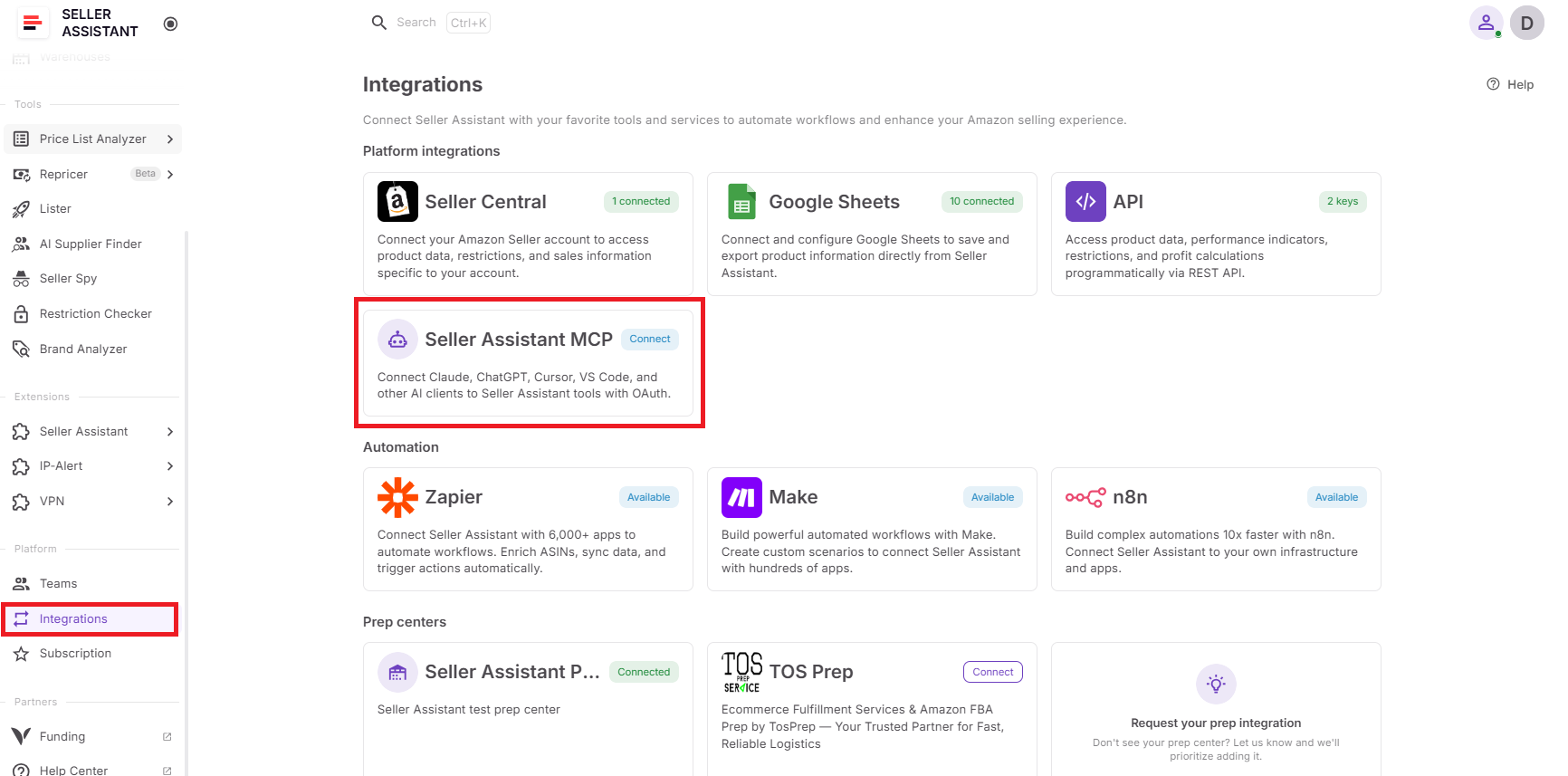
The value is especially clear when a seller has several suppliers and multiple purchase orders open at the same time. Rather than remembering where each order is stored or opening several POs to compare them, the seller can ask AI to find the relevant order and return the information needed for the next purchasing decision. Purchase Orders Module remains the underlying system where the orders and their data are stored, while MCP gives the AI assistant a way to access supported information from that system.
What you can do with Seller Assistant MCP for purchase order tracking
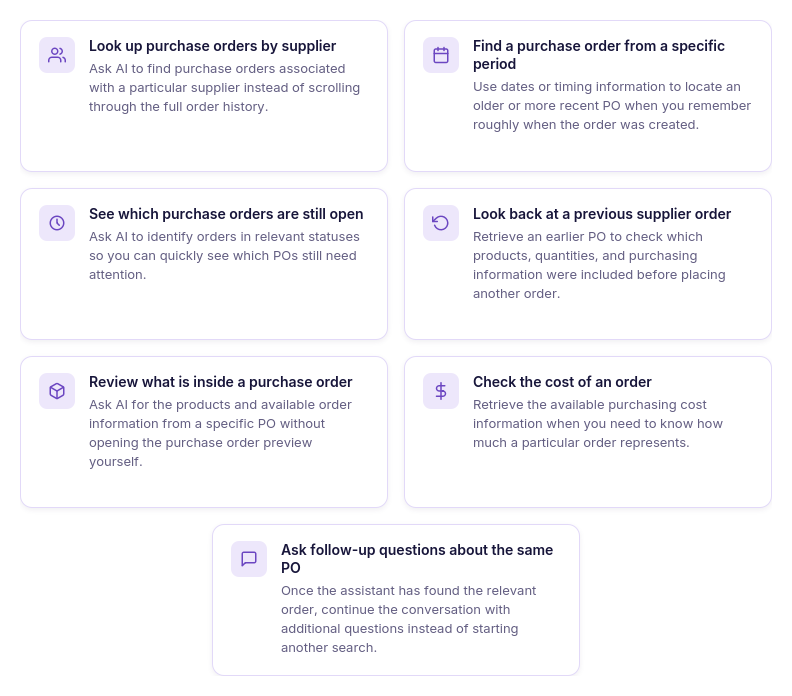
- Look up purchase orders by supplier
Ask AI to find purchase orders associated with a particular supplier instead of scrolling through the full order history.
- Find a purchase order from a specific period
Use dates or timing information to locate an older or more recent PO when you remember roughly when the order was created.
- See which purchase orders are still open
Ask AI to identify orders in relevant statuses so you can quickly see which POs still need attention.
- Look back at a previous supplier order
Retrieve an earlier PO to check which products, quantities, and purchasing information were included before placing another order.
- Review what is inside a purchase order
Ask AI for the products and available order information from a specific PO without opening the purchase order preview yourself.
- Check the cost of an order
Retrieve the available purchasing cost information when you need to know how much a particular order represents.
- Ask follow-up questions about the same PO
Once the assistant has found the relevant order, continue the conversation with additional questions instead of starting another search.
How MCP turns purchase order tracking into a conversation
MCP changes purchase order tracking from a sequence of dashboard searches into a question-and-answer workflow. Instead of filtering the order list, opening individual records, checking their details, and repeating the process for every new question, the seller can describe what they are looking for and continue the conversation from there.
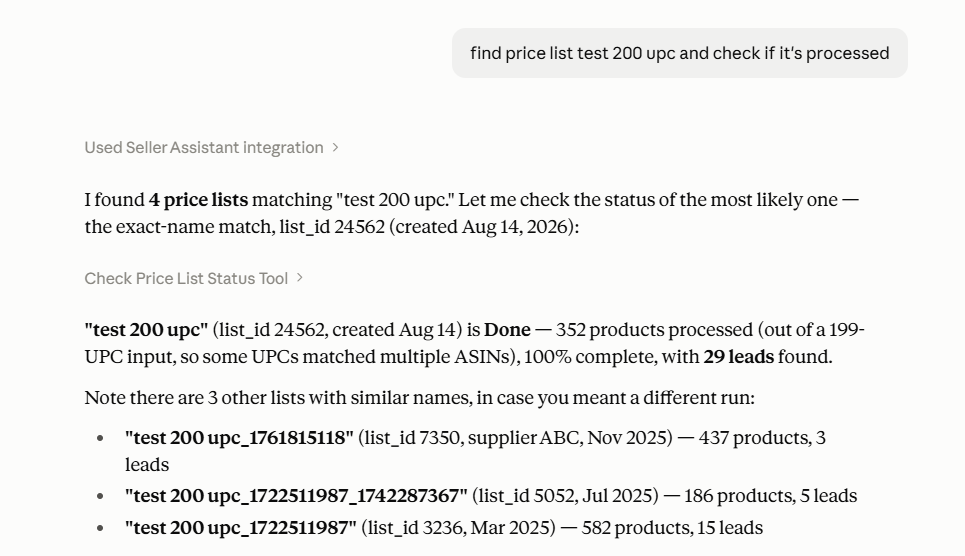
Purchase Orders Module remains the source of the purchase order records and the information attached to them. MCP provides the connection that allows the AI assistant to retrieve supported data from those records, while the seller decides what information matters and what action to take next.
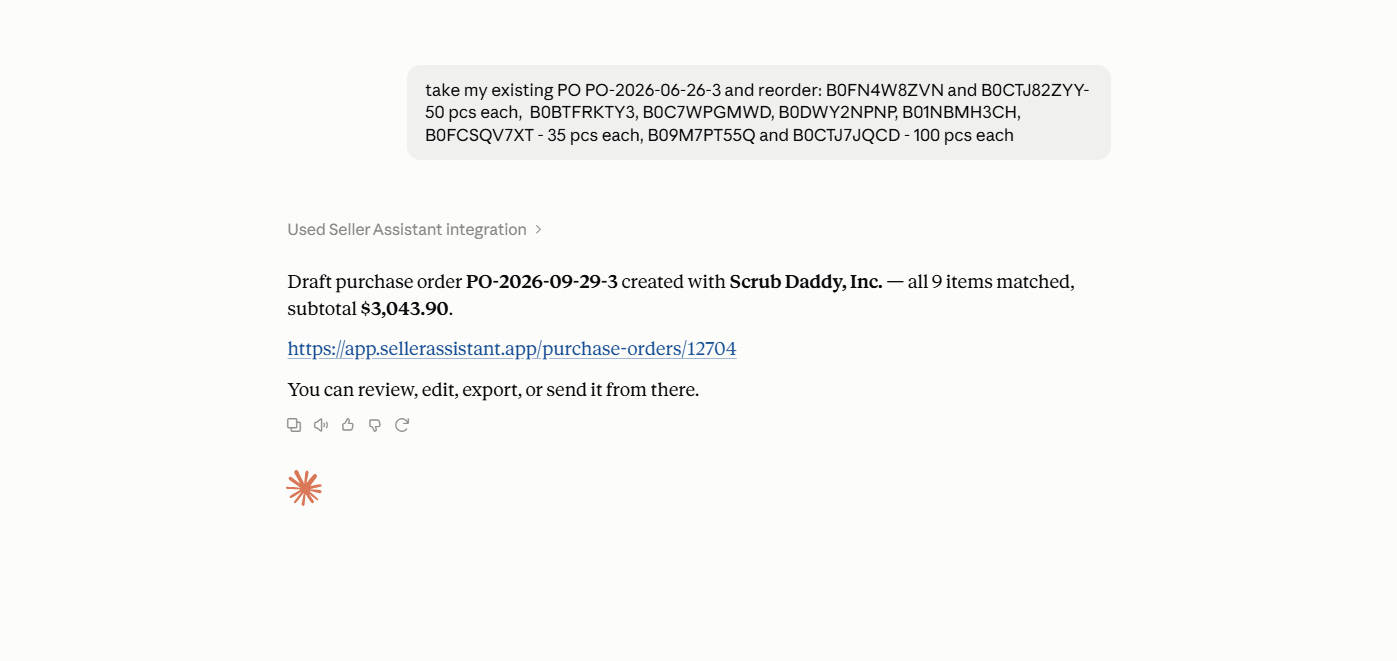
The result is a simple ask → find → review → follow up workflow. Instead of spending time locating the information behind a purchase order, sellers can use AI to bring the relevant order details into the conversation when they need them.
Practical Ways to Track Purchase Orders with AI
AI is most useful for purchase order tracking when each request answers a specific question about your existing orders. Instead of opening the purchase order list, searching through suppliers and dates, and checking individual records one by one, sellers can use supported MCP operations to find relevant POs and retrieve the information they need through conversation.
The seller still decides what information matters and what to do with it. AI reduces the repetitive work involved in locating the right order, checking its status, looking back at previous purchases, and reviewing order details.
| Purchase Order Task | How AI Helps | Prompt Example |
|---|---|---|
| Find a purchase order by supplier or date | Retrieve a relevant PO using supplier or timing information instead of searching through the order history manually. | ”Find the PO I made for [supplier] last week.” |
| Check which purchase orders are still open | Identify purchase orders by their current status so you can quickly see which orders still need attention. | ”Which of my purchase orders are still in Draft?” |
| Look up a previous supplier order | Retrieve an earlier PO to see what products and purchasing information were included in the previous order. | ”What did I order from [supplier] last time, and at what cost?” |
| Review an order’s contents and totals | Pull the relevant information from a specific PO so you can check its products and total cost without opening the order manually. | ”What’s in this purchase order and what’s the total cost?” |
Find a purchase order by supplier or date
When you remember who you ordered from or roughly when the order was created, you can give that information directly to AI. Instead of scrolling through the purchase order history and opening several records, ask the assistant to find the relevant PO.
Prompt example
“Find the PO I made for [supplier] last week.”
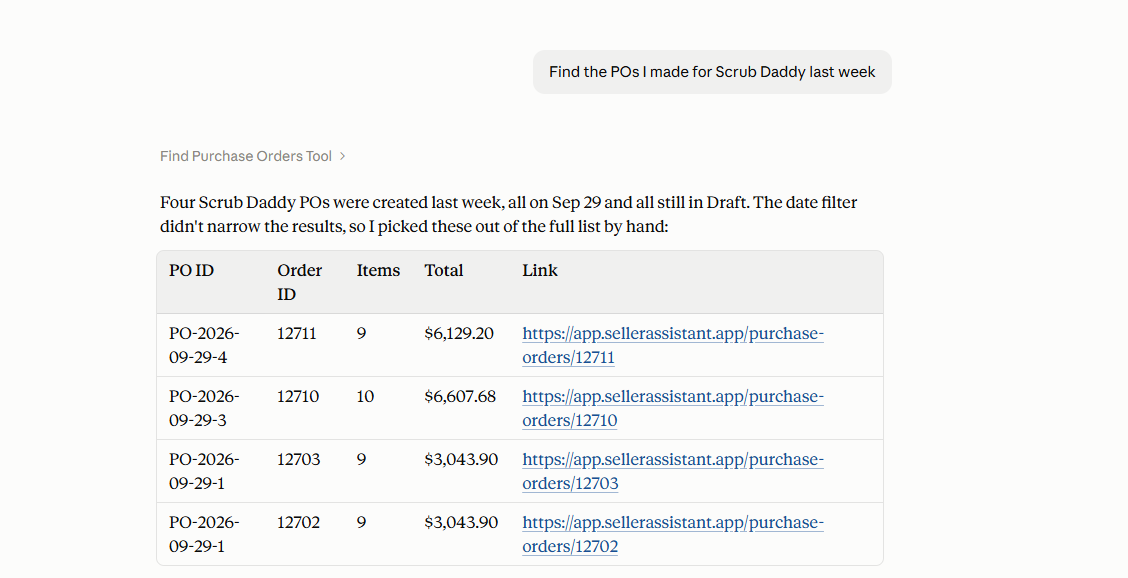
Why it matters
Supplier and date are often the easiest details to remember when looking for an older order. Using them in the request can reduce the manual search needed to get back to the right purchase order.
See which purchase orders are still open
When you have several supplier orders in progress, it can be useful to see which ones are still in Draft. Asking AI about the current status of your purchase orders gives you a quick way to identify orders that may still need attention.
Prompt example
“Which of my purchase orders are still in Draft?”
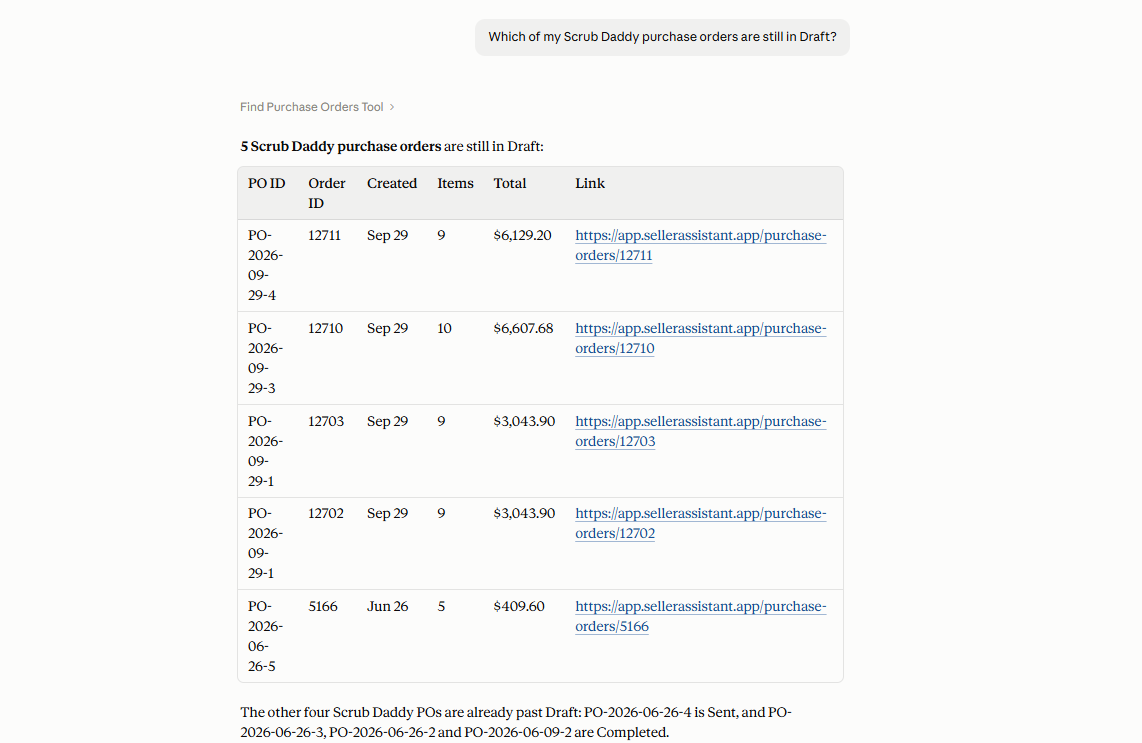
Why it matters
Status checks become more useful as the number of POs grows. Instead of checking orders individually, you can ask the question directly and focus on the purchase orders that require follow-up.
Pull up what you ordered last time
Before placing another order with the same supplier, you may want to check what you purchased previously. AI can retrieve the relevant purchase order so you can use the previous products, quantities, and available cost information as a reference for the next buying decision.
Prompt example
“What did I order from [supplier] last time, and at what cost?”
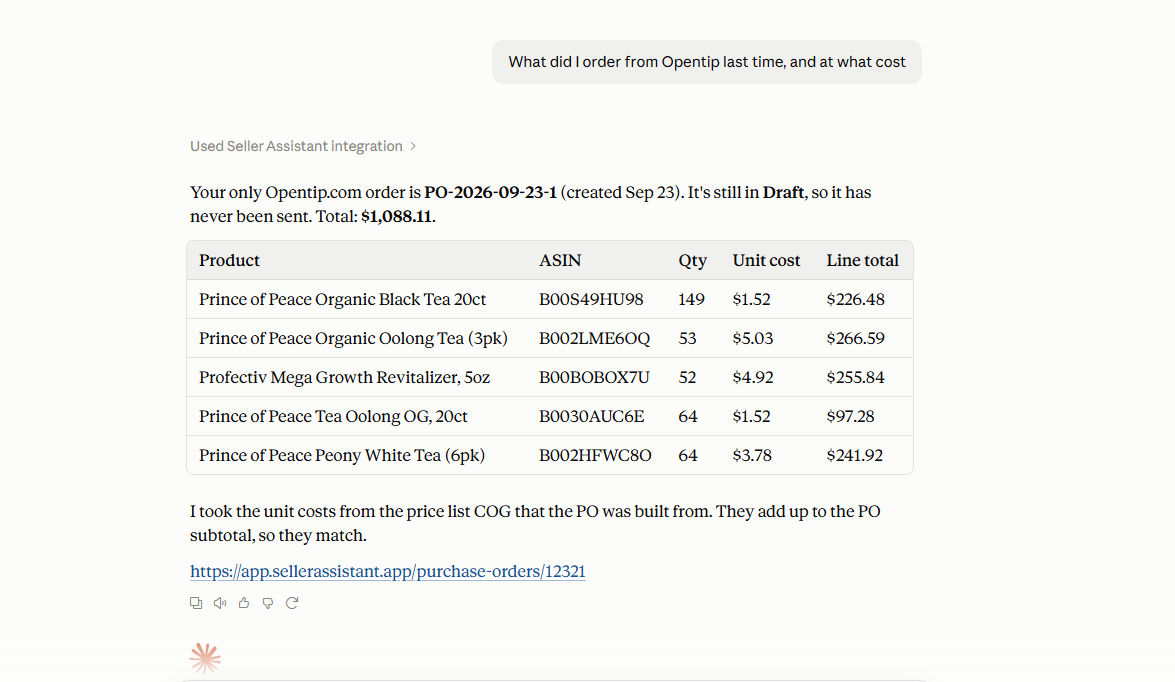
Why it matters
Previous POs can provide a useful reference when replenishing inventory or comparing a new supplier offer with an earlier purchase. Finding that information quickly makes repeat purchasing less dependent on memory or manual searches.
Check an order’s contents and totals
Sometimes you already know which PO you need and simply want to confirm what it contains. Ask AI to retrieve the order details and total cost instead of opening the purchase order preview and looking through the fields yourself.
Prompt example
“What’s in this purchase order and what’s the total cost?”
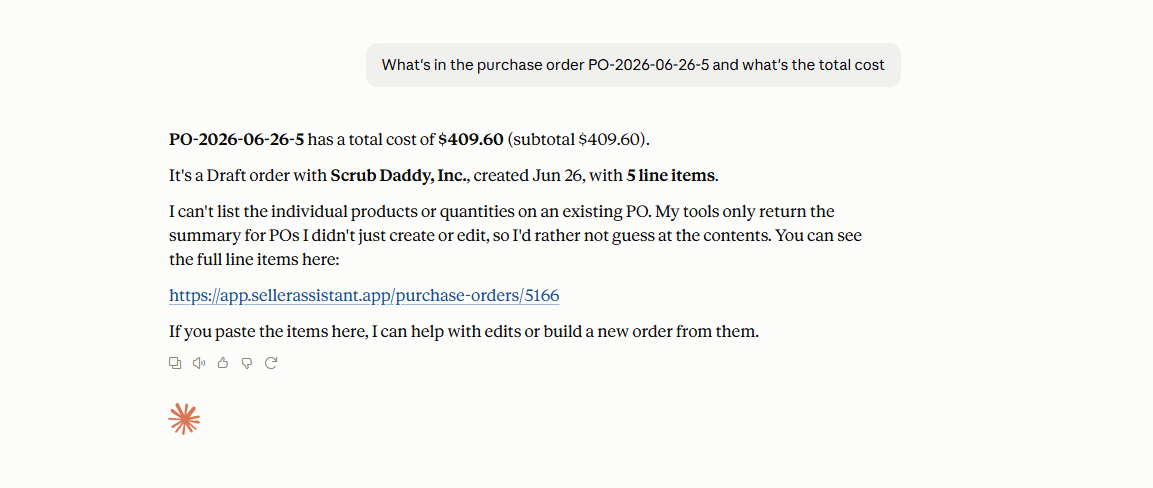
Why it matters
Quick checks are a common part of purchase order management. Getting the relevant information directly in the conversation helps you verify an order without interrupting the rest of your workflow.
How to Track Purchase Orders with AI step by step
Step 1. Connect Seller Assistant MCP to your AI assistant
Connect Seller Assistant MCP Server to a supported AI assistant such as ChatGPT or Claude and authorize access to your Seller Assistant account. This allows the assistant to work with supported purchase order data and operations through natural-language requests.
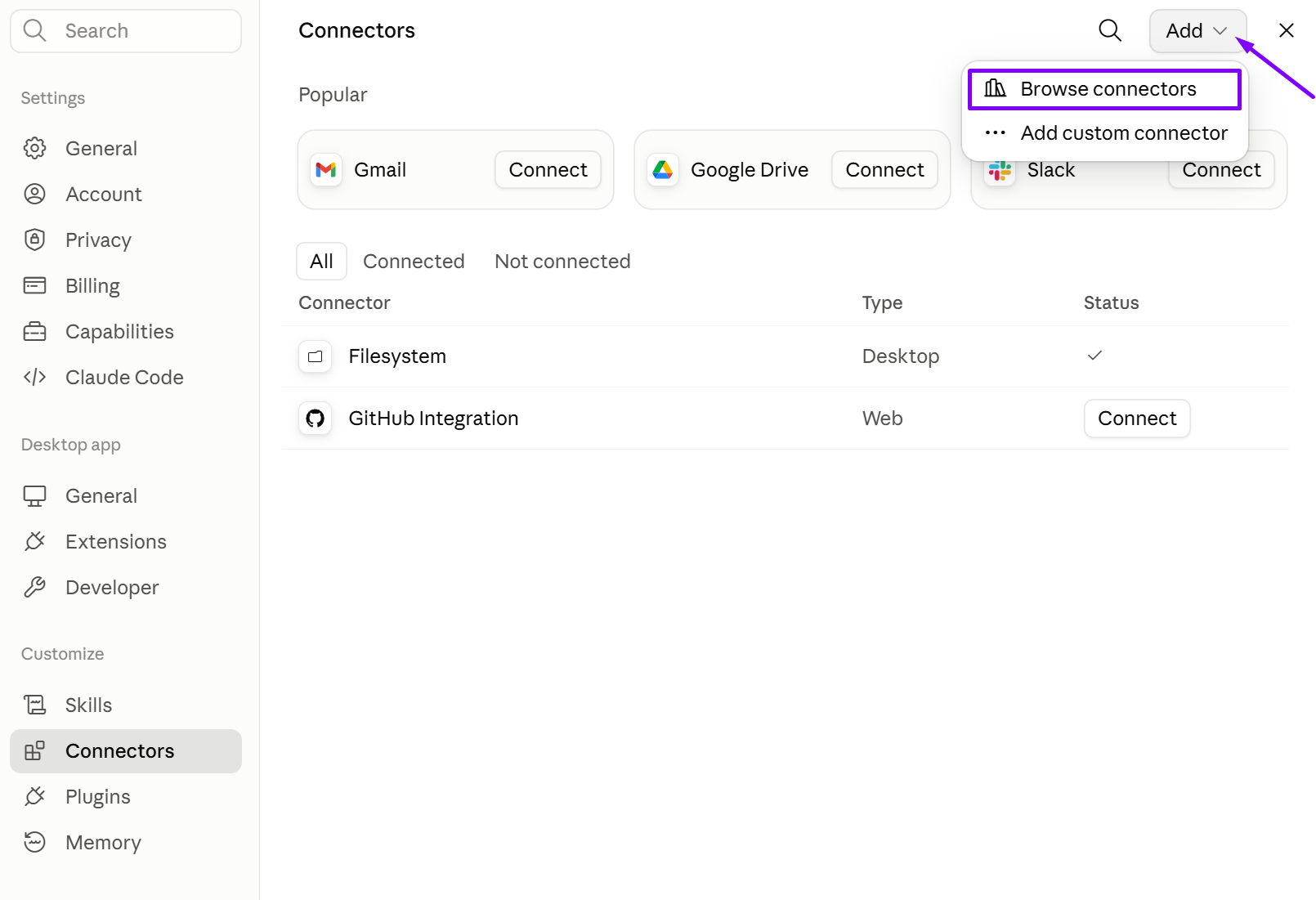
Without the MCP connection, AI can explain how to organize or track purchase orders but cannot retrieve information from the actual POs in your Seller Assistant account.
Step 2. Ask the agent to find a purchase order by supplier or date
Start with the information you already remember about the order, such as the supplier or when the PO was created. AI can use those details to locate the relevant purchase order without requiring you to search through the purchase order history manually.
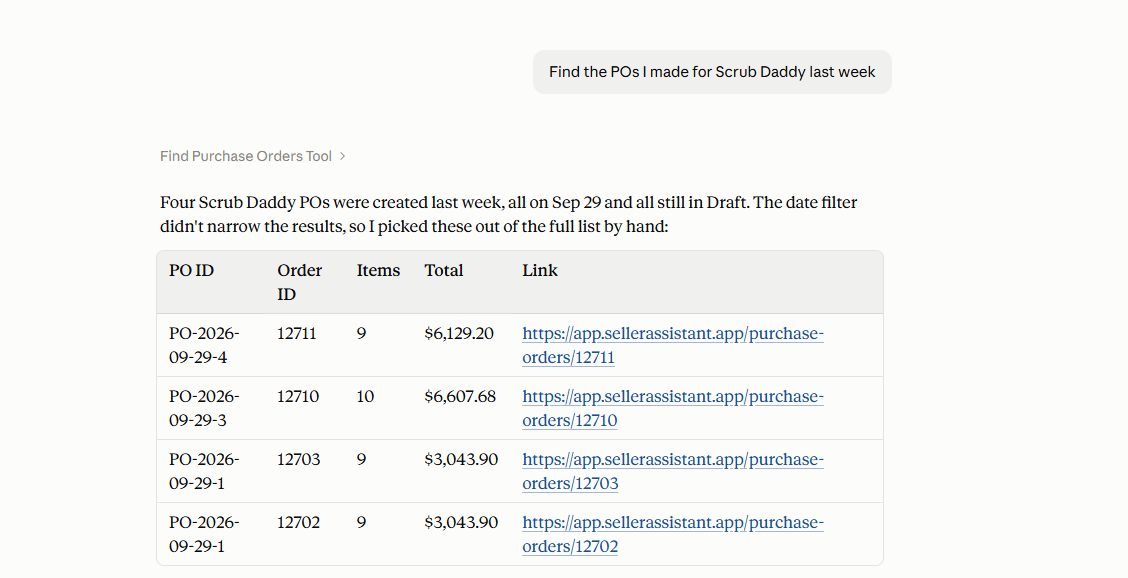
This gives you a quick way to retrieve a specific order even when you do not remember its PO number or other exact details.
Step 3. Check which purchase orders are still in Draft
Ask AI to find purchase orders with a particular status when you need an overview of orders that may still require attention. For example, you can check which POs remain in Draft instead of opening orders individually to verify their status.
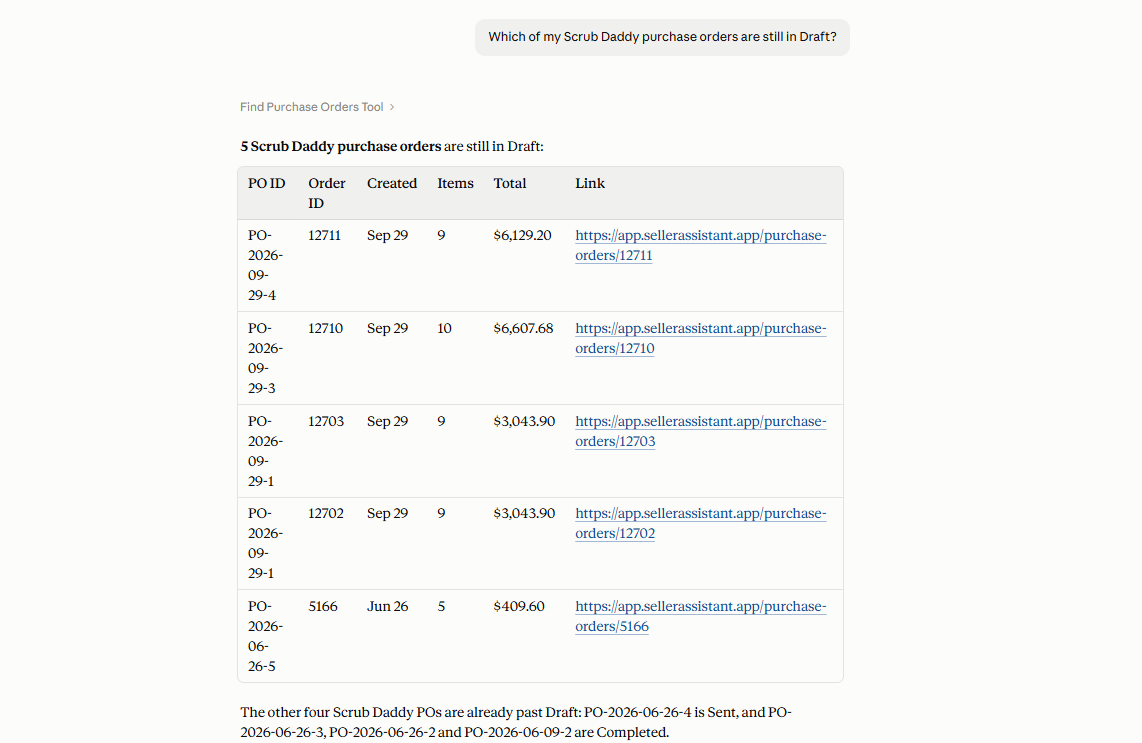
This helps you quickly identify unfinished orders across your purchasing workflow and decide which ones need follow-up.
Step 4. Look up your previous supplier order
When you are preparing to buy from the same supplier again, ask AI to retrieve the previous purchase order and its relevant purchasing information. You can use the earlier order as a reference for products, quantities, and available cost data before making the next purchasing decision.
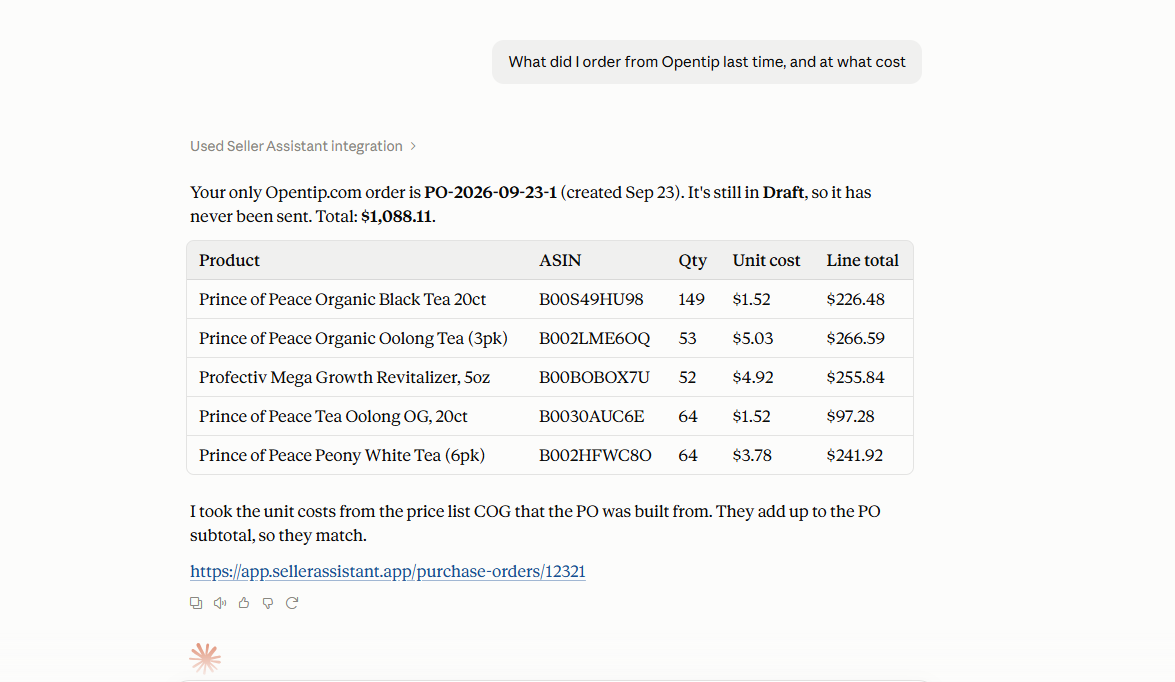
This makes your purchase order history useful for repeat purchasing without requiring you to find and review the previous PO manually.
Step 5. Review the contents of a purchase order
Once you have the relevant PO, ask AI to show what is included in the order. You can retrieve the products and available purchasing details without navigating through the order preview to check each line yourself.
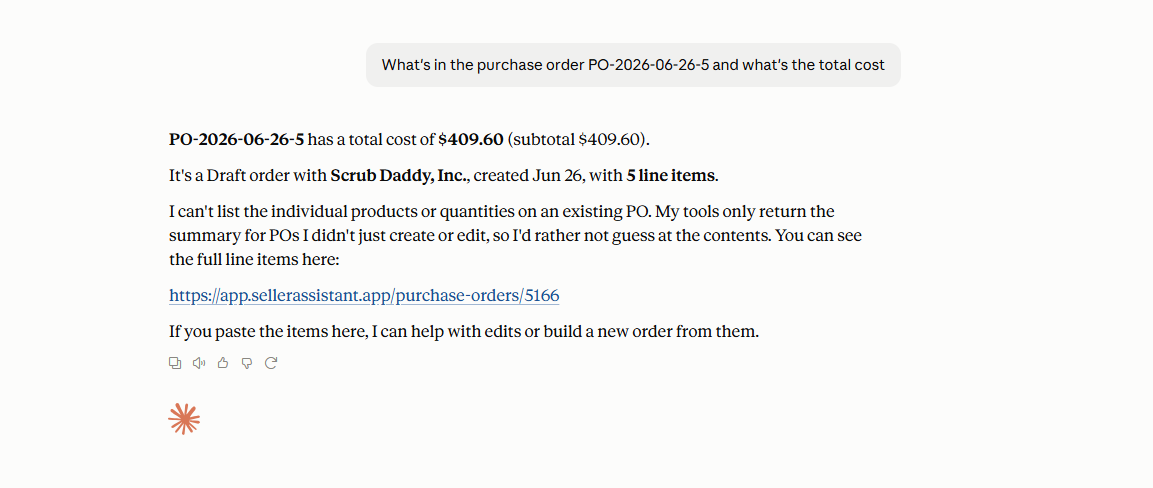
This provides a quick overview when you need to confirm what was ordered before taking the next step with a supplier or replenishment decision.
Step 6. Check the purchase order total
Finish by asking AI for the total cost of the purchase order or other available order-level information you need to review. This lets you move from locating the PO to understanding its purchasing value within the same conversation.
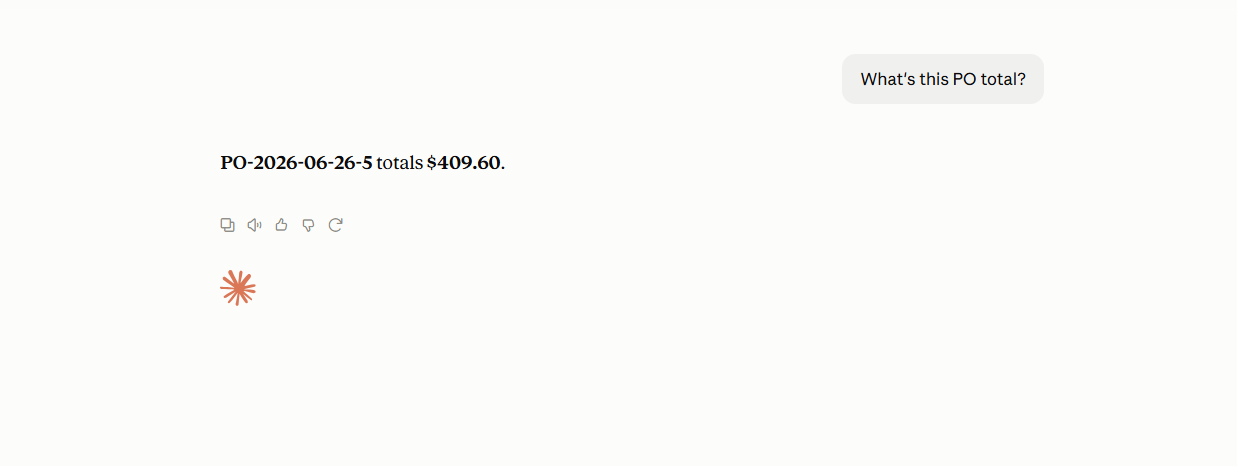
This creates a simple find → check status → review history → inspect → verify workflow for tracking purchase orders without repeatedly returning to the order list.
FAQ
Can AI track purchase orders from multiple suppliers at the same time?
Yes. Because purchase orders are stored with their supplier information, you can use AI-assisted queries to work across orders from different suppliers rather than limiting the search to a single vendor.
Do I need to know the purchase order number to find an old PO?
Not necessarily. Depending on the available order data, details such as the supplier or approximate order date can help narrow down the purchase order you are looking for.
Can AI automatically notify me when a purchase order needs attention?
Seller Assistant MCP is designed to work with supported data and operations when you interact with it, rather than acting as an autonomous PO monitoring or alert system. You can ask the assistant to check relevant orders when you want to review what may need attention.
Can I access invoices or packing slips through AI chat?
Purchase-related documents such as invoices and packing slips are managed in the Purchase Orders Module’s Documents tab rather than through the MCP tracking workflow described here. Open the relevant PO in Seller Assistant when you need to review its attached documents.
Can AI change a purchase order after finding it?
Finding and reviewing a PO can be followed by supported editing operations when a change is needed. Write actions require seller confirmation, so retrieving an order through AI does not automatically modify its purchasing data.
Final Thoughts
Purchase order tracking becomes more time-consuming as your supplier network and purchasing history grow. Using AI with access to actual purchase order data makes it easier to find the information you need without repeatedly searching through orders, whether you are checking an open PO, reviewing a previous purchase, or confirming order details.
Seller Assistant combines the structured purchasing data in Purchase Orders Module with conversational access through Seller Assistant MCP Server. Together, they give Amazon sellers a more efficient way to work with purchase order history while keeping the underlying orders organized in the same purchasing workflow.
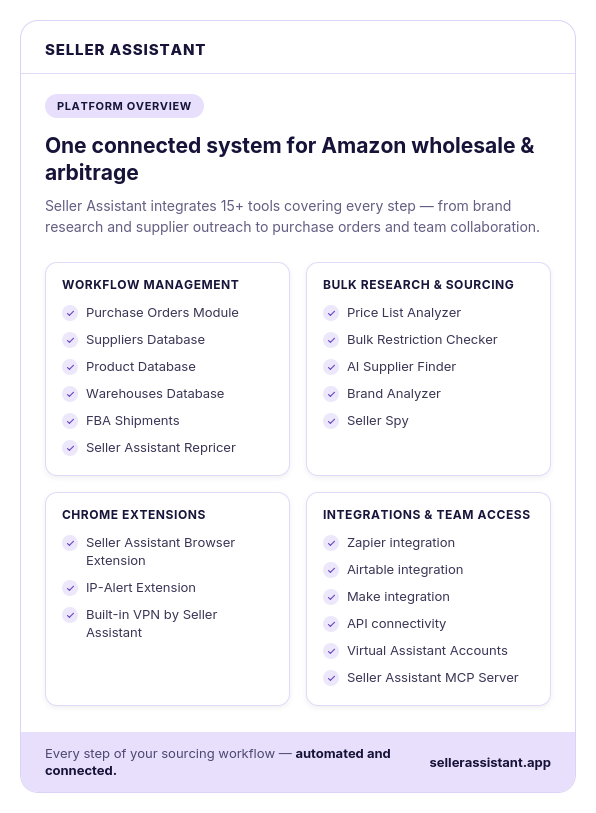
Seller Assistant automates and connects every stage of your Amazon wholesale and arbitrage workflow. It brings together in one platform: workflow management tools – Purchase Orders Module, Suppliers Database, Product Database, Warehouses Database, FBA Shipments, bulk research & sourcing tools – Price List Analyzer, Bulk Restriction Checker, AI Supplier Finder, Brand Analyzer, Seller Spy, Amazon repricing tool – Seller Assistant Repricer, Chrome extensions – Seller Assistant Browser Extension, IP-Alert Extension, and built-in VPN by Seller Assistant, and integrations & team access features – Seller Assistant MCP Server, seamless API connectivity, integrations with Zapier, Airtable, and Make, and Virtual Assistant Accounts.