

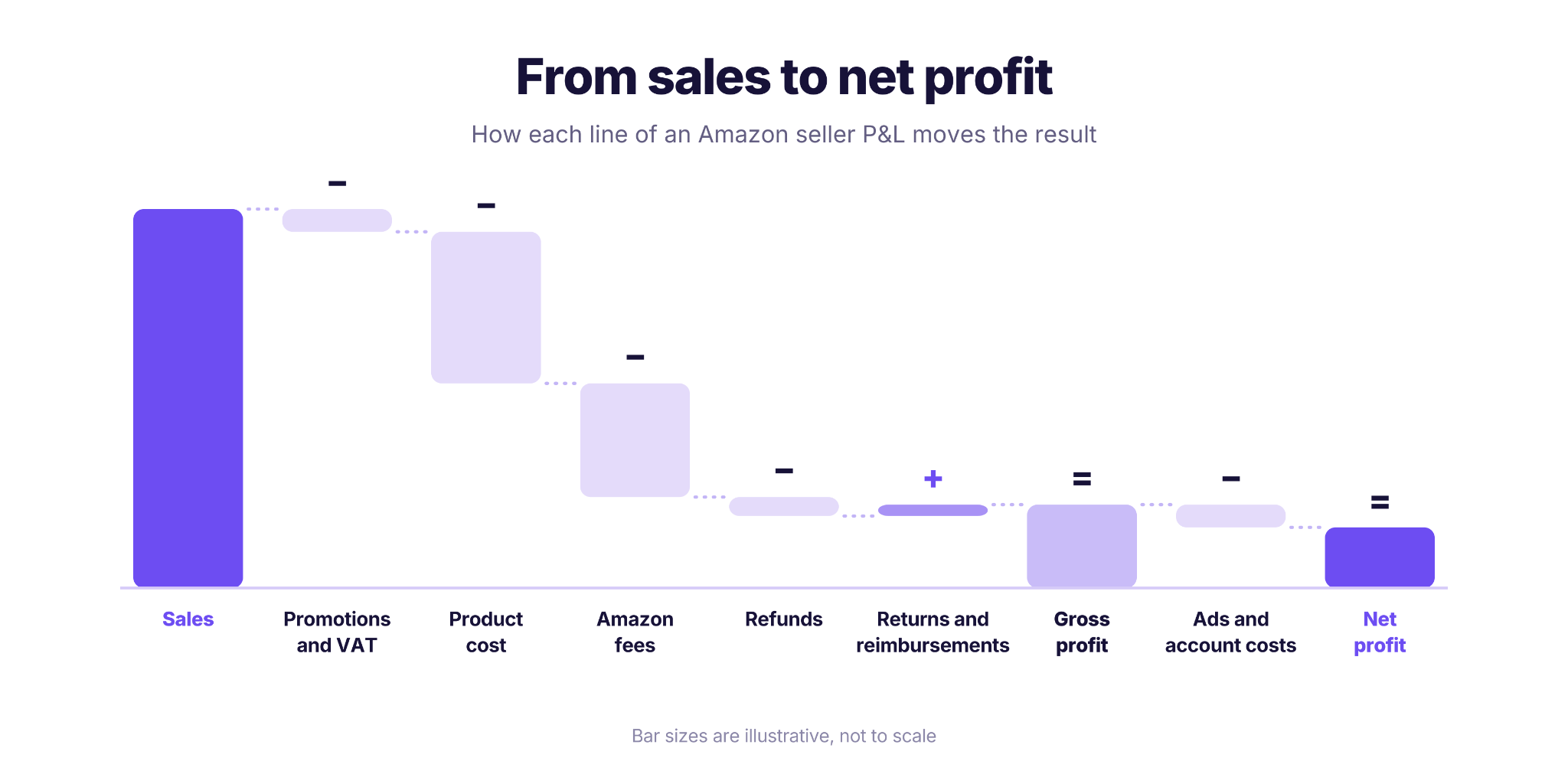
An Amazon seller profit and loss statement, or P&L, shows what one period earned. It starts with sales, takes away promotions, VAT, product cost, Amazon fees, postage and refunds, adds back reimbursements, then subtracts ads and account costs to reach net profit. It’s an operational view for decisions. Its numbers won’t tie exactly to your accounting statements or match your payout. Before you trust a month, check that every unit has a cost and that Amazon’s fees are confirmed.
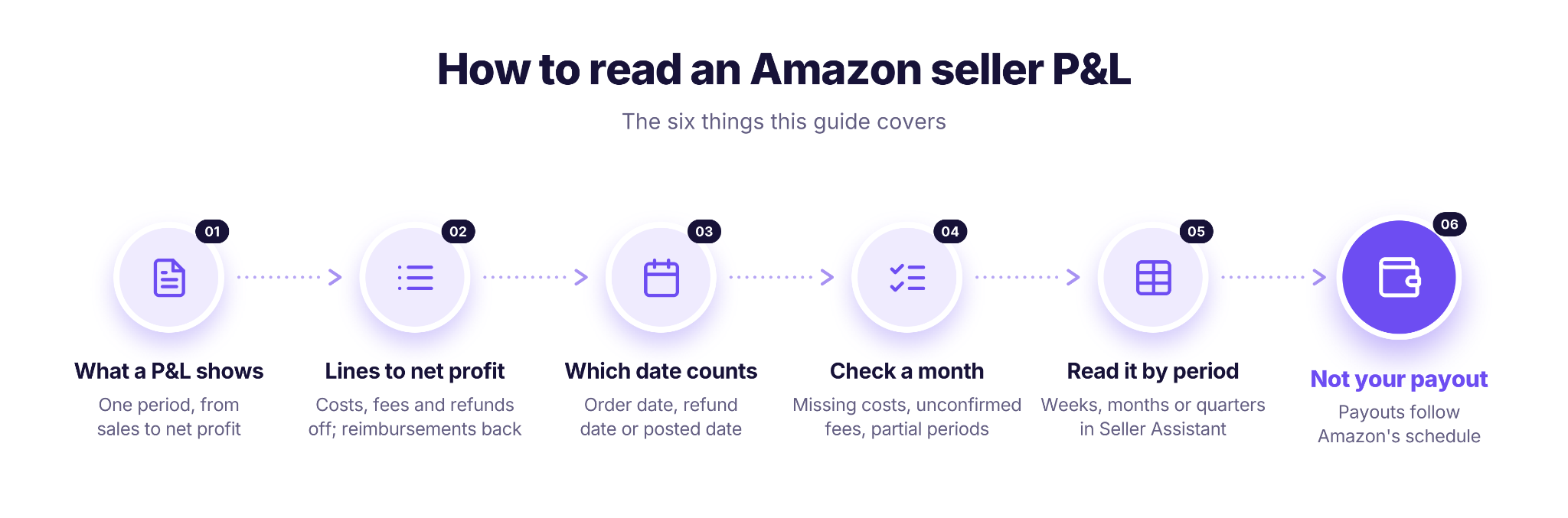
This guide explains each line of a monthly P&L, which date each one uses, and how to check a month before you base a reorder decision on it.
What an Amazon Seller P&L Shows
An Amazon seller profit and loss statement covers one period, such as a week, a month or a quarter. For that period, it lists the money that came in from sales, every cost that went out, and what’s left, which is your Amazon seller net profit. In seller talk it’s usually called an Amazon P&L.
What it’s for
A P&L shows whether a period made money and where the money went. For a wholesale reseller, that’s the starting point for most decisions:
- whether a month was worth the stock you bought for it
- which costs grew faster than sales
- whether to reorder, renegotiate with a supplier or drop a product.
What it doesn’t replace
A seller P&L is an operational view. It shows profit as you’d judge it day to day, and its numbers won’t tie exactly to your bookkeeping, so your accounts and tax filings stay in your accounting system. The money Amazon sends to your bank follows a different schedule (more on that below).
The Lines from Sales to Net Profit
Every Amazon seller P&L follows the same path. It starts with what customers paid, takes away what it cost to sell, and adds back what Amazon returned to you. The result is your profit after fees, product costs and refunds. An Amazon FBA profit and loss statement uses the lines below, plus postage if you also fulfill orders yourself.
From sales to gross profit
Gross profit is what’s left from your sales after the costs of the orders themselves.
| Line | What it is | Sign |
|---|---|---|
| Sales | What customers paid for your products | + |
| Shipping revenue and other sales | Shipping charged to customers, gift wrap and similar | + |
| VAT | Tax on sales, on marketplaces that charge VAT | − |
| Promotions | Discounts and coupons you paid for | − |
| Product cost | What the units you sold cost you | − |
| Amazon fees | Referral, FBA fulfillment and other per-order fees | − |
| Postage | Shipping you paid on orders you fulfilled yourself | − |
| Refunds | Money returned to customers | − |
| Returns and reimbursements | The cost of units that came back sellable, Amazon’s reimbursements for lost or damaged stock, liquidations, and VAT returned on refunds | + |
From gross profit to net profit
Two more groups of costs apply to your whole account:
- Account costs: storage fees, your Amazon subscription and other account fees.
- Ads: what you spent on advertising.
Subtract them from gross profit, and you get net profit for the period.
Margin and ROI
Two ratios sit under net profit:
- Margin: net profit as a percentage of sales.
- ROI: net profit as a percentage of the product cost of the units you sold.
If profit for a period can’t be worked out, the ratios show as unavailable, not as zero. For benchmarks and ways to improve them, see our guide to Amazon profit margin.
What product cost includes
Product cost per unit is the SKU’s unit cost plus its share of purchase order expenses, such as freight from the supplier. Prep and FBA inbound fees aren’t part of it, so they aren’t counted twice. If you’re still working out what your unit cost should include, start with your landed cost before you buy.
Read Weeks, Months or Quarters in Seller Assistant
Seller Assistant builds this P&L for you in Profitability. It reads your orders, refunds and fees from your Amazon account, takes product costs from your SKUs, and lays the lines out by period, so you can compare months side by side.
Step 1. Open the P&L page
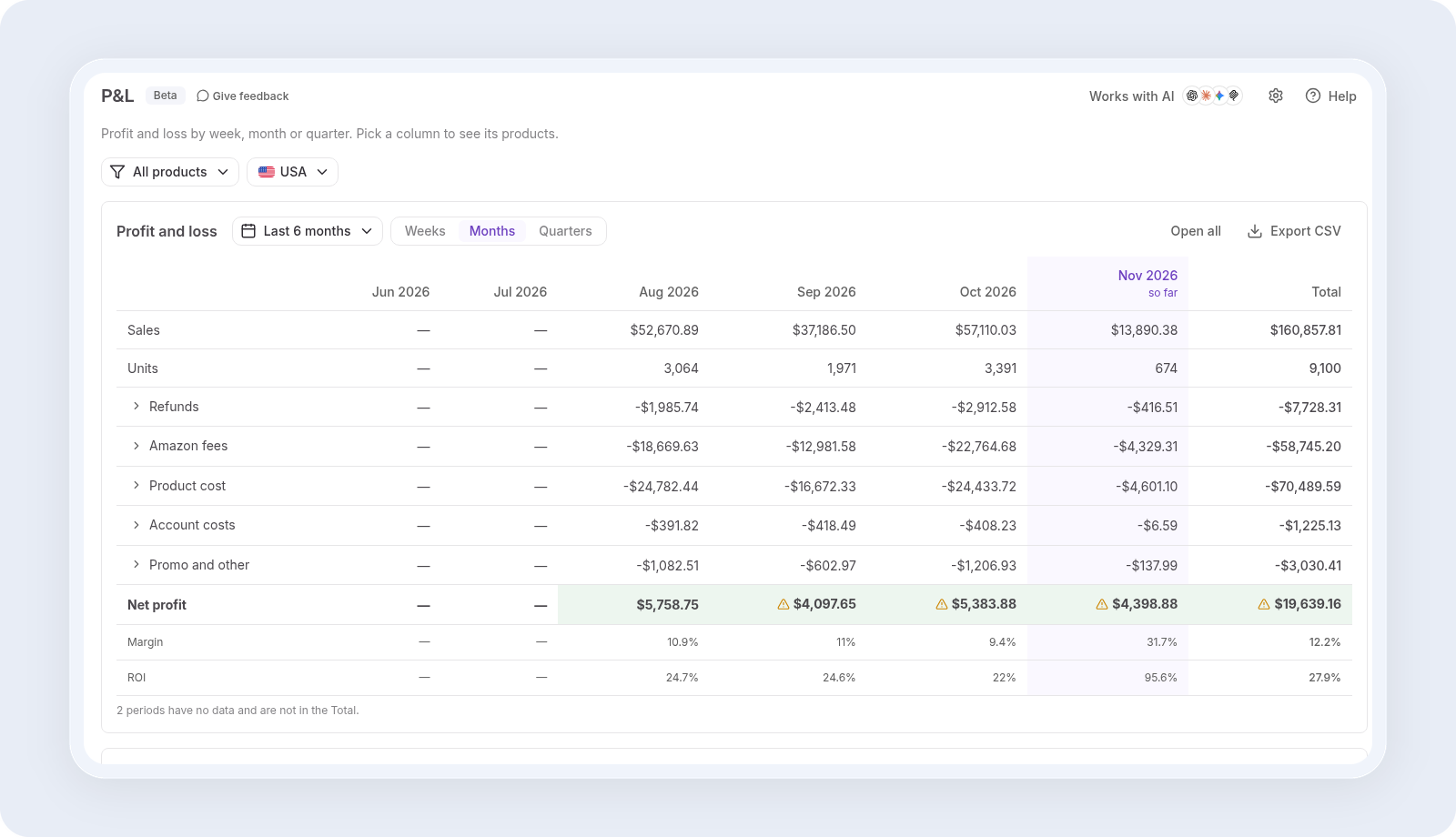
Open P&L from the Profitability menu. Pick a scope (all products, or selected suppliers, brands, products or SKUs) and a marketplace. The page uses the same lines as the Overview cards, with each period as a column and a Total column on the right.
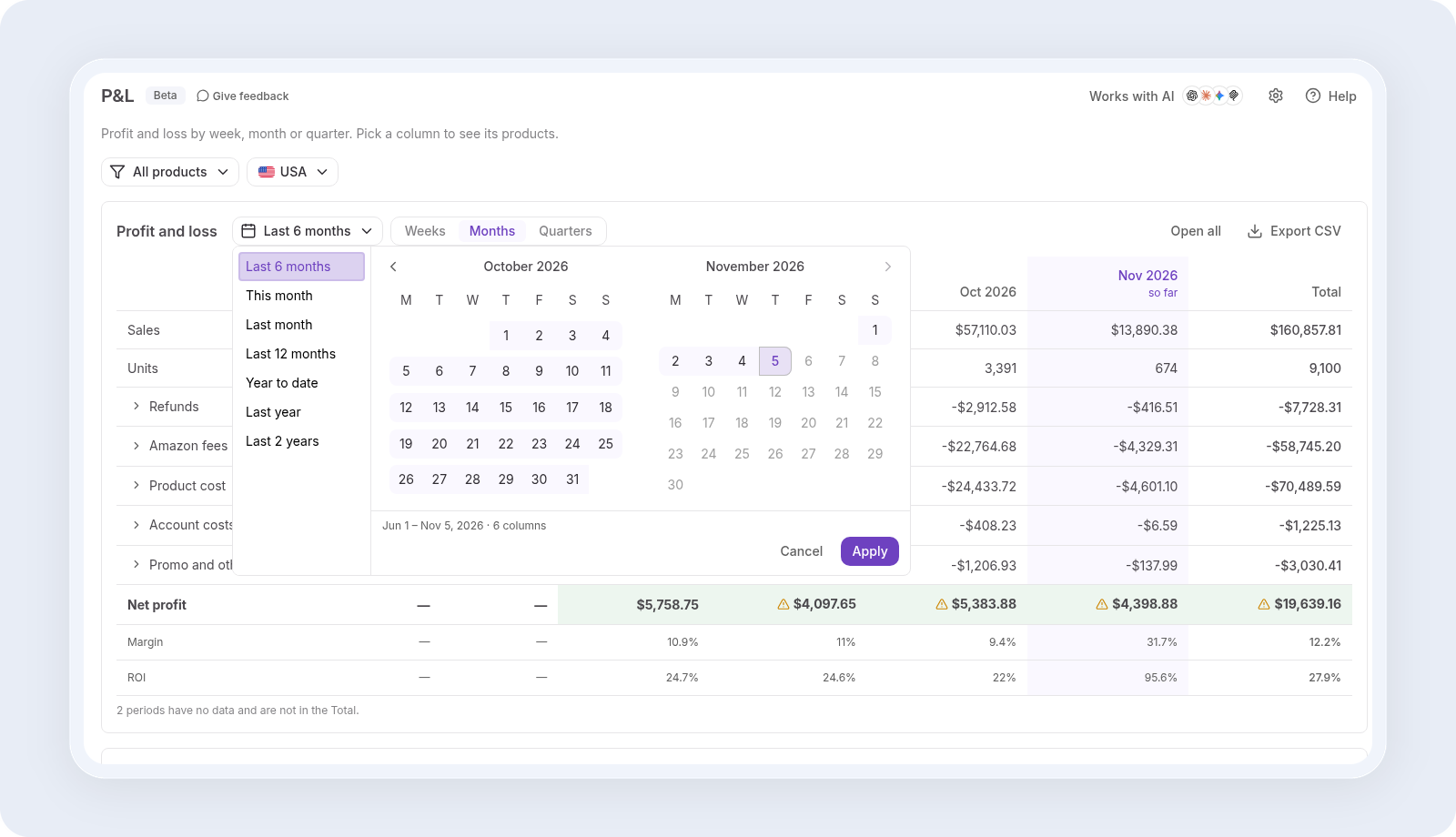
Step 2. Pick the range and the column size
Click the period button to choose a range: This month, Last month, Last 6 months, Last 12 months, Year to date, Last year or Last 2 years. You can also pick your own dates in the calendar. Then switch between Weeks, Months and Quarters. The columns are the weeks, months or quarters that your range touches. The current period is marked “so far,” because it isn’t finished yet.
Step 3. Open the lines and read the Total
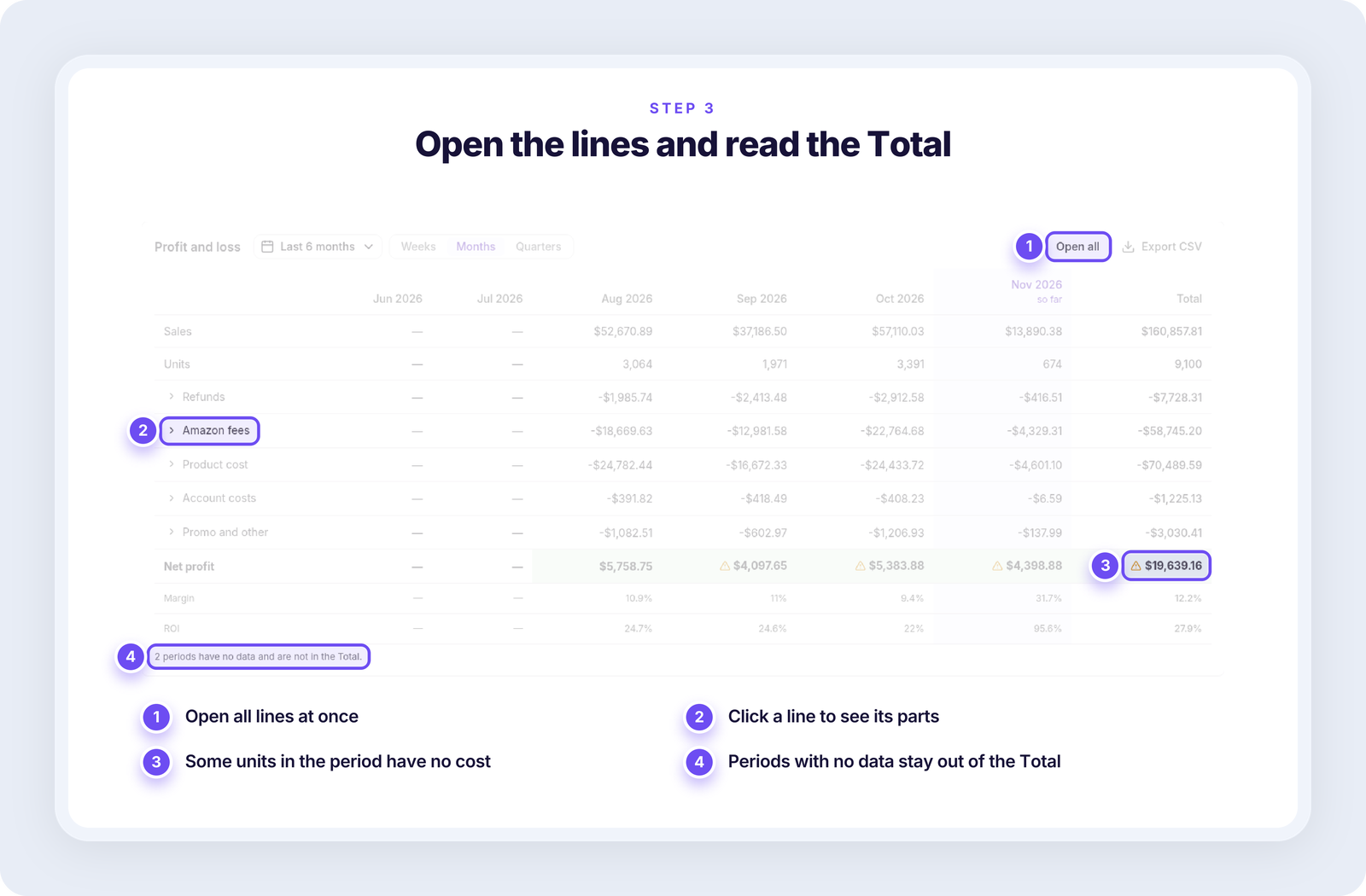
Click a line, such as Amazon fees, to see its parts, or click “Open all” to expand every line at once. When you read the Total column, keep two rules in mind:
- Periods with no data are left out. A line under the table says how many, for example “2 periods have no data and are not in the Total.”
- Missing profit is never counted as zero. If a period has sales but its profit is unknown, the Total stays unknown too. A warning triangle next to net profit means some units in that period have no cost, so the profit shown covers only the units that have one.
Step 4. Drill into a period or export it
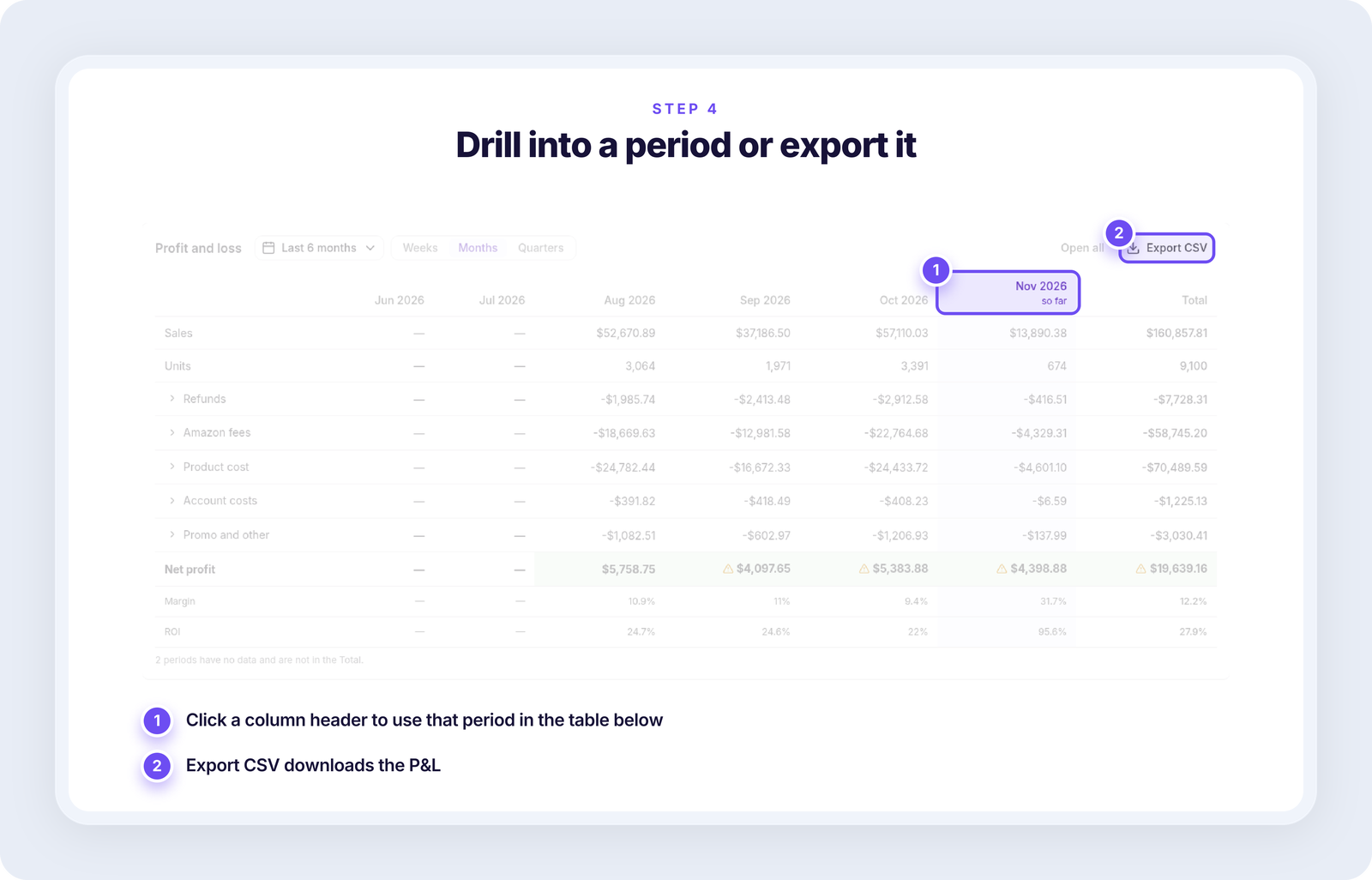
Click a column header to use that period in the table under the P&L. The table groups it by Brands, Suppliers, Products or SKUs, the same way as on Overview, so you can see which part of the business made that month’s profit.
To work with the numbers elsewhere, click “Export CSV” on the P&L to download it as a CSV file. The Export button on the table downloads the table.
Why Your P&L Won’t Match Your Payout
Your P&L and your payout answer different questions, so the numbers rarely match for the same dates.
What each one shows
- The P&L shows what a calendar period earned. It includes your own product costs, which Amazon never sees.
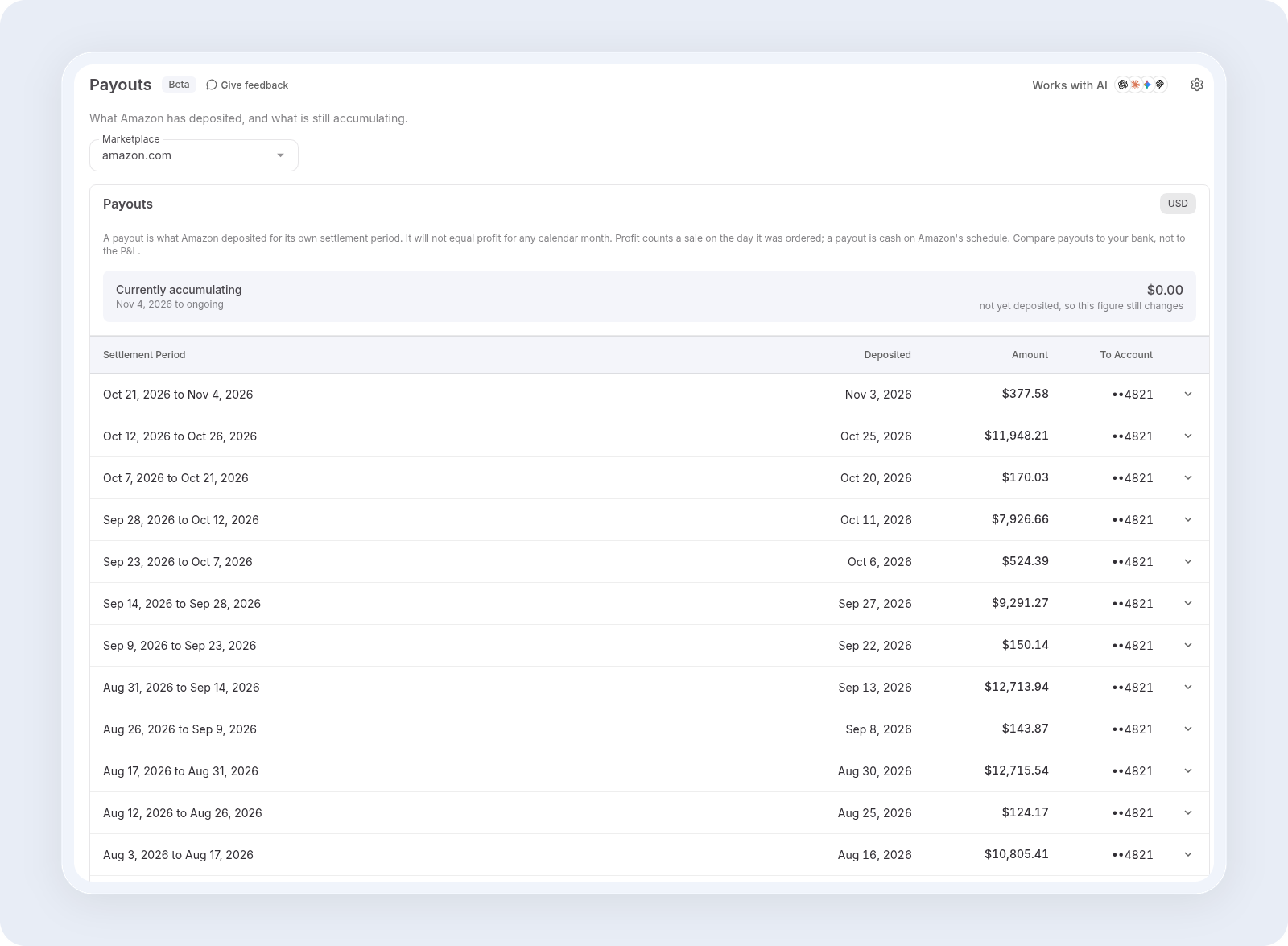
- A payout is the cash Amazon sends for its settlement period, on Amazon’s payment schedule. It can include money from orders placed in an earlier month.
How to check your payouts
Compare payouts with your bank deposits and Amazon’s settlement reports. In Seller Assistant, payouts have their own Payouts page in Profitability.
FAQ
Can I see which supplier or SKU drove a month’s profit?
Click that month’s column header, then group the table below by Brands, Suppliers, Products or SKUs. Our guide to Amazon profit by SKU walks through each level.
Is an Amazon P&L the same as an accounting statement?
It isn’t. A seller P&L is an operational view for day-to-day decisions, such as what to reorder and which costs to cut. Your bookkeeping and tax filings stay in your accounting system.
Why does last week’s profit change?
Amazon posts some fees, refunds and reimbursements days or weeks after the order. Until it does, recent numbers are partly estimated, and they move as the final amounts arrive. In Seller Assistant, Amazon fees that aren’t confirmed yet have a dotted underline.
Do refunds count in the month of the sale?
Refunds count on the refund date by default. You can switch them to the order date in the settings, and Profitability then recalculates your history.
How do I add a missing cost?
Use “Add costs” on the Profitability overview. The dialog lists the SKUs that sold units with no cost in the last 30 days, up to 200, with the most units sold first. Profitability recalculates the orders that already used the SKU.
Key Takeaways
A seller P&L shows whether a month made money, once you’ve checked costs, fees and dates.
- Know the path from sales to net profit. Promotions, product cost, Amazon fees and refunds come off sales. Reimbursements come back. Ads and account costs come off last.
- Check the dates. Sales, product cost and order fees count on the order date. Refunds count on the refund date or the order date, depending on your setting. Ads, account costs and reimbursements count when Amazon posts them.
- Check a month before you trust it. Add costs for every unit that has none, wait for Amazon’s fees to be confirmed, and read a month marked “so far” as profit to date.
- Compare periods side by side. In Seller Assistant’s P&L, months or quarters sit next to each other, so you can see which costs grew faster than sales.
- Payouts won’t match the P&L. Payouts follow Amazon’s settlement schedule. Your P&L follows the calendar and includes your own product costs.